
Overview
QuickBooks is a widely used accounting and business management platform that helps organizations log time and manage day-to-day financial operations in one place.
The QuickBooks integration with Profit.co imports time entries logged in QuickBooks into Profit.co. Each synced time entry is reflected as a task on the Profit.co Task Board, and the logged time is added directly to Timesheets, keeping time tracking consistent across both platforms.
What This Integration Supports
With the QuickBooks integration, you can:
- Enable the QuickBooks integration at the User Level in Profit.co
- Automatically create a dedicated workspace and default board in Profit.co once the connection is established
- Sync tasks created in QuickBooks to the Profit.co Task Board
- Automatically add synced task time to Timesheets in Profit.co
Prerequisites
- An active QuickBooks account with valid login credentials
- Permission to grant Profit.co access to your QuickBooks account
- Super User access in Profit.co
Note: Only Super Users can enable this integration in Profit.co.
Configure QuickBooks in Profit.co
The following steps walk through enabling QuickBooks, connecting your account, and syncing tasks and time into Profit.co.
Step 1
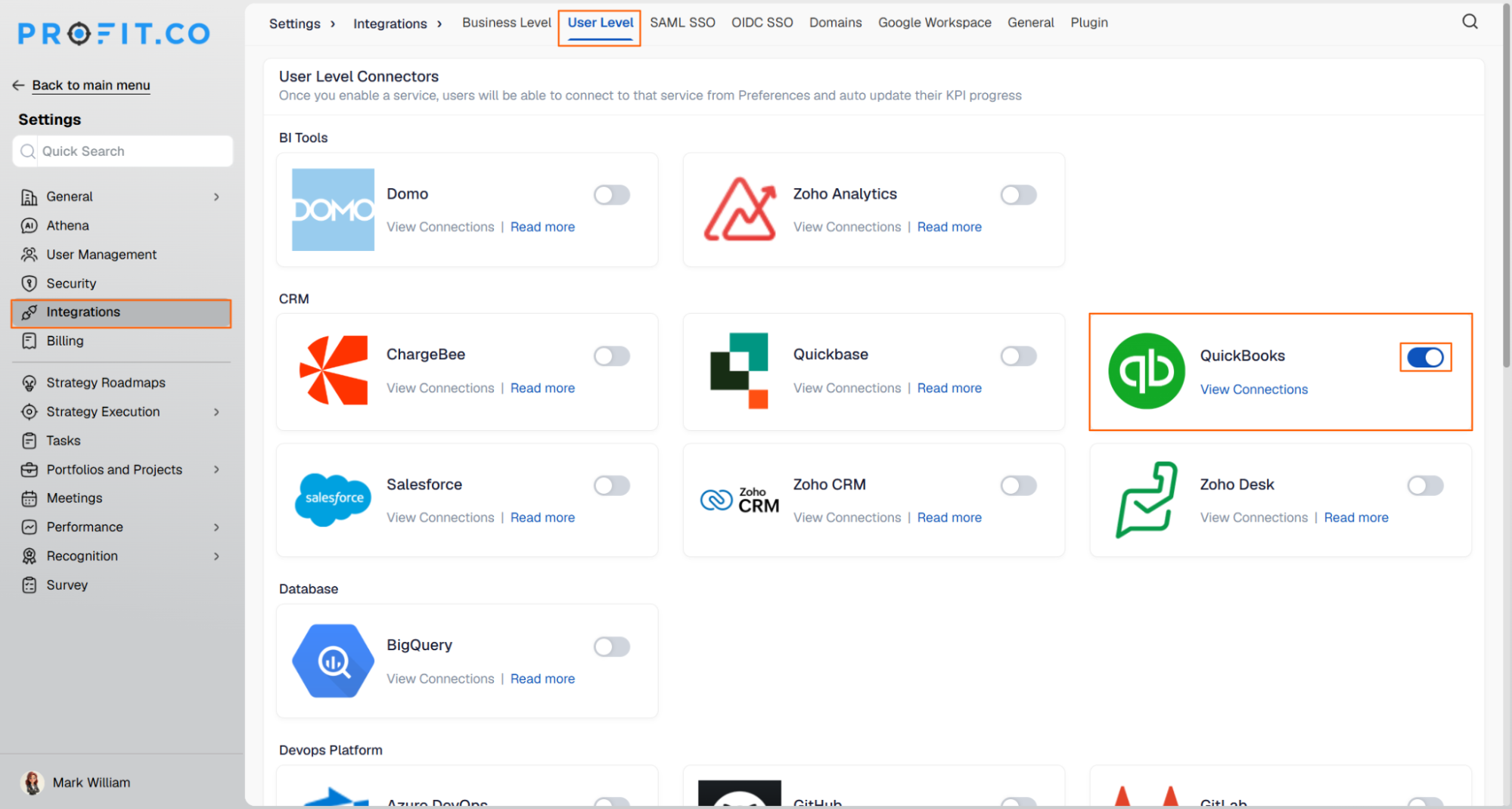
Before creating a connection, enable QuickBooks at the user level.
- Navigate to Settings → Integrations from the left navigation panel.
- Switch to the User Level tab.
- Enable the toggle next to QuickBooks.
Step 2
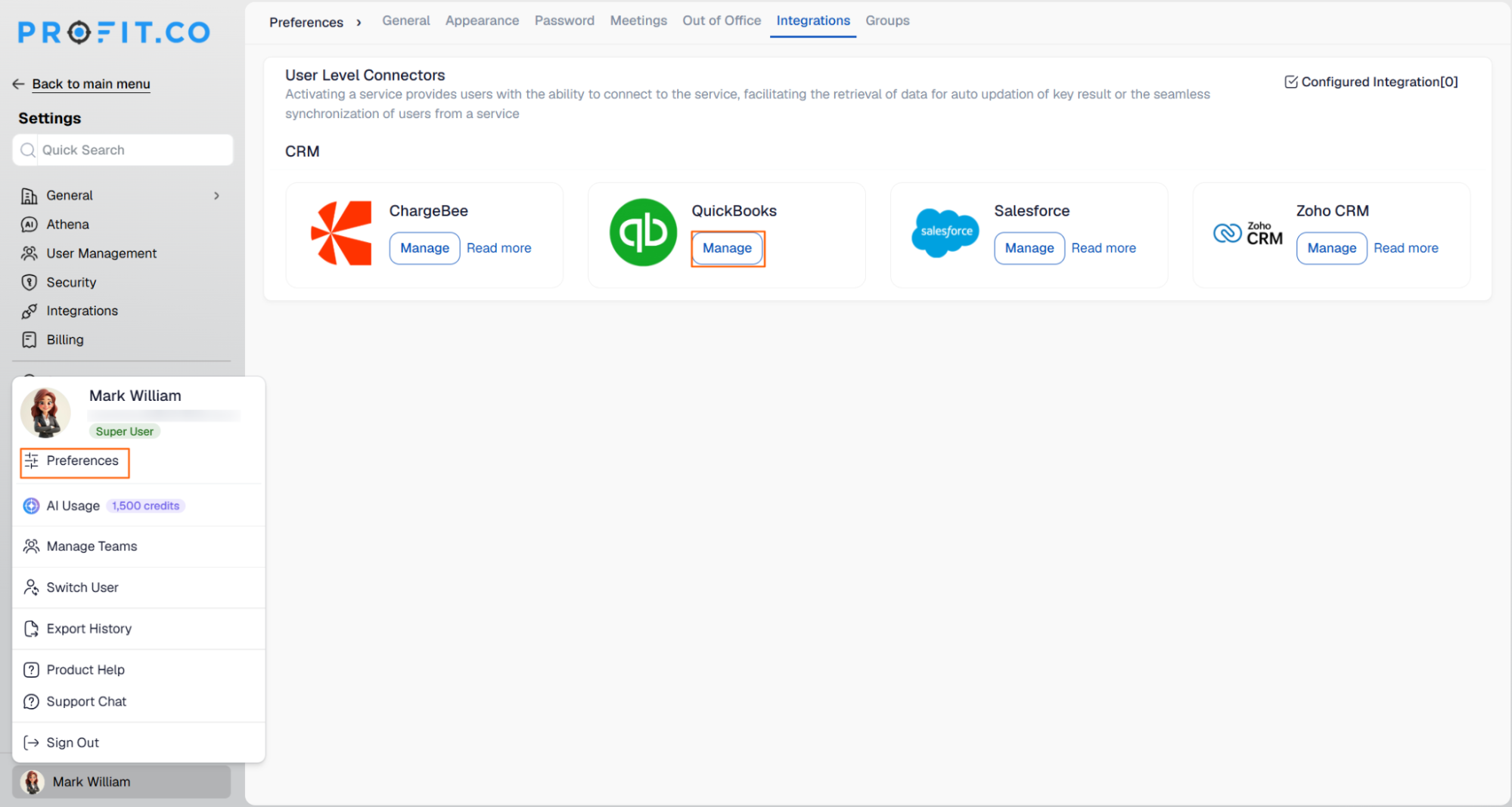
Once enabled, start a new connection from your preferences.
- Navigate to Preferences from the left navigation panel.
- Switch to the Integrations tab.
- Click the Manage button to start a new connection.
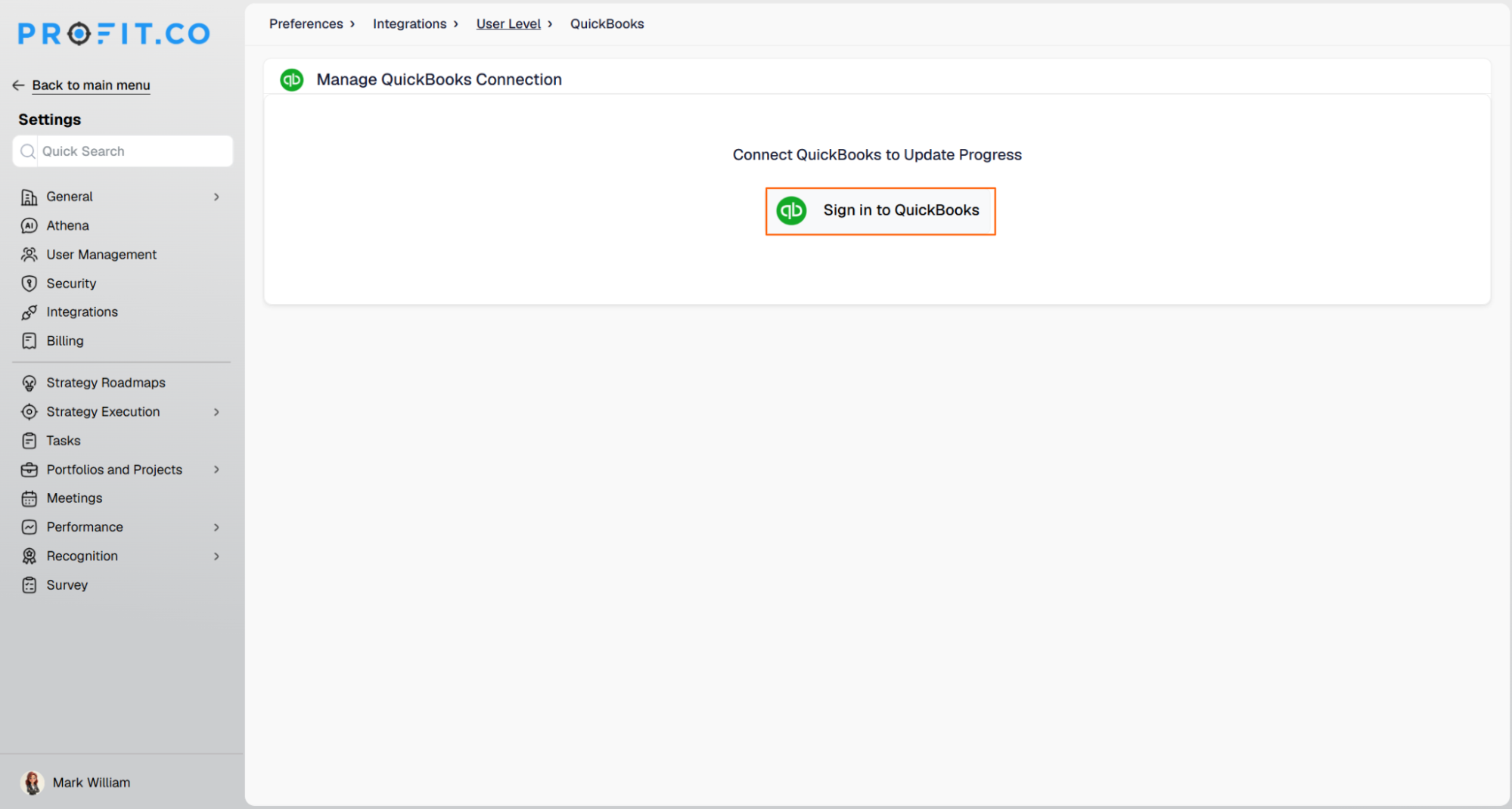
- Click the Sign in to QuickBooks button.
Step 3
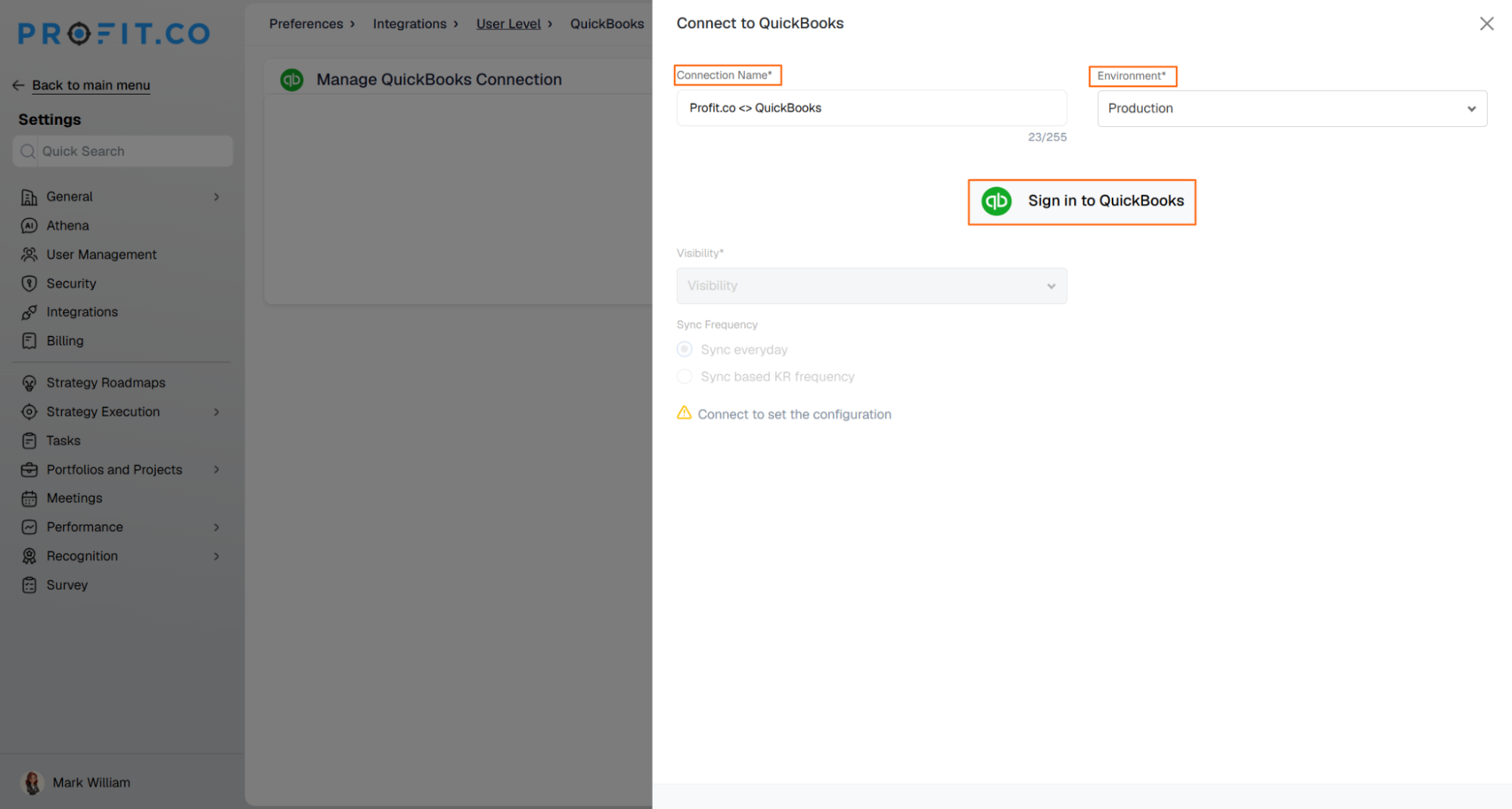
Enter your connection details and authorize access to your QuickBooks account.
- Enter your Connection Name.
- Choose the Environment.
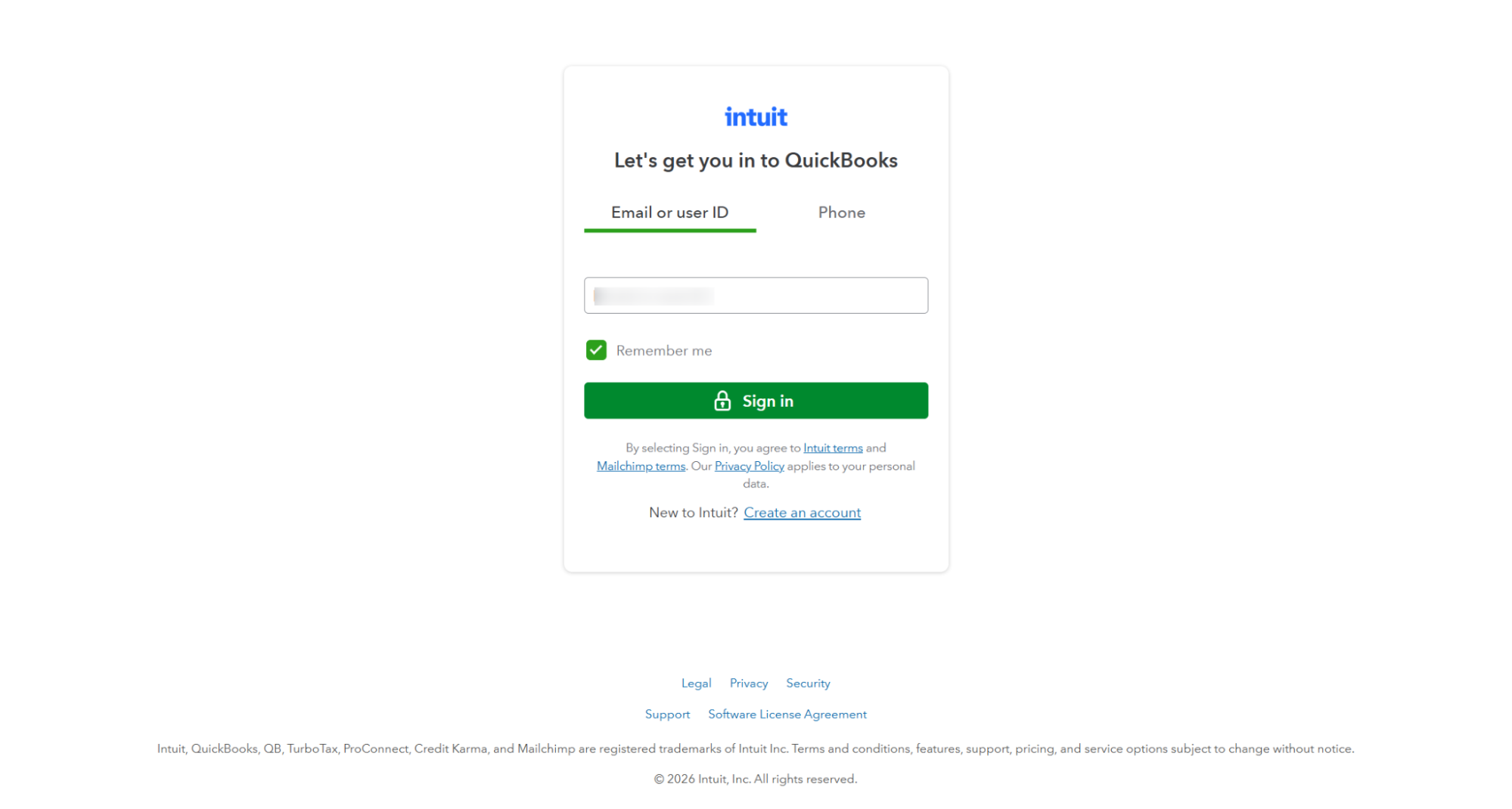
- Click the Sign in to QuickBooks button. You will be redirected to the QuickBooks login page.
- Enter your QuickBooks Email and Password.
- Click Sign In. The connection is created successfully.
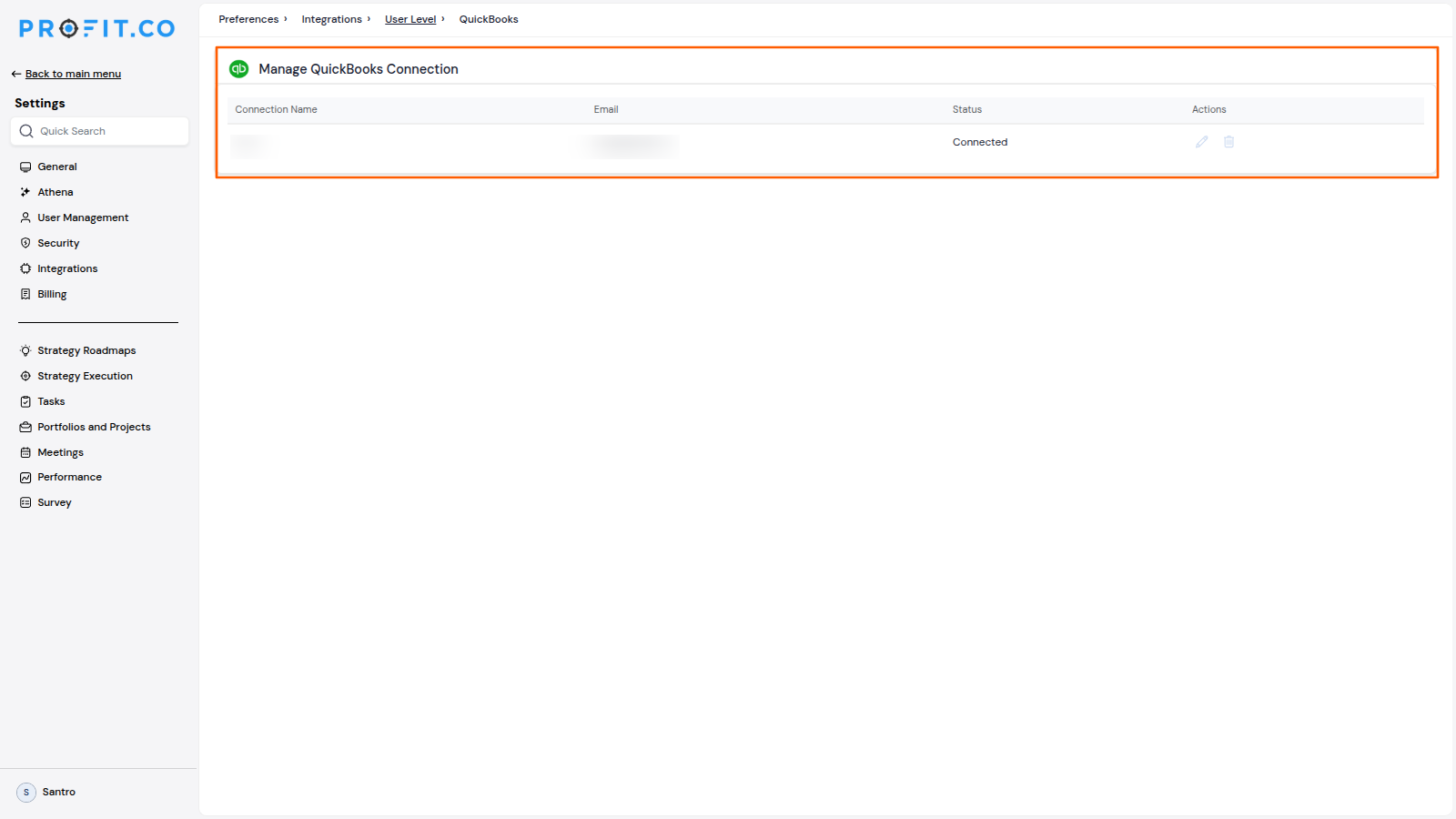
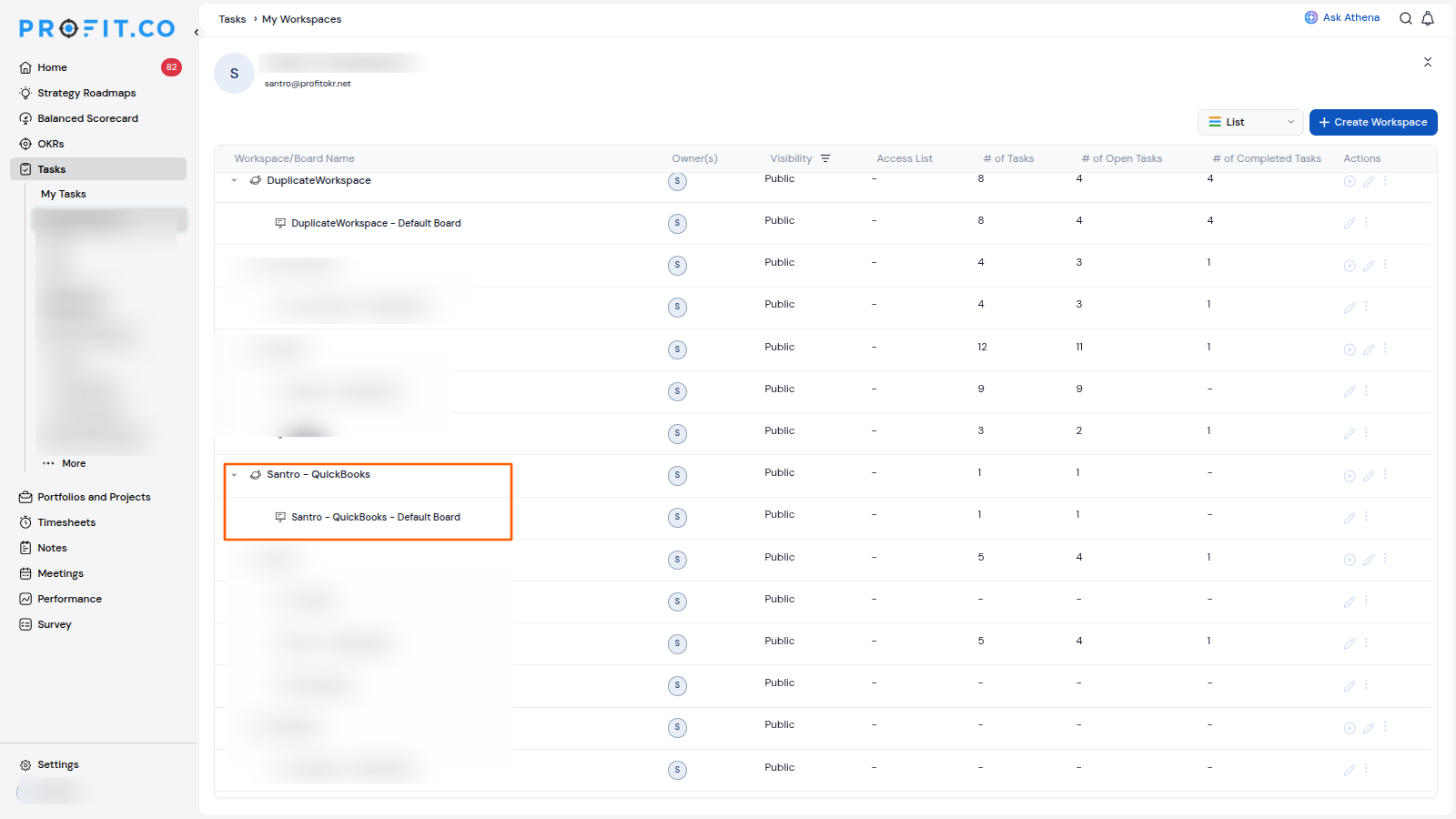
Note: Once the connection is established, a new workspace and board are created automatically in Profit.co, named Account_User - QuickBooks.
Step 4
Log a time entry in QuickBooks so it can sync to Profit.co.
- Sign in to your QuickBooks account.
- From the left navigation menu, click Time.
- Select Time Entries.
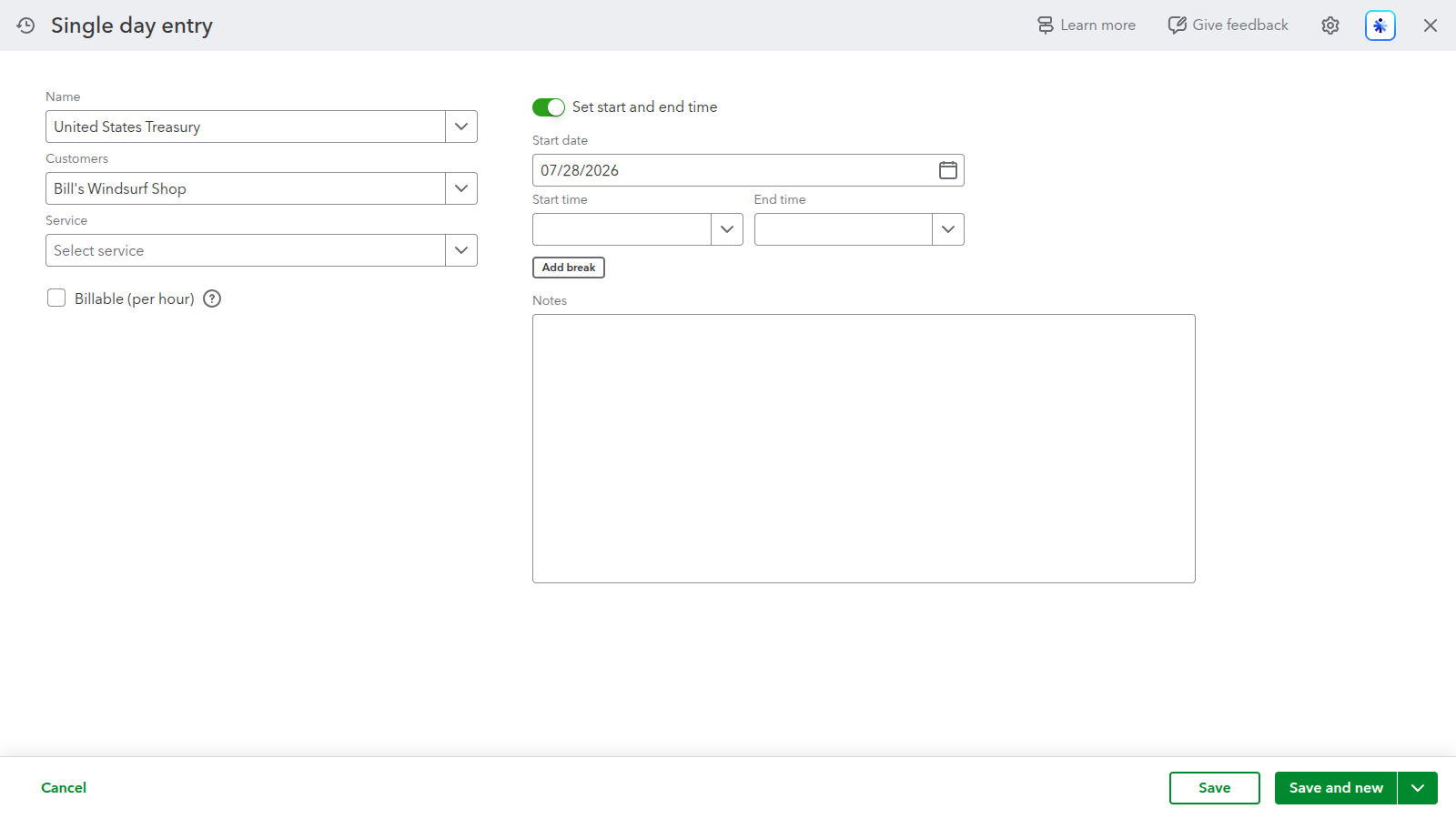
- Click Add Time (or New Time Entry).
- Select the Employee or Vendor.
- Select the Customer/Project (if applicable).
- Enter the Service (optional).
- Select the Date.
- Enter the Start Time and End Time, or enter the Duration.
- Click Save (or Save and Close).
Step 5
Once the time entry syncs, it is reflected in Profit.co.
- The time entry appears on the Task Board in Profit.co as a task named Name_Customer_Service.
- The logged time is added directly to Timesheets in Profit.co.
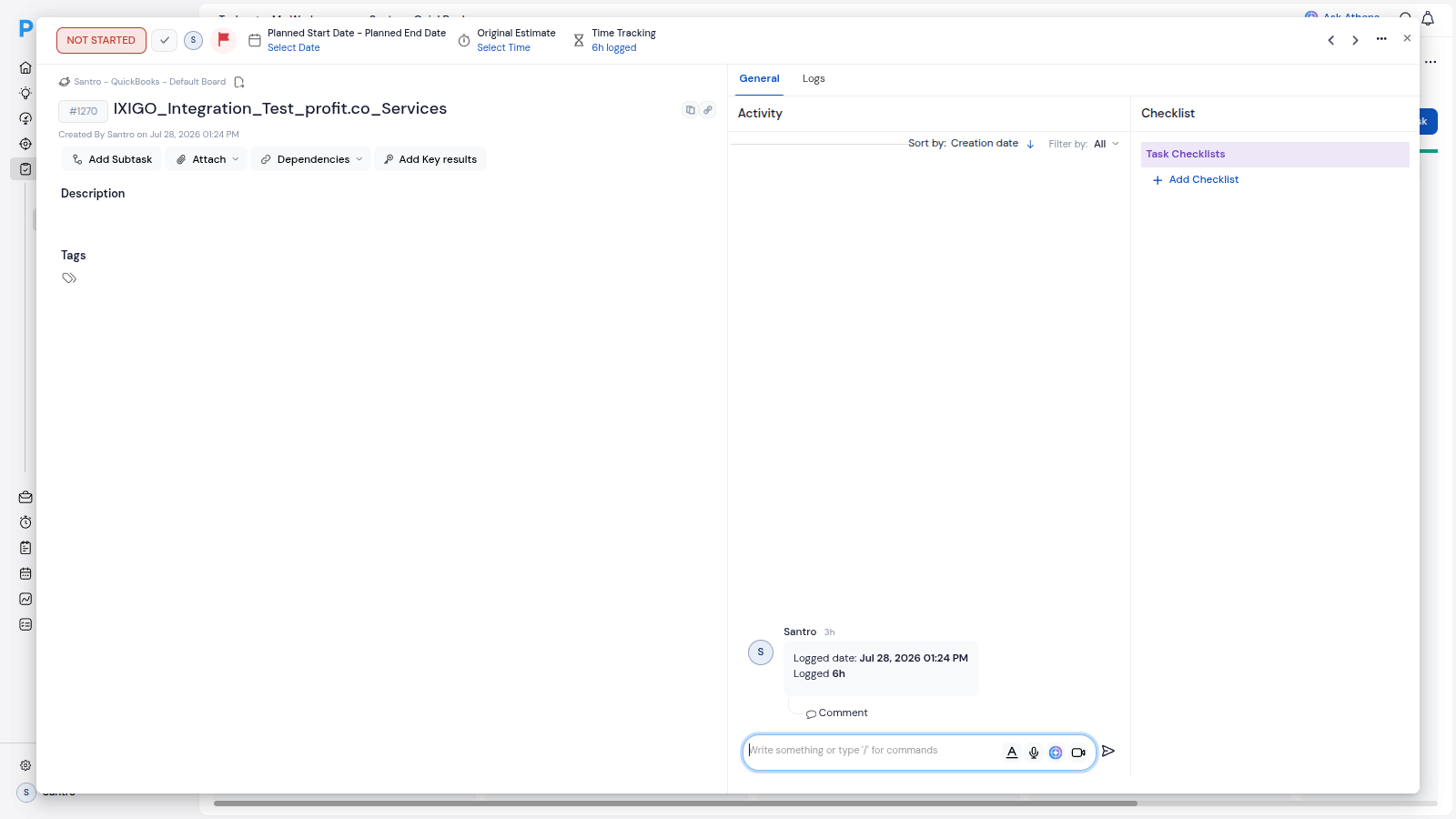
Note: Add the time and other required details on the QuickBooks page before the task syncs.
Summary
By connecting QuickBooks to Profit.co, you can keep time tracking consistent across both platforms without manual entry. After enabling the integration and authenticating your QuickBooks account, a dedicated workspace and board are created automatically. Time entries logged in QuickBooks are then synced to Profit.co as tasks on the Task Board, with their logged time added directly to Timesheets.