
Release Highlights
A quick-glance summary of all features shipped in this release. Click any feature to jump to the full detail below.
| STRATEGY (Strategy Roadmaps, Balanced Scorecard, OKR Management, Hoshin Kanri) | ||
|---|---|---|
| S.No | Feature Name | Key Benefit |
| 1. | Priority clear option on objectives and key results | An X Clear option in the Priority field removes a selected priority during creation or editing; it stays hidden when priority is mandatory. |
| 2. | Inline priority editing on OKR list view | Clicking a priority, or the – placeholder, in the List View Priority column opens a dropdown to set or change it instantly. |
| 3. | Expanded slide controls in KR presentation – Hierarchical View | Filter criteria and donut value labels can now be hidden on Slide 2, and Slide 3 status can show lifecycle stage, health, or both. |
| 4. | Tags & perspective in cockpit widget export and quick view | Custom Cockpit widgets now support Tags & Perspective filters from the side panel, so data is scoped before it is exported. |
| 5. | Hierarchical display of followed OKRs | Followed key results can be expanded to show their full parent hierarchy directly within the Followed OKRs view. |
| 6. | Unified approval card for OKR hierarchies | A single approval card with Approve All and Review Changes lets approvers act on an objective and everything under it at once. |
| 7. | Bulk export and follow for OKRs | When enabled in Settings, multiple OKRs can be exported or followed from List View in one step, with the usual export options. |
| 8. | Text and font formatting in PPT export | Font style, size, and colour can now be set for inner content in OKR and KR progress presentations, not just the title and footer. |
| 9. | Combined KR status column in OKR CSV export | KR lifecycle stage and health status now appear together in a single KR status column in the OKR CSV export. |
| 10. | Single status dropdown on check-in panel | Lifecycle stage and health status are now selected from one combined dropdown on the check-in panel. |
| PROJECTS (Task Management, Portfolios and Projects, Timesheets, Notes, and Meetings) | ||
|---|---|---|
| S.No | Feature Name | Key Benefit |
| 1. | Constraints register in project governance | A new Constraints item on the Governance tab records fixed limits, what the project is waiting on, and the tasks they hold up. |
| 2. | Leadership requests in project governance and the Cockpit | Teams raise decision, funding, or resource requests to a named executive, who reviews and responds to all of them from one Cockpit widget. |
| 3. | Filtered export of the project plan to PDF and CSV | The project Plan view now exports only the currently filtered tasks and milestones, as either a PDF or a CSV file. |
| 4. | Ranked risk, constraint and dependency widgets | Three new dashboard widgets rank the top risks, constraints on critical work, and dependencies by slack, with the reasoning behind each rank. |
| 5. | Disable task stages and set health for new stages | Super users can disable unused task stages, and each new stage can be given a health status that the team updates manually. |
| 6. | Role-based privileges for each governance item | Each governance item now has its own View, Manage, and Assign privileges, configurable per role in project access control. |
| 7. | Redesigned Capacity Workbench for allocation and utilization | The Capacity Workbench now offers Allocation and Utilization views on the same capacity baseline, with summary cards for over- and under-allocation. |
| Enhancements | ||
| 8. | More details in portfolio and project hierarchy exports | Hierarchy exports now include project category, milestone progress, tollgate sequence, and dependencies, plus portfolio name in the project export. |
| PERFORMANCE (Performance, Goals, Development Plans, Recognition, Survey) | ||
|---|---|---|
| S.No | Feature Name | Key Benefit |
| 1. | Collaborator assessment step in performance reviews | Review templates now include a separate Collaborator Assessment step, so colleagues from the Collaborator List can contribute to a review. |
| 2. | Overall rating option for OKRs, goals and competencies | Reviewers can give one overall rating and comment for an entire OKRs, goals, or competencies section instead of rating each item. |
| 3. | Department-owned OKRs in performance reviews | Department and corporate OKRs not assigned to anyone can now be included in reviews for the department head, department members, or OKR captain. |
STRATEGY (Strategy Roadmaps, Balanced Scorecard, OKR Management, Hoshin Kanri)
1. Priority clear option on objectives and key results
Overview
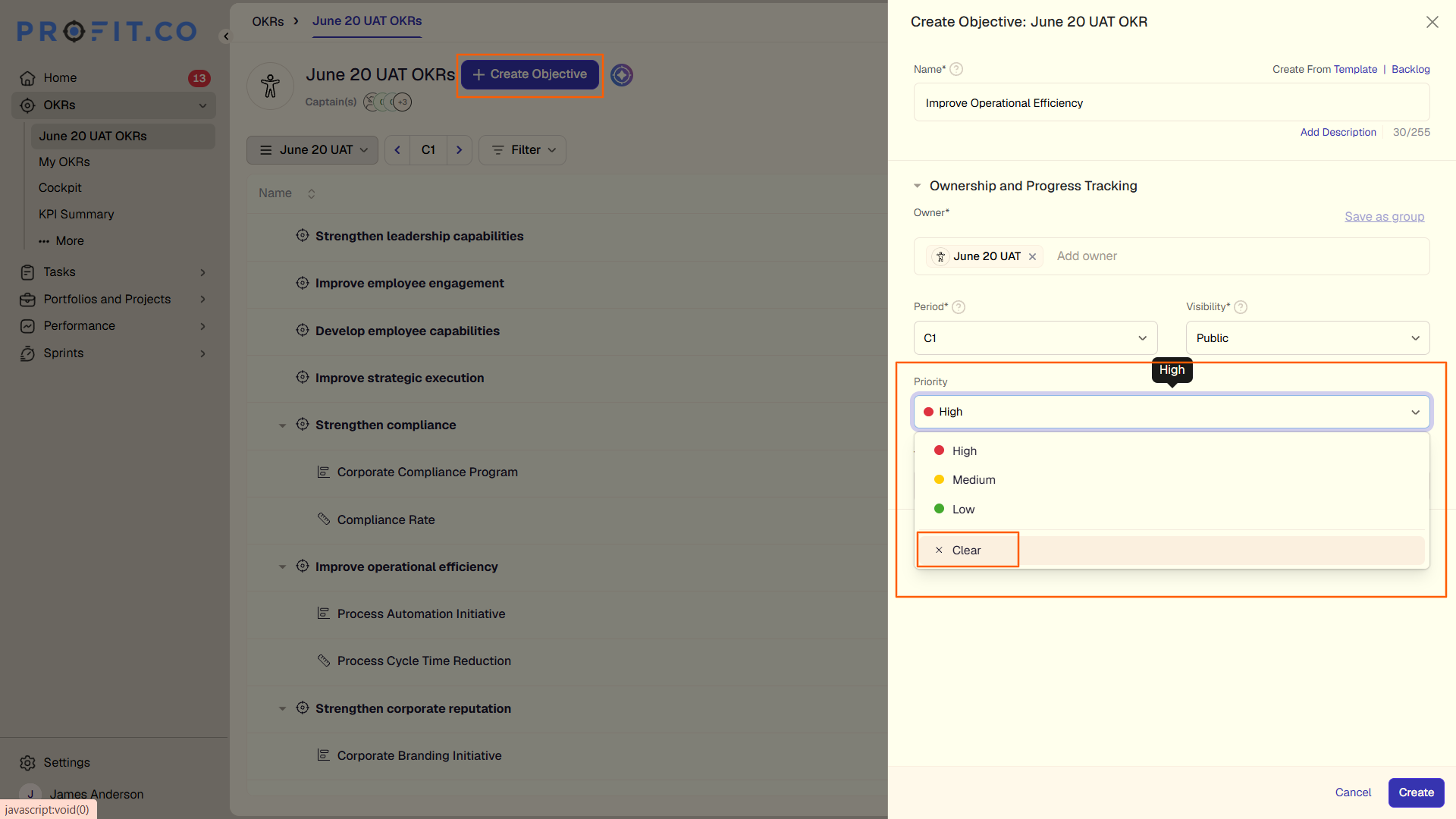
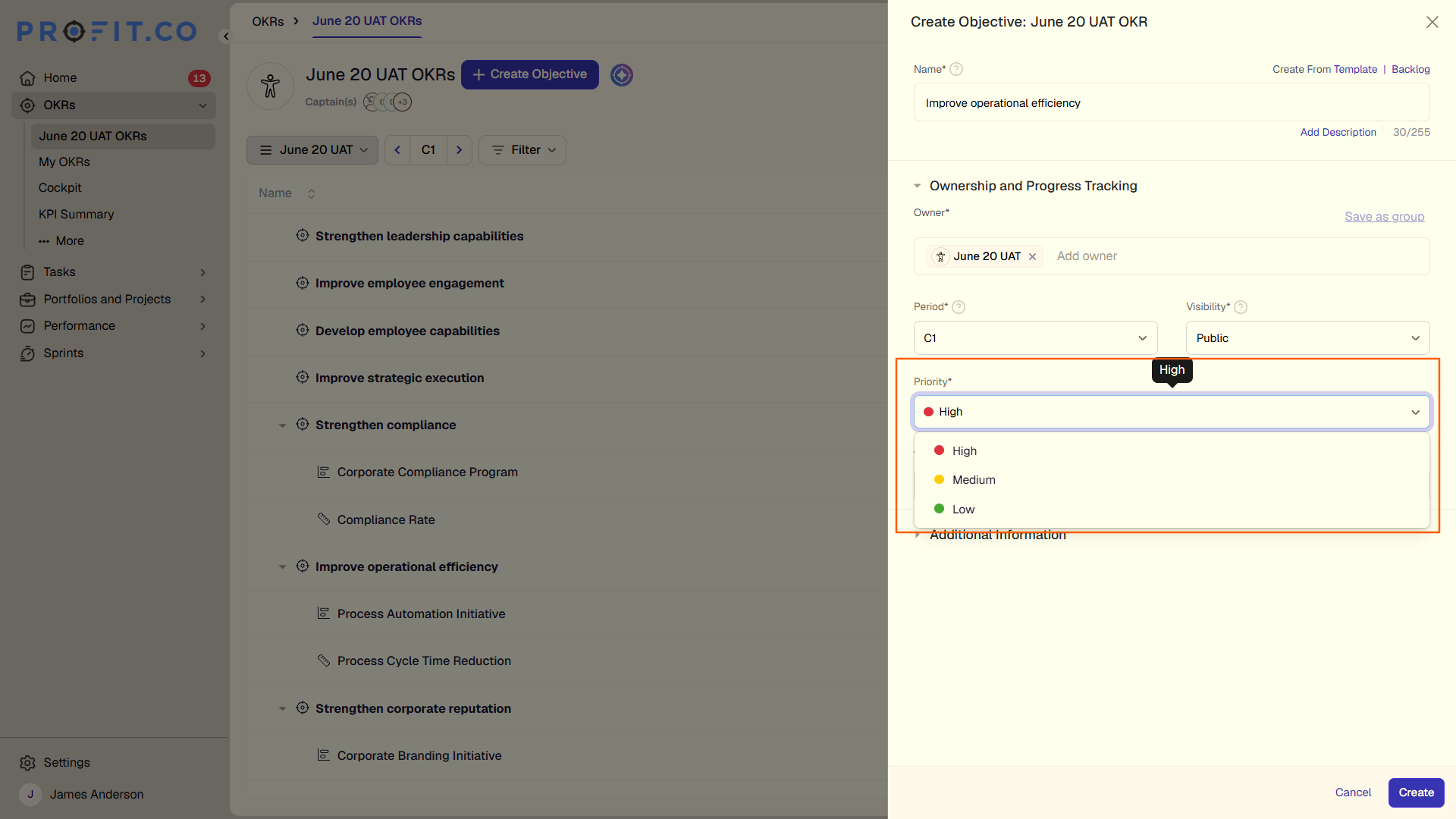
Users can now remove a previously selected priority from an objective or key result using an X Clear option in the priority field, directly during creation or editing. If the priority field is configured as mandatory, the clear option is hidden to preserve enforcement.
How It Works
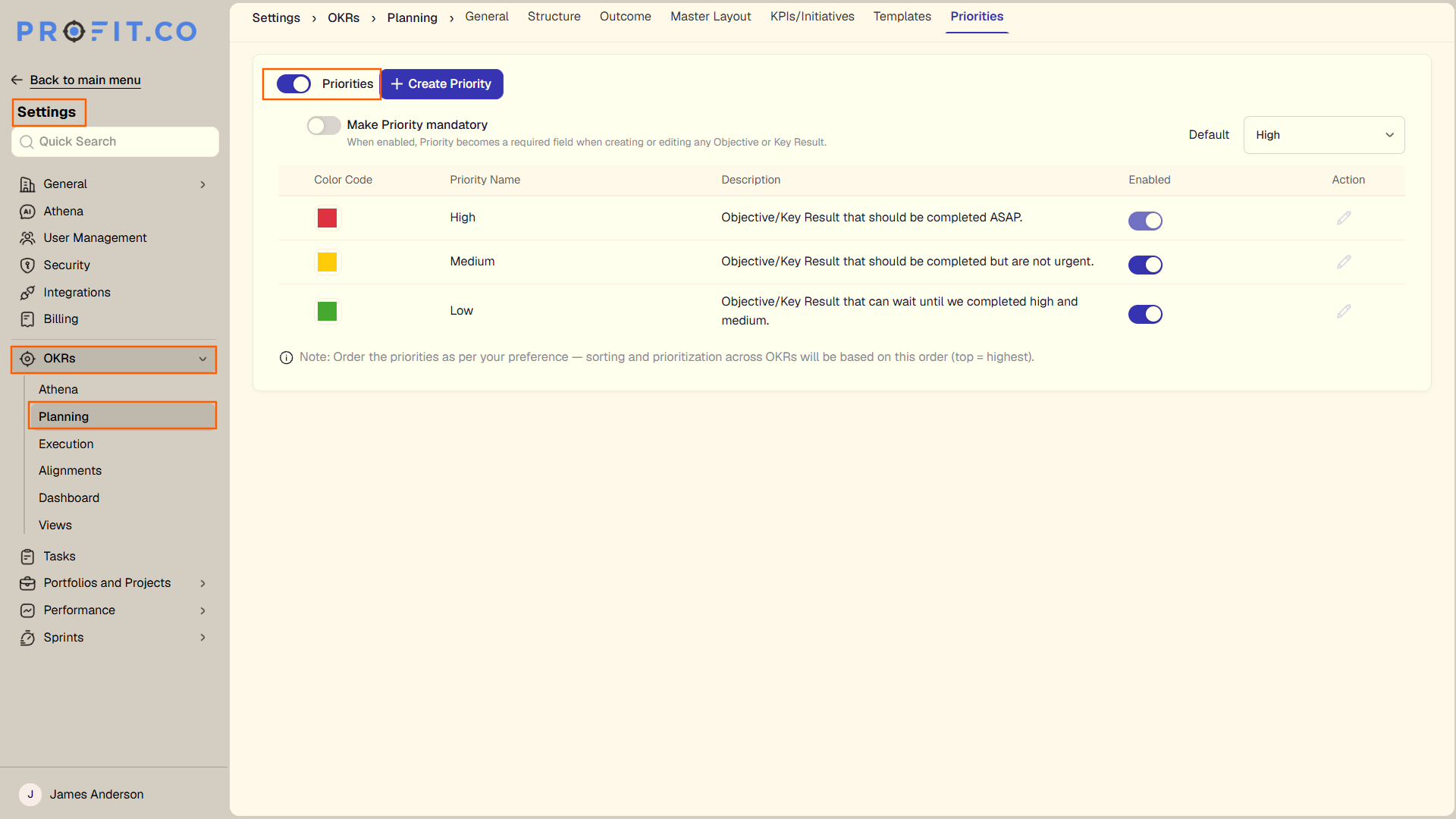
- Navigate to Settings → OKRs → Planning → Priorities and enable the Priorities toggle
- During objective or key result creation or editing, open the Priority field
- Select a priority, then click X Clear to remove the selection
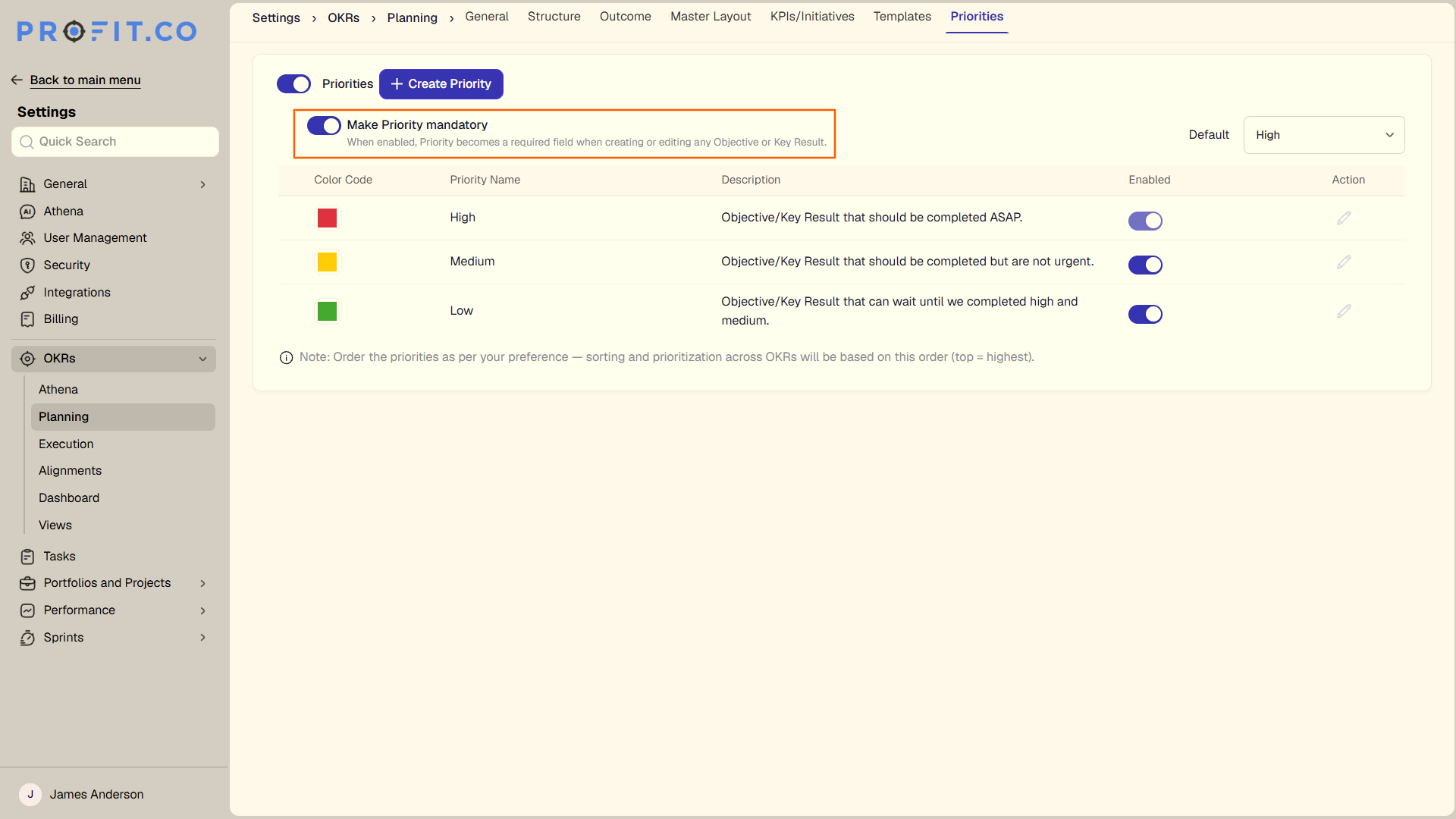
- If the priority field is set as mandatory, the X Clear option will not appear
- If the priority field is set as mandatory, the X Clear option will not appear
Why It Matters
- Correction without rework: Users can undo a mistakenly set priority on the spot, without deleting or recreating the OKR.
- Settings-aware behavior: The clear option is suppressed when priority is mandatory, keeping org-level enforcement rules intact across all OKRs.
- Faster OKR setup: Removing the need to find workarounds when resetting a priority reduces friction during planning cycles.
2. Inline priority editing on OKR list view
Overview
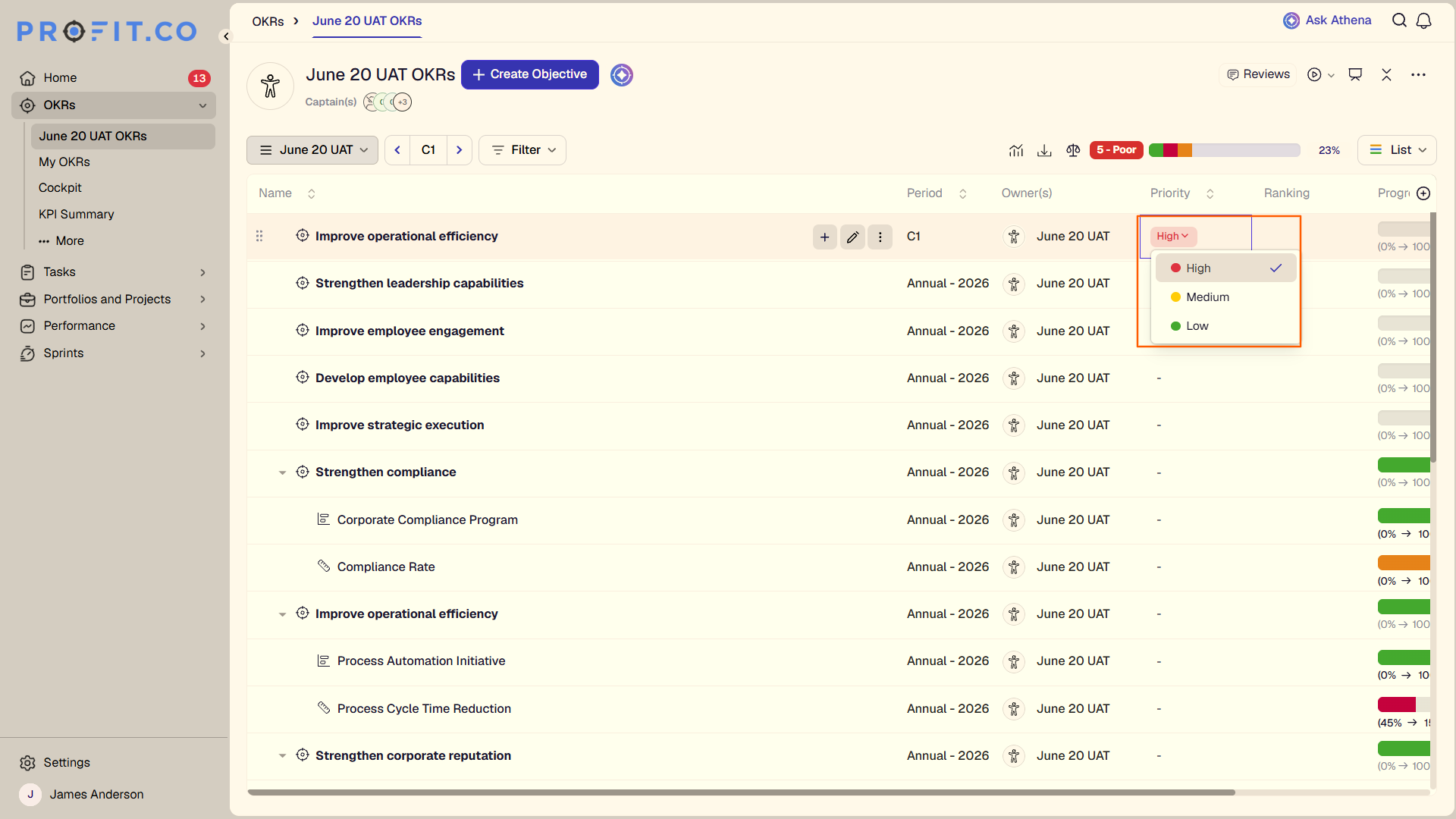
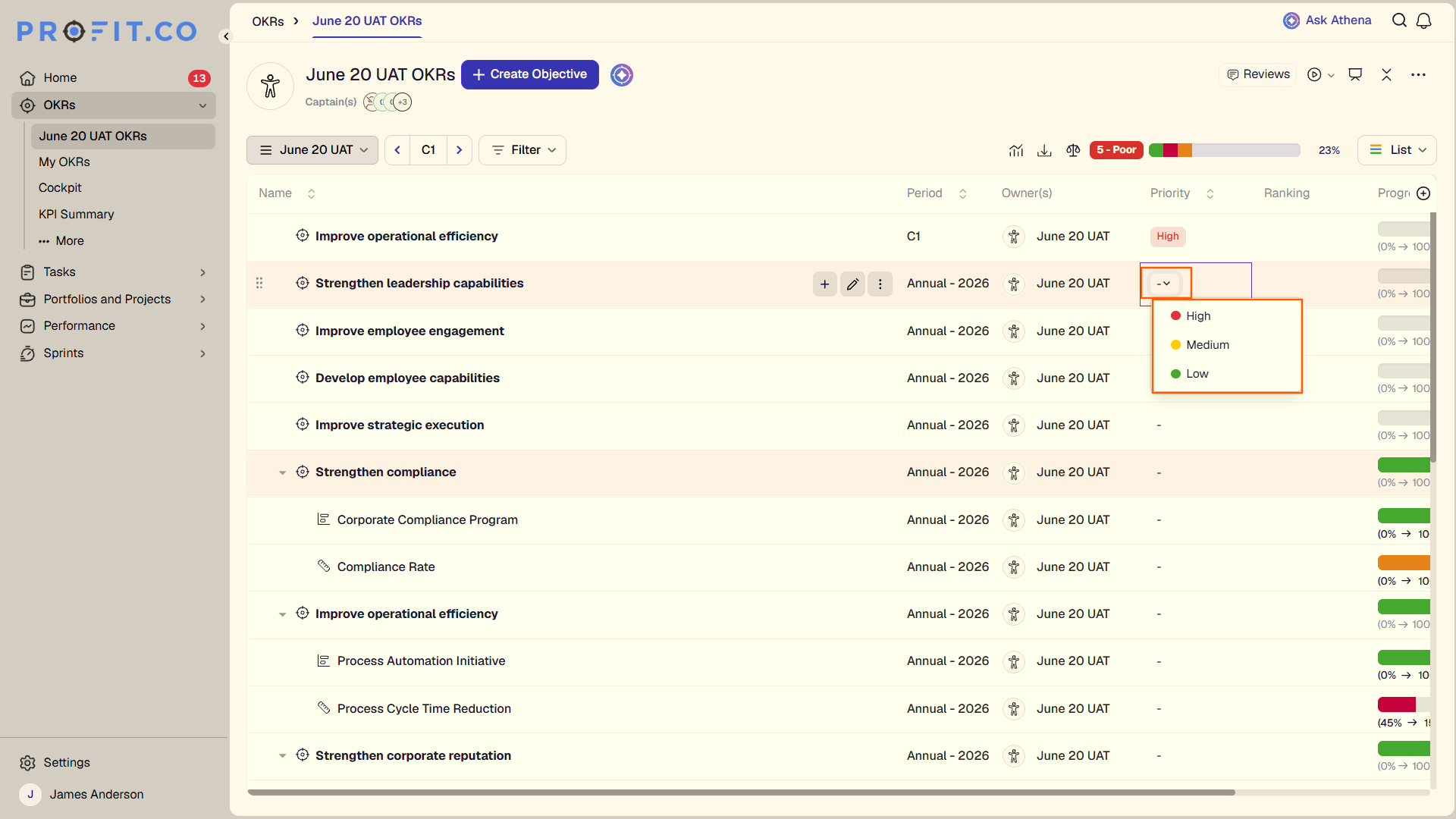
Users can now update the priority of an objective or key result directly from the OKR List View, without opening the full edit form. Clicking an existing priority value opens an inline dropdown to change it. If no priority is assigned, the – placeholder is clickable as well, allowing users to set one from the same dropdown.
How It Works
- Navigate to OKRs → List View
- Locate the objective or key result in the list
- Click the existing priority label in the Priority column, or – if no priority is currently set
- Select the required priority from the dropdown; the update is applied immediately
Why It Matters
- Faster prioritization at scale: Users can update priorities across multiple OKRs in a single list view session, without opening each record individually.
- Unassigned priority visibility: The – indicator surfaces OKRs with no priority set, making it easy to spot and fill gaps during planning or review.
- Fewer navigation steps: Inline editing cuts the clicks required to manage priorities during quarterly or weekly review cycles.
3. Expanded slide controls in KR presentation – Hierarchical View
Overview
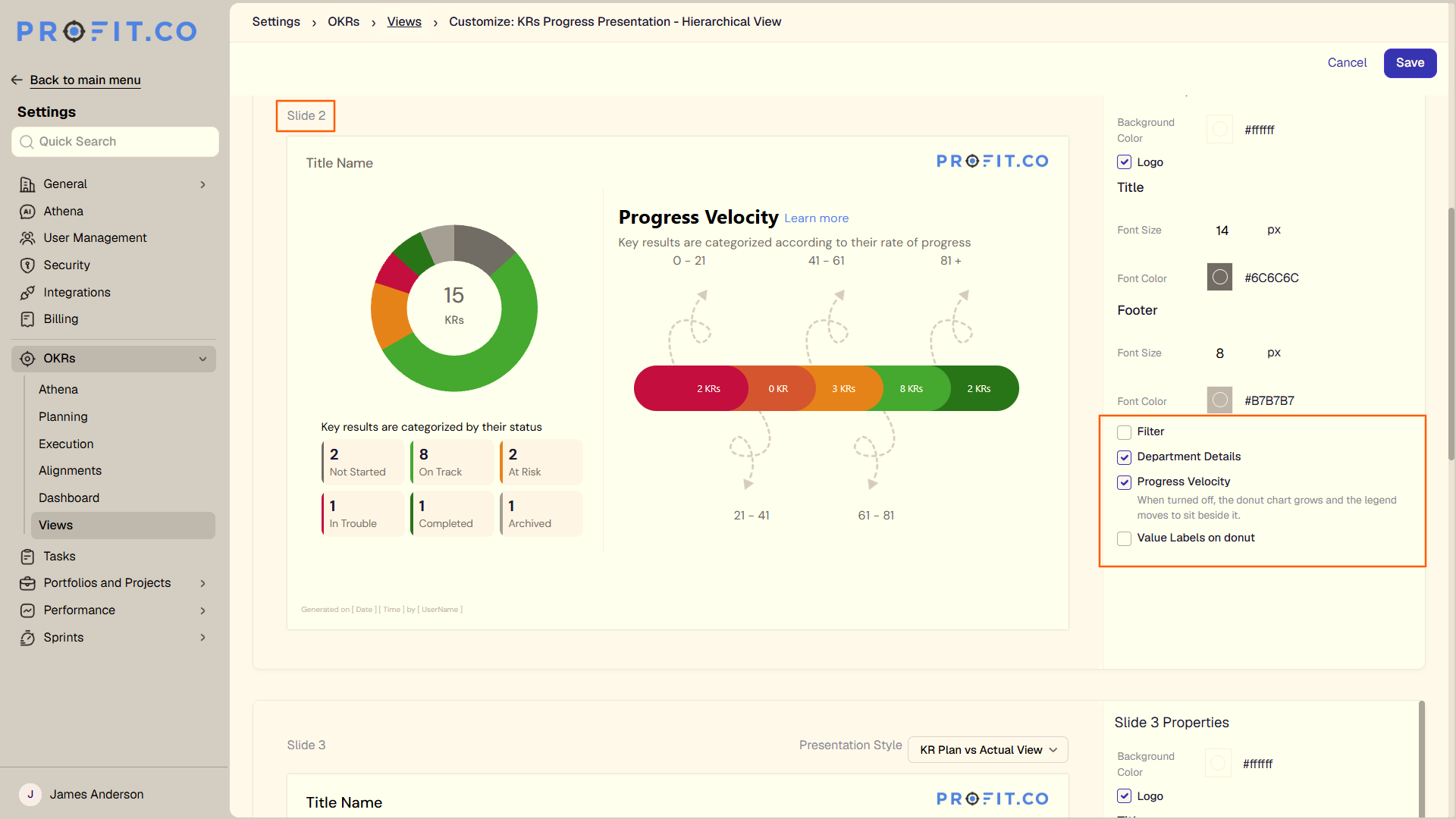
The KR progress PowerPoint presentation now gives users greater control over what appears on each slide. Two additional elements — filter criteria and value labels on the donut chart — can now be toggled on or off in Slide 2, alongside the existing options for progress velocity and department details.
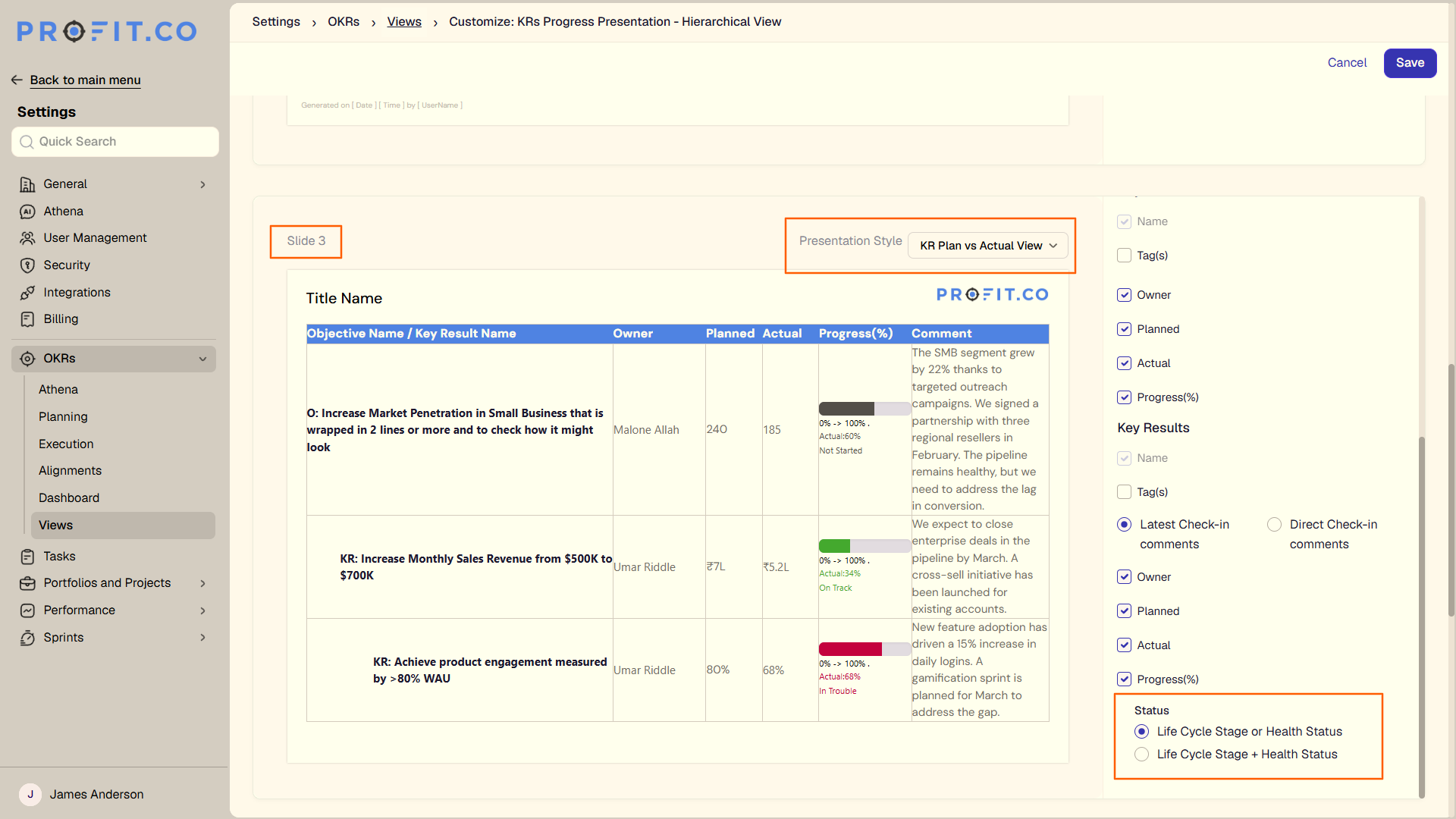
Slide 3 also includes two updates: the period is now shown inline with the objective name, and users can choose how status is displayed across lifecycle stage, health status, or both together.
How It Works
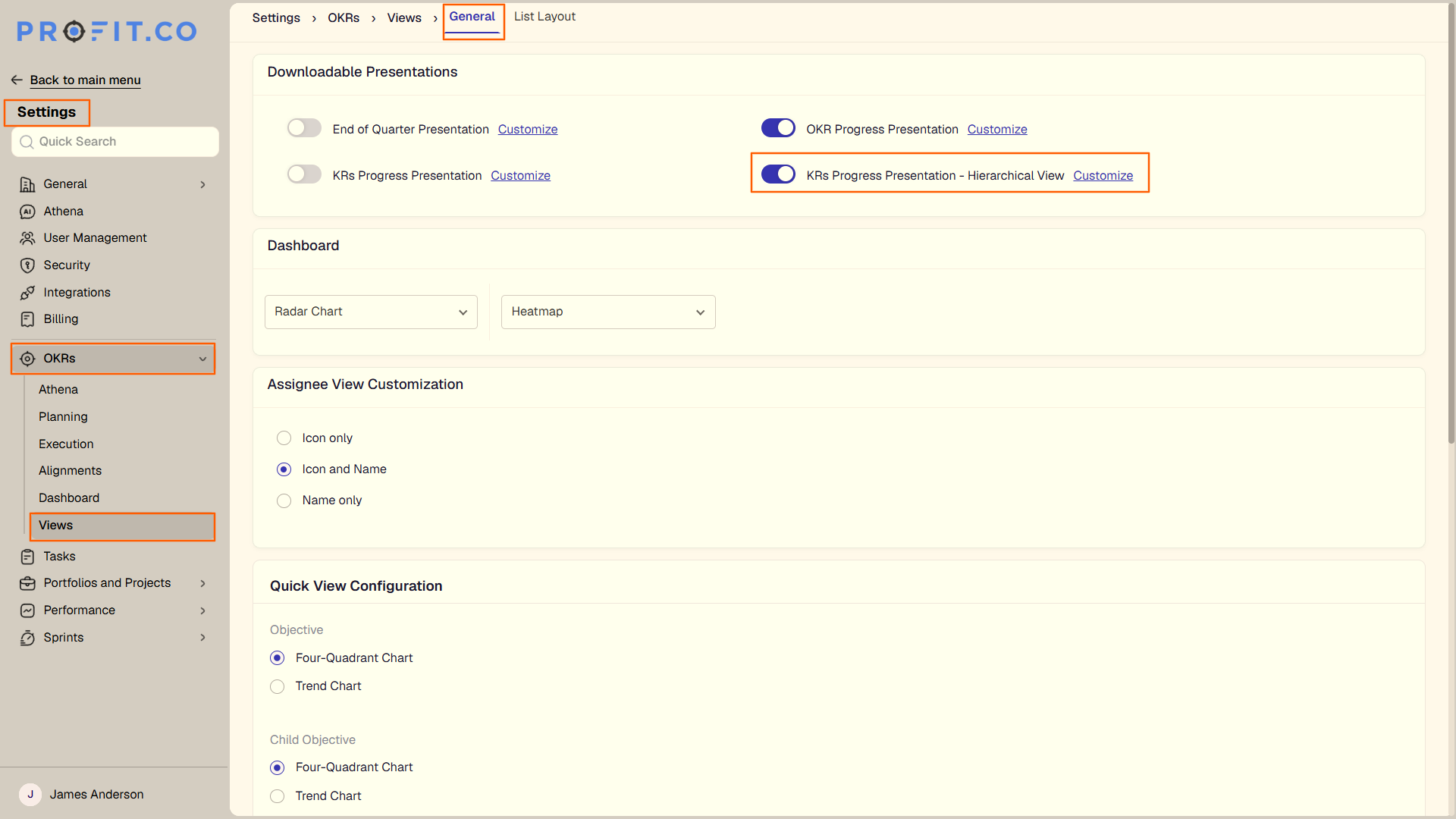
- Navigate to the KR Progress Presentation and select Hierarchical View
- In Slide 2, uncheck any combination of the following to hide them from the slide:
- Progress velocity
- Filter criteria
- Department details
- Value labels on donut
- In Slide 3, the period is shown inline on the objective name automatically
- For the status section in Slide 3, select one of three display options: Lifecycle stage + Health status, Lifecycle stage only, or Health status only
Why It Matters
- Presentation-ready slides: Users can hide filter criteria and data labels when presenting to executives, keeping slides clean without losing the underlying data.
- Flexible status reporting: Choosing between lifecycle stage, health status, or both lets teams surface the exact status view their review audience needs.
- Period clarity in context: Displaying the period inline with the objective name removes ambiguity about which cycle the data represents, especially in multi-period reviews.
4. Tags & perspective in cockpit widget export and quick view
Overview
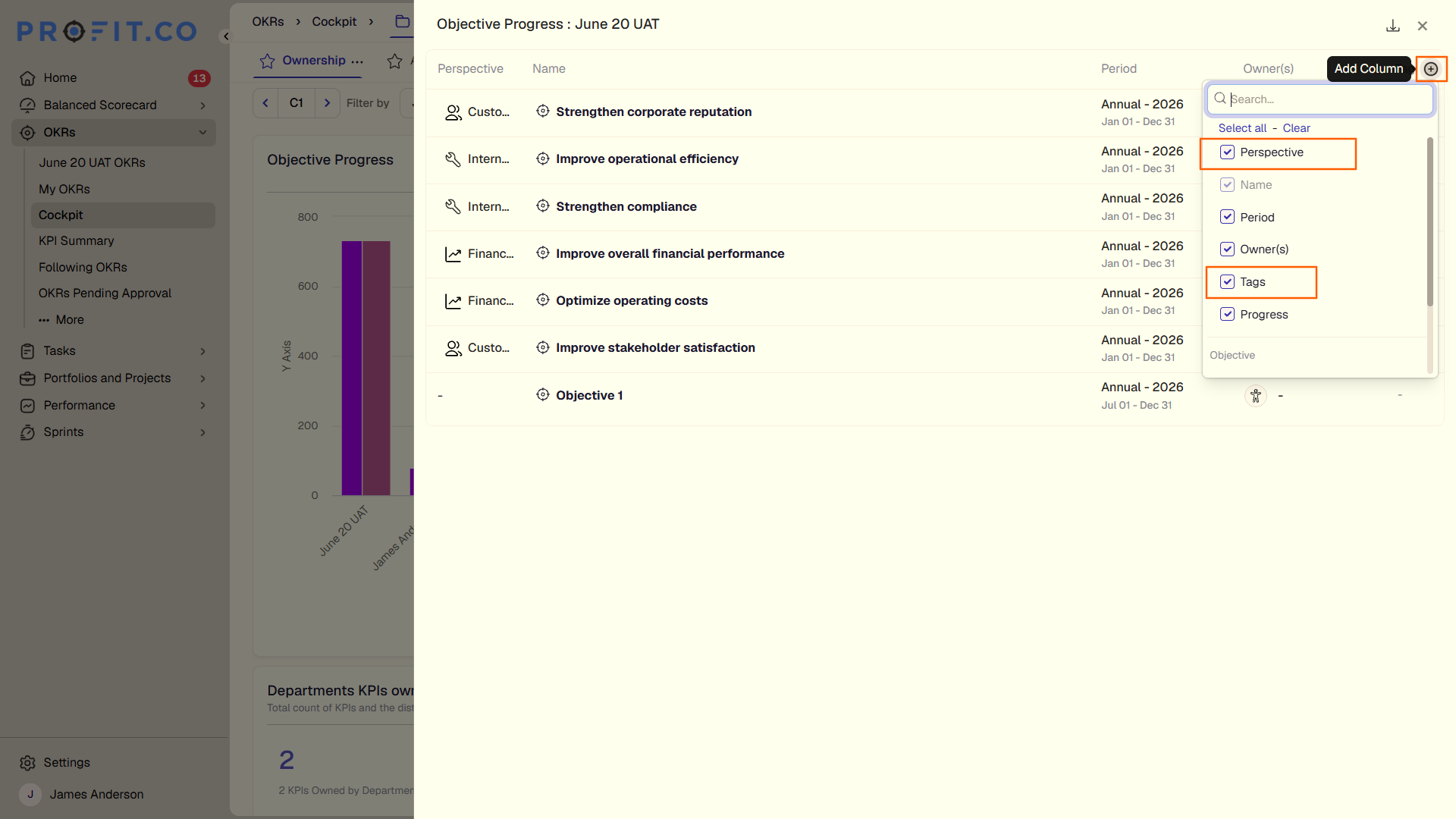
Custom widgets in the Cockpit now support Tags & Perspective as a dimension when viewing or exporting widget data. Users can add this filter through the side panel's + menu when a widget is open, enabling them to scope the data before exporting. This gives teams a faster path to sharing focused, tagged data cuts without building separate reports.
How It Works
- Navigate to Cockpit and click on any custom widget to open it
- In the side panel, click the + icon
- Select Tags & Perspective from the available options
- Apply filters as needed — Perspectives apply to objective charts; Tags apply to both objective and key result charts
- The widget view updates to reflect the selected filter
- Export the data as required
Why It Matters
- Targeted exports: Users can apply tag or perspective filters before exporting, so shared data is already scoped to the right audience or context.
- Objective-level perspective cuts: Teams can filter objective charts by perspective directly from the widget view, without building a separate report.
- Tag-based KR and objective filtering: Tags work across both objective and key result charts, giving teams a consistent way to slice cross-functional data in a single export.
5. Hierarchical display of followed OKRs
Overview
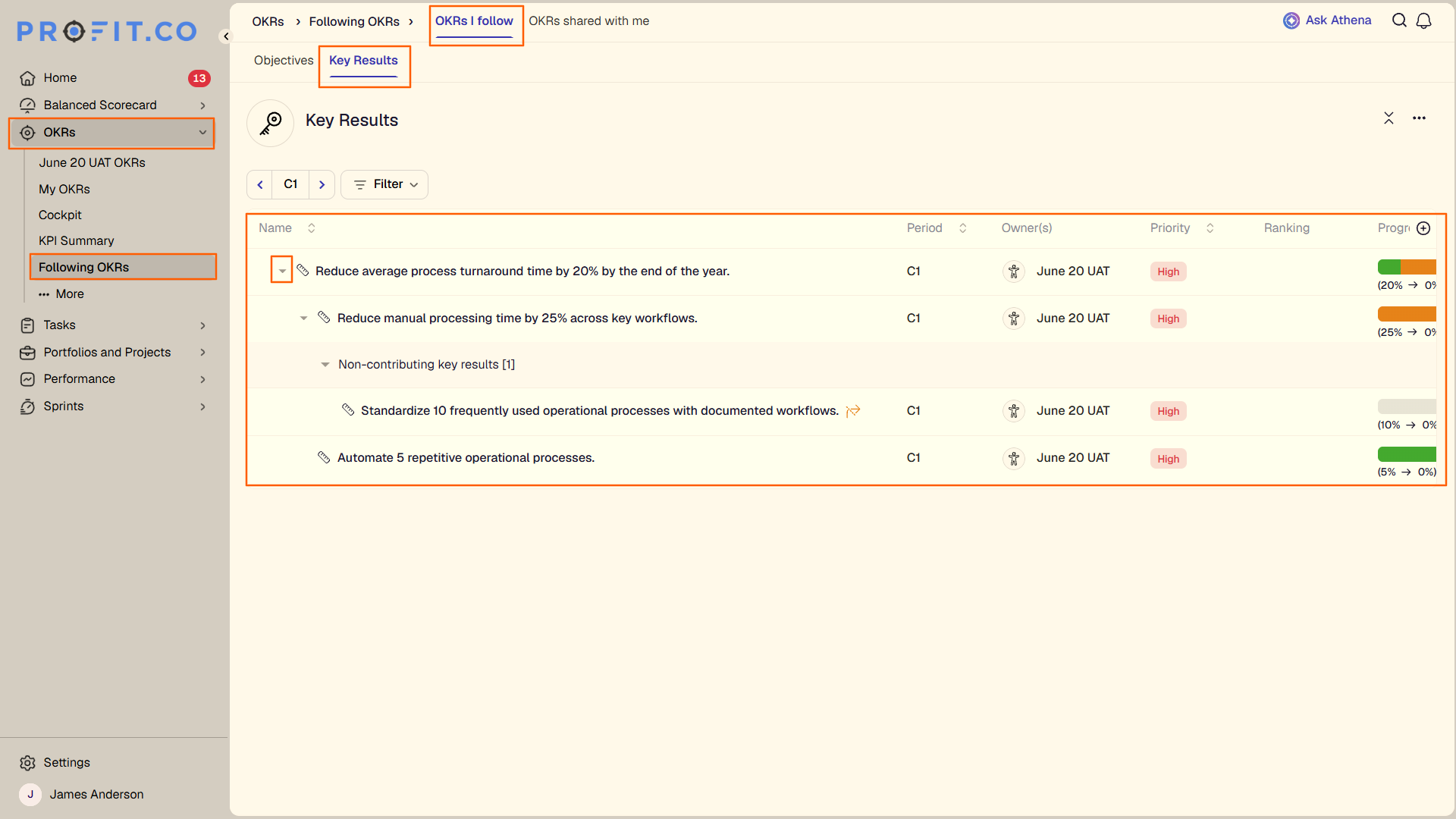
When a key result is followed, the full hierarchy above it was not previously visible in the Followed OKRs view. Users can now expand and collapse followed key results to see the complete OKR hierarchy. This gives the necessary context for tracking progress without leaving the view.
How It Works
- Navigate to the Followed OKRs view
- Locate a followed key result
- Click the expand option to see the full hierarchy of the key result
- Click collapse to return to the compact view
Why It Matters
- Full hierarchy context on followed KRs: Users can see where a followed key result sits within its parent objective hierarchy without navigating away.
- View flexibility: Expand and collapse options let users switch between a focused and a full-context view as needed.
- Fewer navigation steps: Checking a KR's parent hierarchy no longer requires leaving the Followed OKRs view.
6. Unified approval card for OKR hierarchies
Overview
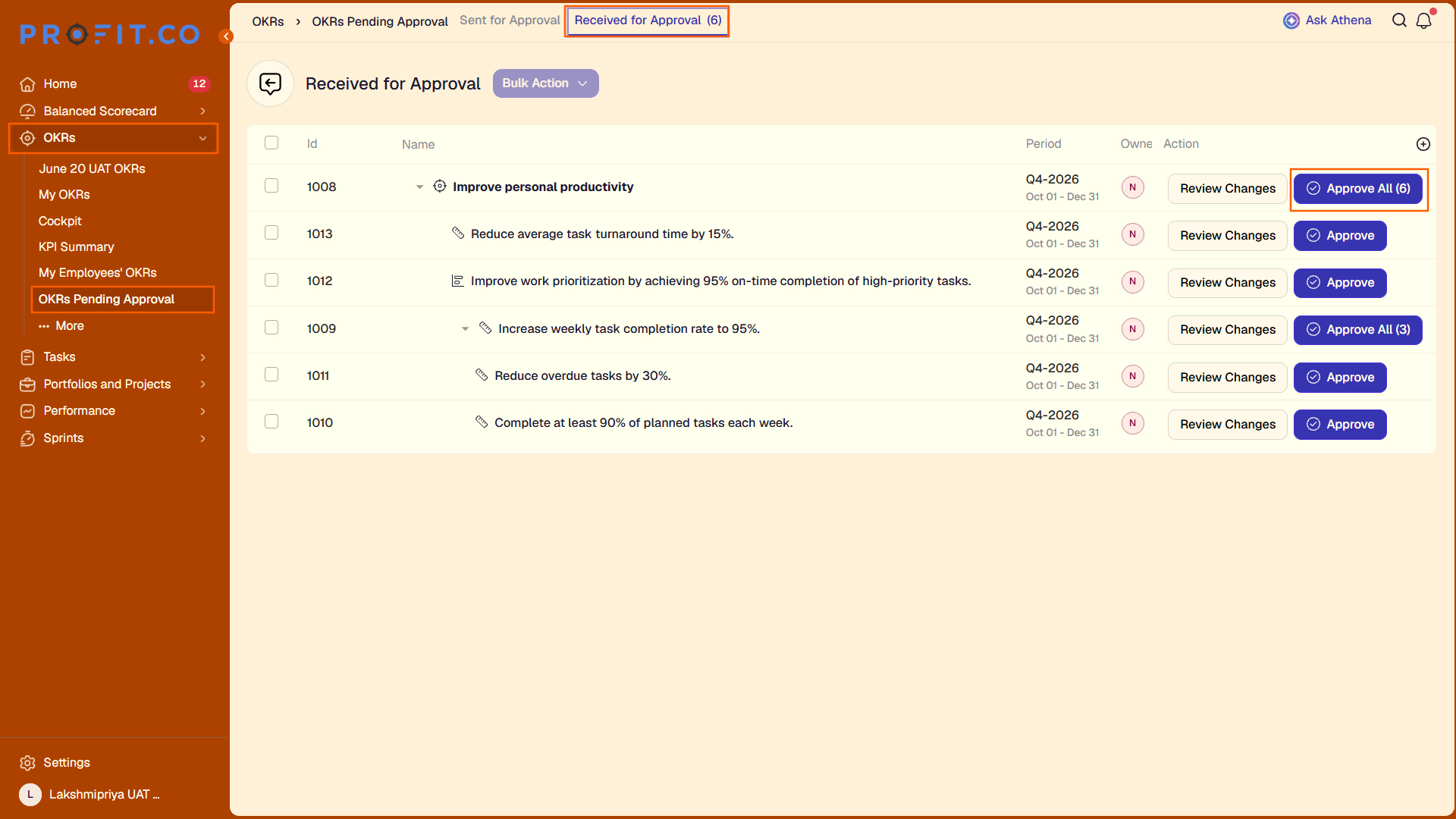
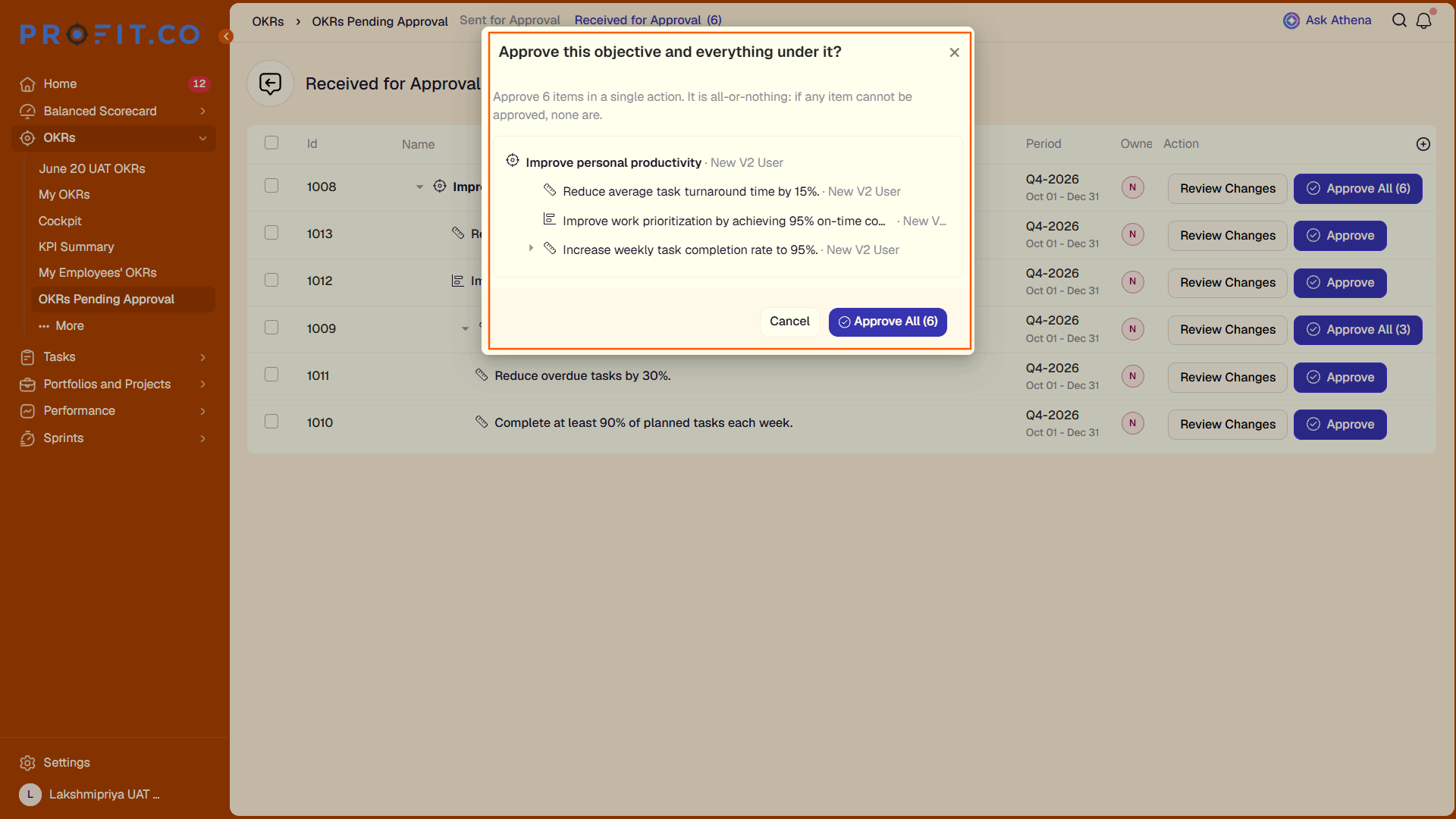
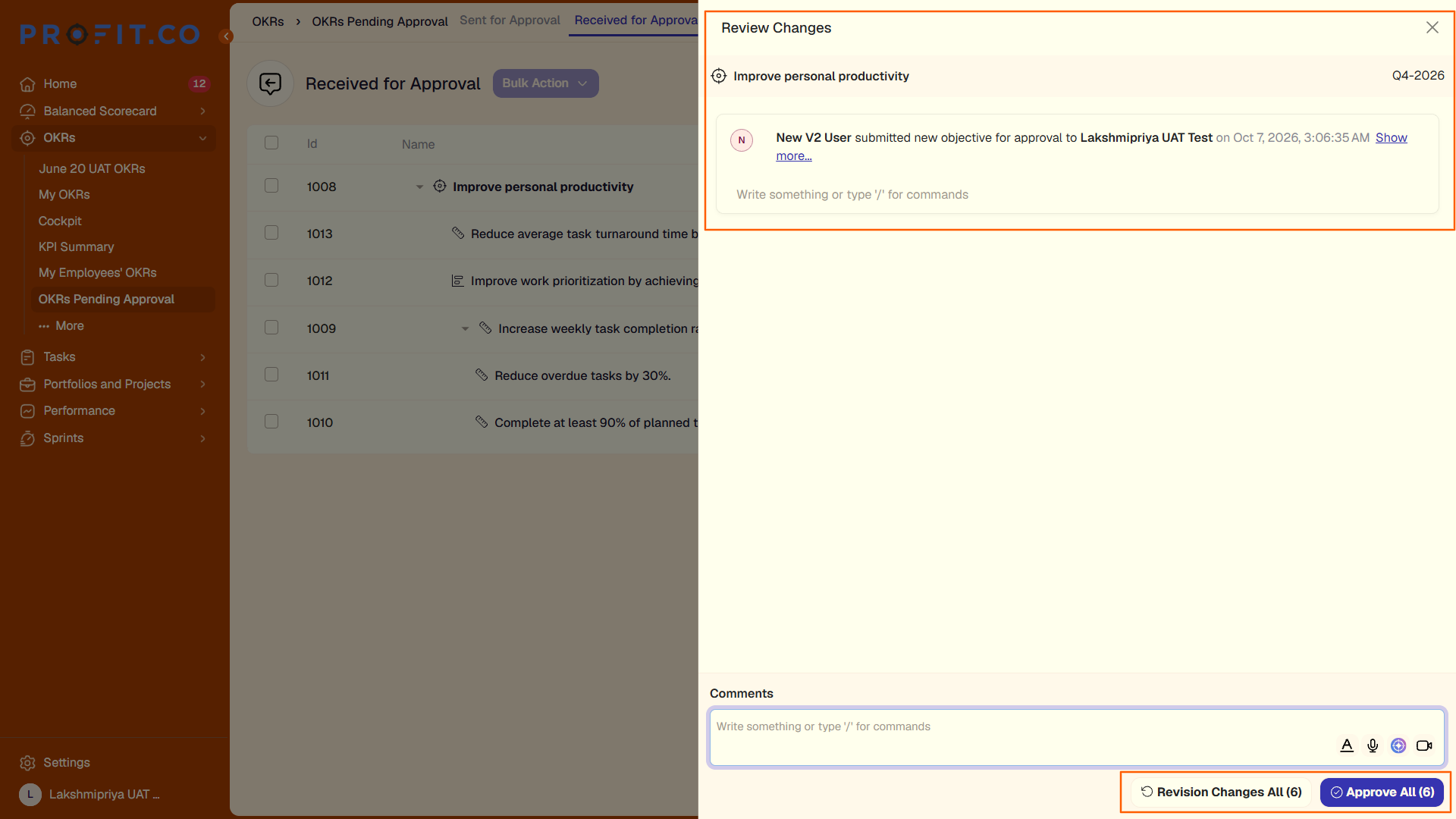
When multiple objectives and their full hierarchies are routed to the same approver, the approval card now consolidates them with an Approve All button and a Review Changes button. The approver can approve the entire hierarchy in one action or submit comments and request changes — without handling each objective and key result separately.
How It Works
- When multiple objectives and their hierarchies are sent to the same approver, the approval card displays both Approve All and Review Changes
- Clicking Approve All opens a confirmation pop-up: "Approve this Objective and everything under it" — the approver selects Yes to confirm or Cancel to return
- Clicking Review Changes opens a comment field — the approver adds comments and submits the request for changes
Why It Matters
- One-click hierarchy approval: Approvers can approve an entire objective and everything under it in a single action instead of reviewing each item individually.
- Consolidated approval view: Multiple objectives sent to the same approver appear on one card, reducing the number of separate approval actions required.
- Structured change request path: The Review Changes flow gives approvers a direct way to add comments and send items back without leaving the card.
7. Bulk export and follow for OKRs
Overview
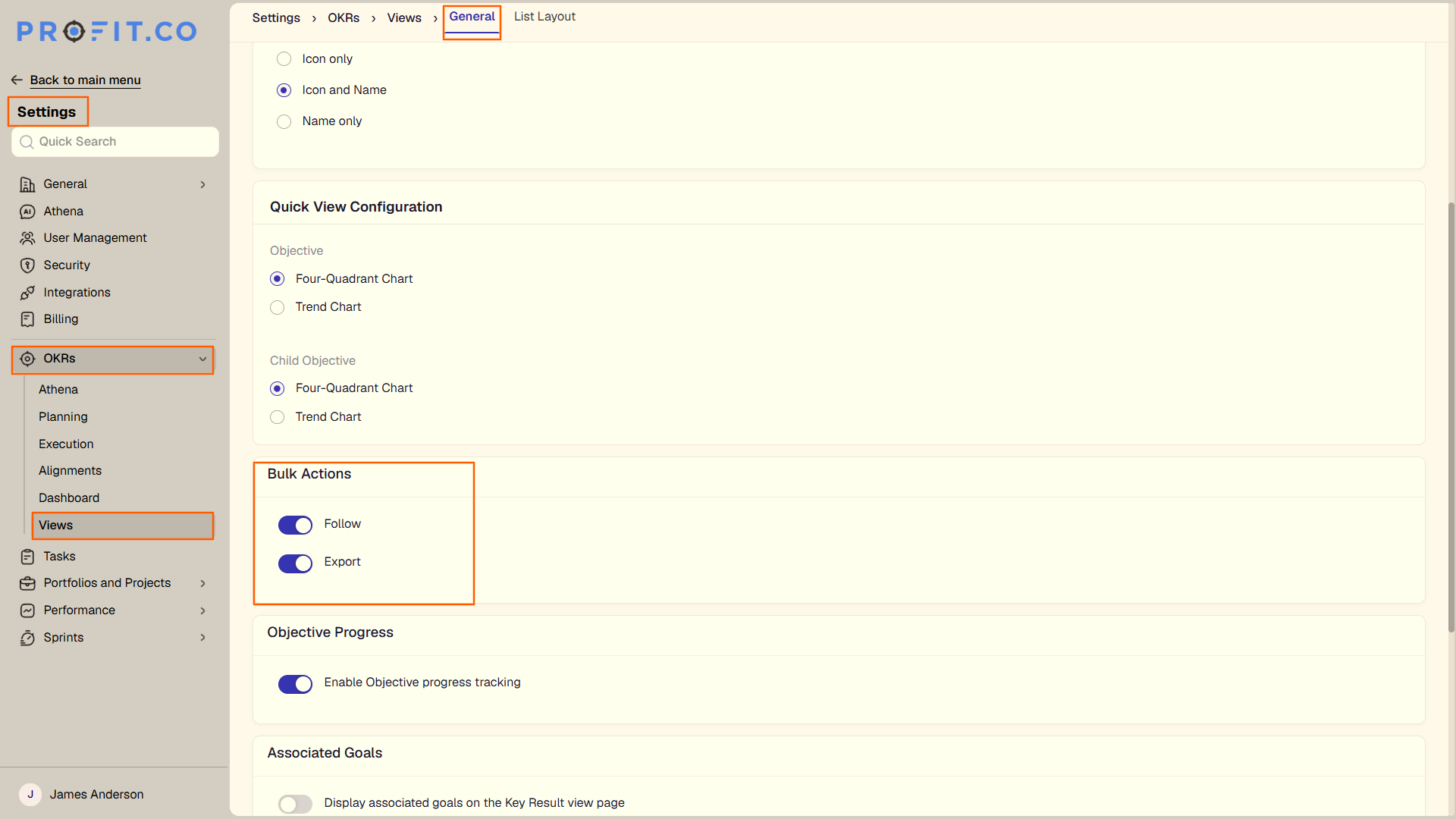
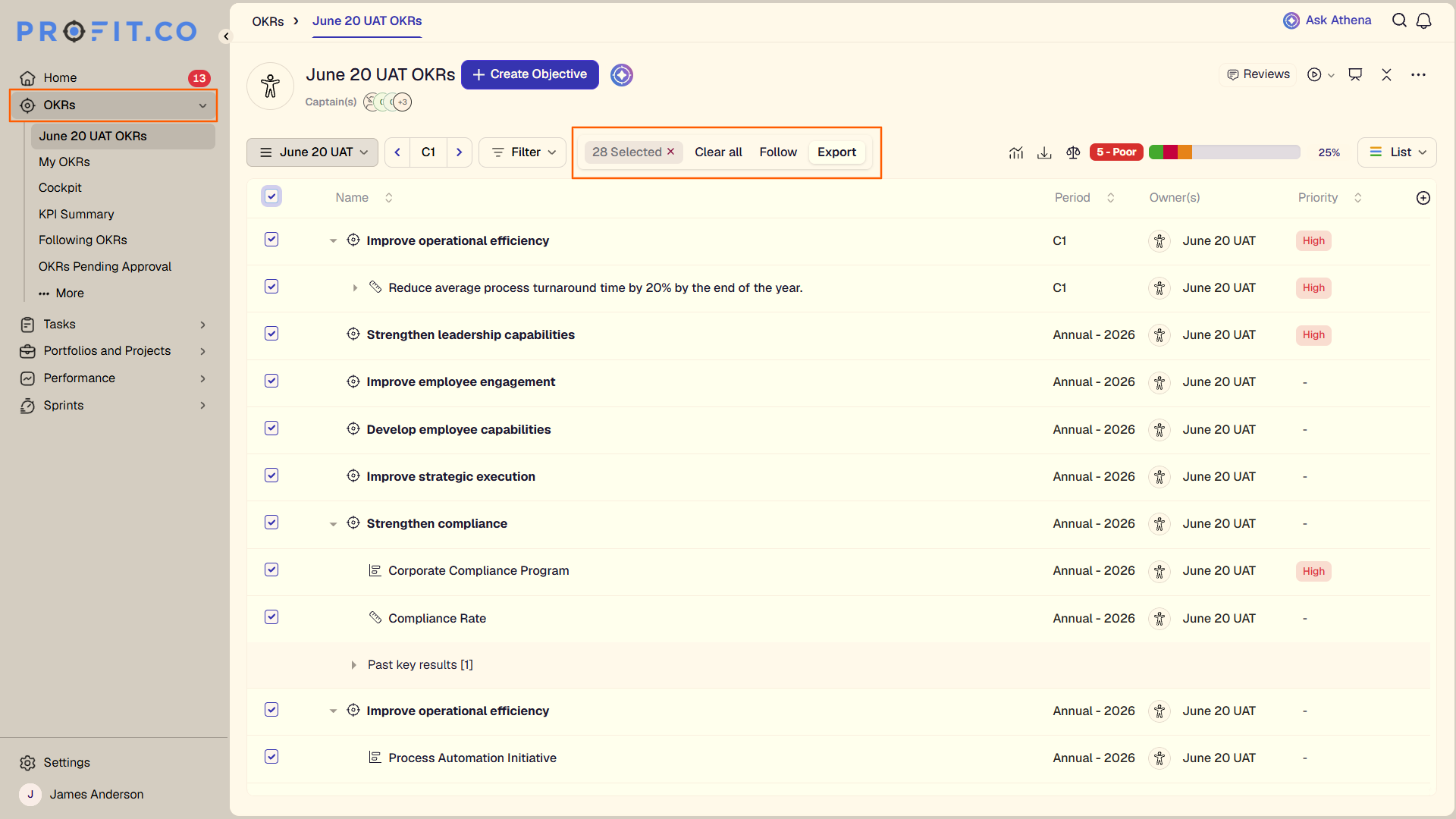
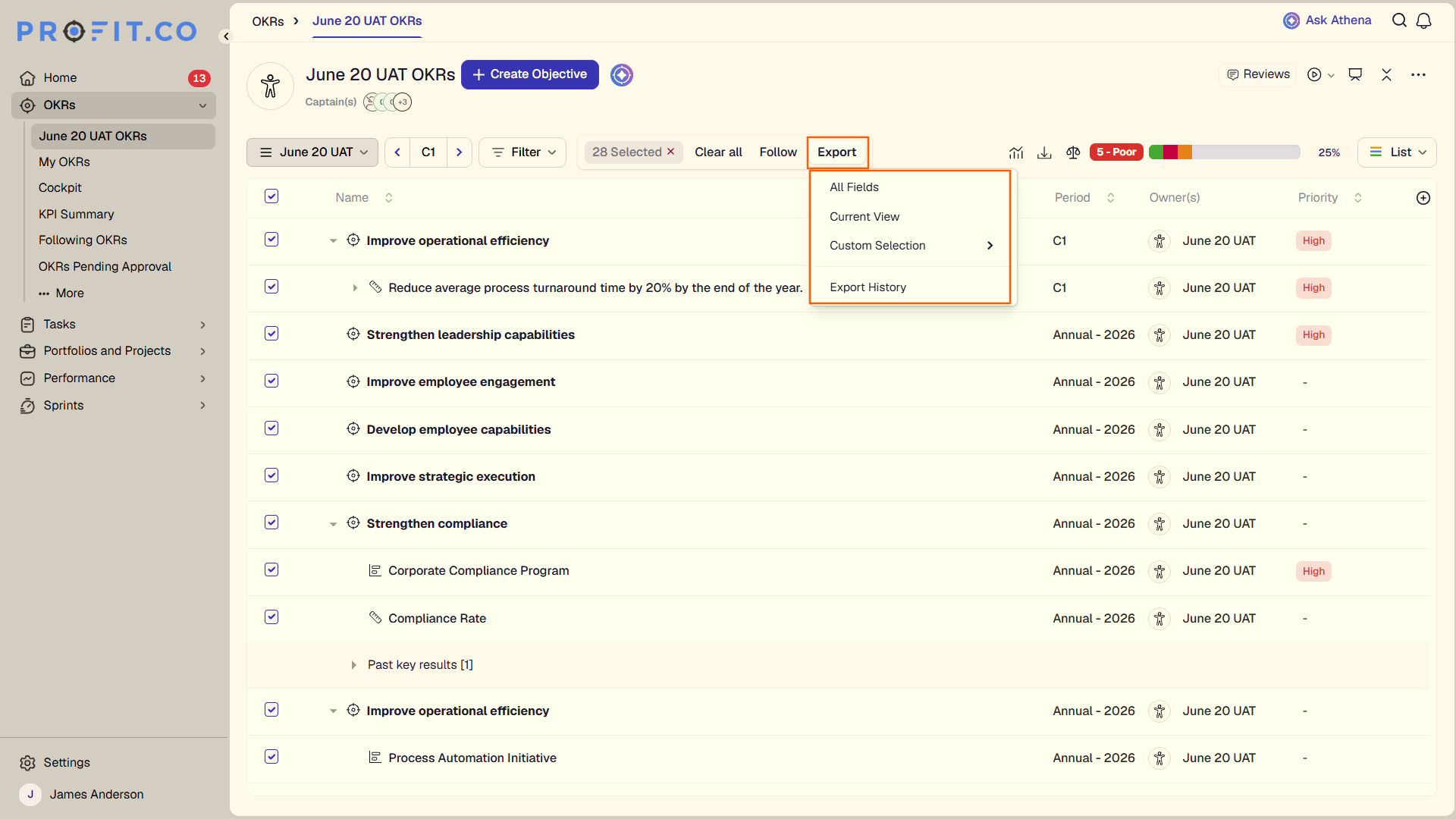
Bulk actions for Export and Follow can now be enabled for OKRs through Settings. Once enabled, users can select multiple OKRs from the list view and perform export or follow actions in a single step. Export supports the same options already available for individual records — All fields, Current View, and Custom Selections.
How It Works
- Navigate to Settings → Views
- Enable the Bulk action toggle for Export and/or Follow
- In the OKR list view, select the Select All checkbox (or individual OKRs)
- The Follow and Export options appear in the bulk action bar
- Select Export and choose from:
- All fields, Current View, or Custom Selections
Why It Matters
- Bulk export in one step: Users can export multiple OKRs at once from the list view instead of exporting records individually.
- Admin control over bulk actions: Enabling Export and Follow separately in Settings gives admins control over which bulk actions are available.
- Consistent export options: All fields, Current View, and Custom Selections carry over to bulk export, so users work with familiar choices regardless of export scope.
8. Text and font formatting in PPT export
Overview
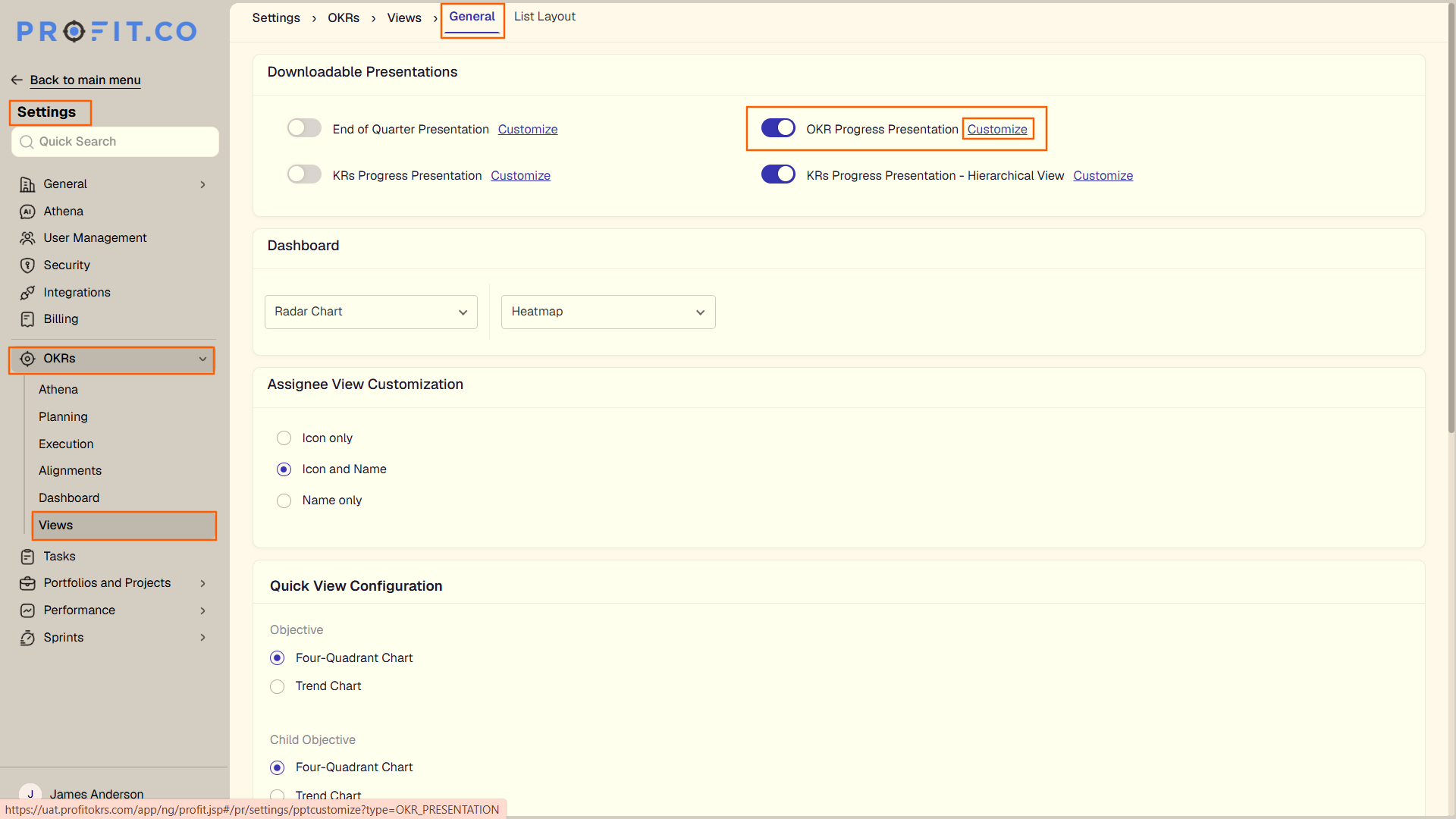
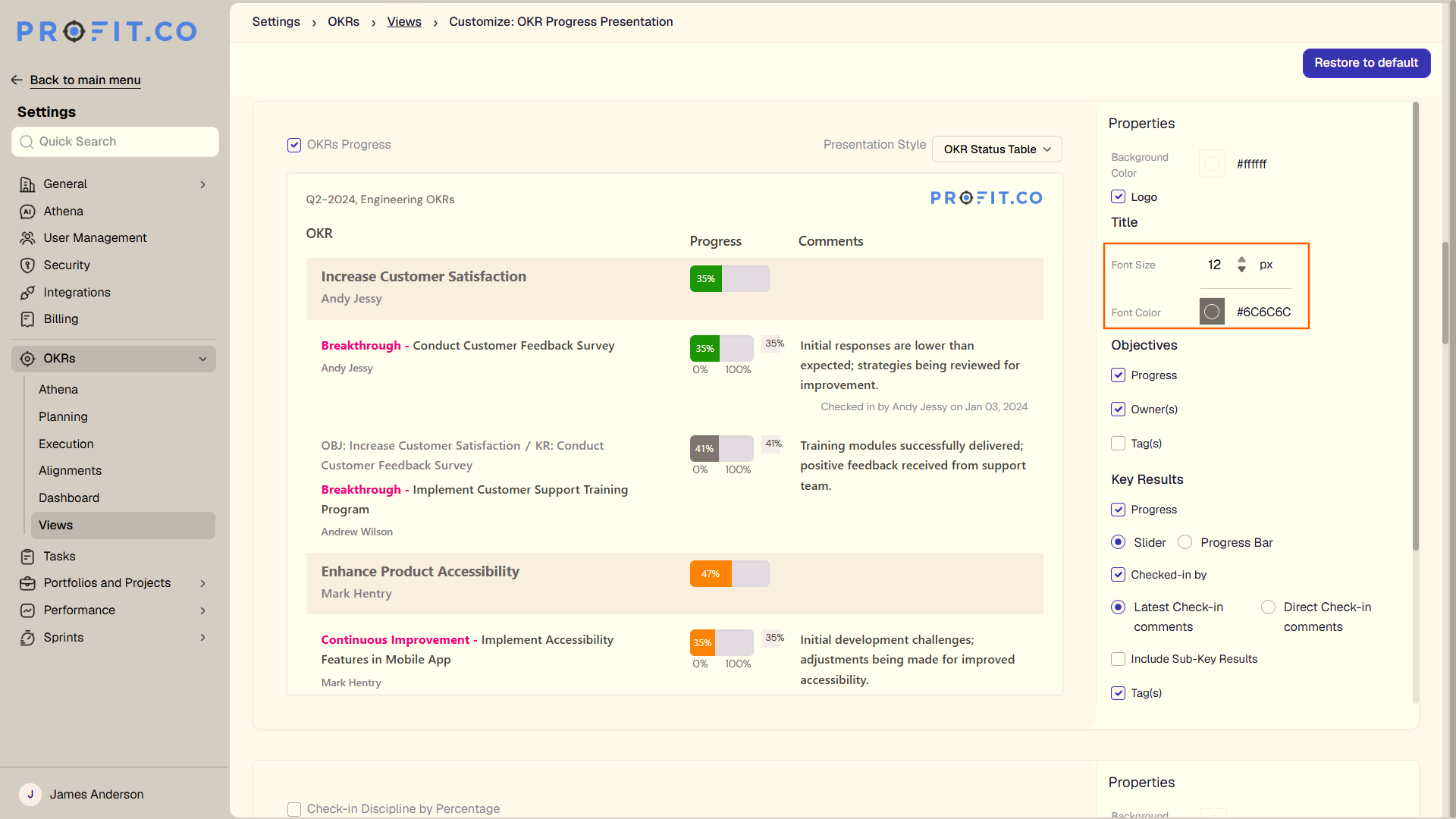
PowerPoint export customization previously allowed size and color changes for the title and footer only. Users can now also set font style, size, and color for inner content sections — available under Appearance and Fields in the export settings. This applies to OKR progress, KR progress, and KR progress hierarchical presentations.
How It Works
- Navigate to Settings → OKRs → Views from the left navigation panel
- Customize the OKR Progress Presentation
- Set the font style, size, and color for inner content — in addition to the existing title and footer options
Why It Matters
- Formatting control beyond title and footer: Users can now customize font style, size, and color for all inner content sections, not just the title and footer.
- Organization-aligned exports: Setting font formatting for content fields lets teams match exported presentations to their organization's formatting standards.
- Consistent across presentation types: The expanded options apply to OKR progress, KR progress, and KR progress hierarchical presentations.
9. Combined KR status column in OKR CSV export
Overview
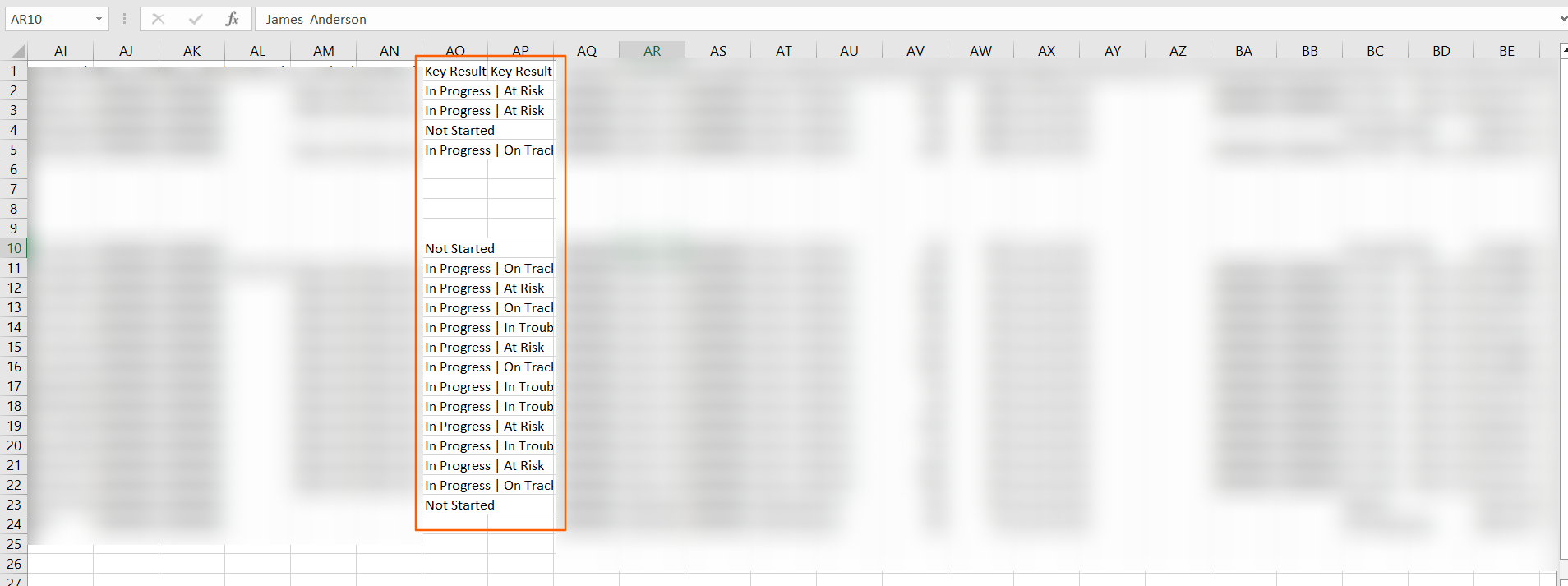
The OKR CSV export previously included KR lifecycle stage and KR health status as two separate columns. These are now merged into a single KR status column that displays both values together. This reduces the number of columns in the exported file and makes KR status easier to read at a glance.
How It Works
- Navigate to the More option, and choose Export as CSV
- The exported file now includes a KR status column in place of the separate KR lifecycle stage and KR health status columns
- Each row displays both the lifecycle stage and health status of the key result within that single column
Why It Matters
- Cleaner export layout: Merging two columns into one reduces clutter in the exported CSV, making it easier to read and share.
- Faster status review: Lifecycle stage and health status are visible together without cross-referencing two separate fields.
- Simpler downstream use: A single consolidated column is easier to work with in spreadsheet tools when filtering or sorting by KR status.
10. Single status dropdown on check-in panel
Overview
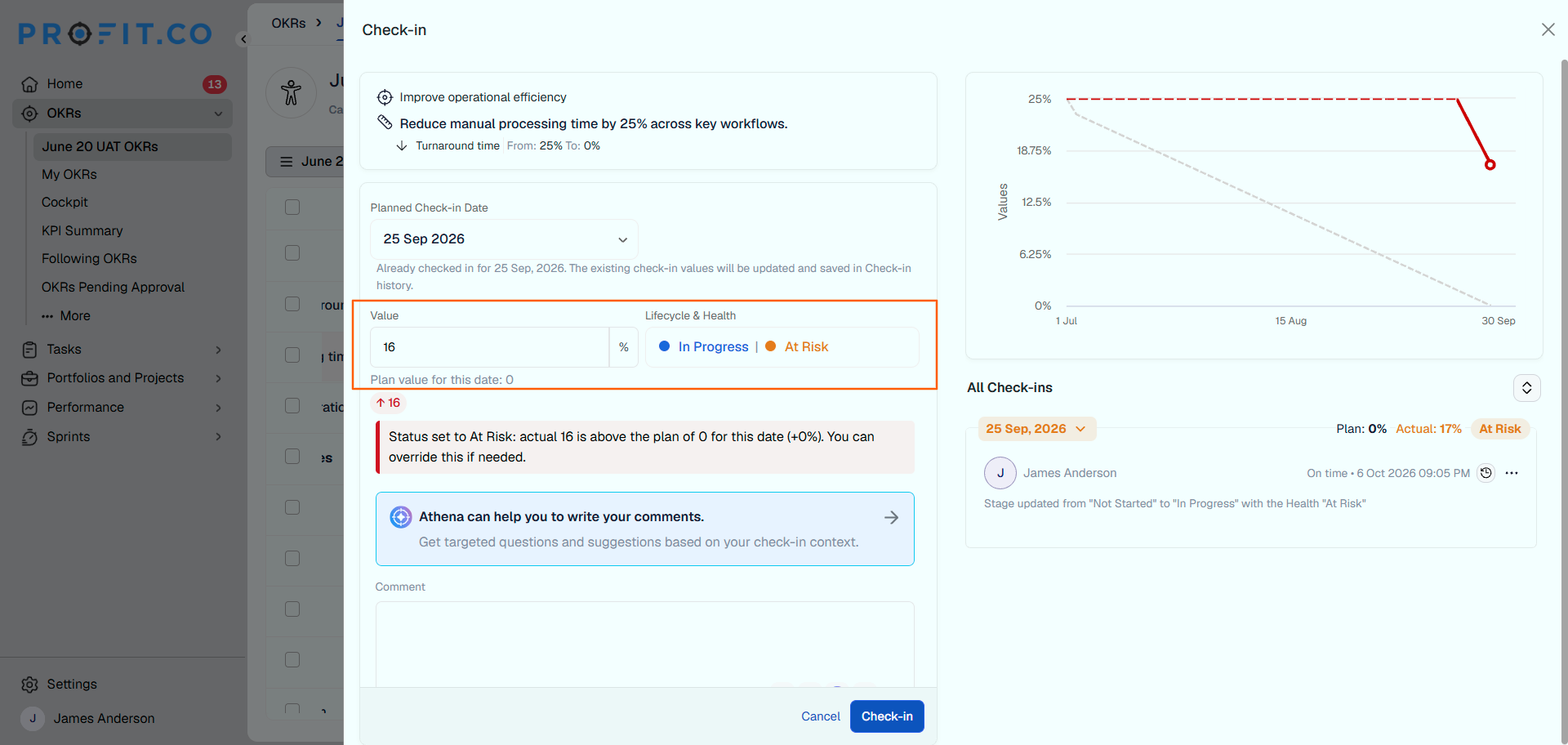
During check-in, lifecycle stage and health status were previously handled as separate fields. Both are now combined into a single dropdown on the check-in panel, reducing the steps needed to update OKR status during a check-in.
How It Works
- Navigate to the check-in panel for an OKR
- In the Status section, both lifecycle stage and health status are now shown together in a single dropdown
- Select the required status to complete the check-in
Why It Matters
- Fewer fields to update: Lifecycle stage and health status are set in one dropdown instead of two, reducing steps during check-in.
- Faster check-in completion: Consolidating status selection into a single field speeds up the check-in process.
- Full status in one place: Both status dimensions are visible together at the point of check-in, giving users a complete picture before submitting.
PROJECTS (Task Management, Portfolios and Projects, Timesheets, Notes, and Meetings)
1. Constraints register in project governance
Overview
Users can now record project constraints, such as a mandatory audit or a vendor contract awaiting legal review, as a dedicated governance item on the project Governance tab. Before this update, these fixed limits had to be logged as risks with the probability set to the maximum, which inflated risk scores, or tracked outside Profit.co. Each constraint now records what is limiting the project, whether the limit is negotiable, and what must happen for it to be lifted.
How It Works
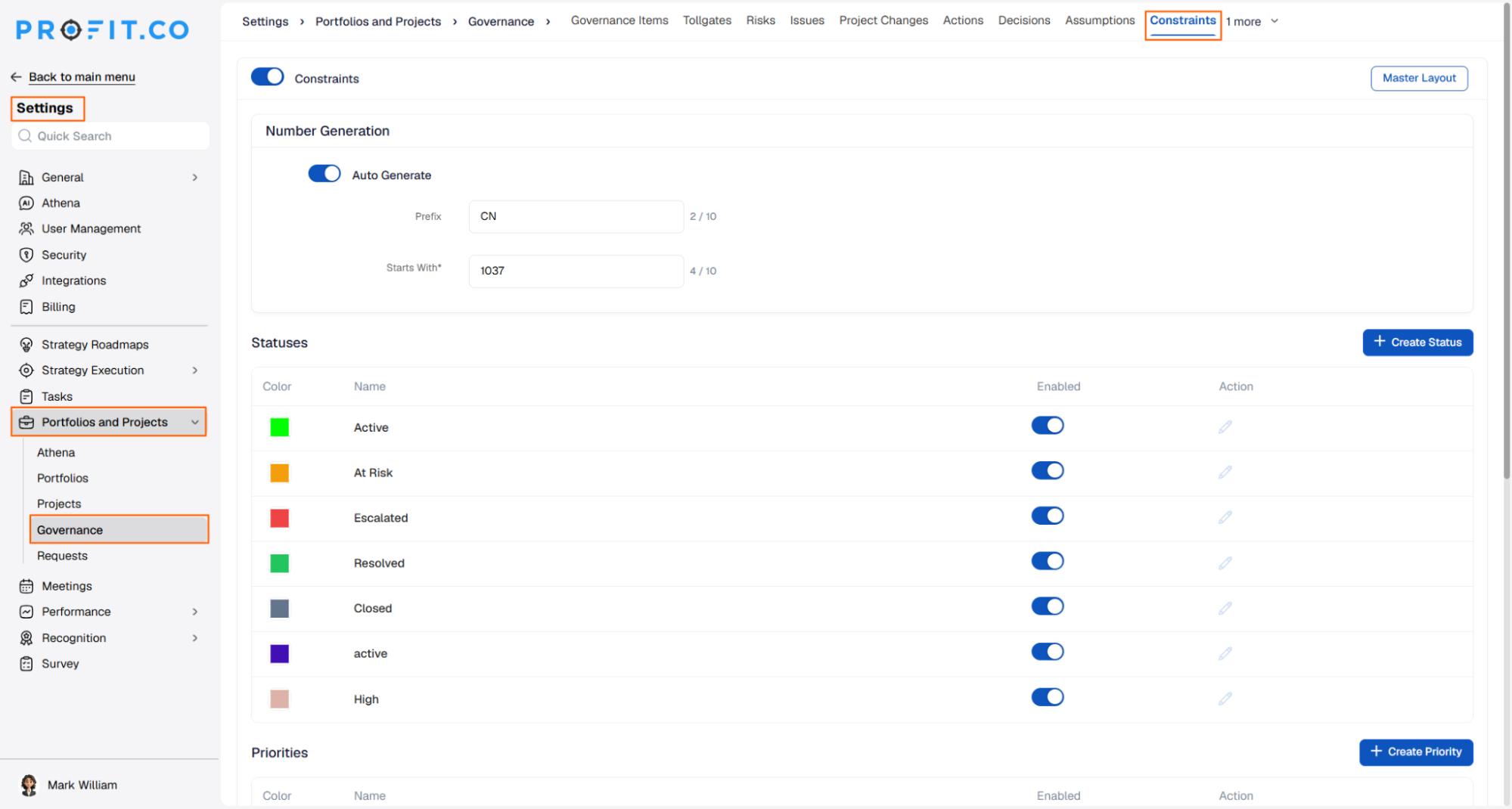
- Navigate to Settings → Portfolios and Projects → Governance → Constraints and enable the Constraints toggle
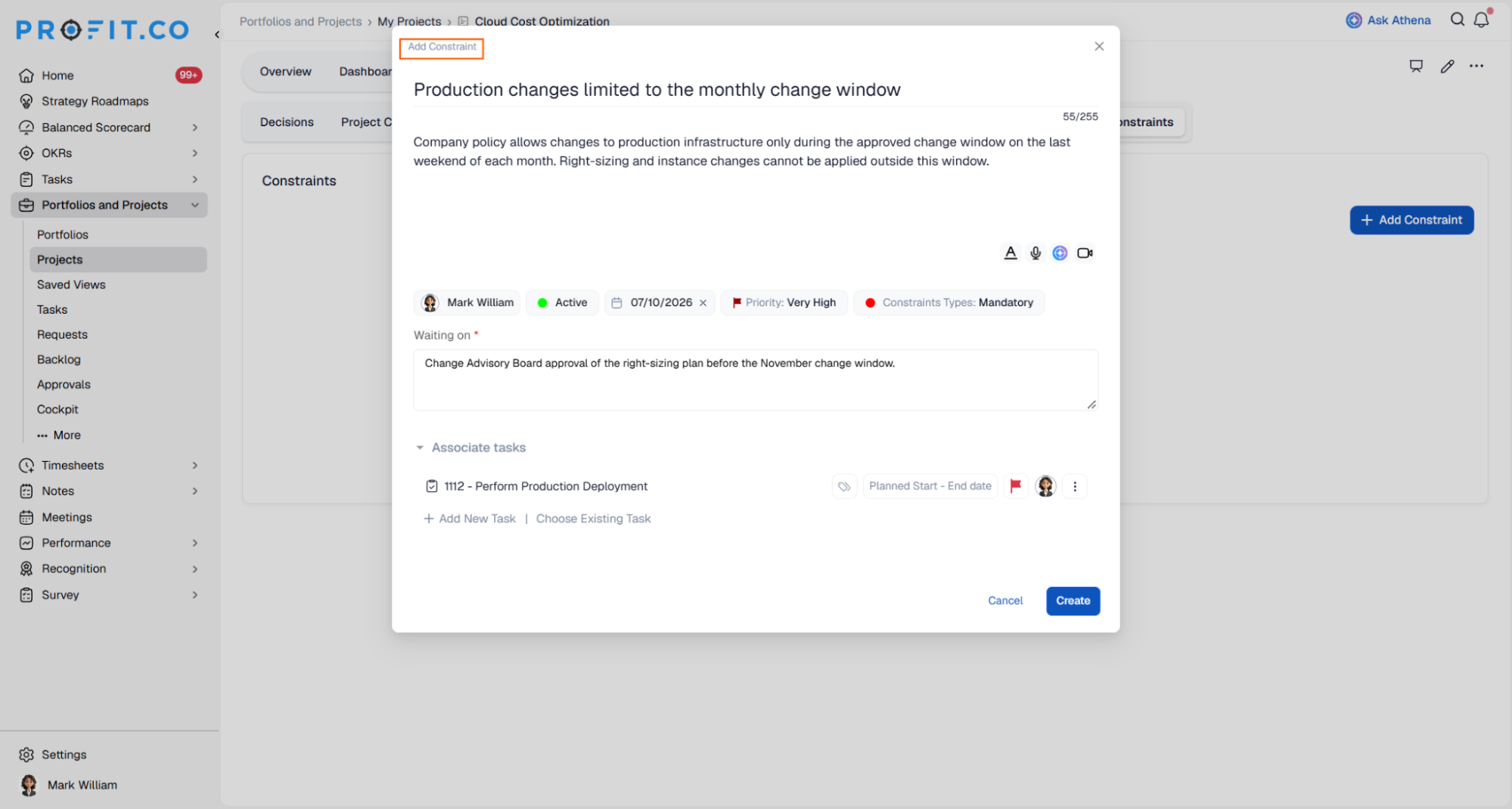
- Open a project, go to Governance → Constraints, and click + Add Constraint

- Enter a Constraint Name, describe what the project is waiting on, and set the Owner, Status, Due Date, Constraint Type, and Priority
- Waiting on is mandatory, so a constraint cannot be saved without it
- Link the tasks the constraint is holding up using Add new Task or Choose Existing Task
- Track the constraint through Active, At Risk, Escalated, Resolved, and Closed. Constraints assigned to a user also appear in their Action Center
Why It Matters
- Cleaner risk register: Certainties such as scheduled audits move out of the risk register, so risk scores reflect only genuinely uncertain events.
- Negotiable limits spotted early: The Mandatory and Discretionary classification shows sponsors which limits are fixed rules and which are worth challenging.
- Delays tied to a cause: Linked tasks and the Waiting on field show exactly what is stalling the work, so slips no longer go unexplained.
2. Leadership requests in project governance and the Cockpit
Overview
Project teams can now raise a request for a decision, funding, a resource, or an escalation from the project Governance tab and direct it to a named executive. Before this update, these requests went by email or chat with no owner, no due date, and no record, and leadership had no single place to see what was waiting on them. Executives now see every request across their projects in one Cockpit widget, reply without leaving the page, and close each request with an outcome of Approved, Declined, or Deferred.
How It Works
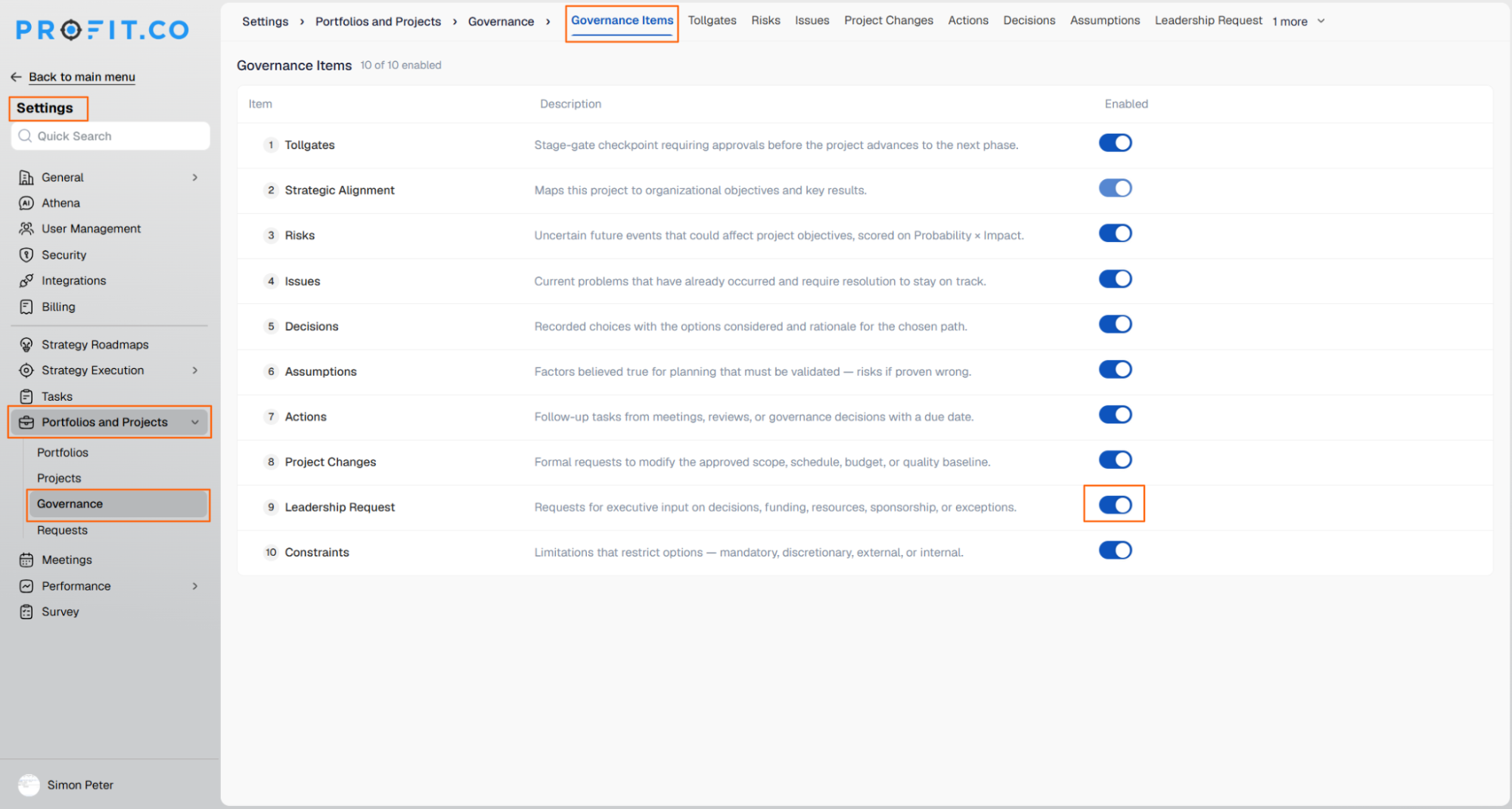
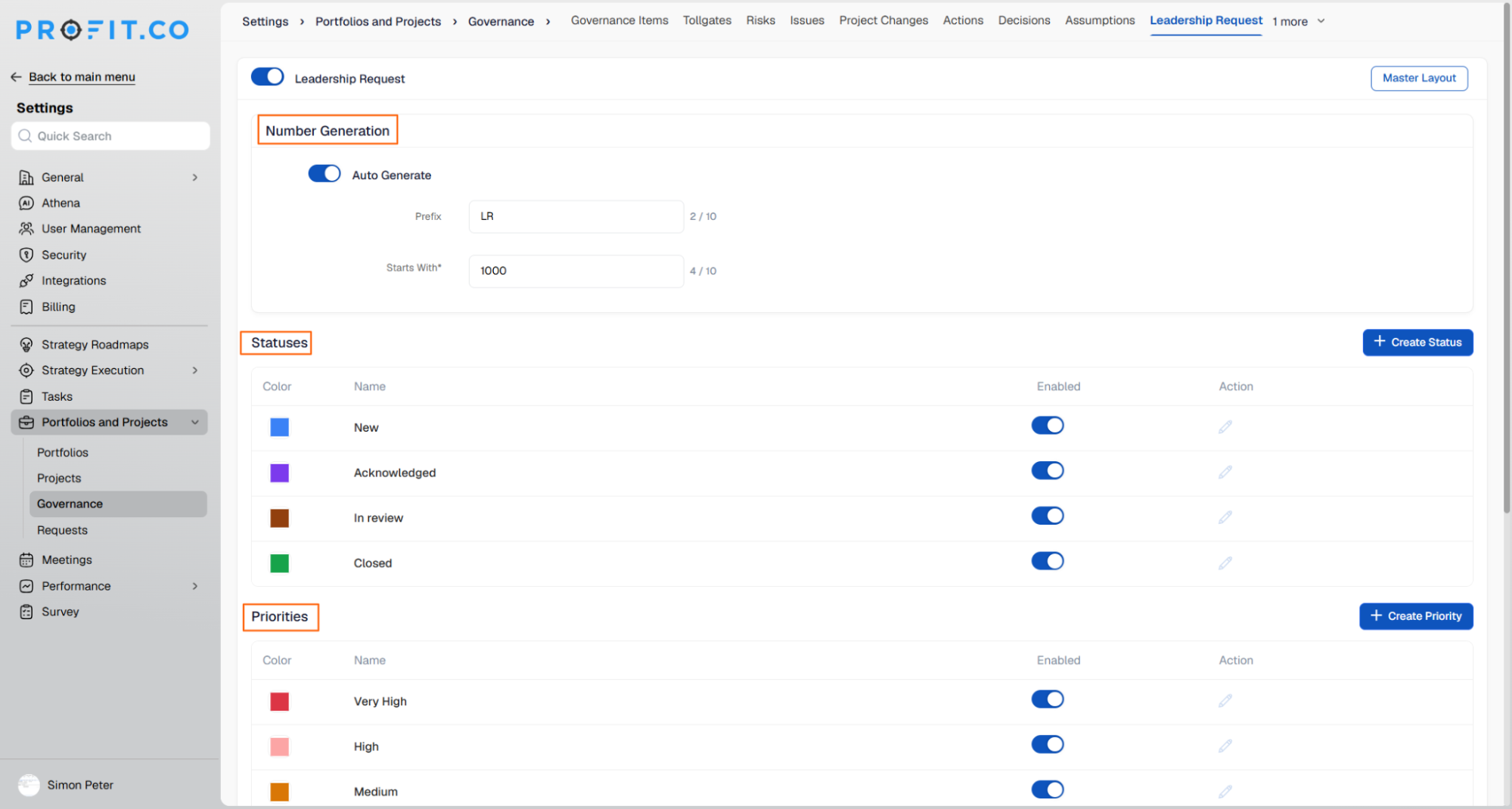
- Navigate to Settings → Portfolios and Projects → Governance → Governance Items. Leadership Request is enabled by default, and Super users can review its numbering, statuses, priorities, request types, and response time per priority
- Turning it off hides the project tab and the Cockpit widget. Existing requests are kept and reappear when the item is turned back on
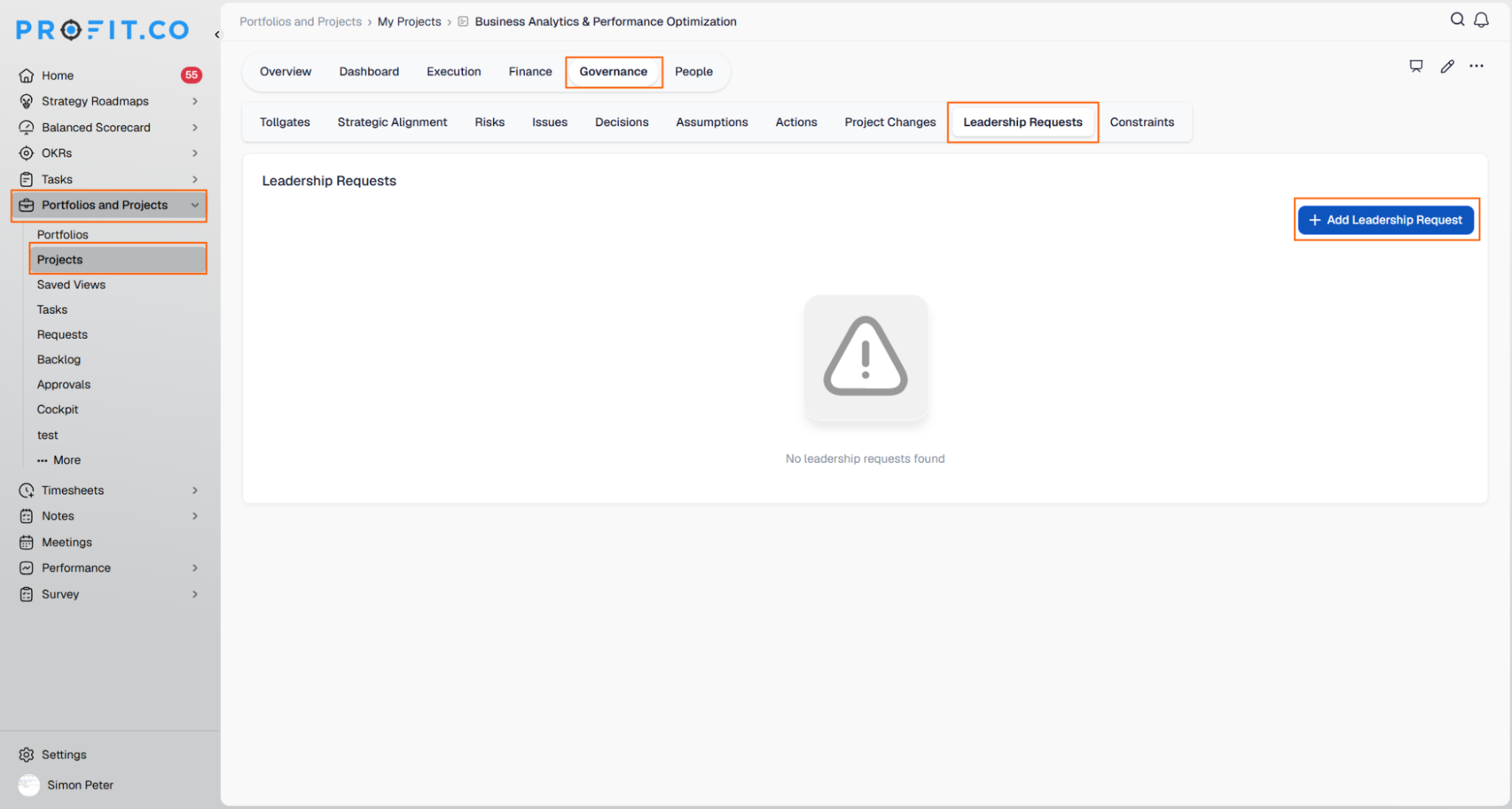
- On a project, go to Governance → Leadership Request and click + Create Leadership Request
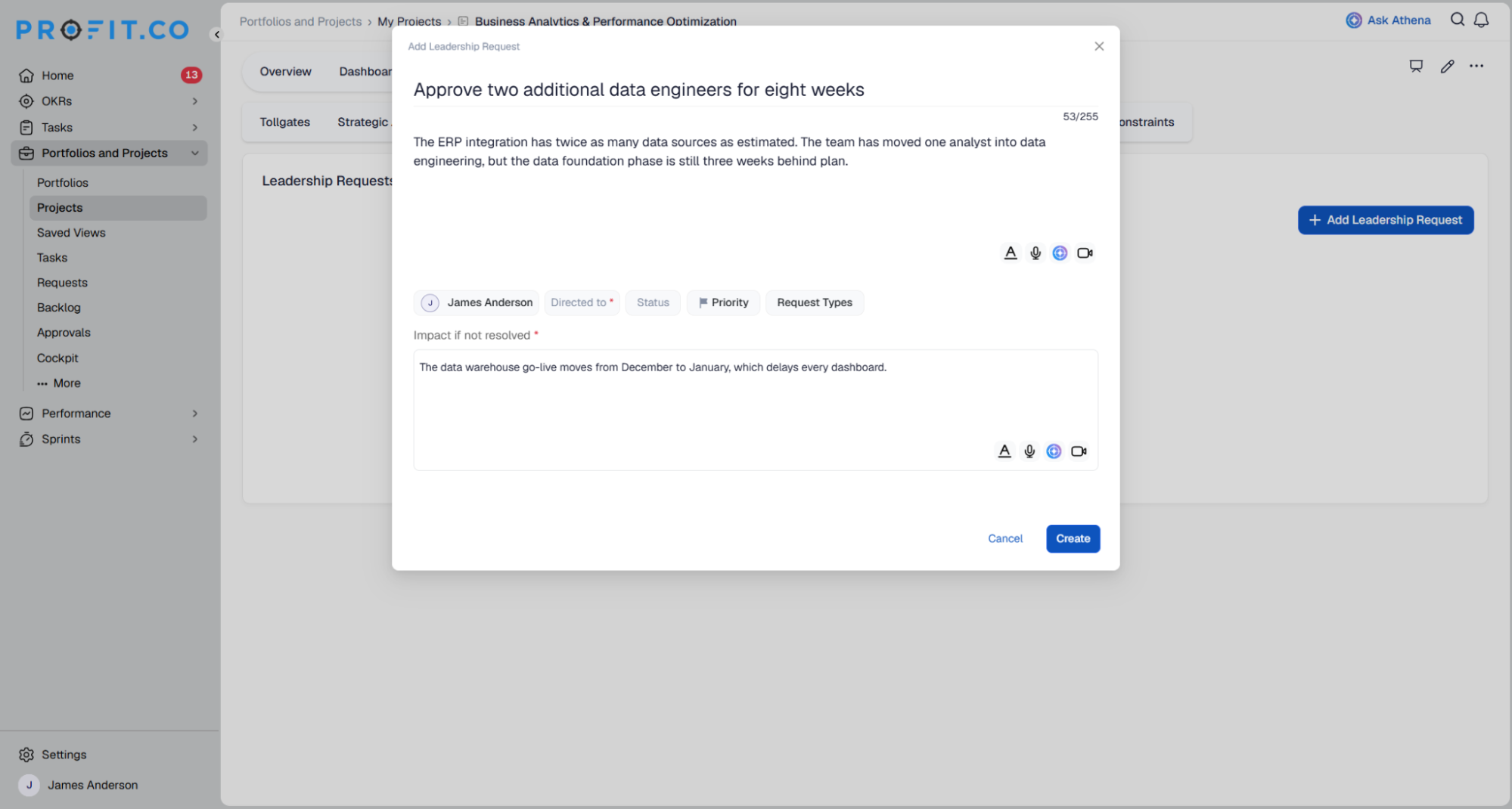
- Enter the request as a single line, describe the context, set the Request type, Priority, and Directed to executive, and complete Impact if not resolved
- Create stays disabled until all required fields are filled, and the footer lists anything still missing
- Executives open Cockpit → Executive Leadership, where the Leadership Support Requests widget lists every request by status, including Overdue and All, and reply by typing in the Leadership input box and pressing Enter
- The first reply moves the request from New to Acknowledged automatically
- Both sides continue the exchange in the Conversation panel. Only leadership can change a request's status or close it with an outcome
Why It Matters
- One queue for every leadership request: Executives see all open requests across their projects in a single widget, with overdue requests flagged and priorities sorted by severity.
- A permanent record of every answer: Responses are kept in a conversation on the request that cannot be edited or deleted, so teams can show what was asked and what was decided.
- Quicker acknowledgement: Executives reply directly in the Cockpit row, and the request is acknowledged automatically, so project teams know it has been picked up.
3. Filtered export of the project plan to PDF and CSV
Overview
Users can now export just the tasks and milestones currently filtered in the project Plan view, as either a PDF or a CSV file. Before this update, exporting the plan always produced the full project even when the view was filtered, and there was no CSV option. When no filter is applied, the export still includes the full project plan, as it does today.
How It Works
- Navigate to Portfolios and Projects → My Projects, open a project, and go to Execution → Plan
- Apply a filter to narrow the plan to the tasks, milestones, or date range you need
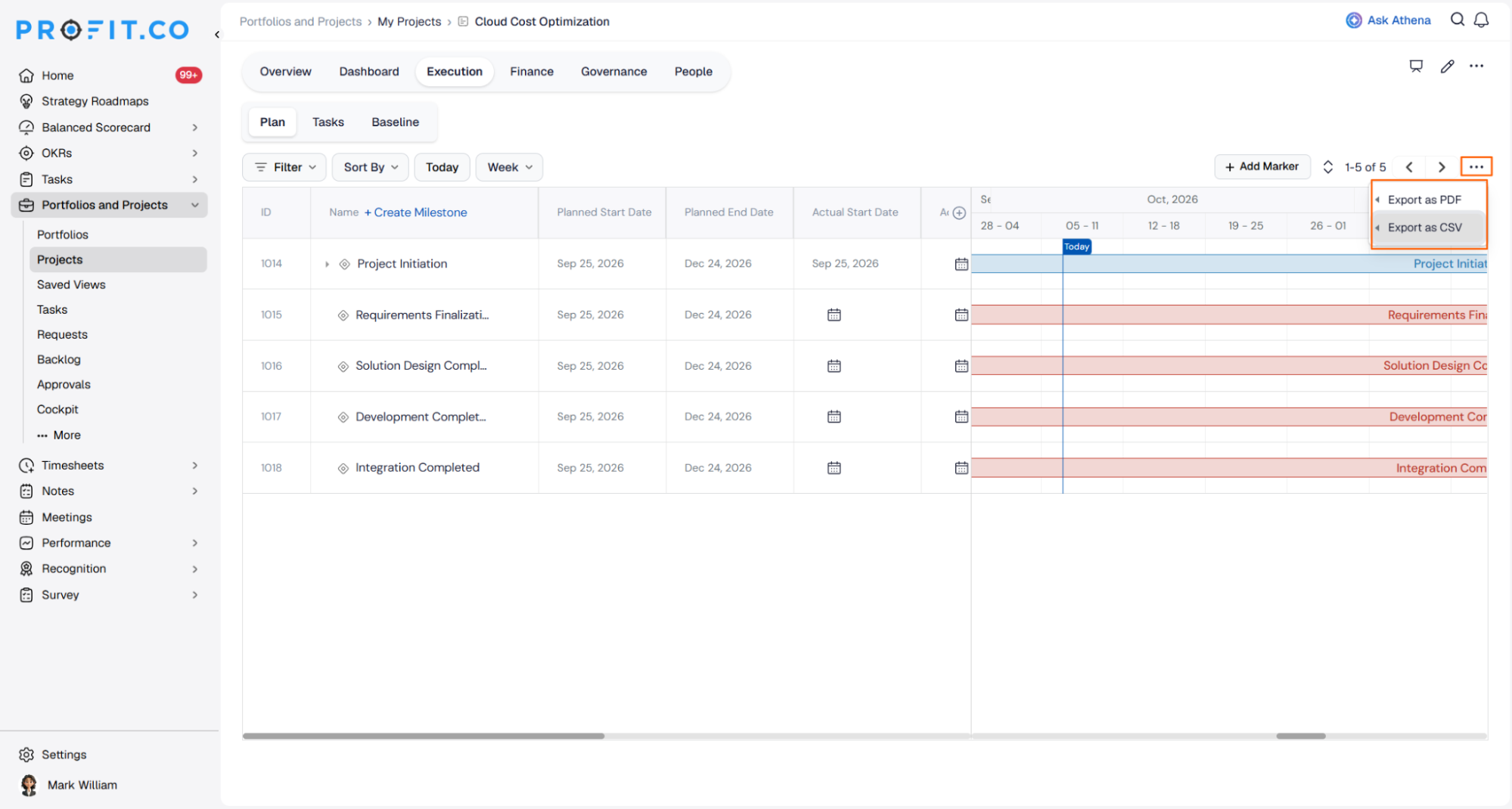
- Click the More (…) menu and select Export as PDF or Export as CSV
- Choose All Fields, Current View, or Custom Selection to set what the file includes
- The exported file contains only the filtered tasks and milestones
- If no filter is applied, the export includes the full project plan
Why It Matters
- Ready-to-share schedule extracts: Project managers can send stakeholders only the milestones or tasks relevant to a review, without trimming a full-project export by hand.
- Plan data ready for analysis: CSV export lets teams work with durations, owners, and dates in a spreadsheet, using the same filtered data as the PDF.
- Existing exports unchanged: Exporting without a filter still produces the complete project plan, so current reporting routines keep working.
4. Ranked risk, constraint and dependency widgets
Overview
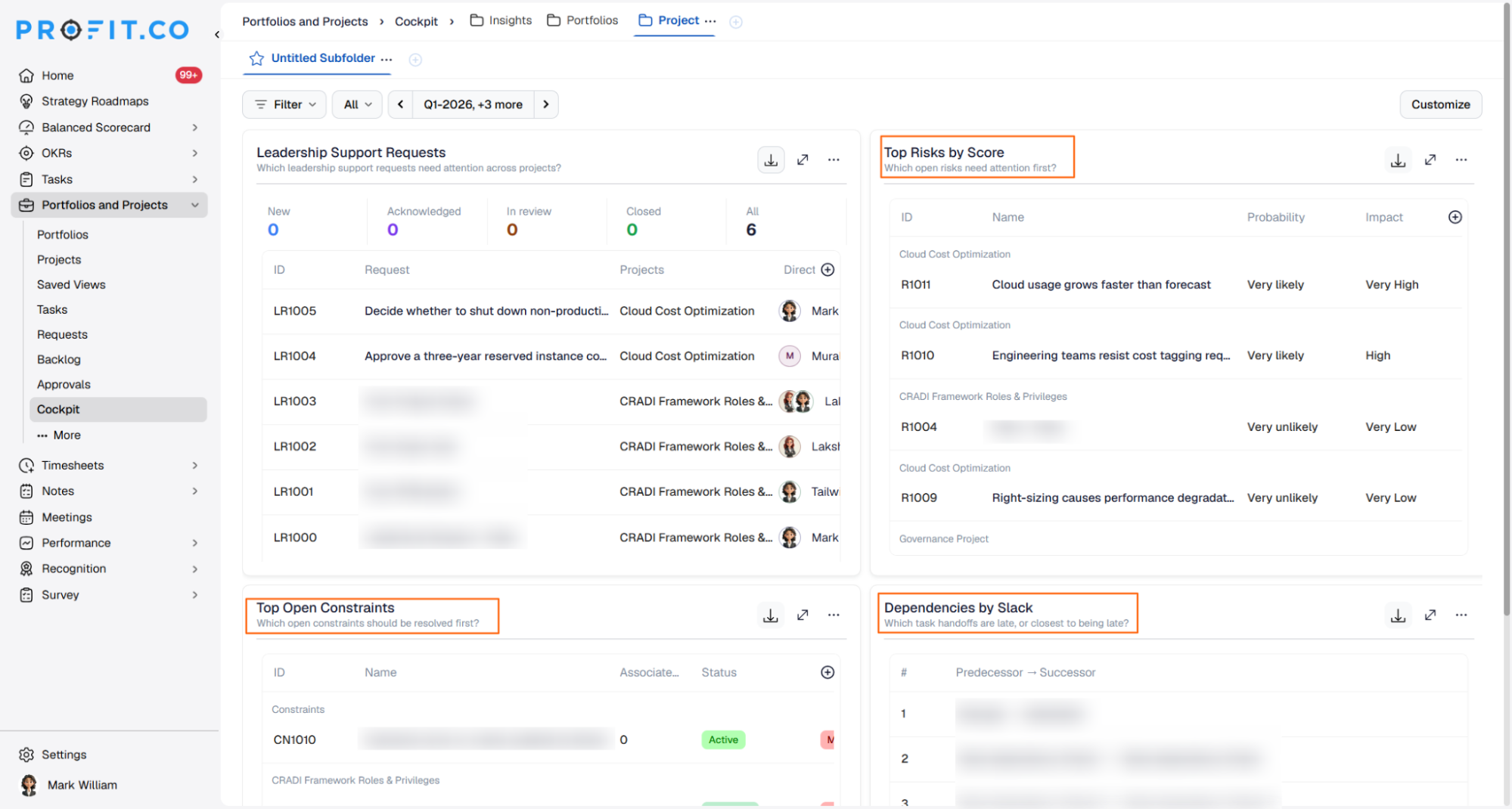
The project and portfolio dashboards now include three widgets on the Risk tab that rank what needs attention first: Top Risks by Score, Open Constraints on Critical Work, and Dependencies by Slack. Before this update, dashboards showed how many risks existed and where they sat, but not which one to act on first, so teams had to rank them outside Profit.co. Each widget lists the top five items in order and explains why each item holds its position.
How It Works
- Open a project or portfolio and go to Cockpit
- Review the three widgets at the top of the tab:
- Top Risks by Score ranks open risks by score, and shows probability and impact so ties are settled visibly
- Open Constraints on Critical Work ranks open constraints that hold up critical-path tasks. Constraints that are blocking now come first, then the ones due soonest
- Dependencies by Slack ranks finish-to-start handoffs by least slack, including handoffs to other projects, and shows whether this project is waiting on the other project or holding it up
- Click any row to open a side panel that shows the calculation behind its rank and why it sits above the next item
- Click Expand to see every ranked item, or export the list. The export keeps the same order as the screen
- Items with missing data show a dash, never a zero, and rows only include projects the viewer can access
- Open Constraints on Critical Work appears only when Constraints is enabled in Settings
Why It Matters
- A clear first action: Each widget puts one item at the top and shows why, so project managers know what to address first without sorting data in a spreadsheet.
- Cross-project handoffs caught early: Dependencies by Slack names the other project and shows which handoffs are already late, so delays can be escalated before they spread.
- Rankings the whole team can trust: Every rank shows its inputs, missing data is never counted as zero, and the export matches the screen, so everyone in a review works from the same list.
5. Disable task stages and set health for new stages
Overview
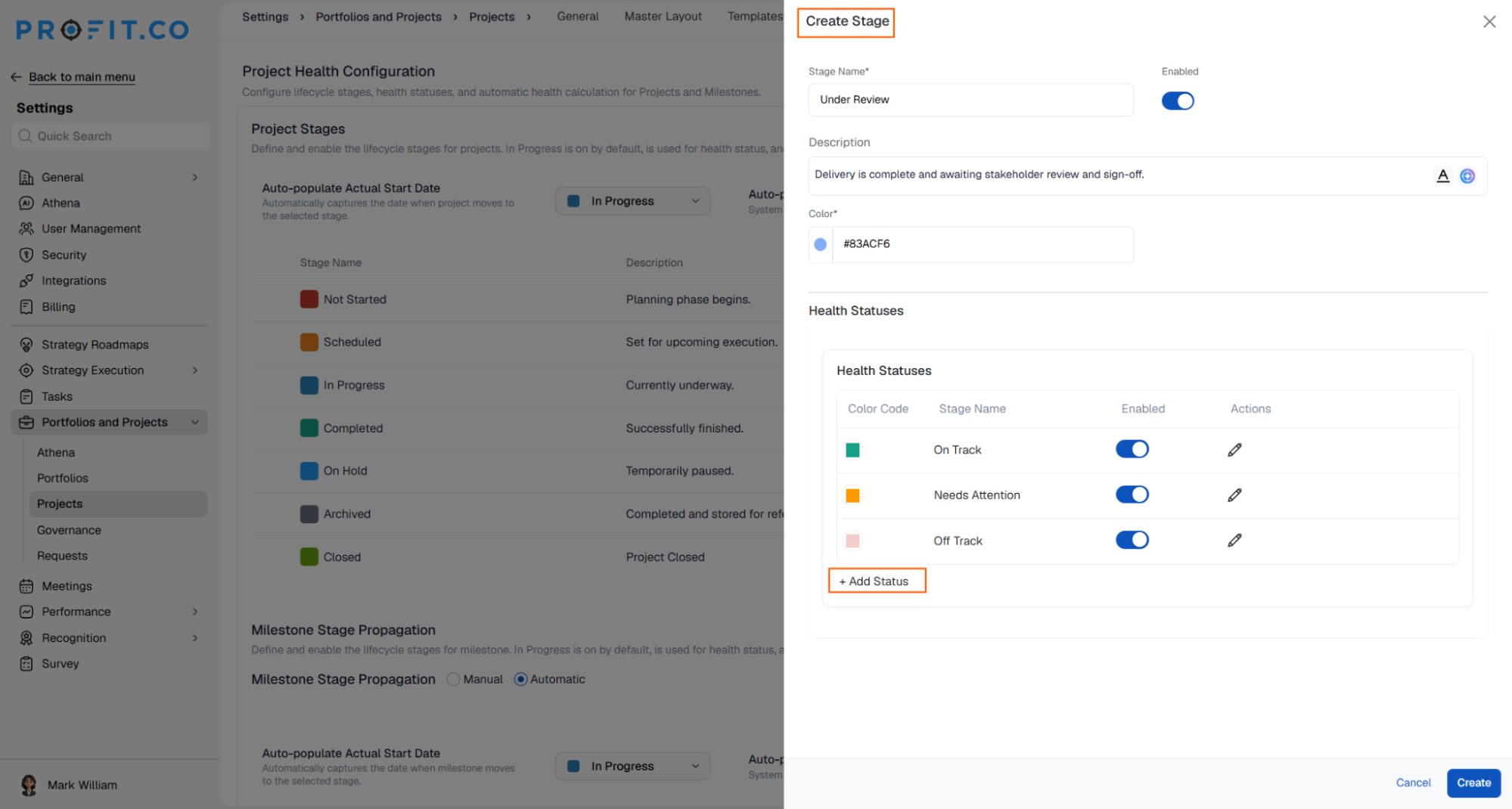
Super users can now disable task stages that are no longer in use, and disabled stages no longer appear in project and task lists or in stage selection options. When creating a new stage, users can also assign it a health status, which is updated manually and no longer rolls up automatically. Unused stages stop cluttering everyday views, and teams decide the health of each stage directly.
How It Works
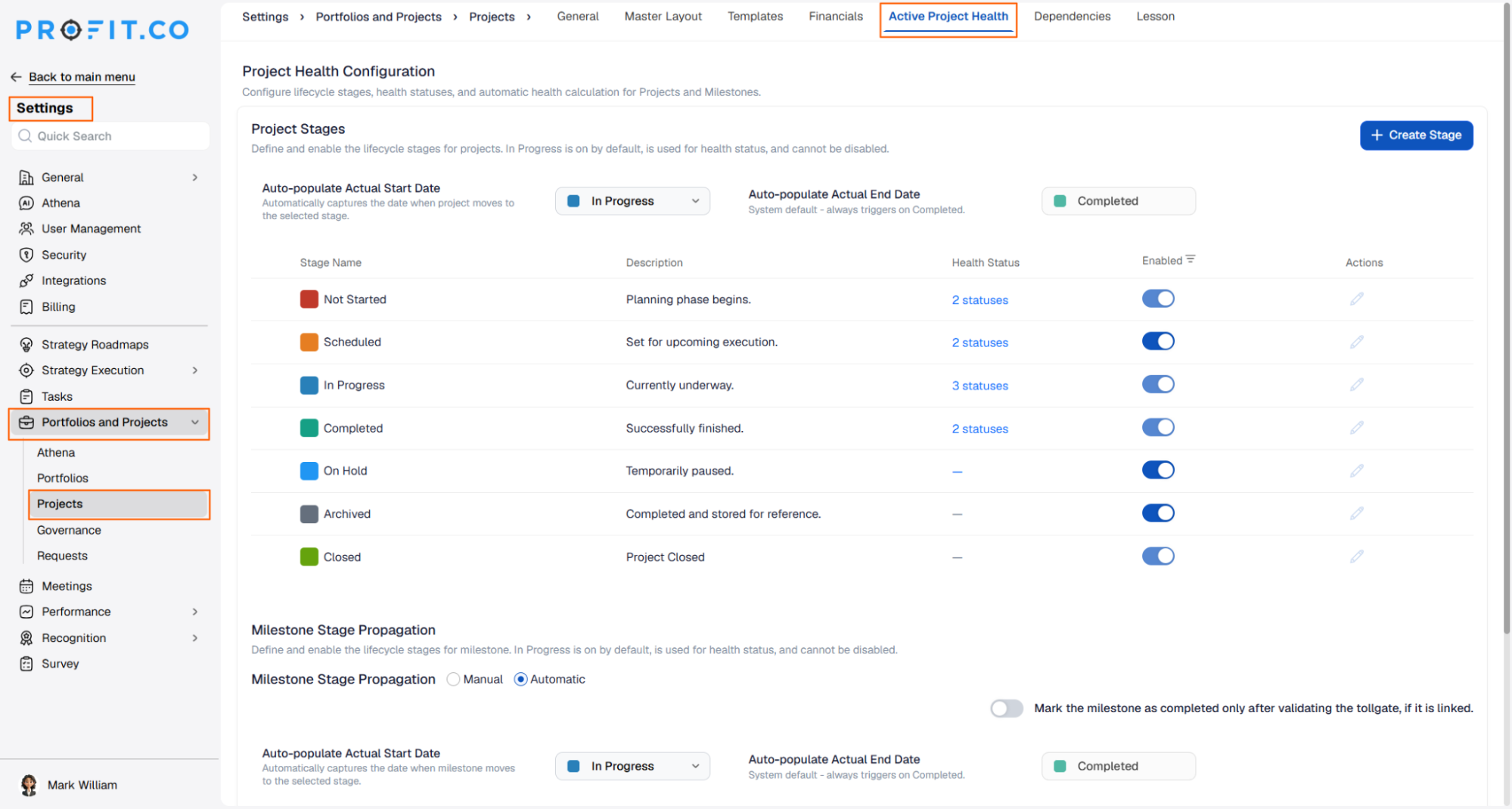
- Navigate to Settings → Portfolios and Projects → Projects → Active Project Health to view the list of stages
- Turn off the Enabled toggle for any stage that is no longer in use
- The default stages Not Started, In Progress, and Completed cannot be disabled
- A disabled stage no longer appears in stage selection options or in project and task lists
- When creating a new stage, set its Health status along with the stage details
- Health statuses do not roll up automatically. Users update the health manually whenever it changes
- Disabling a stage does not affect historical task data or records
Why It Matters
- Only valid stages on offer: Users choose from stages that are actually in use, so tasks are not moved into retired stages by mistake.
- Core workflow protected: The Not Started, In Progress, and Completed stages always remain available, so clean-up cannot break the basic task lifecycle.
- Health set by the people closest to the work: Each stage carries a health status that the team sets directly, so the status shown reflects their judgement and is not an automatic calculation.
6. Role-based privileges for each governance item
Overview
Super users can now control, role by role, who can view, manage, and assign each project governance item: Risks, Issues, Project Changes, Actions, Decisions, Assumptions, Constraints, and Leadership Requests. Each item has its own privilege group in project access control, so a role can work on some governance items and only view others. This lets organisations match governance access to each person's responsibilities on the project.
How It Works
- Navigate to Settings → Portfolios and Projects → Projects → General → Access Control
- Under Project Roles, open a role such as Project Task Editor to edit its privileges
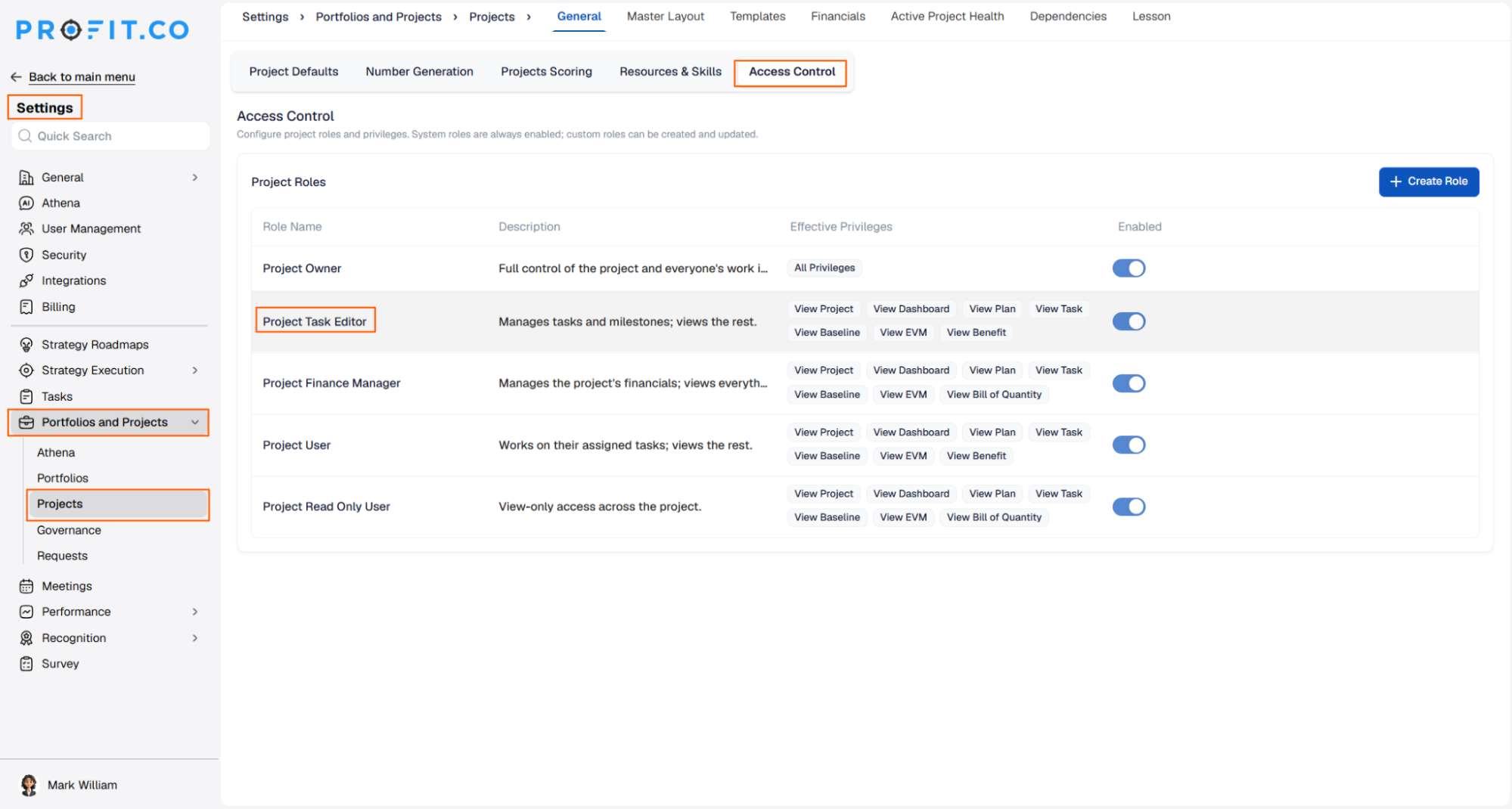
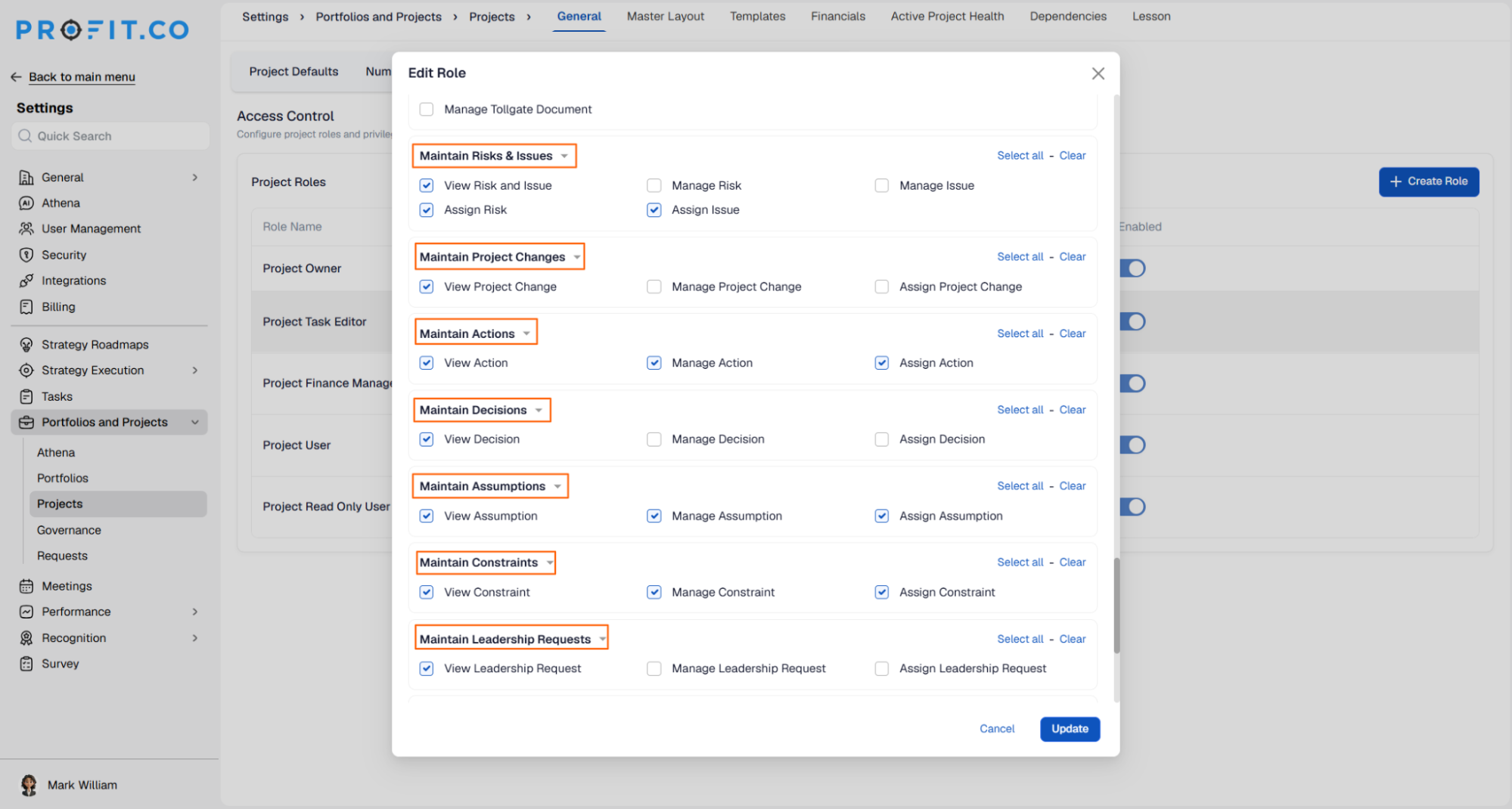
- Each governance item has its own group, for example Maintain Constraints, containing View, Manage, and Assign privileges
- Risks and Issues share one View Risk and Issue privilege, with separate Manage and Assign privileges for each
- Use Select all or Clear to set a whole group at once, then click Update
- Users holding the role see only the actions their privileges allow on the project Governance tab
Why It Matters
- Access matched to responsibility: A role can manage actions and assumptions while keeping decisions view-only, so each team member works only on the items they own.
- Ownership protected: Assign is separate from Manage, so users can update an item without being able to change who owns it.
- New items covered from the start: Constraints and Leadership Requests come with their own privilege groups, so Super users can set access before teams start using them.
7. Redesigned Capacity Workbench for allocation and utilization
Overview
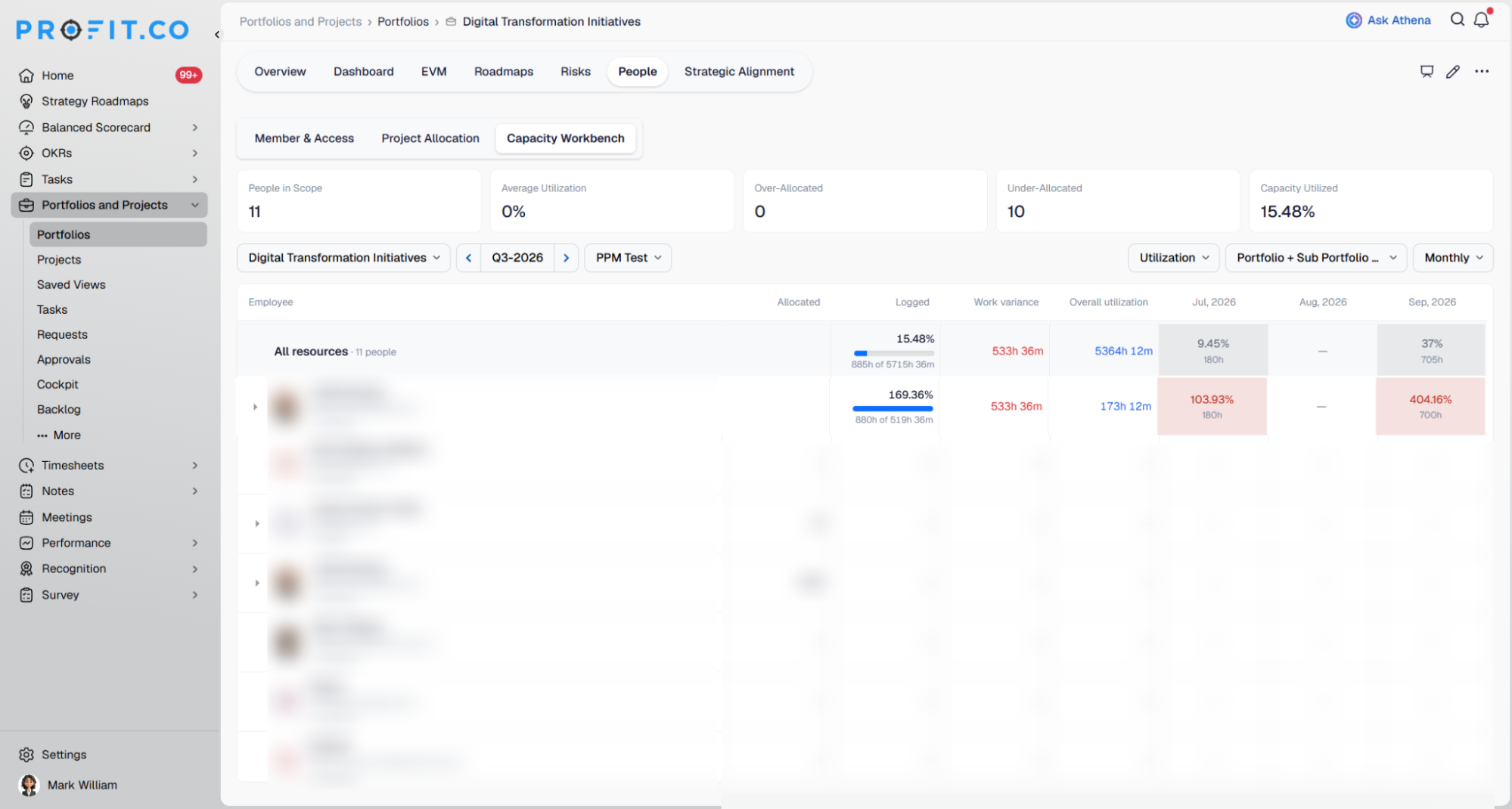
The Capacity Workbench on the portfolio People tab has been redesigned around two views, Allocation and Utilization, which show how much of each person's capacity is planned and how much has actually been worked. Utilization is now measured against capacity rather than against allocated hours, so the two views read on the same scale and can be compared directly. Summary cards show at a glance how many people in the selected period are over-allocated or under-allocated.
How It Works
- Navigate to Portfolios and Projects → Portfolios, open a portfolio, and go to People → Capacity Workbench
- Select the portfolio, the period, the scope (such as Portfolio + Sub Portfolio), and whether to view the data Monthly or Weekly
- The summary cards show People in Scope, Average Utilization, Over-Allocated, Under-Allocated, and Capacity Utilized
- Use the view selector to switch between the workbench's two views:
- Allocation shows each person's Overall allocation, Over-allocated hours, Spare capacity, and the allocation percentage and hours for each month or week. Periods where a person is allocated beyond their capacity are highlighted in red
- Utilization shows Allocated hours, Logged hours, Work variance, and Overall utilization for each person
Why It Matters
- Overload spotted before it hits delivery: Red-highlighted periods show exactly who is over-allocated and when, so work can be rebalanced before deadlines slip.
- Plan and actual on one scale: Allocation and utilization share the same baseline, so planned workload and time actually worked can be compared for the same person and period.
- Spare capacity visible across the portfolio: Each person's unallocated hours are shown alongside their workload, so managers can find people with room before assigning new work.
Enhancements:
8. More details in portfolio and project hierarchy exports
Overview
The portfolio and project hierarchy exports now include each project's category, milestone progress, tollgate sequence, and dependencies. The project hierarchy export also shows the portfolio each project belongs to. Before this update, these fields existed in the application but were missing from the exported report, so users had to add them by hand to build complete reports. Both exports keep their existing hierarchy structure.
How It Works
- Select Portfolio Hierarchy Export or Project Hierarchy Export
- The Portfolio Hierarchy Export now includes Project Category, Milestone Progress %, Tollgate Sequence Name, and Dependency
- Rows still follow the Portfolio → Project → Milestone → Task structure
- The Project Hierarchy Export includes the same four fields, plus Portfolio Name
- Portfolio Name shows the portfolio the project belongs to, and is left blank if the project is not part of any portfolio
- Rows still follow the Project → Milestone → Task structure
- Milestone Progress % shows each milestone's current progress as a percentage, alongside the milestone stage already in the export
Why It Matters
- Complete reports from one export: Category, milestone progress, tollgate, and dependency details arrive in the same file, so teams no longer need to add them by hand before sharing a report.
- Clarity across multiple tollgate sequences: Organisations that run more than one tollgate sequence can see which sequence each project follows, not only its current phase.
- Portfolio context for every project: The project hierarchy export shows which portfolio each project belongs to, so project-level reports can be grouped and filtered by portfolio without a separate lookup.
PERFORMANCE (Performance, Goals, Development Plans, Recognition, Survey)
1. Collaborator assessment step in performance reviews
Overview
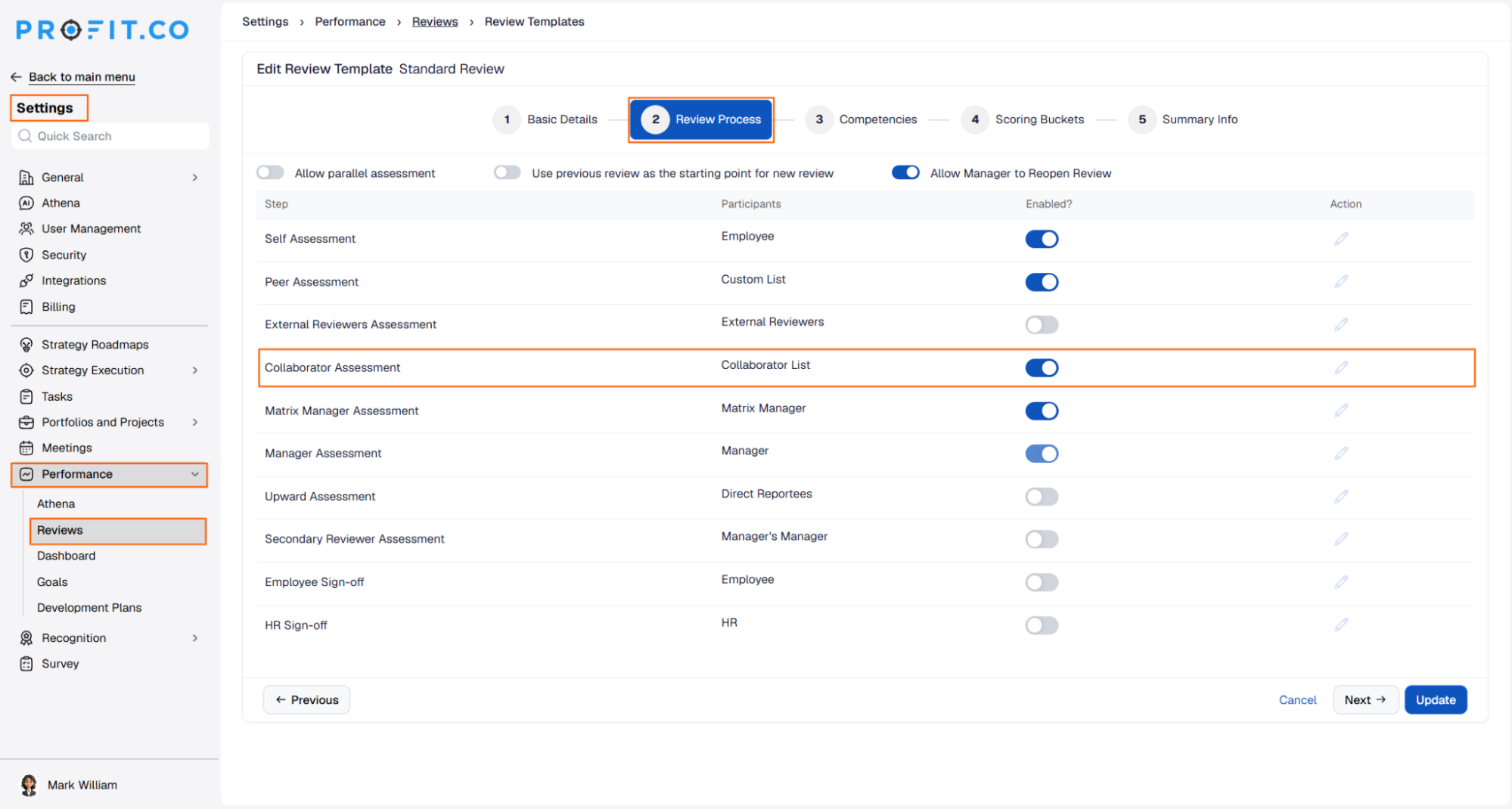
Review templates now include a Collaborator Assessment step, so the people an employee works with can contribute to that employee's performance review. Collaborator Assessment is its own step, separate from peer and manager assessments, so this input can be configured and reviewed on its own. Super users turn the step on for each review template where collaborator input is relevant.
How It Works
- Navigate to Settings → Performance → Reviews → Review Templates and open a review template
- Go to the Review Process step
- Turn on Enabled for Collaborator Assessment. Participants for this step come from the Collaborator List
- Click the edit icon to configure the step
- Click Update to save. Reviews created from this template include the collaborator step
Why It Matters
- Input from the people closest to the work: Colleagues who collaborate with an employee day to day can assess their contribution directly, giving managers a fuller picture of performance.
- Kept separate from peer feedback: Collaborator input is captured in its own step, so it is not mixed into peer assessment and can be reviewed on its own.
- Turned on where it fits: Super users enable the step template by template, so only the review types that benefit from collaborator input include it.
2. Overall rating option for OKRs, goals and competencies
Overview
Reviewers can now give one overall rating and comment for an entire section of a performance review, covering all of an employee's OKRs, goals, or competencies together. Before this update, each item had to be rated and commented on separately, so an employee with five OKRs needed five ratings and five comments. Super users choose, for each review template and each section, whether reviewers rate at the overall level or item by item.
How It Works
- Navigate to Settings → Performance → Reviews → Review Templates and open a review template
- In Basic Details, under Performance Review Assessment Includes, enable Competencies, Goals, or OKRs
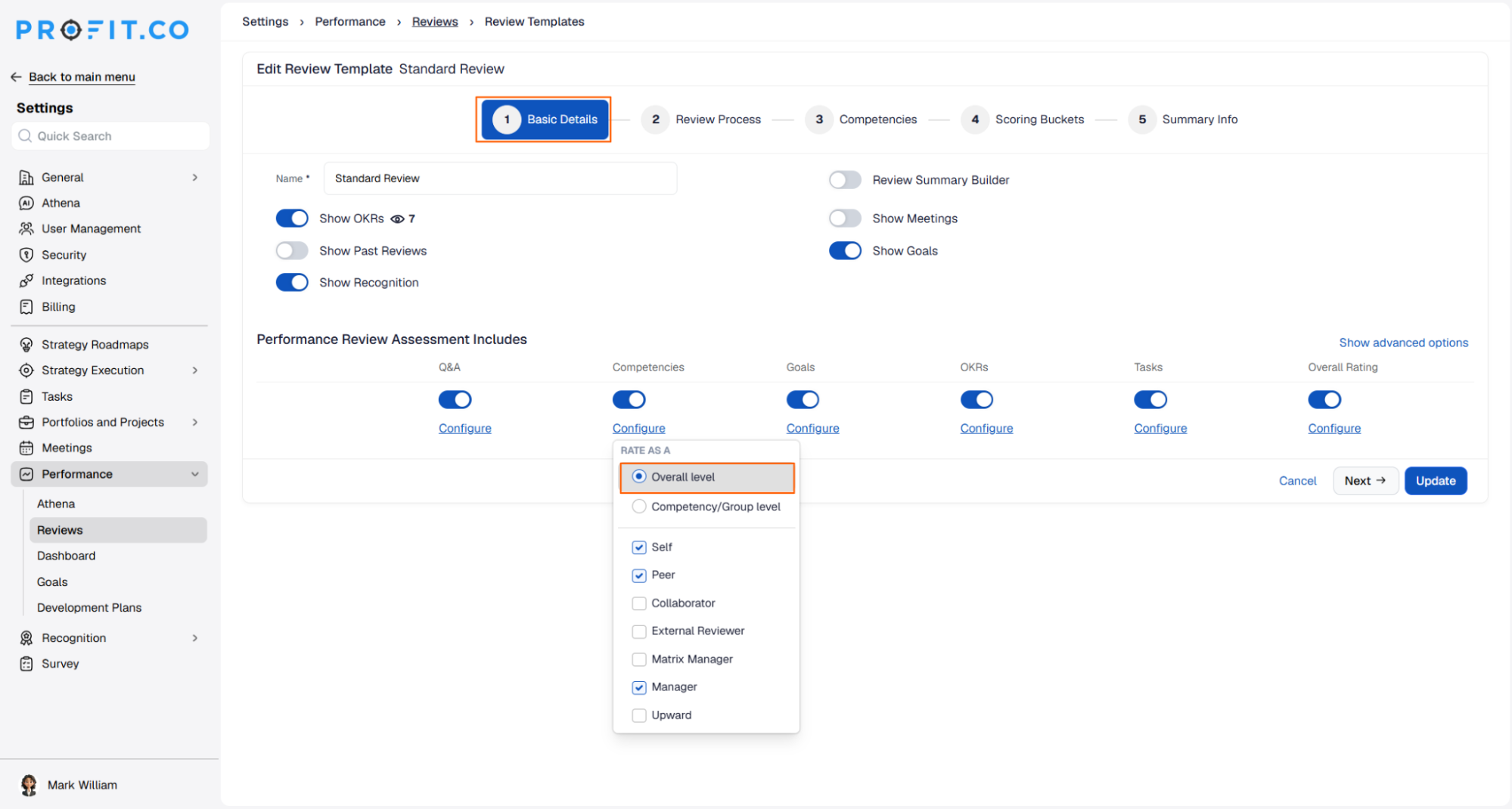
- Click Configure under the section and, under Rate as a, select Overall level
- To keep rating each item separately, select Competency/Group level (for competencies)
- The overall level option is available only for Competencies, Goals, and OKRs
- Click Update. Reviews created from this template ask for one rating and one comment for the whole section
Why It Matters
- Fewer repeated entries: Reviewers give one rating and one comment for all OKRs, goals, or competencies, so a review with five OKRs needs one assessment, not five.
- Assessment at the right level: Organisations that judge overall contribution, not individual items, can set up reviews to match how they actually evaluate performance.
- Item-level rating still available: The option is set per section and per template, so teams that rate each item separately can keep doing so.
3. Department-owned OKRs in performance reviews
Overview
Review templates can now include OKRs owned by a department or by the organisation, not just OKRs assigned to the person being reviewed. Previously, a department-level OKR with no individual assignee never reached anyone's review, so department heads could not be rated on the outcomes they are accountable for. Super users choose, per template, whether these OKRs appear only in the department head's review or in every department member's review. A matching option includes corporate-owned OKRs in the OKR captain's review.
How It Works
- Navigate to Settings → Performance → Reviews → Review Templates and open a review template
- In Basic Details, under Performance Review Assessment Includes, click Configure under OKRs
- Under Which OKRs Are Included?, enable Department OKRs assigned to the user, then choose a nested option:
- Department-Owned OKRs included for the department head's review adds department OKRs that are not assigned to anyone, or are assigned to the department itself, to the department head's review
- Department-Owned OKRs for department members adds the same OKRs to the department head's review and to each department member's review
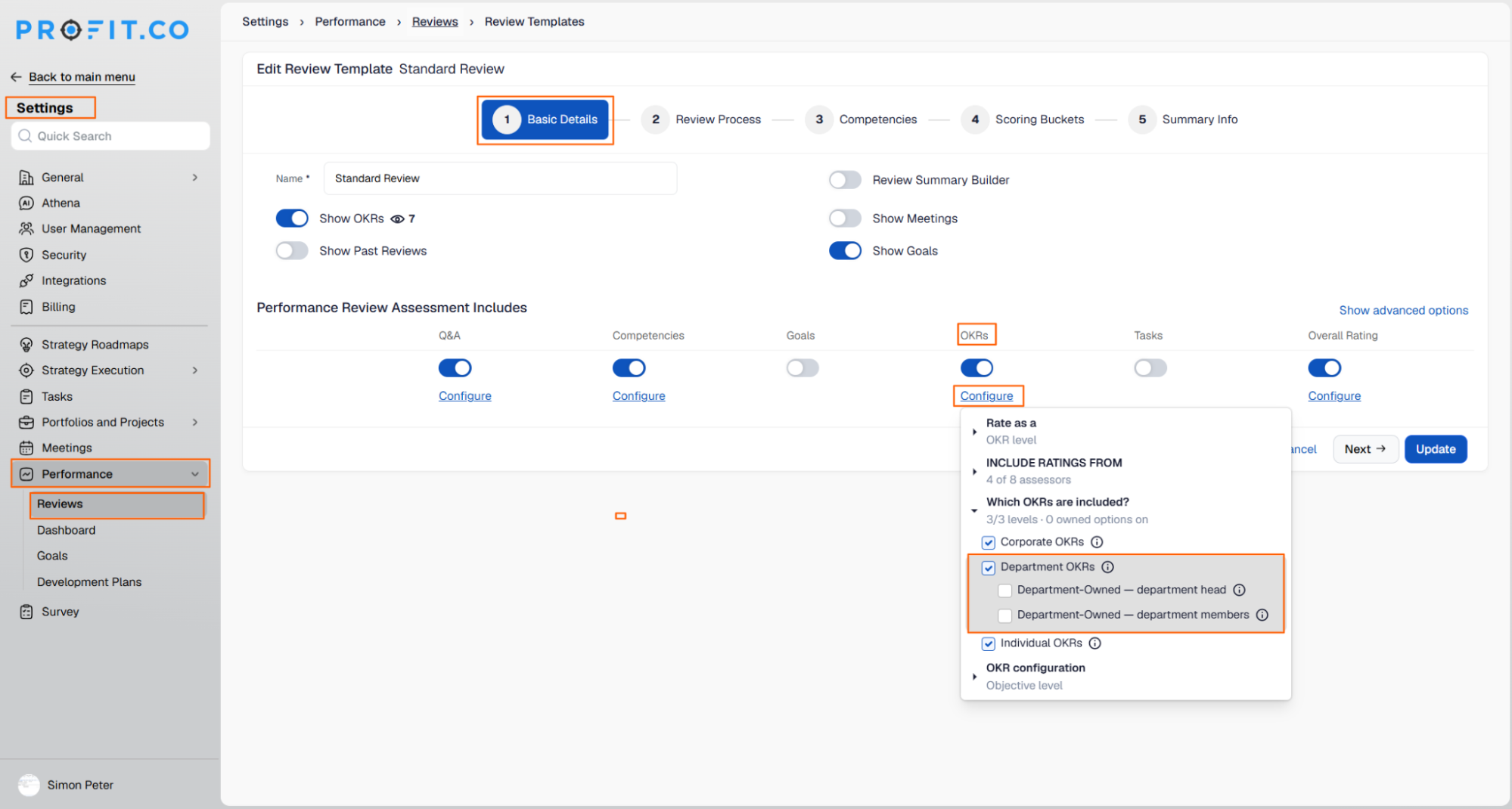
- To include corporate OKRs that are not assigned to anyone, enable Corporate OKRs assigned to the user, then Corporate-Owned OKRs included for the OKR captain's review
- Click Update. In the review form, these OKRs appear under a labelled band for each department, and assessors rate them the same way as assigned OKRs
- Both nested options are off by default, so existing templates are unchanged
Why It Matters
- Rated on the outcomes they own: Department heads are assessed on the department OKRs they are accountable for, not only the ones that carry their name.
- Shared goals reach the whole team: With the members option on, everyone in the department rates the department OKRs they work towards in their own review.
- Each department kept separate: A head of several departments sees each department's OKRs in its own labelled band, so results from different teams are not mixed together.
