
Overview
Databricks is a unified data analytics and AI platform built on a lakehouse architecture that combines the reliability of a data warehouse with the scalability of a data lake. Organizations use Databricks SQL warehouses to store, process, and query large volumes of structured data.
The Databricks integration with Profit.co lets you connect a Databricks workspace and run SQL queries directly from a key result's check-in flow. This allows KPI values to be retrieved automatically from Databricks, keeping key result progress in Profit.co updated without manual data entry.
What This Integration Supports
With the Databricks integration, you can:
- Connect Profit.co to a Databricks workspace using a Workspace URL, Client ID, and Client Secret
- Run SQL queries against a selected Databricks warehouse to retrieve KPI values
- Automate check-ins for key results using Increase KPI, Decrease KPI, or Control KPI types
- Automatically populate the Current Value of a key result from your Databricks query results
- Control the visibility of each Databricks connection
Prerequisites
- An active Databricks workspace with a valid Workspace URL
- A Databricks Client ID and Client Secret with access to the required SQL warehouse
- Access to the Databricks SQL warehouse you intend to query
- Super User access in Profit.co
Note: Only Super Users can configure this integration in Profit.co.
Configure Databricks in Profit.co
The following steps walk through connecting Databricks to Profit.co and using it to automate check-ins for a key result.
Step 1
Navigate to the Databricks connector in Profit.co to begin the setup.
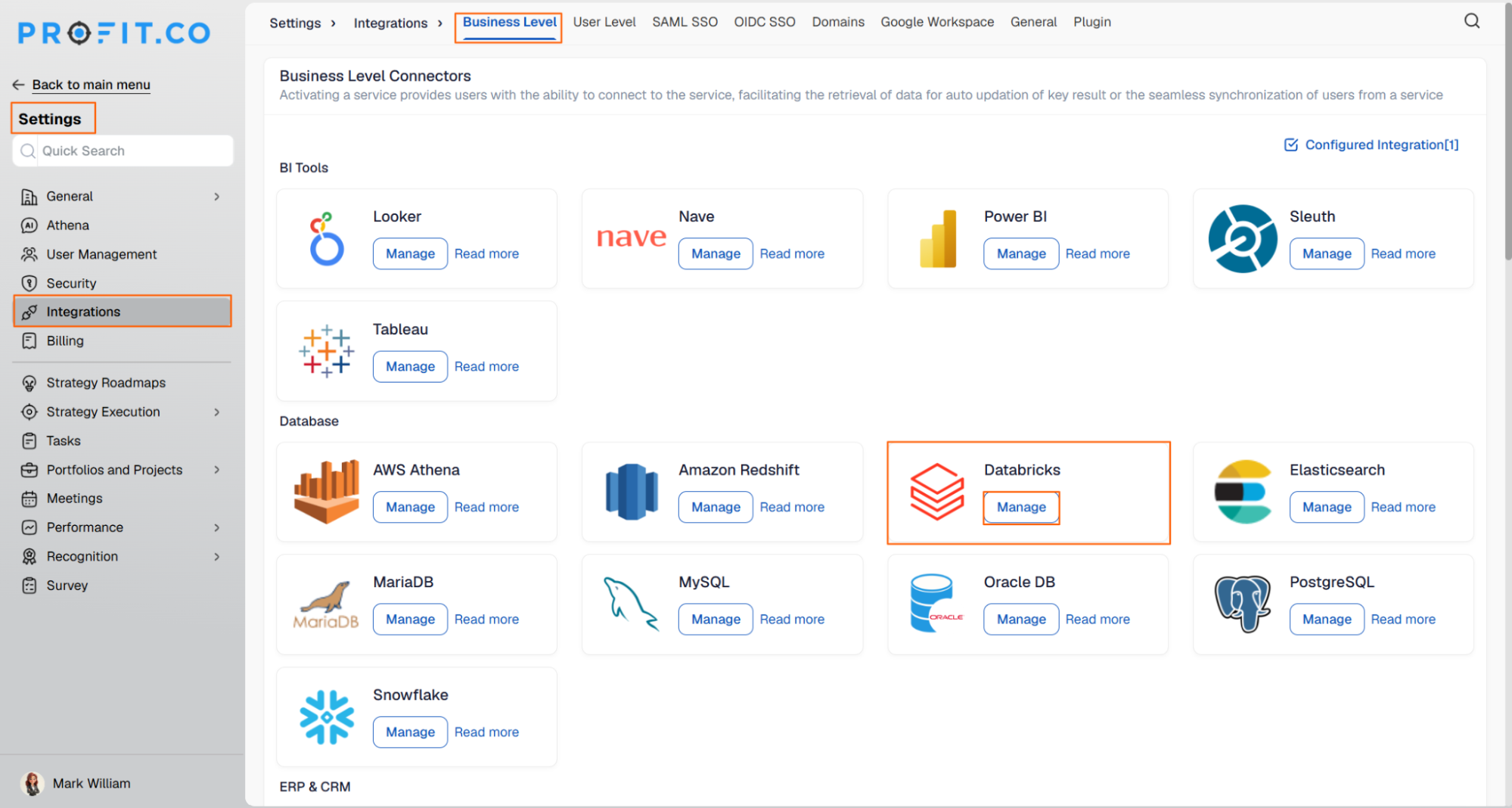
- Navigate to Settings from the left navigation panel.
- Click Integrations and select the Business Level tab (Settings → Integrations → Business Level).
- Locate Databricks and click the Manage button.
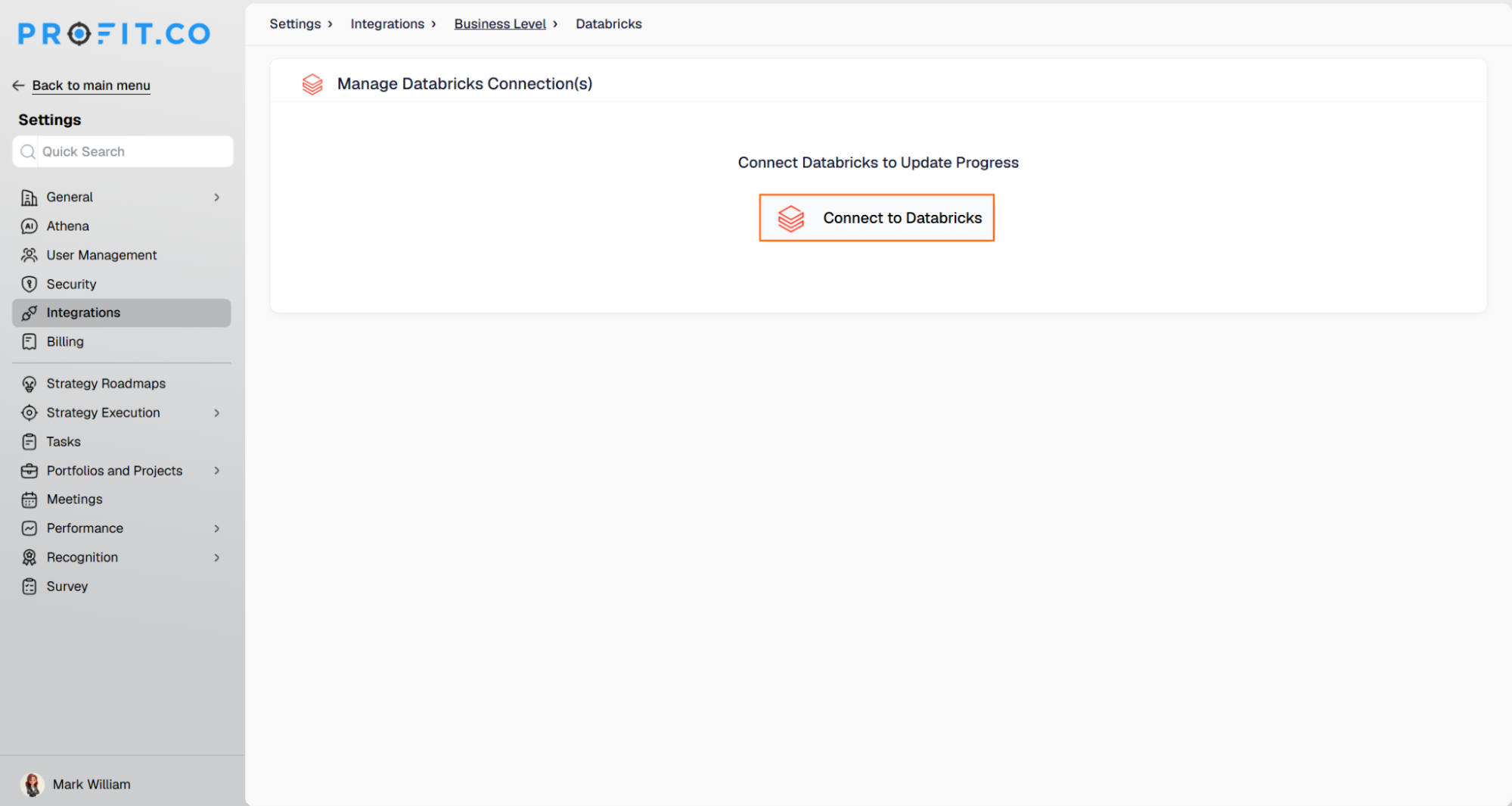
- Click the Connect to Databricks button.
Step 2
Enter your connection details to establish the connection.
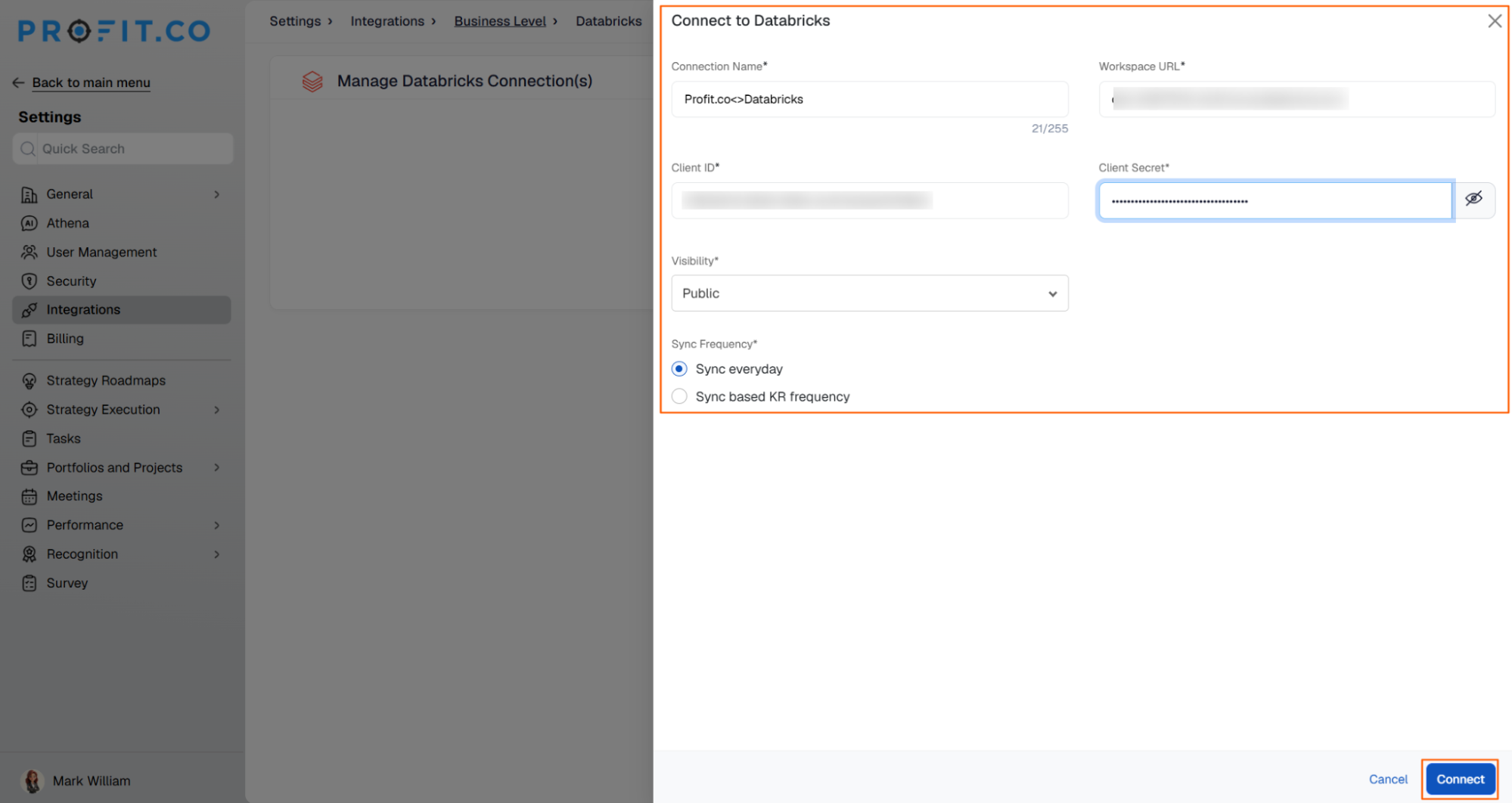
- In the pop-up, enter your Connection Name.
- Enter the Workspace URL, Client ID, and Client Secret. (For detailed instructions on configuring the Client ID and Client Secret, refer to the Service Principal Setup Guide.)
- Set the Visibility for the connection.
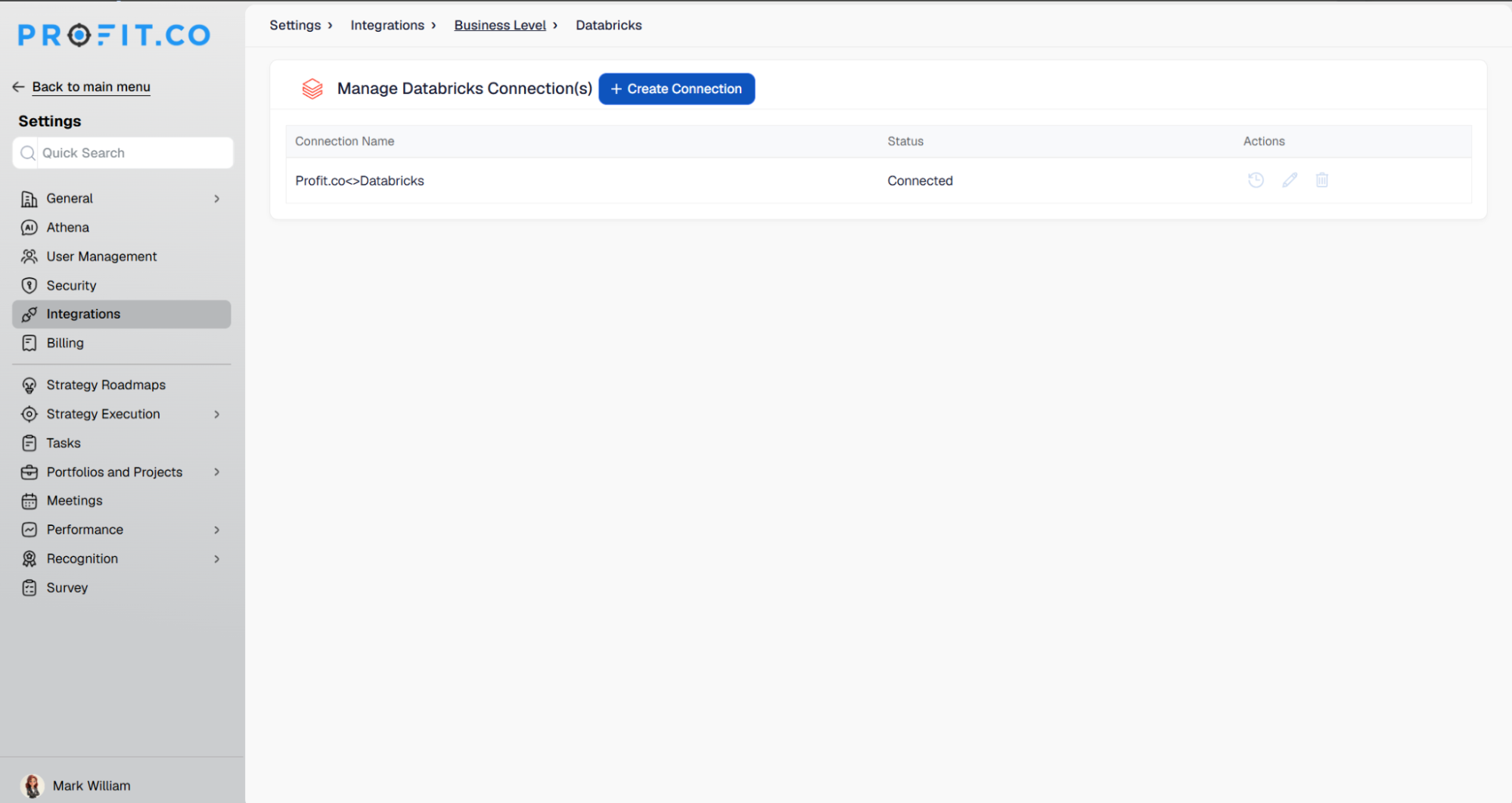
- Click Connect.
Step 3
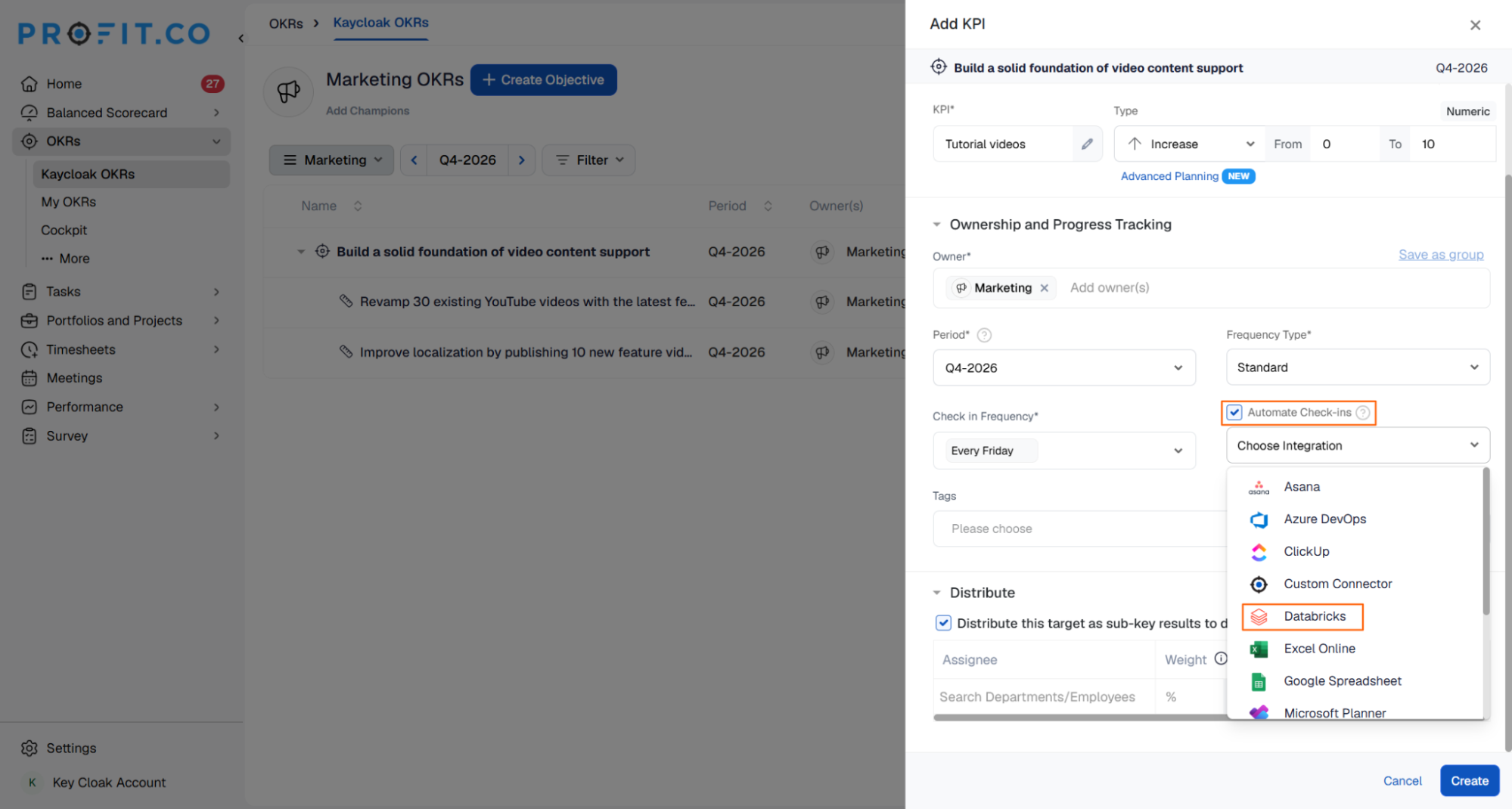
Create a key result where you want to track a Databricks-based KPI.
- Create a Key Result in Profit.co for the metric you want to integrate with Databricks.
- Choose the required KPI type for the key result.
- Click Automate Check-in.
- Choose Databricks from the Connection drop-down.
Step 4
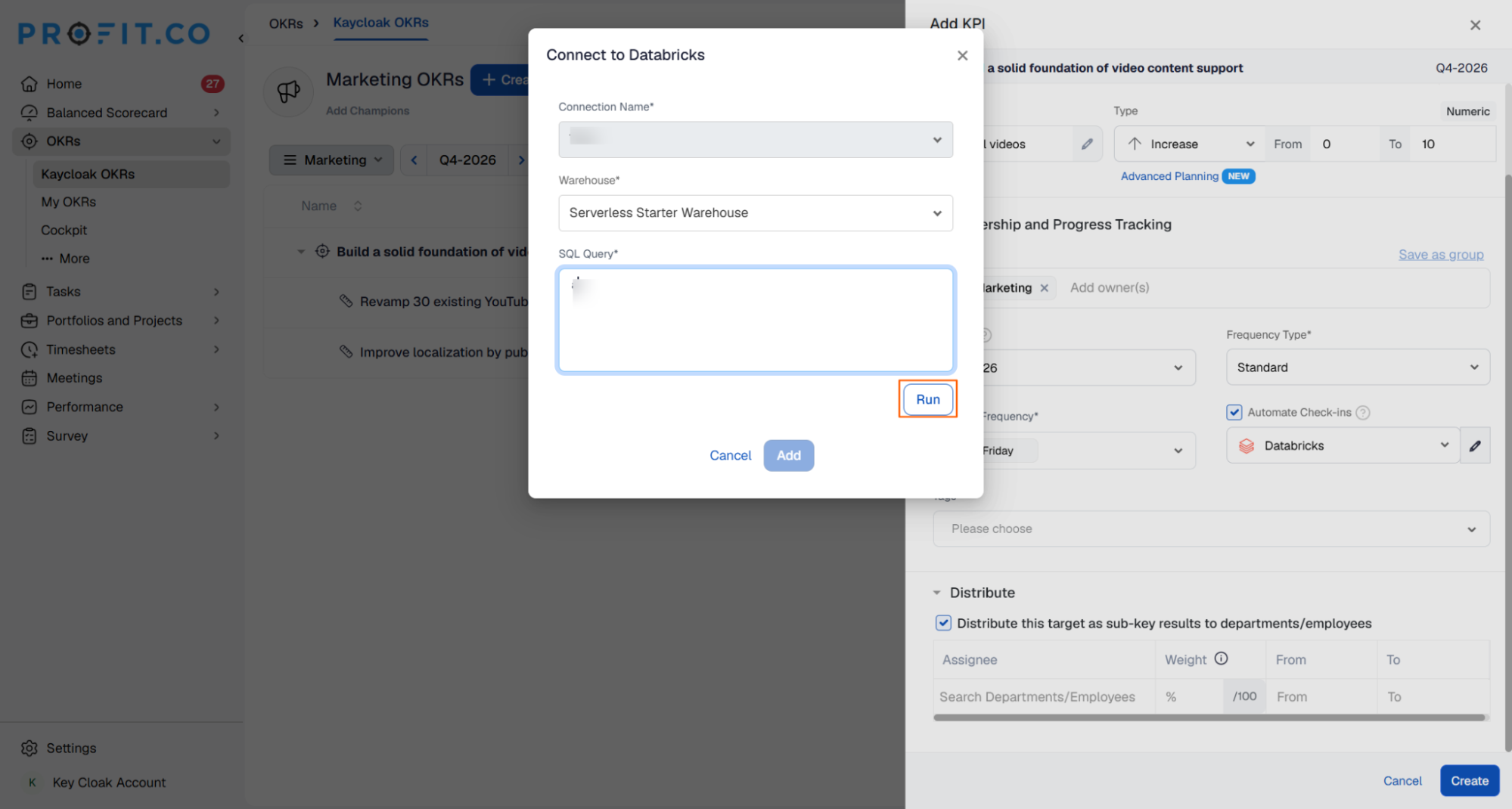
Configure the query that retrieves the KPI value from Databricks.
- On the Connect to Databricks window, choose the Connection Name and Warehouse.
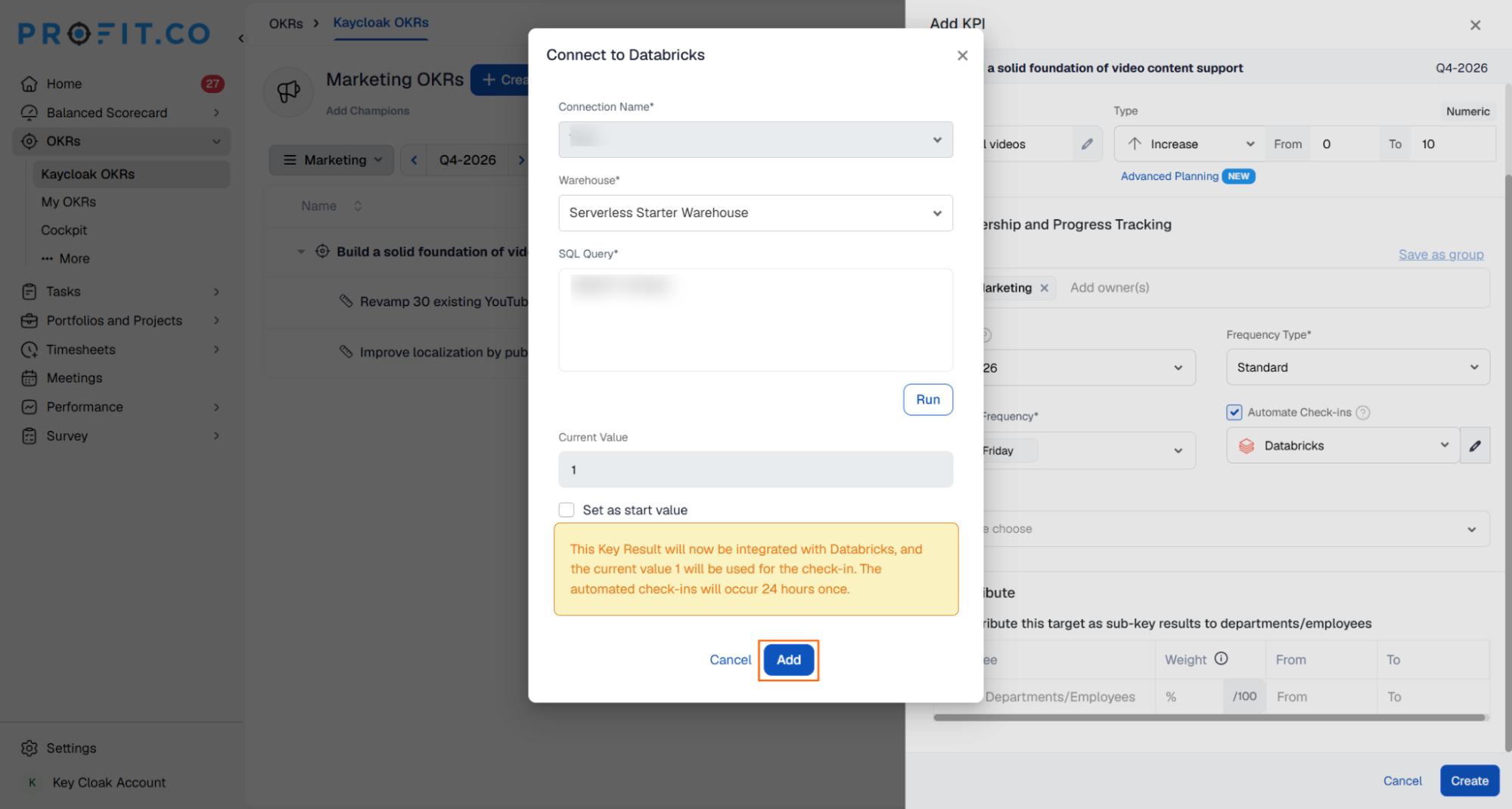
- Enter your Query and click Run Query to fetch the Current Value.
- Click Add.
Step 5
- After the key result is created, complete the first check-in to confirm the connection.
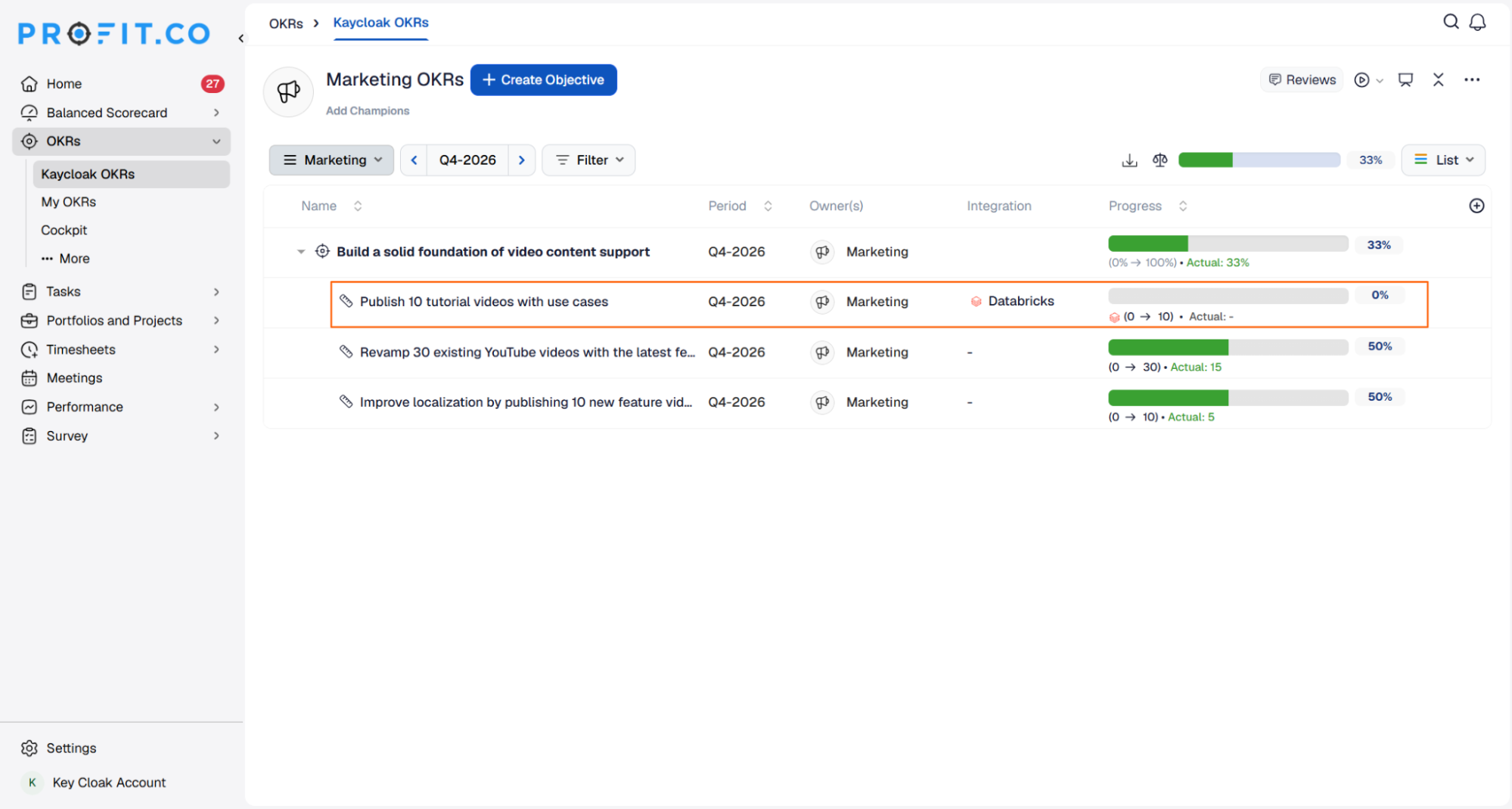
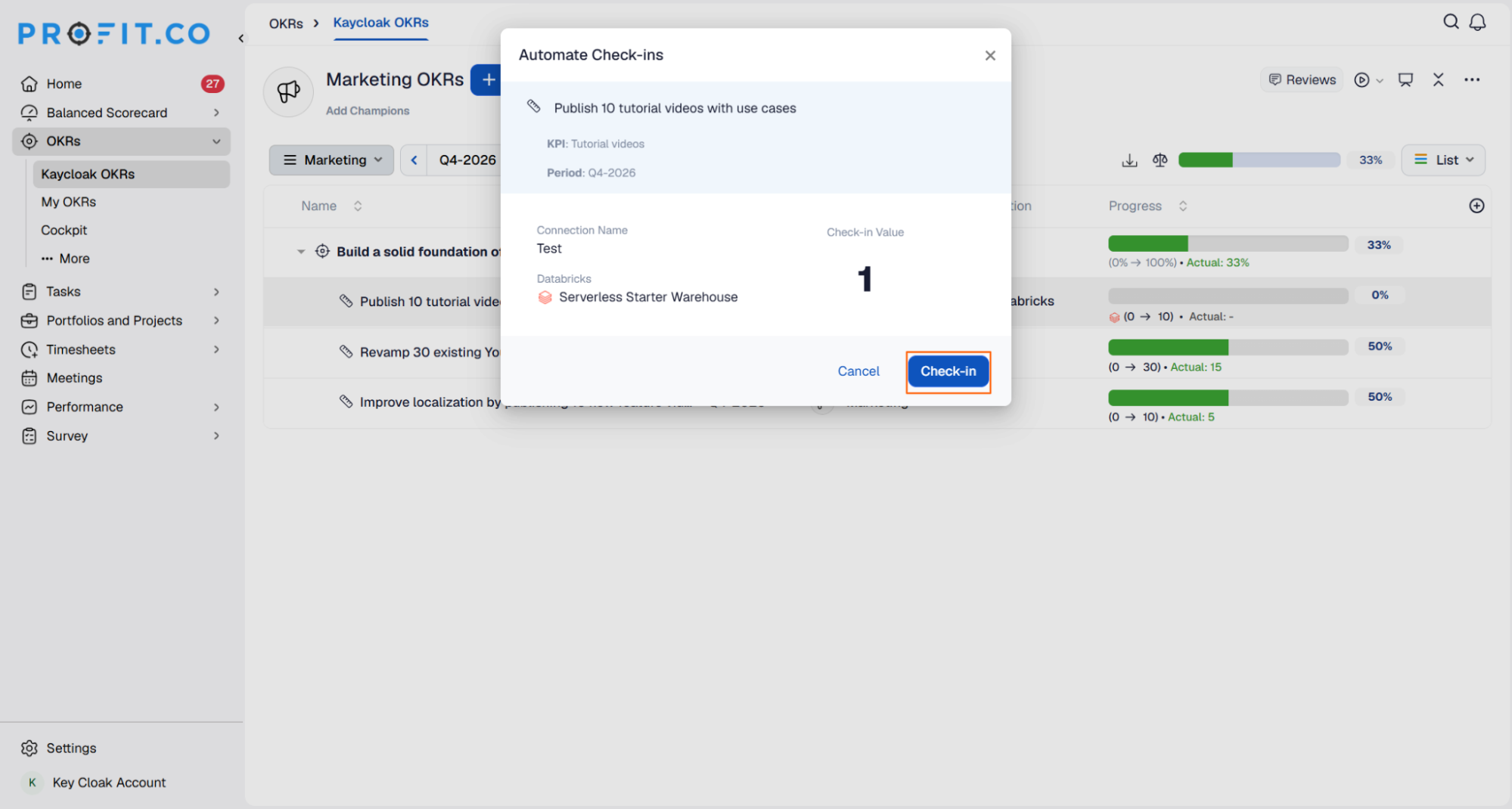
- Click Check-in and complete the check-in to update the status value.
- You will be redirected to the review page. Click Check in to apply the progress to your key result.
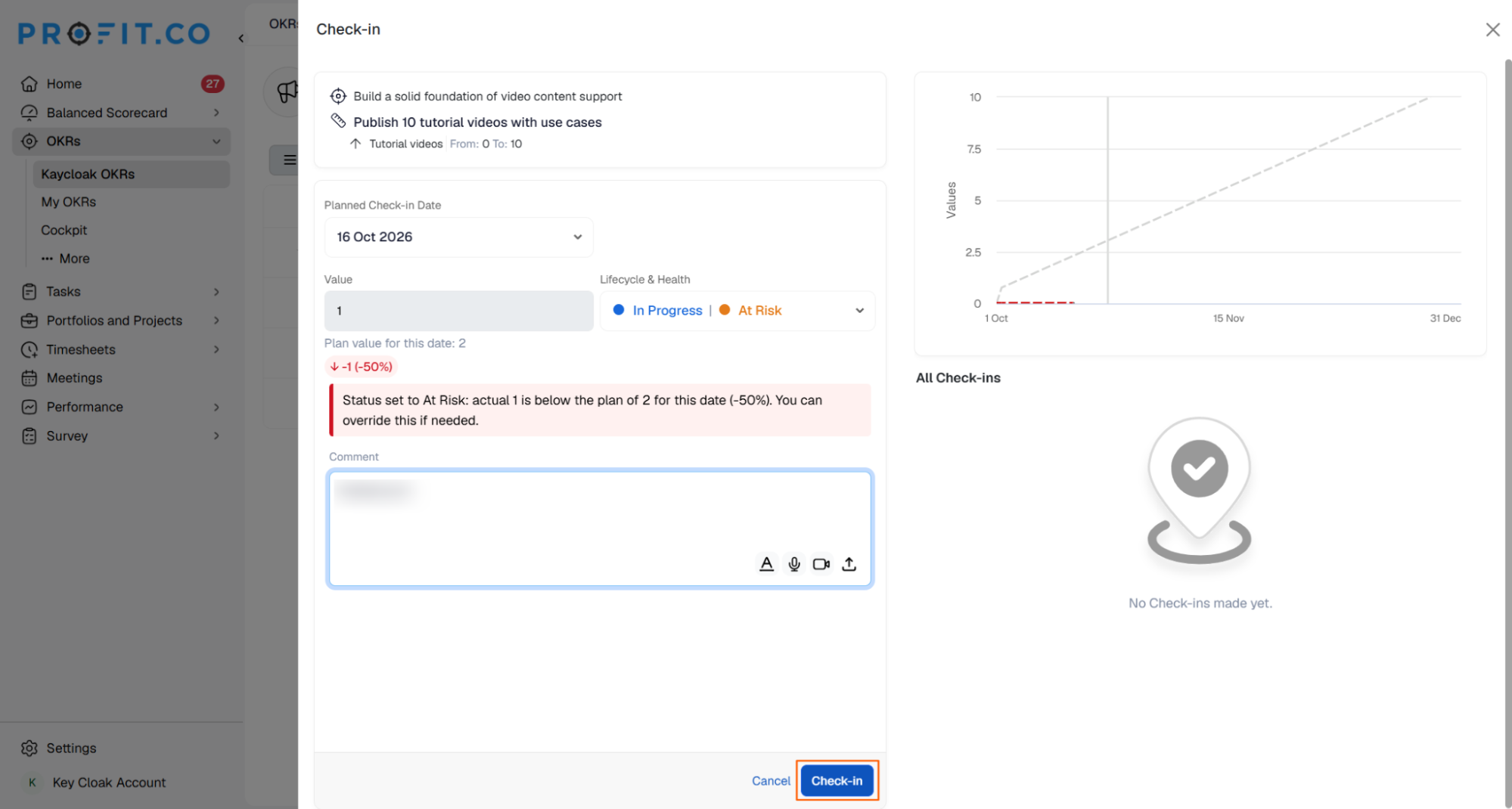
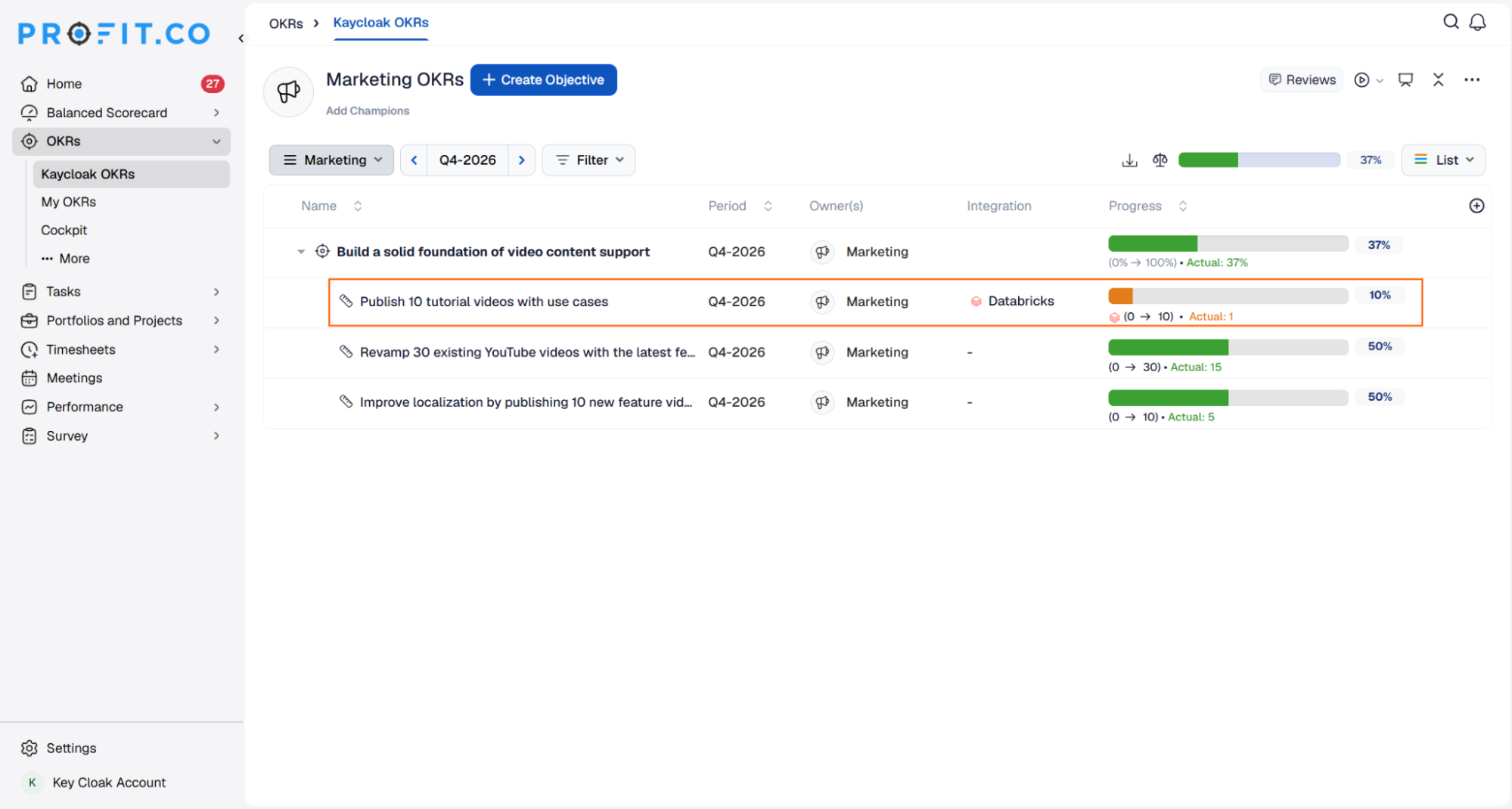
Note: Checking in redirects you to a review page, where you can confirm the value and update it to record progress toward your key result.
Summary
By connecting Databricks to Profit.co, you can automate KPI tracking directly within your key results. After authenticating with Databricks, you can run SQL queries against your warehouses to retrieve live metric values and use them to automate check-ins, keeping key result progress accurate and up to date without manual intervention.