





Profit.co provides an option to create sub-key results within the key results for more detailed progress tracking.
Table of Contents
Why are subkey results important?
Sub Key Results provide granular tracking and team-level accountability for achieving larger objectives. Here's why this feature matters:
- Detailed Progress Tracking: The progress of the parent key result can be tracked using the sub key results, providing visibility into how work is broken down.
- Efficient Tracking: Users can add a sub key result as a new step to track the parent key result more efficiently, breaking complex goals into manageable pieces.
- Team Distribution: Distribute work across multiple team members while maintaining unified tracking
- Roll-Up Progress: Automatically aggregate progress from sub-KRs to parent KRs
- Clear Accountability: Assign specific portions of work to individual contributors
What are Sub Key Results?
Sub Key Results (Sub-KRs) are child Key Results that roll up to a parent Key Result, creating a hierarchical structure for tracking progress.
Key Characteristics:
Relationship:
- Parent Key Result: The main Key Result that represents the overall goal
- Sub Key Results: Individual components that contribute to the parent
- Roll-Up: Sub-KR progress aggregates to calculate parent KR progress
Structure:
- Sub-KRs appear directly below their parent Key Result
- Multiple Sub-KRs can exist under a single parent
- Each Sub-KR has its own owner, target, and progress tracking
- Sub-KRs can have different measurement types than their parent
How do I create Sub Key Results?
There are two primary methods to create Sub-KRs:
Method 1: Add Sub-KR Using the + Icon
Step 1: Locate the Parent Key Result
- Navigate to your OKR module
- Find the Key Result where you want to add sub-KRs.
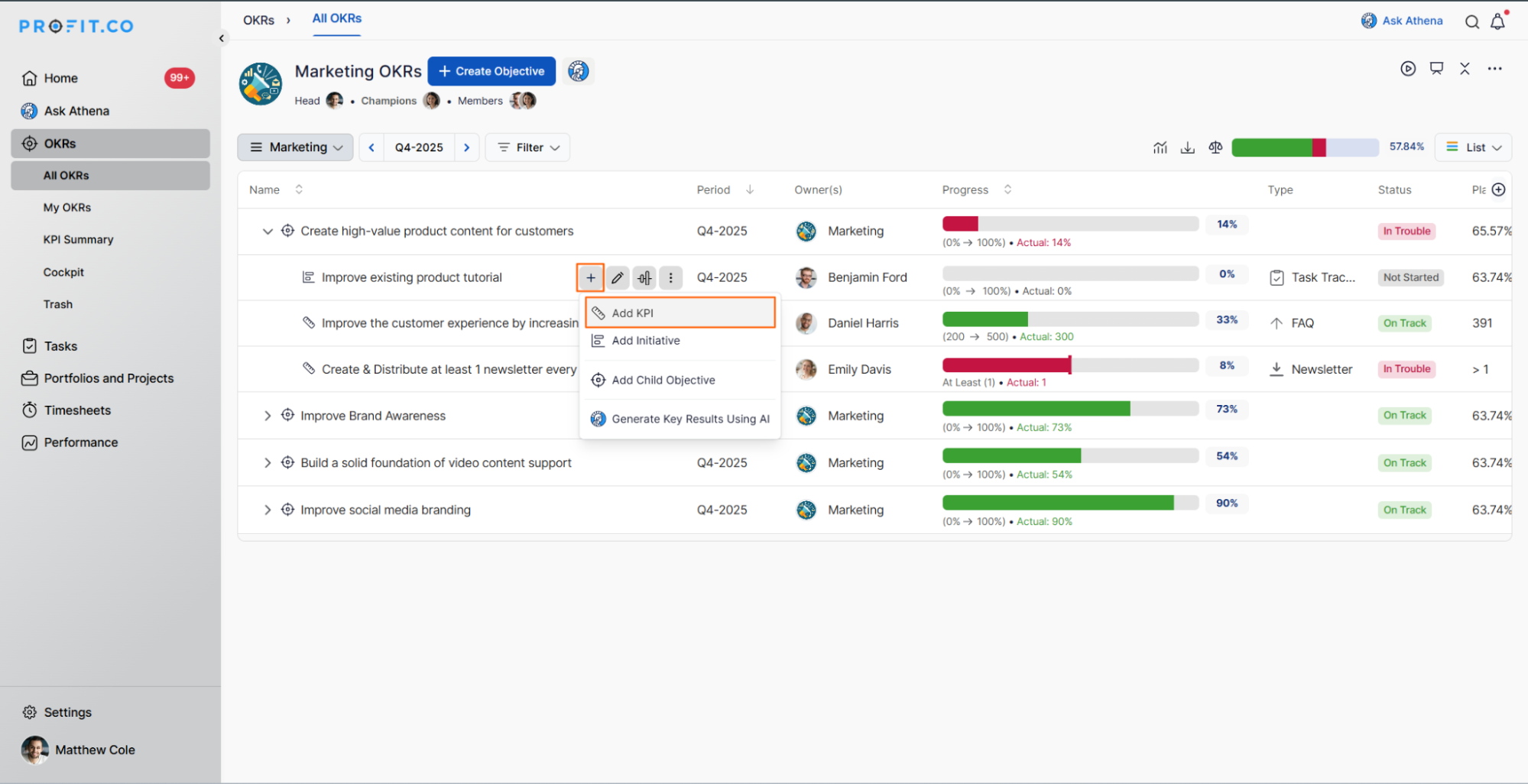
- Click on the + Icon and then click Add KPI.
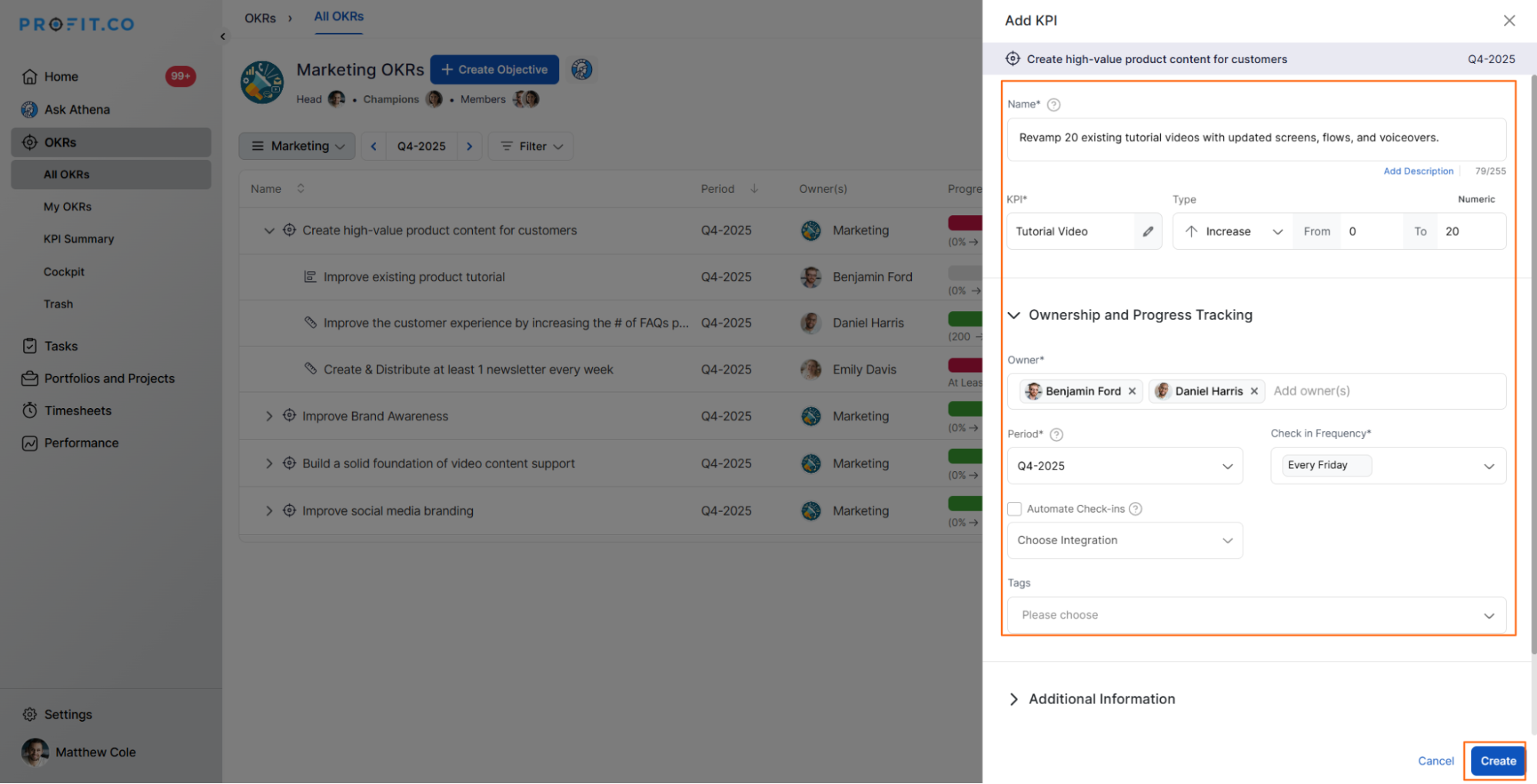
Fill in the Sub-KR details:
- Sub-KR name/description
- Owner/assignee
- Target value
- Measurement type
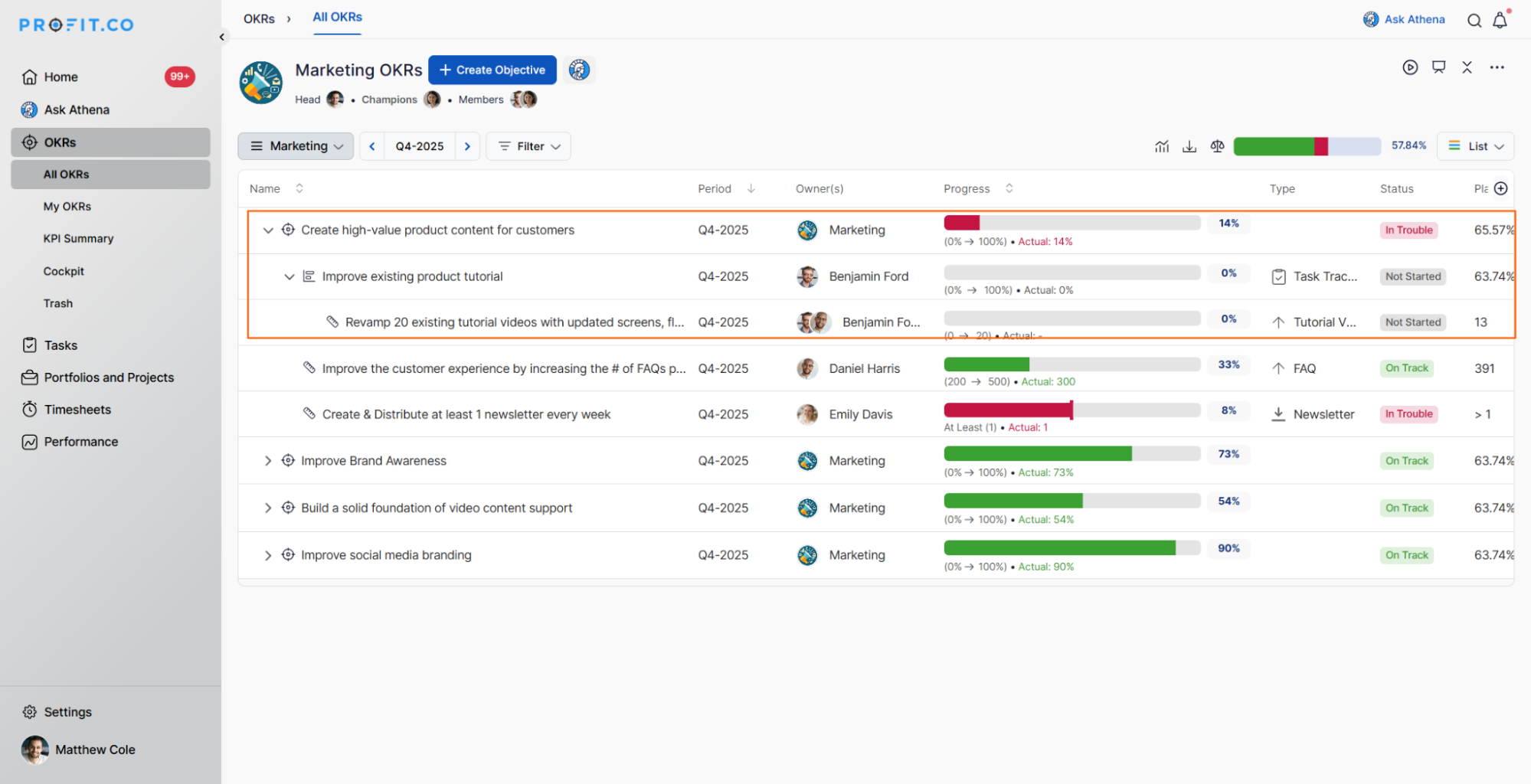
Step 2: View the Subkey Result
The subkey result will be created just below the parent key result, clearly showing the hierarchical relationship.
Method 2: Distribute Key Result to Multiple Assignees
Using the Distribute Option:
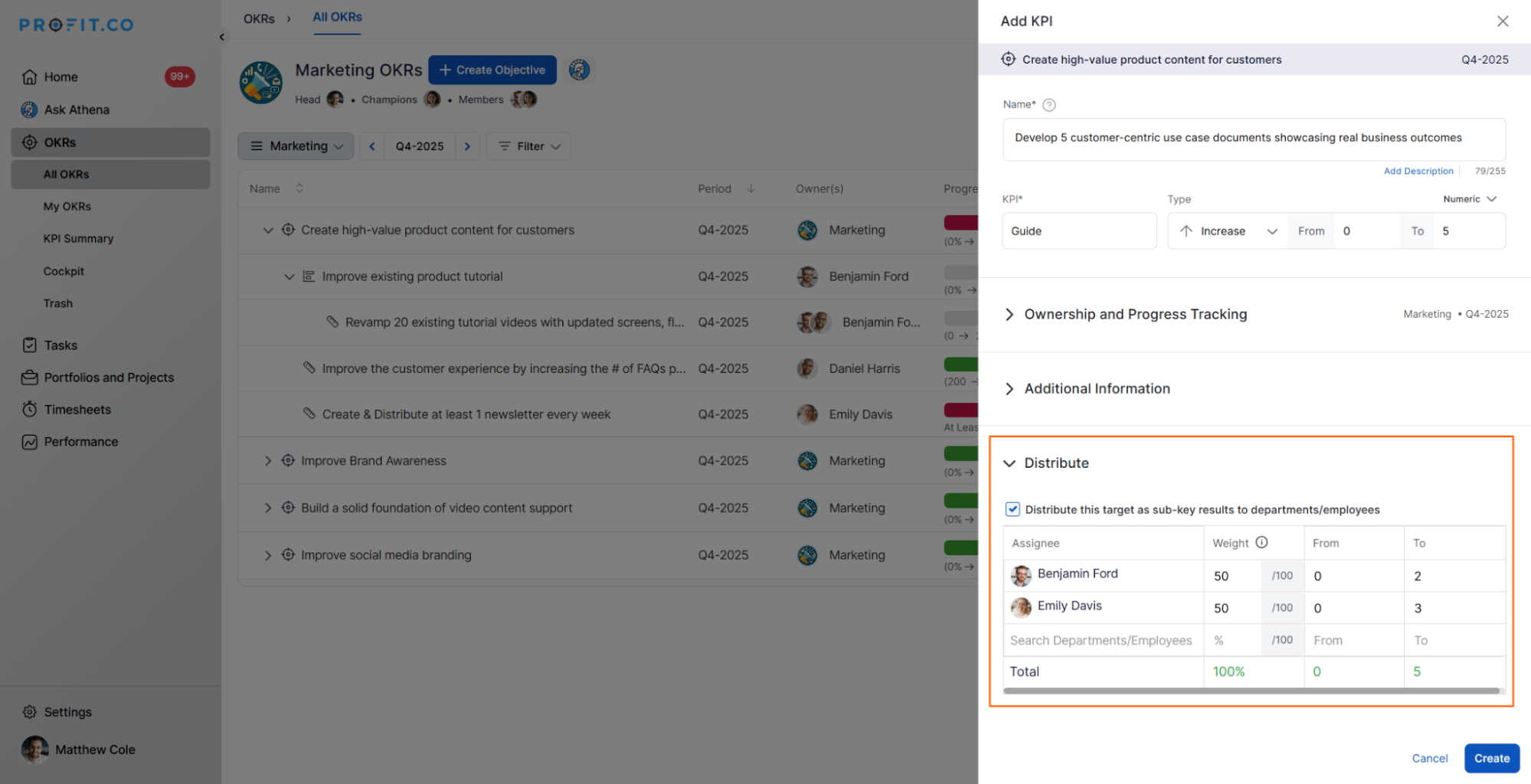
You can also create sub-key results by distributing a key result and assigning it to multiple assignees using the Distribute option.
How Distribution Works:
- Select a Key Result you want to distribute
- Choose the Distribute option
- Select multiple assignees from your team
- The Key Results will be distributed as sub-key results
- Each assignee gets their own Sub-KR under the parent
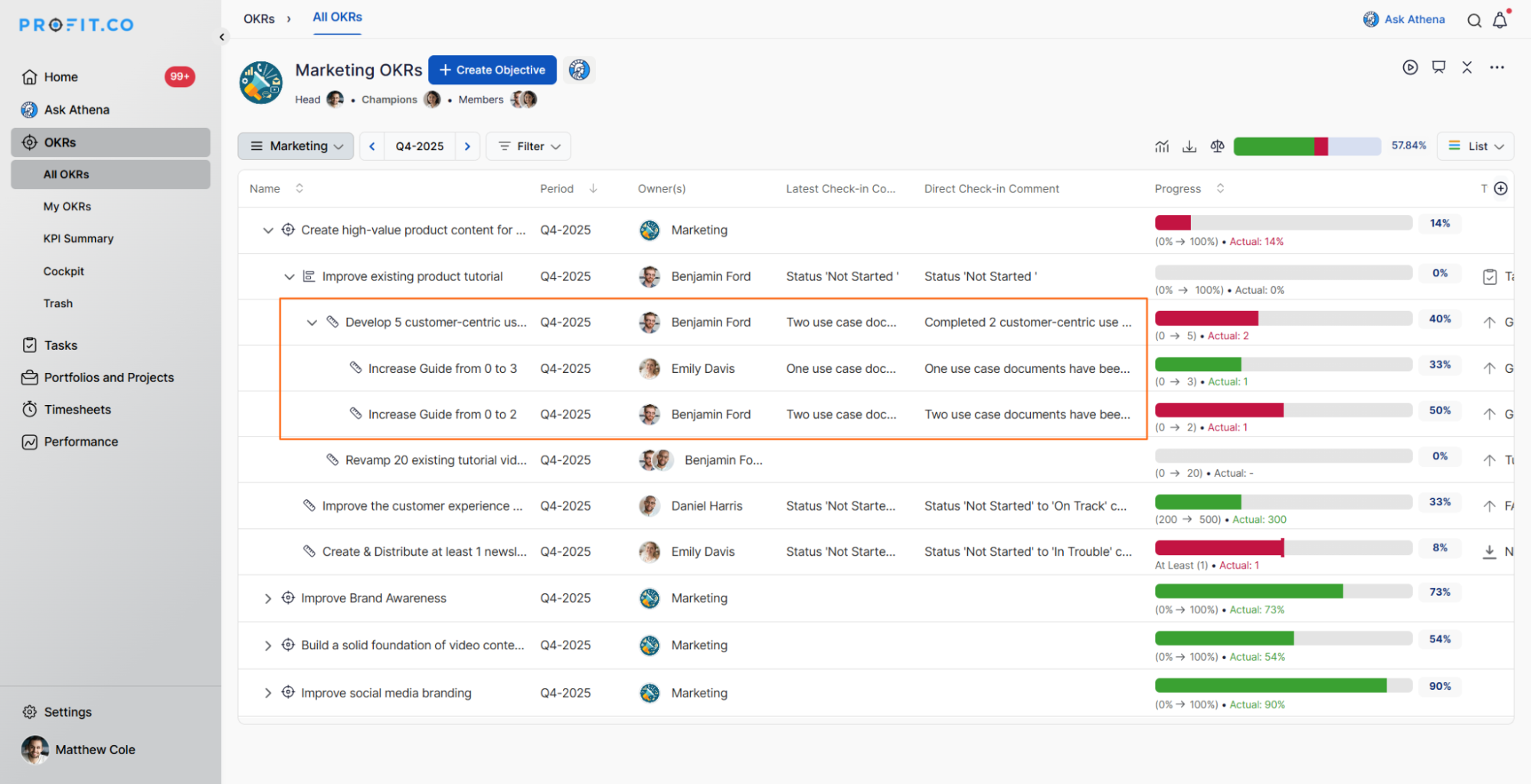
Note:When you perform check-ins at both the Parent Key Result level and the Sub-KR level, the comments are now displayed separately. Parent KR comments appear under Direct Check-In Comments, while Sub-KR comments continue to show under Latest Check-In Comments.
Best Practices for Creating Sub Key Results
- To maximize the effectiveness of Sub-KRs:
- Divide parent KR into meaningful, distinct components
- Ensure Sub-KRs collectively achieve the parent target
- Assign each Sub-KR to a specific individual
- Ensure owners have authority and resources
- Set specific, quantifiable targets for each Sub-KR
- Ensure Sub-KR targets add up to parent target (for sum roll-up)
- Use consistent measurement units where possible
- Make targets achievable but challenging
Related Questions
To learn more about the process of key result status propagation, click here.
Frequently Asked Questions
Sub-KRs are specifically for Key Results. Objectives have Key Results, which can then have Sub-KRs. There's no concept of "Sub-Objectives.
Distribution is faster for creating similar Sub-KRs assigned to different people. Manual creation gives you more control over individual Sub-KR details, targets, and structure. Choose based on your needs
Deleting a Sub-KR removes it from the parent's roll-up calculation.
