Release Highlights
A quick-glance summary of all features shipped in this release.
| STRATEGY (Strategy Roadmaps, Balanced Scorecard, OKR Management, Hoshin Kanri) | ||
|---|---|---|
| S.No | Feature Name | Key Benefit |
| 1 | Reorder Saved Views with Drag and Drop | Easily arrange saved views in your preferred order using instant drag-and-drop reordering. |
| 2 | Export for Individual Progress Tracking | Download the Individual Progress Tracking widget data as an Excel file. |
| 3 | Independent Toggle for Past, Future, and Current Key Results | Show or hide each key result time group separately for a more focused OKR list. |
| 4 | Customizable Fields in the Strategy Roadmaps Gantt View | Choose which fields appear in the Gantt table alongside Themes and Initiatives. |
| 5 | Detailed Activity Logs for Key Result Actions | Track every change made to an OKR, including who made the change, what was changed, and the before-and-after values for complete visibility and accountability. |
| 6 | OKR Settings Reorganized into Planning and Execution | Find the settings you need faster with initial setup and ongoing management options clearly separated for easier navigation. |
| 7 | Check-In Date and Delete Option for Legacy Check-Ins | View when legacy check-ins were made and remove incorrect entries directly, without requiring support assistance. |
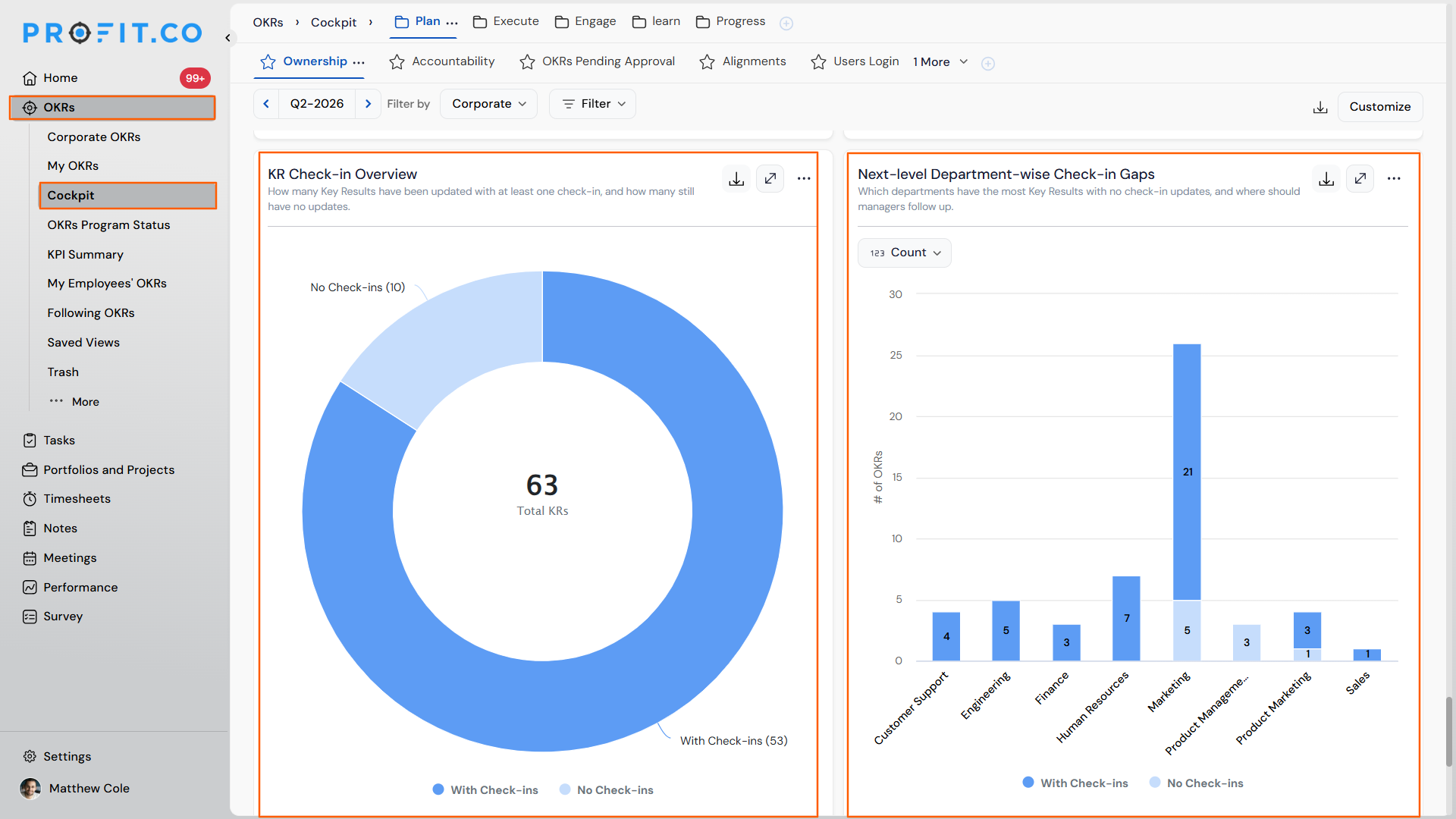
| 8 | Check-In Coverage Widgets on the OKR Cockpit | See which key results have check-ins and which do not, broken down by department. |
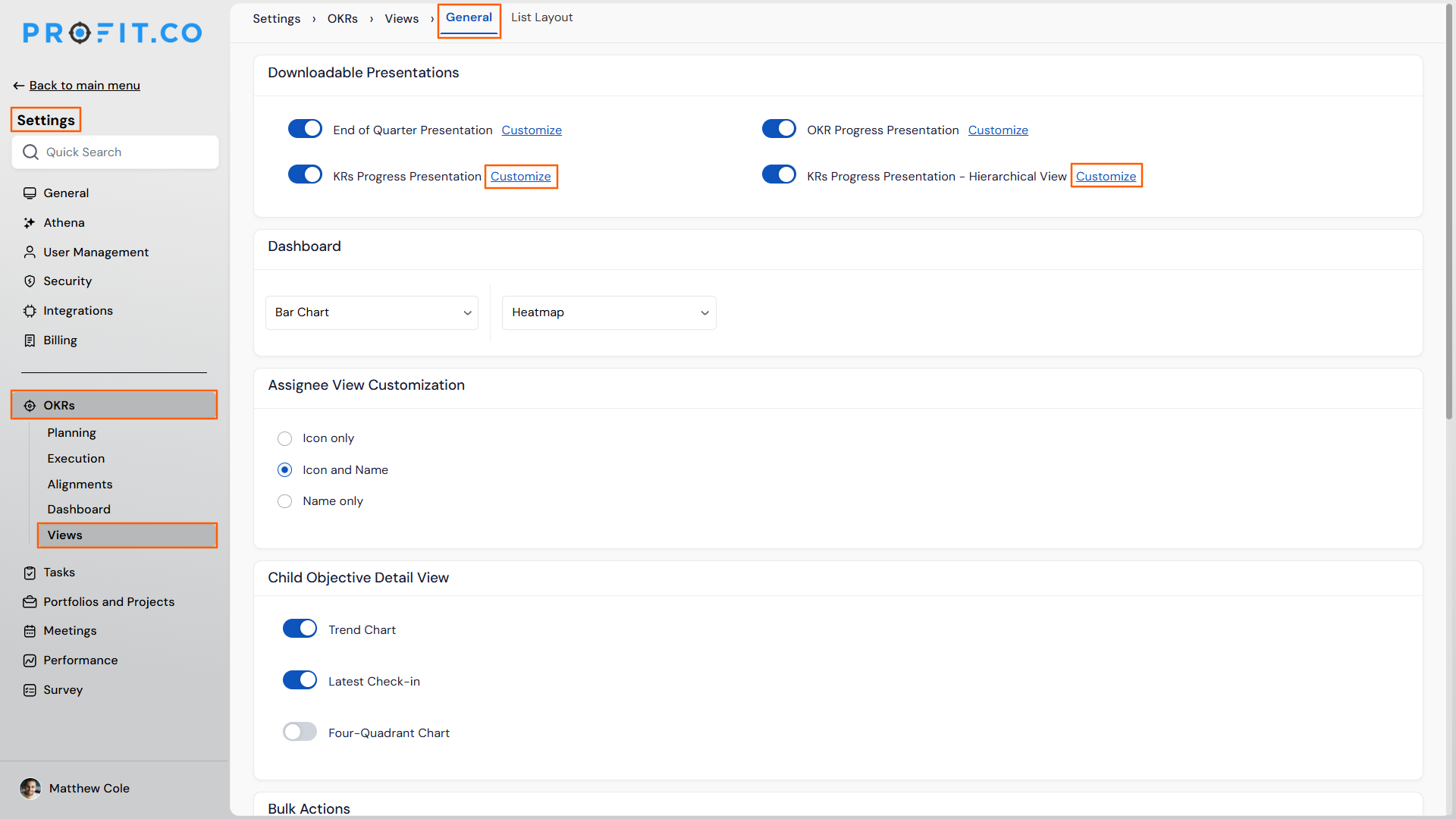
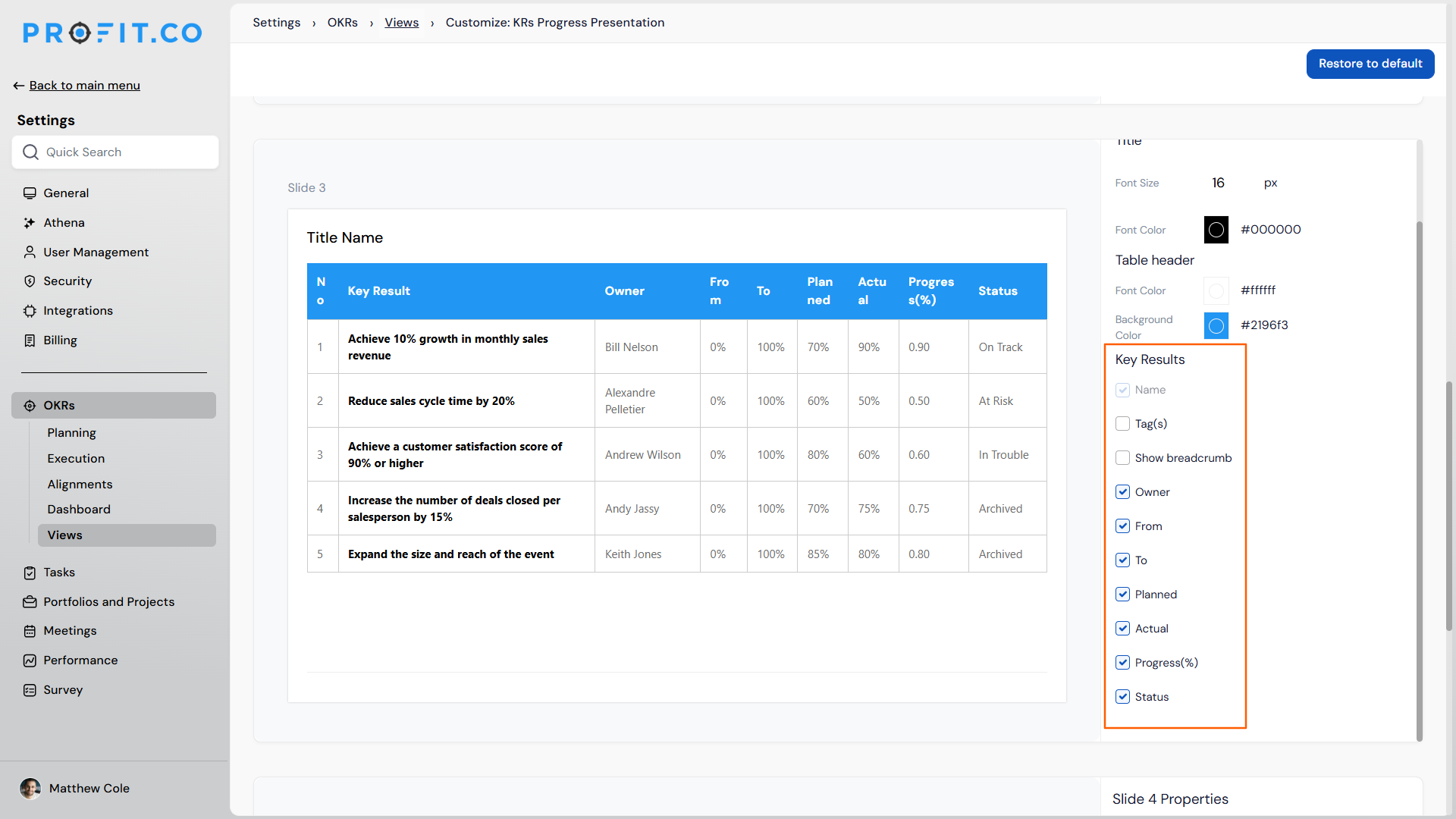
| 9 | Customizable Fields for KR Progress Presentations | Select which fields appear in exported KR progress presentations. |
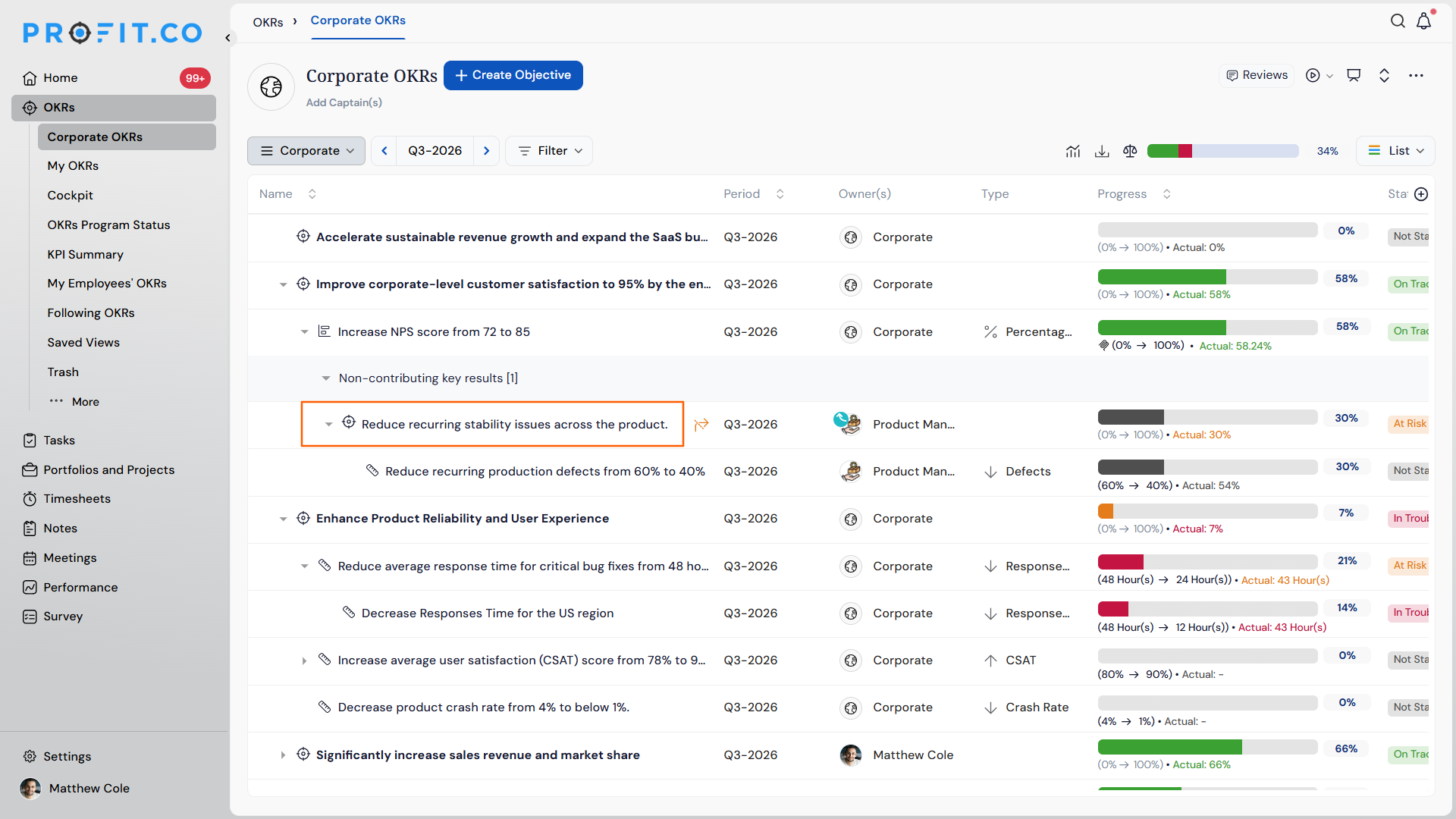
| 10 | Reflect/Reset for Sub Key Results and Child Objectives | Apply Reflect/Reset to any level of the OKR hierarchy, not just top-level items. |
| 11 | Priority Levels for Objectives and Key Results | Assign priorities to OKRs and sort them accordingly, making it easier to surface and focus on the most important items first. |
| 12 | Four-Quadrant Chart Support for Child Objectives | Visualize child objectives using the same four-quadrant chart as top-level objectives. |
| 13 | From and To Values for Percentage-Tracked Key Results | Set a custom percentage range instead of relying on a fixed 0-100% scale. |
| 14 | Equal Distribution Option in Modify Plan | Split planned progress into equal increments alongside day-based calculations. |
| 15 | Bowler Chart View for Saved Views | View saved view OKR data in Bowler chart format for period-over-period tracking. |
| 16 | Redistribution of Milestone Percentages | Automatically see the shortfall when a milestone is deleted from a sequence. |
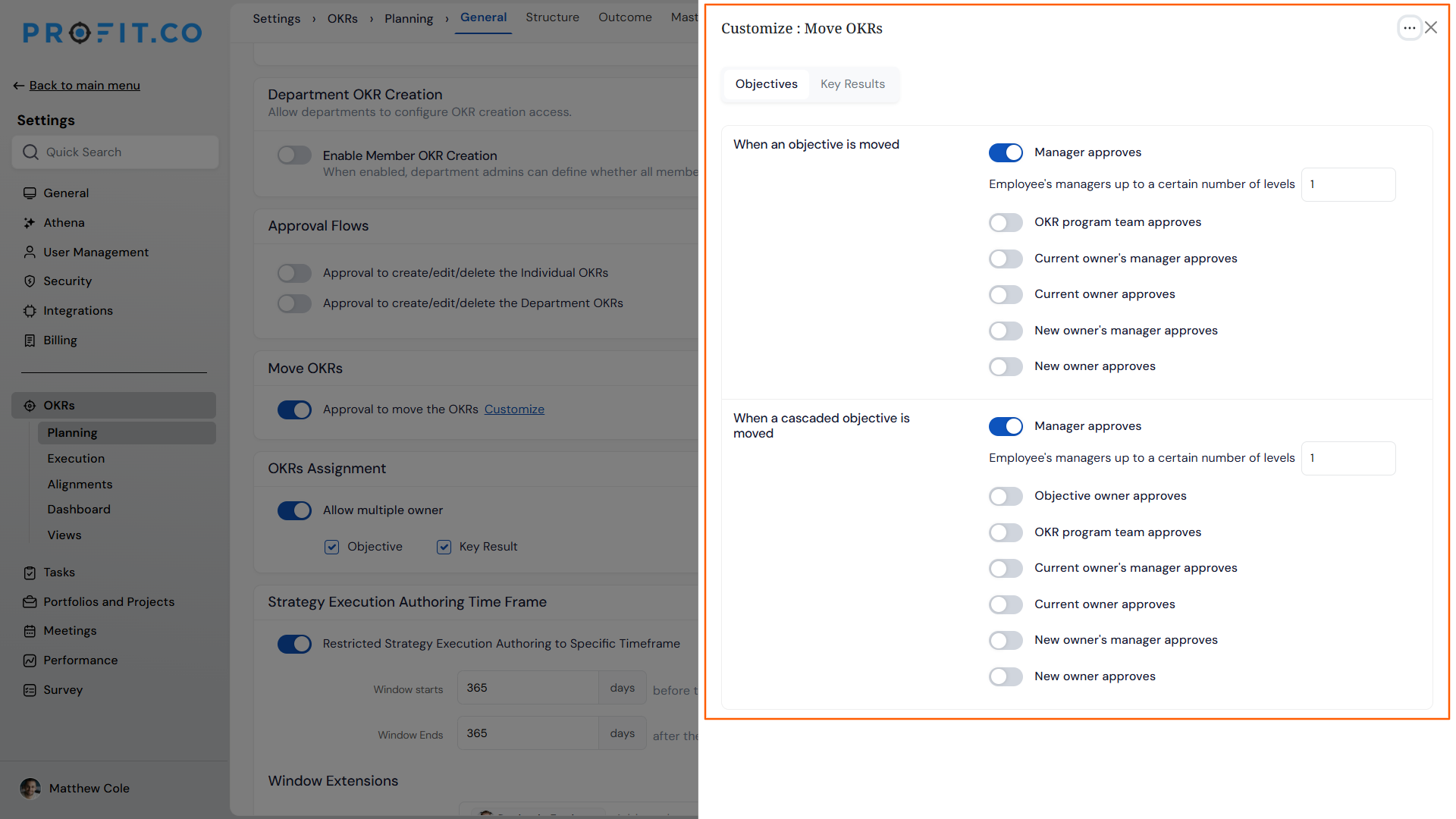
| 17 | Approval Flow Support When Moving Key Results | Route key result moves through the same approval process as other key result changes. |
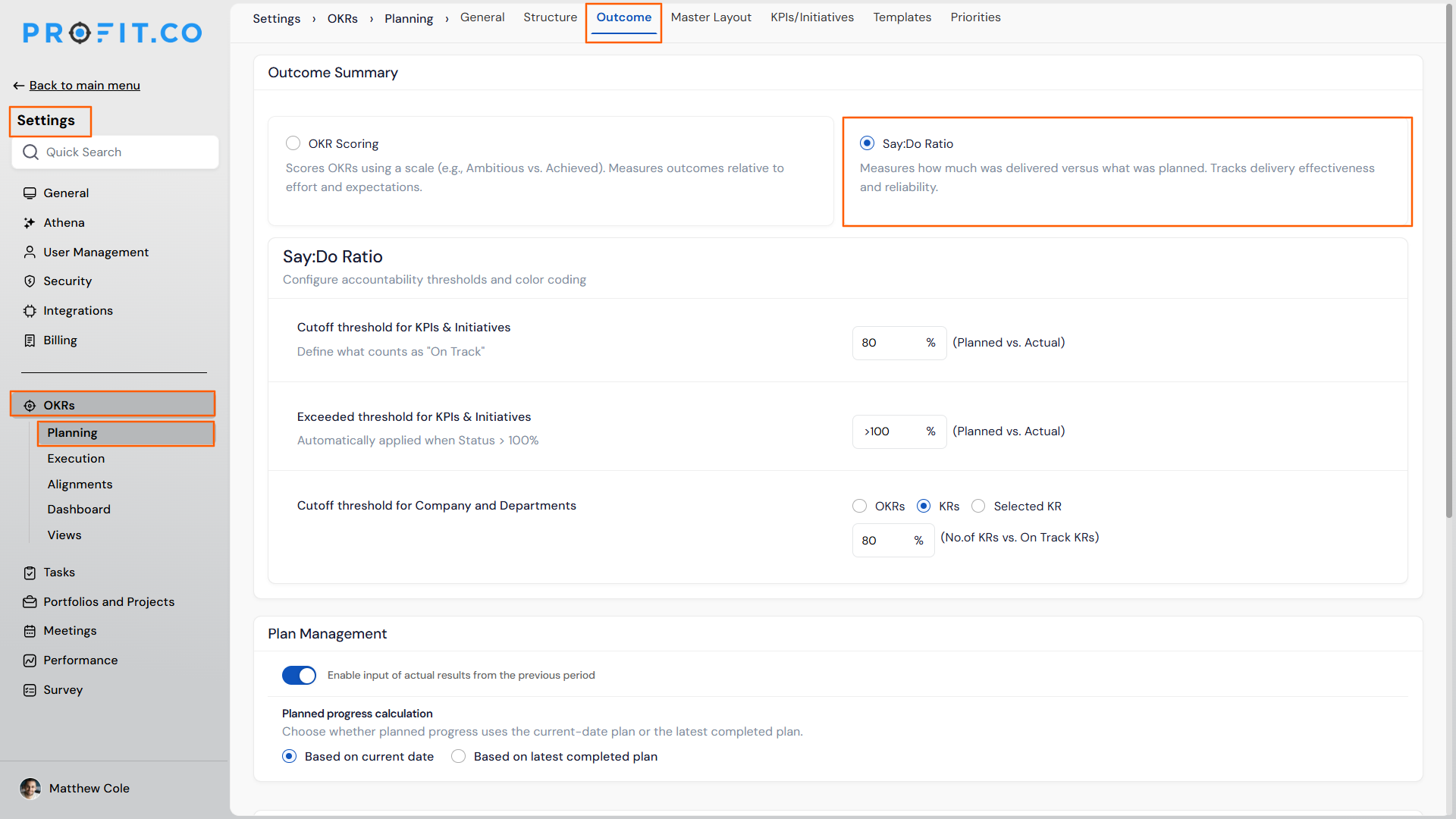
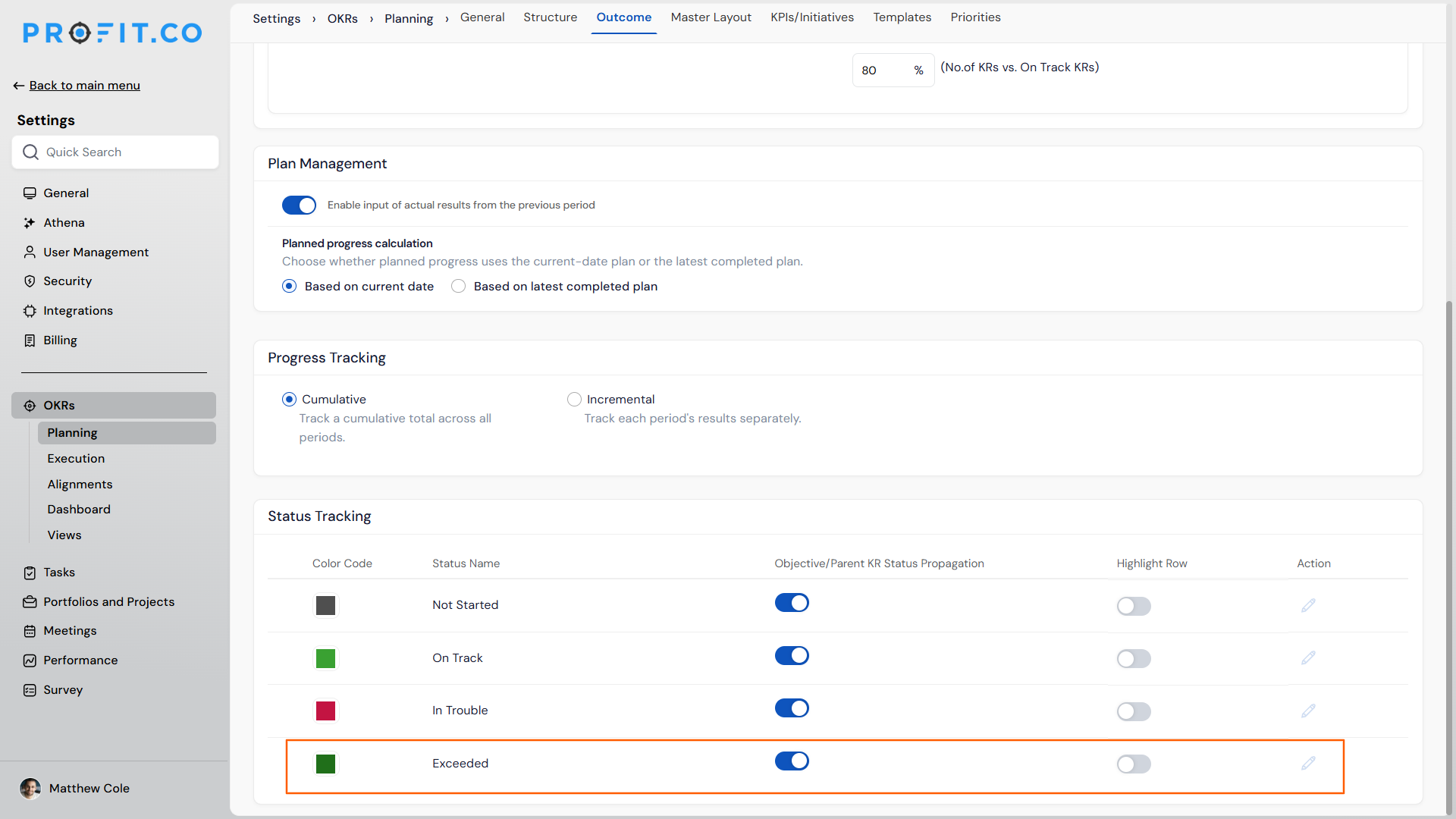
| 18 | Exceeded Status Added to Say:Do Tracking | Automatically distinguish when actual progress surpasses the planned value. |
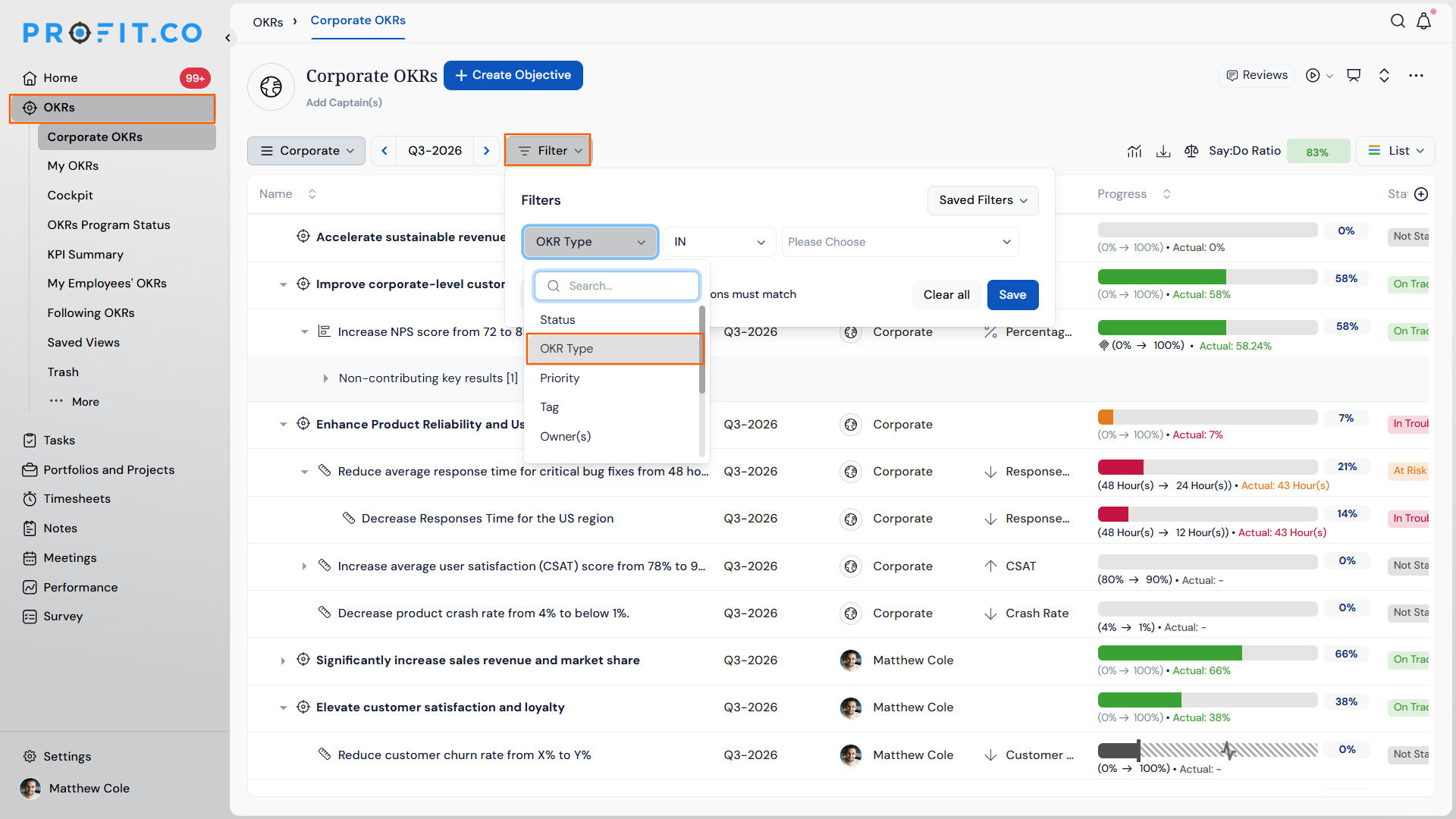
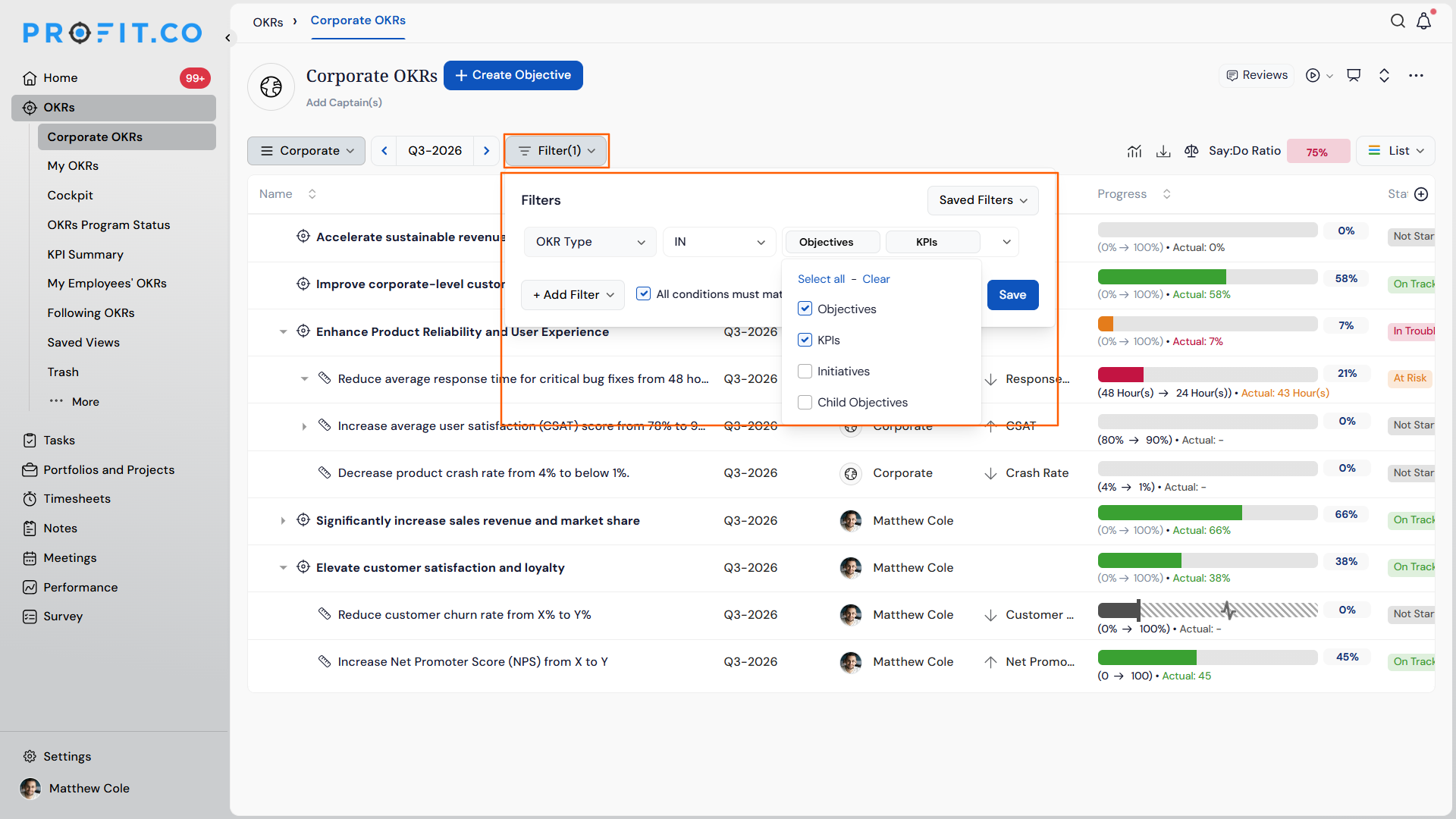
| 19 | OKR Type Filter in List View | Filter OKR list view by Objective, Key Result, or Initiative type in a few clicks. |
| PROJECTS (Task Management, Portfolios And Projects, Timesheets, Notes And Meetings) | ||
|---|---|---|
| S.No | Feature Name | Key Benefit |
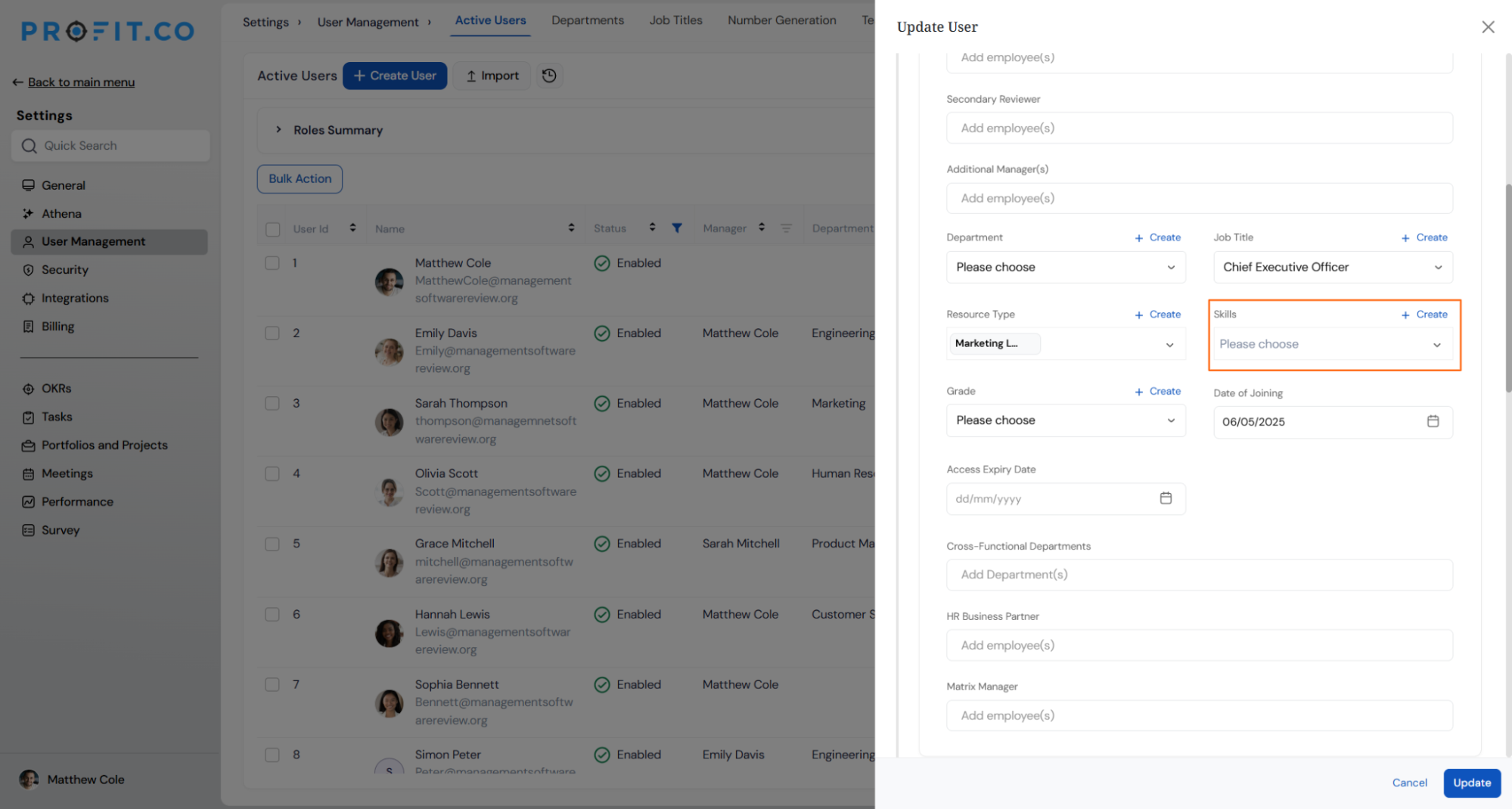
| 1 | Skills Field with Inline Creation in User Management | Create and assign new skills directly from the user record without leaving the page. |
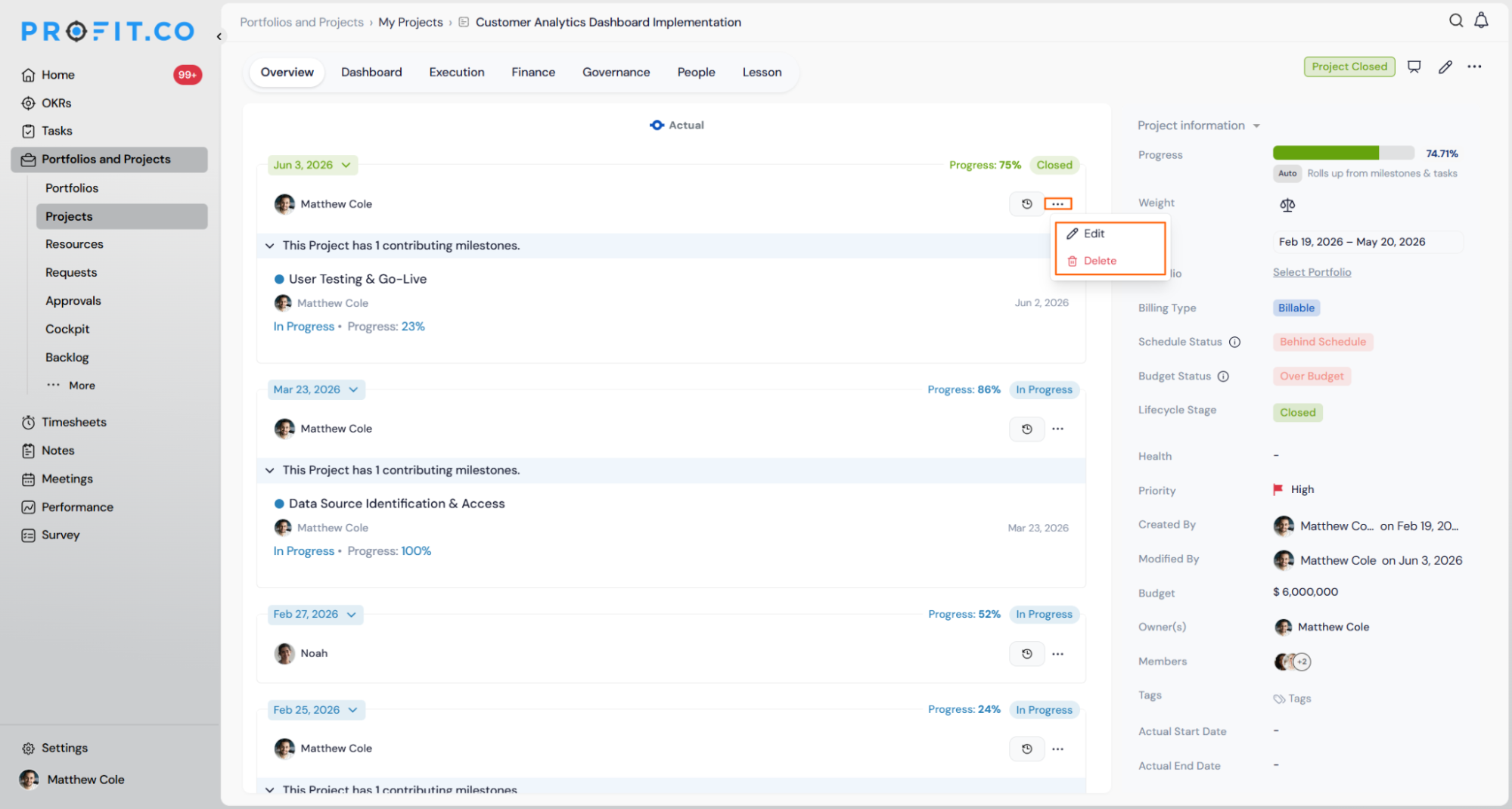
| 2 | Edit and Delete Options for Check-Ins in Projects and Portfolios | Correct or remove project check-in entries across portfolios, projects, and milestones. |
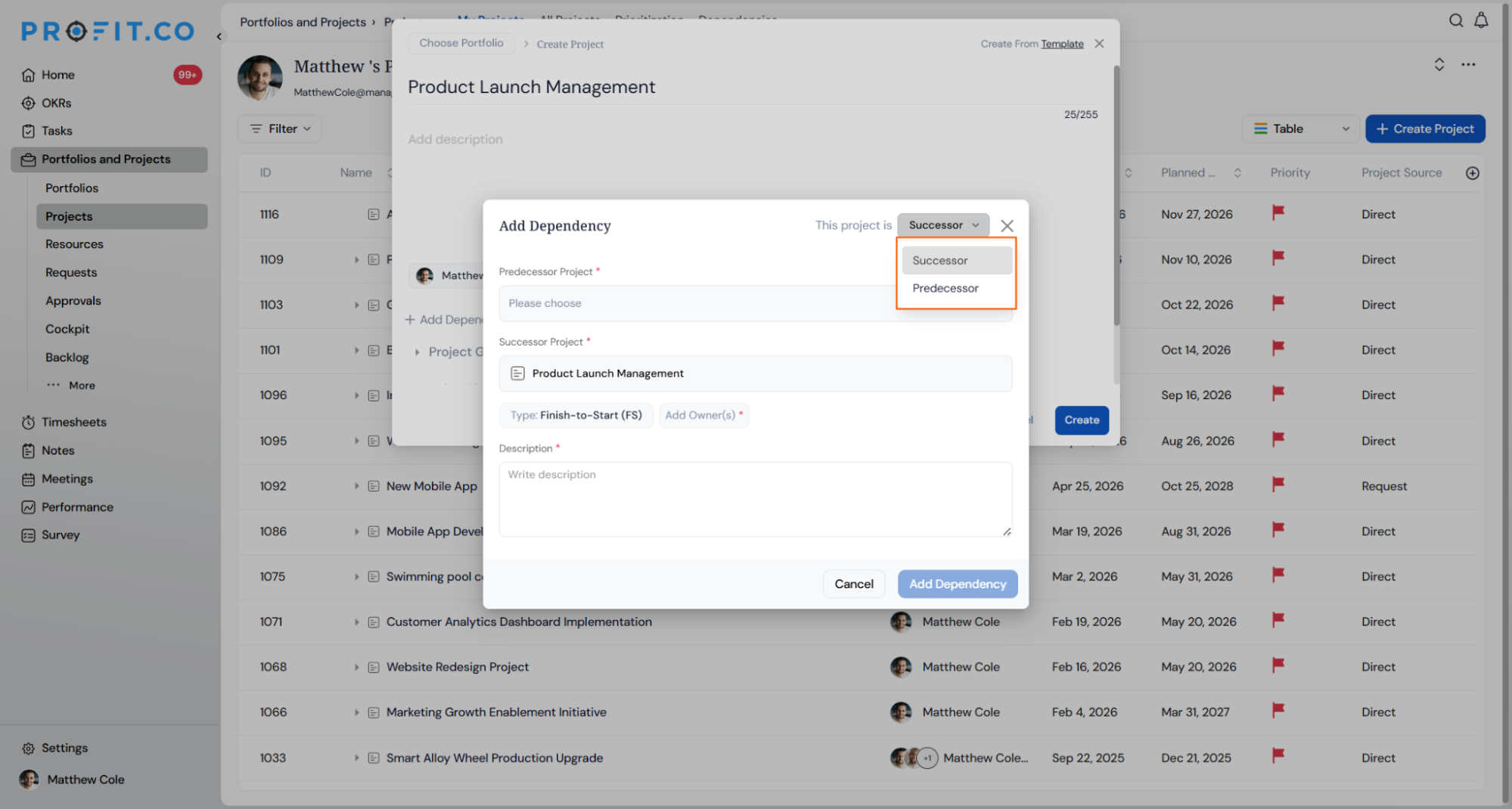
| 3 | Dependency Setup During Project Creation | Define predecessor and successor relationships while creating a new project. |
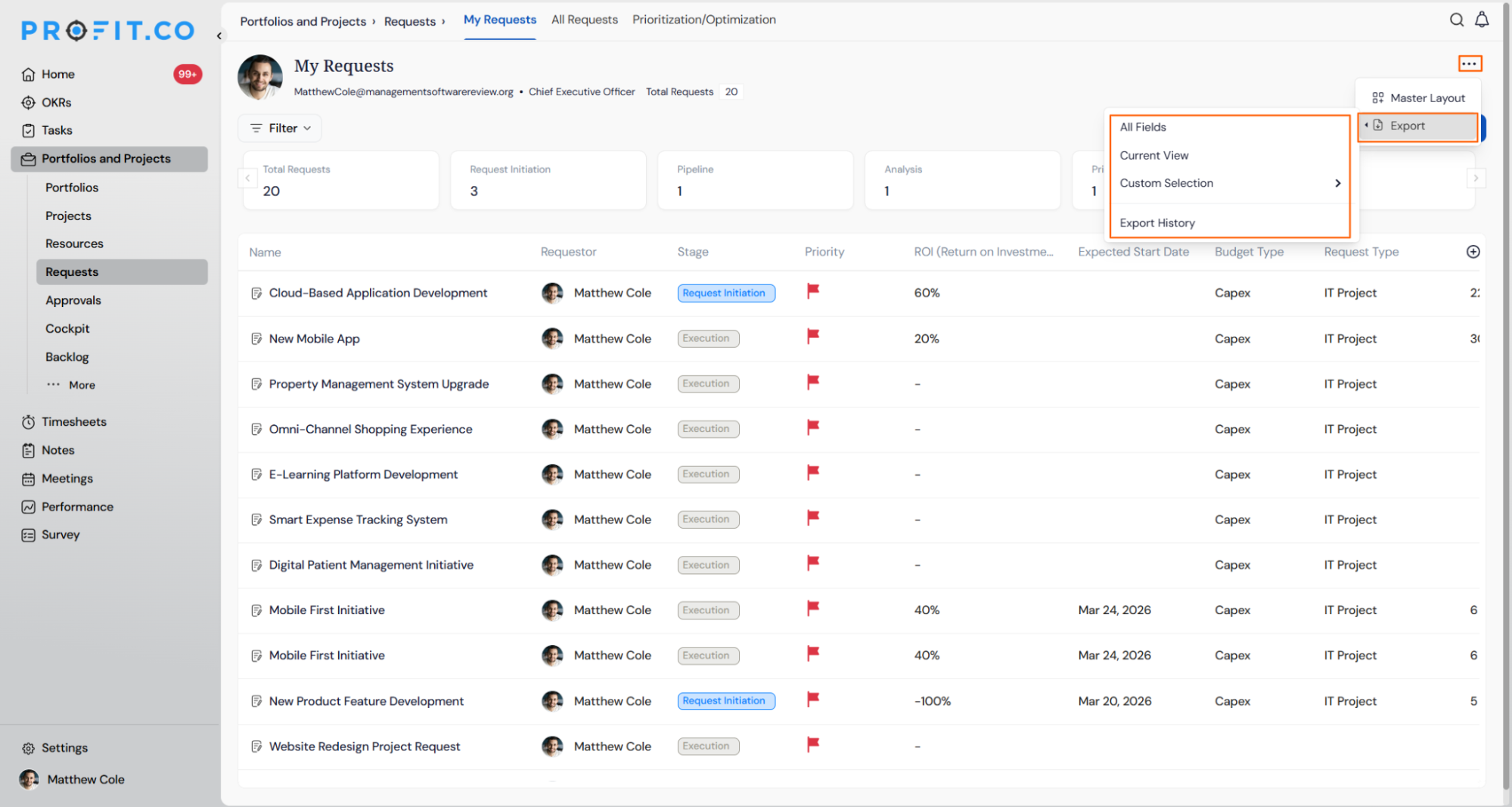
| 4 | CSV Export for Project Requests | Export the full project requests list to CSV with flexible field and scope options. |
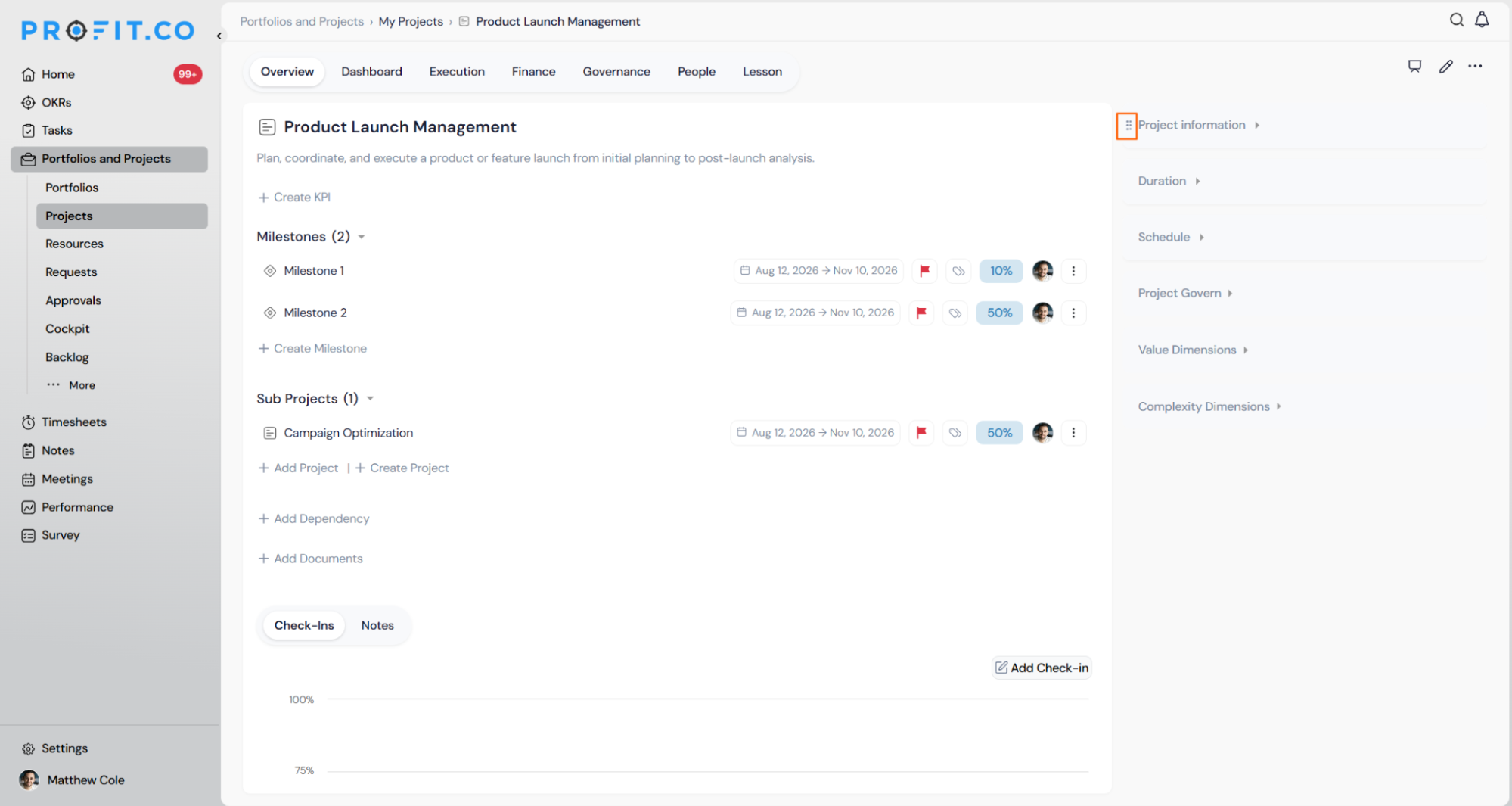
| 5 | Reorderable Sections on the Project Overview Page | Drag and drop overview sections to bring the most relevant information to the top. |
| 6 | Timeline Cascading from Child Activities to Parent Milestones | Automatically propose parent timeline adjustments when a child task or milestone date changes. |
| 7 | Confirmation Prompt When Disabling Expense Tracking | See exactly what will change before expense tracking is disabled across all projects. |
| 8 | Dependency Terminology Updated to Predecessor and Successor | Dependency labels now use industry-standard Predecessor and Successor terminology. |
| 9 | Full Hierarchy View in the Portfolio Delivery Tracker | See the full project, milestone, and task hierarchy under each portfolio in one view. |
| 10 | Filter Support on the Project Prioritization Page | Narrow the project list by owner, dimension, quadrant, or status before prioritizing. |
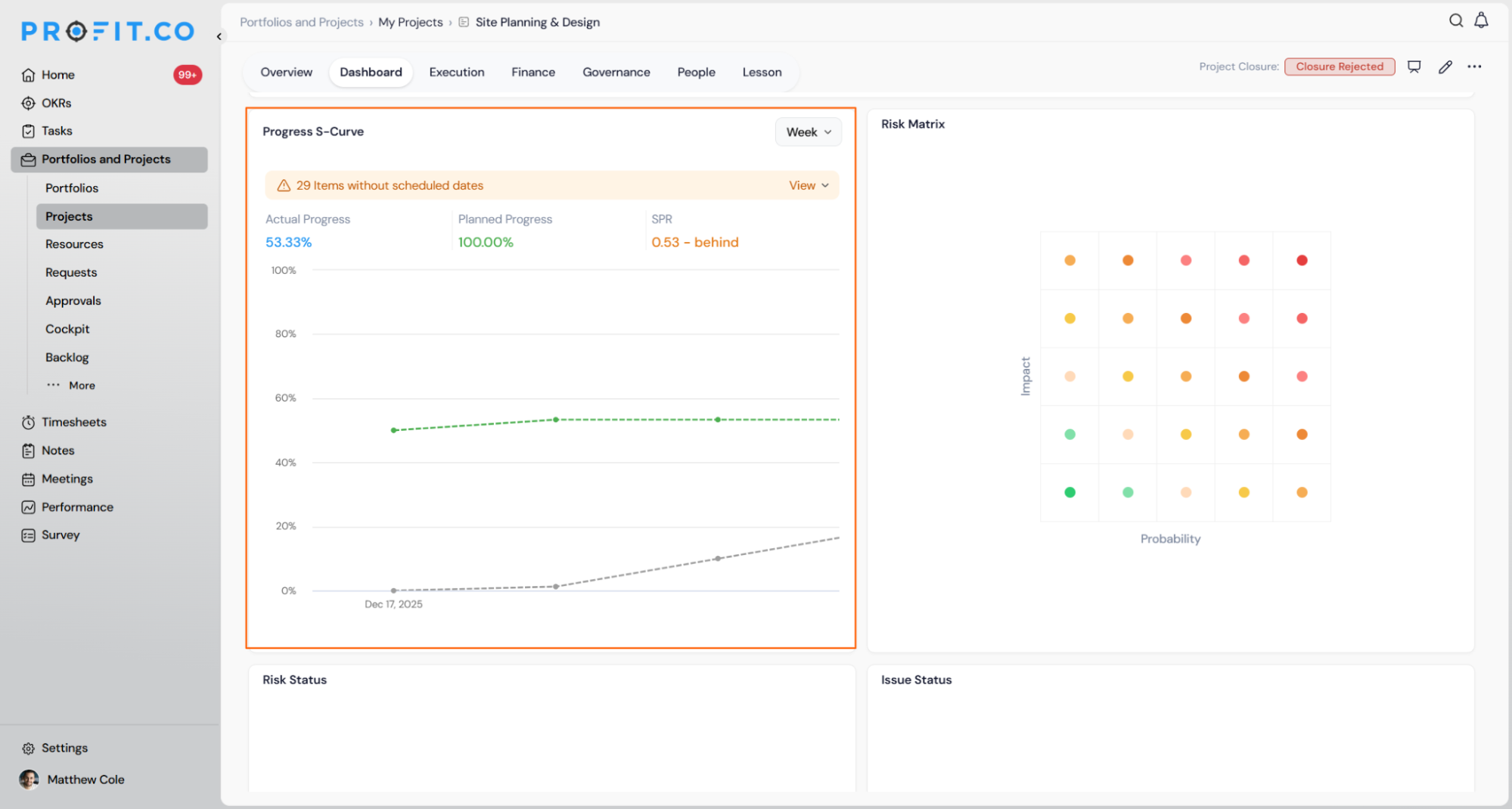
| 11 | Progress S-Curve Widget on the Project Dashboard | Compare actual vs. planned project progress with an SPR score on the dashboard. |
| PERFORMANCE (Performance, Goals, Development Plans, Recognition, Survey) | ||
|---|---|---|
| S.No | Feature Name | Key Benefit |
| 1 | Upward Assessment in Performance Reviews | Enable direct reports to formally evaluate their managers within the same review cycle. |
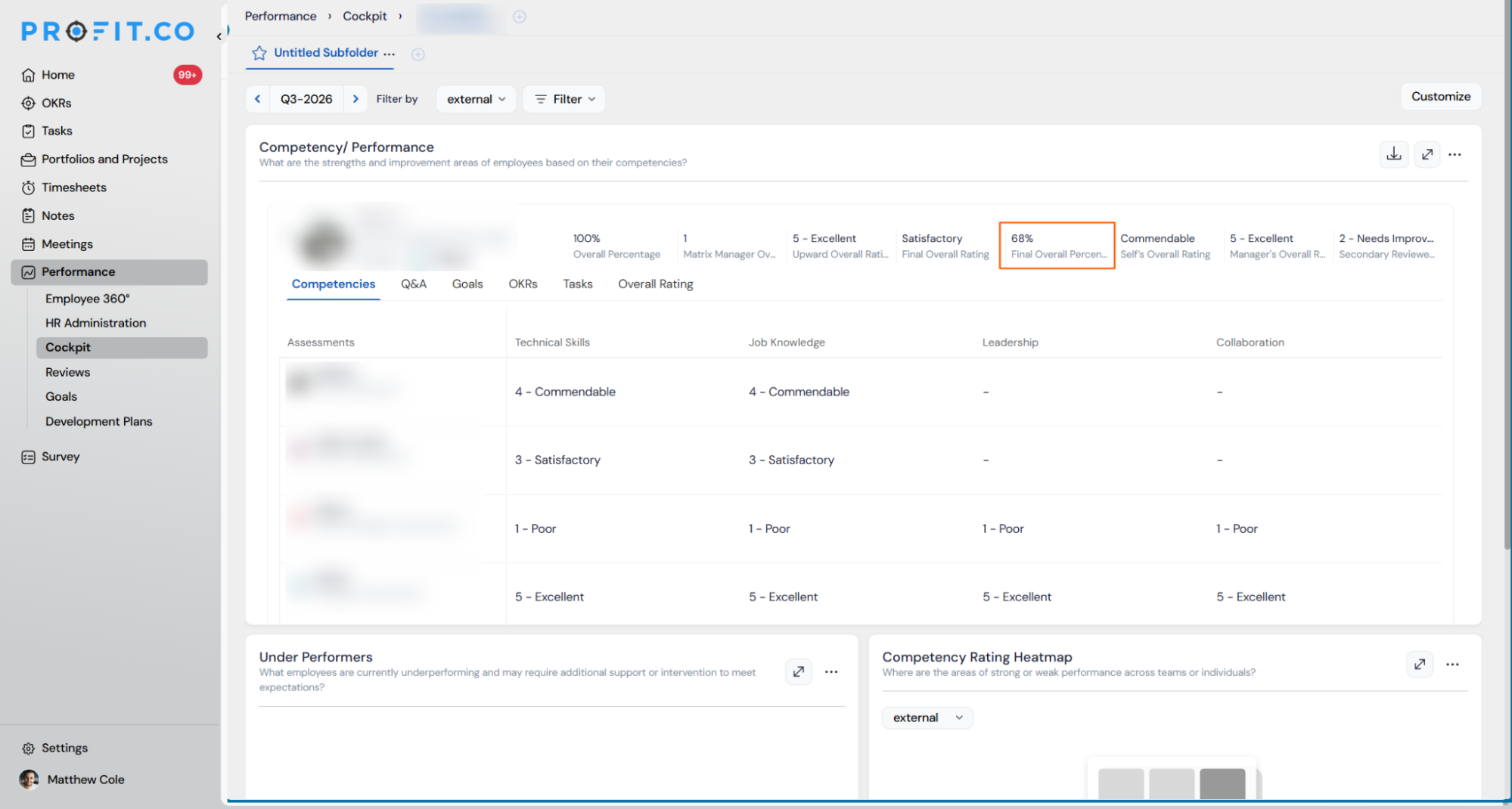
| 2 | Final Overall Percentage Display in Review Summary | Show the final rating as a percentage alongside the label in summaries and the Cockpit. |
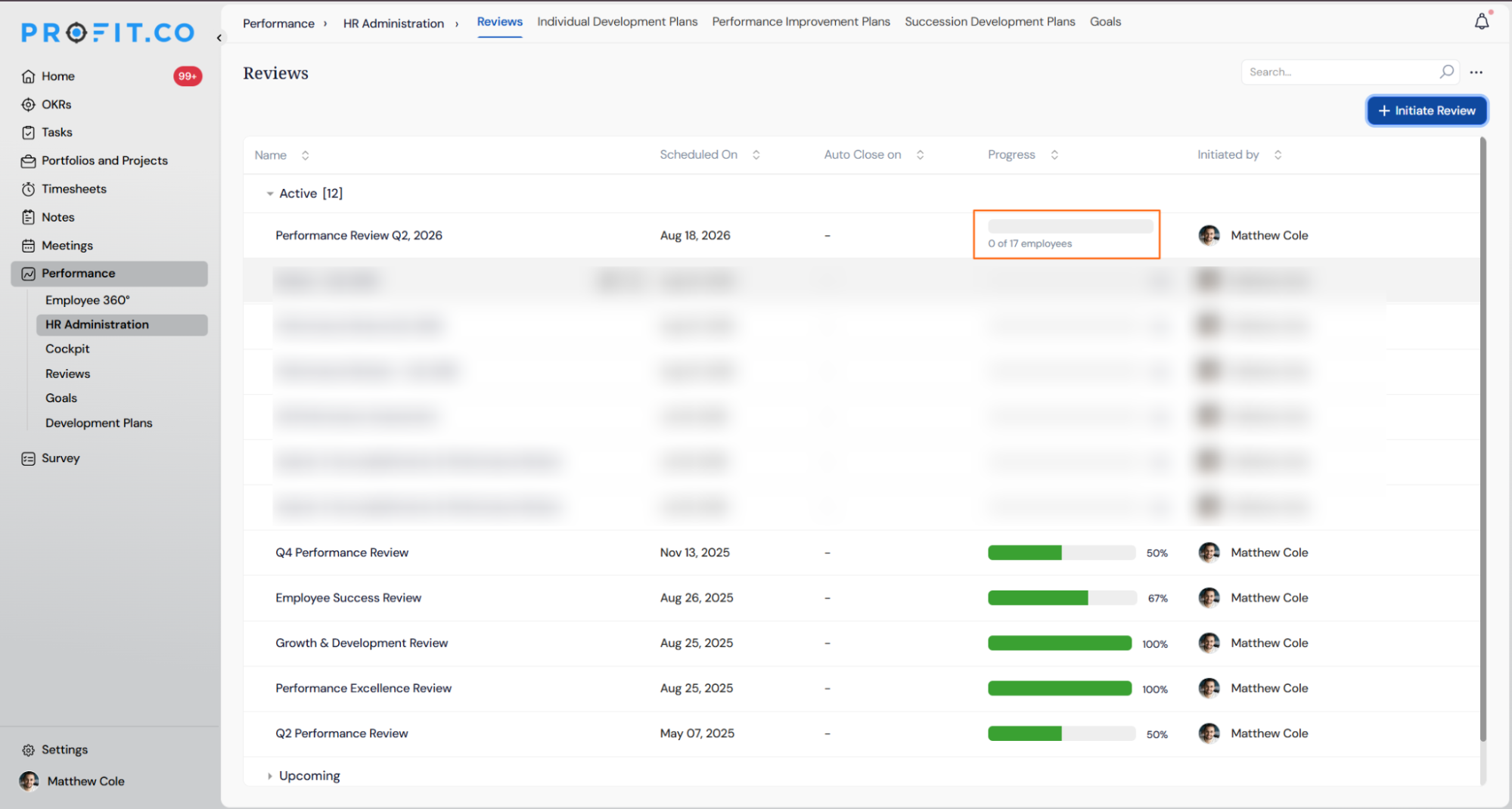
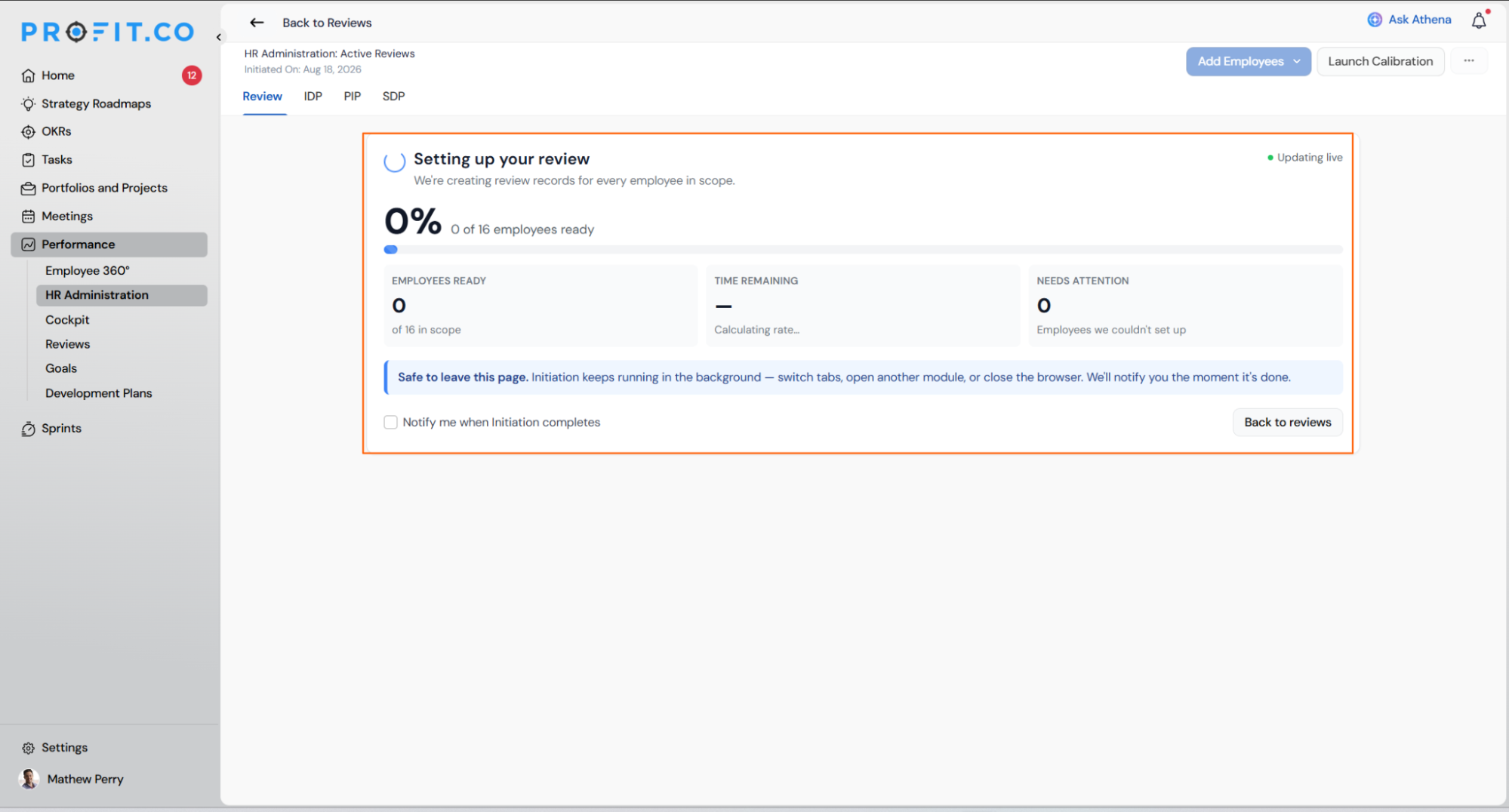
| 3 | Review Initiation Progress Experience | Track review setup live with a progress screen and optional completion notification. |
| 4 | OKR Progress Score as Self-Rating Source | Pull the self-rating directly from OKR progress instead of requiring manual input. |
| USER MANAGEMENT & FRAMEWORKS | ||
|---|---|---|
| S.No | Feature Name | Key Benefit |
| 1 | Add-On Role Assignment via User Import | Assign add-on roles to users as part of the same bulk import operation. |
| 2 | Cross-Department Field Support in User Imports | Set Check-in User For, OKR Champion For, and Additional Managers fields via import. |
| ATHENA | ||
|---|---|---|
| S.No | Feature Name | Key Benefit |
| 1 | OKR Widgets Available in Ask Athena | Get OKR widget data through an Athena question instead of opening the Cockpit. |
| 2 | Multi-sheet support for OKR uploads | Upload OKR spreadsheets with data on multiple sheet tabs without manual consolidation. |
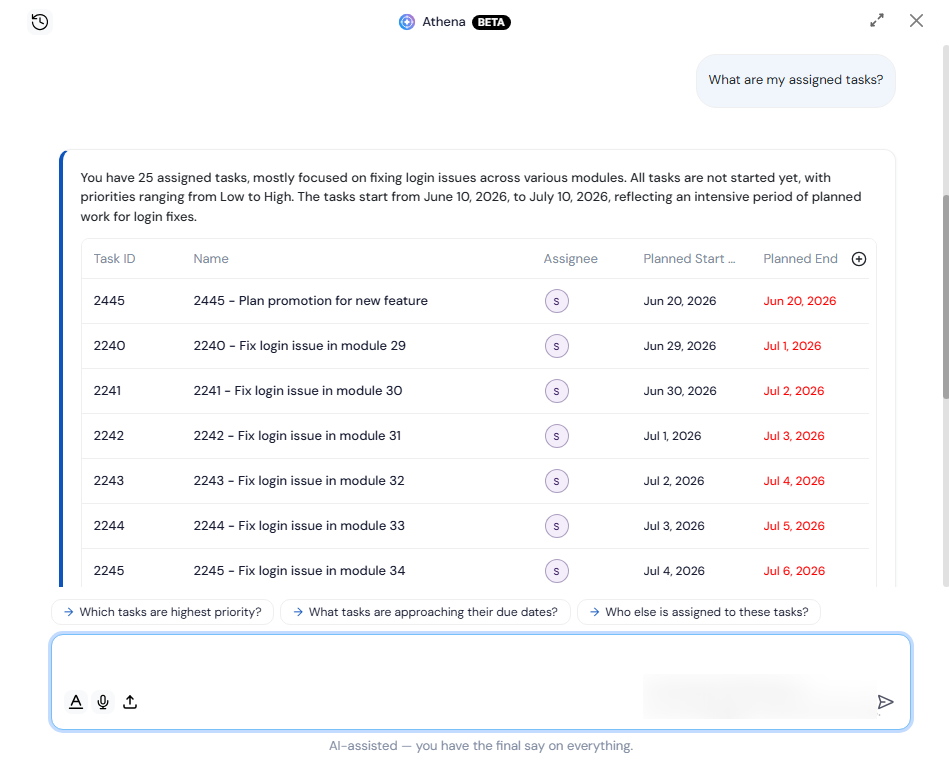
| 3 | Tasks and Tags Support in Ask Athena | Ask Athena about task status, ownership, and tag groupings without leaving the conversation. |
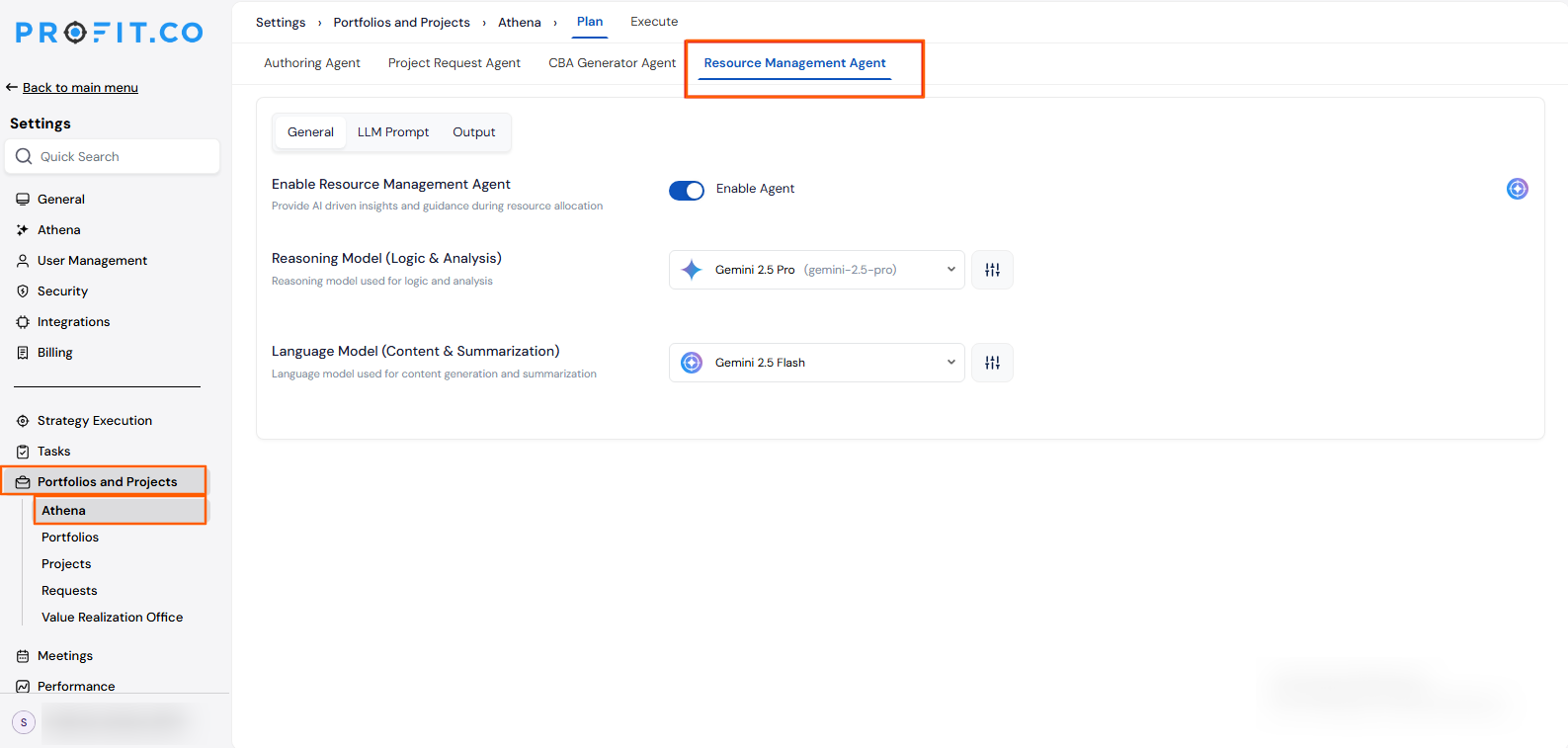
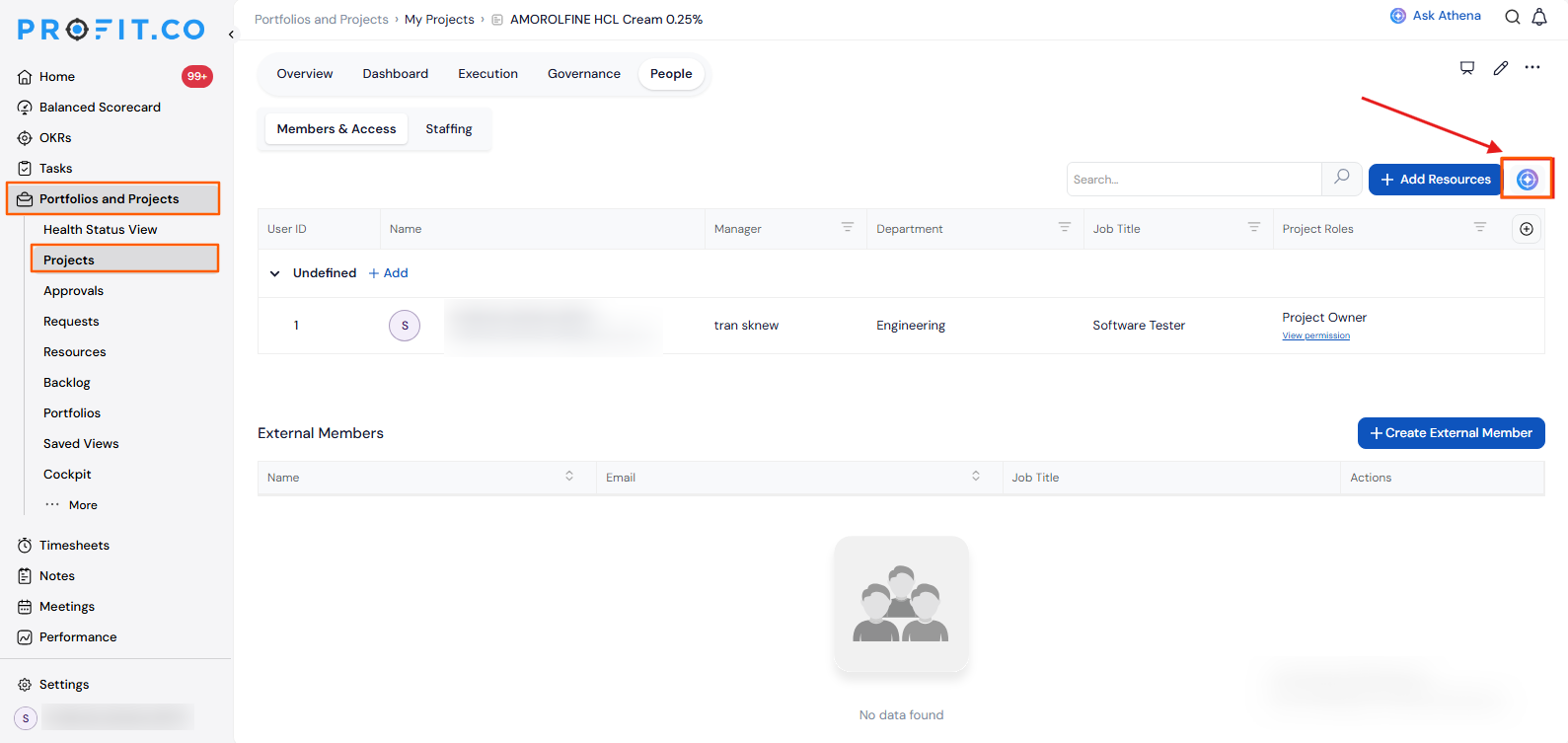
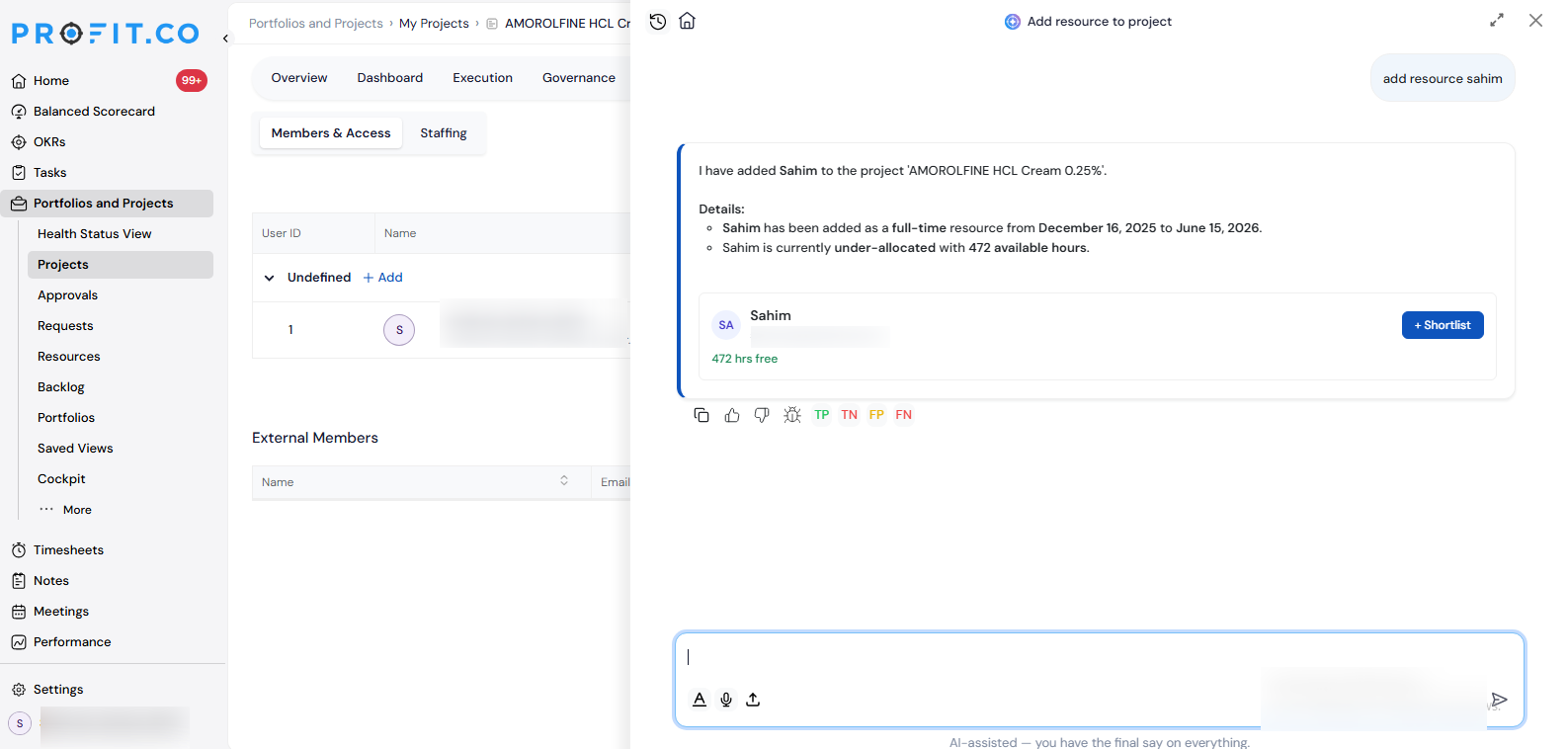
| 4 | Resource Management Agent in Athena | Add project resources through a conversational agent instead of navigating multiple screens. |
STRATEGY (Strategy Roadmaps, Balanced Scorecard, OKR Management, Hoshin Kanri)
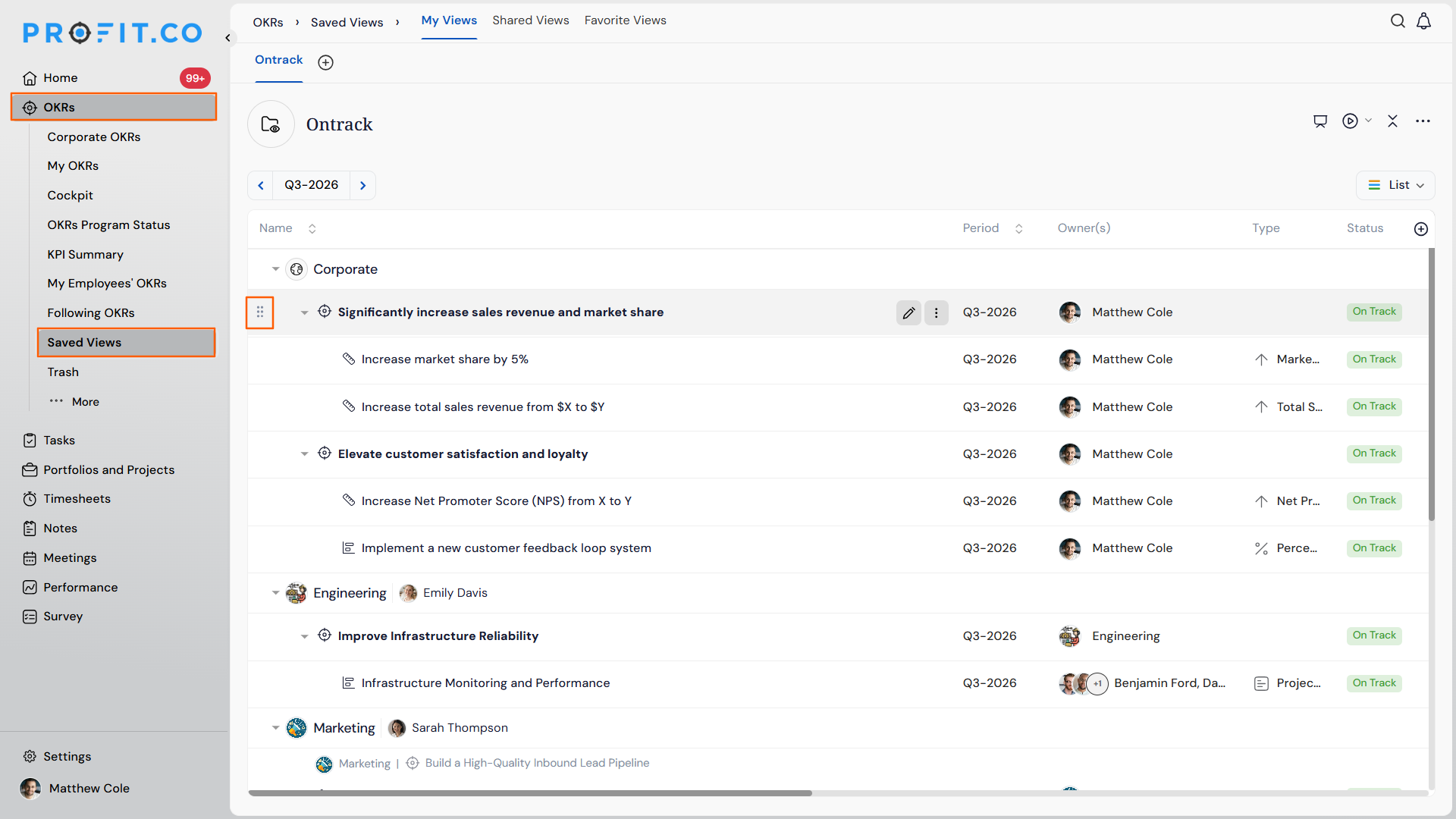
1. Reorder Saved Views with Drag and Drop
OverviewHow It Works
- Navigate to OKRs → Saved Views from the left navigation panel.
- Click and hold the drag handle next to any saved view.
- Drag the view to the desired position in the list.
- Release to drop it into place – the new order is saved automatically.
Why It Matters
- Personalized organization: Users can arrange saved views to match their own workflow, keeping the ones they use most at the top.
- Less scrolling: Frequently accessed views can be moved up, cutting down time spent searching through a long list.
- Instant control: Reordering takes effect immediately, with no need to edit or recreate the view.
2. Export for Individual Progress Tracking
OverviewHow It Works
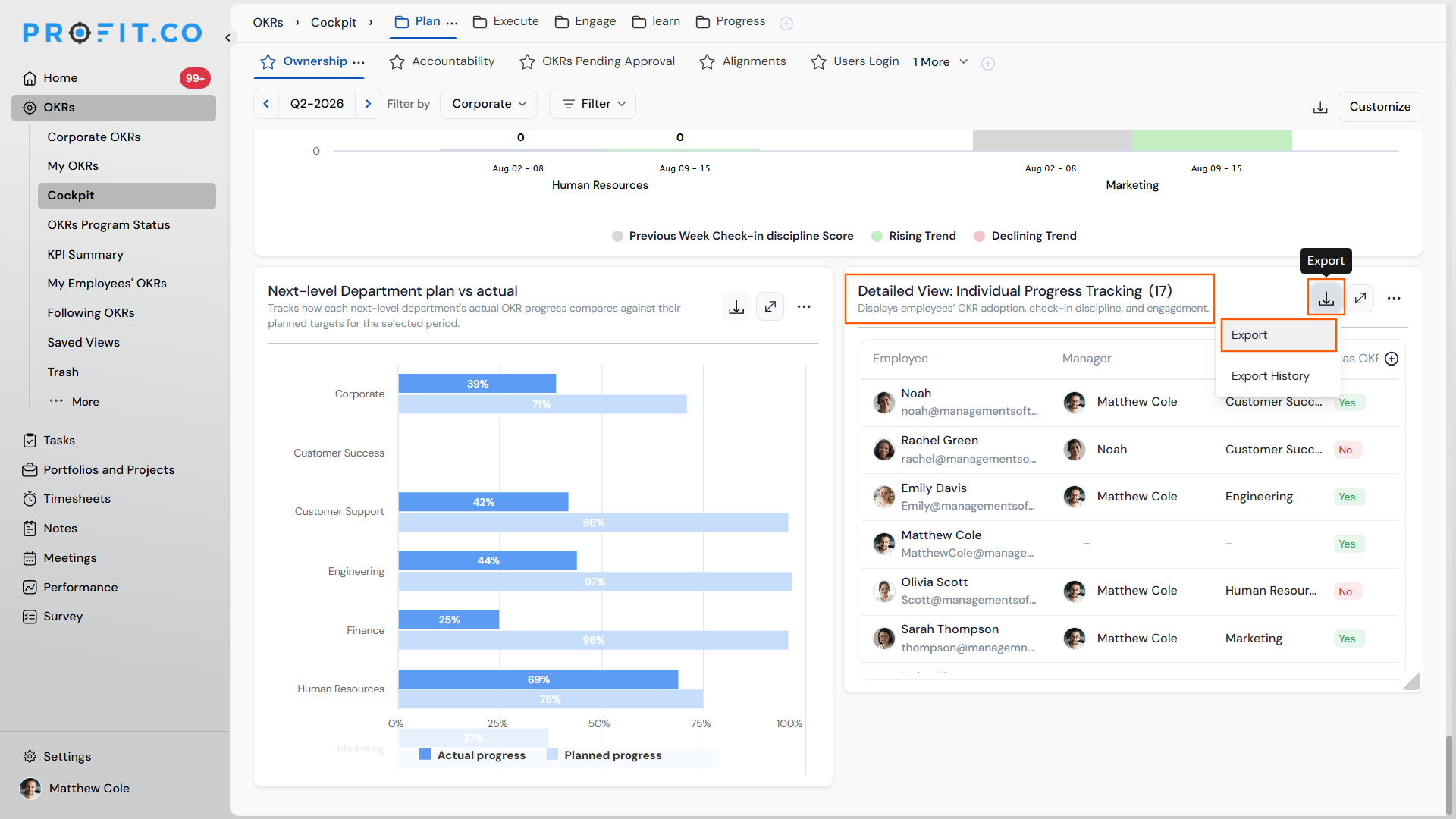
- Navigate to the OKRs → Cockpit from the left navigation panel. Locate the Detailed View: Individual Progress Tracking widget.
- Click the Export option on the widget.
- The widget’s data downloads as an Excel file.
Why It Matters
- Reporting made easier: Progress data can be shared or archived outside the platform without manual re-entry.
- Offline access: Teams can analyze individual progress tracking data in Excel without needing to be logged in.
- Time saved: Removes the manual work of recreating widget data for status reports.
3. Independent Toggle for Past, Future, and Current Key Results
OverviewHow It Works
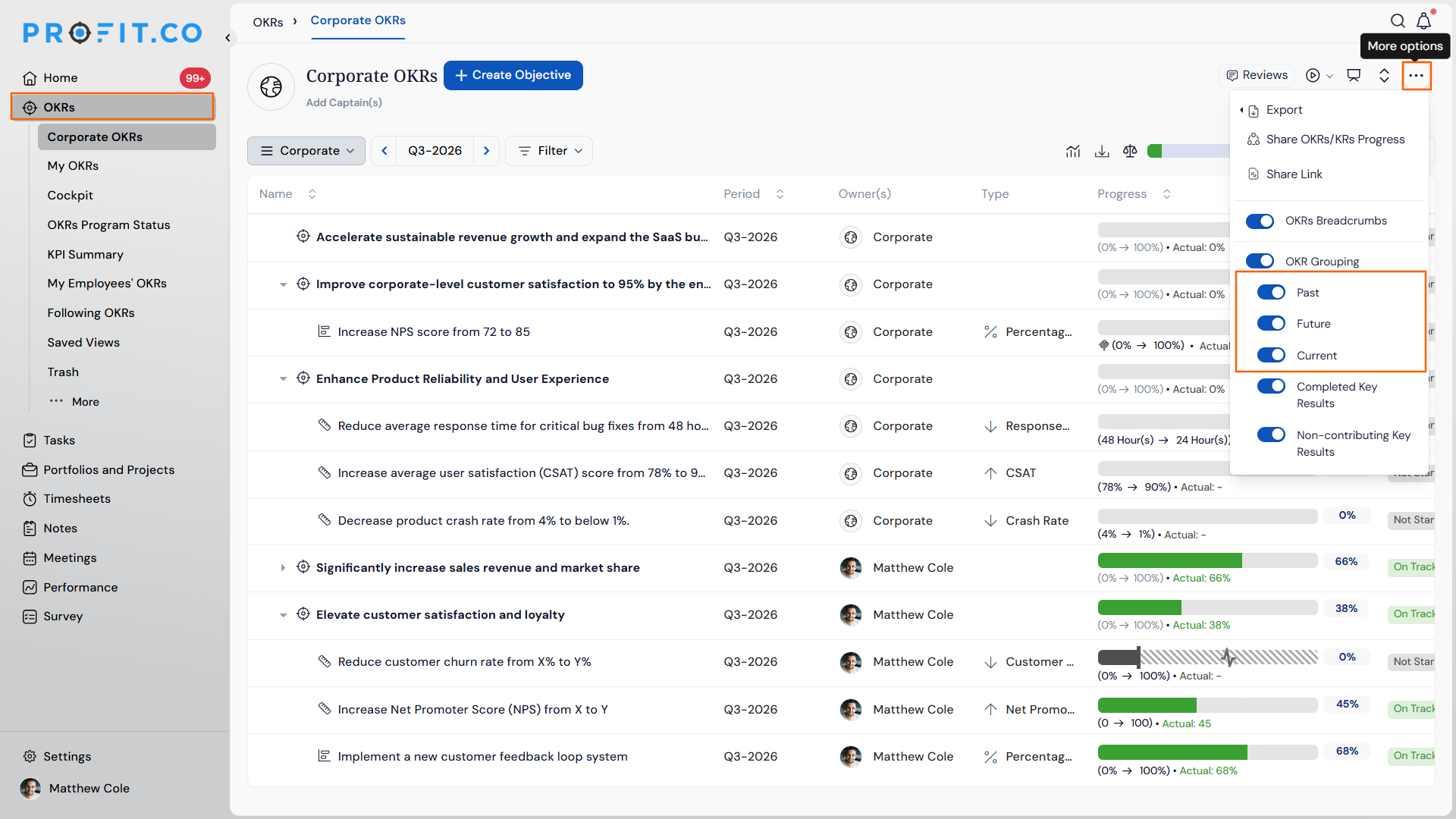
- Navigate to OKRs from the left navigation panel. Click on the More option.
- You’ll be able to see the Past, Future, and Current toggles independently.
- Turn each toggle on or off to show or hide the corresponding key results.
- The list updates immediately based on the selected combination.
Why It Matters
- Precise filtering: Users can isolate exactly the key results they need – for example, Current and Future only – without an all-or-nothing switch.
- Less clutter: Hiding irrelevant Past or Future key results keeps the list focused on what matters right now.
- Faster reviews: Reviewers can toggle between time-based groupings without adjusting filters elsewhere.
4. Customizable Fields in the Strategy Roadmaps Gantt View
OverviewHow It Works
- Navigate to Strategy Roadmaps → open a roadmap.
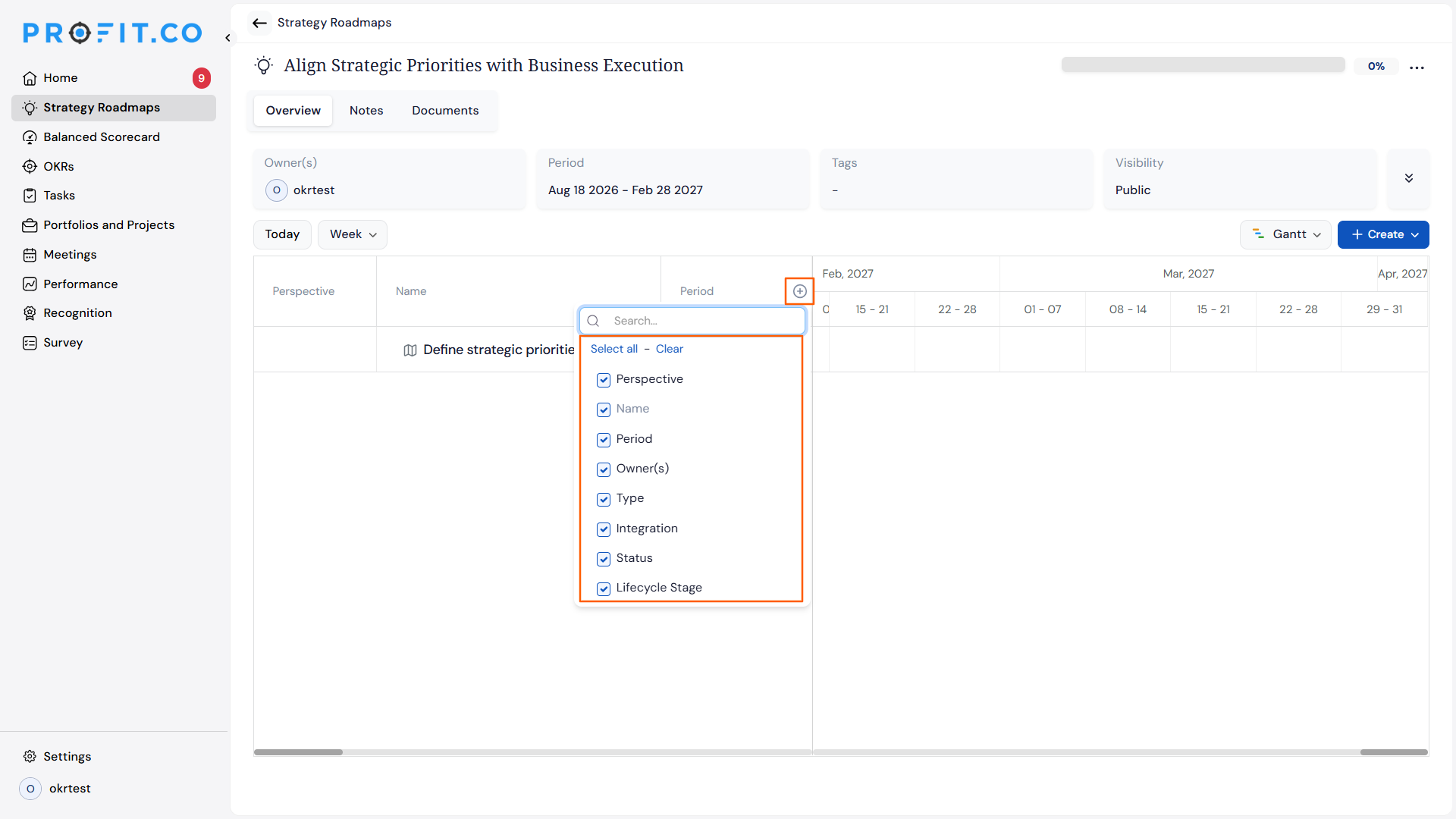
- In the Gantt view, click the + icon at the end of the column headers.
- Search for or check the fields to display – e.g., Perspective, Name, Period, Owner(s), Type, Integration, Status, Lifecycle Stage.
- Use Select all or Clear to quickly toggle every field on or off.
- The Gantt table updates to show only the selected fields as columns.
Why It Matters
- Focused views: Users can trim the table down to just the fields relevant to their review instead of scrolling through every column.
- Fuller context: Fields like Type, Integration, Status, and Lifecycle Stage can sit alongside the timeline without leaving the Gantt view.
- Flexible per review: Different teams can show different fields for different reviews without changing the underlying roadmap data.
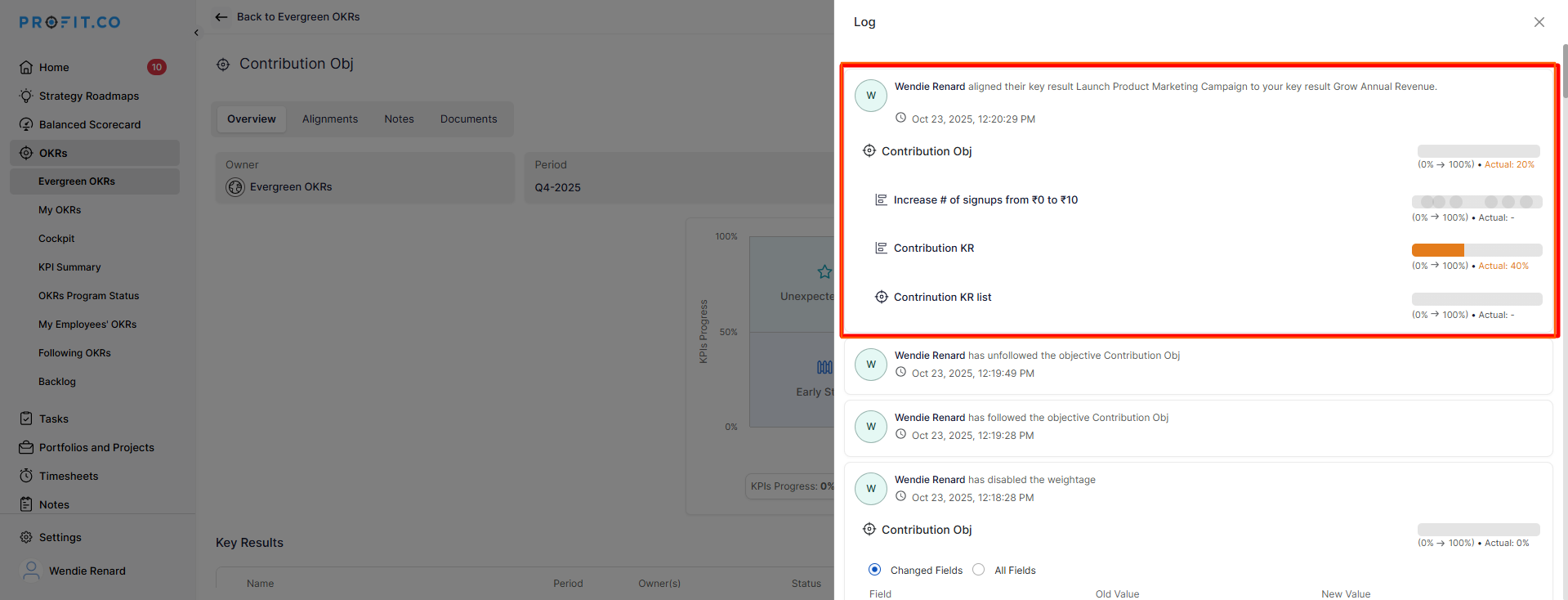
5. Detailed Activity Logs for Key Result Actions
OverviewHow It Works
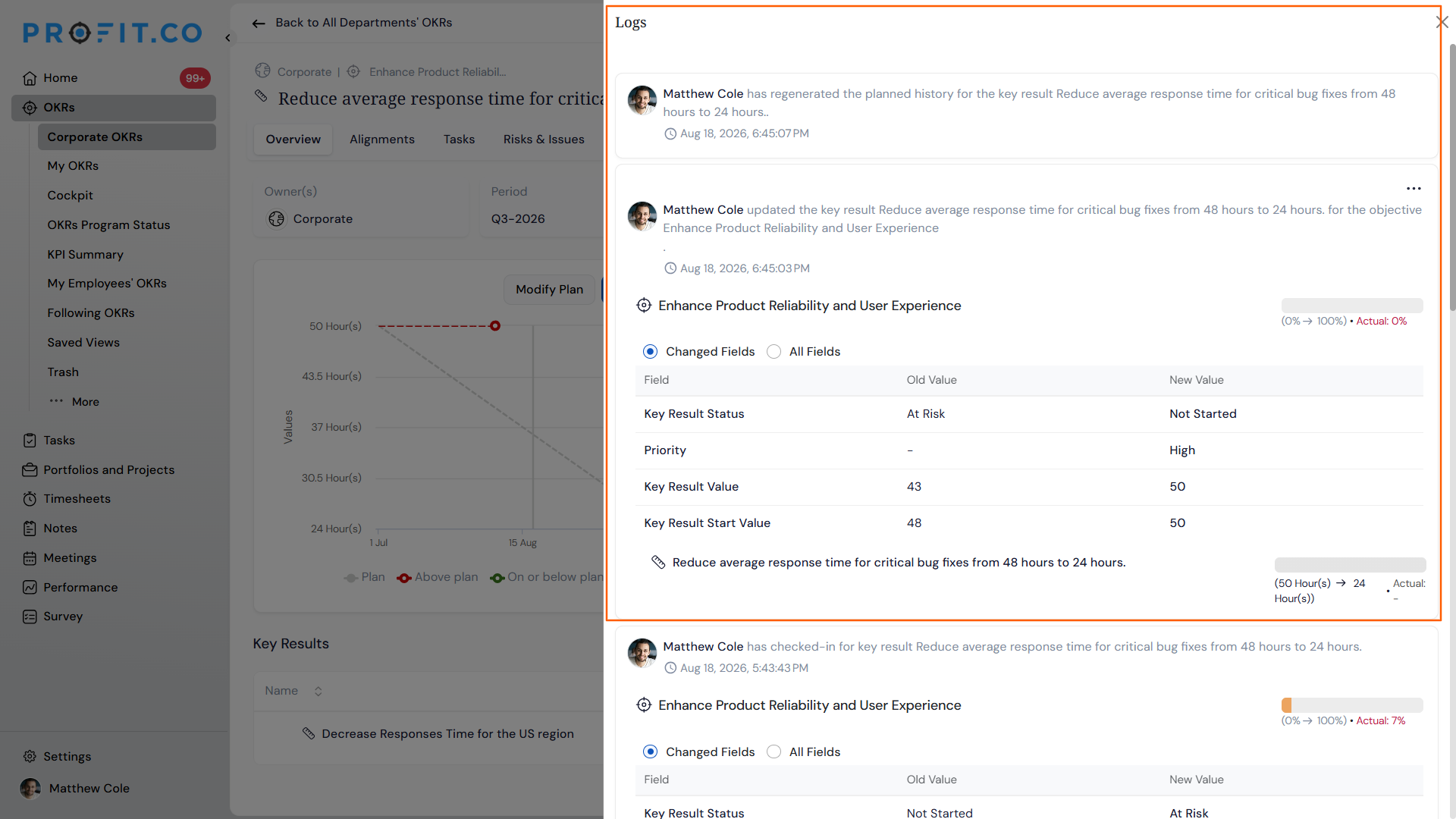
- Navigate to an Objective or Key Result → open the Logs panel.
- Each entry shows the user, the action taken (added, removed, updated), the target item, and a timestamp.
- For value changes – such as milestone dates, notes, or weightage – the log shows both the old and new values.
- Switch between Changed Fields and All Fields to control how much detail is shown.
Why It Matters
- Complete audit trail: Every meaningful action on an OKR, from perspective changes to milestone updates, is captured with who did it and when.
- Faster troubleshooting: Teams can trace exactly what changed and when, without relying on memory or manual follow-up.
- Change transparency: Before/after values are shown for edits, making the impact of a change clear at a glance.
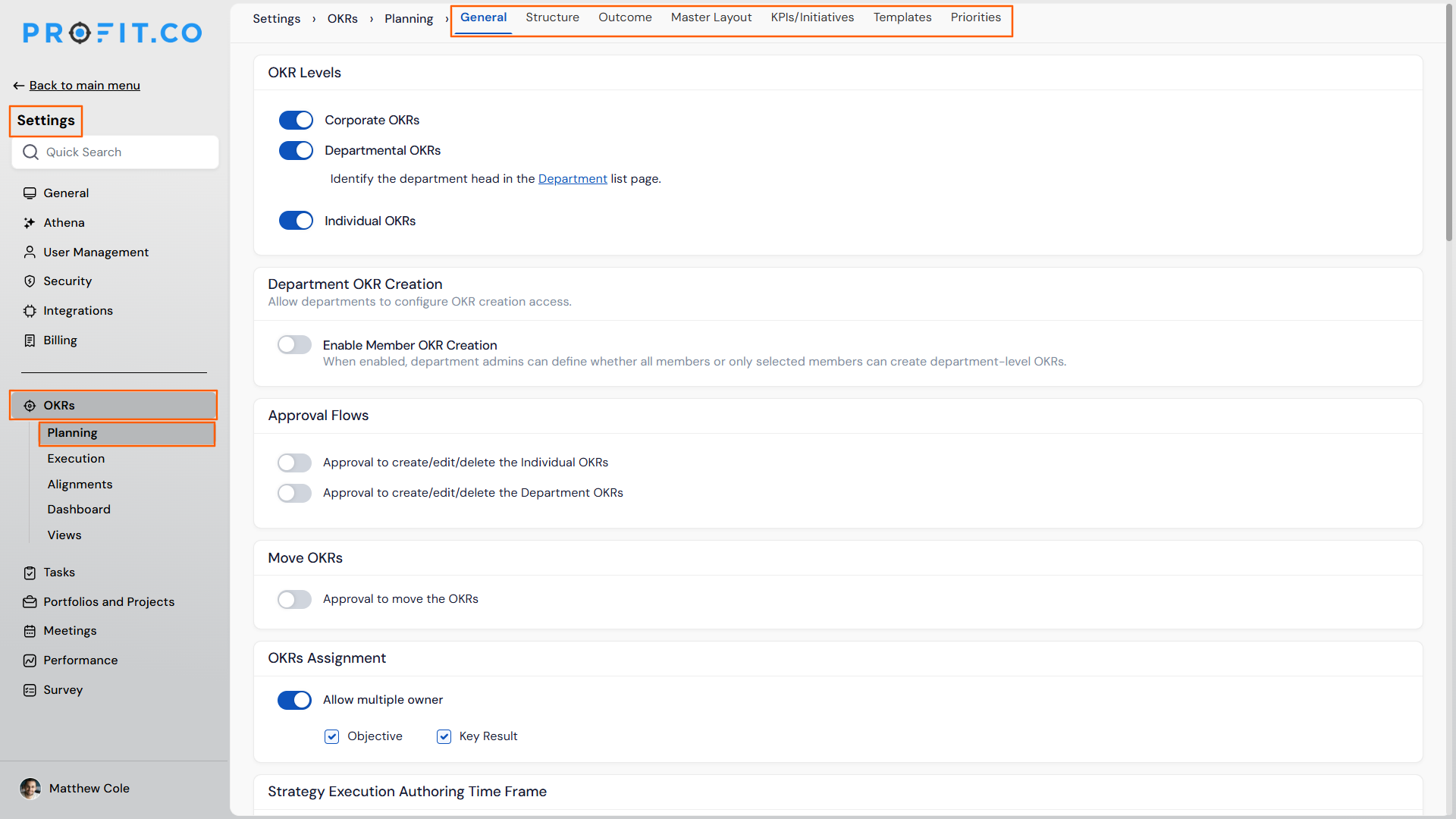
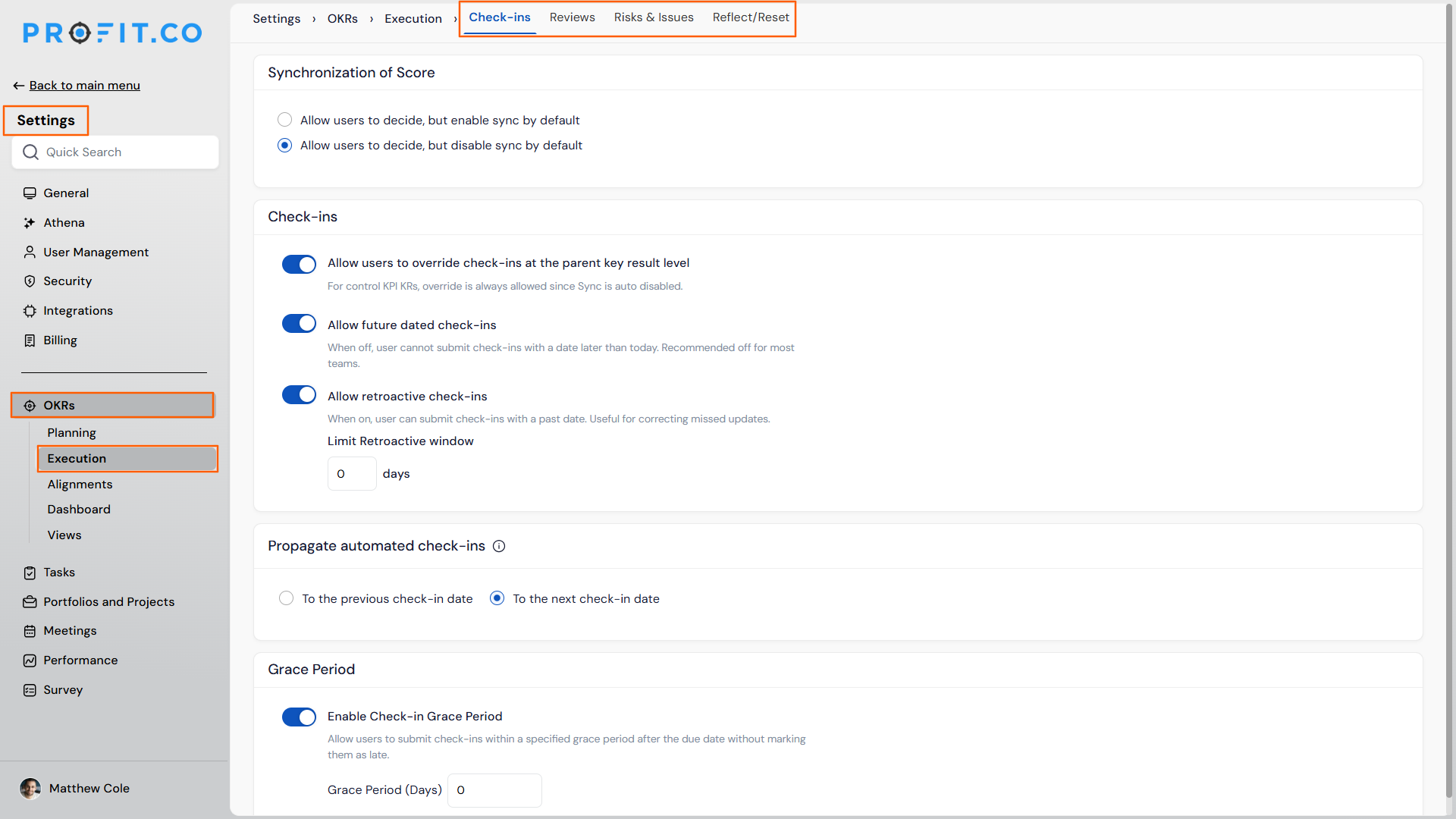
6. OKR Settings Reorganized into Planning and Execution
OverviewHow It Works
- Navigate to Settings → OKRs from the left navigation panel.
- Select Planning to access setup-related settings.
- Select Execution to access ongoing activity settings such as check-ins and reviews.
- Each section shows only the settings relevant to that stage of the OKR lifecycle.
Why It Matters
- Clearer structure: Setup settings and ongoing-management settings no longer live in one combined menu.
- Faster navigation: Admins can go straight to Planning or Execution settings without scanning past unrelated options.
- Easier onboarding: New admins can more easily understand which settings apply to which stage of the OKR process.
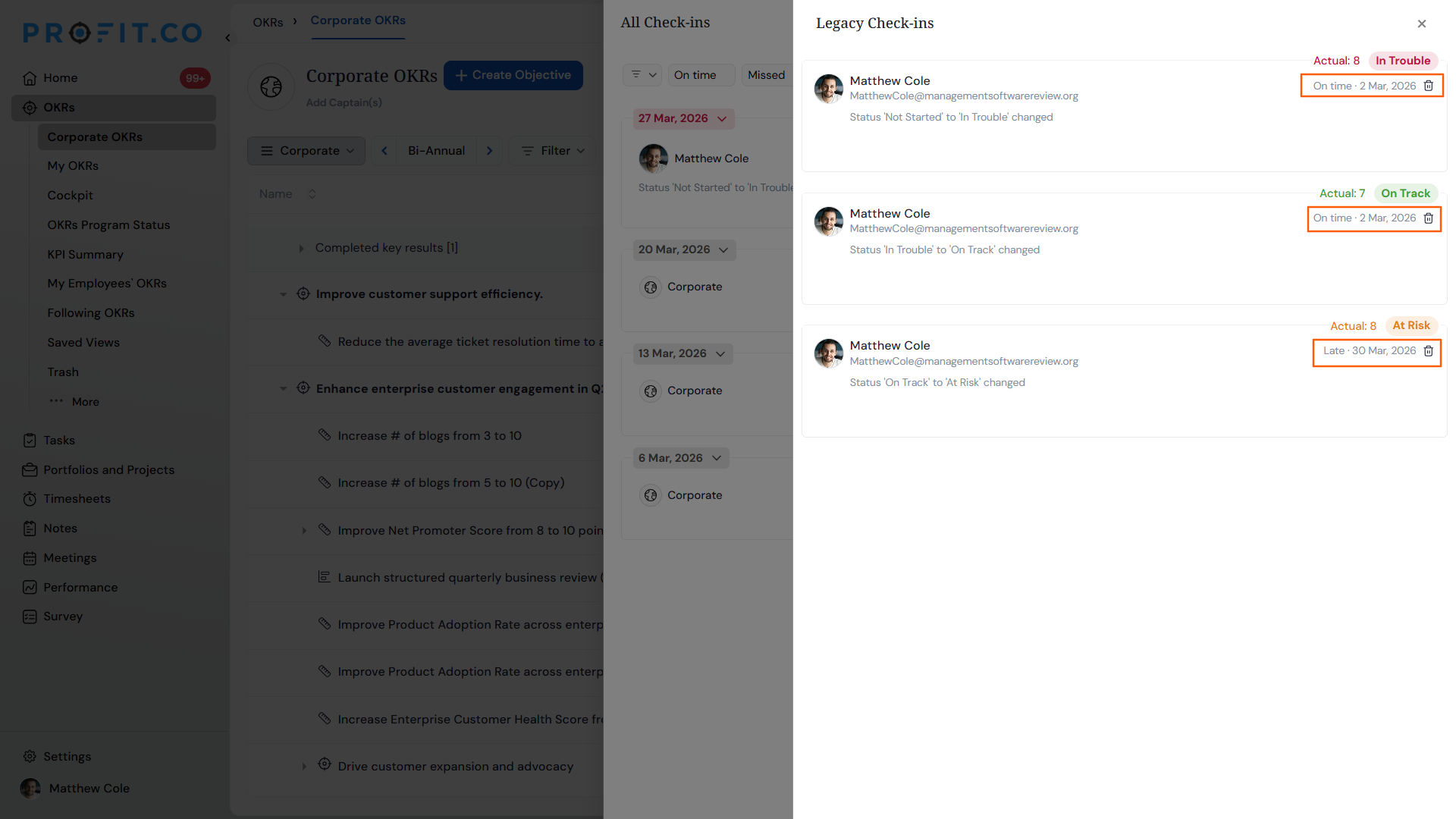
7. Check-In Date and Delete Option for Legacy Check-Ins
OverviewHow It Works
- Navigate to a Key Result’s check-in history.
- Locate a legacy check-in entry in the list.
- View the check-in date displayed alongside the entry.
- Use the delete option to remove a legacy check-in if needed.
Why It Matters
- Complete history: Users can see exactly when each legacy check-in was made, not just the value recorded.
- Cleaner records: Outdated or incorrect legacy check-ins can be removed without support intervention.
- Consistency: Legacy check-ins now behave the same way as newer check-ins for visibility and management.
8. Check-In Coverage Widgets on the OKR Cockpit
OverviewHow It Works
- Navigate to OKRs → Cockpit from the left navigation panel.
- Add the KR Check-in Overview widget to see the overall count of key results with and without check-ins.
- Add the Next-Level Department-wise Check-in Gaps widget to see the same breakdown by department.
- Use either widget to quickly identify where check-ins are missing.
Why It Matters
- At-a-glance visibility: Leaders can see check-in completion without opening each key result individually.
- Department-level insight: Gaps can be traced back to specific departments, making follow-up easier.
- Proactive tracking: Missing check-ins can be caught before they affect reporting cycles.
9. Customizable Fields for KR Progress Presentations
OverviewHow It Works
- Navigate to Settings → OKRs → Views → Customize: KRs Progress Presentation & KRs Progress Presentation – Hierarchical View.
- Under Objectives and Key Results, check or uncheck the fields to include (e.g., Owner, From, To, Actual, Progress(%), Status).
- Name remains locked and is always included.
- Save the configuration; the exported presentation reflects the selected fields.
Why It Matters
- Relevant exports only: Users can trim the presentation down to just the fields their audience needs.
- Less manual cleanup: No need to delete unwanted columns after exporting.
- Consistent formatting: Field selection is saved as part of the view configuration for future exports.
10. Reflect/Reset for Sub Key Results and Child Objectives
OverviewHow It Works
- Navigate to a sub key result or child objective.
- Use the Reflect/Reset action the same way it’s used on top-level key results and objectives.
- The action applies directly to the selected sub-level item.
Why It Matters
- Full hierarchy support: Reset and reflect no longer stop at the top level of the OKR structure.
- Consistent behavior: Sub key results and child objectives now work the same way as their parent items.
- Less manual workaround: Users no longer need to manage sub-level items differently from top-level ones.
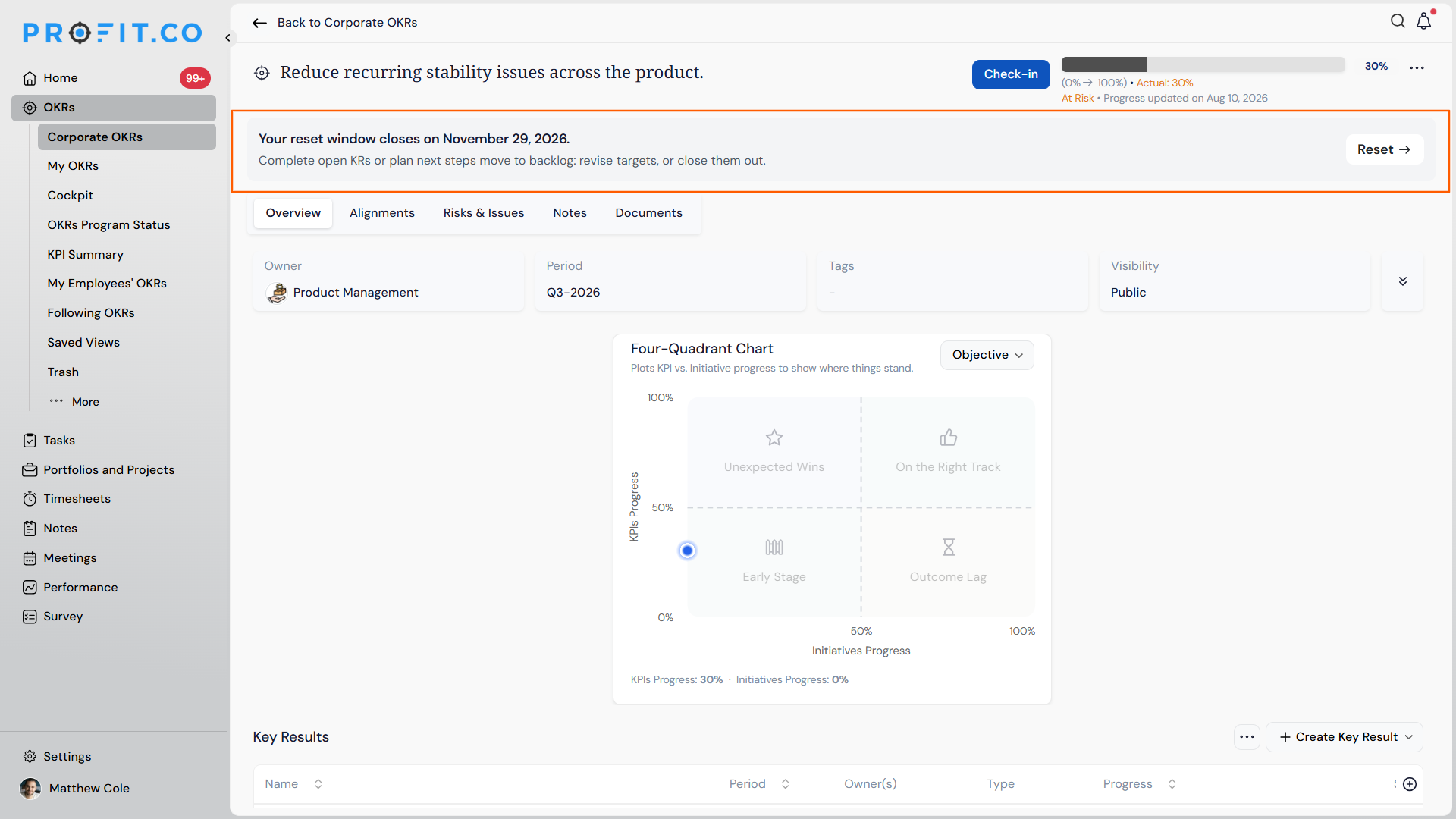
11. Priority Levels for Objectives and Key Results
OverviewHow It Works
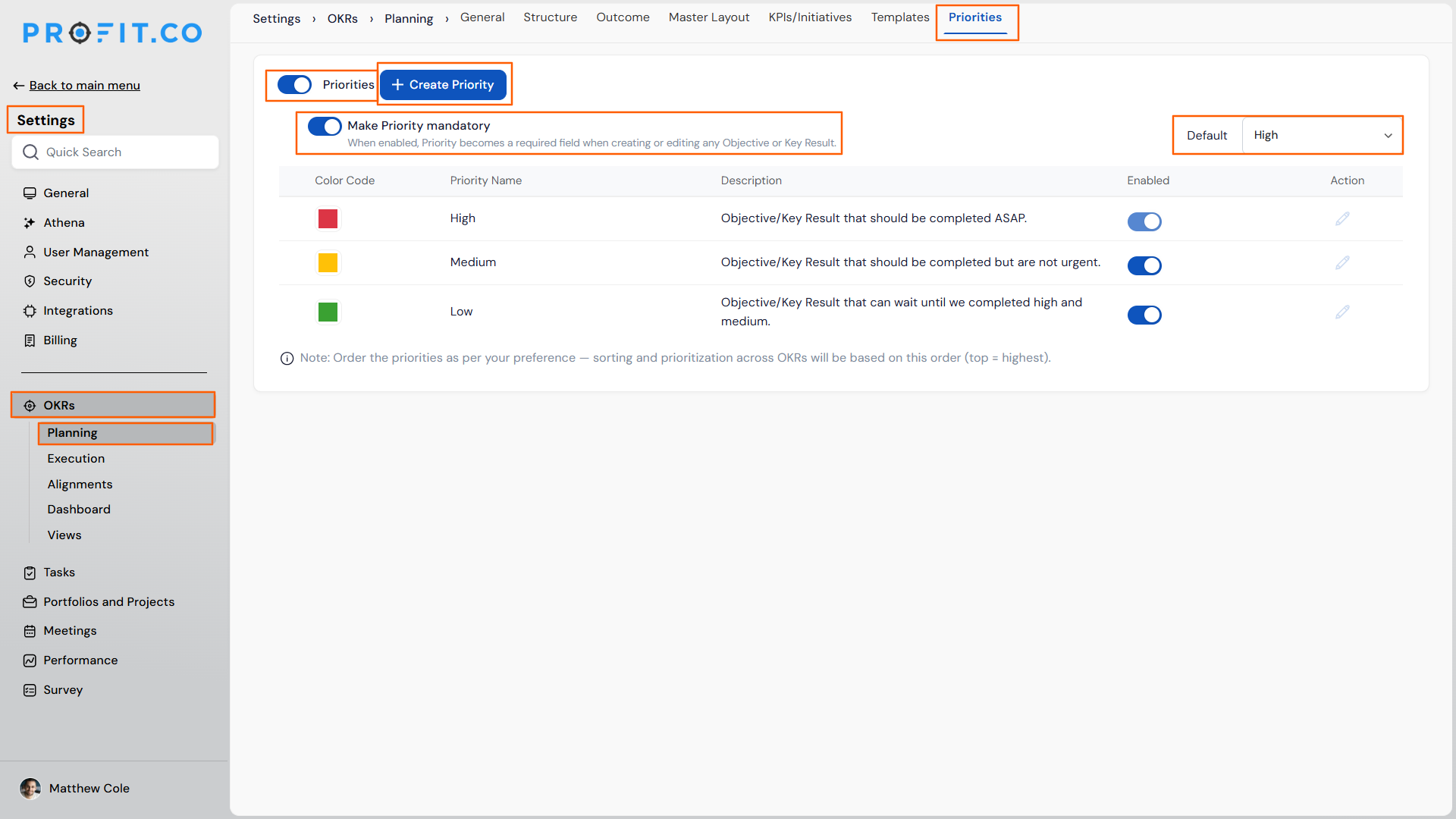
- Navigate to Settings → Planning → Priorities and enable the toggle.
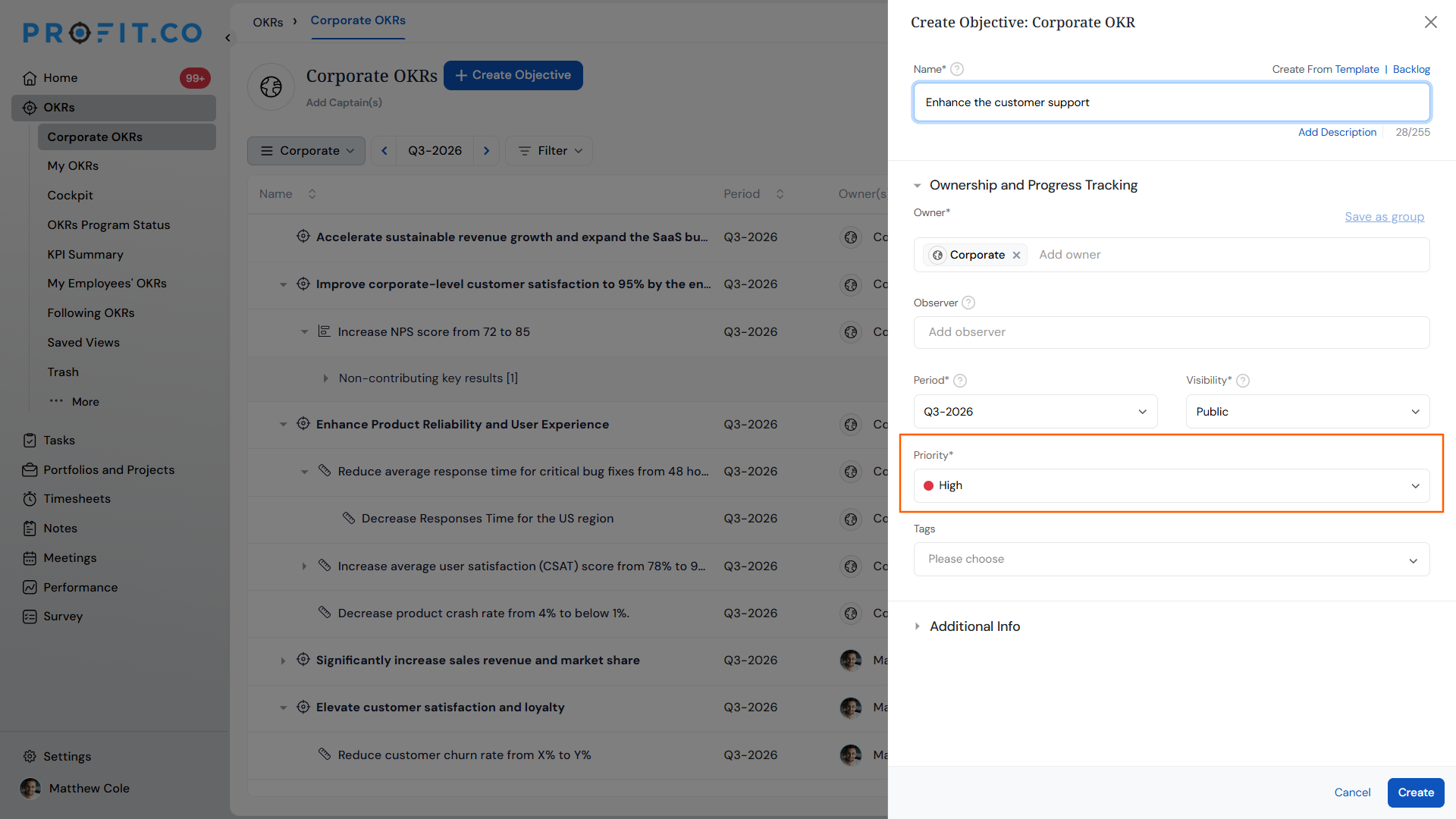
- Optionally make the priority field mandatory, create new priority levels, and set a default priority.
- Assign a priority to any Objective, Key Result, or Sub Key Result.
- Sort OKR lists by priority to bring the most important items to the top.
Why It Matters
- Clear prioritization: Teams can flag the most important OKRs without extra documentation.
- Faster sorting: Sorting by priority surfaces high-priority items immediately.
- Configurable setup: Admins control whether priority is mandatory and what the default value is.
12. Four-Quadrant Chart Support for Child Objectives
OverviewHow It Works
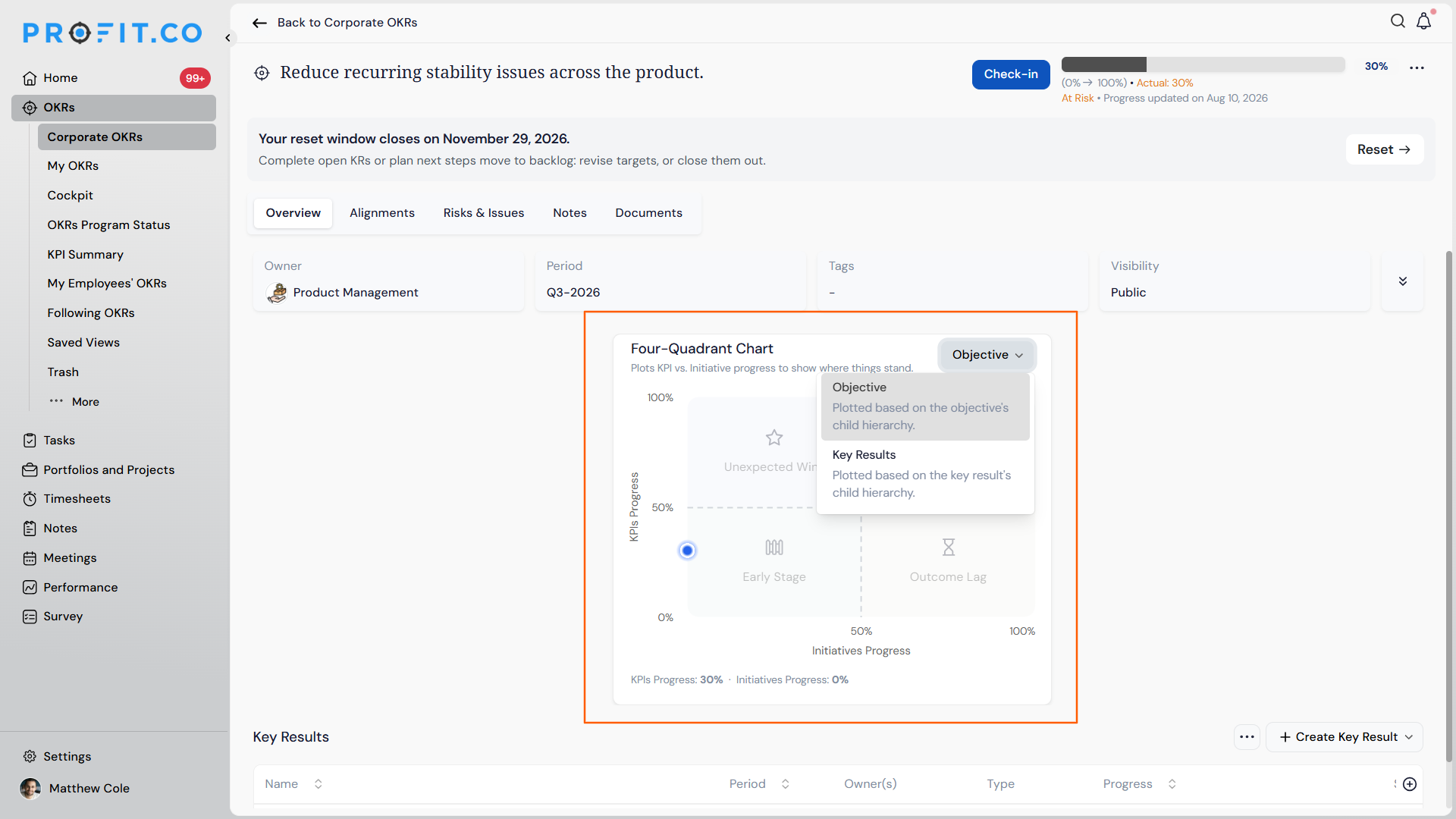
- Navigate to a child objective’s chart view.
- Select the four-quadrant chart option.
- View the child objective plotted the same way top-level objectives are.
Why It Matters
- Consistent visualization: Child objectives now support the same charting options as top-level objectives.
- Better context: Teams can compare progress and impact across all levels of the OKR hierarchy using the same format.
- No extra setup: The chart type is available wherever child objectives are viewed.
13. From and To Values for Percentage-Tracked Key Results
OverviewHow It Works
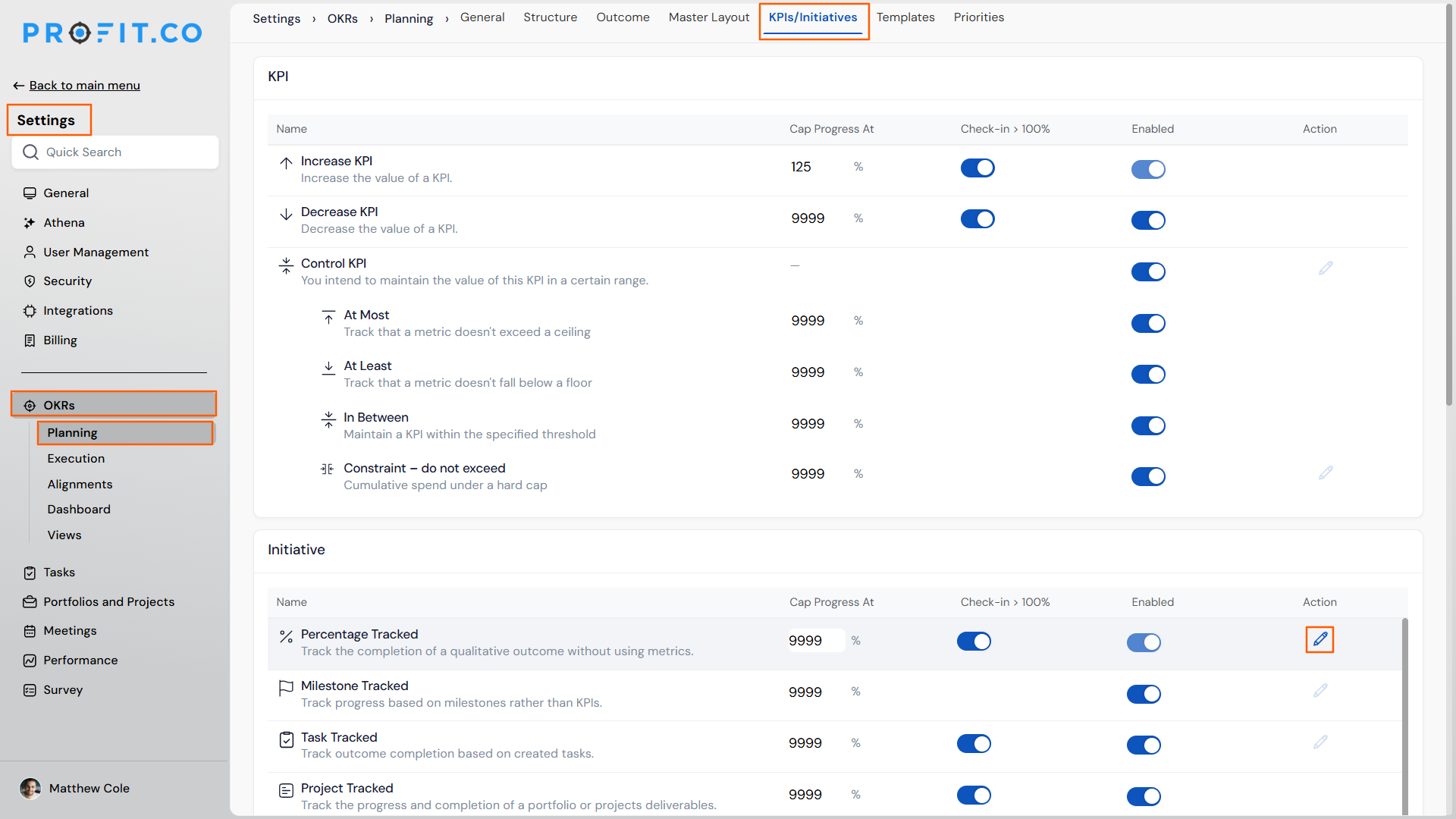
- Navigate to Settings → Planning → KPIs & Initiatives.
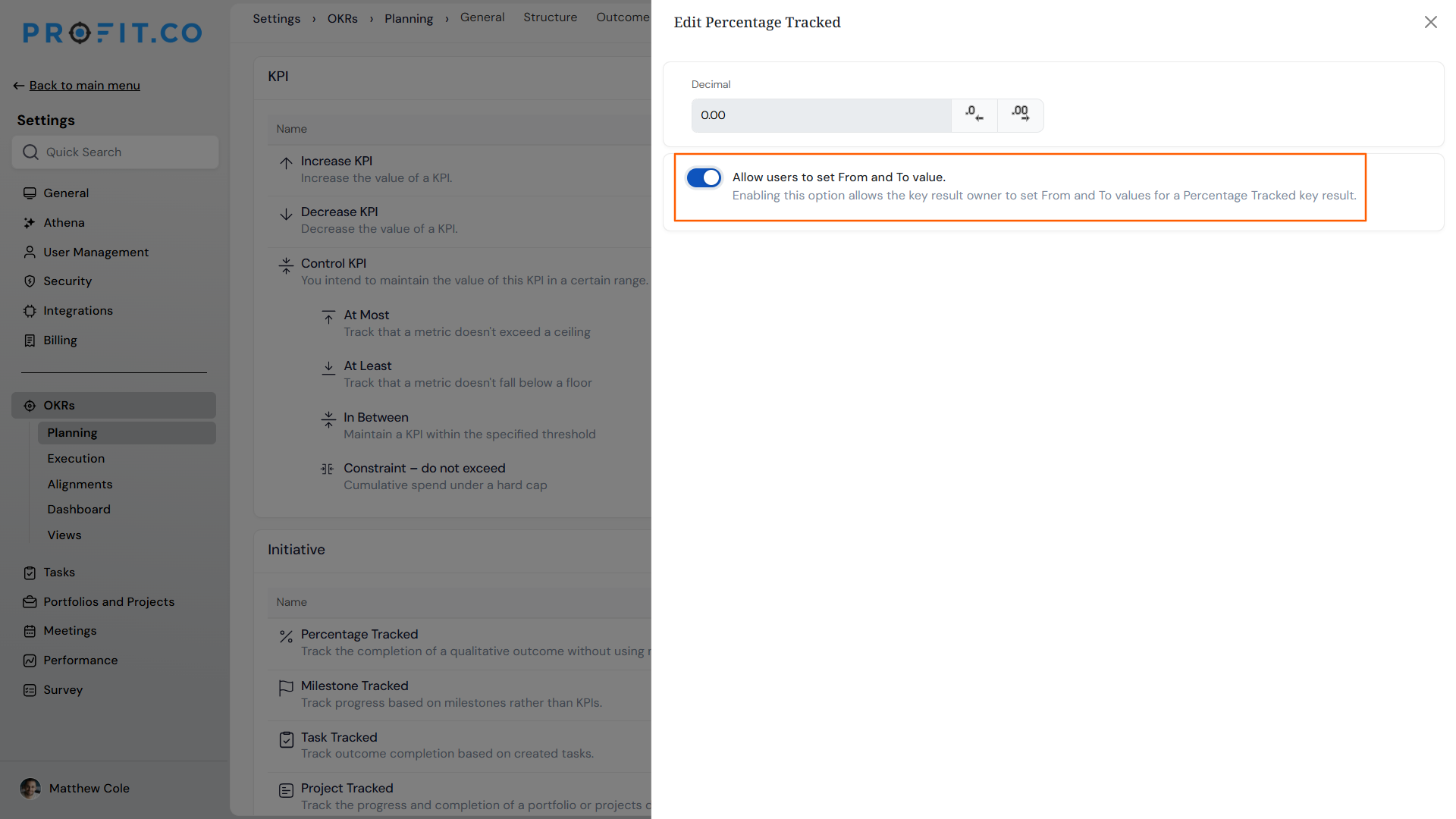
- Enable “Allow users to set From and To value”.
- Open a percentage-tracked key result and set its From and To values.
- Progress is calculated based on the defined range.
Why It Matters
- Accurate ranges: Key results that don’t naturally start at 0% or end at 100% can now be tracked correctly.
- Flexible configuration: Admins control whether this option is available across the account.
- Better progress accuracy: Progress percentages reflect the actual defined range rather than a fixed scale.
14. Equal Distribution Option in Modify Plan
OverviewHow It Works
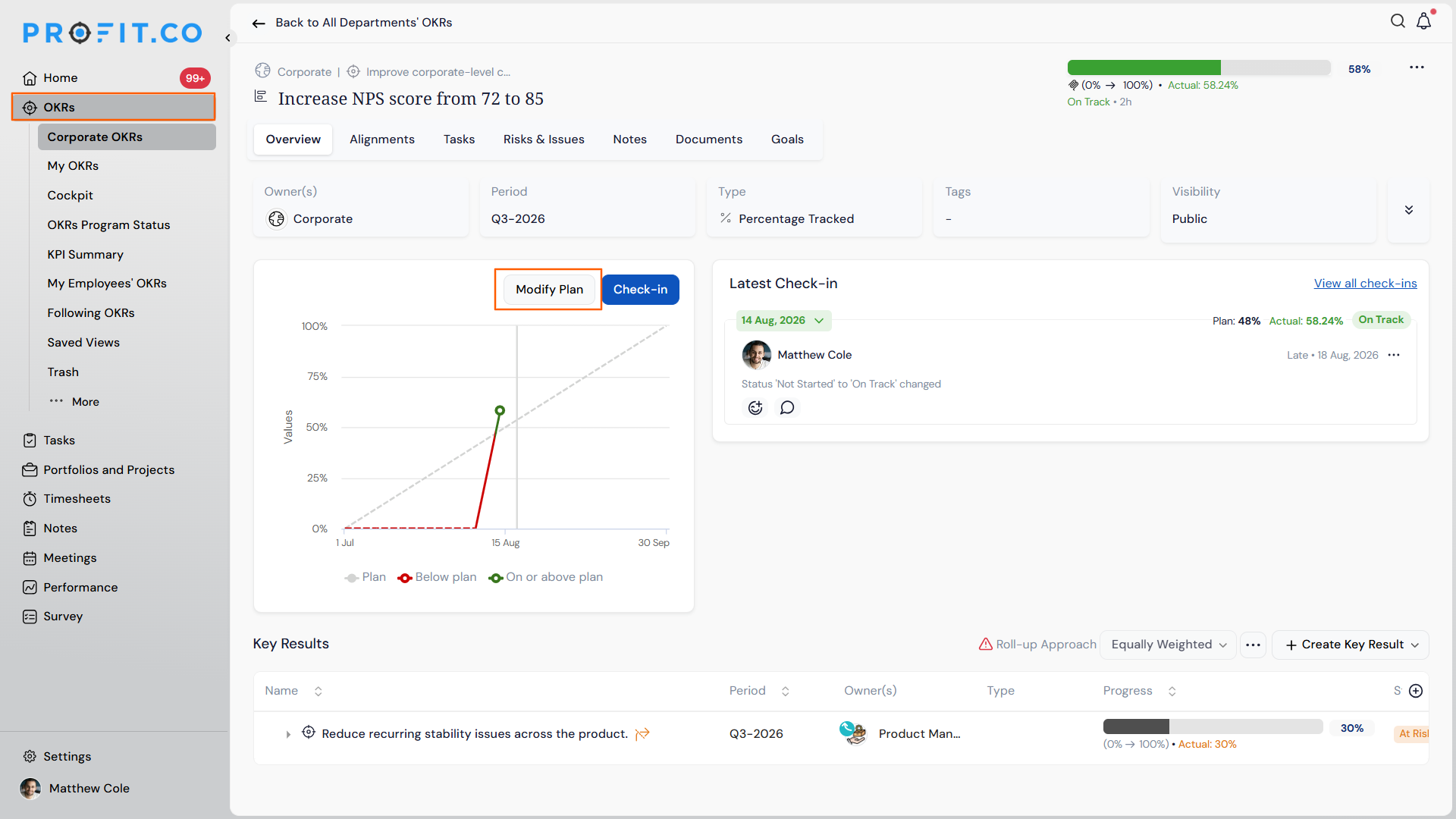
- Navigate to a Key Result → Modify Plan.
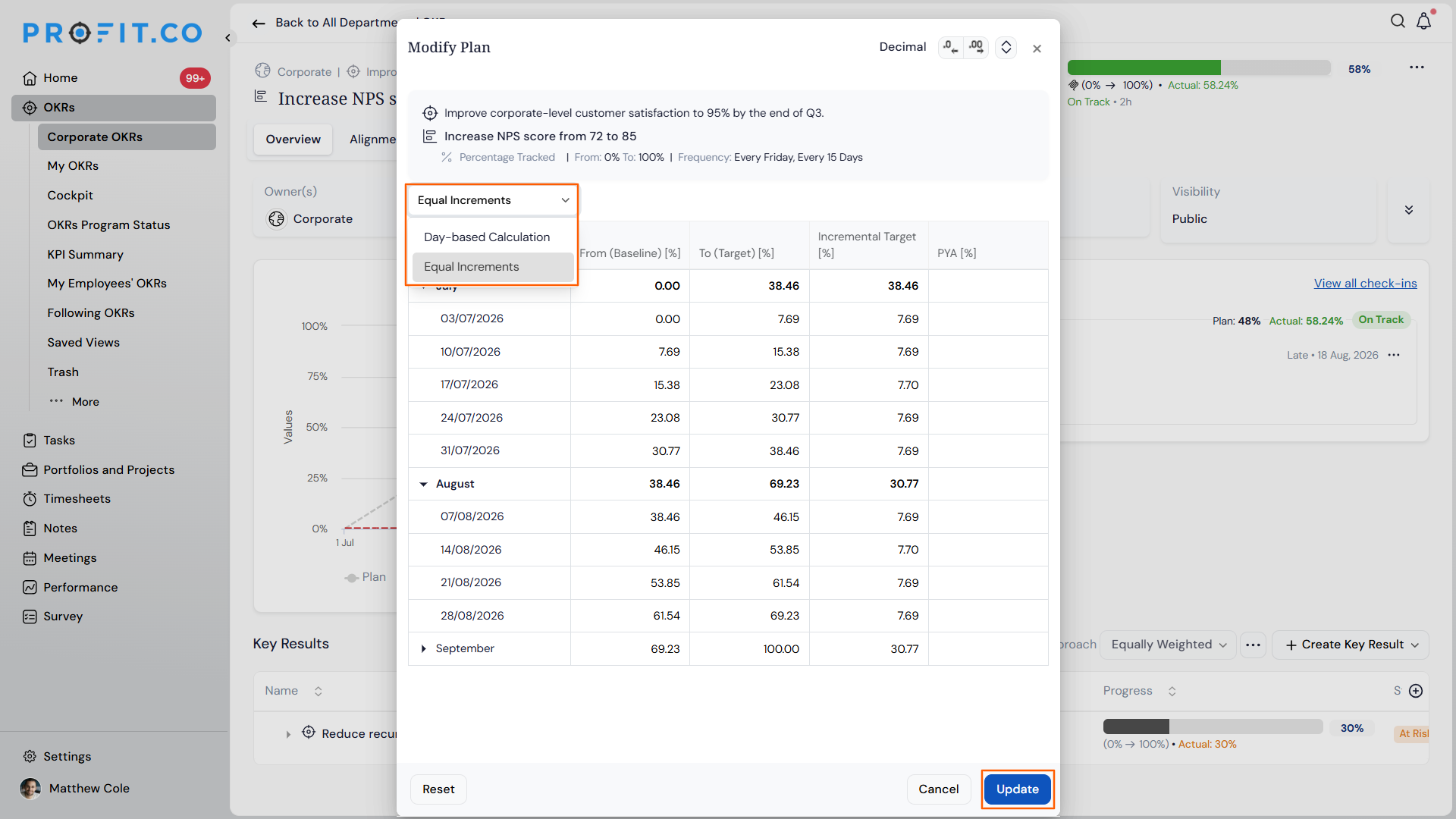
- Choose Equal Distribution as the calculation method.
- The plan is divided into equal increments across the selected period.
- Switch back to the day-based method at any time.
Why It Matters
- Simpler planning: Equal Distribution offers a straightforward alternative to day-based calculations.
- Flexible options: Users can choose the method that best fits how they want to track a key result.
- Predictable increments: Equal steps make it easier to explain planned progress to stakeholders.
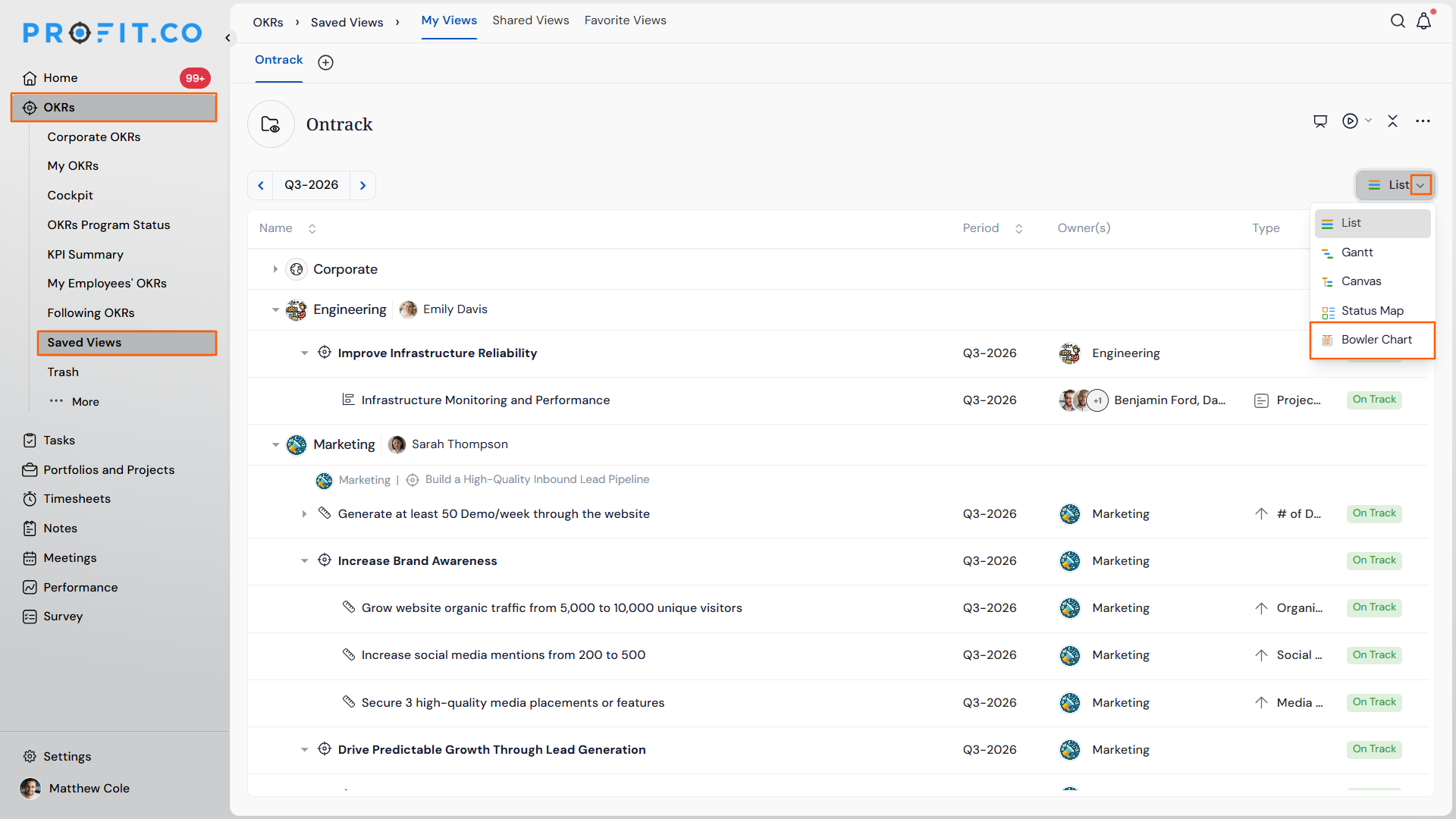
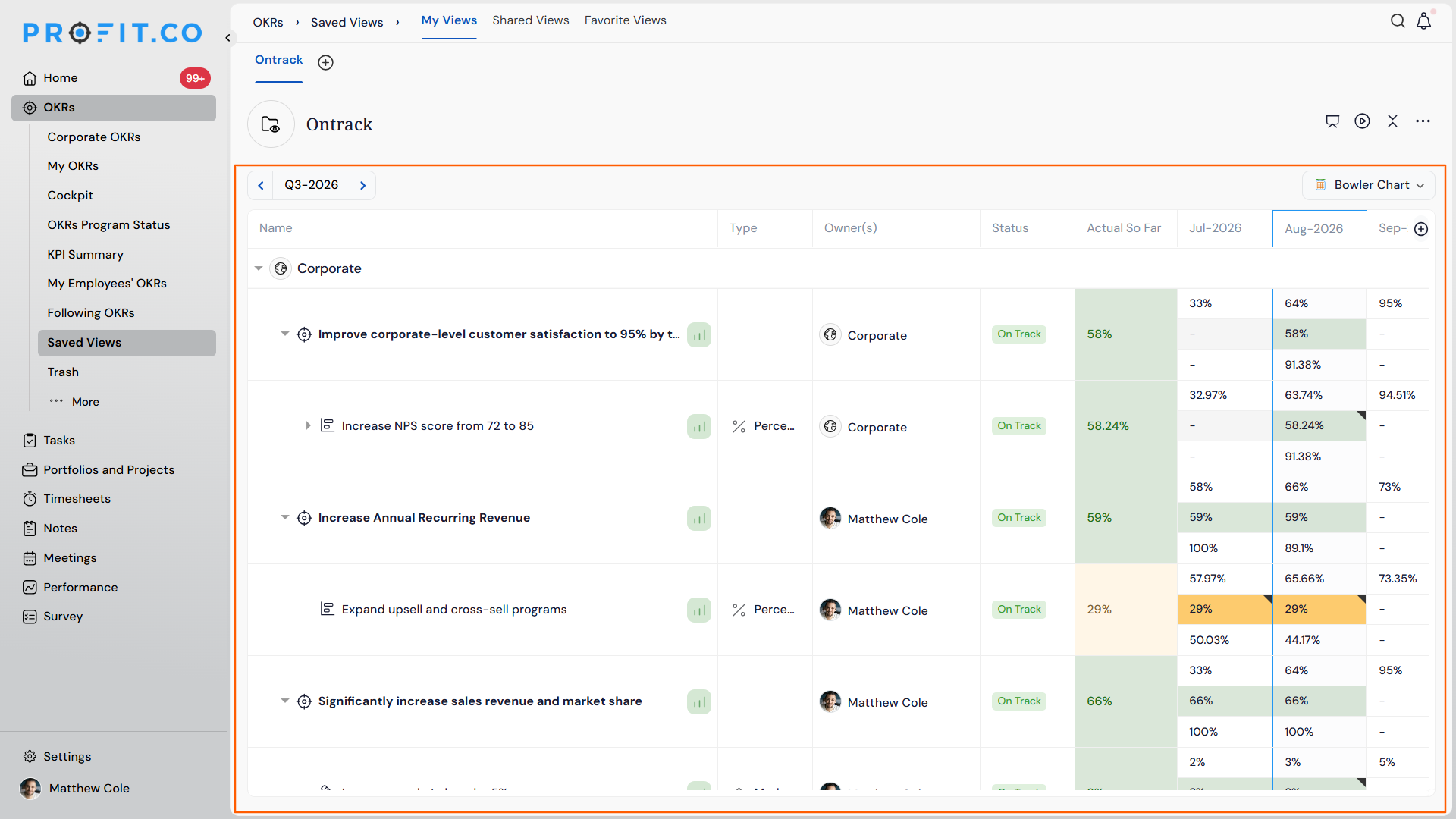
15. Bowler Chart View for Saved Views
OverviewHow It Works
- Navigate to OKRs → Saved Views.
- Select Bowler Chart as the view type.
- The saved view’s data displays in bowler chart format.
Why It Matters
- More visualization options: Users aren’t limited to the existing chart types when reviewing saved views.
- Familiar format: Bowler charts present period-over-period performance in a widely recognized layout.
- No extra setup: The new chart type is available directly within existing saved views.
16. Redistribution of Milestone Percentages
OverviewHow It Works
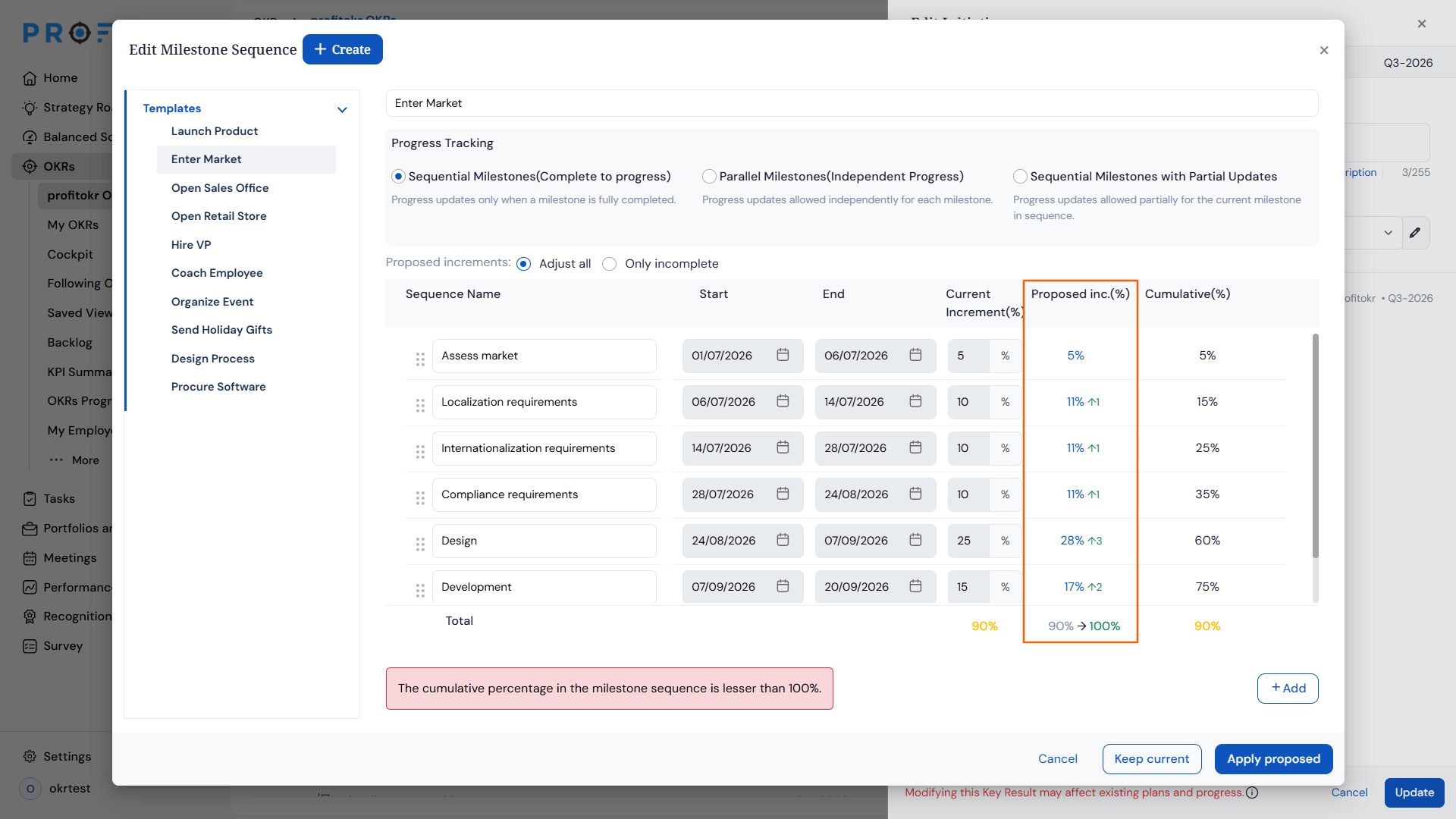
- Delete a milestone from a milestone sequence.
- The system calculates the shortfall left by the deleted milestone.
- A proposed incremental percentage displays for the remaining milestones.
- Apply the proposed value, or adjust milestones manually to reach 100%.
Why It Matters
- No manual math: Users don’t have to calculate how to redistribute percentages after deleting a milestone.
- Balanced sequences: Milestone sequences stay accurate and add up to 100% after changes.
- Faster corrections: The system flags the exact gap immediately, rather than users discovering it later.
17. Approval Flow Support When Moving Key Results
OverviewHow It Works
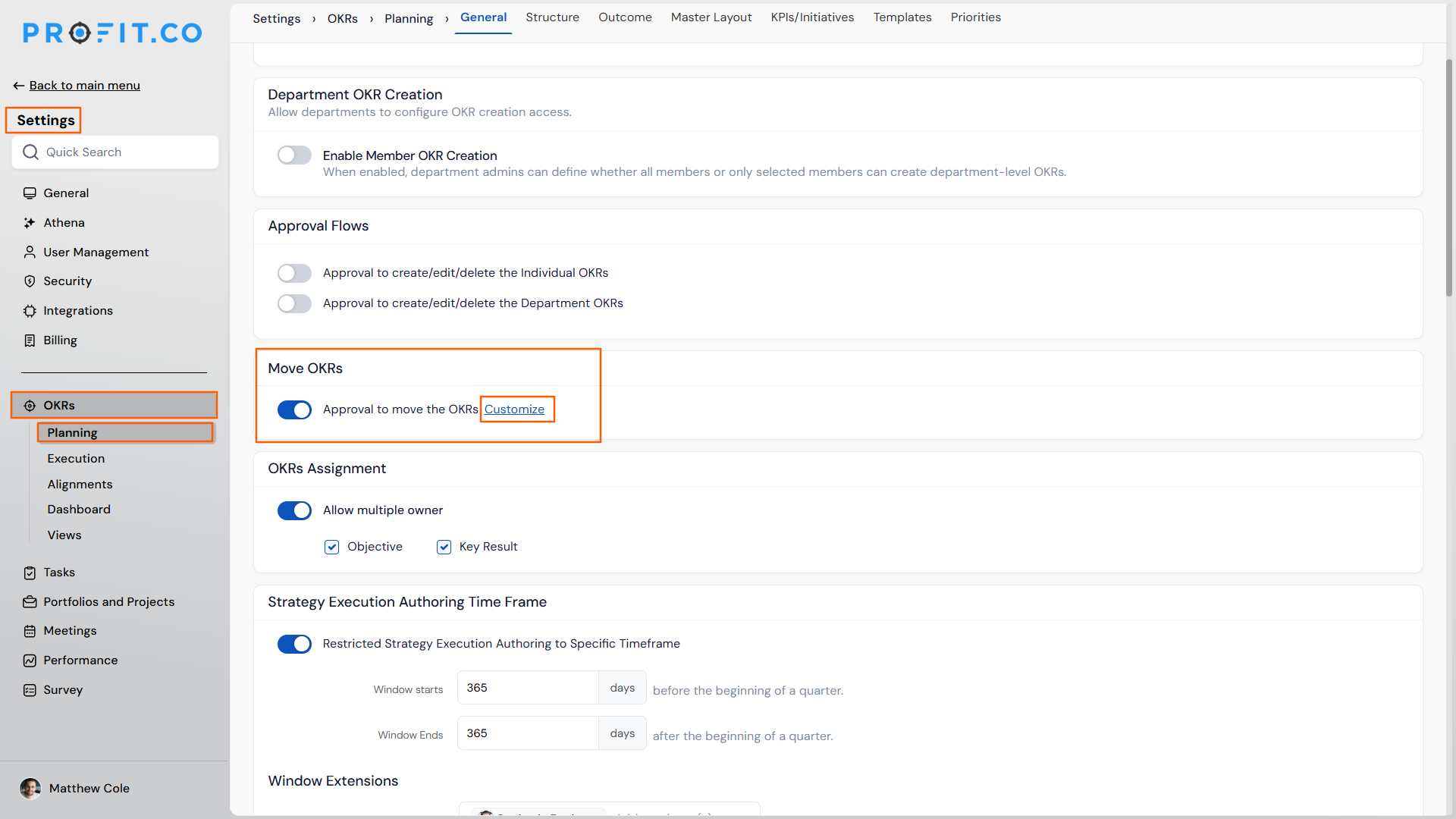
- Navigate to Settings → OKRs → Planning from the left navigation panel.
- Locate the Move Key Result section and enable the approval flow toggle.
- Move a key result as usual.
- The move is submitted for approval instead of applying immediately.
- Once approved, the key result moves to its new location.
Why It Matters
- Consistent governance: Moving a key result now follows the same approval process as other key result changes.
- Reduced errors: Moves can be reviewed before they take effect, preventing accidental reorganization.
- Audit-friendly: Every move goes through the same approval trail as other tracked actions.
18. Exceeded Status Added to Say:Do Tracking
OverviewHow It Works
- Track a key result using Say:Do tracking as usual.
- When actual progress moves beyond the planned value, the status automatically updates to Exceeded.
- View the Exceeded status alongside other Say:Do statuses in reports and lists.
Why It Matters
- Clear distinction: Teams can tell the difference between hitting a plan and exceeding it.
- Better recognition: Overperformance is visible instead of being grouped with “on track” results.
- Accurate reporting: Say:Do reports reflect performance more precisely.
19. OKR Type Filter in List View
OverviewHow It Works
- Navigate to OKRs → List View.
- Open the filter options and select OKR Type as the filter field.
- Choose the condition (e.g., “is” or “is not”) and select the type – Objective, Key Result, or Initiative.
- The list updates to show only matching items.
Why It Matters
- Faster narrowing: Large OKR lists can be filtered down to a specific type in a few clicks.
- More precise views: Users can combine this filter with existing ones for more targeted lists.
- Less scrolling: Removes the need to manually scan mixed lists to find a specific OKR type.
PROJECTS (Task Management, Portfolios And Projects, Timesheets, Notes And Meetings)
1. Skills Field with Inline Creation in User Management
OverviewHow It Works
- Navigate to Settings → User Management → Active Users.
- Open a user record and locate the Skills field in the Update User panel.
- Select an existing skill from the dropdown, or click + Create next to the Skills label to add a new skill inline.
- The newly created skill is saved to the platform and applied to the user record immediately.
- Skills assigned here are reflected on the user profile across the platform.
Why It Matters
- No more context switching: Super users can create and assign a new skill from within the user record itself, without navigating to a separate settings page.
- Faster profile completion: Skills can be set alongside all other user attributes in one update, reducing the number of steps needed to fully configure a user profile.
- Consistent skill data across users: Skills created inline are available for all future user records, keeping the skills library up to date as the organisation grows.
2. Edit and Delete Options for Check-Ins in Projects and Portfolios
OverviewHow It Works
- Navigate to Portfolios and Projects and open a portfolio, project, or milestone.
- Go to the check-in view and locate the check-in entry to be updated.
- Click the … menu on the relevant check-in to reveal the Edit and Delete options.
- Select Edit to modify the check-in details and save the changes, or select Delete to remove the entry permanently.
Why It Matters
- Accurate progress records: Project managers can correct a check-in submitted with wrong data without it remaining permanently on the record.
- Cleaner audit trail: Removing erroneous or duplicate check-ins keeps the check-in history meaningful and easy to review during governance and reporting.
- Full control over updates: Teams are no longer locked into check-in entries after submission, giving project owners the same level of control over check-ins that they have over other project data.
3. Dependency Setup During Project Creation
OverviewHow It Works
- Navigate to Portfolios and Projects → Projects and click + Create Project.
- In the project creation flow, click + Add Dependency to open the dependency panel.
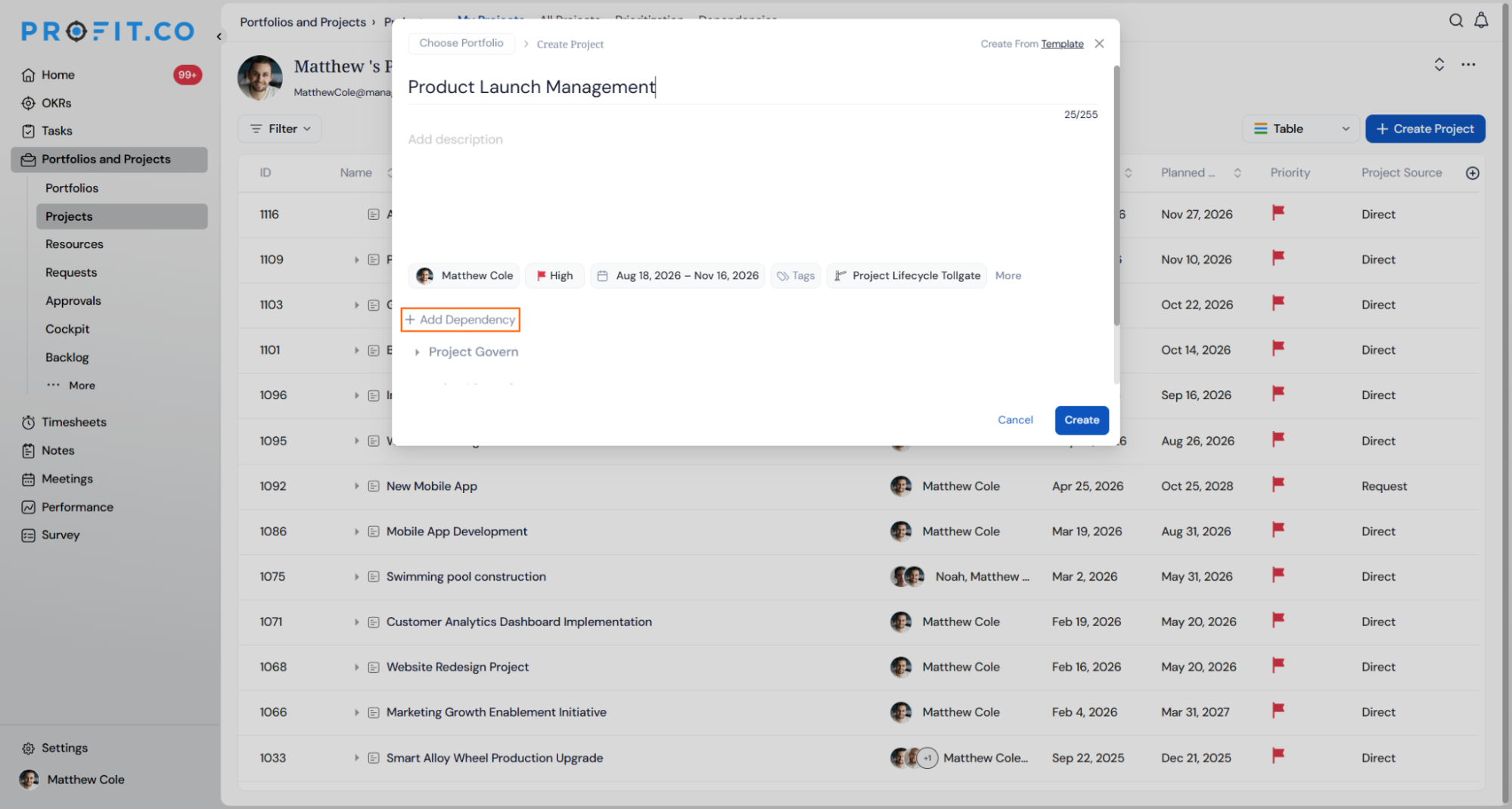
- Select the Predecessor Project from the dropdown and confirm the current project as the Successor Project.
- Set the dependency type (for example, Finish-to-Start) and assign an owner using Add Owner(s).
- Add a description if needed, then click Add Dependency to save.
- The dependency is applied as soon as the project is created and is visible in the project’s dependency view immediately.
Why It Matters
- No rework after creation: Dependencies are set during the creation step itself, so project managers do not need to revisit the project to complete its setup.
- Accurate scheduling from day one: Predecessor and successor relationships are in place before any work begins, reducing the risk of sequencing errors in the early stages of a project.
- Cleaner project governance: Ownership and dependency type are captured upfront, giving portfolio managers a complete picture of project relationships as soon as a new project appears in the list.
4. CSV Export for Project Requests
OverviewHow It Works
- Navigate to Portfolios and Projects → Requests.
- Click the … menu at the top right of the requests list to open the more options panel.
- Select Export and choose from All Fields, Current View, or Custom Selection depending on what data is needed.
- The export downloads as a CSV file containing the request records matching the selected option.
- Export history is also accessible from the same menu via Export History.
Why It Matters
- Offline reporting without manual effort: Teams can pull the full requests list into a spreadsheet in one step, removing the need to copy data manually for status reports or stakeholder updates.
- Flexible export scope: The choice between all fields, current view, and custom selection means teams export only what is relevant rather than managing oversized files.
- Audit-ready history: The Export History option lets users track what was exported and when, supporting governance requirements around project request data.
5. Reorderable Sections on the Project Overview Page
OverviewHow It Works
- Navigate to Portfolios and Projects → Projects and open any project.
- On the Overview tab, drag and drop the sections in the right-hand panel to the preferred order.
- The updated section order is saved and reflected across all project overview pages immediately.
Why It Matters
- Relevant information first: Teams can bring the sections they consult most often to the top of the overview, reducing scroll time during project reviews.
- Consistent layout across projects: The reordered layout applies across all project overview pages, so users do not need to re-adjust the view each time they open a different project.
- Tailored to how each team works: Portfolio managers focused on financials can prioritise Value Dimensions and Schedule, while governance-heavy teams can surface Project Governance at the top.
6. Timeline Cascading from Child Activities to Parent Milestones
OverviewHow It Works
- Navigate to Settings → Portfolios and Projects → Timeline Cascading and enable the Adjust Parent Dates from Children toggle to activate the feature.
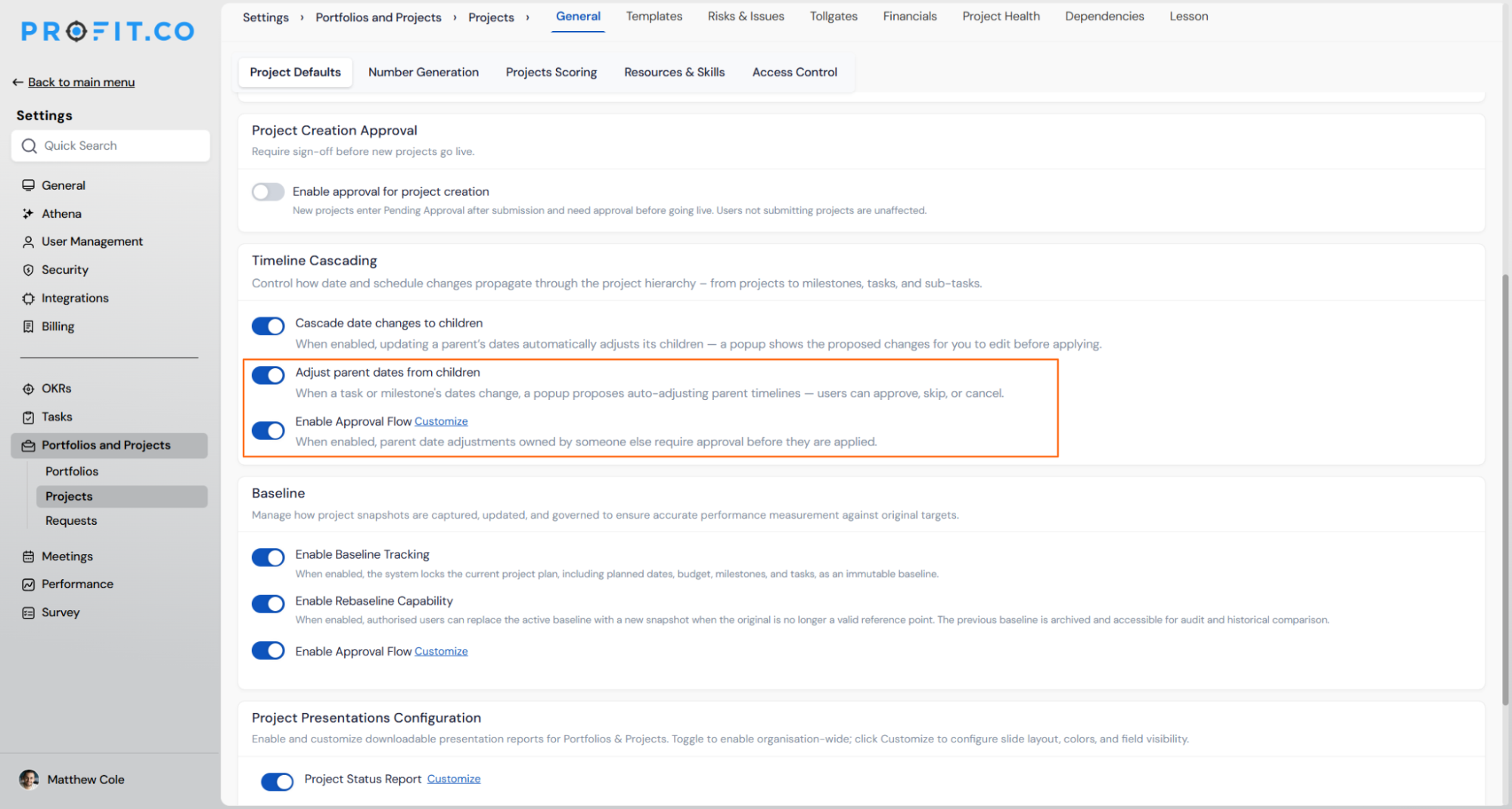
- li>When a task or milestone date is changed, a Timeline Adjustment Preview popup appears, showing the planned dates, proposed new dates, and which parent milestones and projects would be affected.
- Review the proposed changes, then select one of three options: Apply Adjustments to cascade the date change up to the parent, Skip Adjustments to save the child date change without updating the parent, or Cancel to discard the change entirely.
- If an approval flow is configured, applying adjustments triggers a new approval request reflecting the updated timeline before the changes are finalised.
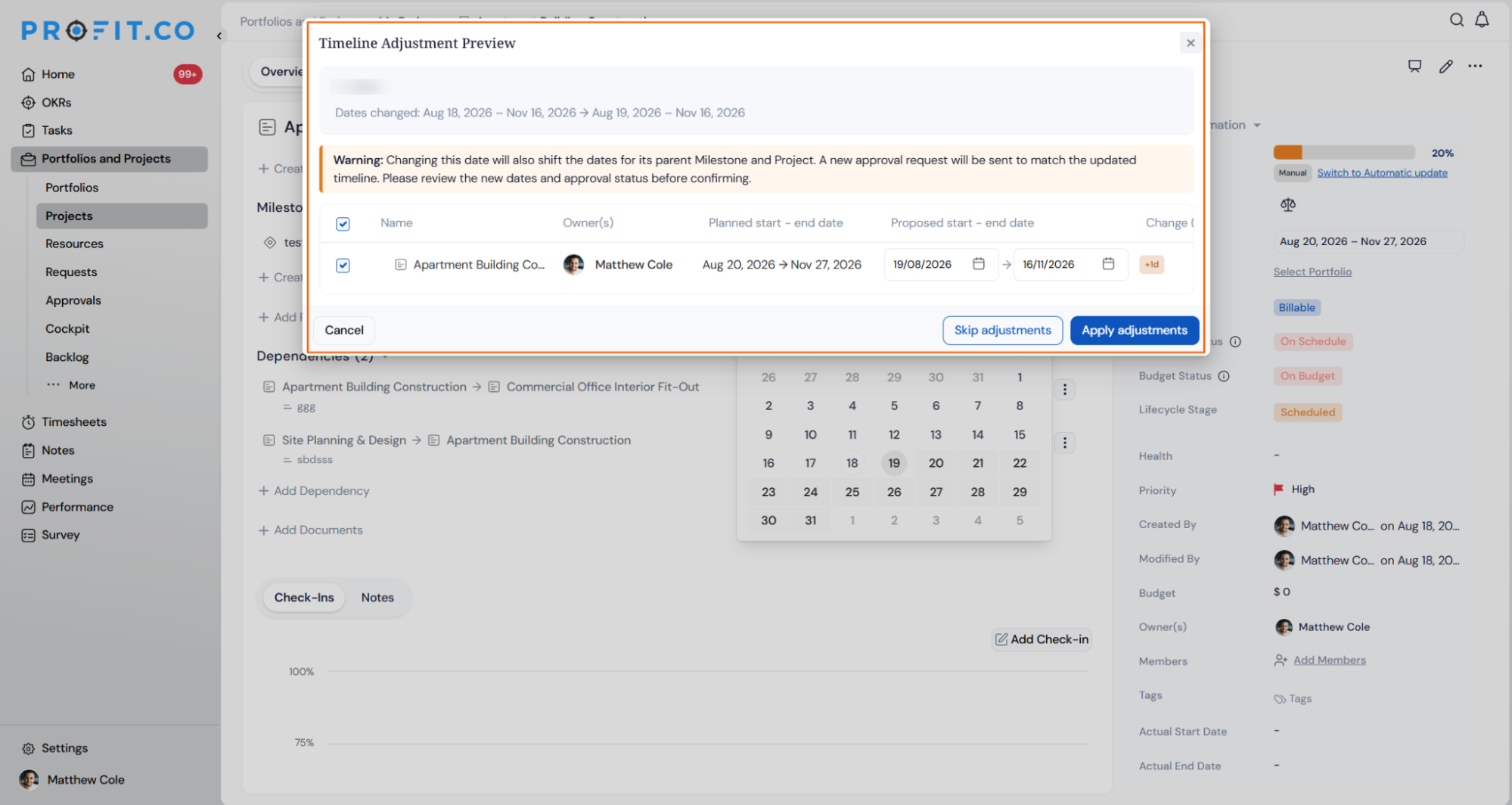
Why It Matters
- No more out-of-sync timelines: When a task or milestone slips, parent milestones and projects update to match, so the overall project schedule always reflects actual progress.
- Informed decisions before applying changes: The preview popup shows exactly which dates would shift and by how much before anything is saved, preventing accidental cascades on unintended records.
- Governance maintained on date changes: The approval flow ensures that timeline shifts affecting parent milestones are reviewed and signed off, keeping project governance intact even when schedules change.
7. Confirmation Prompt When Disabling Expense Tracking
OverviewHow It Works
- Navigate to Settings → Portfolios and Projects → Projects → Financials.
- Toggle off the Expenses option.
- A confirmation popup appears explaining that the Expenses tab will be hidden from project navigation across all projects, and that Bill of Quantity line items will record planned cost only, not actual spend.
- The popup also confirms that existing expense records are retained and will reappear if the setting is re-enabled.
- Select Disable to confirm the change or Cancel to leave the setting unchanged.
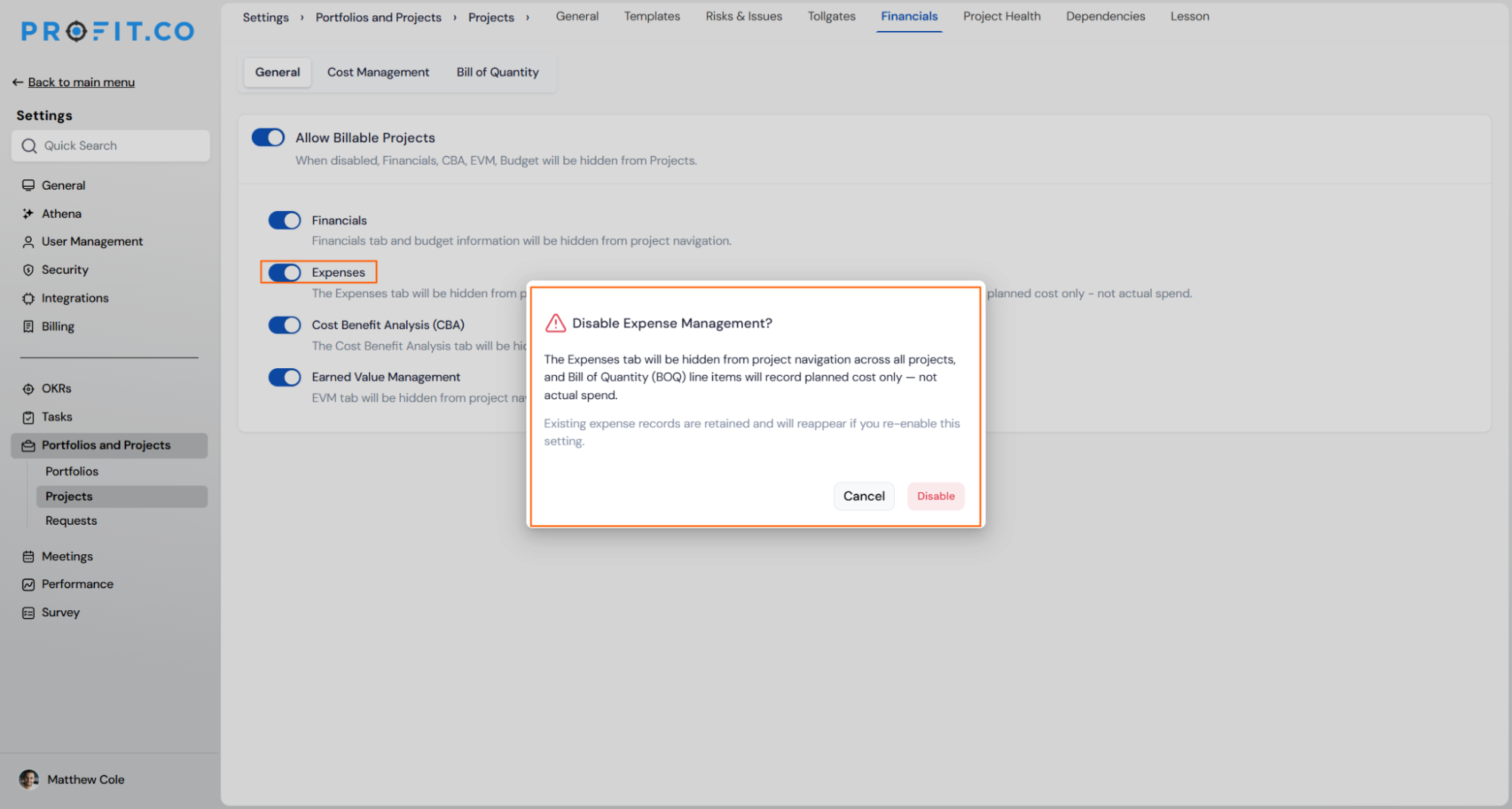
Why It Matters
- No accidental data loss: The confirmation step prevents super users from unintentionally hiding expense tracking across all projects with a single toggle click.
- Clear impact summary upfront: The popup explains exactly what changes – navigation visibility, BOQ recording behaviour, and data retention – so users know the full effect before confirming.
- Safe to reverse: Existing expense records are preserved when the setting is disabled, so re-enabling it restores the data without any loss.
8. Dependency Terminology Updated to Predecessor and Successor
OverviewHow It Works
- Navigate to Portfolios and Projects → Projects and open any project.
- Dependency relationships previously labelled Blocked By and Waiting On now appear as Predecessor and Successor respectively across all dependency views and panels.
- No configuration is required; the updated labels are applied automatically across all existing and new project dependencies.
Why It Matters
- Industry-standard language: Predecessor and Successor are the universally recognised terms in project management, reducing confusion for teams that work across multiple tools or follow PMI and PRINCE2 frameworks.
- Clearer relationship direction: The new labels make it immediately clear which project must finish first and which follows, removing ambiguity that “Blocked By” and “Waiting On” could introduce.
- Consistent terminology across the platform: Aligning PPM dependency labels with standard conventions ensures the language in Profit.co matches how teams document and discuss project schedules externally.
9. Full Hierarchy View in the Portfolio Delivery Tracker
OverviewHow It Works
- Navigate to Portfolios and Projects → Cockpit → Portfolio Insights.
- Open the Portfolio Delivery Tracker widget.
- Expand a portfolio row to view the projects nested beneath it, along with their milestones and tasks in a hierarchical layout.
- Each row shows owner, progress percentage, total task count, completed tasks, remaining tasks, and schedule status at the portfolio, project, and milestone level.
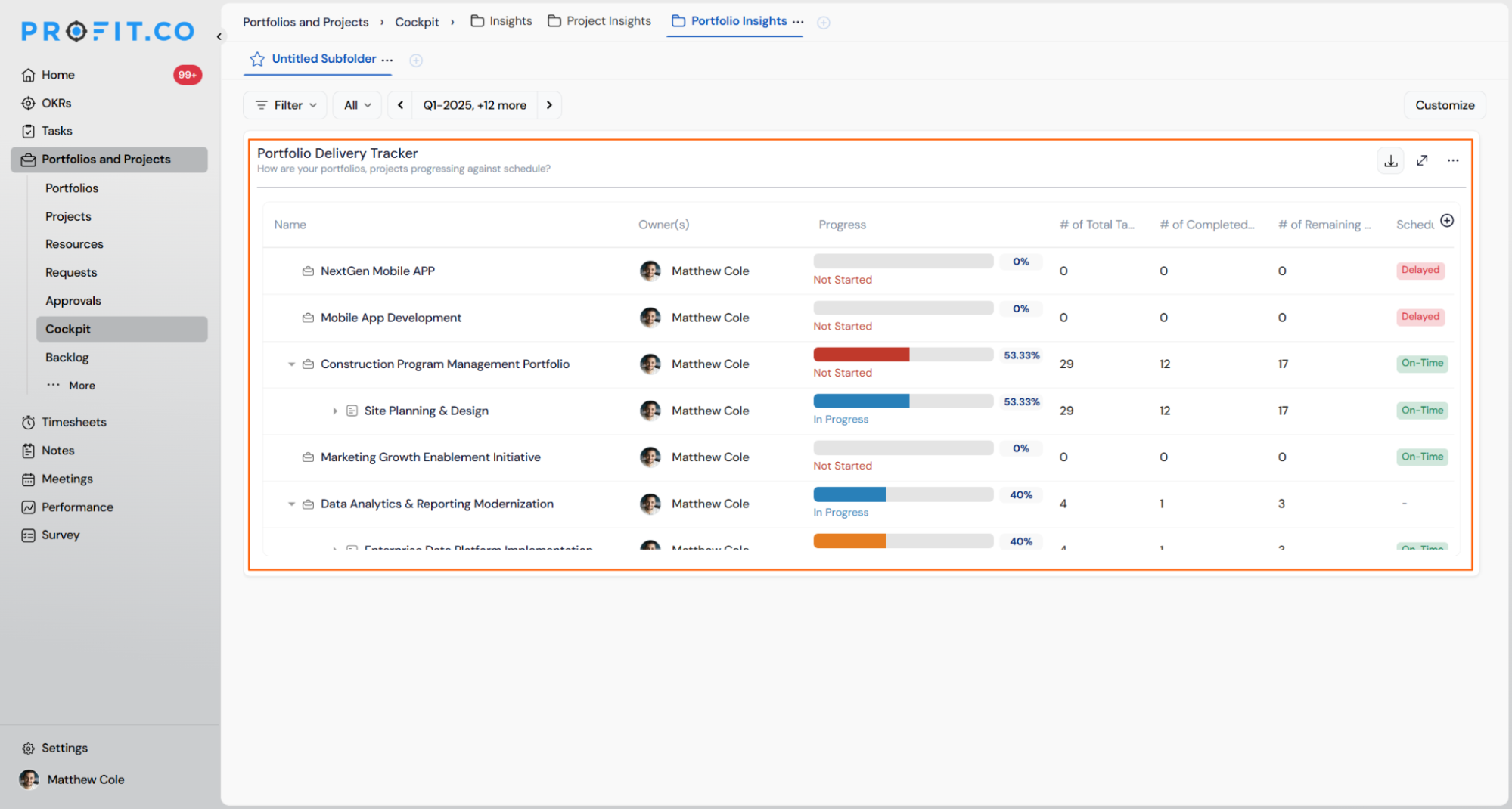
Why It Matters
- End-to-end delivery visibility in one view: Portfolio managers can see how every project, milestone, and task under a portfolio is tracking without opening each project individually.
- Faster identification of delays: Schedule status labels such as Delayed and On-Time are visible at every hierarchy level, so problem areas surface immediately during portfolio reviews.
- Richer reporting without extra navigation: Task counts and progress percentages are available across the full hierarchy in a single screen, reducing the time needed to compile delivery status for stakeholders.
10. Filter Support on the Project Prioritization Page
OverviewHow It Works
- Navigate to Portfolios and Projects → Projects → Prioritization.
- Click Filter at the top of the page to open the filter panel.
- Select a filter attribute from the dropdown – available options include Owner(s), Planned Start Date, Complexity Dimension, Value Dimension, Quadrant, and Status.
- Set the filter condition and values, then click Save to apply.
- The project list updates to show only records matching the selected criteria; click Clear All to reset the filters.
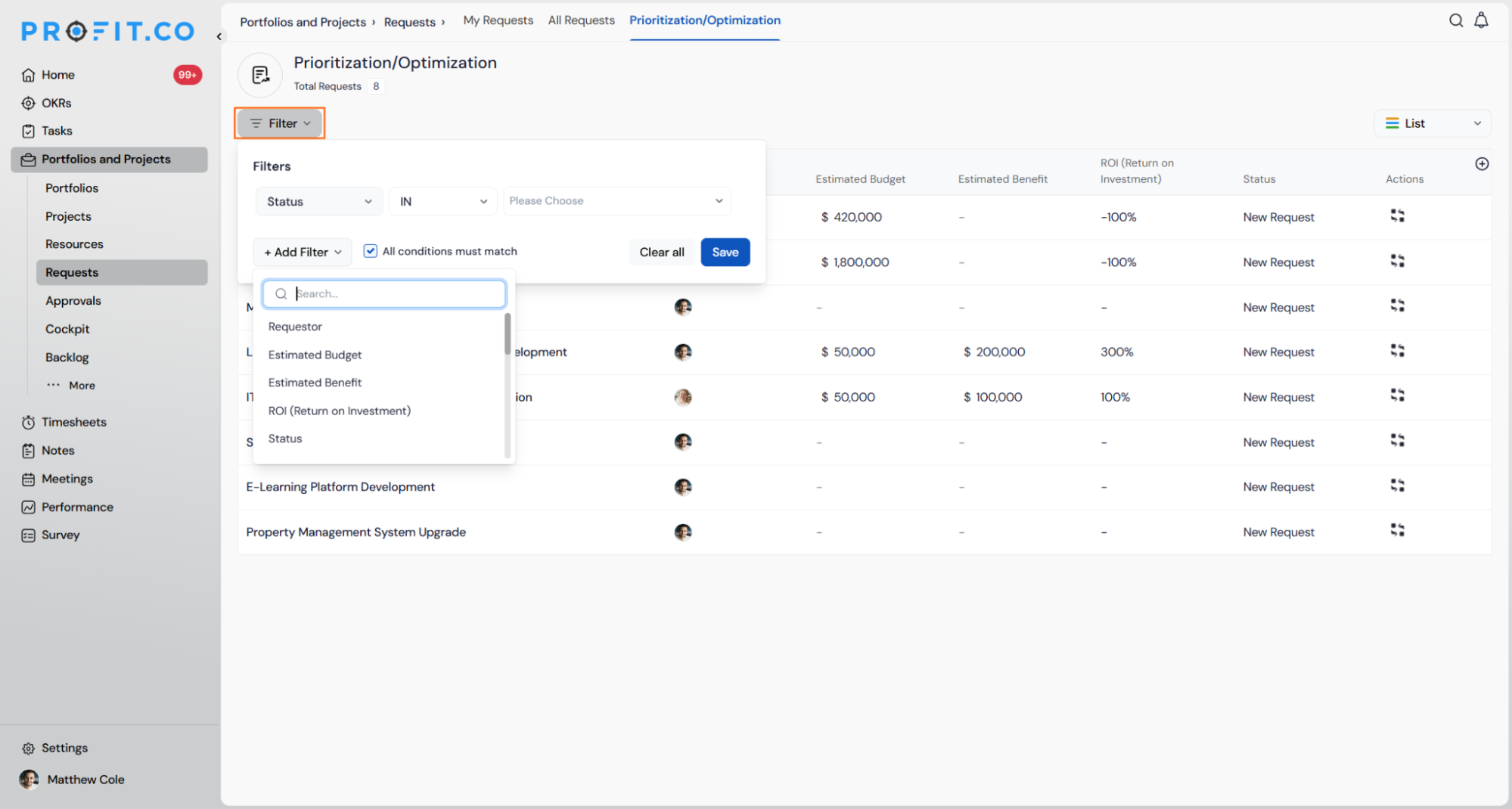
Why It Matters
- Faster prioritization decisions: Users can instantly narrow the project list to a relevant subset rather than manually scanning all projects to find the ones under review.
- Targeted analysis by dimension: Filtering by complexity, value dimension, or quadrant makes it straightforward to compare projects within the same prioritization category side by side.
- Practical for large portfolios: Organisations managing dozens of projects can use filters to surface only the records relevant to a specific owner, timeframe, or status during portfolio planning sessions.
11. Progress S-Curve Widget on the Project Dashboard
OverviewHow It Works
- Navigate to Portfolios and Projects → Projects, open a project, and go to the Dashboard tab.
- The Progress S-Curve widget displays two lines: actual progress based on real task completions rolled up through milestones, and planned value based on scheduled task and milestone dates.
- Three summary figures appear alongside the chart: Actual Progress, Planned Progress, and SPR (Schedule Performance Ratio).
- Use the time interval selector to switch between Week and other views to adjust chart resolution.
- Items without scheduled dates are flagged in a notice bar and can be reviewed directly from the widget.
Why It Matters
- Instant schedule health at a glance: The SPR score and two-line chart show whether the project is delivering work at the planned rate without opening individual tasks or milestones.
- Early warning for slippage: When the actual progress line falls below the planned value line, project managers can spot schedule risk early and act before delays compound.
- All progress in one place: The widget consolidates task completions, milestone rollups, and schedule data into a single chart on the project dashboard, reducing the need to switch between views.
PERFORMANCE (Performance, Goals, Development Plans, Recognition, Survey)
1. Upward Assessment in Performance Reviews
OverviewHow It Works
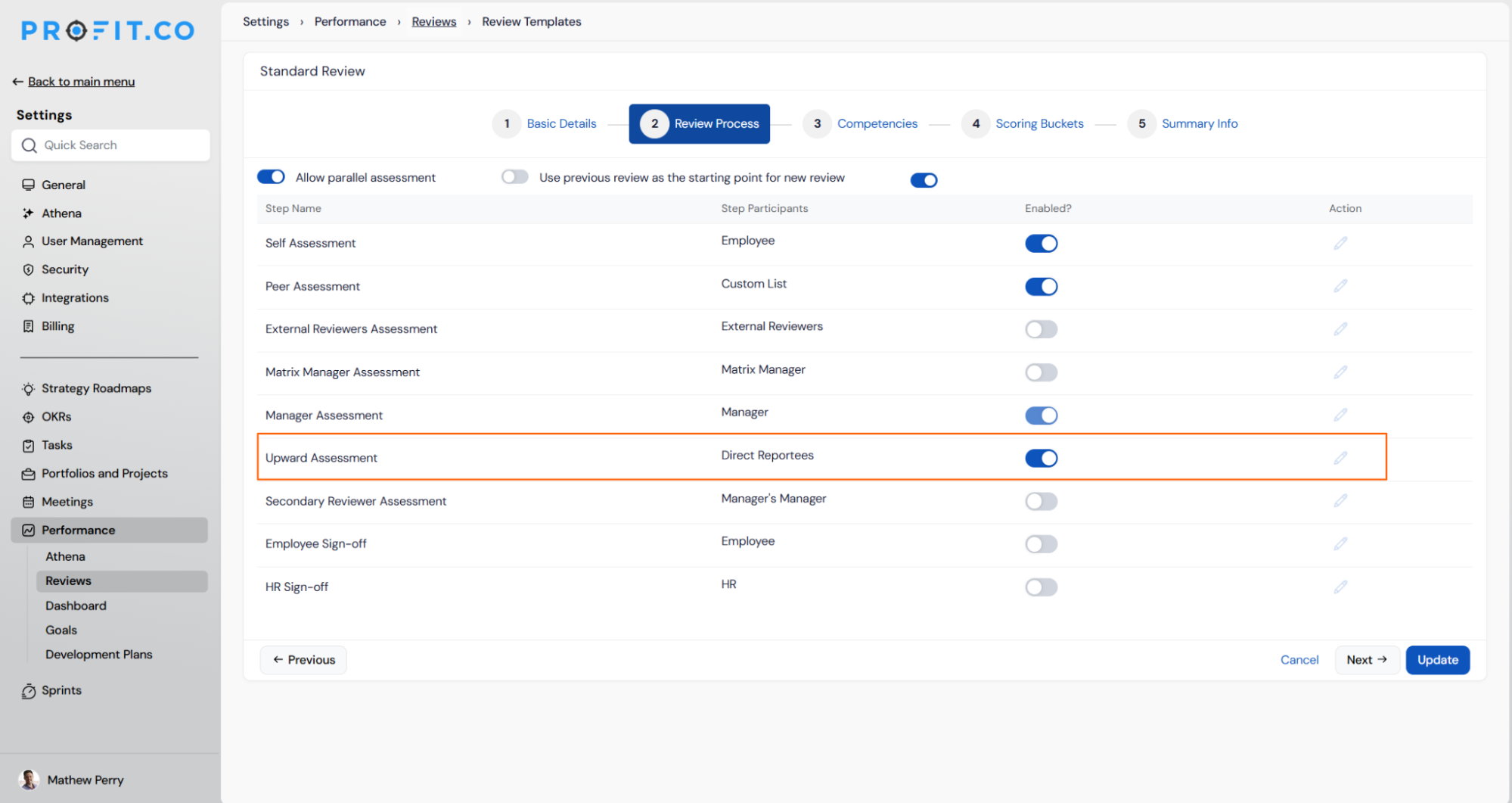
- Navigate to Settings → Performance → Reviews → Review Templates.
- Select a review template and open the Review Process tab.
- Enable the Upward Assessment toggle to activate subordinate-to-manager reviews for that template.
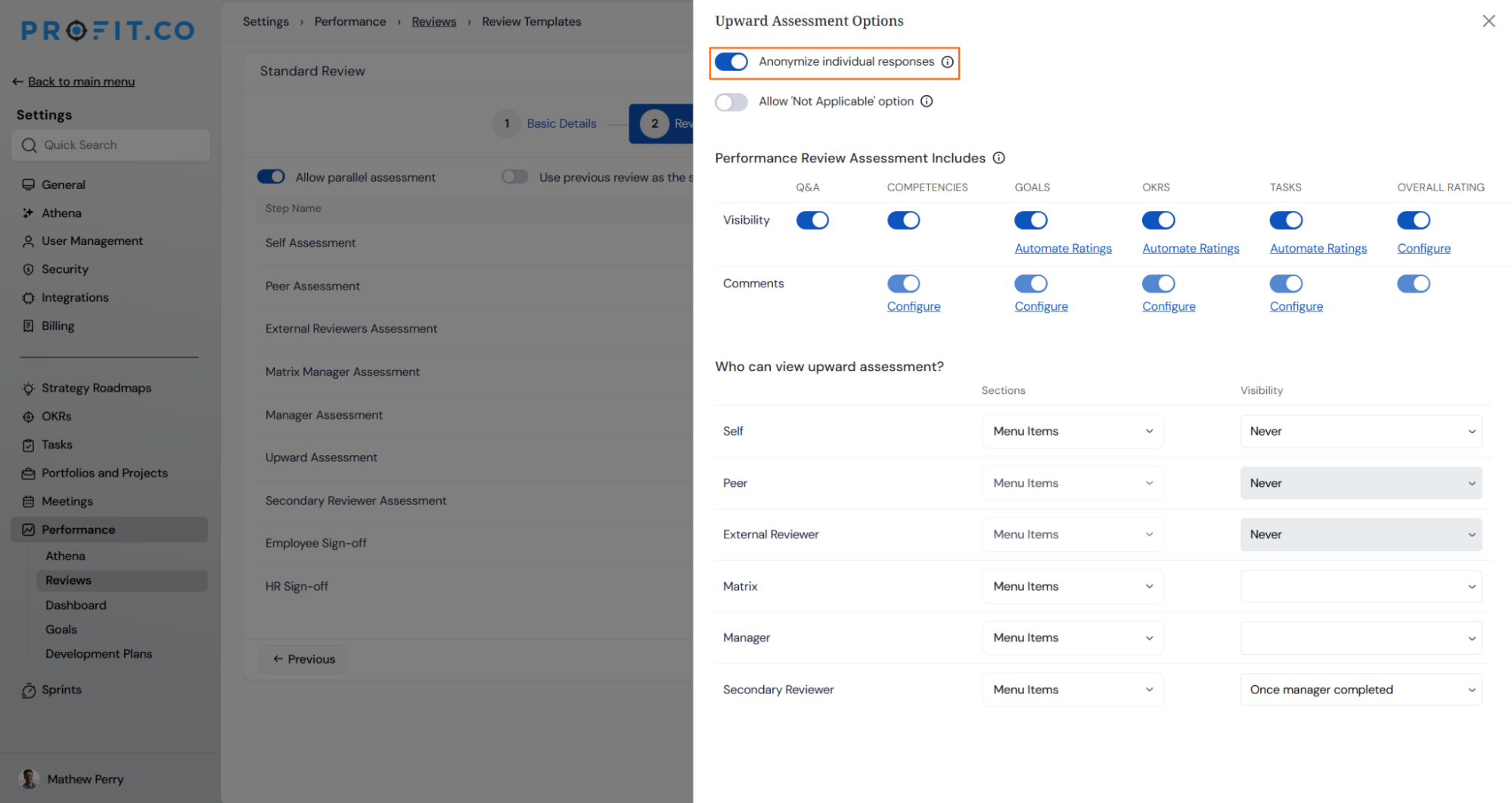
- To control anonymization, enable the Anonymize Individual Responses option – this hides individual subordinate identities from assessment results.
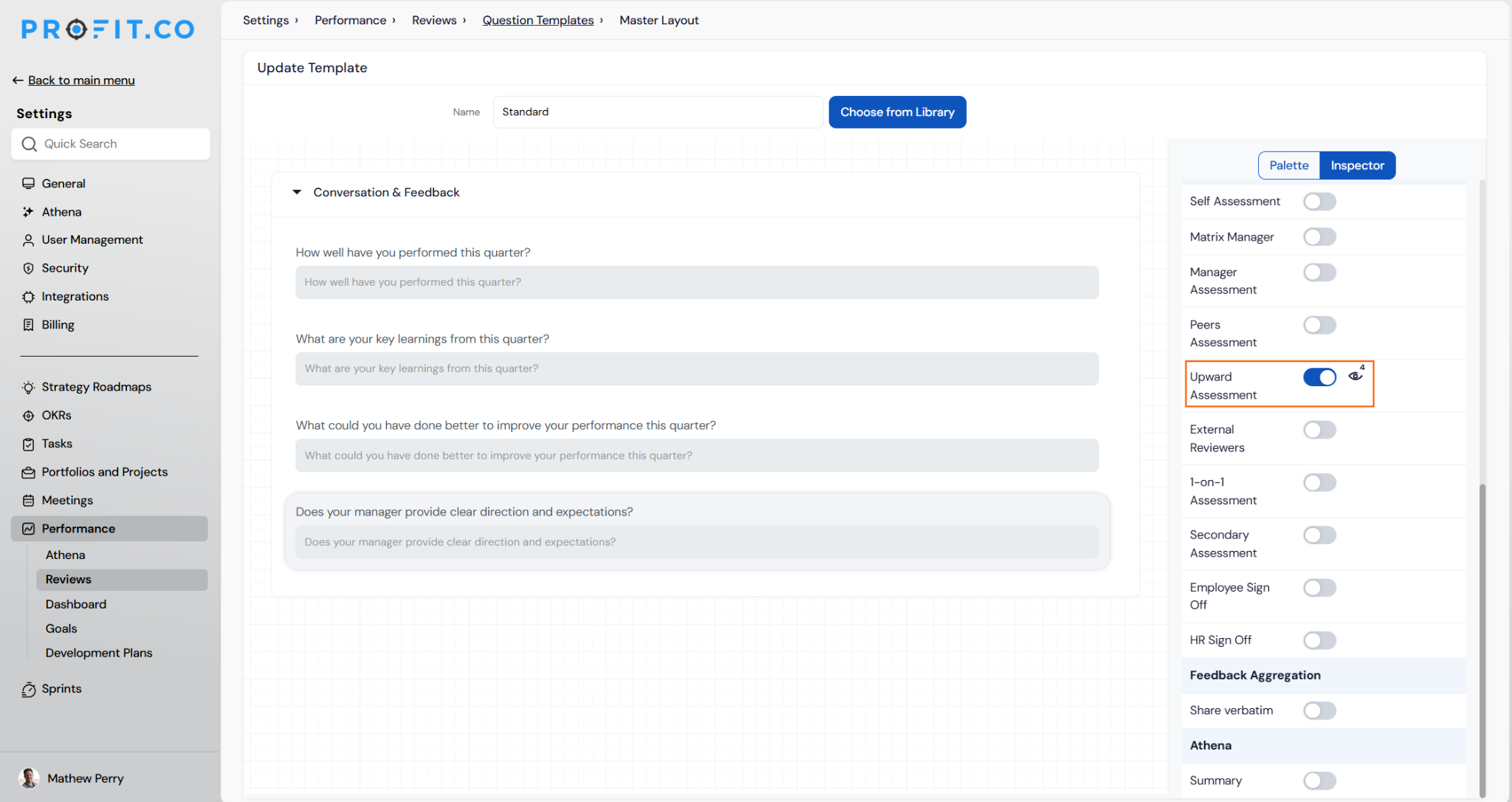
- When building or editing a question template, mark specific questions as visible for upward review to control what subordinates are asked.
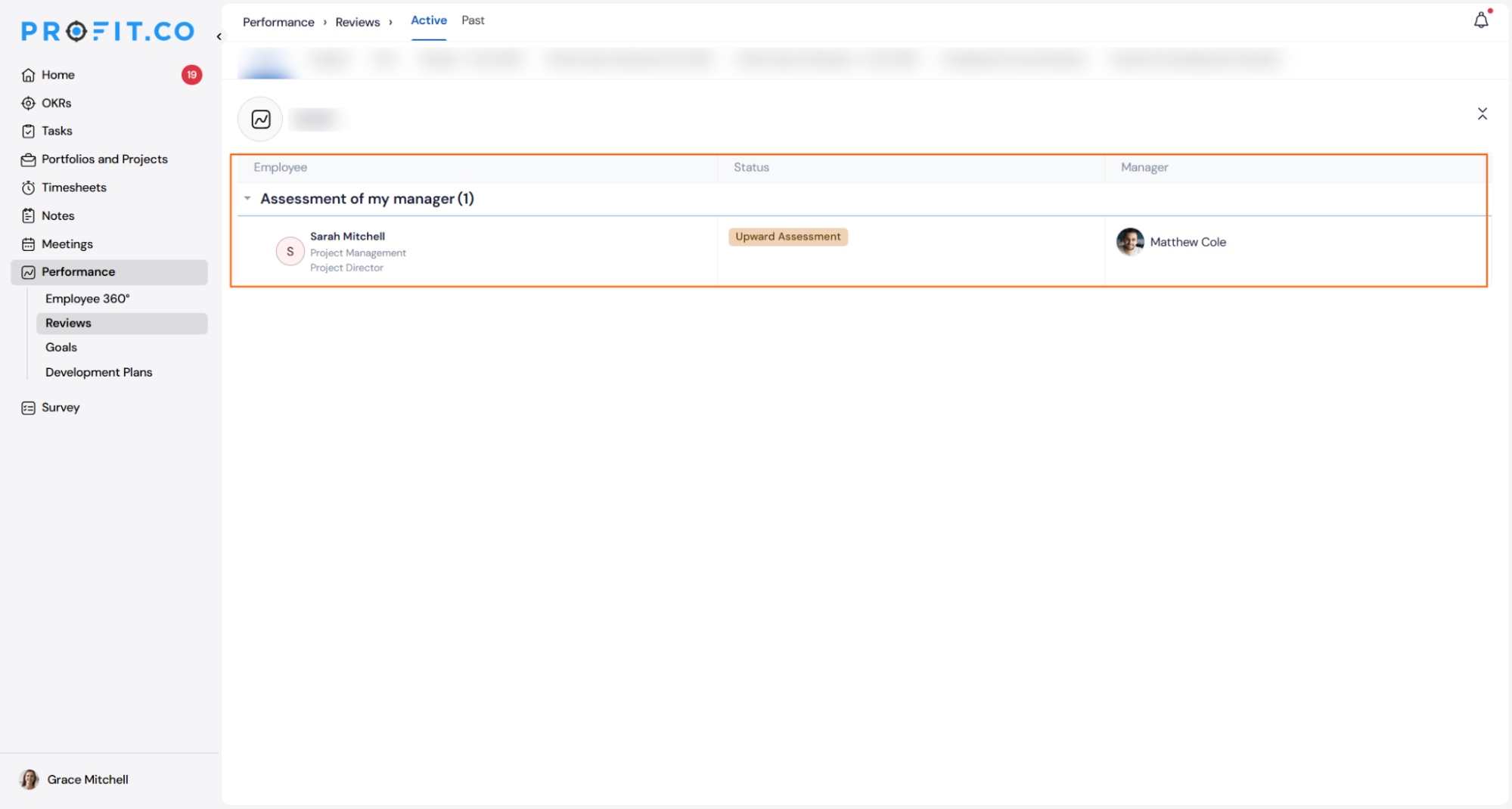
- Once the review is initiated, eligible direct reports see an Assessment of My Manager section on their reviews page and complete their upward assessment from there.
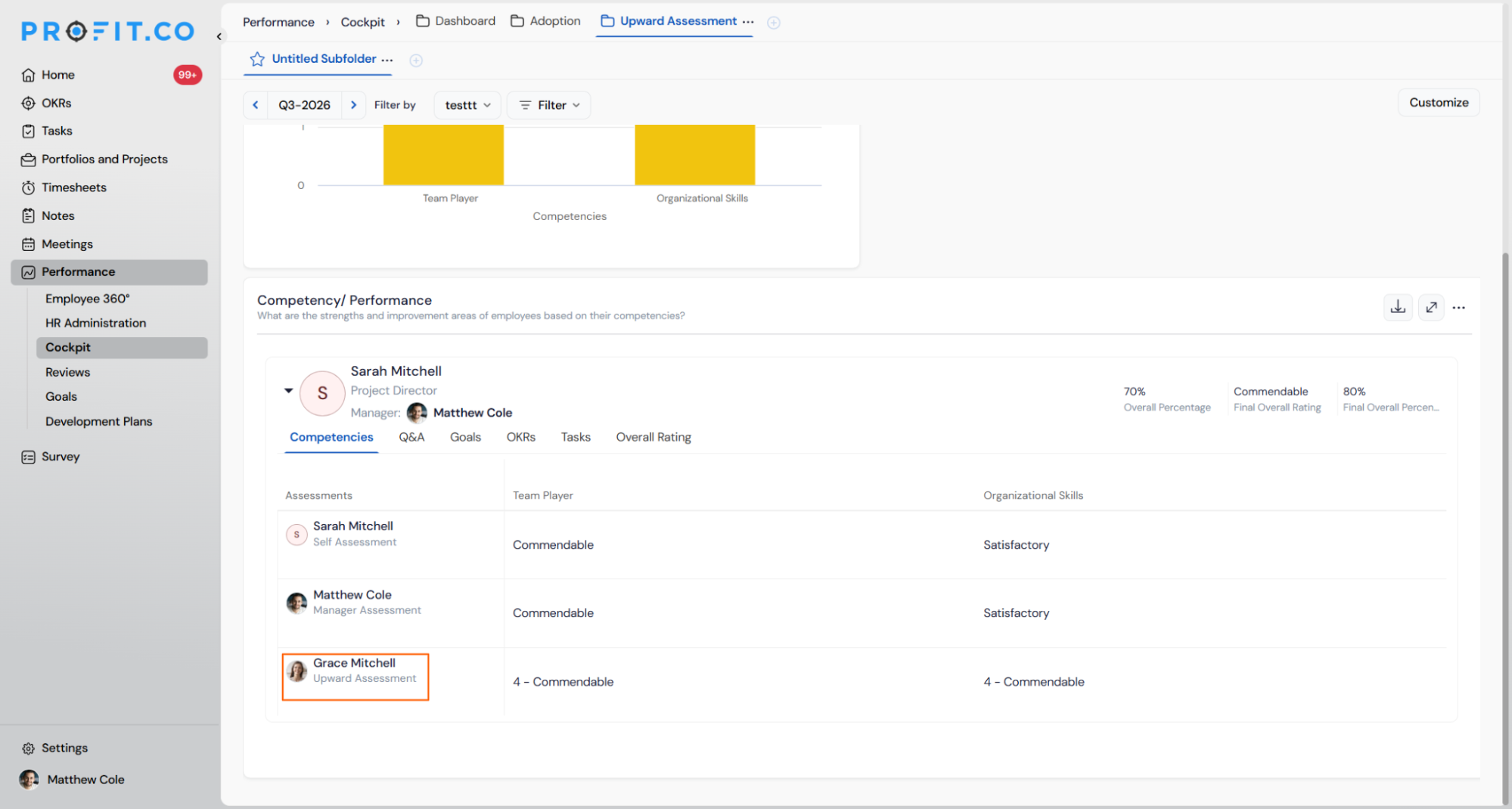
- HR teams can view all assessor scores, including upward assessment, side by side under the dedicated Upward Assessment tab in the Cockpit.
Why It Matters
- Bottom-up feedback in one workflow: Direct reports can now formally evaluate their managers within the same review cycle, eliminating the need for separate survey tools or manual feedback collection.
- Candid input through anonymization: Optional response anonymization encourages subordinates to provide honest assessments without concern about individual attribution.
- Consistent oversight for HR: Upward assessments follow the same initiation, Cockpit tracking, activity log, and reopen controls as every other review step, so HR teams manage the full cycle from a single place.
2. Final Overall Percentage Display in Review Summary
OverviewHow It Works
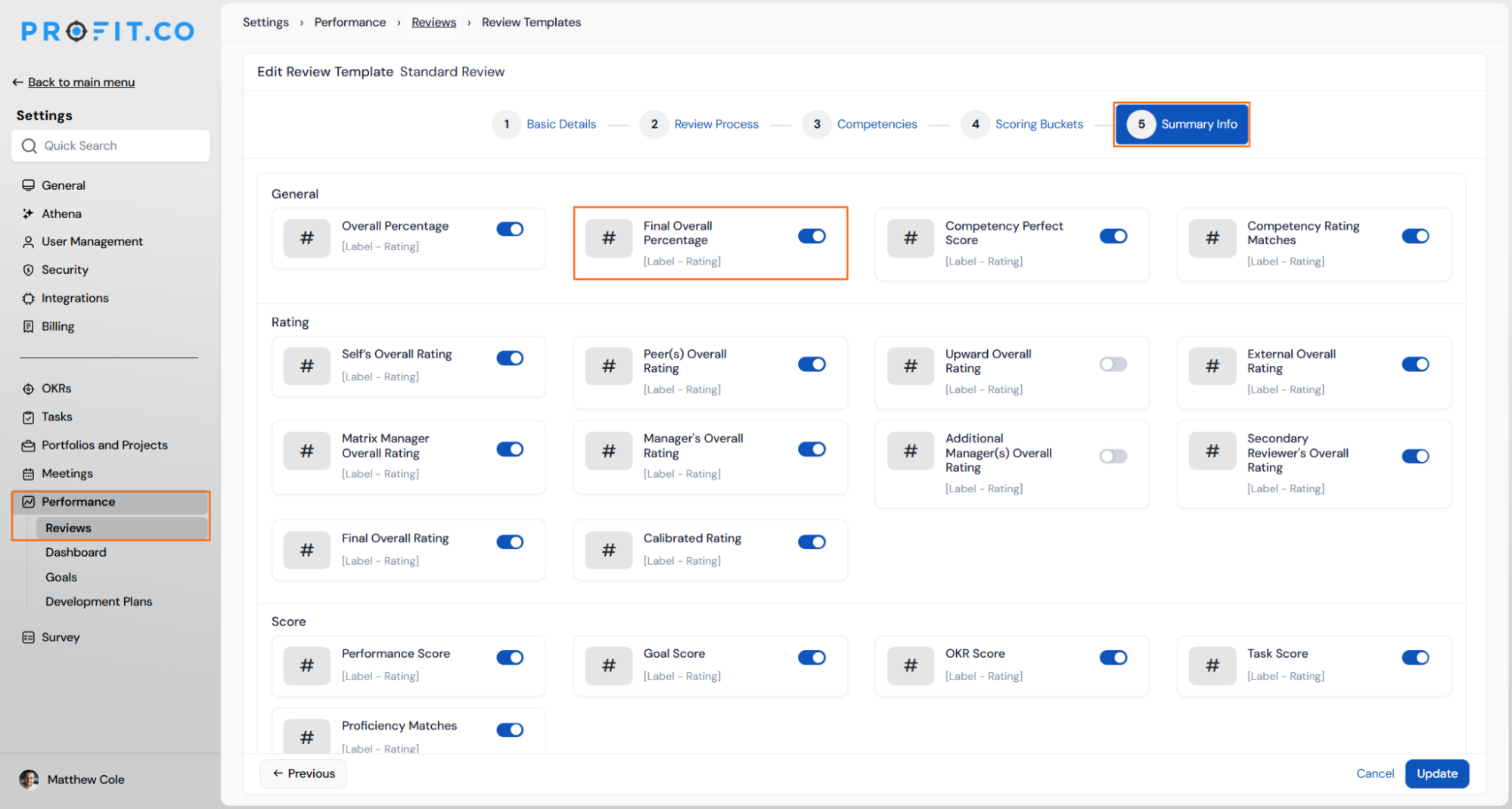
- Navigate to Settings → Performance → Reviews → Review Templates and open the relevant template.
- Go to the Summary Info tab and enable the Final Overall Percentage toggle.
- Once enabled, the employee’s review summary displays the final overall rating as a percentage in addition to the rating label.
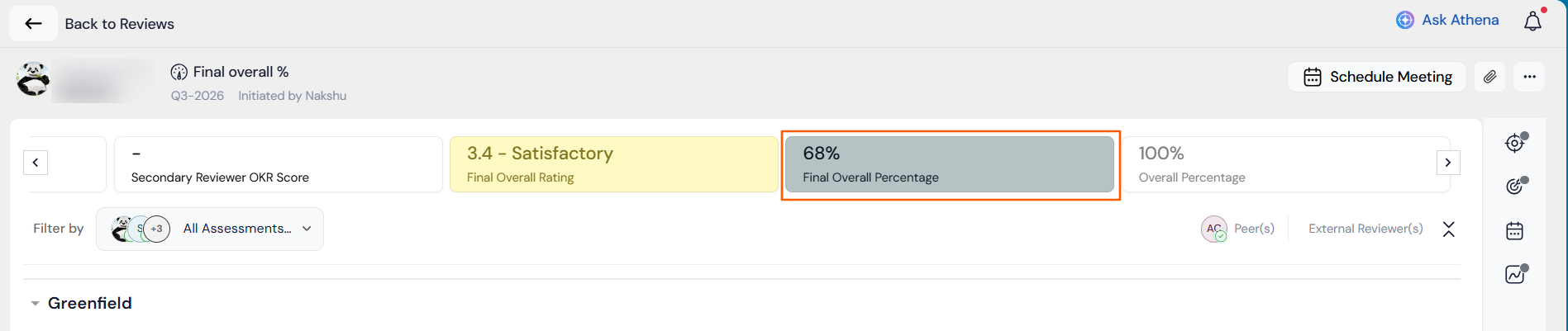
- If no weights are configured, the percentage is calculated as a straight average across all assessor scores (for example, Self 60% and Manager 70% gives a Final Overall Percentage of 65%).
- If assessor weights are configured under the template settings, the percentage is calculated as a weighted average (for example, Self score at 80% weight and Manager score at 20% weight are combined proportionally).
- The final overall percentage appears in the Cockpit within competency and performance charts, reflecting the same weighted or unweighted calculation used in the review template.
Why It Matters
- Clearer performance benchmarking: Expressing the final rating as a percentage makes it straightforward to compare employees across different scoring scales without needing to manually convert rating labels.
- Weight-adjusted accuracy: When assessor weights are applied, the percentage reflects the actual influence each reviewer role carries, so the number means the same thing across all reviews in the cycle.
- Cockpit visibility without extra steps: HR teams see the final overall percentage directly in competency and performance charts in the Cockpit, removing the need to open individual review records to get a numeric summary.
3. Review Initiation Progress Experience
OverviewHow It Works
- Navigate to Performance → HR Administration → Reviews and initiate a review as usual.
- Once initiated, the Setting Up Your Review screen appears, showing a live progress bar with the percentage of employee records created, employees ready, time remaining, and a count of any records that need attention.
- The initiating HR user can check the Notify Me When Initiation Completes option to receive a notification when the review is fully set up; this option is visible only to the HR user who initiated the review.
Why It Matters
- No waiting required: Review initiation runs in the background, so HR teams can continue other work immediately after triggering setup rather than staying on the page until it finishes.
- Clear setup visibility: The live progress screen shows employees ready, time remaining, and records needing attention, so HR knows exactly where initiation stands without having to refresh or follow up manually.
- Timely confirmation for the initiator: The optional completion notification means the HR user who triggered the review gets a direct alert when it is ready, without needing to check back repeatedly.
4. OKR Progress Score as Self-Rating Source
OverviewHow It Works
- Navigate to Settings → Performance → Reviews → Review Templates and open the relevant template.
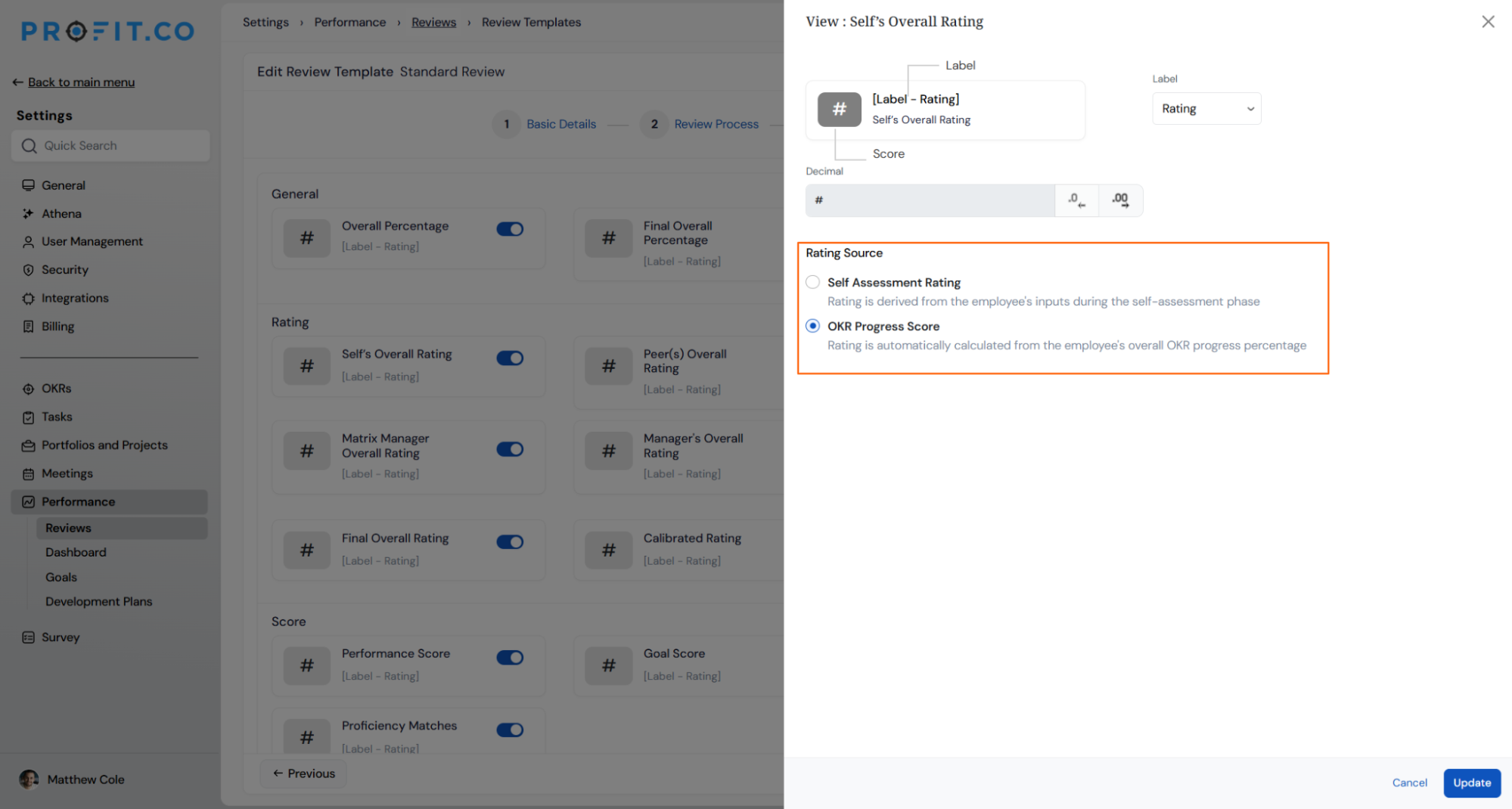
- Go to the Summary Info tab and click the edit icon on the Self’s Overall Rating field.
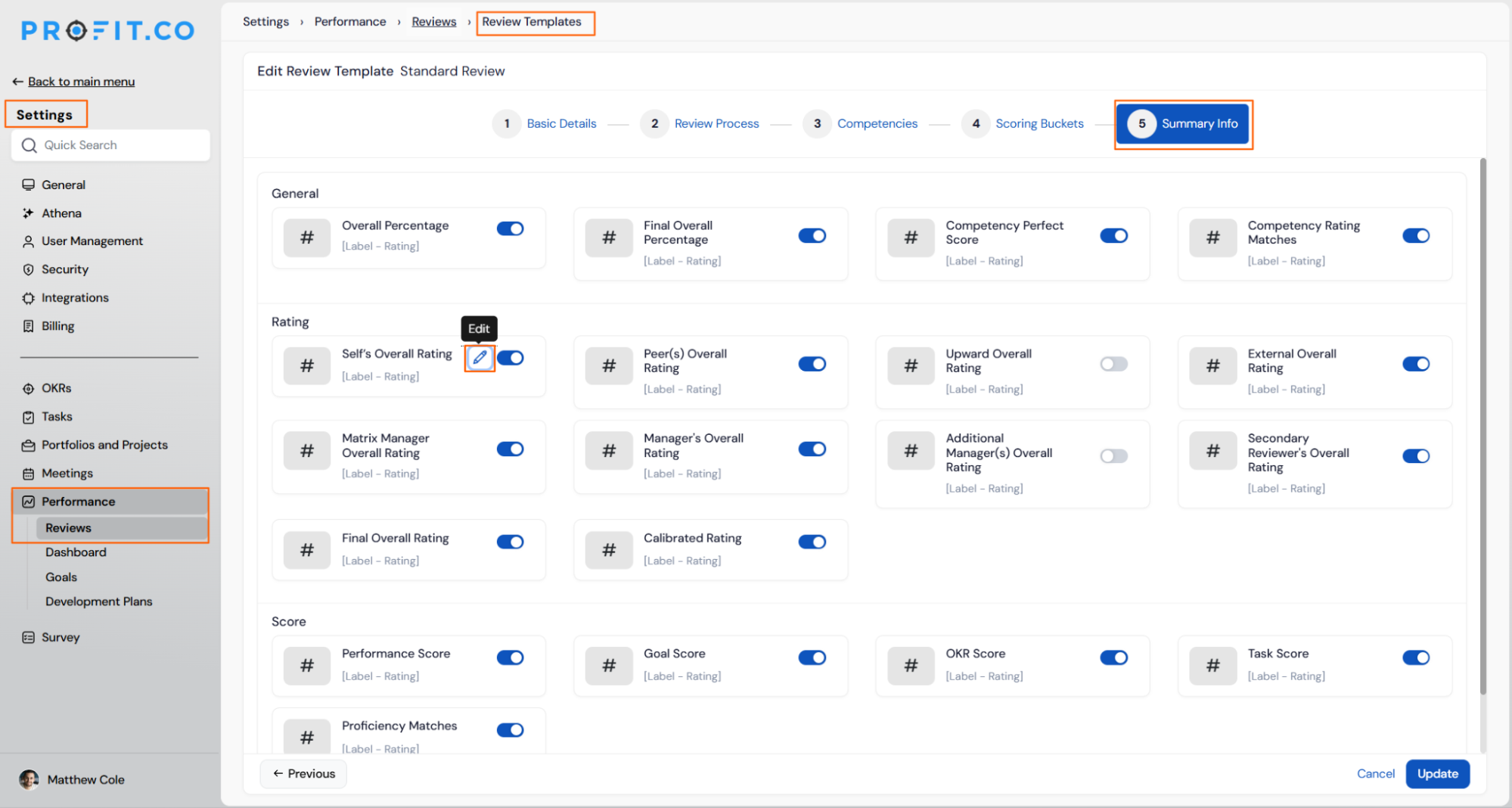
- Under Rating Source, select OKR Progress Score to automatically calculate the self rating from the employee’s overall OKR progress percentage.
- Alternatively, select Self Assessment Rating to retain the default behaviour where the rating is derived from the employee’s inputs during the self-assessment phase.
- Once saved, the self overall rating in the review summary and Cockpit reflects the selected source for all employees in that template.
Why It Matters
- Objective self-rating by default: Tying the self-rating to OKR progress eliminates subjectivity in how employees score themselves, giving reviewers a consistent, data-backed starting point.
- Reduced employee effort: Employees no longer need to manually enter a self-rating when their OKR progress already provides a reliable numeric basis, shortening the self-assessment step.
- Consistent data across review and OKR modules: Because the score is pulled directly from OKR progress, the self-rating in the review always matches what is tracked in the OKRs module, removing the risk of mismatches between the two.
USER MANAGEMENT
1.Enhancements
1. Add-On Role Assignment via User Import
OverviewHow It Works
- Navigate to Settings → User Management → Import Users.
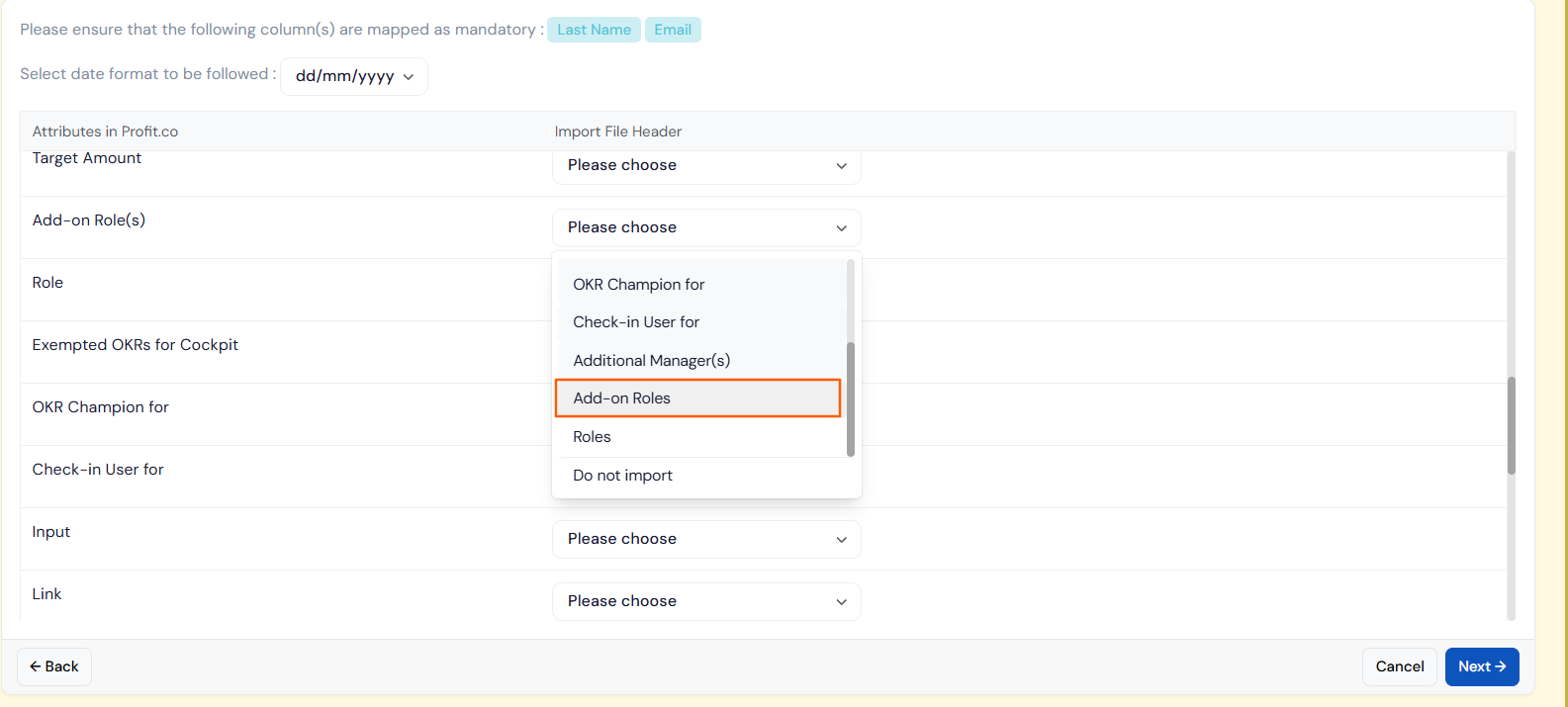
- In the import file, populate the add-on roles column with the relevant role values for each user.
- Upload the file – add-on roles are applied to each user record as part of the same import operation.
- Users whose add-on roles are updated via import reflect the change immediately upon successful import.
Why It Matters
- Bulk role assignment in one step: Add-on roles can now be set during the same import that creates or updates user records, eliminating a separate manual step after import.
- Faster onboarding at scale: Organisations adding large numbers of users with specific add-on roles can complete the full setup in a single import file rather than assigning roles individually.
- Fewer post-import corrections: Including role assignment in the import reduces the risk of users being active in the platform with missing roles during the gap between import and manual assignment.
2. Cross-Department Field Support in User Imports
OverviewHow It Works
- Navigate to Settings → User Management → Import Users.
- In the import file, populate the relevant columns for Check-in User For, OKR Champion For, and Additional Managers with the appropriate user references.
- Upload the file – the cross-department associations are created for each user as part of the import.
- Imported associations are visible immediately on the relevant user profiles once the import completes successfully.
Why It Matters
- Complete user setup in one import: All key relationship fields can now be configured in the same file used to create or update user records, removing the need for follow-up manual configuration.
- Accurate OKR ownership from day one: OKR Champion and Check-in User assignments are in place as soon as users are imported, so OKR tracking responsibilities are correctly mapped without delay.
- Reduced admin effort for complex org structures: Additional Manager relationships across departments can be defined at scale through the import file, which is especially valuable during restructures or large onboarding cycles.
ATHENA
1. OKR Widgets Available in Ask Athena
OverviewHow It Works
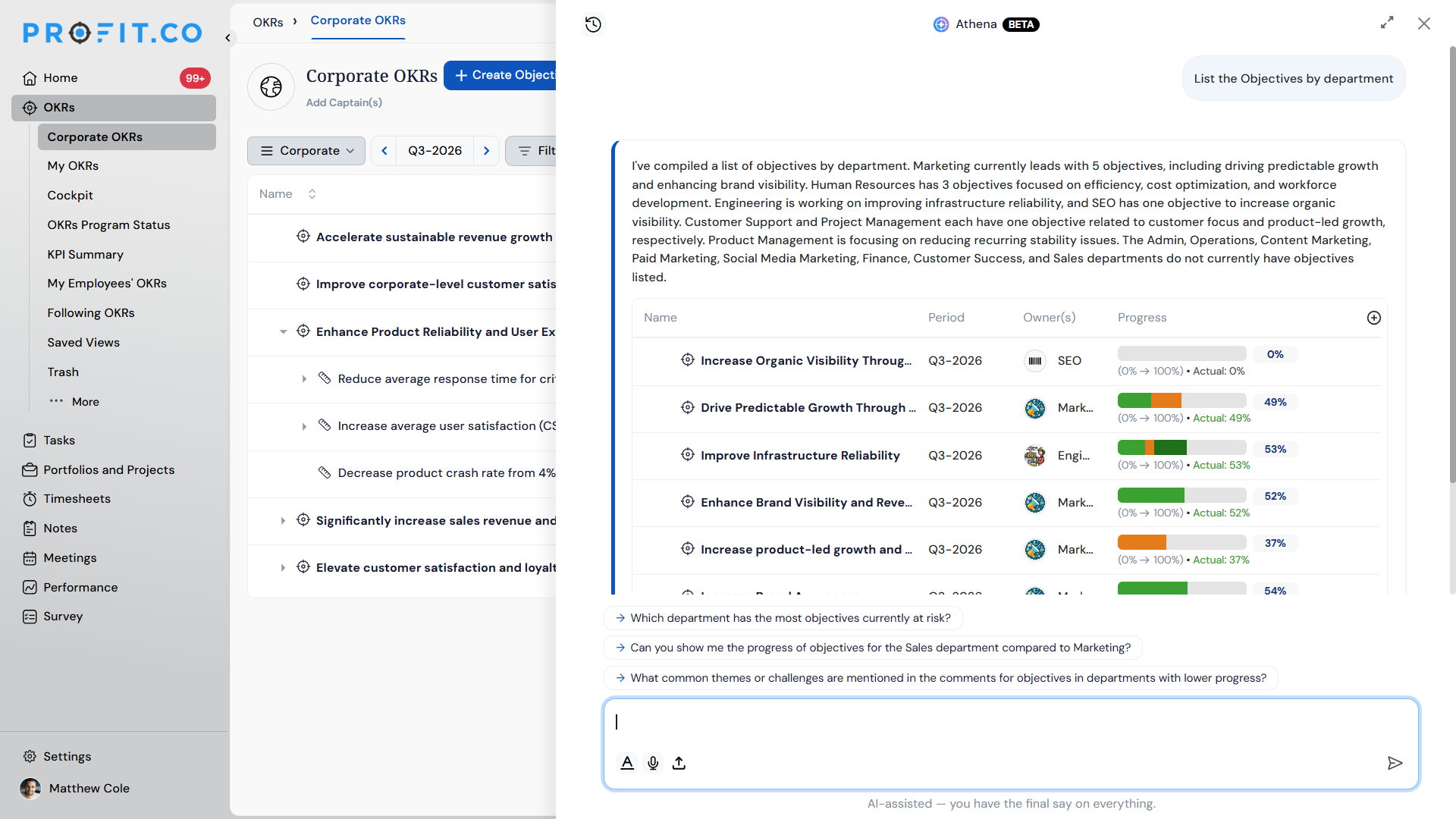
- Ask Athena a question related to OKR data (e.g., “Which department has the most anomalies this quarter?”).
- Athena matches the question to the relevant widget – objective/alignment views, anomaly detection, check-in and login trends, KPI/Initiative progress, or ownership breakdowns.
- Athena returns the widget’s data directly in the conversation, without needing to open the Cockpit.
Why It Matters
- Faster answers: Users get widget-level data through a question instead of hunting for the right Cockpit widget.
- Broader coverage: 18 widgets spanning OKR structure, anomalies, activity trends, and ownership are all reachable from one place.
- No dashboard-building: Teams don’t need to set up or locate a specific widget to get the insight they’re after.
- Objectives by Department
- Alignment from other OKR levels
- Alignment to other OKR levels
- Anomaly Rule Analysis
- Anomalies by All Departments
- Anomalies by Users
- OKR Status Trend Progress
- On-Time Check-in Users Rate Trend
- Active Users Login History Trend
- Active Users Login Status by Department
- Overview of Active Users Login Status
- KPIs and Initiatives Key Results Progress Distribution by Departments
- KPIs and Initiatives Key Results Progress Distribution
- Initiatives Ownership
- Child Objectives Ownership
- Departments KPIs Ownership
- Departments Initiatives Ownership
- Departments Child Objectives Ownership
2. Multi-sheet support for OKR uploads
OverviewHow It Works
- Navigate to the OKR creation upload flow.
- Upload a spreadsheet containing OKR data across multiple sheet tabs.
- All sheets in the file are now processed instead of only the first.
- Review and confirm the OKRs created from each sheet.
Why It Matters
- No manual consolidation: Users no longer need to merge multiple sheets into one before uploading.
- Fewer missed records: OKR data on any sheet tab is picked up, reducing the risk of overlooked rows.
- Matches how teams work: Many teams organize OKR data across multiple tabs (e.g., by department); the upload now supports that structure directly.
3. Tasks and Tags Support in Ask Athena
OverviewHow It Works
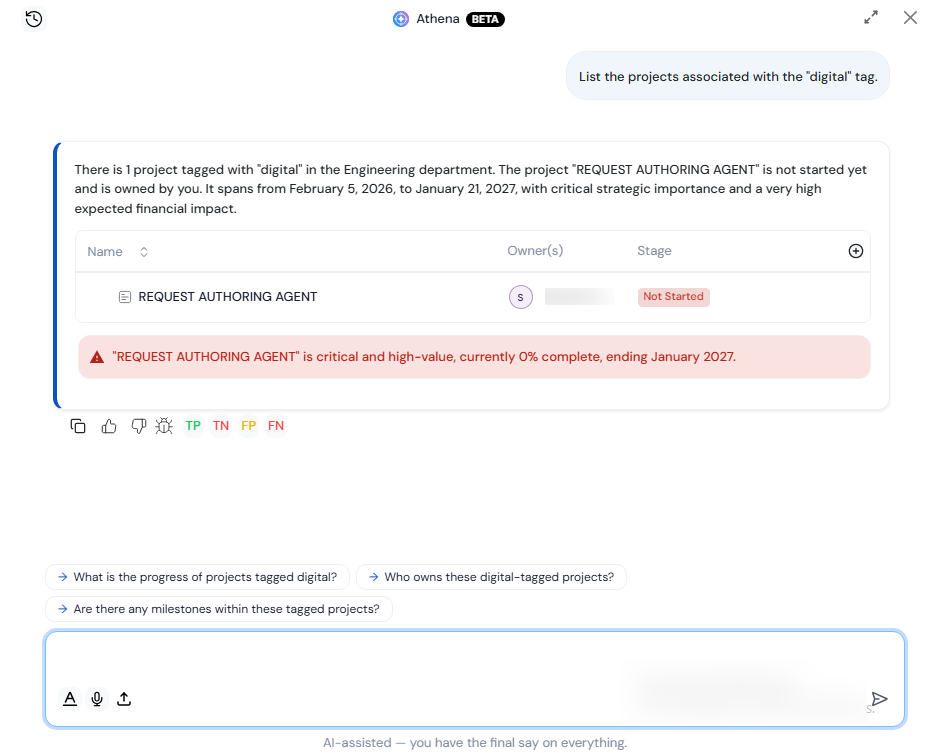
- Ask Athena a question involving tasks or tags (e.g., “Show me all overdue tasks tagged Q3 Launch”).
- Athena searches across task and tag data to find matching results.
- Results are returned directly in the conversation.
Why It Matters
- Broader coverage: Ask Athena now spans tasks and tags, not just OKR-specific data.
- Faster answers: Users get task and tag information without leaving the conversation to search manually.
- Consistent experience: Tasks and tags are queried the same conversational way as OKR data.
4. Resource Management Agent in Athena
OverviewHow It Works
- Open Athena and select the Resource Management Agent.
- Describe the resources needed for a project (e.g., role, quantity, duration).
- The agent adds the specified resources to the project.
- Review the added resources in the project’s resource list.
Why It Matters
- Faster resourcing: Resources can be added through a conversation instead of navigating multiple screens.
- Fewer missed details: Describing needs directly to the agent reduces the chance of skipping a required field.
- Centralized in Athena: Resource requests are handled in the same place as other Athena-assisted tasks.