
Overview
Microsoft Power BI is a business analytics platform that connects to, transforms, and visualizes organizational data through interactive charts and dashboards. It enables teams to uncover insights from their data and share them across the organization.
The Power BI integration with Profit.co allows you to link your Power BI data directly to Key Results and automate check-in progress. Using either a Formula-Based or DAX Query configuration, Profit.co fetches the value from your Power BI workspace and updates Key Result progress daily without any manual input.
What This Integration Supports
With the Power BI integration, you can:
- Connect your Microsoft Power BI account to Profit.co using a secure sign-in flow
- Link Power BI data to Key Results for automated progress tracking
- Support Increase KPI, Decrease KPI, and Control KPI Key Result types
- Use a Formula-Based query for Power BI Premium or Microsoft Fabric capacity workspaces
- Use a DAX Query for full control over how the value is calculated
- Automate check-ins so Key Result progress updates daily without manual entry
Prerequisites
Before starting, ensure the following requirements are met:
- You have a Microsoft Power BI account with access to the relevant workspaces and reports
- You are logged in as a Super User in Profit.co
- If you are not a Power BI administrator, your Power BI admin must grant consent before other users can connect
Configure Power BI in Profit.co
The following steps walk through connecting Power BI to Profit.co and linking your data to Key Results.
STEP 1
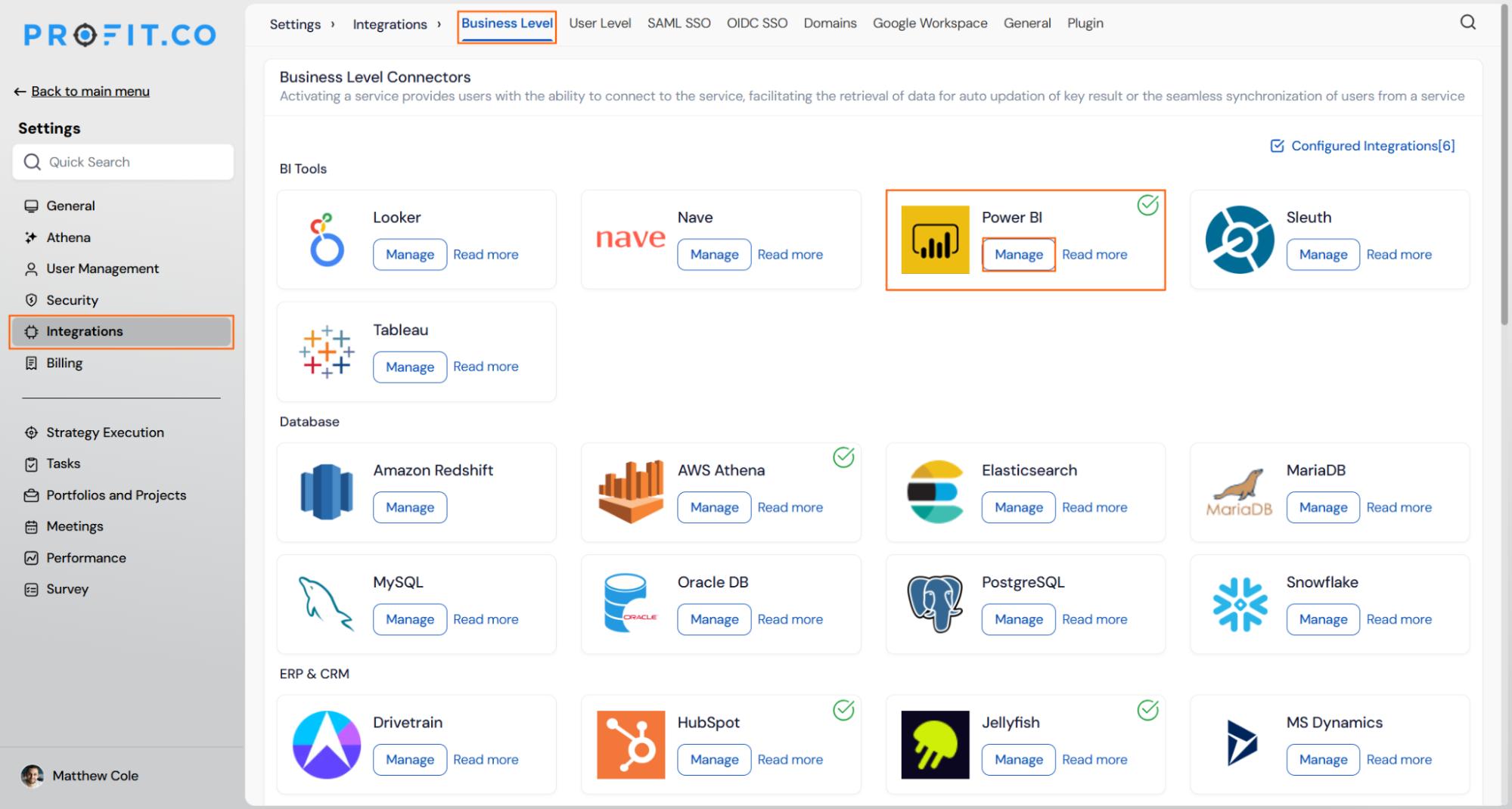
Navigate to the Power BI connector in Profit.co to begin the setup.
- Navigate to Settings from the left navigation panel.
- Click Integrations and select the Business Level tab.
- Locate Power BI and click the Manage button.
STEP 2
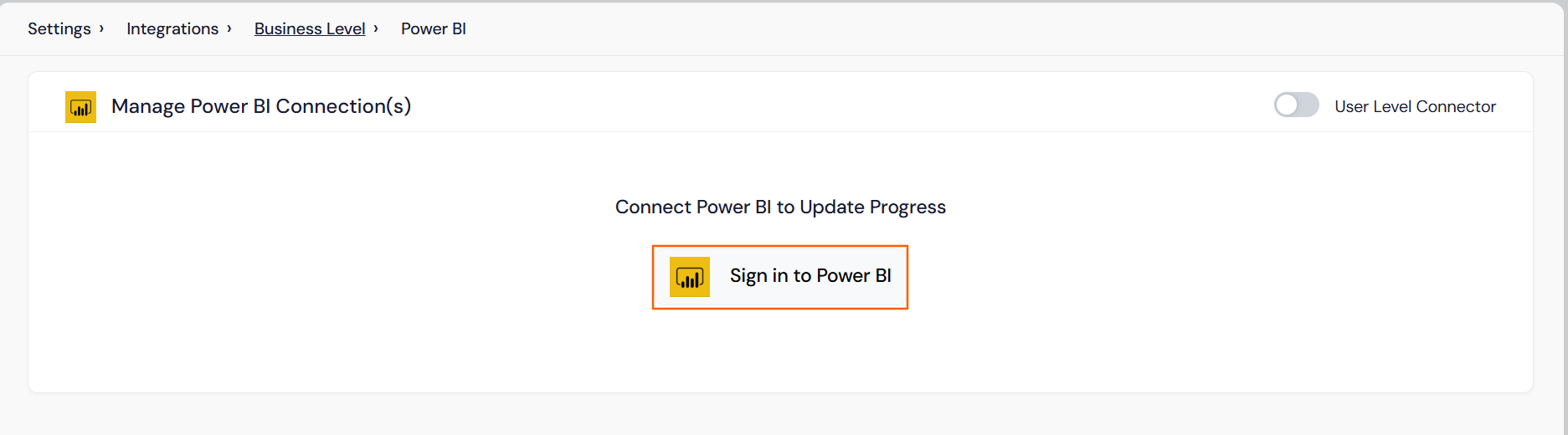
Authenticate with your Microsoft Power BI account to establish the connection.
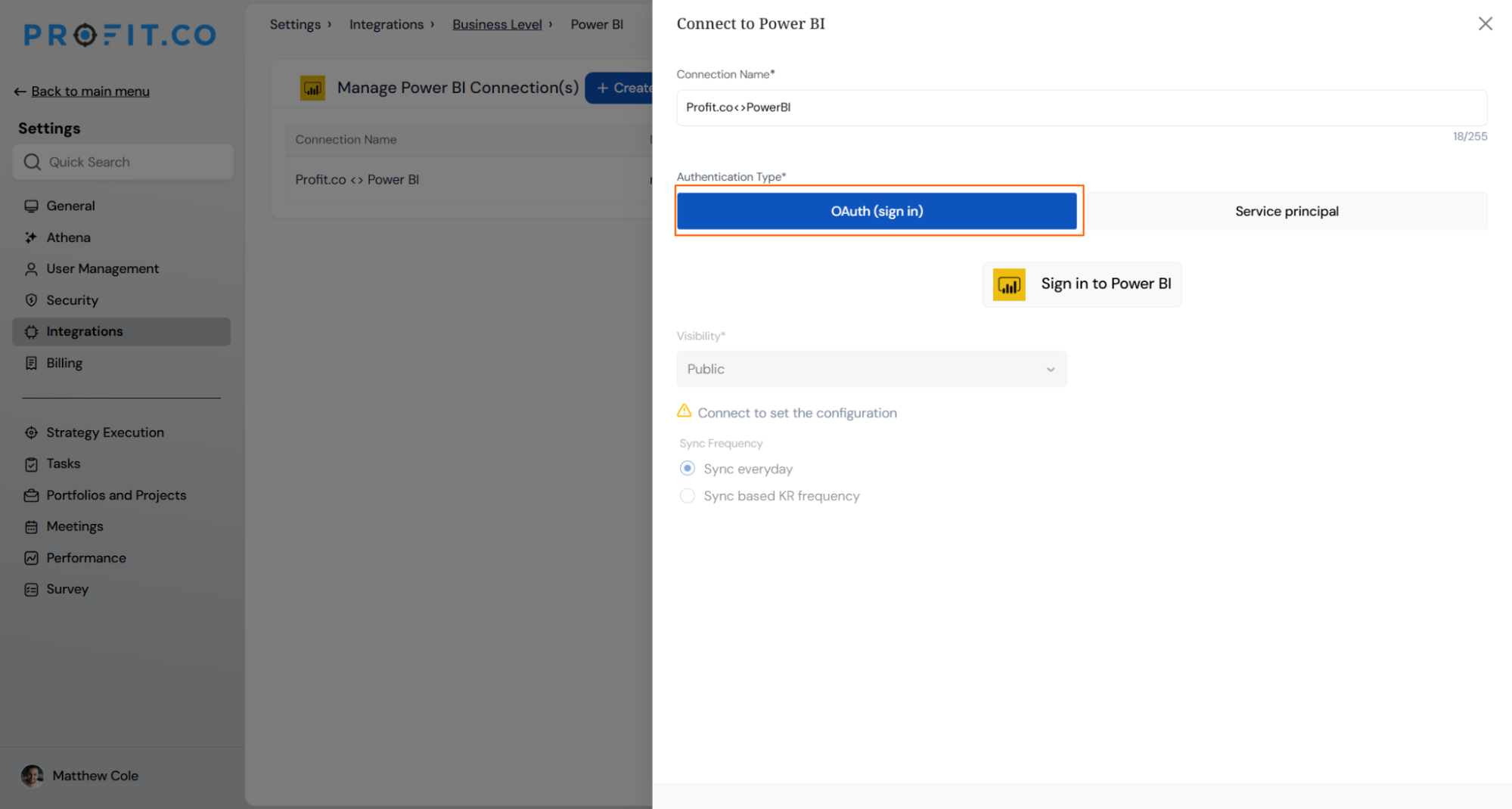
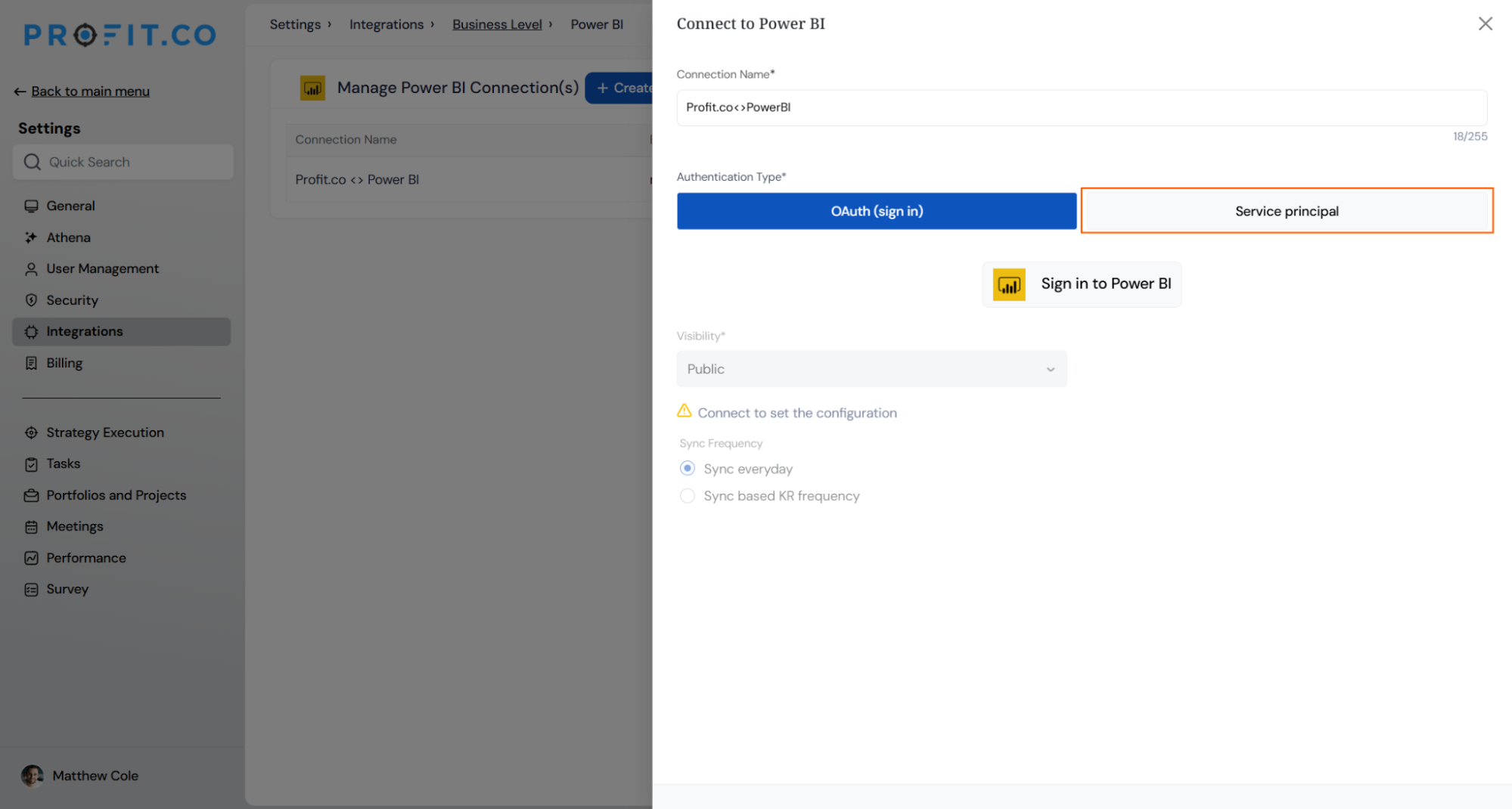
When you click Sign in to Power BI, you can choose one of the following authentication methods:
- OAuth: Sign in using your Microsoft Power BI account credentials.
- Service Principal: Connect using a Microsoft Entra ID service principal by providing the required Client ID, Client Secret, and Tenant ID.
OAuth Authentication
- Click the Sign in to Power BI button.
- Sign in with your Microsoft Power BI account credentials.
- Grant Profit.co access when prompted. The connection will be established automatically.
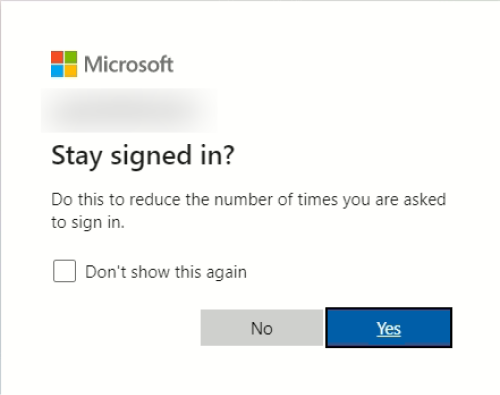
- Select Stay signed in to keep the session active.
Service Principal Authentication
To connect using a service principal, select Service Principal and provide the Client ID, Client Secret, and Tenant ID configured in Microsoft Entra ID.
For detailed instructions on configuring the service principal, refer to the Service Principal Setup Guide.
Note: Only Super Users can configure the Power BI service principal
STEP 3
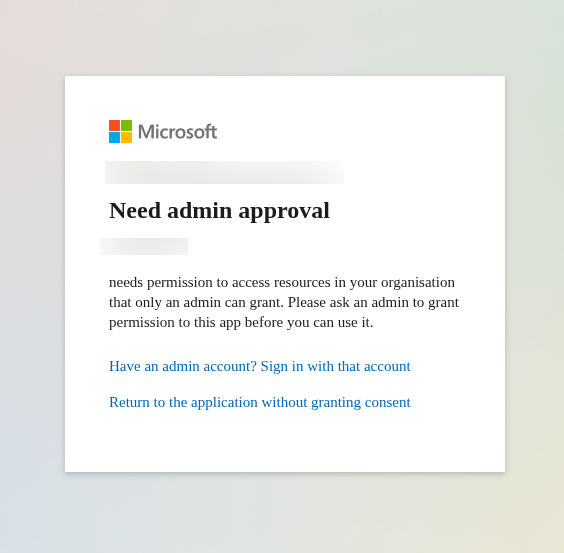
If you are not a Power BI administrator, your organization’s admin must complete a one-time consent step before other users can connect.
- If prompted with a consent screen, contact your Power BI administrator to complete the setup.
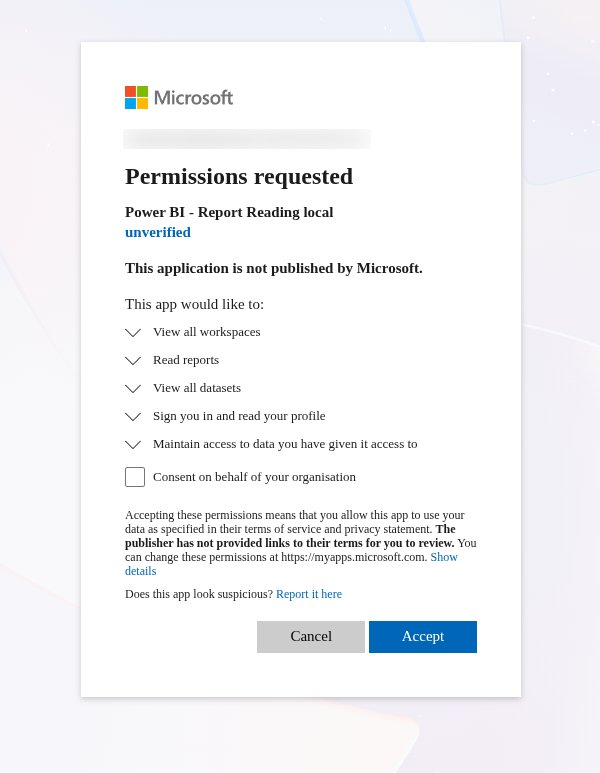
- As a Power BI administrator, select Consent on behalf of your organization to grant access for all users.
- Once consent is granted, all users in your organization can connect to Power BI without needing to repeat this step.
For detailed instructions, see [How to grant Power BI admin consent](https://docs.google.com/document/d/1_bny6bXbrrZuRrd_OoheM96KddCs5MjHyC5fSZD2qZ8/edit?tab=t.0#heading=h.jbcpc1wg26vo).
Note: Once admin consent is granted, super users can create Power BI-linked Key Results without any further admin intervention.
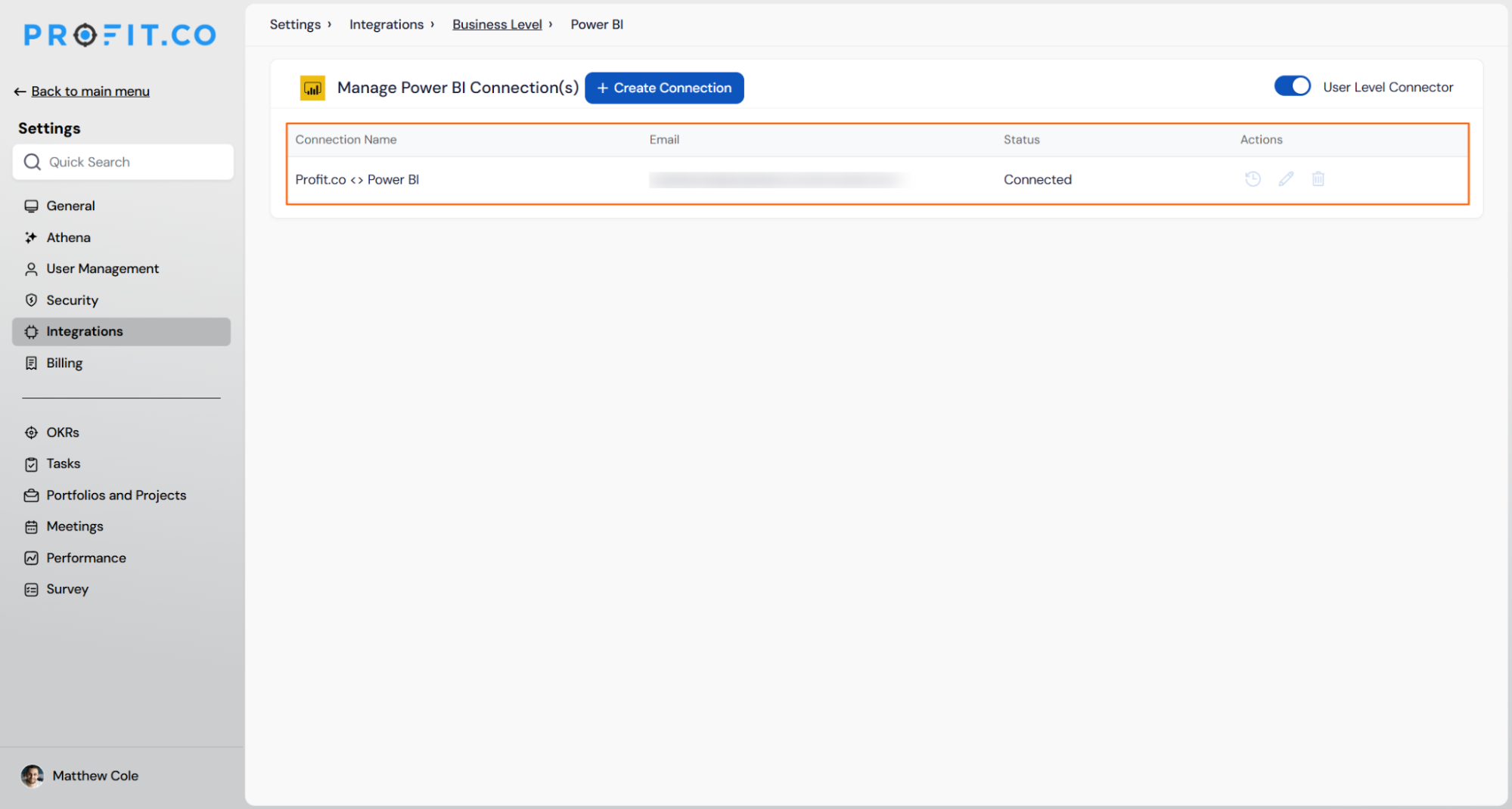
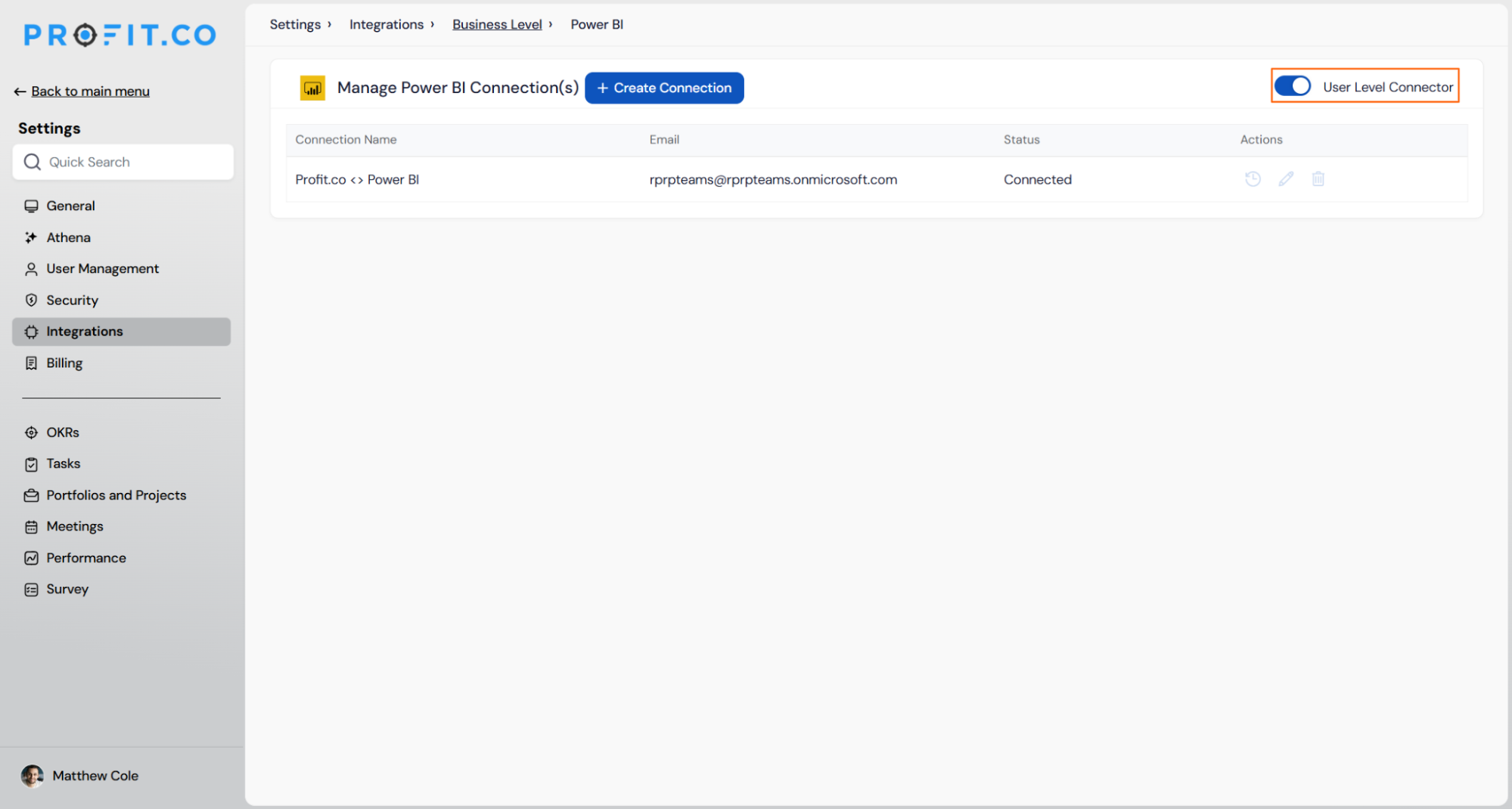
After signing in the connection to Power BI will be established.Note: You can now create multiple connections.
User-Level Connector
- When this toggle is enabled, users can view the existing connection and create a Key Result using it.
- They can also create their own OAuth-based connection using personal credentials and use that connection to create a Key Result.
STEP 4
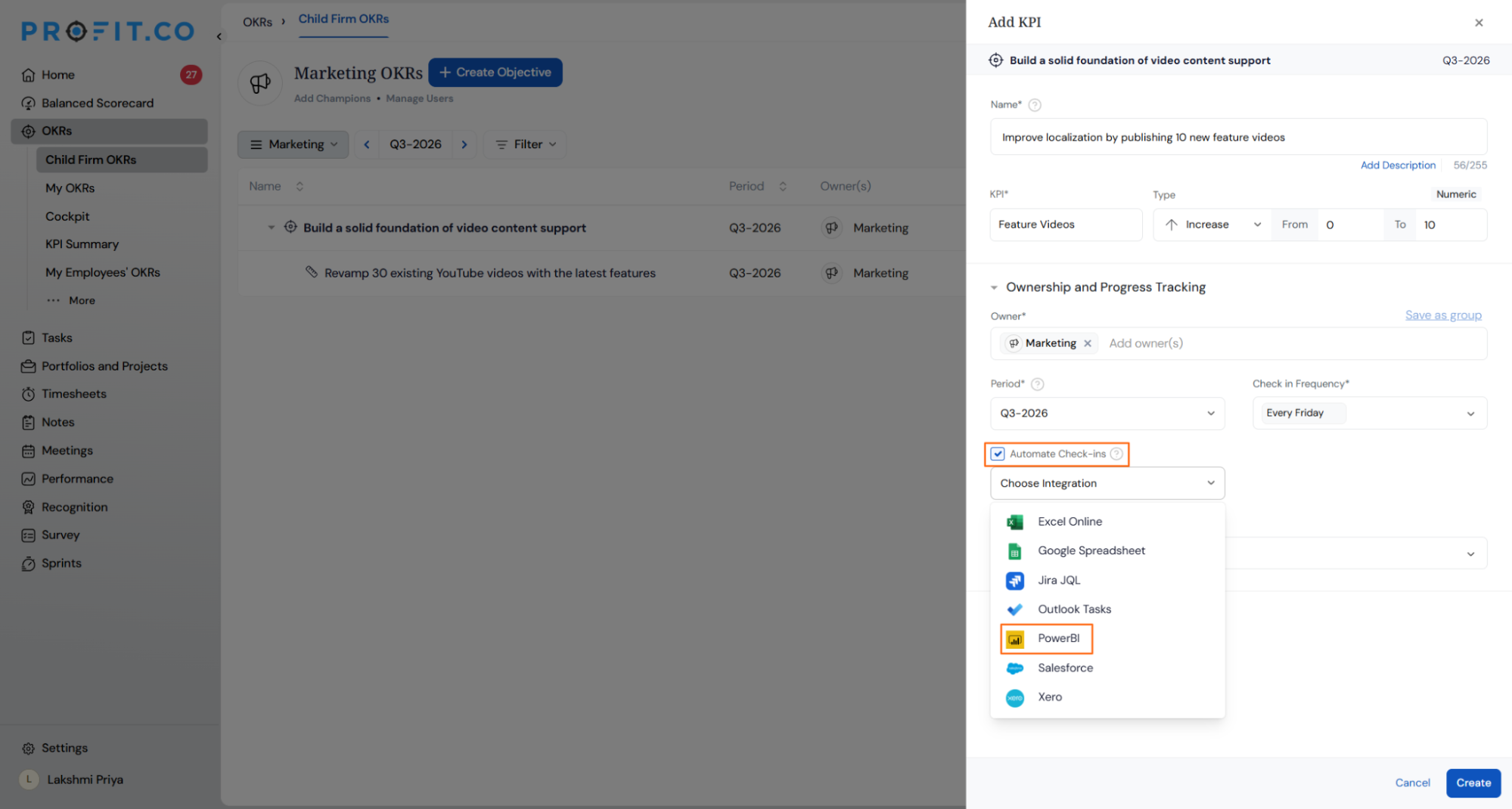
Create a Key Result in Profit.co and connect it to your Power BI data. You can configure the connection using one of two query types depending on your Power BI workspace setup.
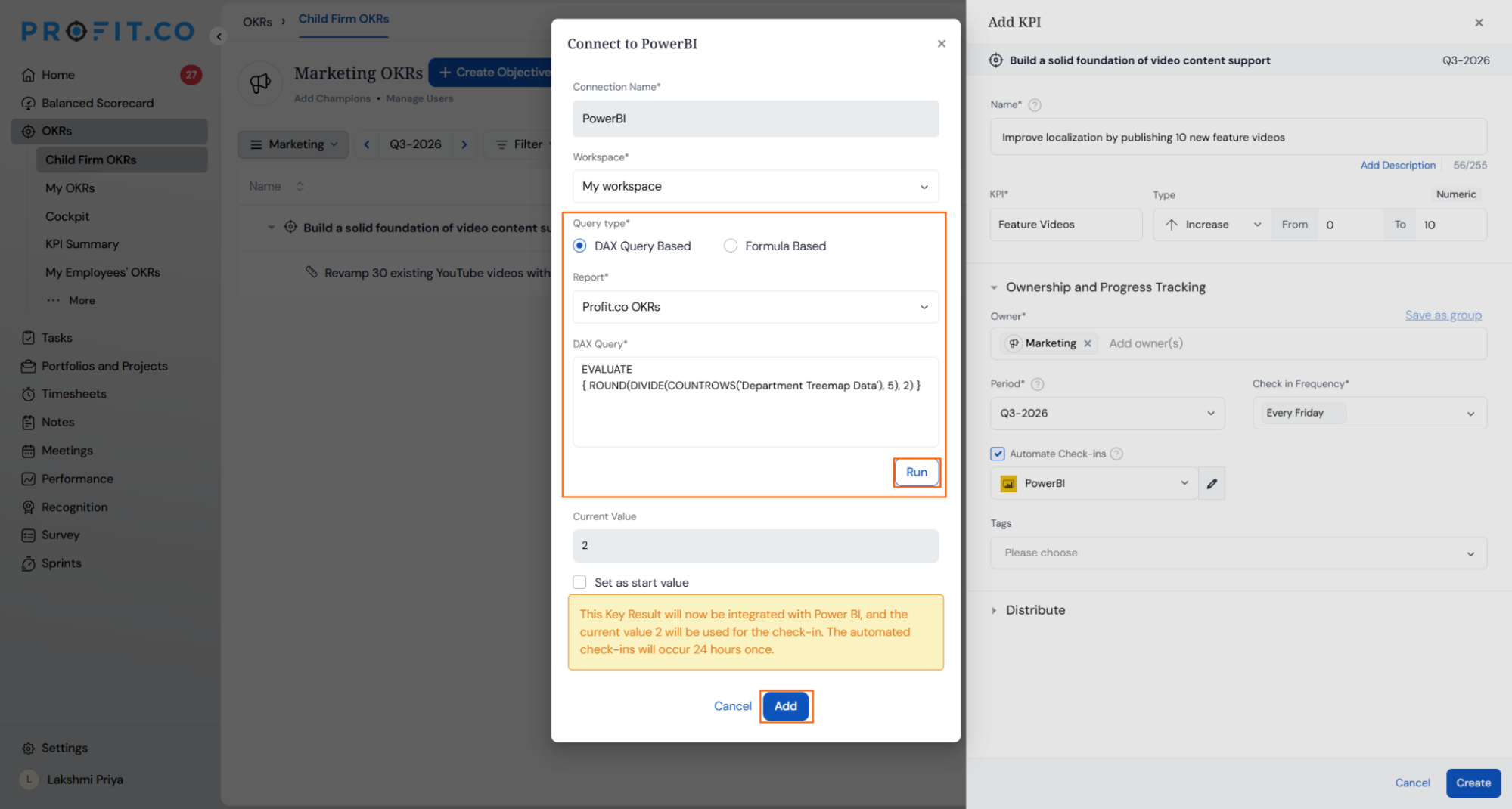
- Navigate to any OKR page in Profit.co and create a new Key Result using the form method.
- Enter the Key Result Name and select one of the supported types:Increase KPI, Decrease KPI, or Control KPI.
- Select Automate Check-ins and choose Power BI from the connection dropdown.
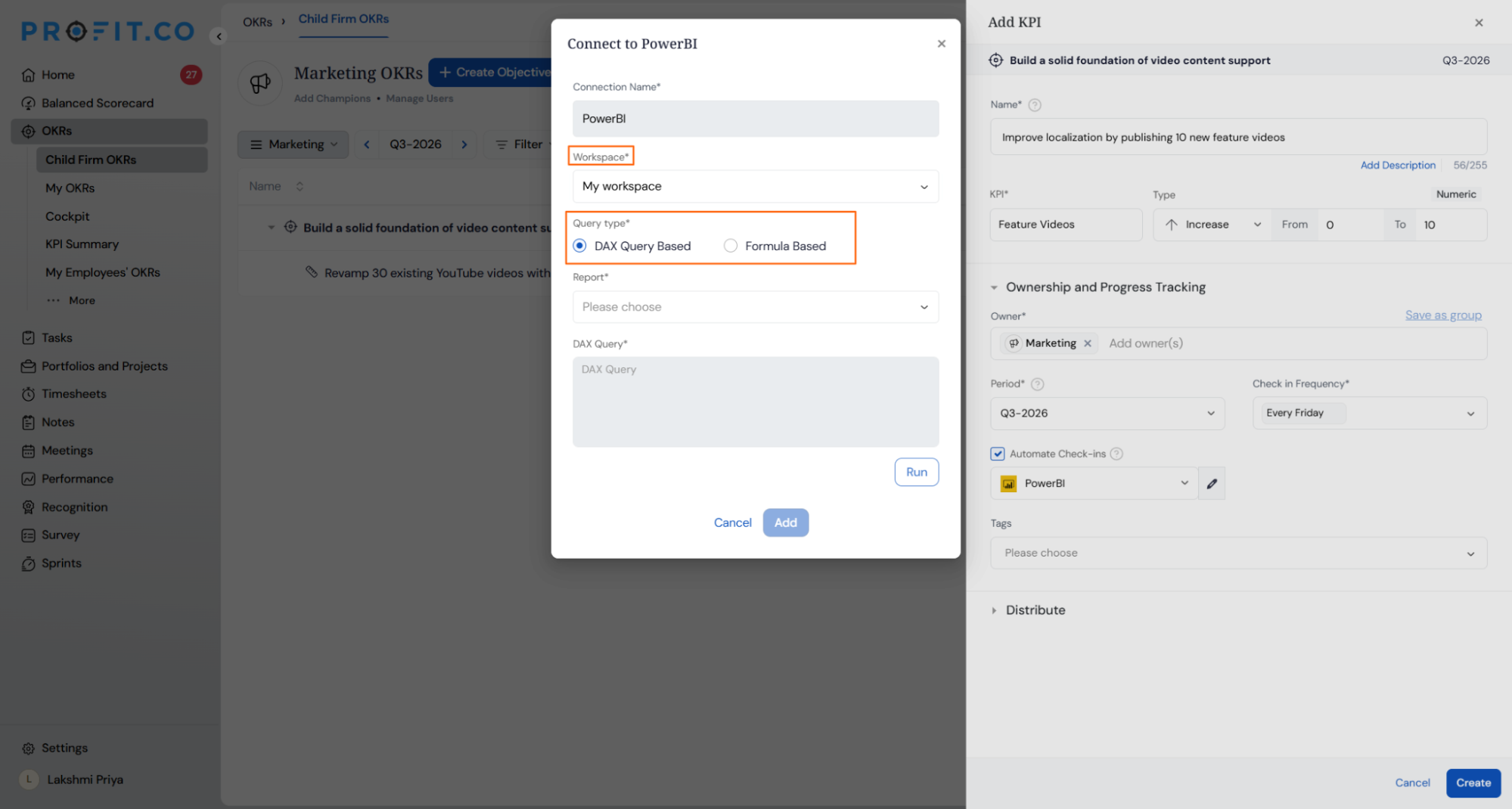
- Select the Connection Name and Workspace, then choose your Query Type– either Formula Based or DAX Query Based.
Formula Based
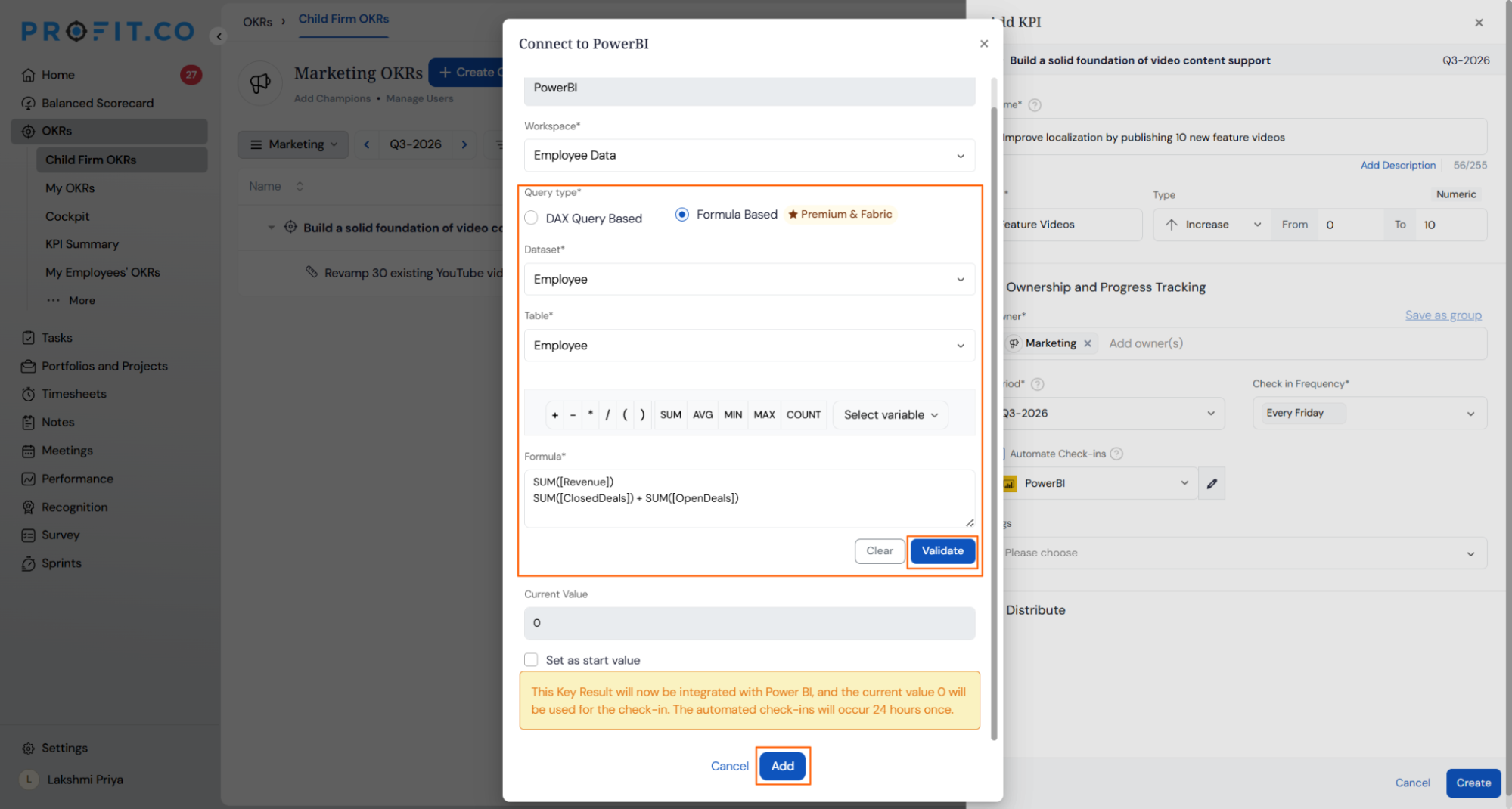
Use this option when your Power BI workspace is assigned to Power BI Premium or Microsoft Fabric capacity. Datasets in your Fabric-enabled workspace are listed here, so you can build a formula to retrieve the value needed for your Key Result.
- Select Formula Based as the Query Type.
- Select the required Dataset.
- Select the required Table.
- Enter the formula you want to use. For example:
SUM([Revenue]) SUM([ClosedDeals]) + SUM([OpenDeals])
- Click Validate to check that the formula returns a single numeric value.
- Click Add to save the configuration.
DAX Query Based
Use this option when you need full control over how the value is calculated. Write your own DAX query and use the result for the Key Result check-in.
- Select DAX Query Based as the Query Type.
- Select the required Report.
- Enter your DAX query in the query field.
- Click Run to check the query.
- Click Add to save the configuration.Note: A sample DAX query template is available at: https://26299223.fs1.hubspotusercontent-eu1.net/hubfs/26299223/PowerBI%20DAX%20Query%20Template%20(1).pdf
For both query types, you can optionally enable Set as start value to use the current Power BI value as the Key Result start value before clicking Add.
STEP 5
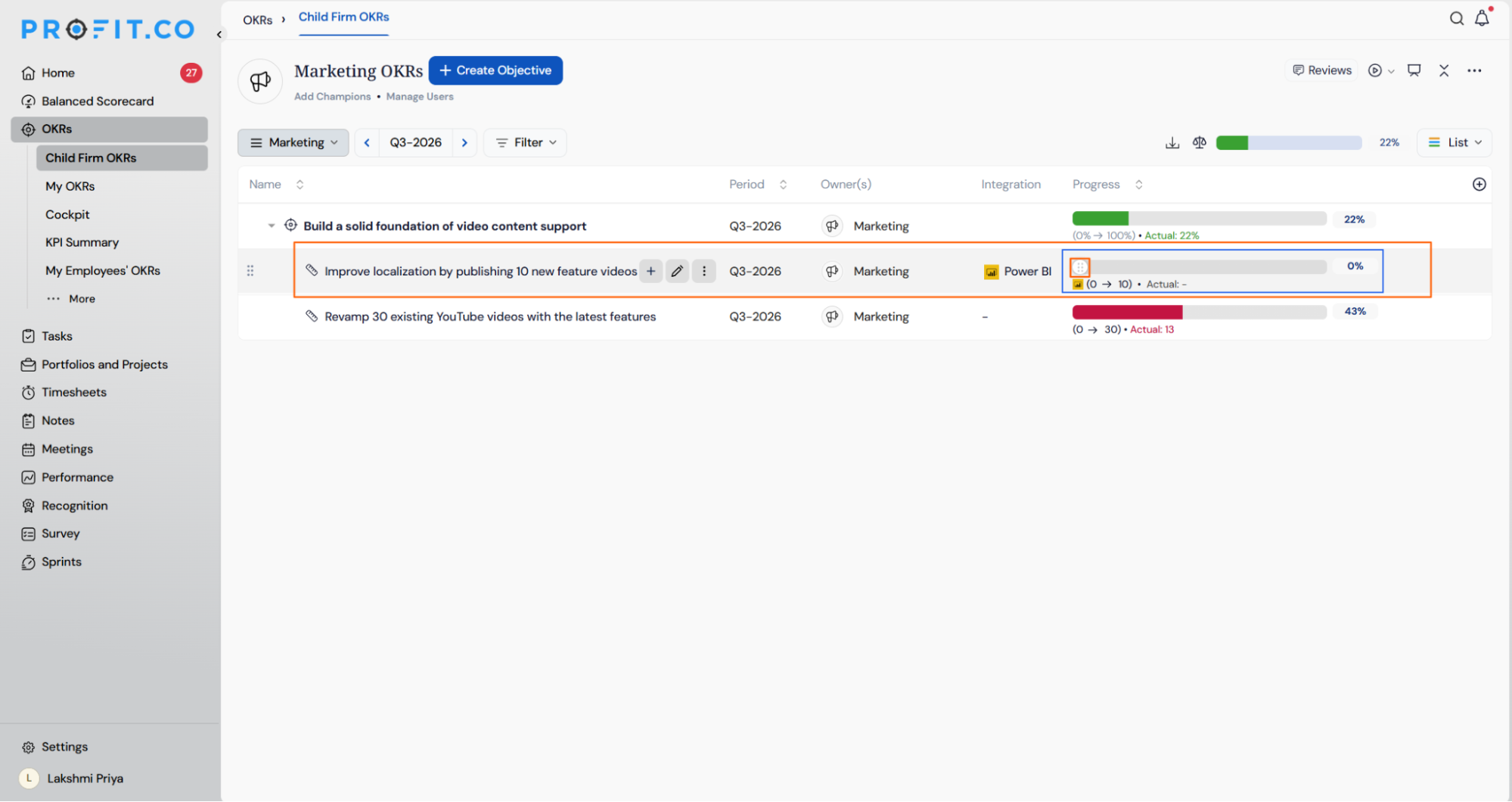
Once the Key Result is created, complete the first check-in to activate automated progress tracking.
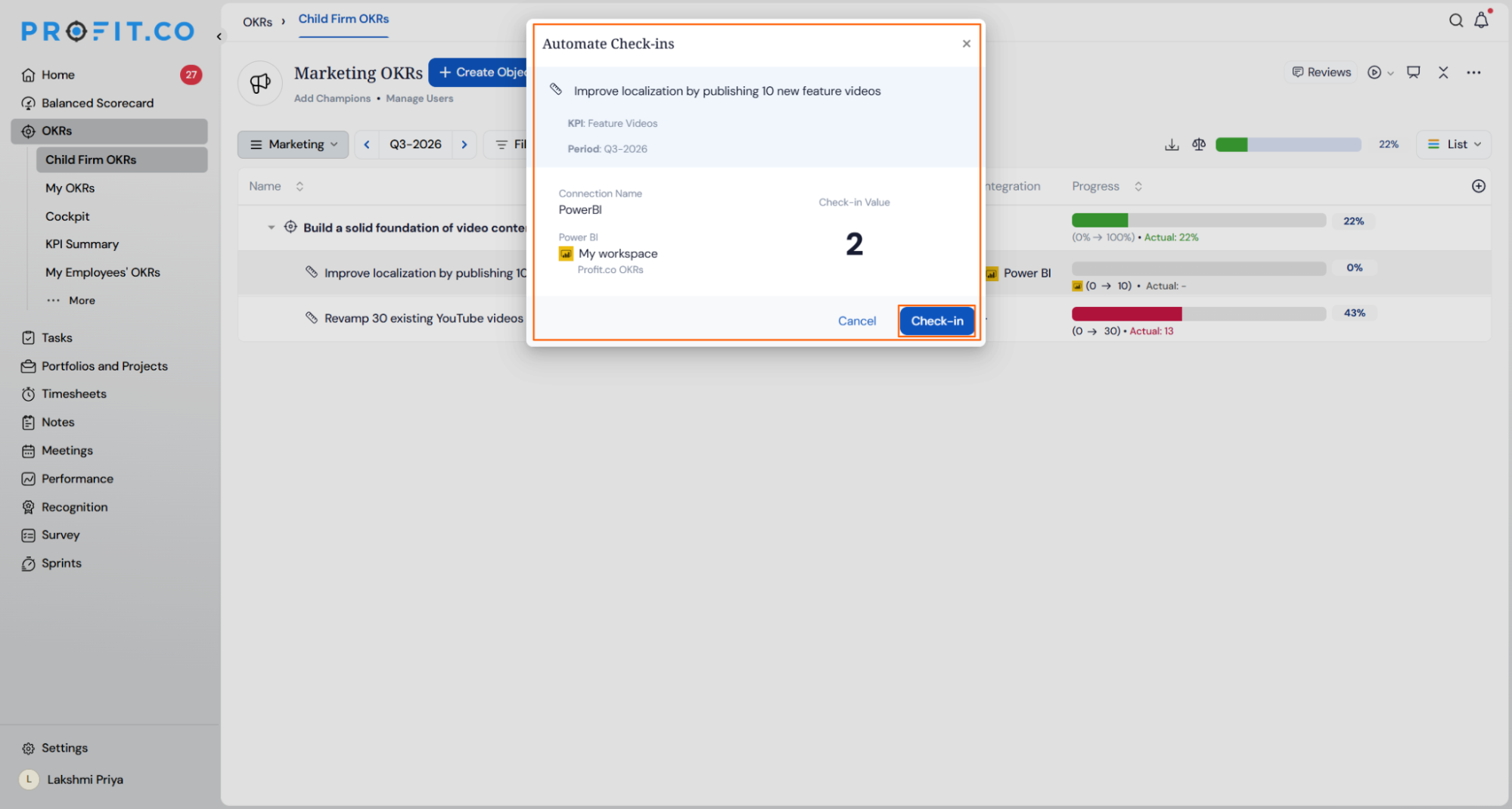
- Locate the Key Result and click the Check-in button
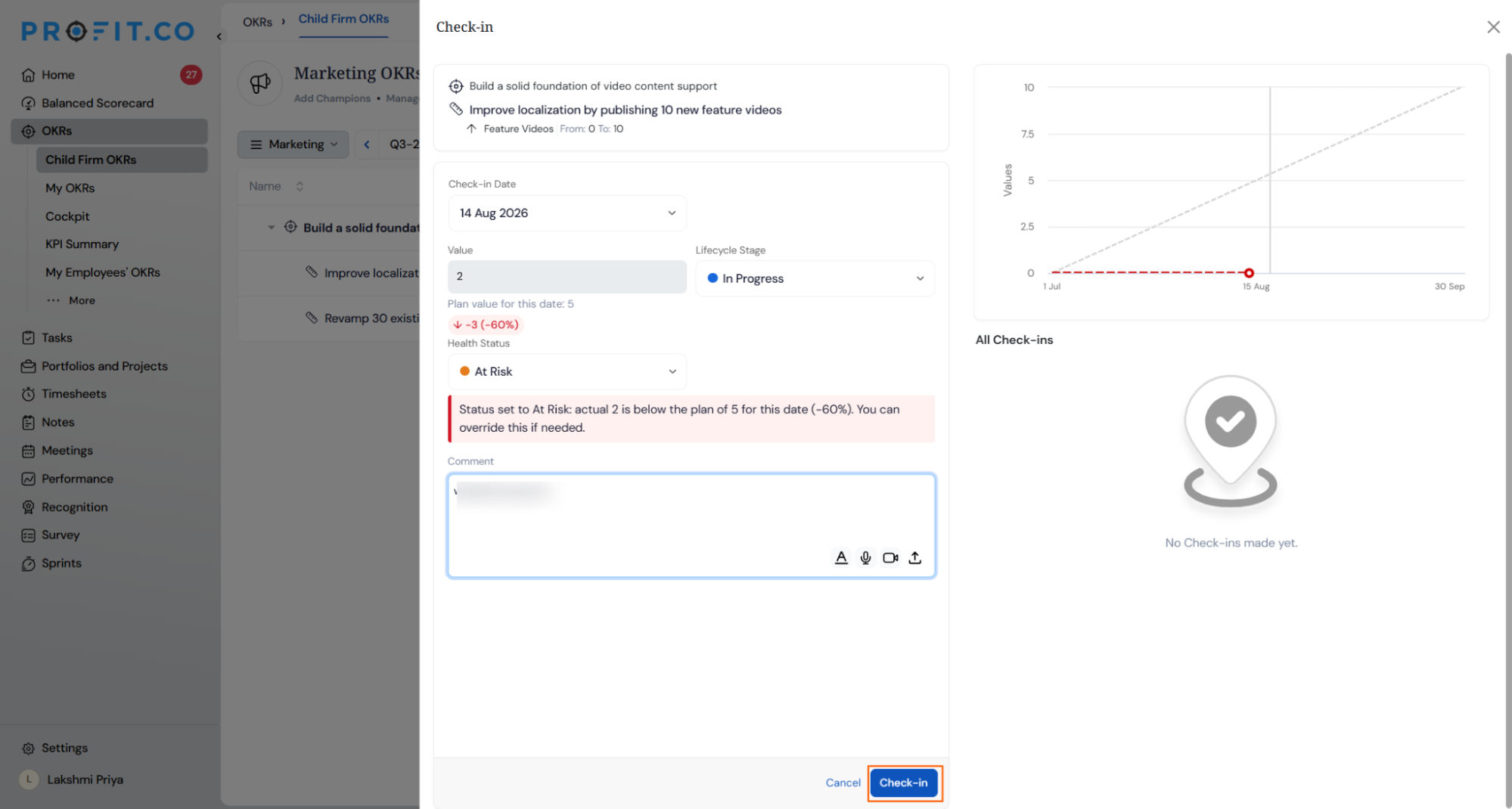
- You will be redirected to the check-in review page with the Power BI value pre-filled.
- Click Checkin to record the progress and update the Key Result status.Note: Automatic check-ins will run every day at 9:00 AM based on the user’s region, so progress updates happen without any manual action after the initial setup.
Summary
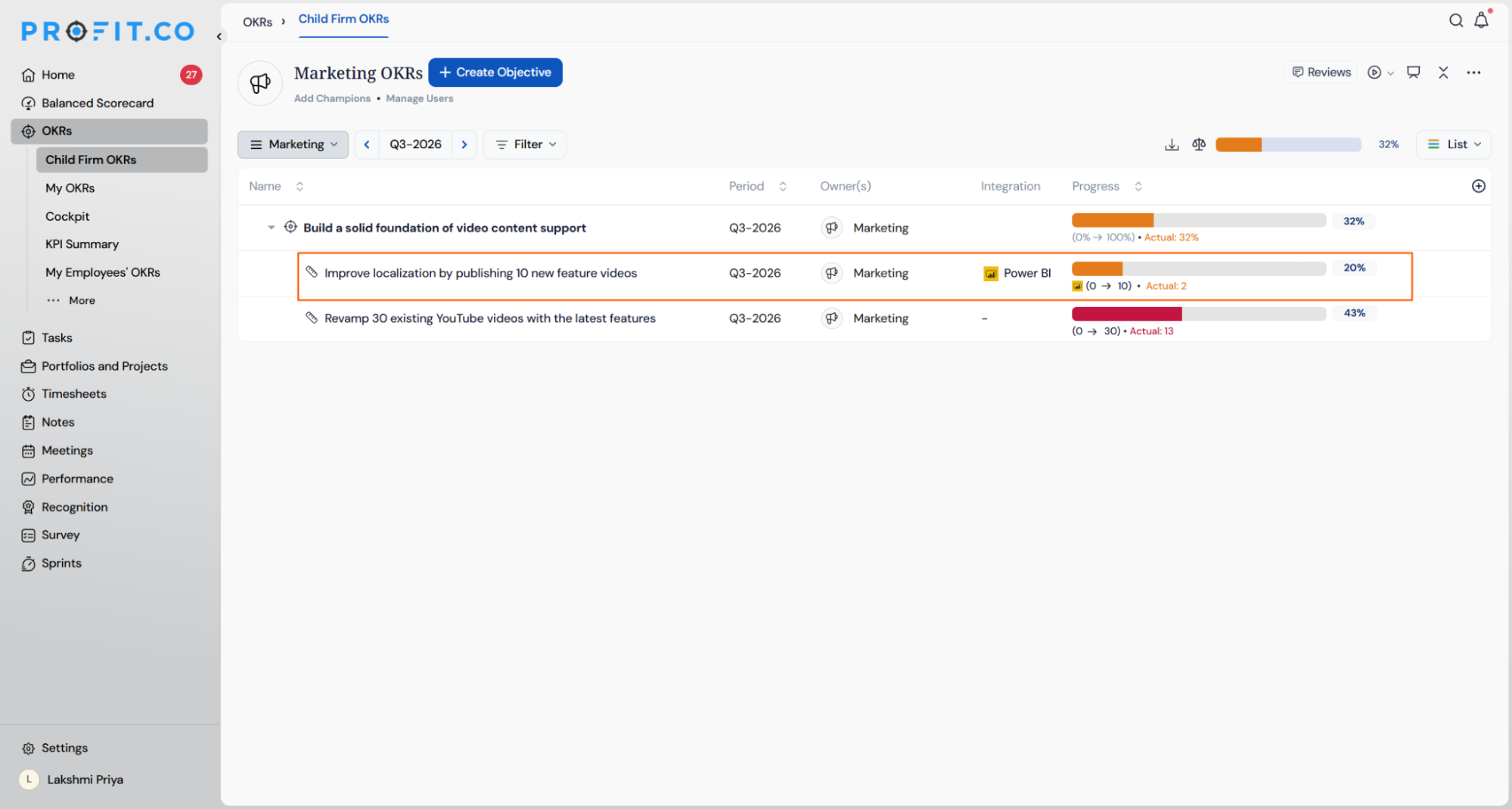
By connecting Power BI to Profit.co, your business intelligence data flows directly into your OKRs, keeping Key Result progress automatically aligned with live Power BI metrics. Whether you use a Formula-Based query for Power BI Premium or Fabric workspaces, or a DAX Query for custom calculations, Profit.co handles daily check-ins automatically so your team always has an accurate, up-to-date view of performance without manual reporting.