


A Salesforce KPI is a measurable performance metric used to monitor, analyze, and optimize customer relationship management (CRM), including all relevant sales processes.
Salesforce KPI Integration
Let’s see how Salesforce can be integrated into Profit to add and track their KPI performance in OKRs.
Configure Salesforce KPI in Profit.co
Note: Only Super Users can be able to configure the Profit.co <> Salesforce KPI Integrations.Step 1:
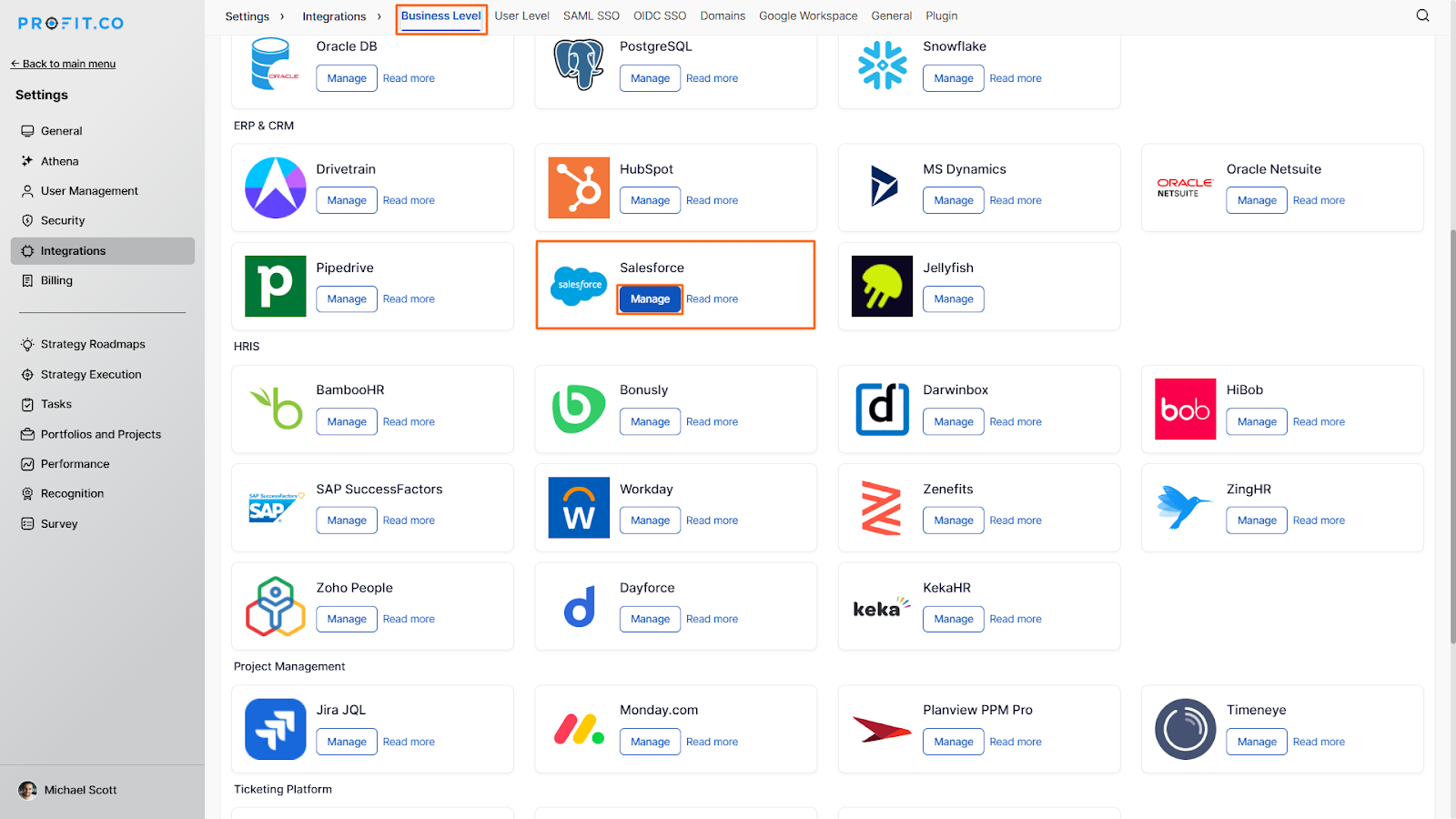
Navigate to Settings from the left navigation panel.
Click on Integrations, On the Connectors page, Select the Business Level tab and click on the Salesforce Manage button.

Now Click on the “Sign in to Salesforce” button to connect Salesforce with Profit.

The Connect to Salesforce side panel will appear. Enter the Connection Name, and choose the required Environment from the dropdown.
From the Environment dropdown, select either:
- Production – for your live Salesforce account
- Custom – for Custom/Sandbox accounts
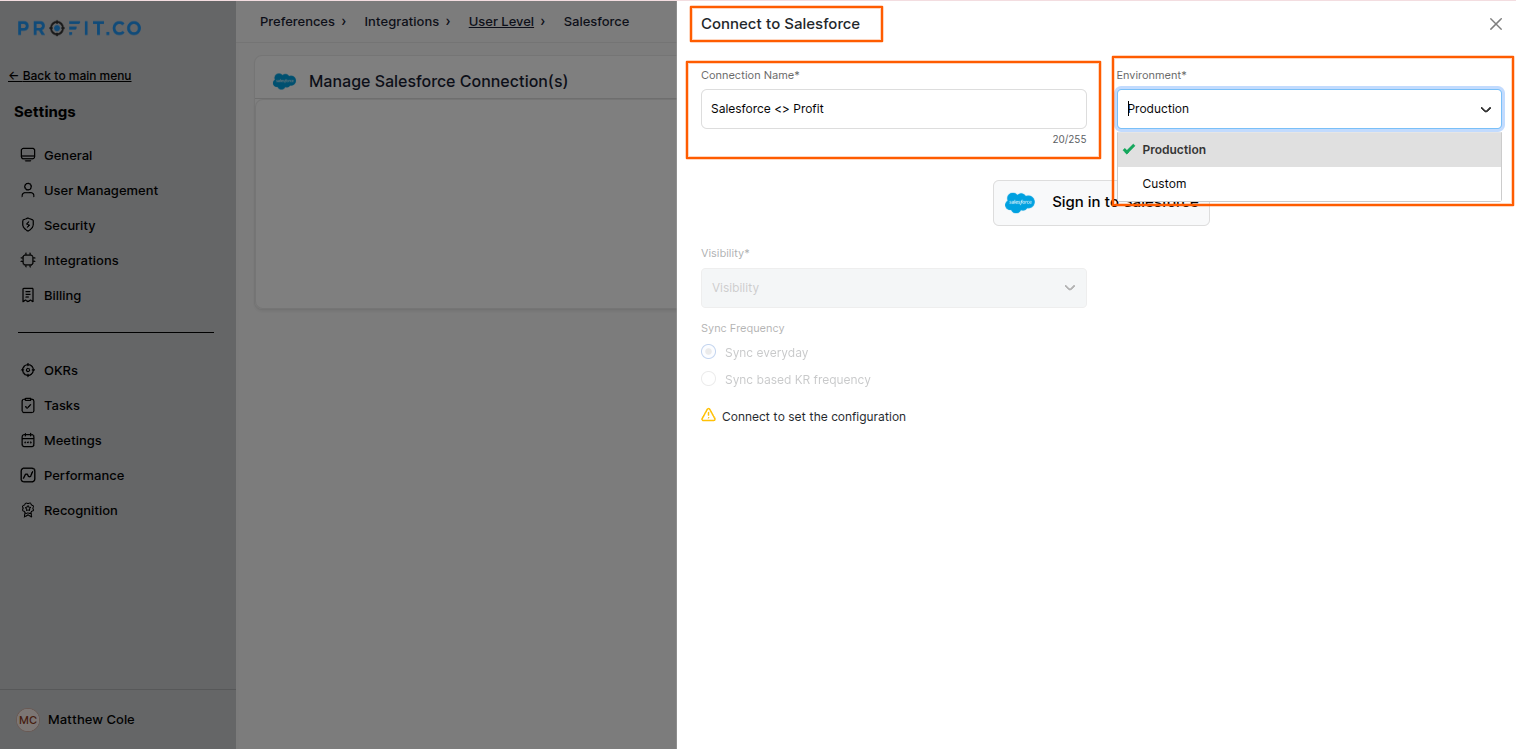
Once done, click the Sign in to Salesforce button.
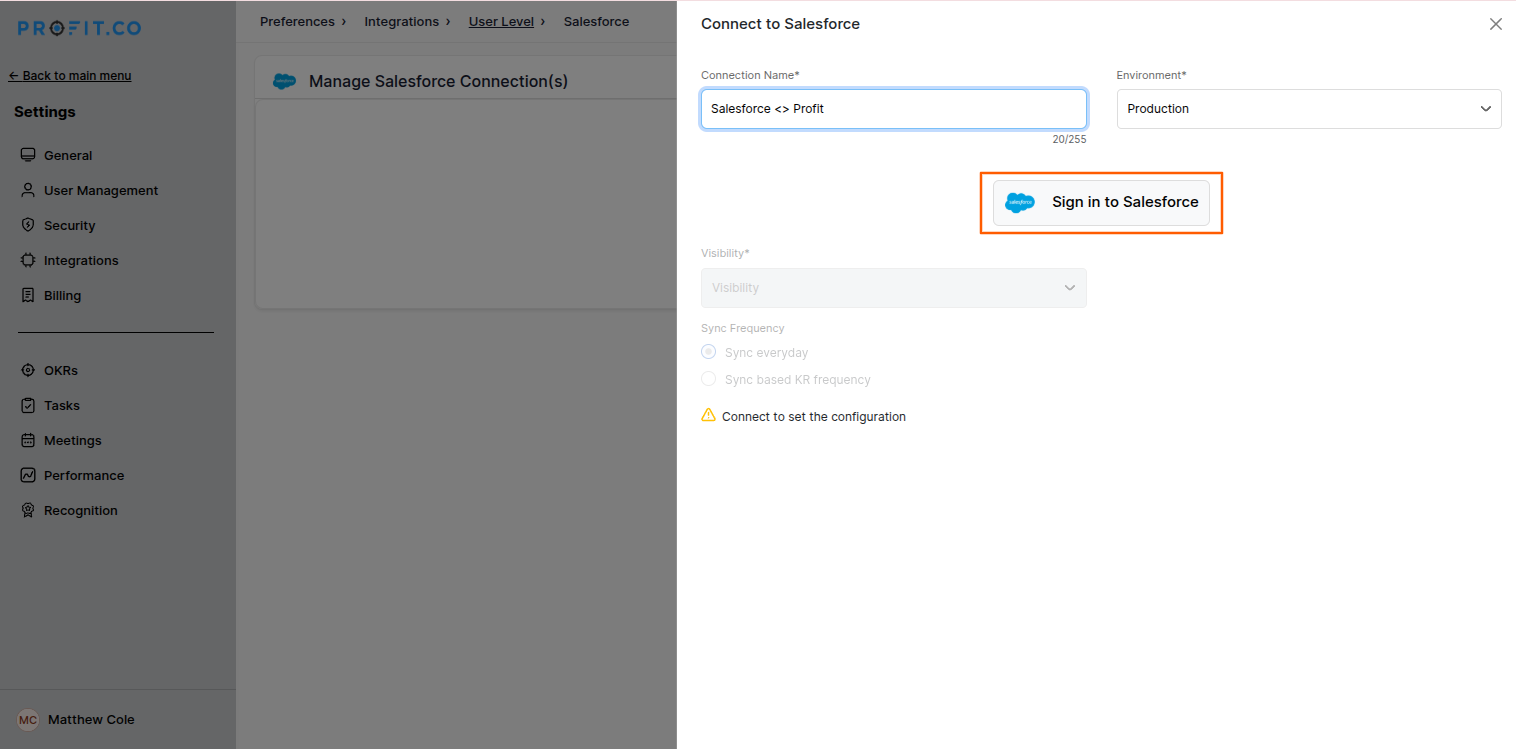
You will be redirected to a new tab where the Salesforce login page will appear.
Enter your credentials to log in.

Step 2:
After logging in you will be getting connected.
From the list of configured KPIs, click on the KPI name you want to edit.

Navigate to the KPI Query tab and choose the Query Type.
- Simple API
Use this option to define a direct Salesforce query for fetching KPI values. - Formula
Use this option to build a custom KPI calculation by combining Salesforce data with variables and formulas.


Review or modify the Salesforce query as required. Click Test to validate the connection.
In the pop-up window, select the required quarter and click Test again.

If the test is successful, the KPI is ready for use.
Note: If an error occurs during testing, verify the Salesforce query configuration.
How do you use a Salesforce KPI in a Key Result?
Key Results can be linked with Salesforce KPIs to track their achievement. To connect, create a key result using the form method from any OKR page.
Select the key result type of Increase KPI, Decrease KPI, or Control KPI. In step 2, click on ‘Salesforce’ from the KPI category. You will see the list of KPIs created and linked to Salesforce.


Reviewing the automatic check-in from the KR, along with manual updates
To check-in your key result, click on the slider bar against the key result name. You will see a pop checking KPI value from salesforce. Once the connection is successful you will see the message below.

Once you click check-in you will be directed to the key result check-in page. Here, the value of the salesforce will be pre-entered. Click on ‘Update’ to save your changes.
Now we can see the key result with the Salesforce value updated along with the no of leads KPI

