
ClickUp is a cloud-based project management and productivity platform that enables teams to plan, organize, assign, and track work while collaborating efficiently across projects and tasks.
How to integrate ClickUp with Profit.co?
Step 1
Now integrate Profit.co with ClickUp to create, manage and perform tasks and workspace.
Configure ClickUp in Profit.co
Note:- Only Super Users can be able to configure the Profit.co <> ClickUp Integrations.
- Currently, Profit.Co -ClickUPTasks integration is a 2-way sync from ClickUp tasks to Profit.co and vice versa.
Step 1
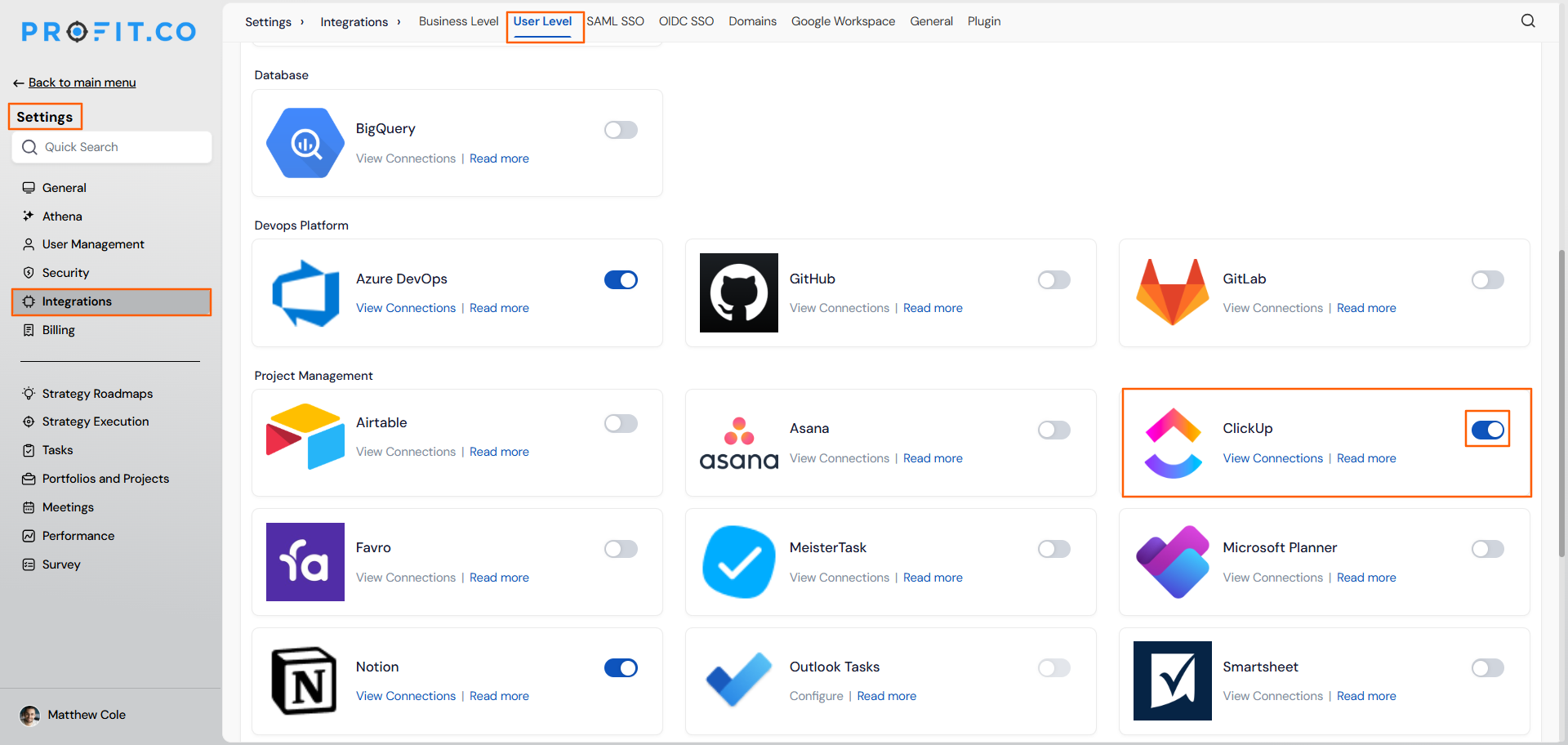
Navigate to Settings from the left navigation panel.
Click on Integrations, on the Connectors page, select the User Level tab, and enable the ClickUp toggle.
Step 2
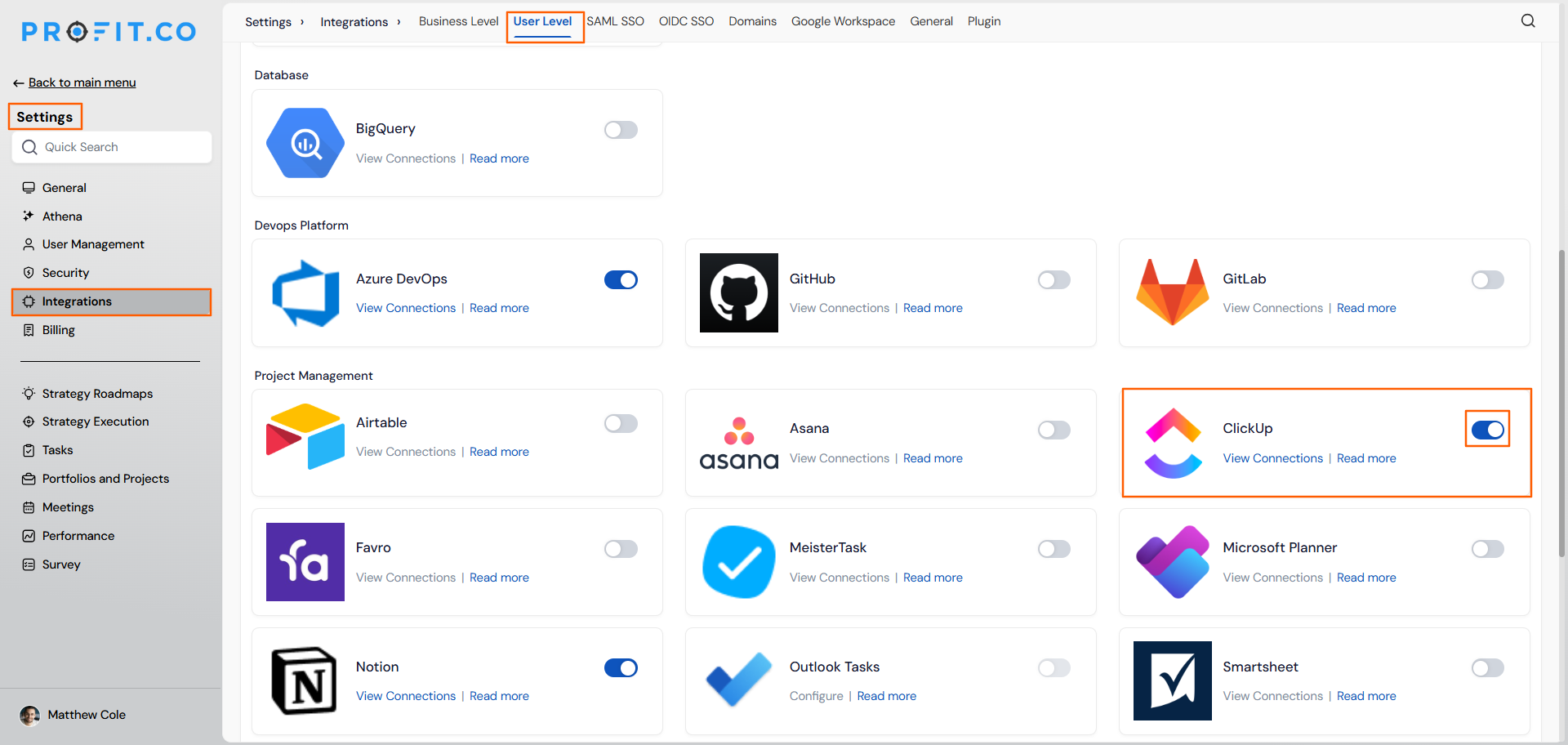
Click on Profile and choose Preferences.
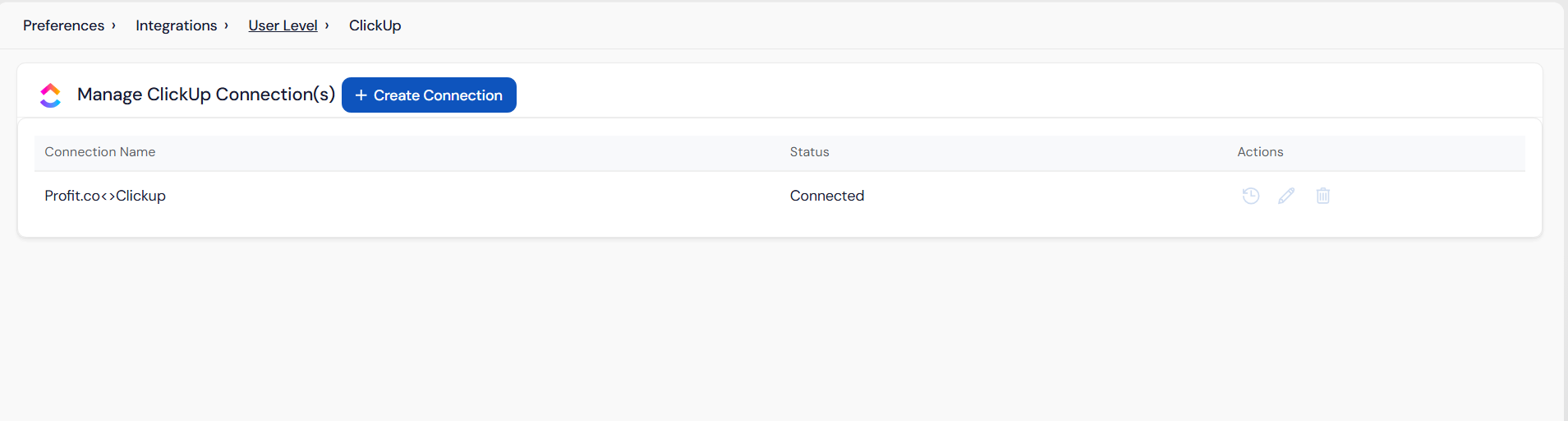
Switch to the Integrations tab and click on the ClickUp Manage button.
Step 3
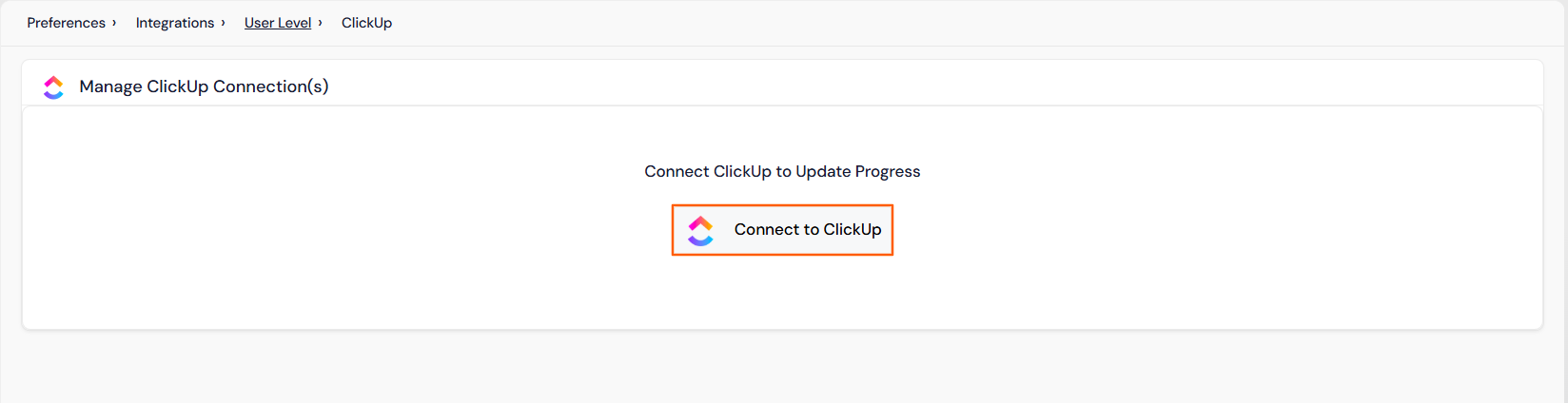
Click Sign in to ClickUp. Enter the Connection Name, API Key, and set the visibility.
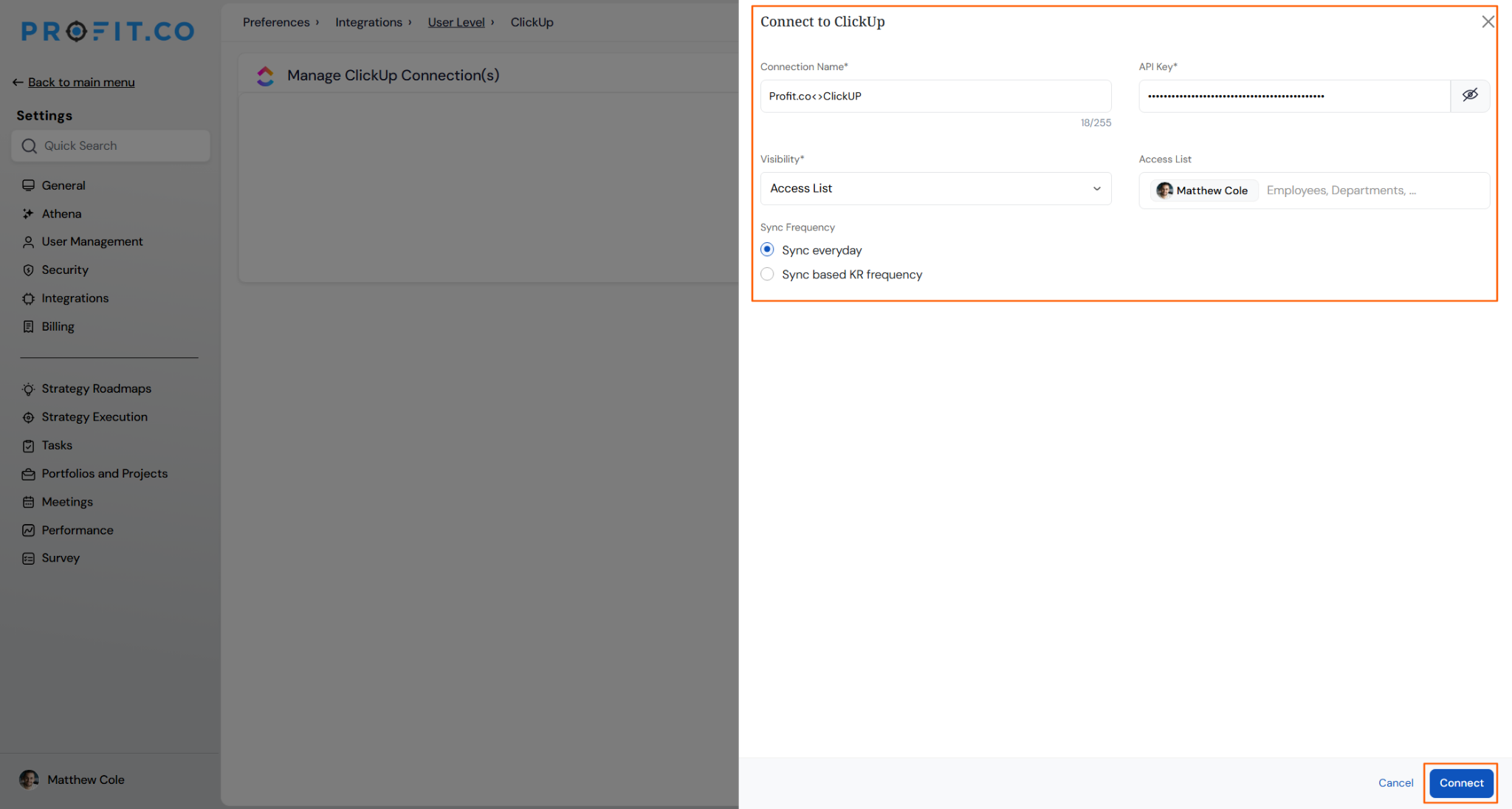
This will establish a connection between your CluckUp and Profit.co accounts.
Step 4
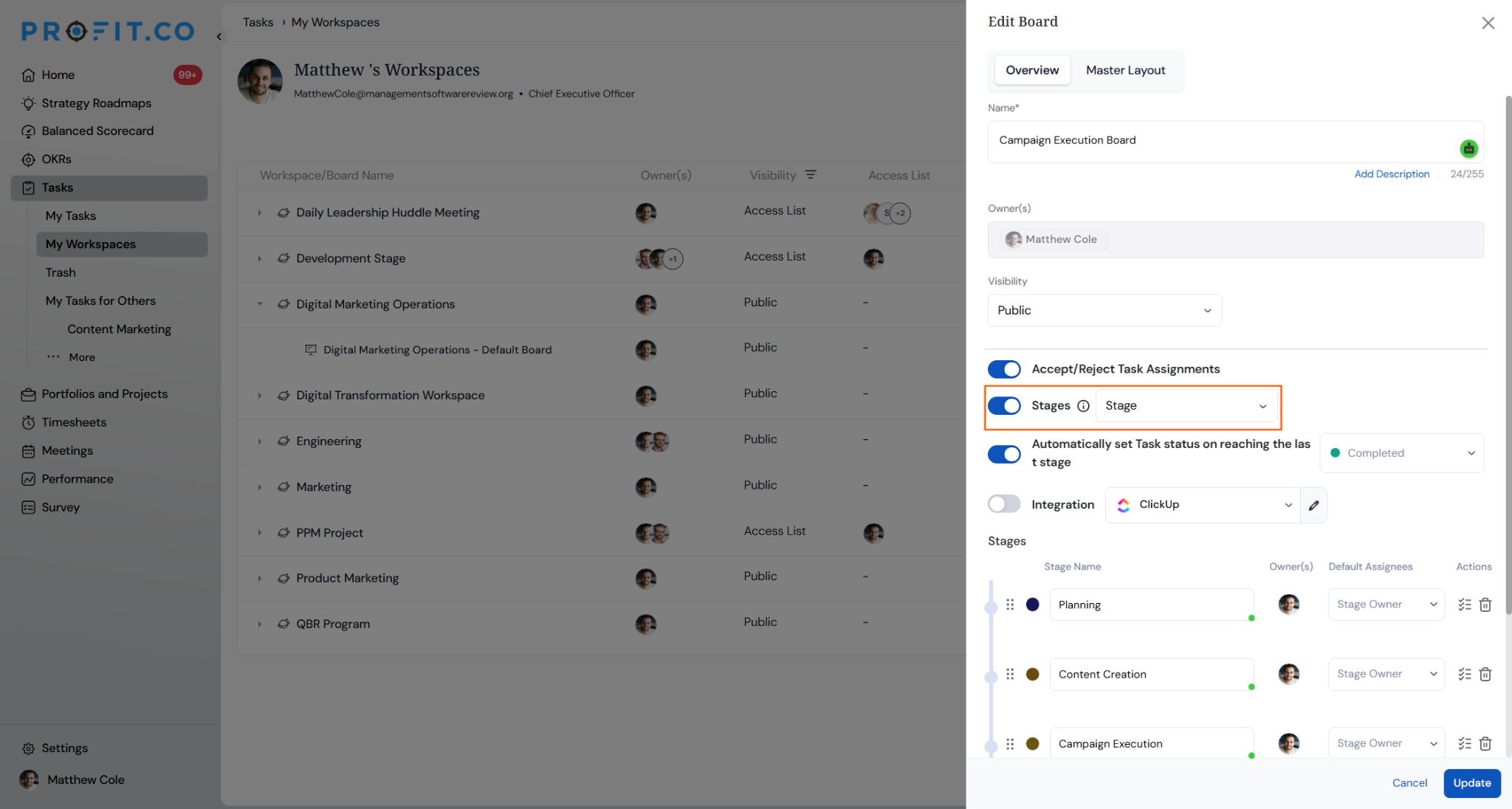
Create/Edit a board in your workspace.
While creating it, enable the toggle for Stages.
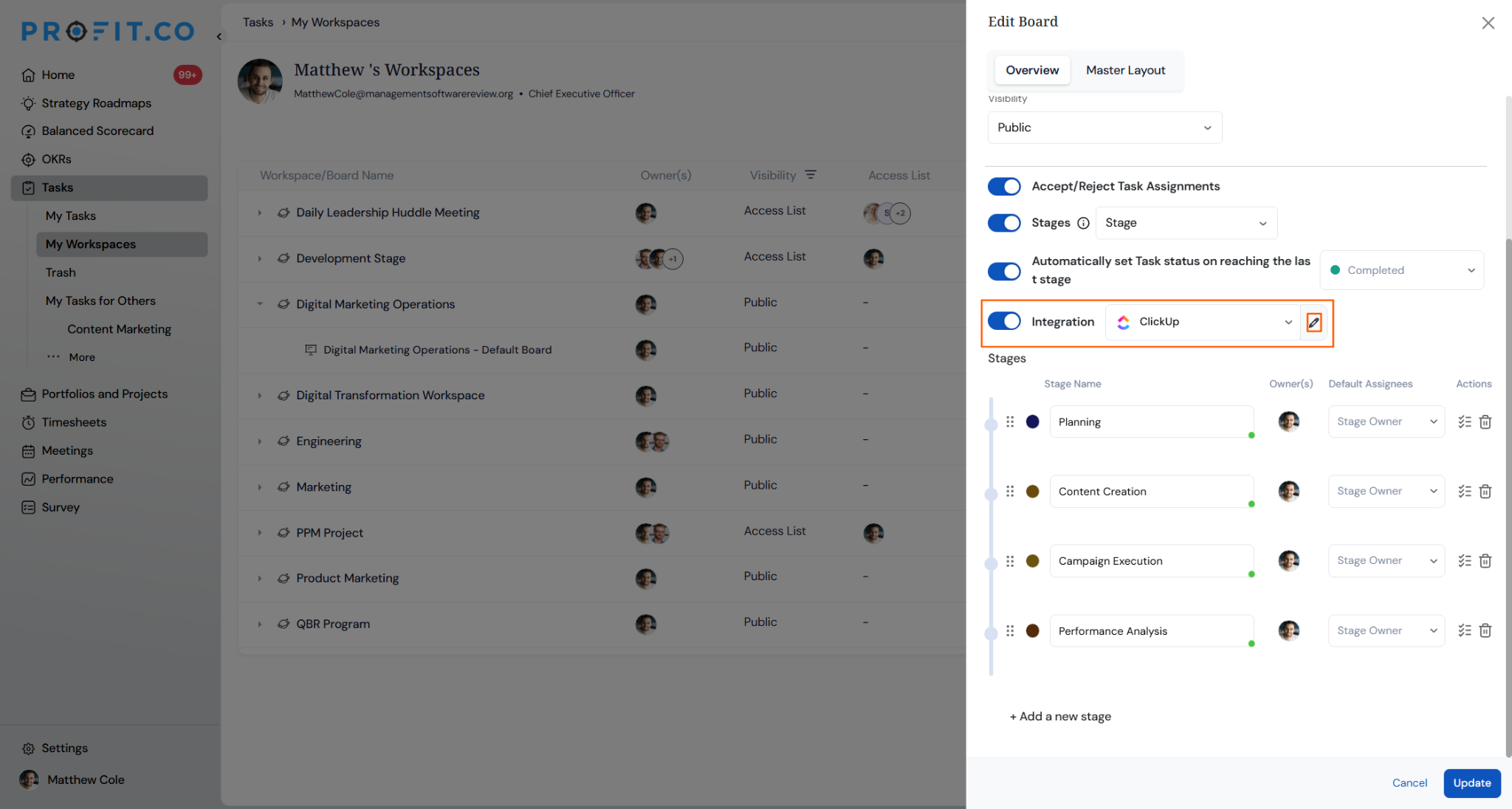
After that, enable the toggle for Integration and choose ClickUp from the drop-down.
Step 5
Select the Workspace and Space you created in ClickUp.
If you want to track tasks within a folder, select the required folder. Otherwise, choose the folderless option.Select the folder and choose the required list.
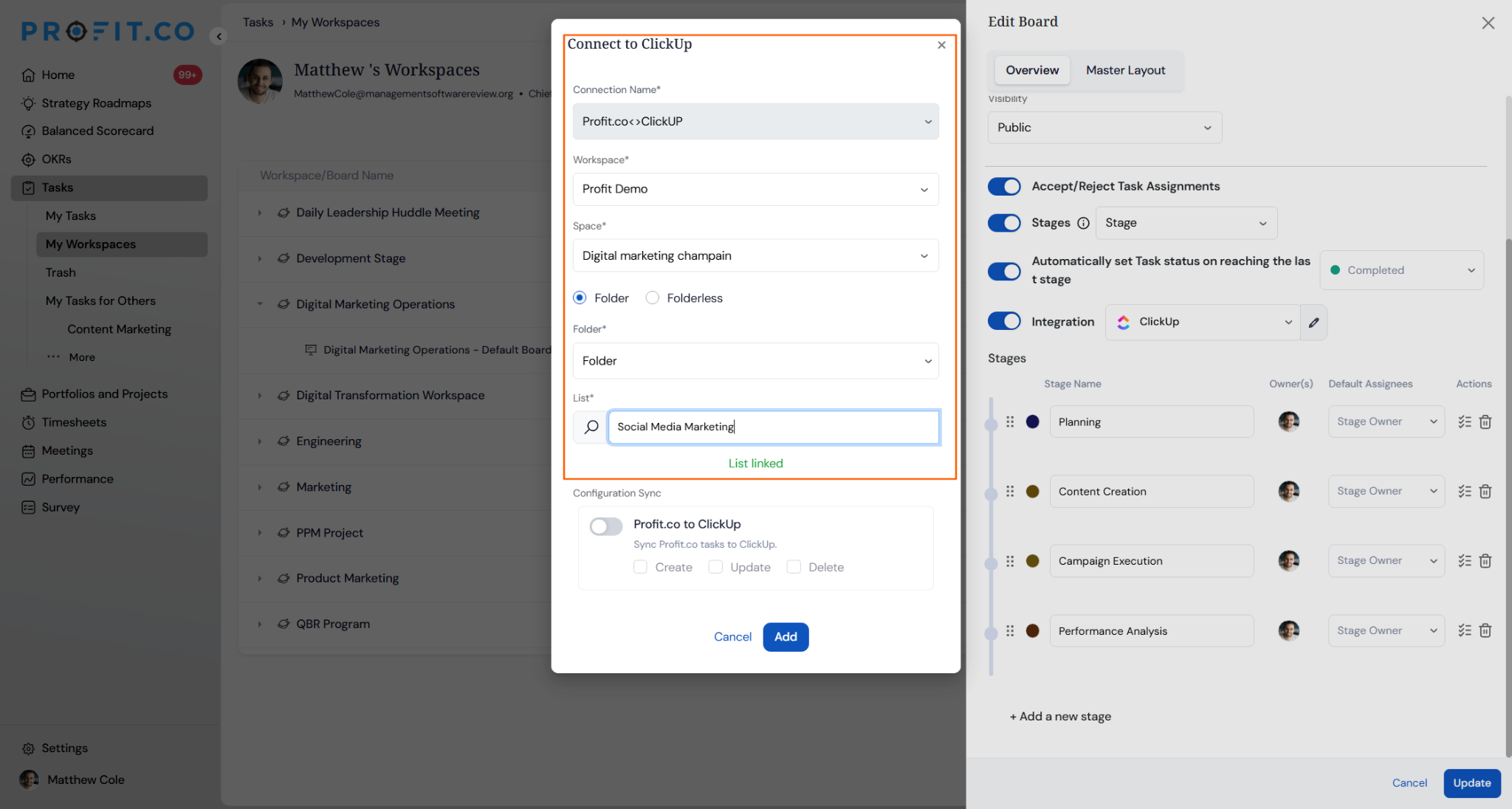
If you want to enable sync from Profit.co to ClickUp, turn on the toggle and click the Sync option, then select Add.
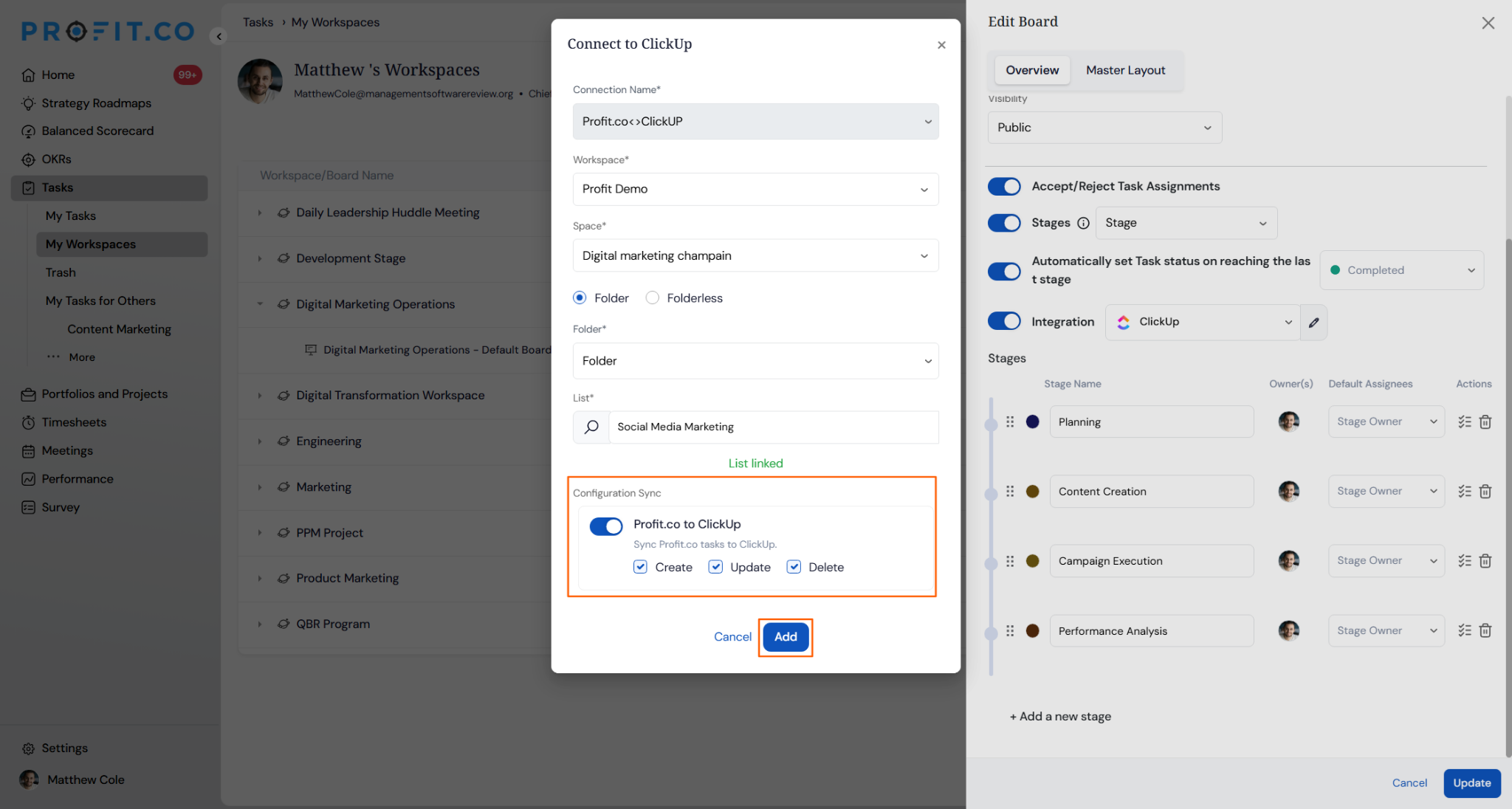
Once done, click on the Create option.
Note: Once the board is created and linked to ClickUp, the integration settings cannot be changed and will be disabled.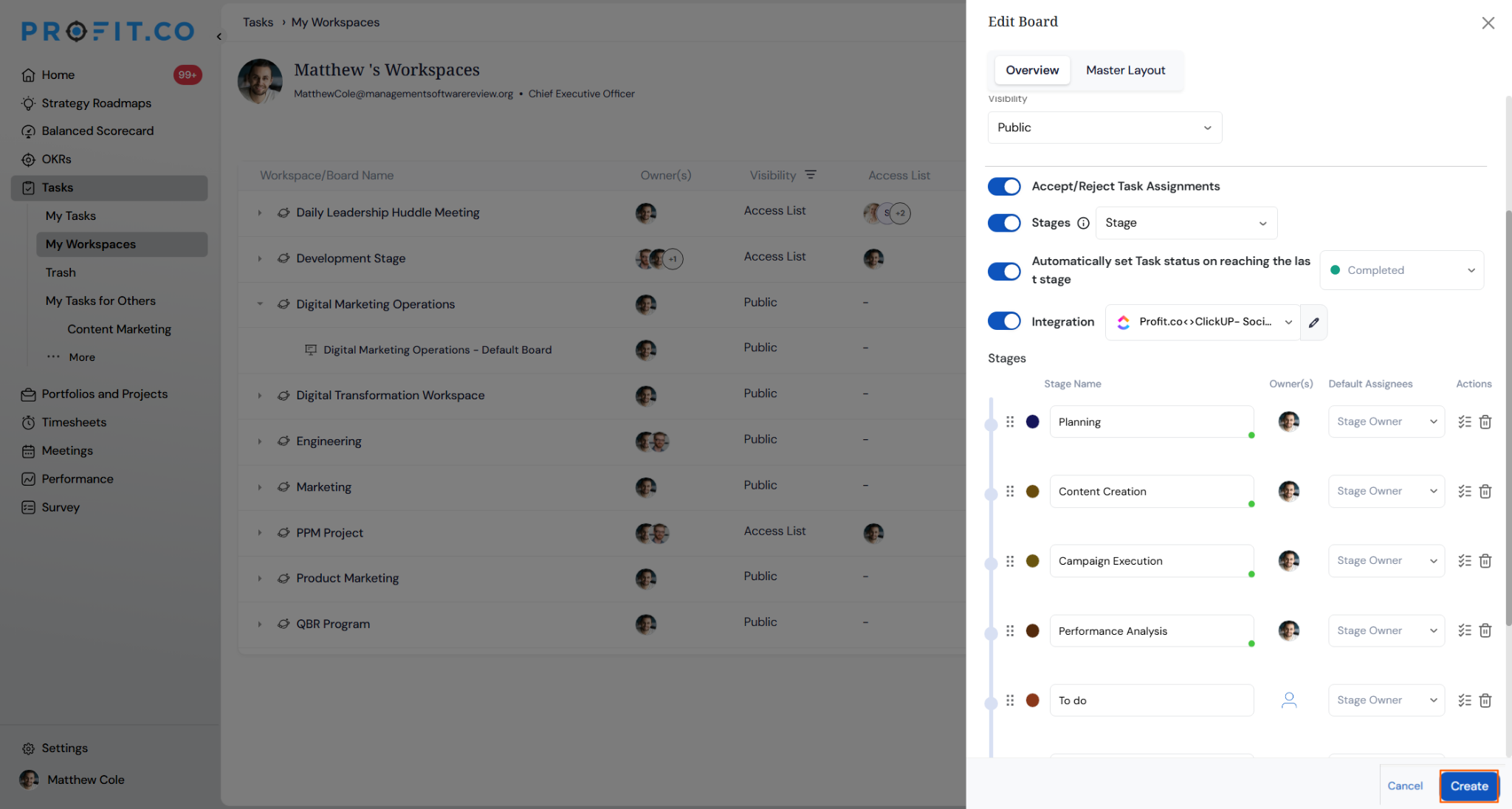
Step 6
The tasks currently available in ClickUp will be reflected in the Profit.co Task Board.
Note: The initial sync to the Profit.co dashboard may take up to 30 minutes. After the initial sync, task updates are synchronized automatically every day at 9:00 AM, based on the user’s region.
Note: The Task stages that you have created on ClickUp will be reflected in your Profit.co dashboard.

Welcome to Profit.co 👋
How can I help you today?