
Overview
Google Workspace is Google's suite of cloud-based productivity and collaboration applications, including Gmail, Drive, Calendar, and the Admin console, that organizations use to manage user identities, email, and access to cloud applications from one place.
The Google Workspace SAML SSO integration lets you configure Google Workspace as the SAML identity provider for Profit.co, so users can sign in to Profit.co with their existing Google Workspace credentials instead of a separate Profit.co password.
What This Integration Supports
With the Google Workspace SAML SSO integration, you can:
- Authenticate Profit.co users through Google Workspace using the SAML 2.0 standard
- Configure Google Workspace as the Identity Provider for Profit.co
- Map user attributes, such as email address, between Google Workspace and Profit.co
- Control which users or organizational units have access to the Profit.co app
- Redirect authenticated users directly to their Profit.co landing page after sign-in
Prerequisites
- Google Workspace Super Admin access to add and configure a custom SAML app
- Super User access in Profit.co
- The ACS URL for your Profit.co account, provided by the Profit.co team
Note: Only Super Users can configure this integration in Profit.co.
Configure Google Workspace SAML SSO for Profit.co
The following steps walk through setting up Google Workspace as the SAML identity provider for Profit.co.
Step 1
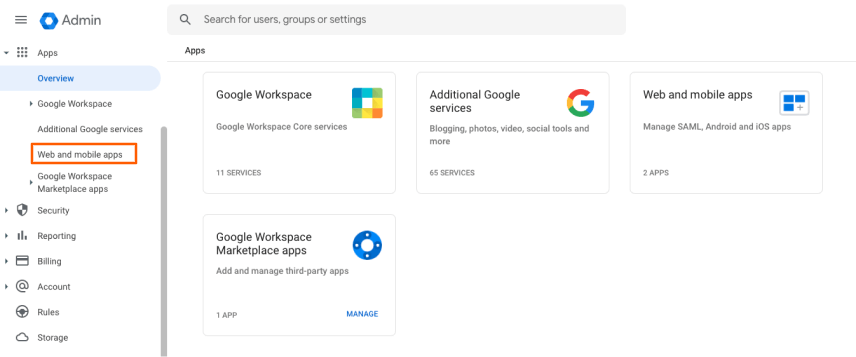
Navigate to the Web and Mobile Apps section in your Google Workspace Admin console to begin adding Profit.co as a SAML app.
- Sign in to your Google Workspace Admin console.
- Navigate to Apps -> Web and Mobile Apps.
Step 2
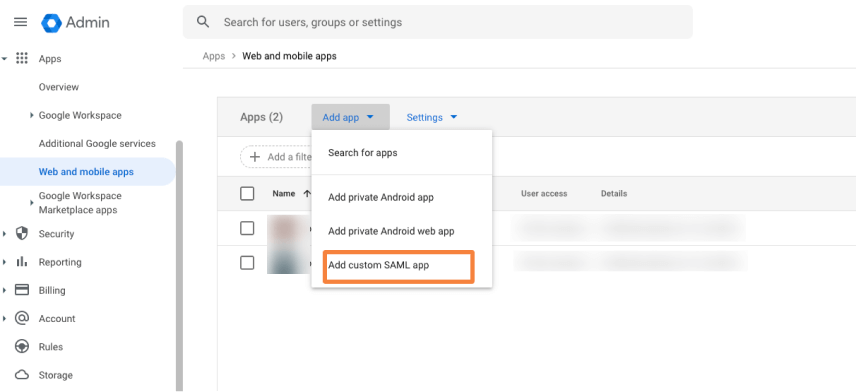
Add Profit.co as a new custom SAML application in Google Workspace.
- Click Add App, then select Add Custom SAML App.
- Enter Profit OKRs as the Application Name.
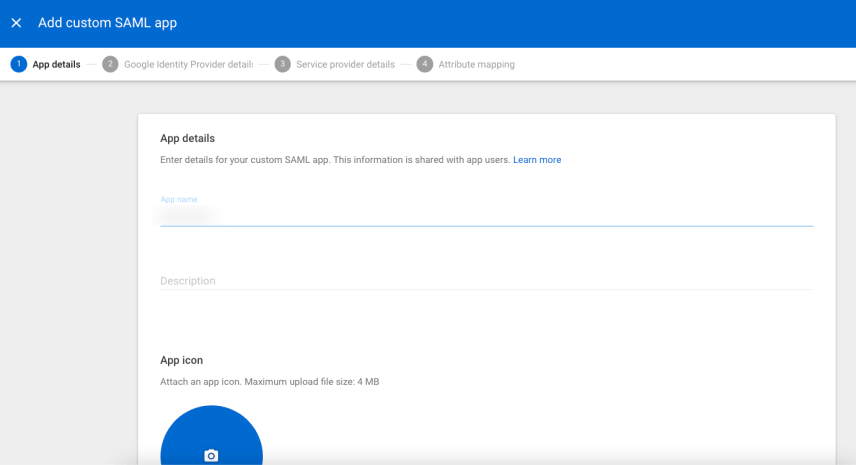
- Upload the Profit.co logo as the app icon, then click Continue.
Step 3
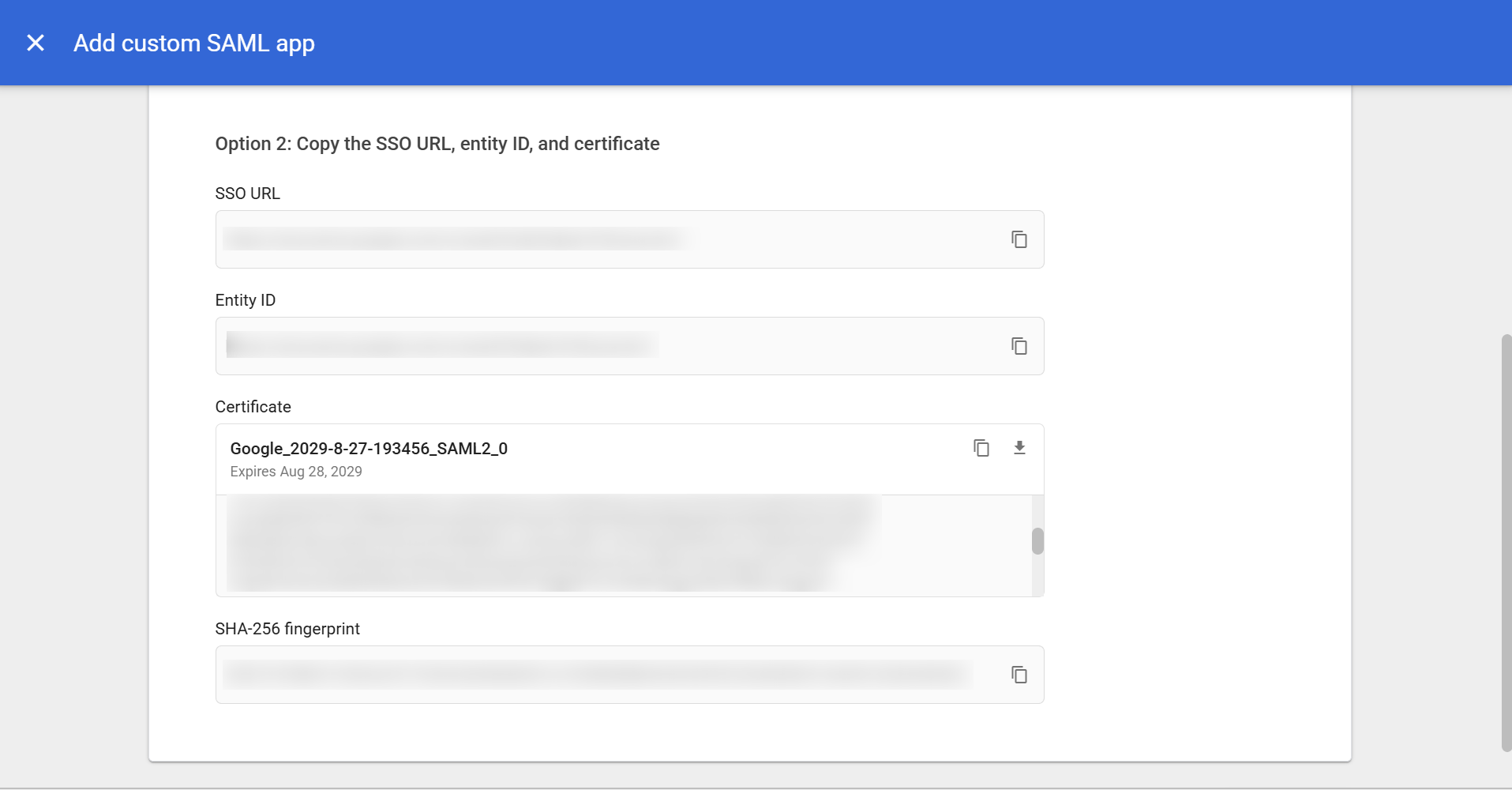
Google Workspace generates its own Entity ID and Certificate for this app. You will need both to complete the SAML configuration on Profit.co. You can get them in either of the following ways:
- Download Metadata - Click this option to download a file containing the Entity ID and Certificate.
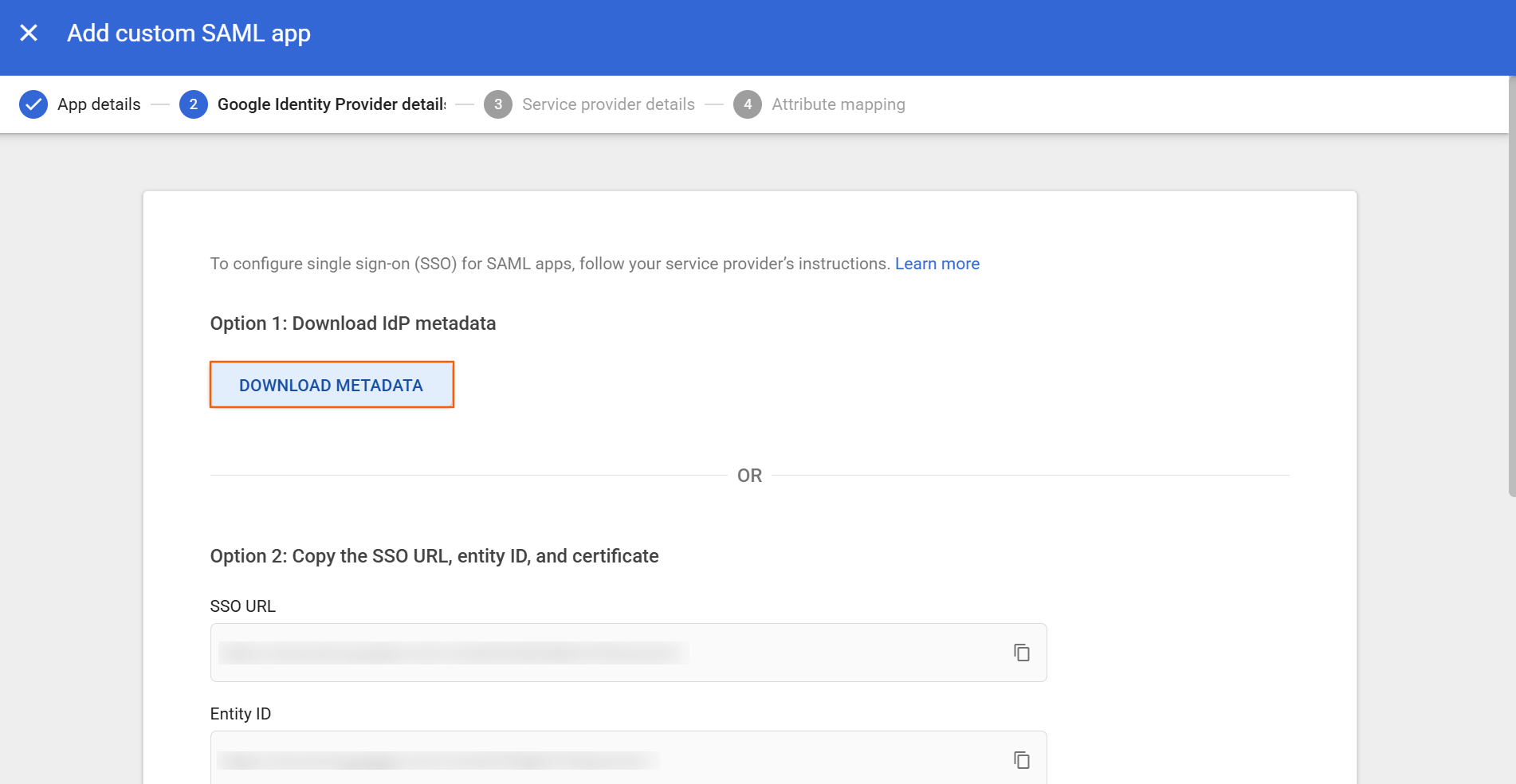
- Copy Directly - Copy the Entity ID and Certificate values directly from the Google Identity Provider Details screen.
Note: Keep the downloaded metadata file or the copied Entity ID and Certificate values on hand - Profit.co uses them to verify sign-in requests from Google Workspace.
Note: The ACS URL is unique to your Profit.co account and must be requested from your Profit.co team before completing this step.
Step 4
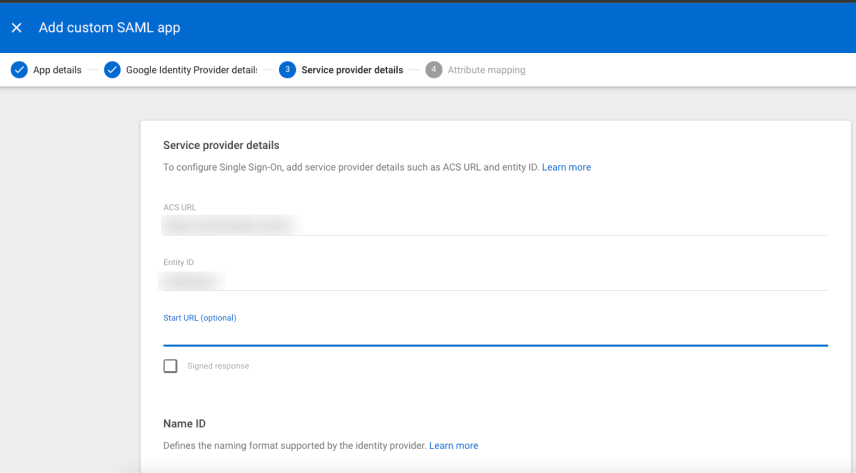
Enter the Profit.co service provider details in Google Workspace.
- In the ACS URL field, enter the URL provided by the Profit.co team.
- In the Entity ID field, enter the following value: urn:profit-prod:profit-prod-sso-auth
- Set Name ID to Basic Information / Primary Email.
- Set Name ID Format to ENTITY.
- Copy the Start URL from Profit.co, paste it into the Start URL field, then click Continue.
Field Value ACS URL US region

EU region

ME region

SA region

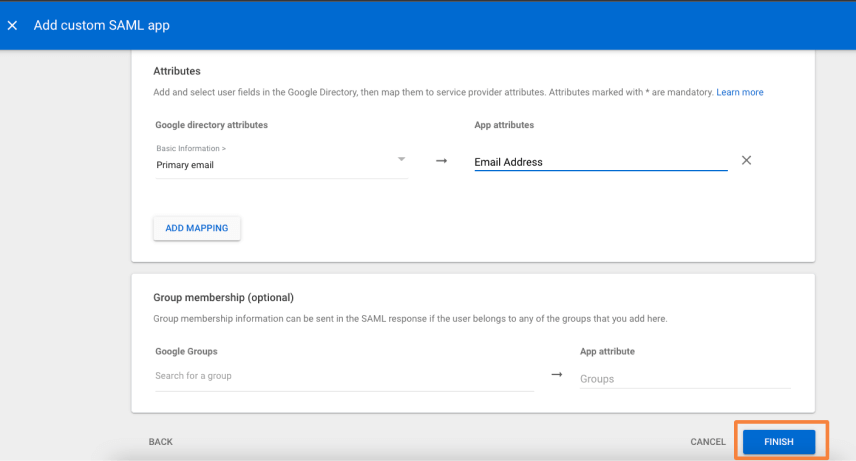
Define how Google Workspace maps user attributes to Profit.co during sign-in.
- In the Attribute Mapping section, enter Email Address in the first field.
- Select Basic Information in the second field.
- Select Primary Email in the third field.
- Click Finish to enable SAML authentication.
Step 5
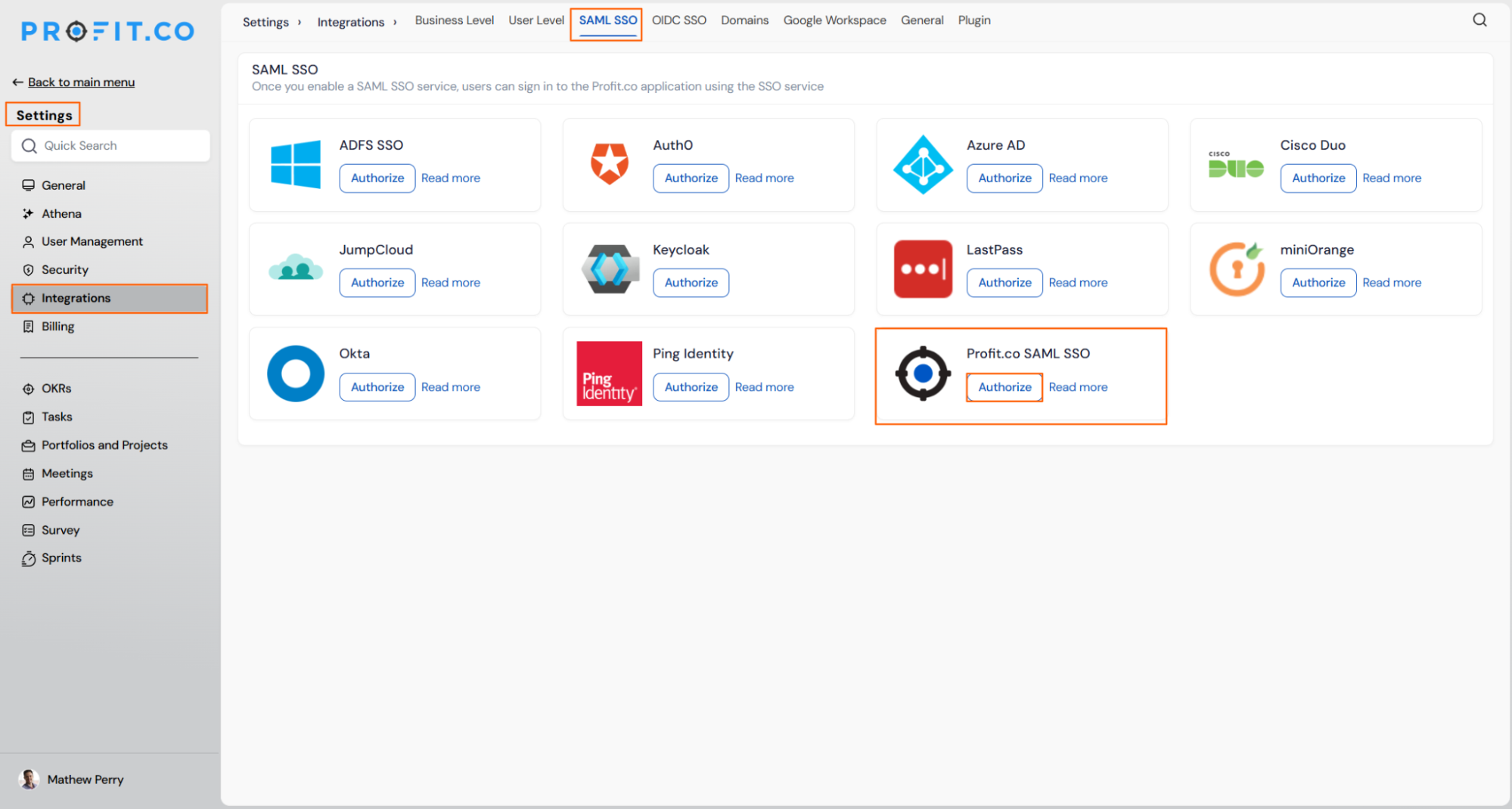
Switch to Profit.co to complete the connection using the values from the downloaded Google Workspace metadata file.
- Navigate to Settings from the left navigation panel.
- Click Integrations.
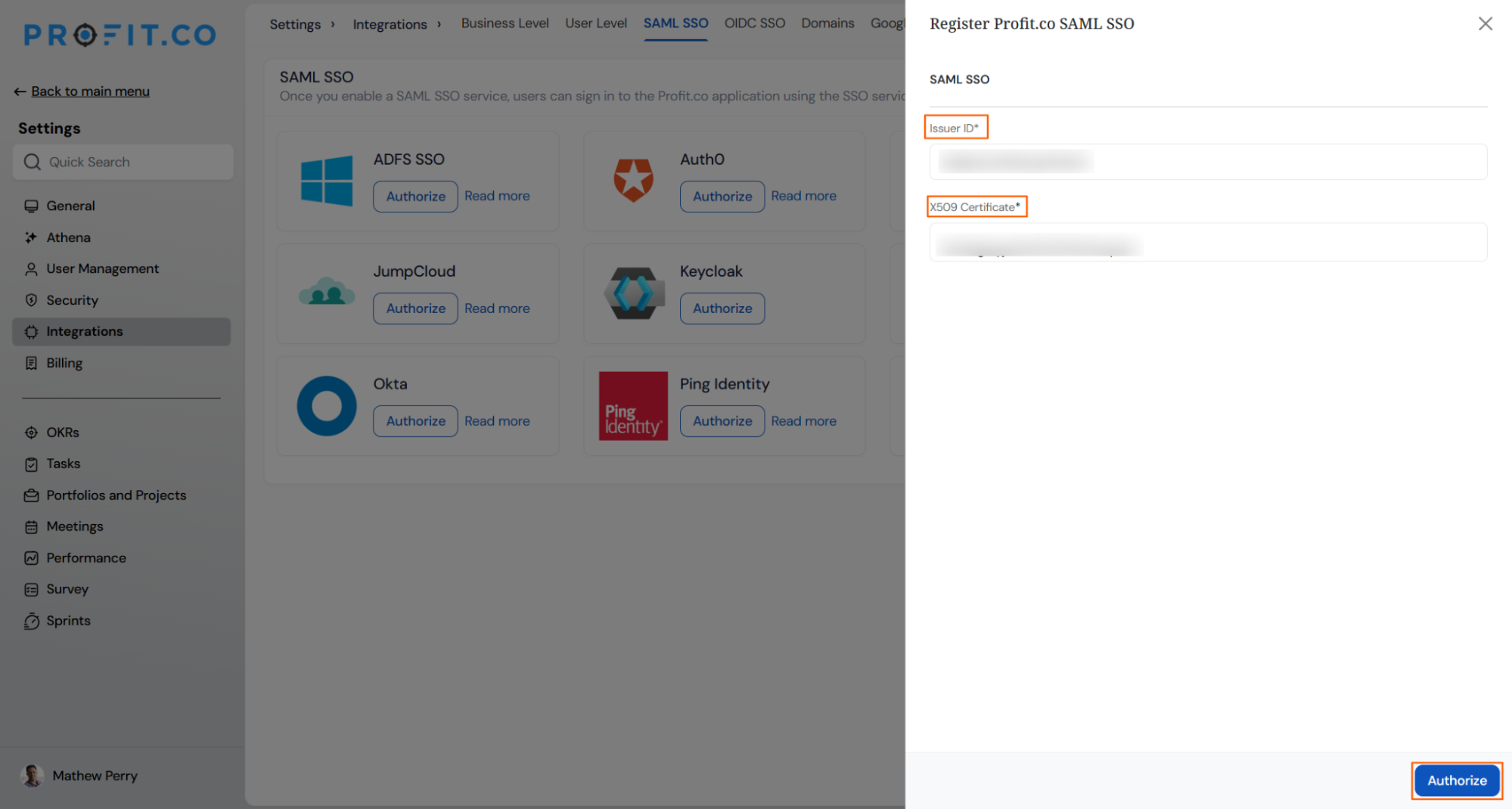
- On the Connectors page, switch to the SAML SSO tab.
- Locate Profit SAML SSO and click Authorize.
- In the Profit SAML SSO panel, paste the Entity ID and X509Certificate values from the downloaded Google Workspace metadata XML file.
Note: For the Certificate value, copy only the text between -----BEGIN CERTIFICATE----- and -----END CERTIFICATE-----.
- Click Authorize to save the configuration.
Step 6
Confirm that Profit.co is available to users and that sign-in redirects correctly.
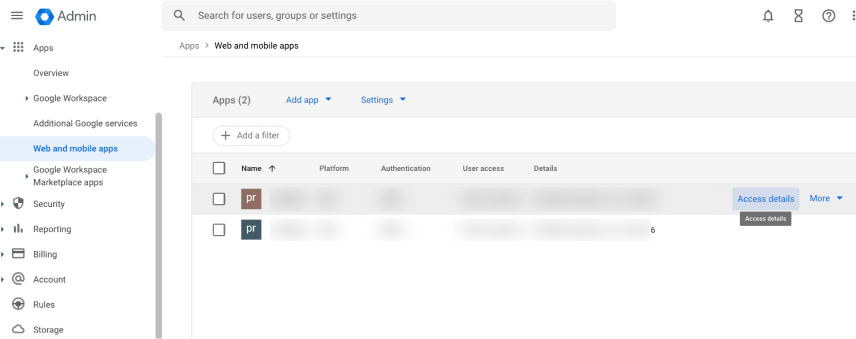
- On the Google Workspace apps list, confirm access to Profit.co is turned on for your organization or selected organizational units. By default, access is on for everyone.
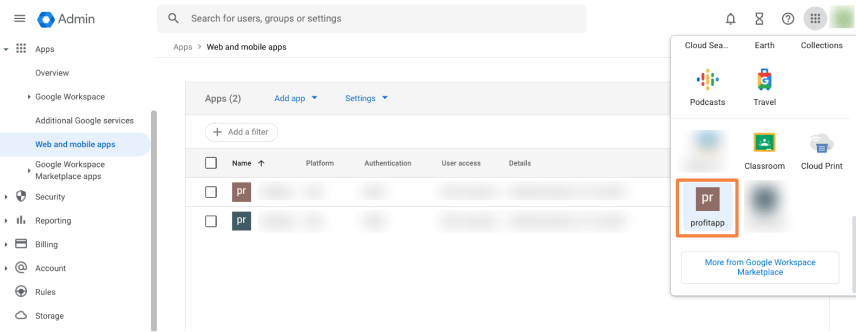
- Open the Profit.co app from Google Workspace to confirm users are redirected to their Profit.co landing page.




Summary
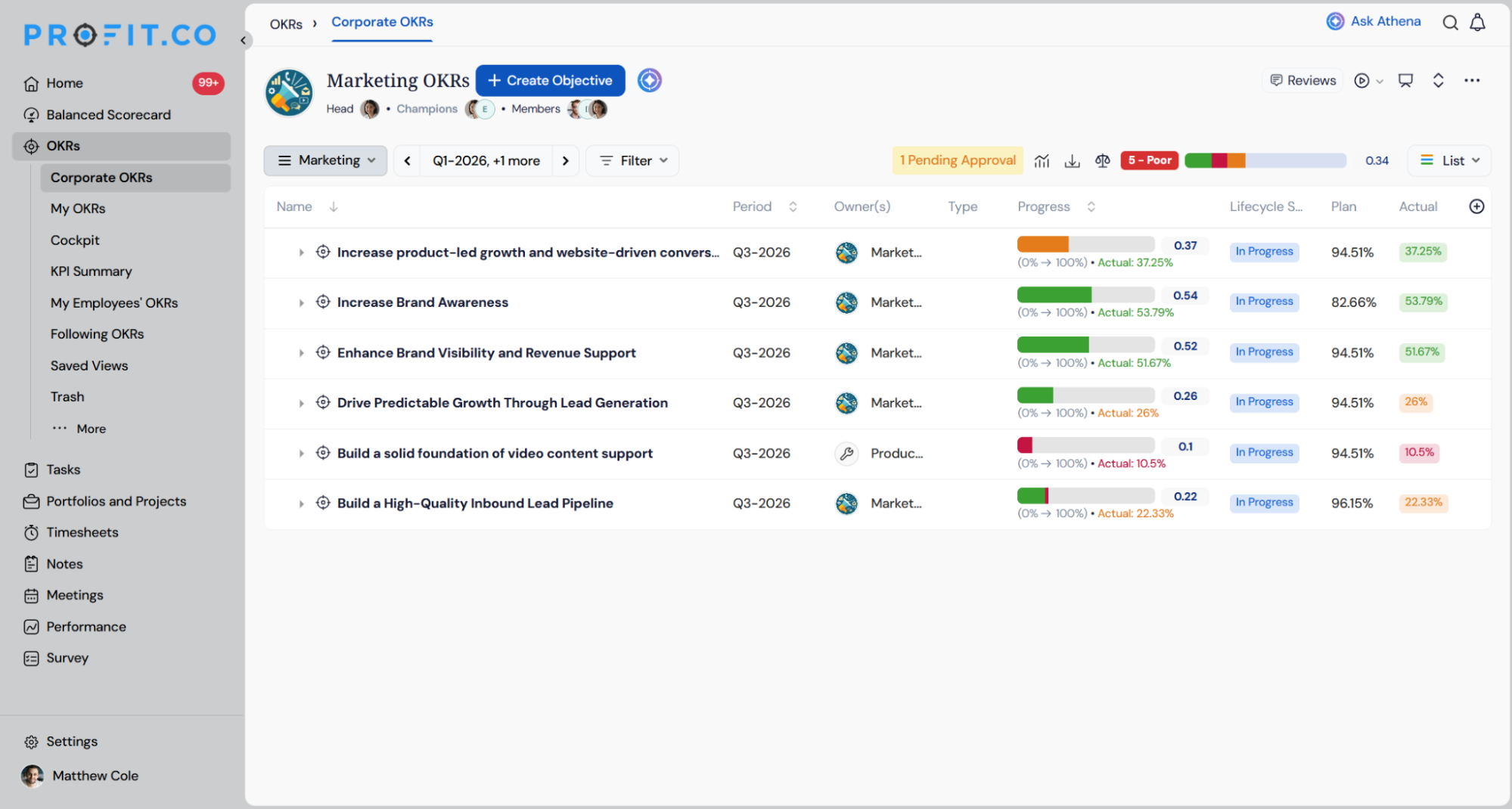
By configuring Google Workspace as the SAML identity provider for Profit.co, you let users sign in with their existing Google Workspace credentials instead of managing separate passwords. Once the setup is complete, authenticated users can access Profit.co directly from their Google Workspace apps menu and land straight on their Profit.co page.