Zendesk provides a user-friendly, scalable customer service solution with customizable portals, live chat, and seamless integration with Salesforce and Google Analytics.
What you can do with Zendesk and Profit.co Integration ?
- Integrate Zendesk KPI in Profit.co key result and automate the progress.
- Configure Zendesk KPI Integration in Profit.co
- Note: Only Super Users can be able to configure the Profit.co <> Zendesk Integrations.
To integrate Zendesk with Profit.co follow the below steps:
Step 1
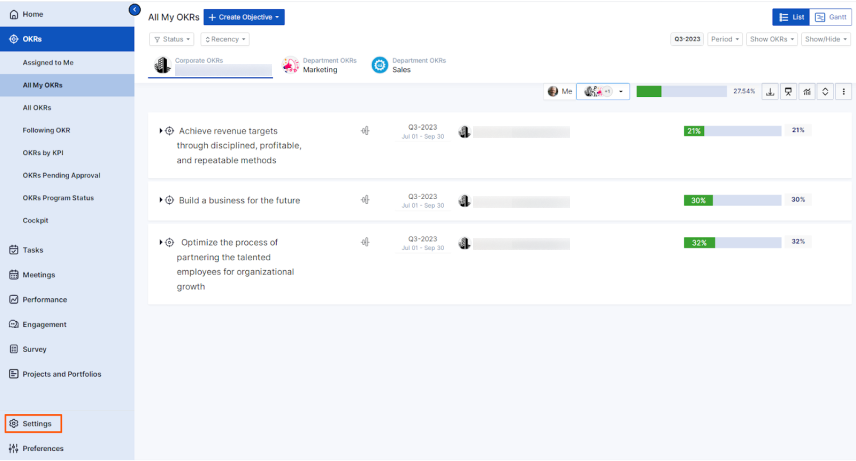
Navigate to Settings from the left navigation panel.
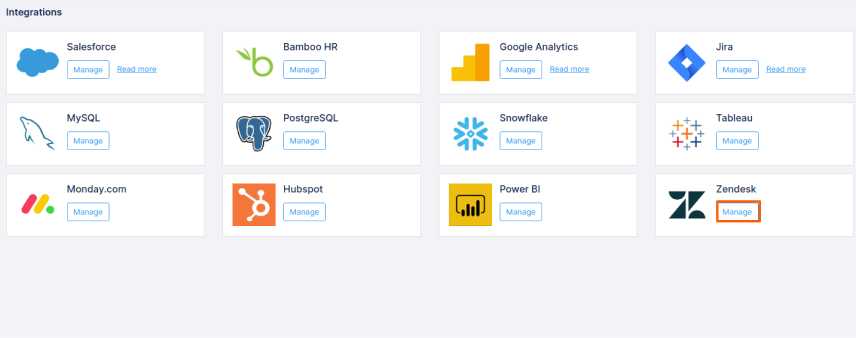
Click on Integrations, On the Connectors page, Select the Business Level tab and click on the Zendesk Manage button.
Step 2
Click on the Connect to Zendesk button.

Step 3
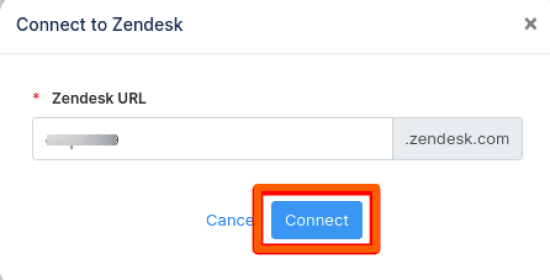
Provide your Zendesk domain name and press the Connect button. It will redirect you to the Zendesk Sign in page.
Step 4
Provide your Zendesk Email, Password and Press Sign In button
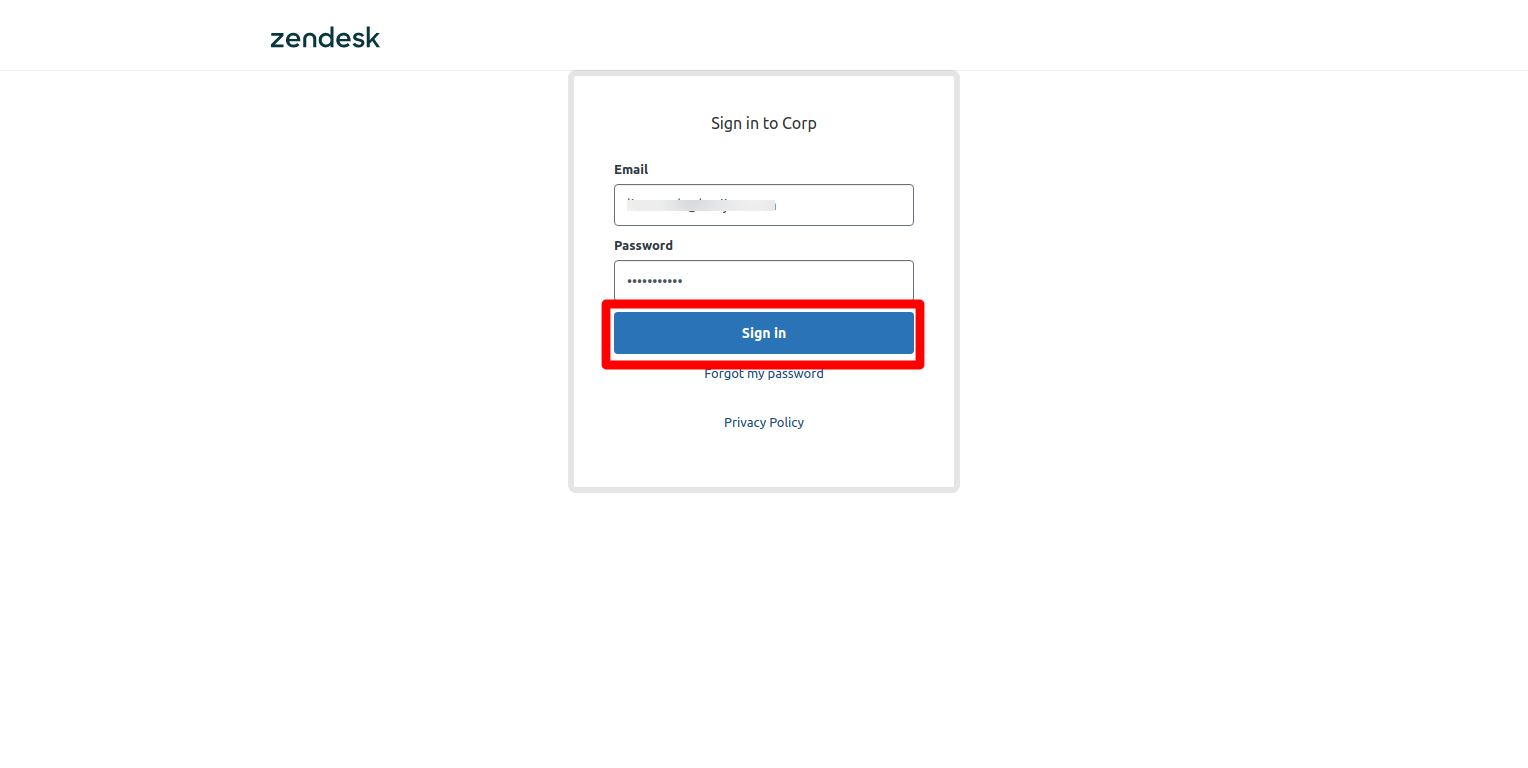
Step 5
Press the Allow button to provide access to Profit.co App.
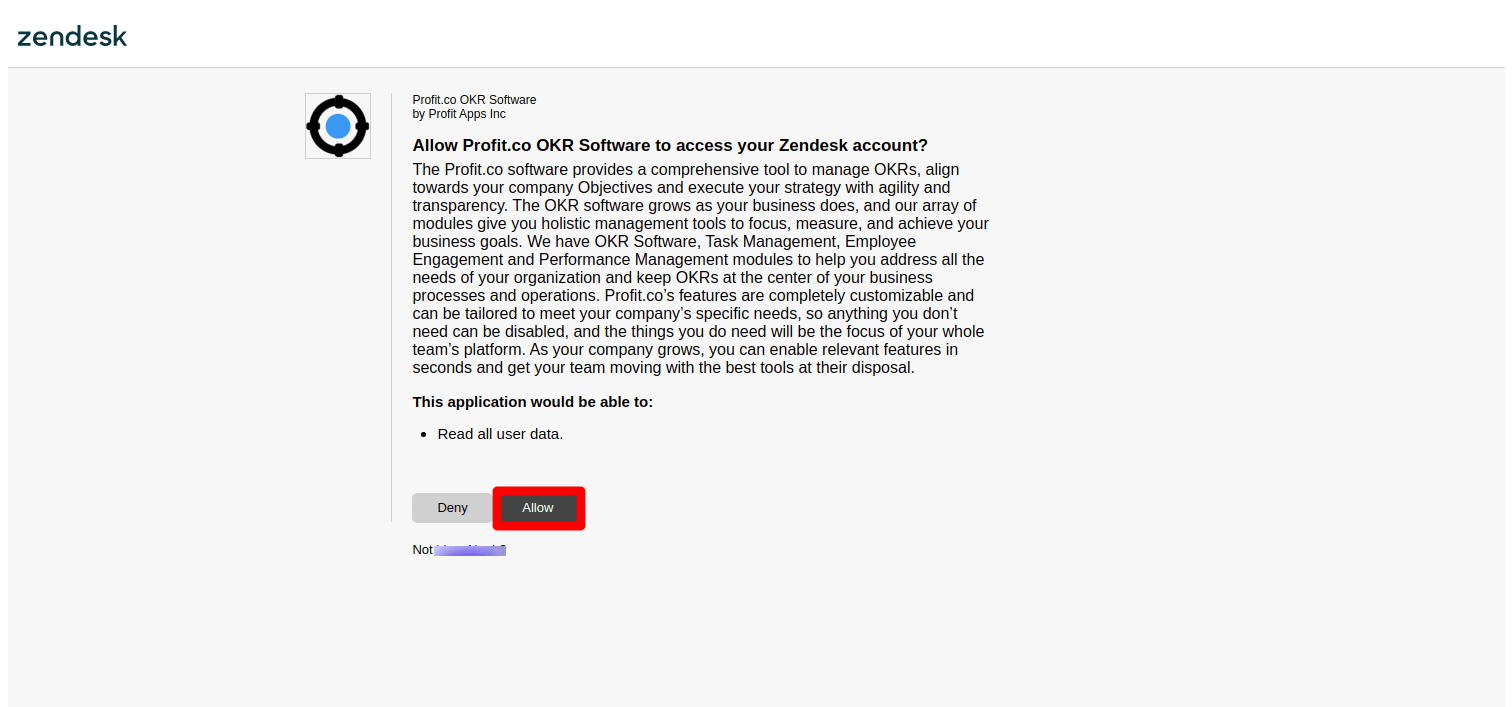
Step 6
The following 6 Default Zendesk KPIs will be added in your Profit.co account.
- # of resolved tickets
- # of satisfied responses
- # of dissatisfied responses
- % of resolved tickets
- % of satisfied responses
- % of dissatisfied responses
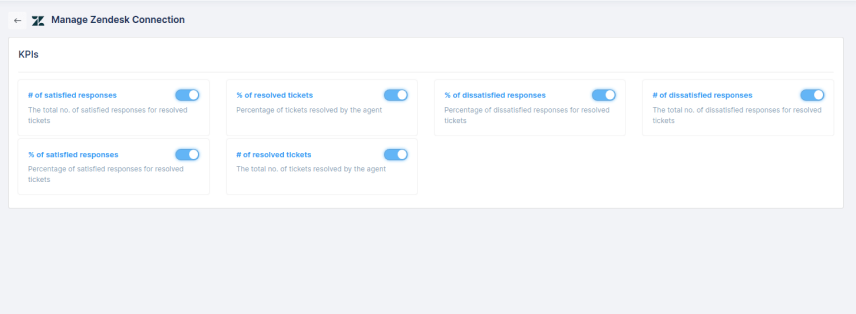
Step 7
Create a Key Result and choose the Increase KPI.
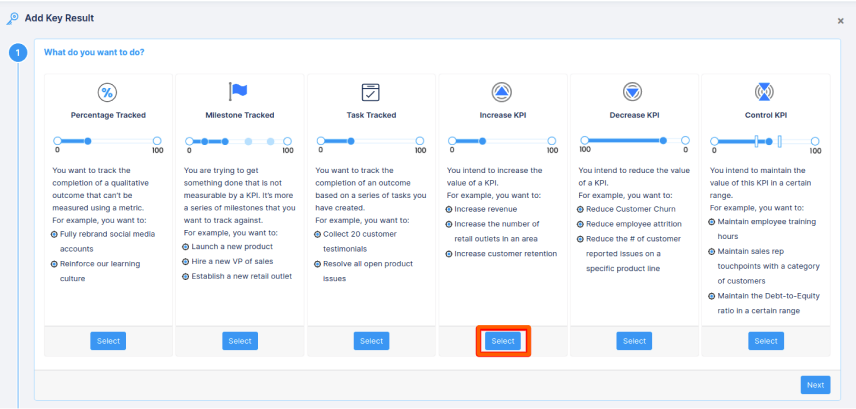
Step 8
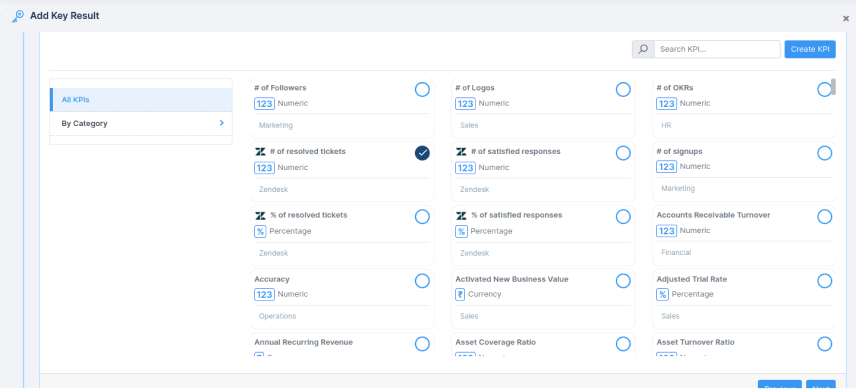
In KPI Section, Select any of the Zendesk KPI.
Step 9
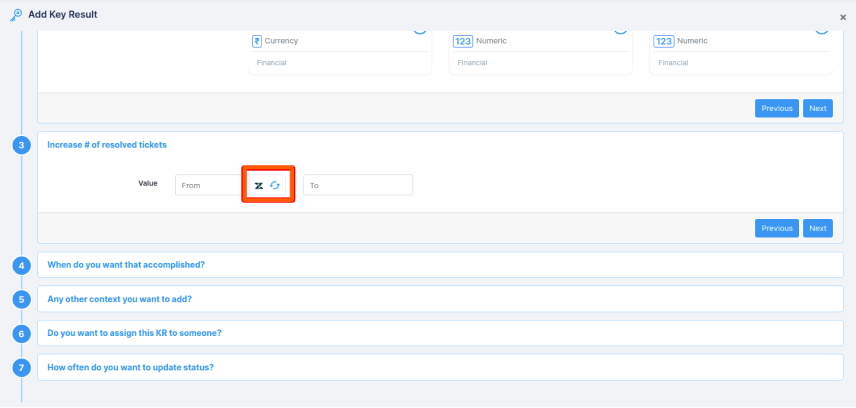
Press the Refresh button to see the current value of the KPI from Zendesk.
Step 10
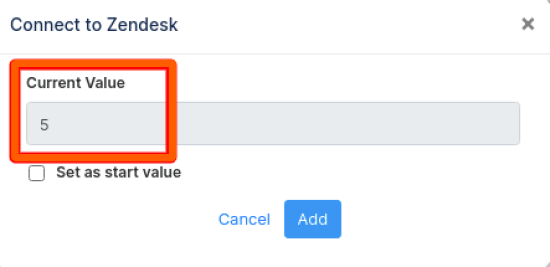
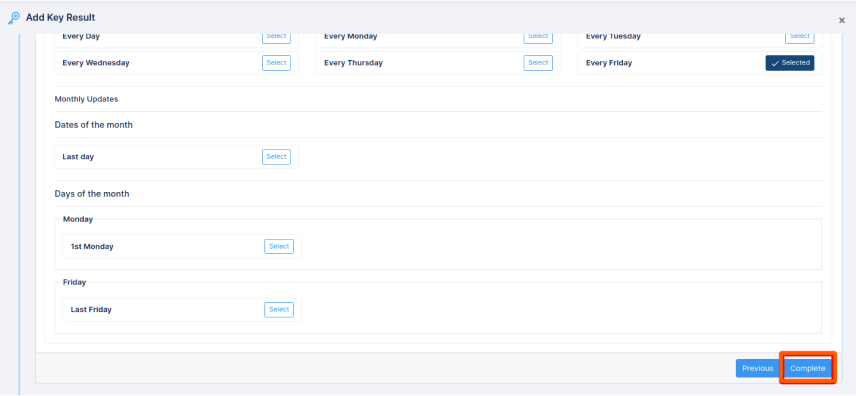
The progress value of the selected KPI will be fetched from Zendesk. Click on Add button and Complete the KR Creation.
Step 11
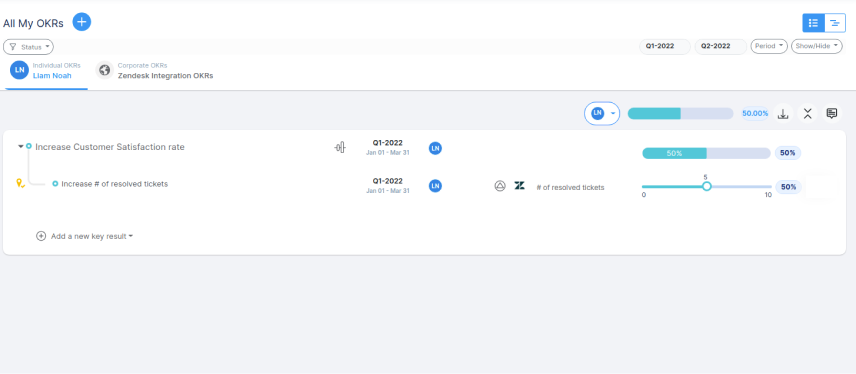
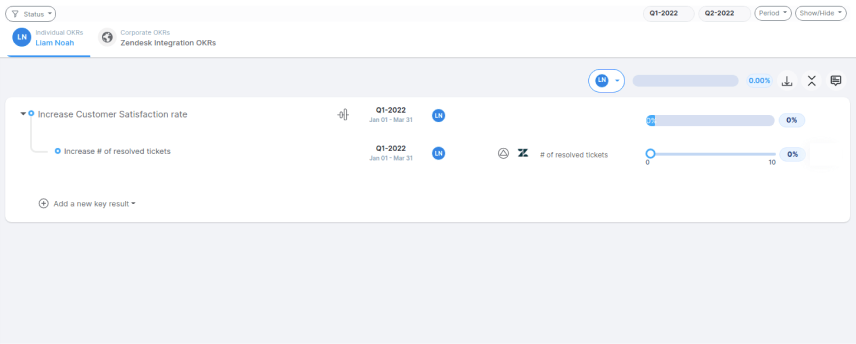
The Zendesk integrated Key Result created in Profit.co
Step 12
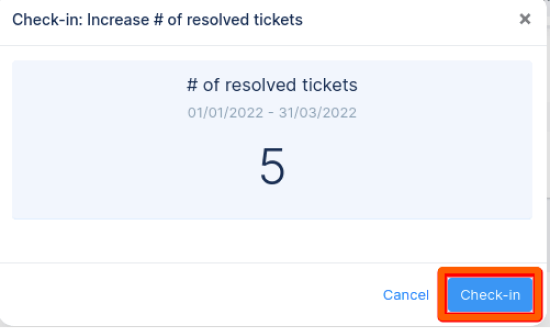
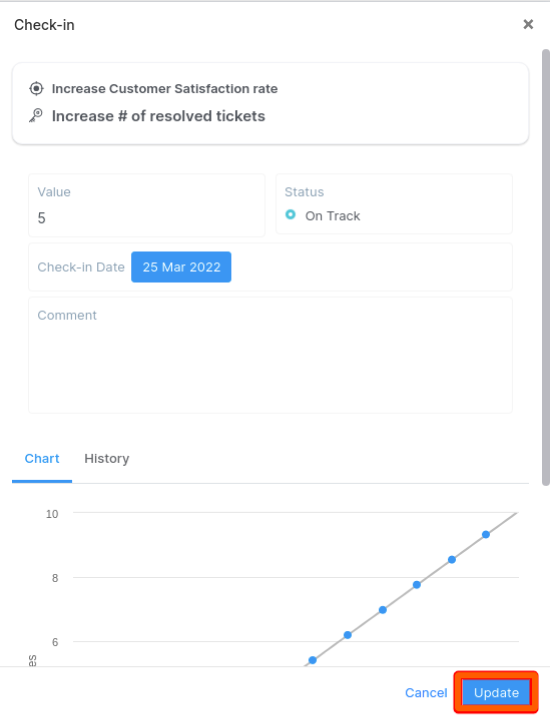
Check-in the Key Result to update the progress from Zendesk.
Step 13
Now the progress value will be updated in the key result.