
MCP (Model Context Protocol) is an open standard that lets AI assistants connect live to external platforms and take action inside them. Profit.co has built an MCP server that works with any MCP-compatible AI tool – including ChatGPT, Claude, Cursor, and Antigravity.
That means your AI assistant doesn't just answer questions about your OKRs – it can act inside Profit.co, all through natural language conversation.
Why Use Profit.co MCP
The Problem
Your team already works inside AI tools like ChatGPT and Claude. But updating an OKR means opening a new tab, navigating to Profit.co, finding your objective, typing the update – and losing your focus. Flow broken. Three minutes gone. Multiplied across every team member, every day.
The Solution
Profit.co MCP eliminates the context switch entirely. Your AI assistant connects live to your Profit.co workspace through a single URL – and everything happens right where you're already working. No tab switching. No navigation. No interruption.
Who Should Use This
For Managers
Stop chasing status updates. Your team checks in when progress happens – not days later when they remember to open Profit.co.
For Contributors
You're already working in ChatGPT or Claude. Now your OKR work happens there too – no switching tools, no forgetting, no friction.
For Distributed Teams
Team members across time zones check in when it's convenient, using the AI tool they're already working in.
What You Can Do
Once connected, your AI assistant has full transactional access to seven core Profit.co capabilities. Not read-only – you can create, update, and complete work.
| Capability | What it does |
|---|---|
| Create Objective | Set up a new objective for your company, team, or yourself. AI helps you structure it properly. |
| Create Key Result | Add measurable key results to any objective. Define targets and track progress over time. |
| Create Task | Break work into actionable tasks. Set due dates and track completion instantly. |
| Update Task | Update task name, due date, status, priority, description, and comments conversationally. |
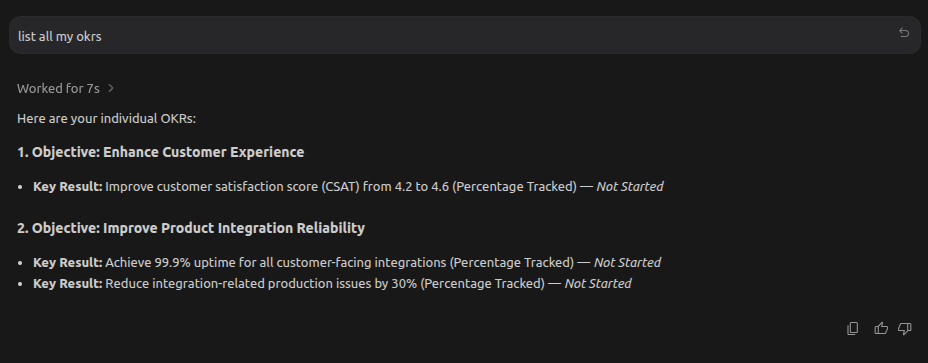
| View Your OKRs | See your objectives and key results at any time. Ask for status, progress, or specific goals. |
| View Pending Actions | Check what needs your attention right now—overdue tasks, blocked items, and urgent updates. |
| Check In | Submit progress updates for your key results. Update status in seconds without opening another tab. |
How to Connect
MCP Server URL
This single URL works across all supported AI platforms. Copy it before starting setup.
https://integrations.profit.co/mcpAfter you add this URL, each platform will prompt you to sign in with your Profit.co credentials via OAuth.
Note on authentication: Profit.co now supports both username/password login and SSO (Single Sign-On) when connecting through MCP. If your organization uses SSO, you can authenticate using your SSO credentials, or you can continue to use your individual Profit.co username and password.
ChatGPT
Requirement: ChatGPT Plus or Enterprise to use third-party apps.
Step 1: Go to Apps
In ChatGPT, navigate to Apps from the left navigation panel.
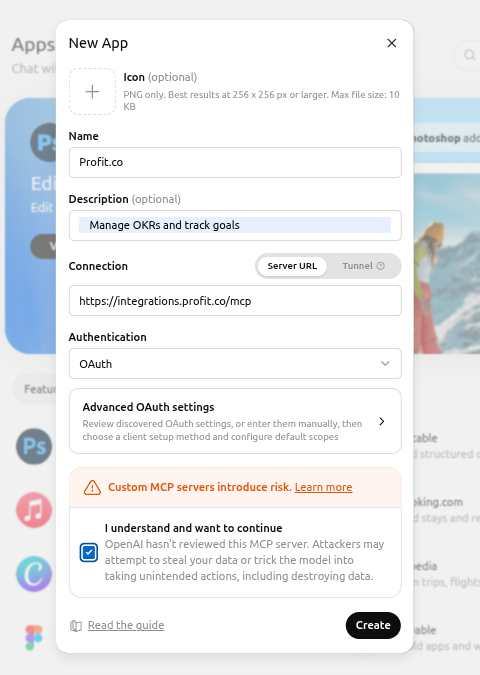
Step 2: Create the App
Click Settings.
Click Create App.
Fill in the following details:
- Name: Profit.co
- Description: Connect Profit.co to manage OKRs, tasks, and check-ins from ChatGPT.
- MCP URL: https://integrations.profit.co/mcp
Step 3: Connect
Click Connect. The integration will be active immediately.
Step 4: Start Using Profit.co in ChatGPT
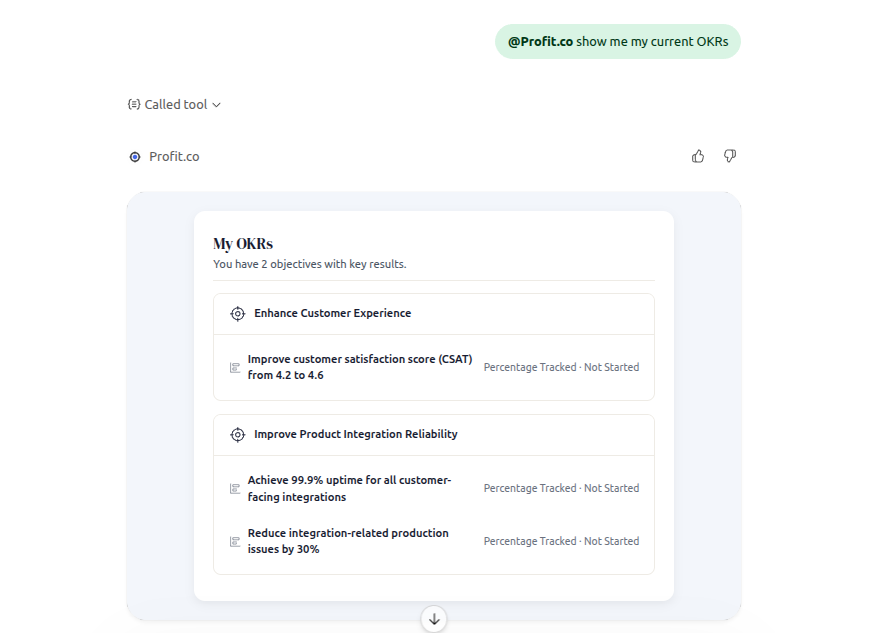
To start, type @profit.co in any ChatGPT conversation:
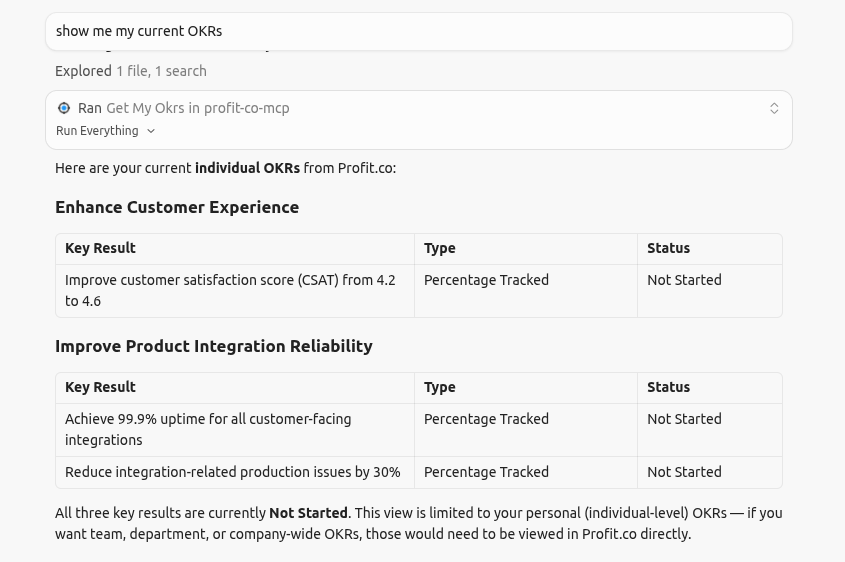
@profit.co show me my current OKRs
After the first @profit.co tag, all commands in that chat go directly to Profit.co – you do not need to type it again.
Claude
Step 1: Add the Connector
Open claude.ai and click your profile name (bottom left) → Settings.
Navigate to the Connectors section.
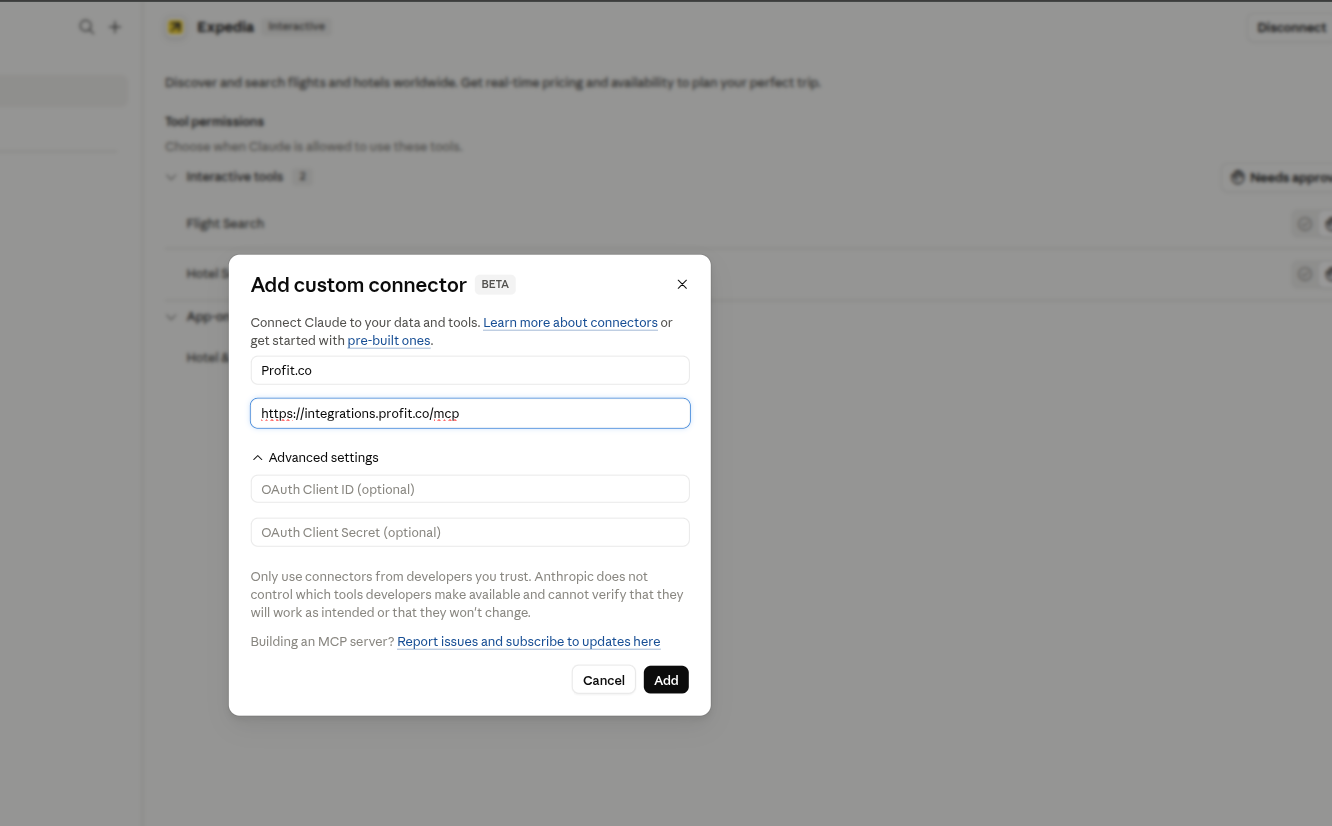
Click Add custom connector.
Paste the MCP URL: https://integrations.profit.co/mcp and click Add.
Step 2: Authenticate Your Account
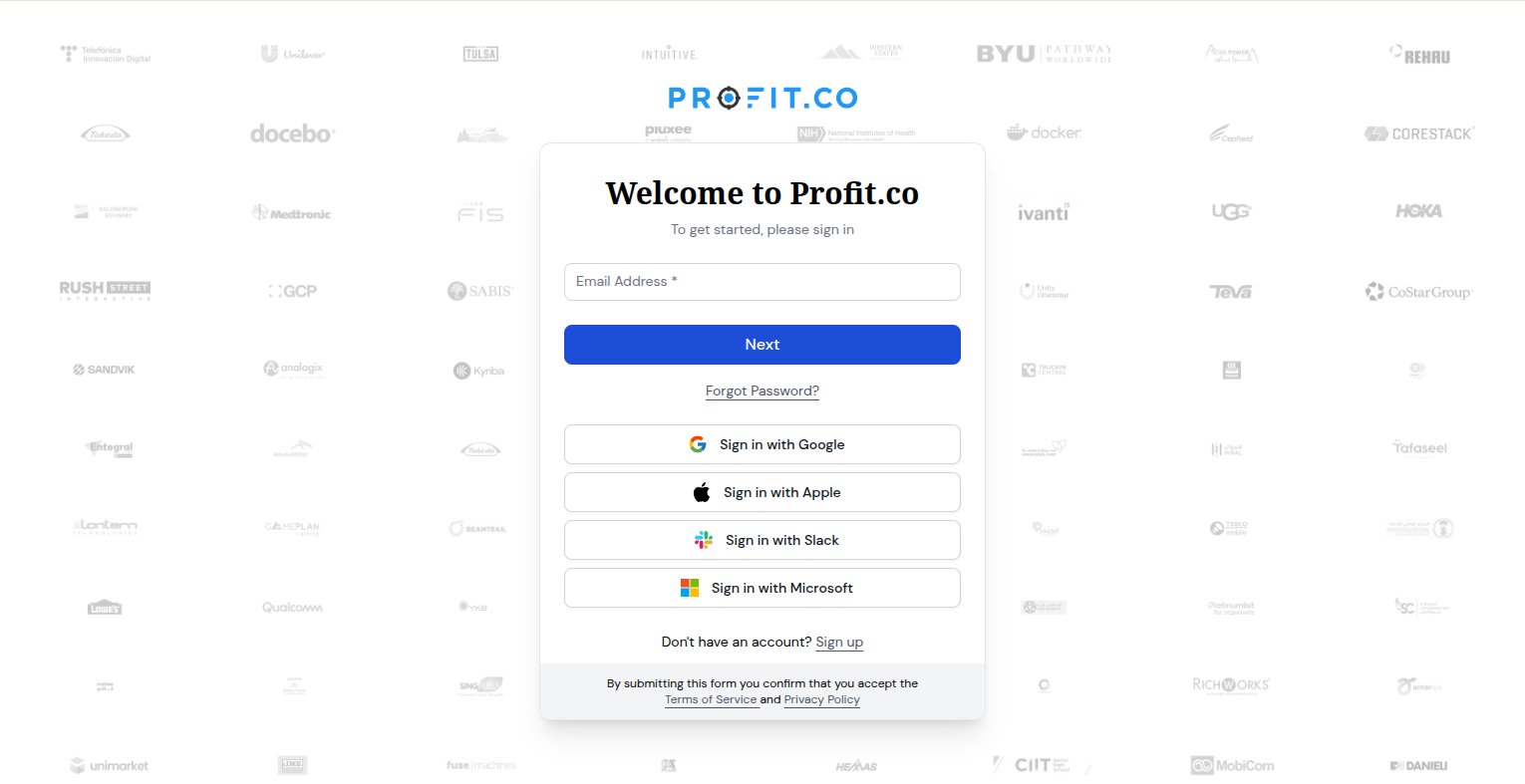
Follow the OAuth prompt that appears.
Sign in with your Profit.co credentials when redirected.
Step 3: Start Using Profit.co in Claude
In any conversation, click the Search and tools icon (lower-left of the chat input).
Find Profit.co under Connectors and toggle it on.
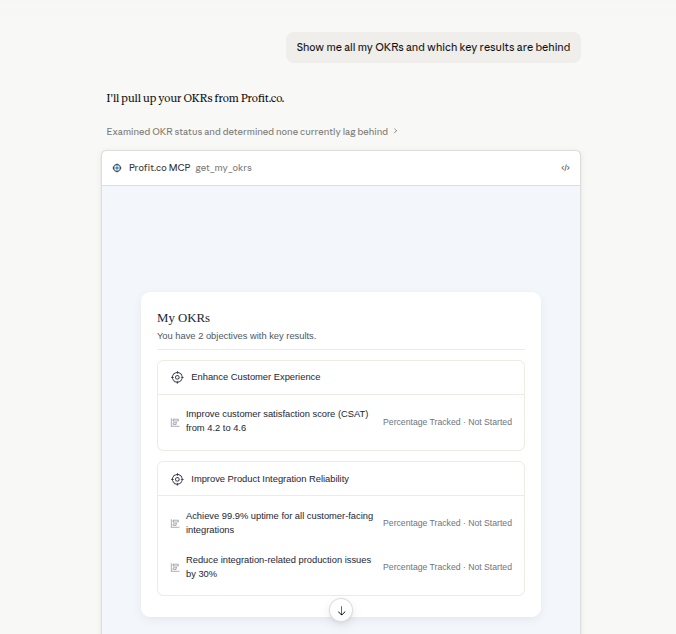
Start your request – for example:
Show me all my OKRs and which key results are behind.
The connector must be toggled on per conversation. It does not auto-enable in every new chat.
For Claude Desktop: Open Claude Desktop → Settings → Connectors → Add custom connector → paste the MCP URL and authenticate.
For Claude Code (CLI):
claude mcp add profit-co https://integrations.profit.co/mcp -t http
Cursor
Step 1: Open MCP Config
Press Cmd+, (Mac) or Ctrl+, (Windows/Linux) to open Settings.
Navigate to Features → MCP → Edit MCP config.
This opens (or creates) the file ~/.cursor/mcp.json.
Step 2: Add Profit.co
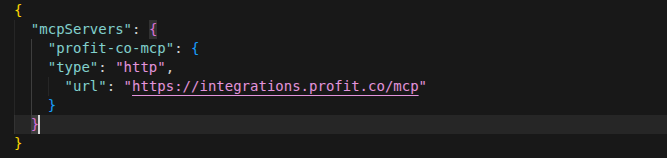
Add the following. If the file already has entries, add the profit-co block inside the existing mcpServers object – do not replace the whole file.
{ "mcpServers": { "profit-co": { "type": "http", "url": "https://integrations.profit.co/mcp" } } }
Step 3: Restart and Authenticate
Save the file and fully restart Cursor.
Open the MCP Tools panel in the agent sidebar – Profit.co should appear.
Authenticate when prompted.


Antigravity (Google)
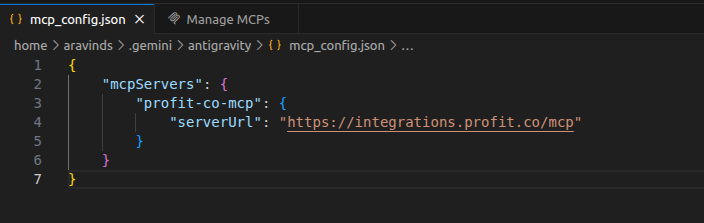
Important: Antigravity requires serverUrl – not url – for HTTP-based MCP servers. Using a URL will cause the connection to fail silently.
Step 1: Open MCP Config
Click the … (three dots) menu in the top-right of the agent panel.
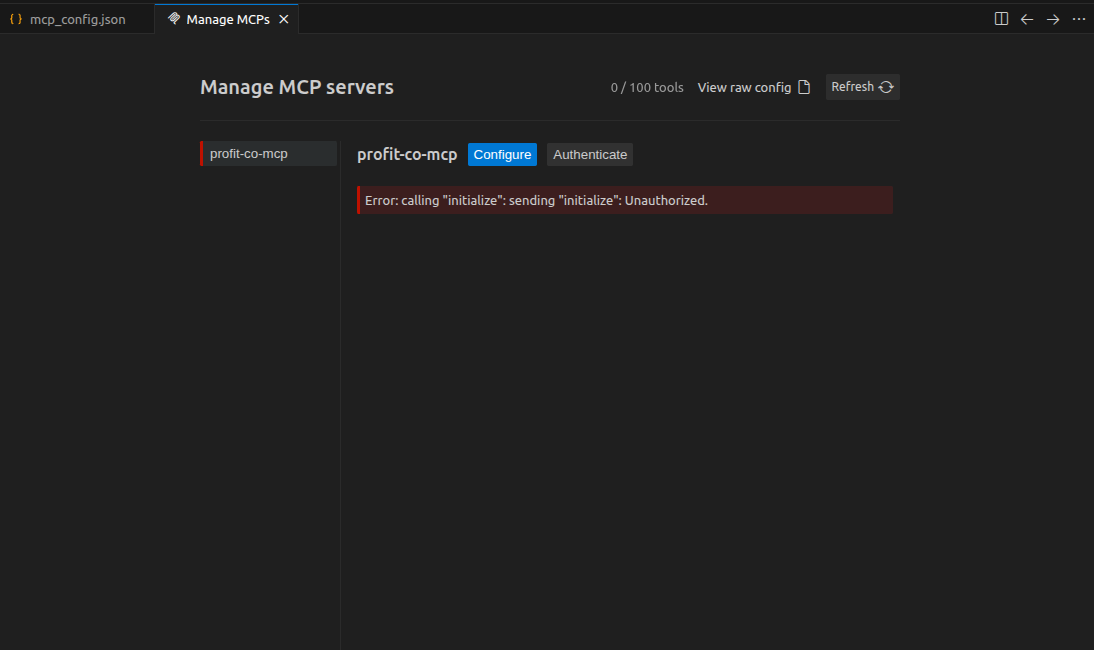
Select MCP Servers → Manage MCP Servers → View raw config.
This opens mcp_config.json at:
- Mac / Linux: ~/.gemini/antigravity/mcp_config.json
- Windows: C:\Users\<USERNAME>\.gemini\antigravity\mcp_config.json
Step 2: Add Profit.co
{ "mcpServers": { "profit-co": { "serverUrl": "https://integrations.profit.co/mcp" } } }
Step 3: Restart and Authenticate
Save the file, fully close, and reopen Antigravity.
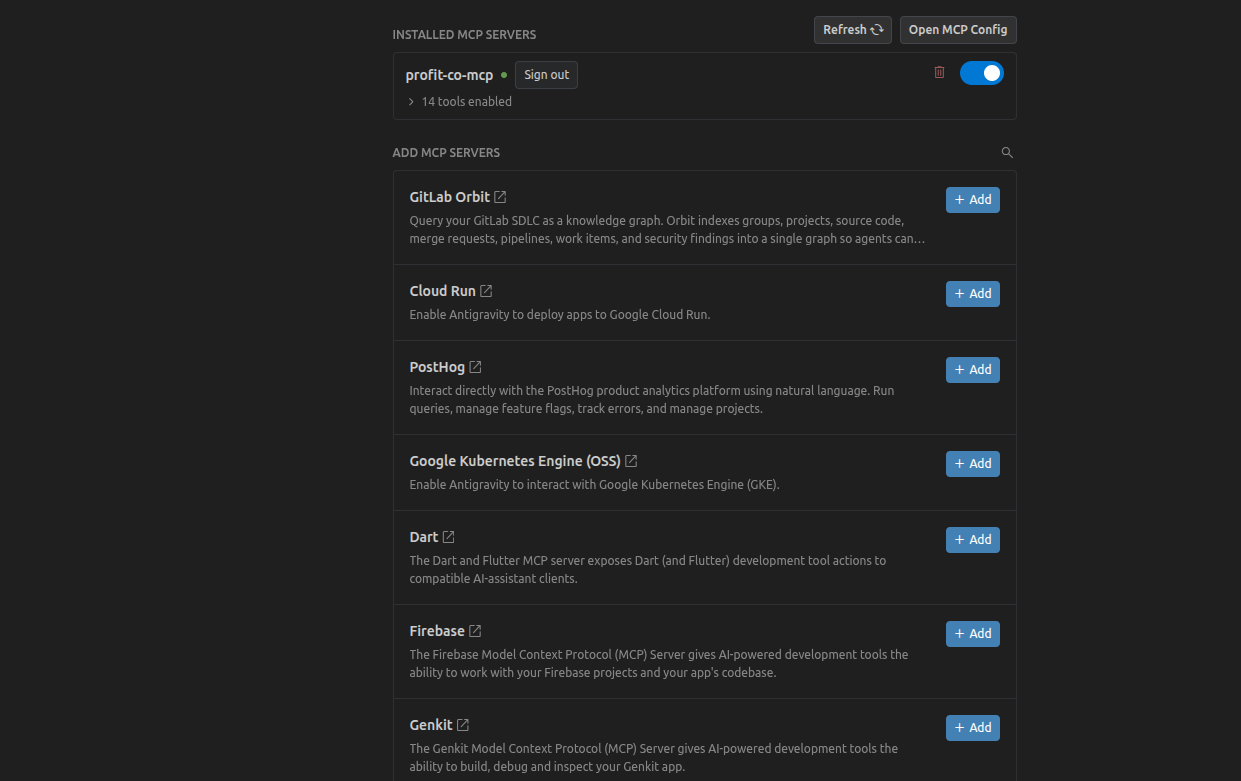
Type /mcp in the agent chat to verify the connection.
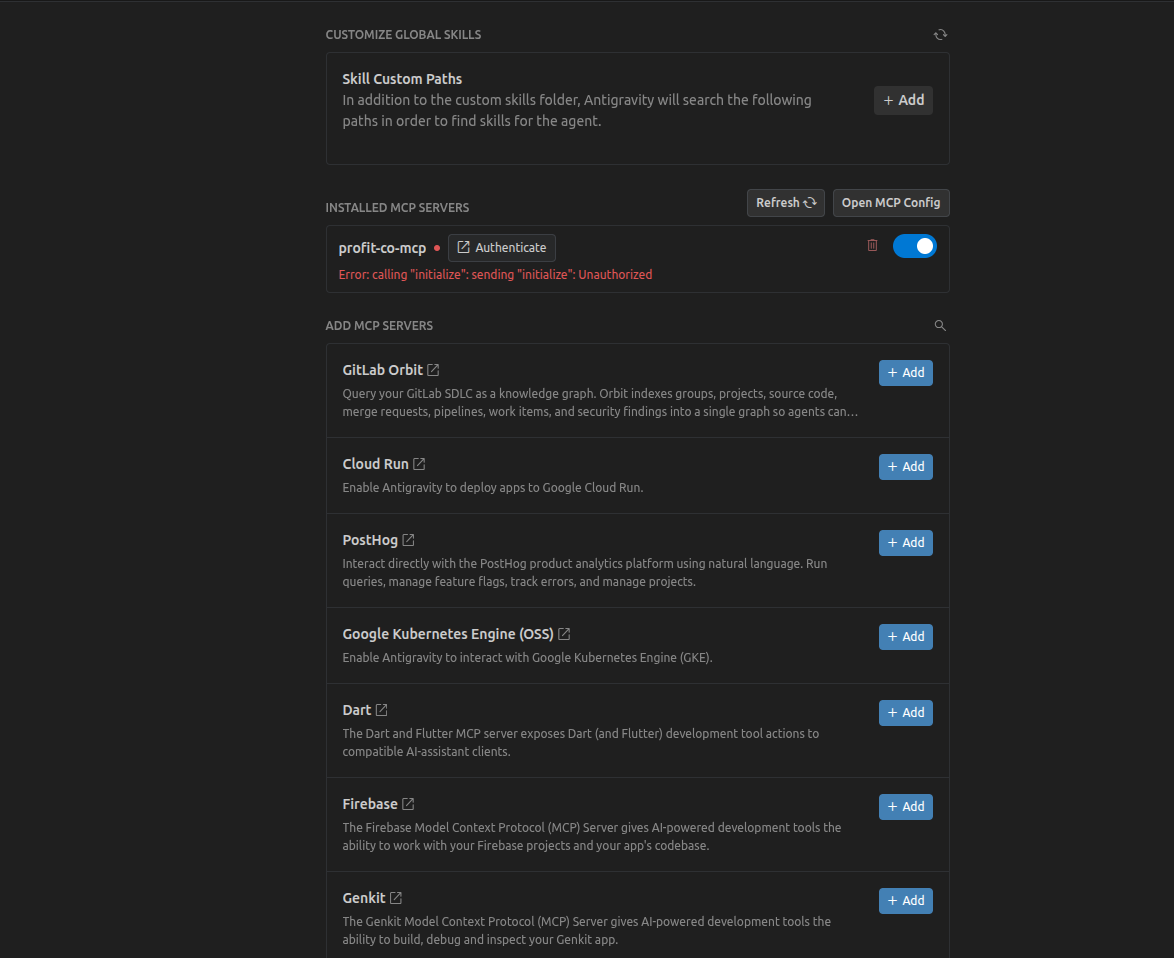
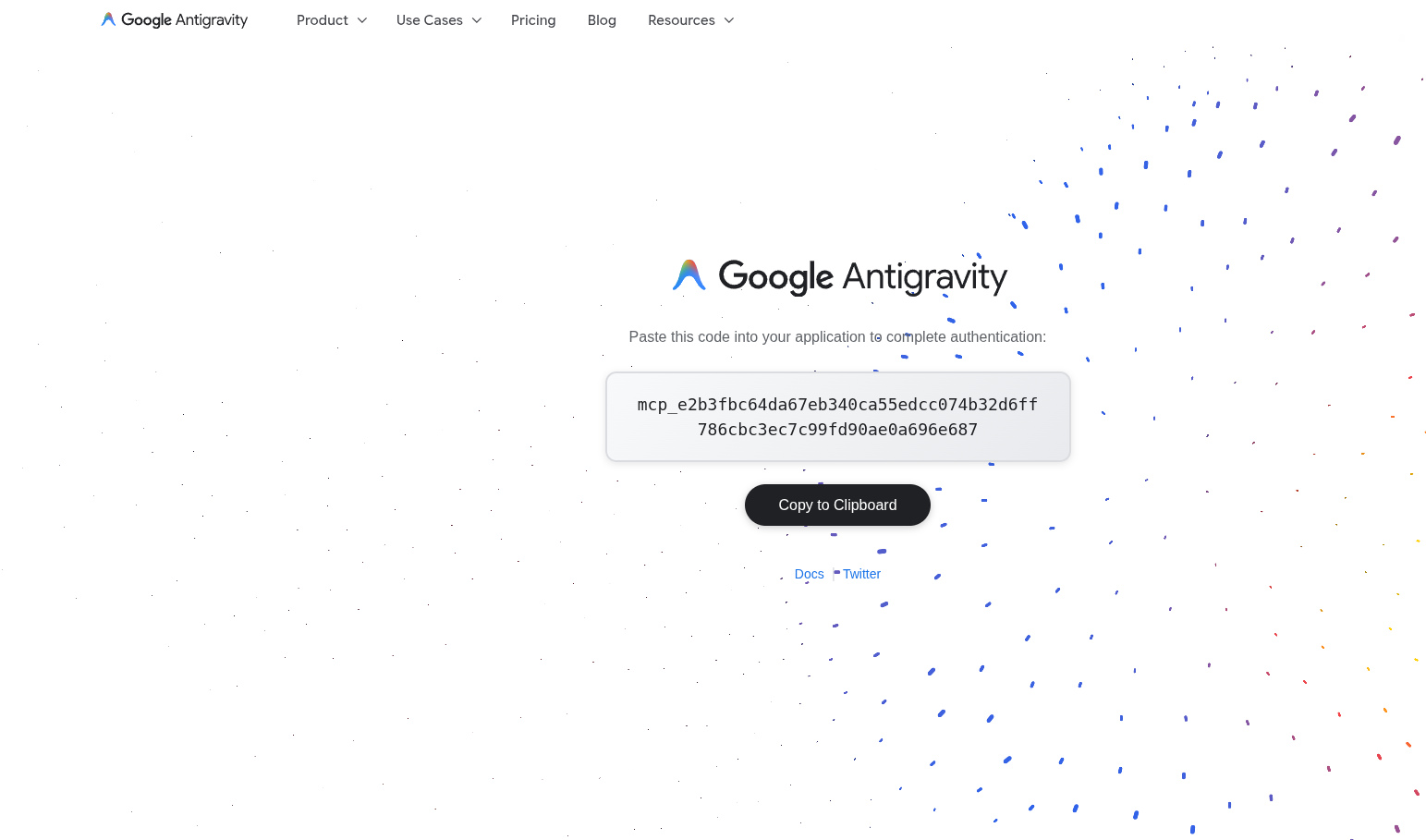
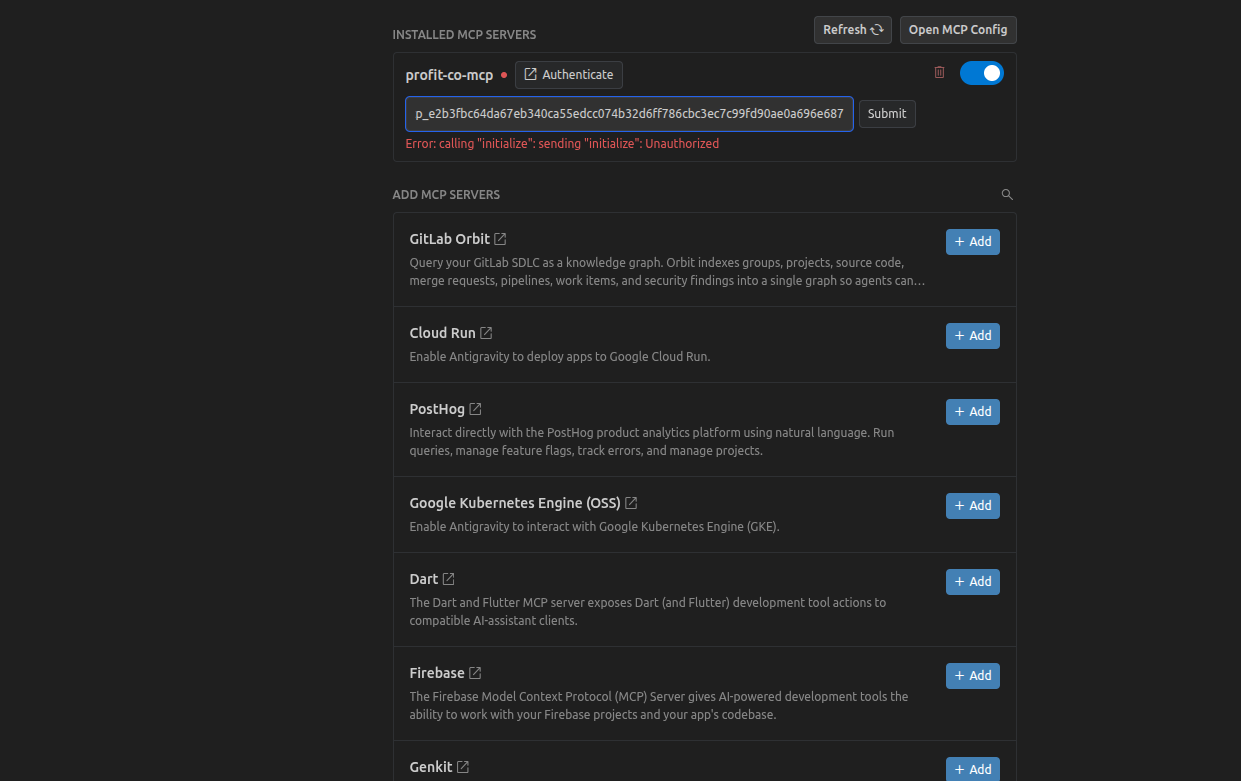
Select Authenticate, complete the browser OAuth flow, and paste the auth code back in the prompt.
Managing Your Connection
Staying Connected
Once you connect Profit.co to your AI platform, the integration stays active across all sessions. You do not need to reconnect each time you use it.
Disconnecting Profit.co
- ChatGPT: Settings → Connected Apps → Find Profit.co → Click Disconnect.
- Claude: Settings → Connectors → Find Profit.co → Remove.
- Cursor: Remove the profit-co block from ~/.cursor/mcp.json and restart Cursor.
- Antigravity: Remove the profit-co block from mcp_config.json and restart Antigravity.
Disconnecting removes the integration from your AI tool. Your data in Profit.co remains completely unaffected.
For any other MCP-compatible AI tool, remove the Profit.co server URL from that tool's MCP configuration settings and restart the application.
Security & Privacy
How Authentication Works
When you connect Profit.co to your AI platform, a secure OAuth 2.0 flow is initiated:
- Your AI platform generates a unique state identifier for your session.
- You authenticate with Profit.co using your credentials.
- Profit.co generates an authorisation code linked to that state.
- Your AI platform exchanges the code for access tokens.
- Tokens are stored securely for ongoing authentication.
Access Permissions
Same permissions as Profit.co: You only see data you are authorised to access. If an OKR is private to you in Profit.co, it stays private in your AI tool.
Data storage: Your AI assistant processes your commands and sends them to Profit.co’s secure servers. It does not store your OKR data. All data remains in Profit.co’s secure infrastructure.