Calendar, you can quickly schedule meetings and events and get reminders about upcoming activities, so you always know what’s next.
What you can do with Google Calendar and Profit.co integration?
- Check availability for your Google calendar in Profit.co Meetings page you can sync your Profit.co and Google calendar and can access your calendar directly.
- No need to switch platforms to check time availability on the calendar, instead stay at Profit.co and access your Google calendar.
Configure Profit.co with Google Calendar ?
Note: Only Super Users can be able to configure the Profit.co <>Google Calender Integrations.
Step 1
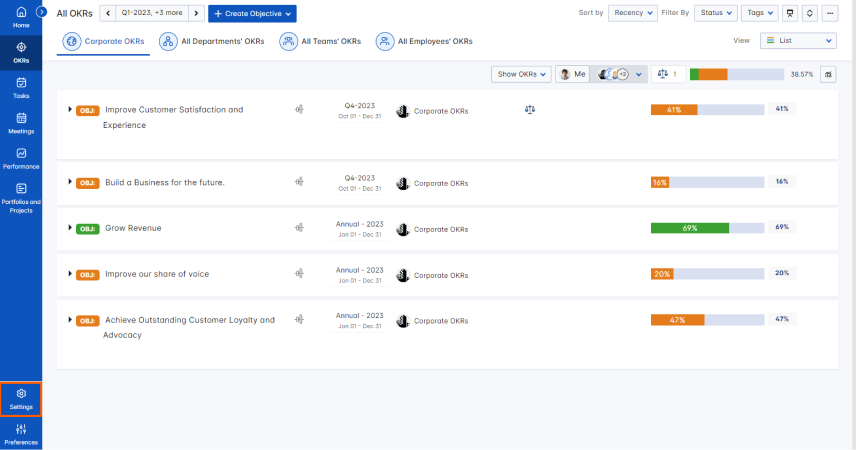
Navigate to Settings from the left navigation panel.
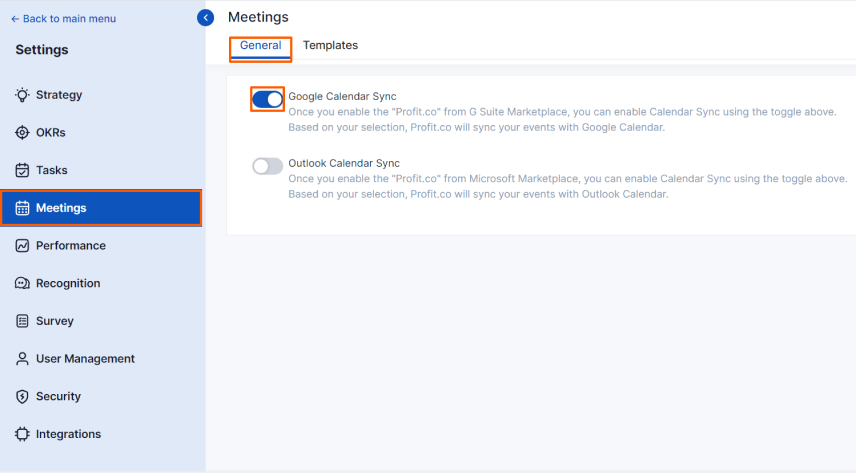
Click on the Meetings. On the Meetings page, Select the General tab and Enable the Google Calendar sync toggle.
Step 2
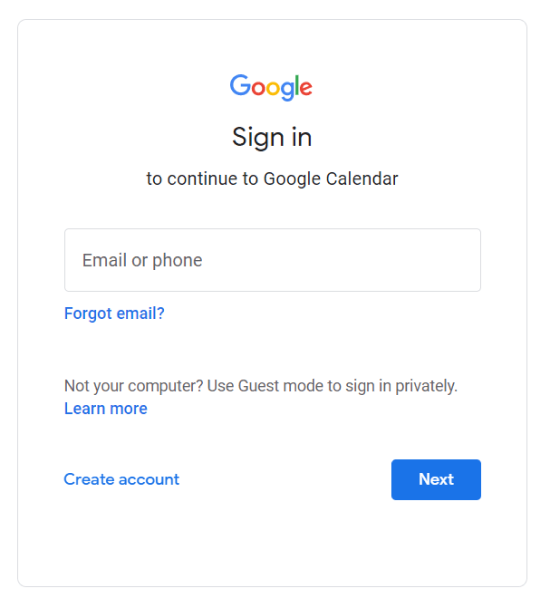
Open a new tab and log in the google account which we have given below
Login with your Google credentials.
After logging in search Google Marketplace.
https://workspace.google.com/marketplace/
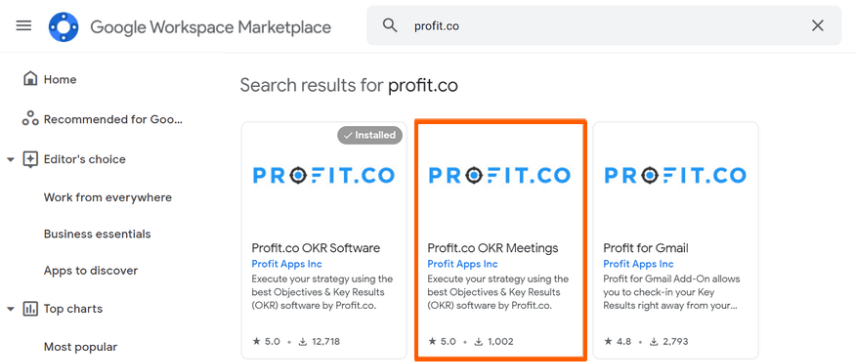
Search for Profit.co and install the application Profit for OKR Meetings.
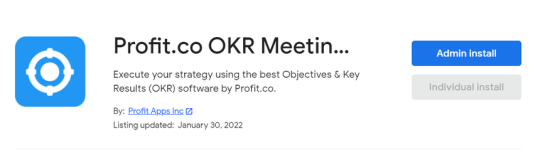
Install the application.
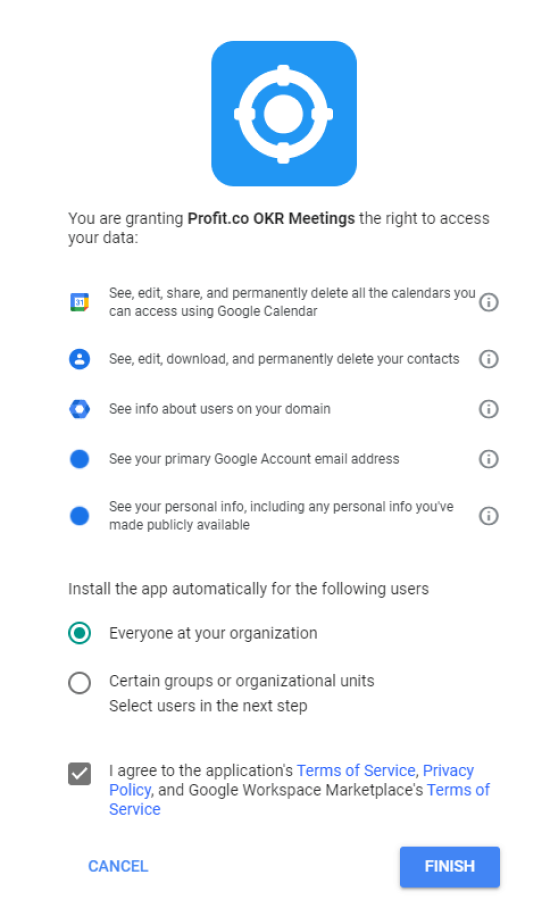
Allow data for access and click Finish.
Step 3
Navigate to Meetings from the left navigation panel and initiate a Meeting.
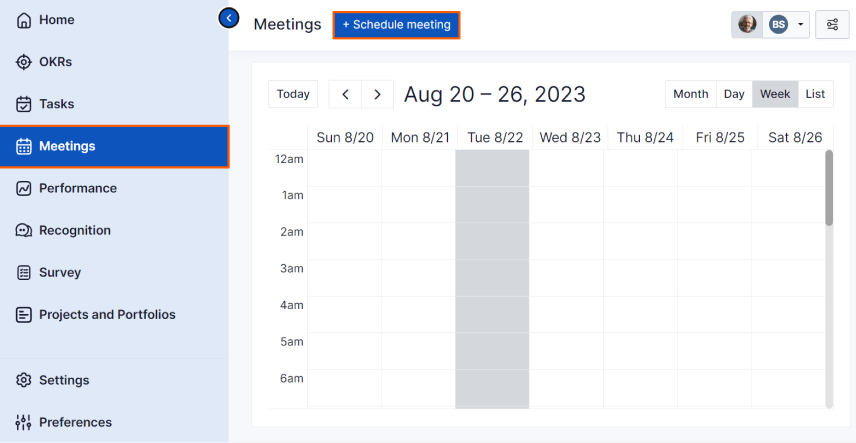
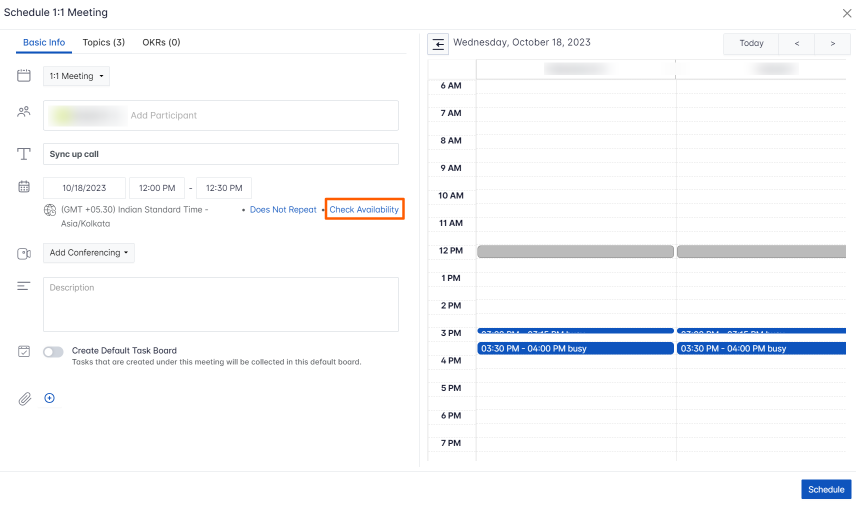
Before Scheduling the Meeting Check for Availability.
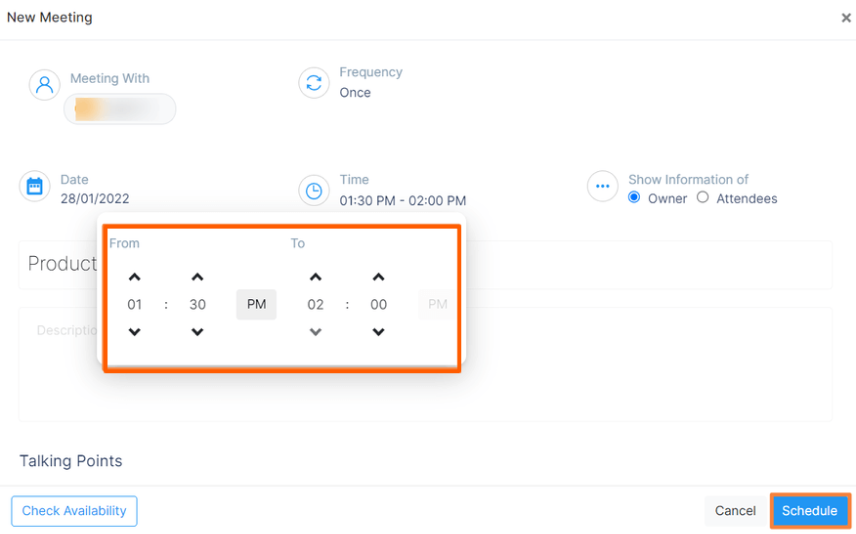
Then, Schedule a meeting.
Step 4
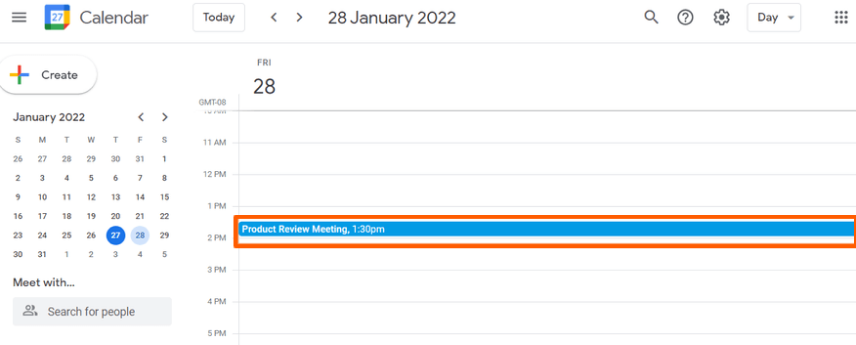
If you create any Meetings from our own Profit.co account, it’ll be reflected in your Google Calendar.
Note: When a user schedules a meeting within Profit.co, it will seamlessly sync with your Google Calendar. Likewise, if a user sets up a meeting using Google Calendar, it will automatically reflect in your Profit.co account.