
Overview
Google Analytics is a web analytics platform that tracks and reports website and app traffic, user behavior, and engagement metrics. It gives organizations visibility into how users interact with their digital properties.
The Google Analytics integration with Profit.co allows you to bring Google Analytics metrics into Profit.co as KPIs. Once connected, these KPIs can be linked to Key Results, synced on demand, and used to check in Key Results with live Google Analytics data.
What This Integration Supports
With the Google Analytics integration, you can:
- Connect your Google Analytics account and enable the specific properties you want to track
- Create KPIs mapped to Google Analytics metrics, with control over measurement type, digit format, decimals, and rounding
- Link Key Results to Google Analytics KPIs using the Increase KPI, Decrease KPI, or Control KPI key result types
- Sync current KPI values from Google Analytics on demand
- Check-in Key Results directly using live Google Analytics data
Prerequisites
- An active Google Analytics account with access to the properties you want to track
- A Google account with permission to grant Profit.co access to your Google Analytics data
- Super User access in Profit.co
Note: Only Super Users can configure this integration in Profit.co.
Configure Google Analytics in Profit.co
The following steps walk through connecting Google Analytics to Profit.co, creating a KPI, and linking it to a Key Result.
Step 1
Navigate to the Google Analytics connector in Profit.co to begin the setup.
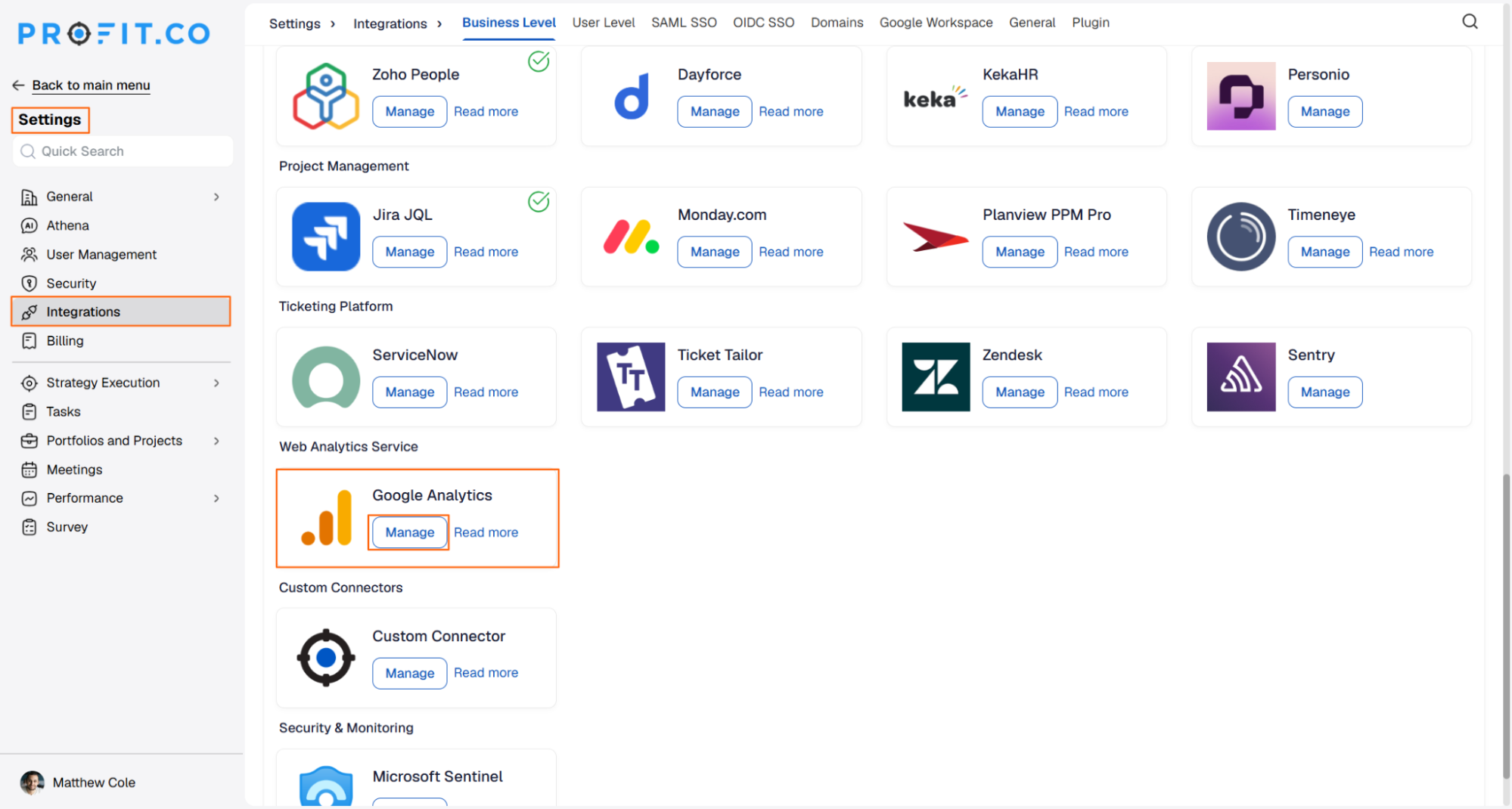
- Navigate to Settings from the left navigation panel.
- Click Integrations and select the Business Level tab.
- Locate Google Analytics and click the Manage button.
Step 2
Connect your Google account to establish the integration.
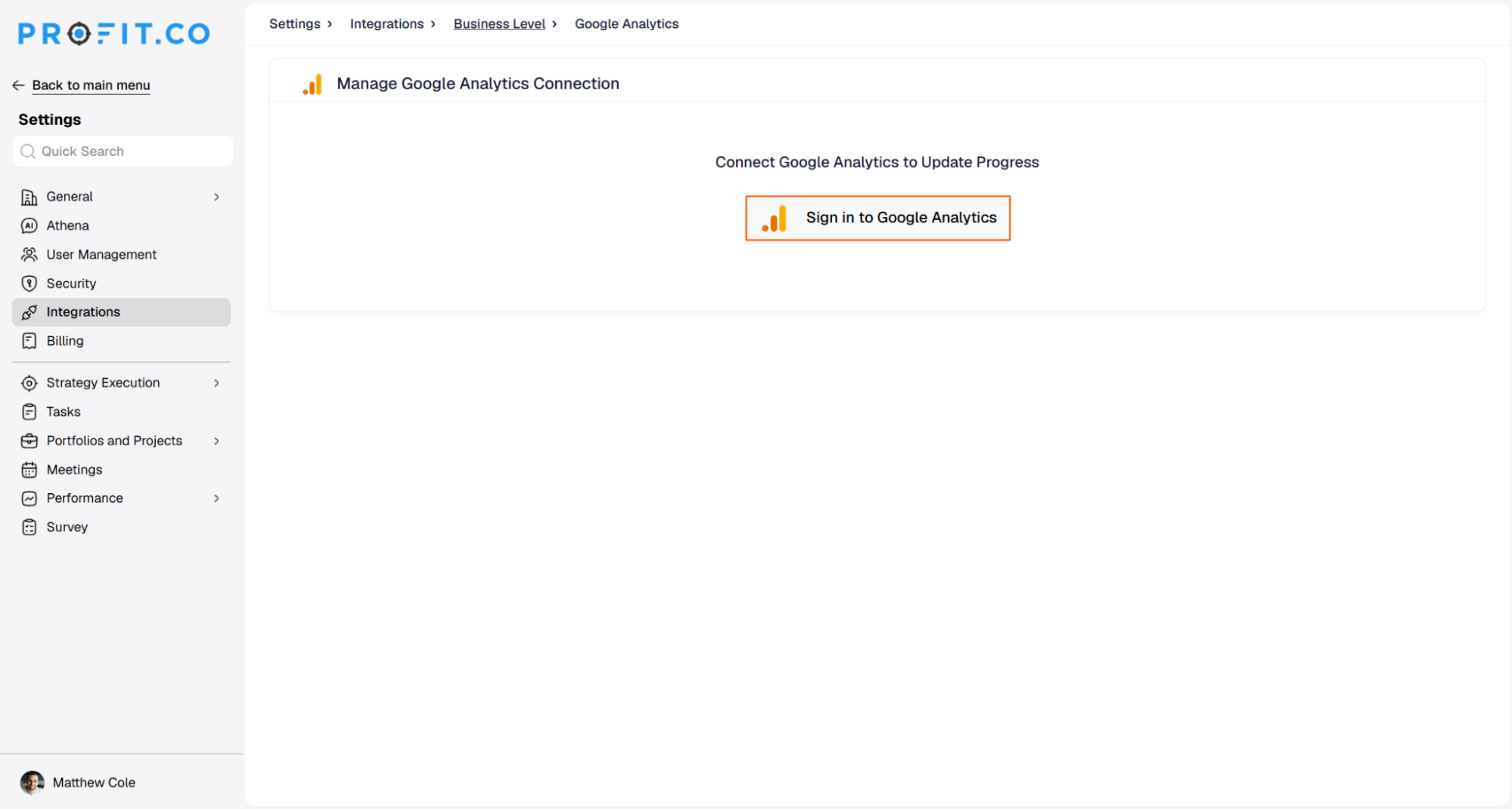
- Click Sign in to Google Analytics. You will be redirected to the G Suite connectors page.
- Sign in to your Google account.
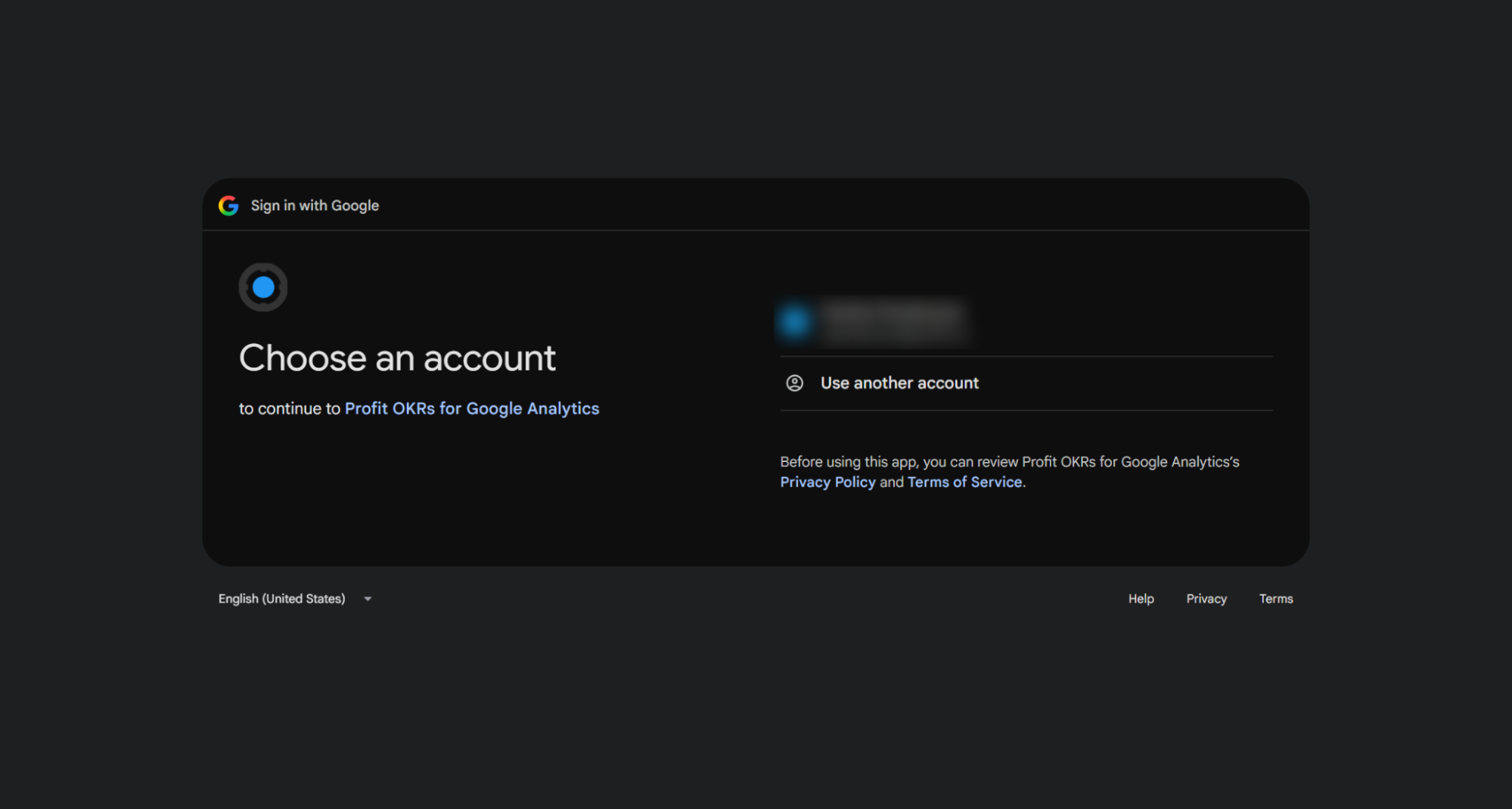
- Click Continue to allow Profit.co to access your Google Analytics data. The connection will be established automatically.
Step 3
Once the connection is established, choose which Google Analytics properties to track.
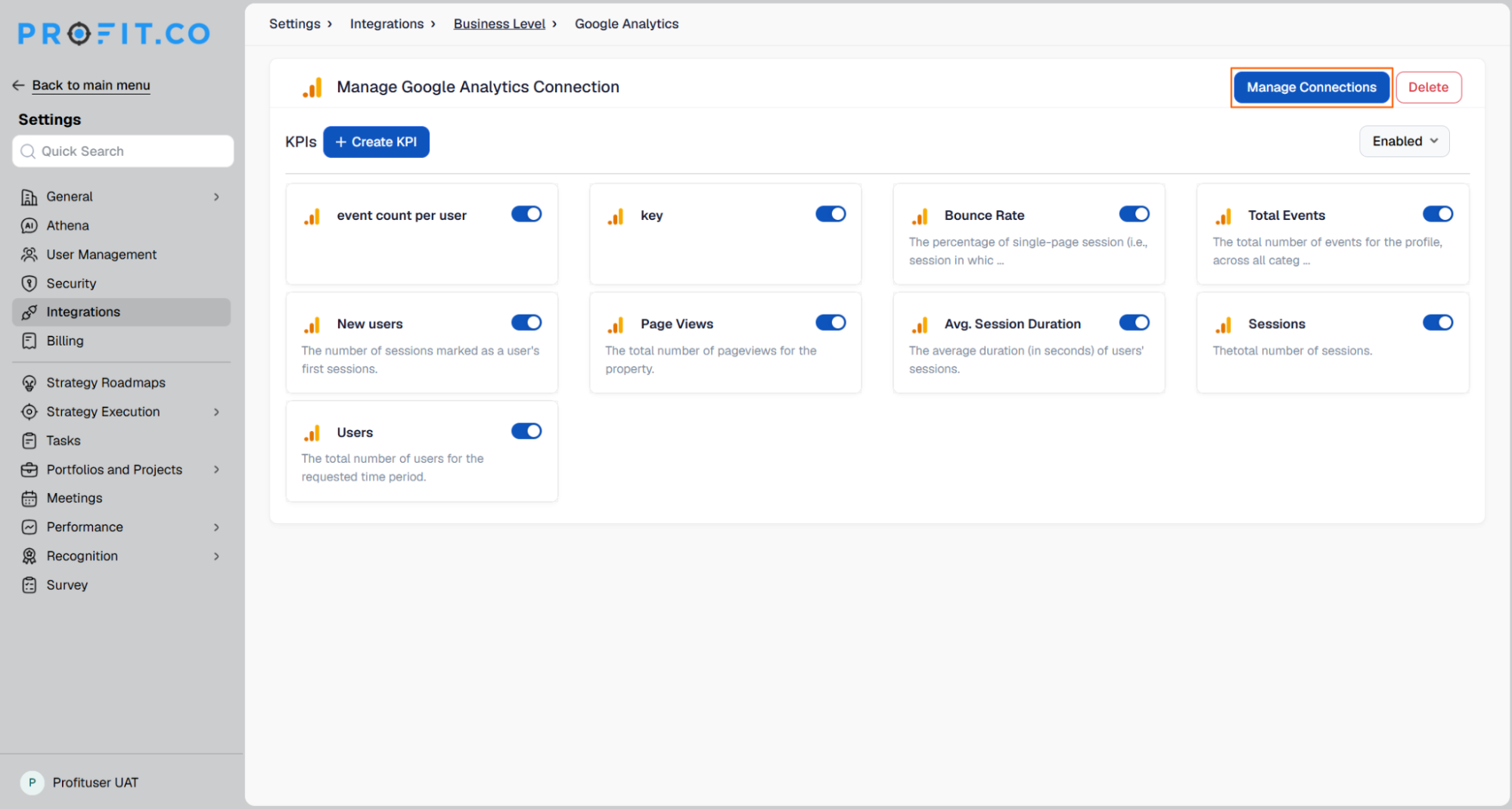
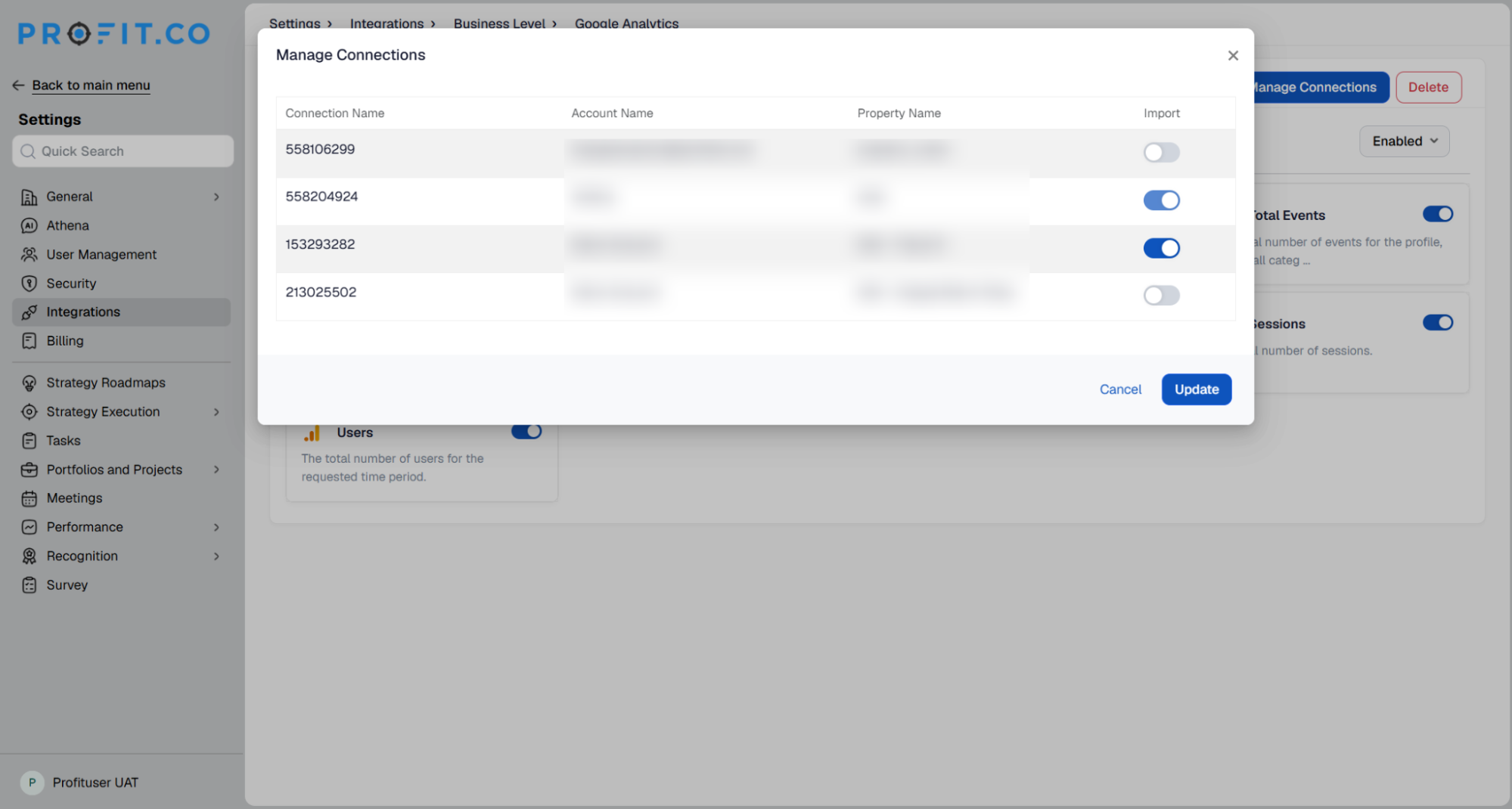
- In Manage Connections, click the connection to view its list of properties.
- Enable the toggle next to each property you want to track in Profit.co.
Step 4
Once the connection is created, Profit.co automatically lists eight default KPIs sourced from Google Analytics.
KPI Description Ad Cost Tracks the total amount spent on paid advertising campaigns connected to the Google Analytics property.
Bounce Rate The percentage of single-page sessions, that is, sessions in which there was no interaction beyond the initial page load.
Total Events The total number of events recorded for the profile, across all event categories.
New Users The number of sessions marked as a user’s first session.
Page Views The total number of pageviews for the property.
Sessions The total number of sessions.
Users The total number of users for the requested time period.
Avg. Session Duration The average duration, in seconds, of users’ sessions.
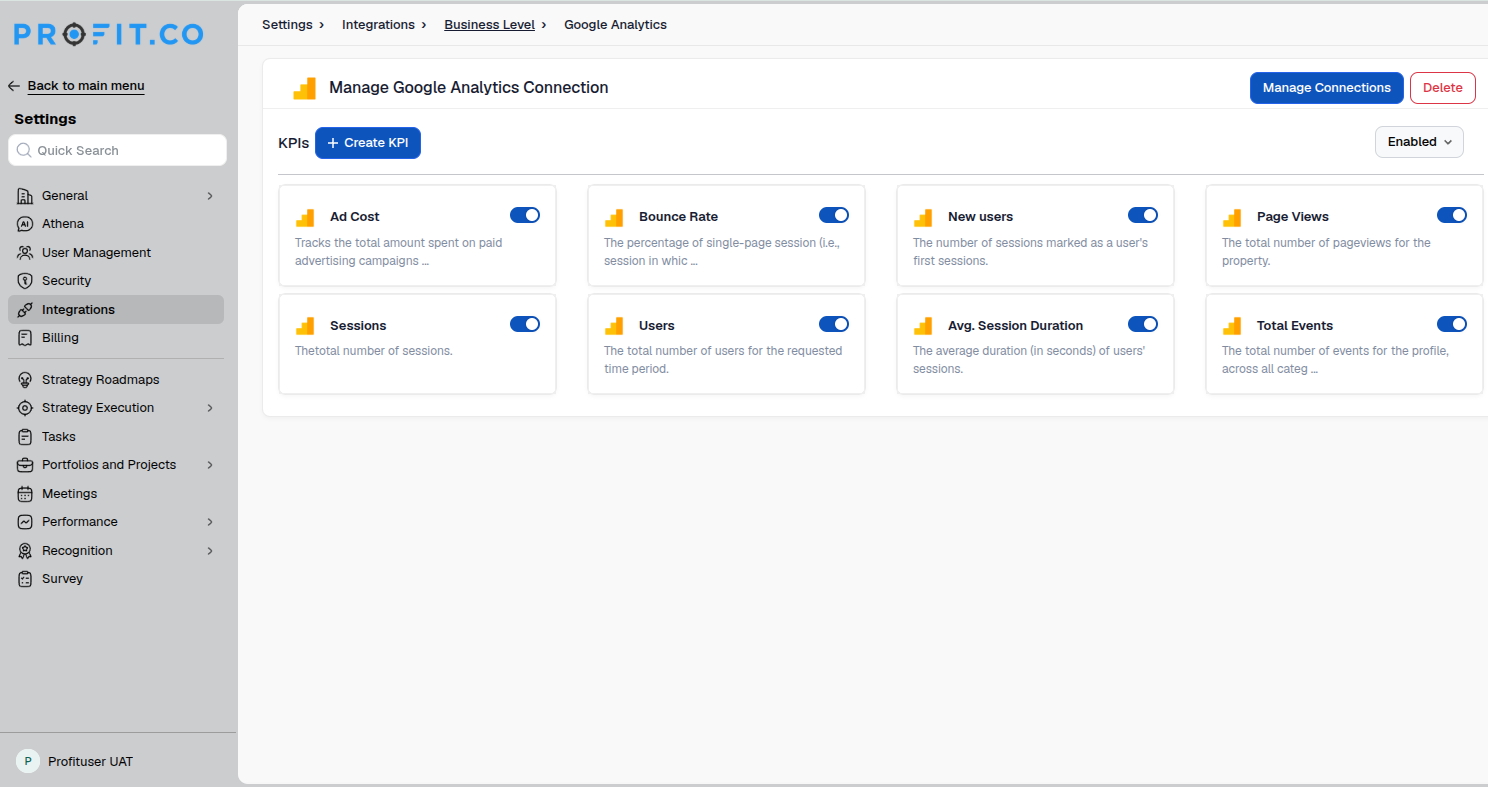
Note: Each seeded KPI can be edited to update its name, category, measurement type, or other settings. Use the toggle next to a KPI, or the Enabled filter at the top of the list, to enable or disable it.
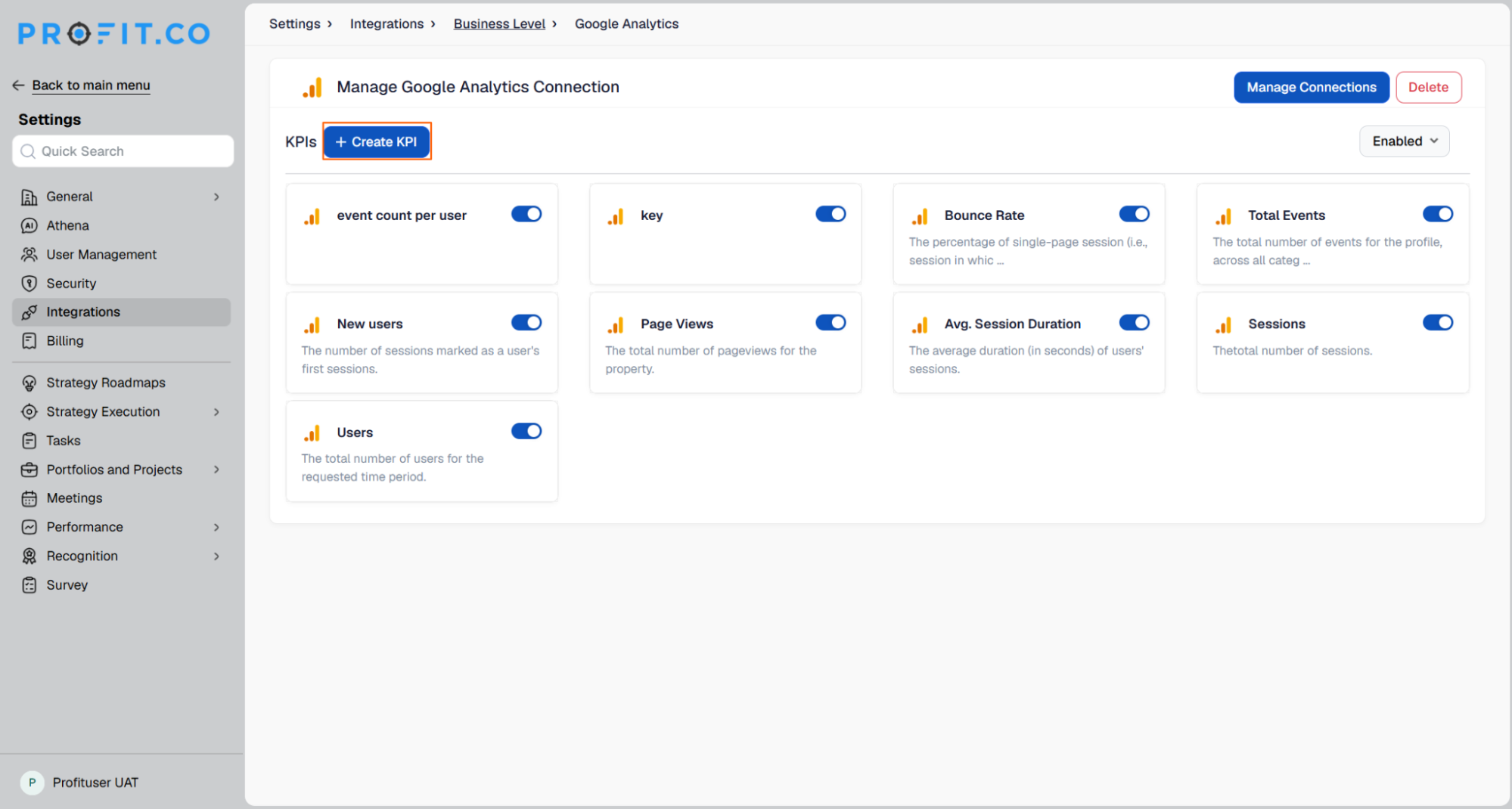
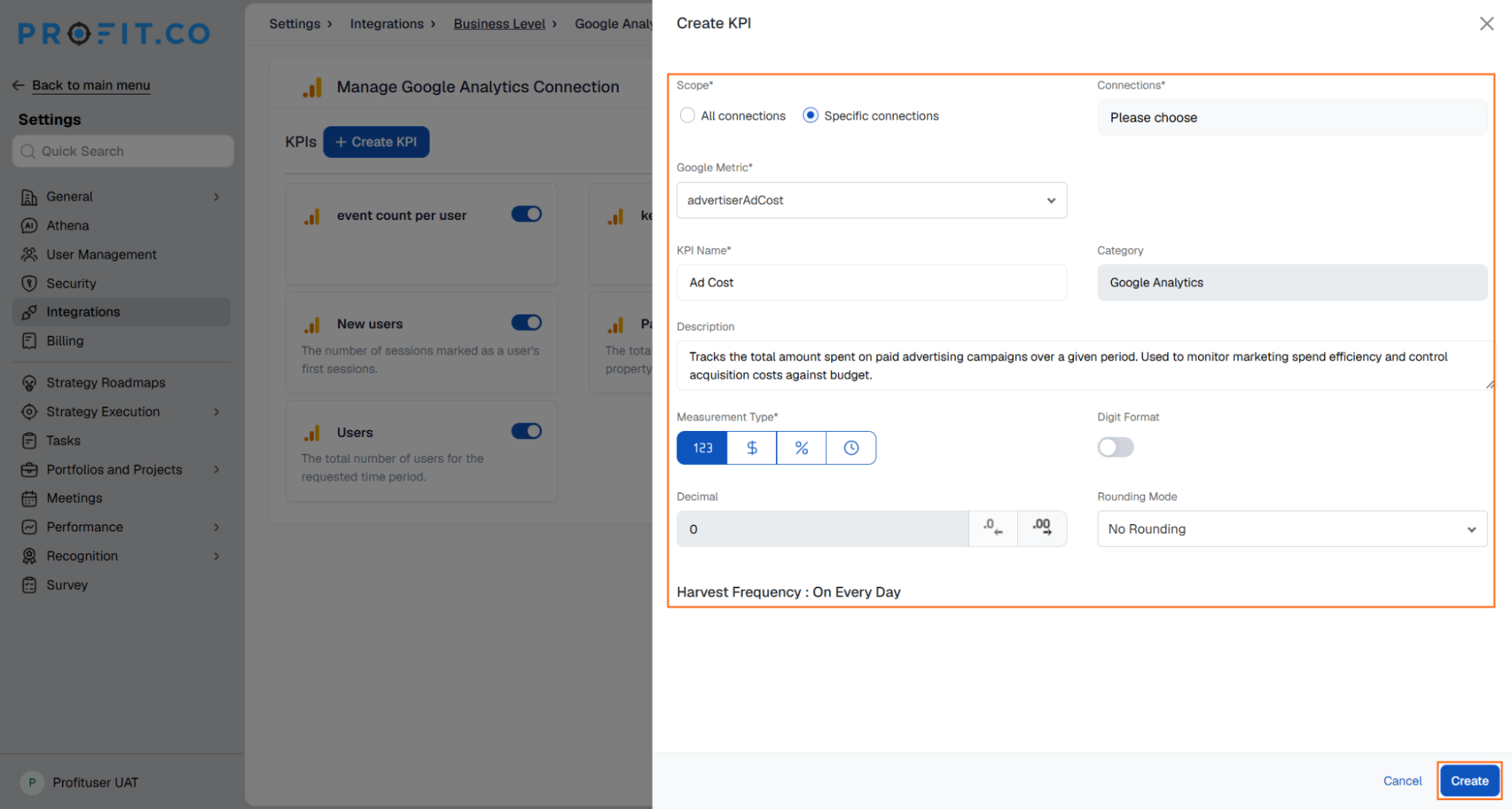
- Click the Create KPI button.
- Under Scope, choose All Connections or Specific Connections. If you select Specific Connections, choose from the connections enabled under Manage Connections.
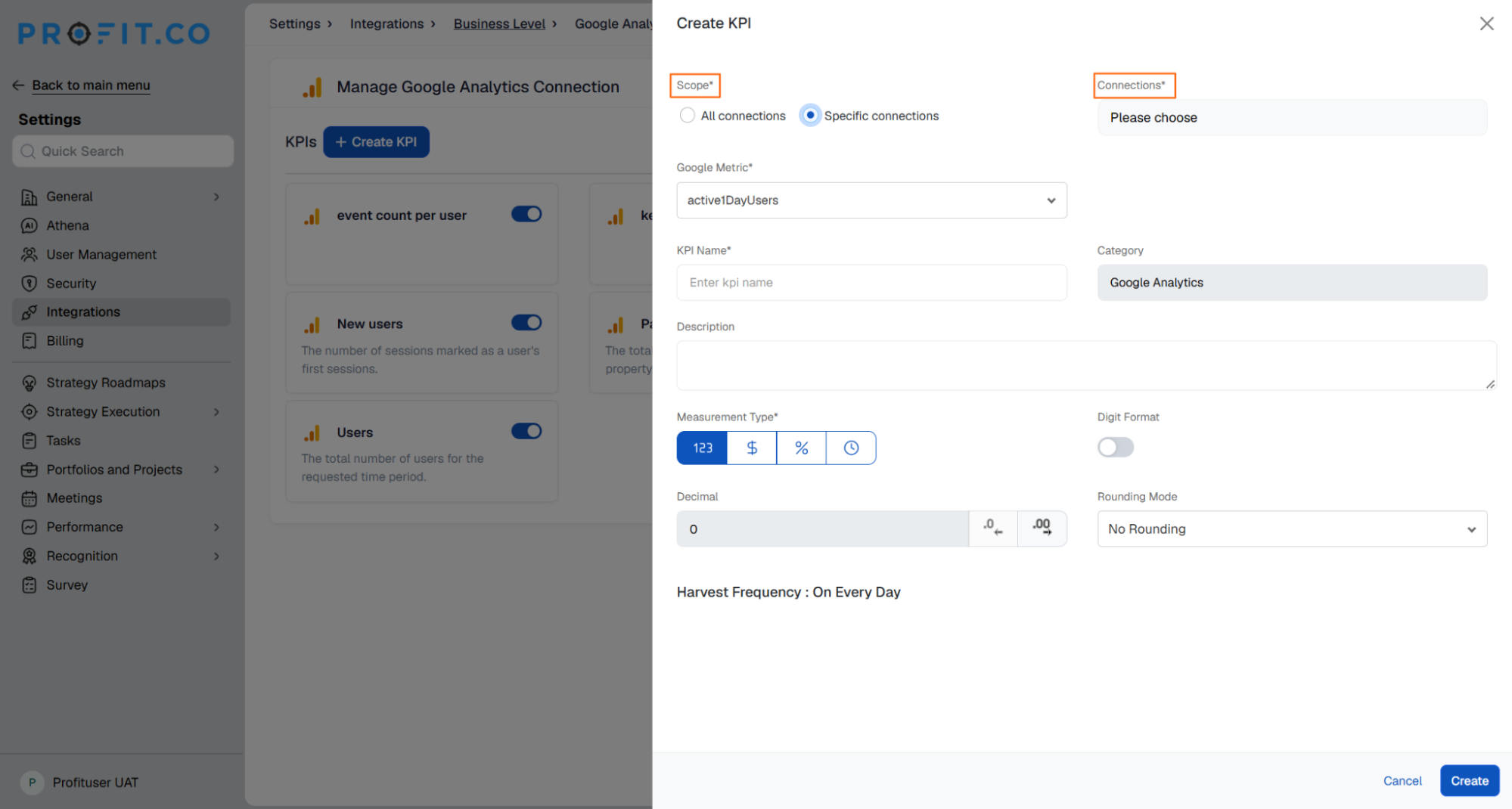
- Choose a Google Metric, enter a KPI Name, and optionally add a Category and Description.
- Select a Measurement Type, and enable the Digit Format toggle if required.
- Choose a Decimal value and a Rounding Mode. The Harvest Frequency is set to On Every Day.
- Click Create. The new KPI will appear in the KPI list.
Step 5
Key Results can be linked to Google Analytics KPIs to track their achievement.
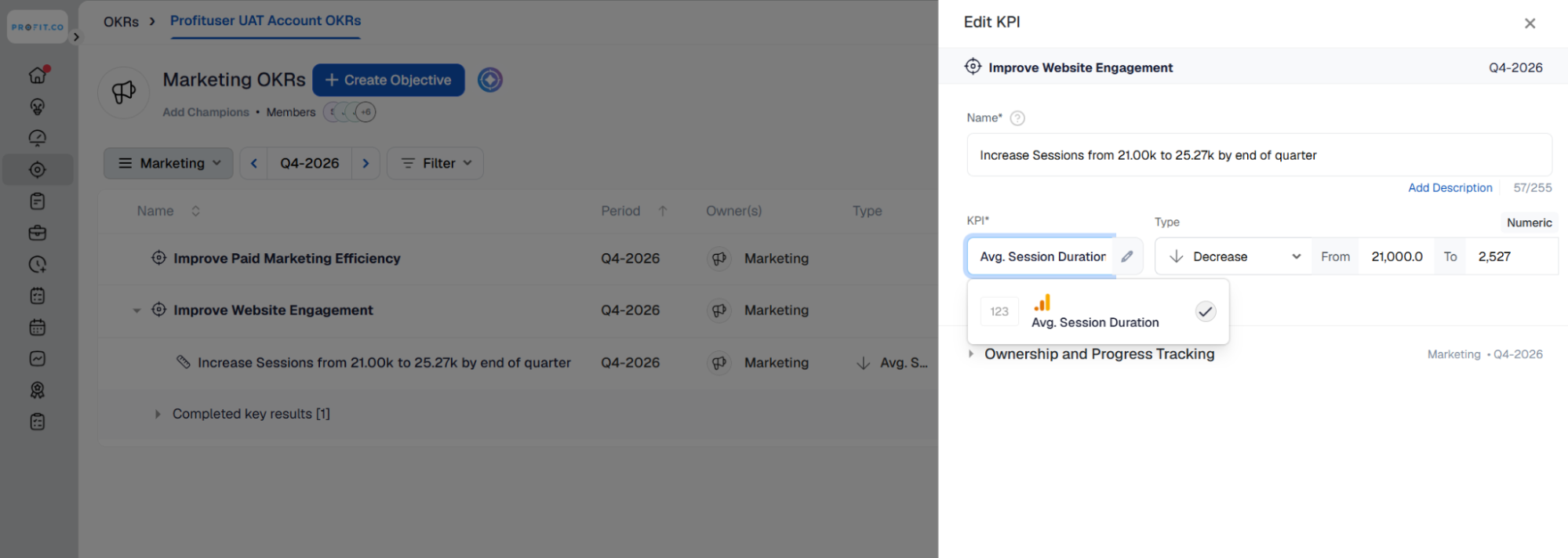
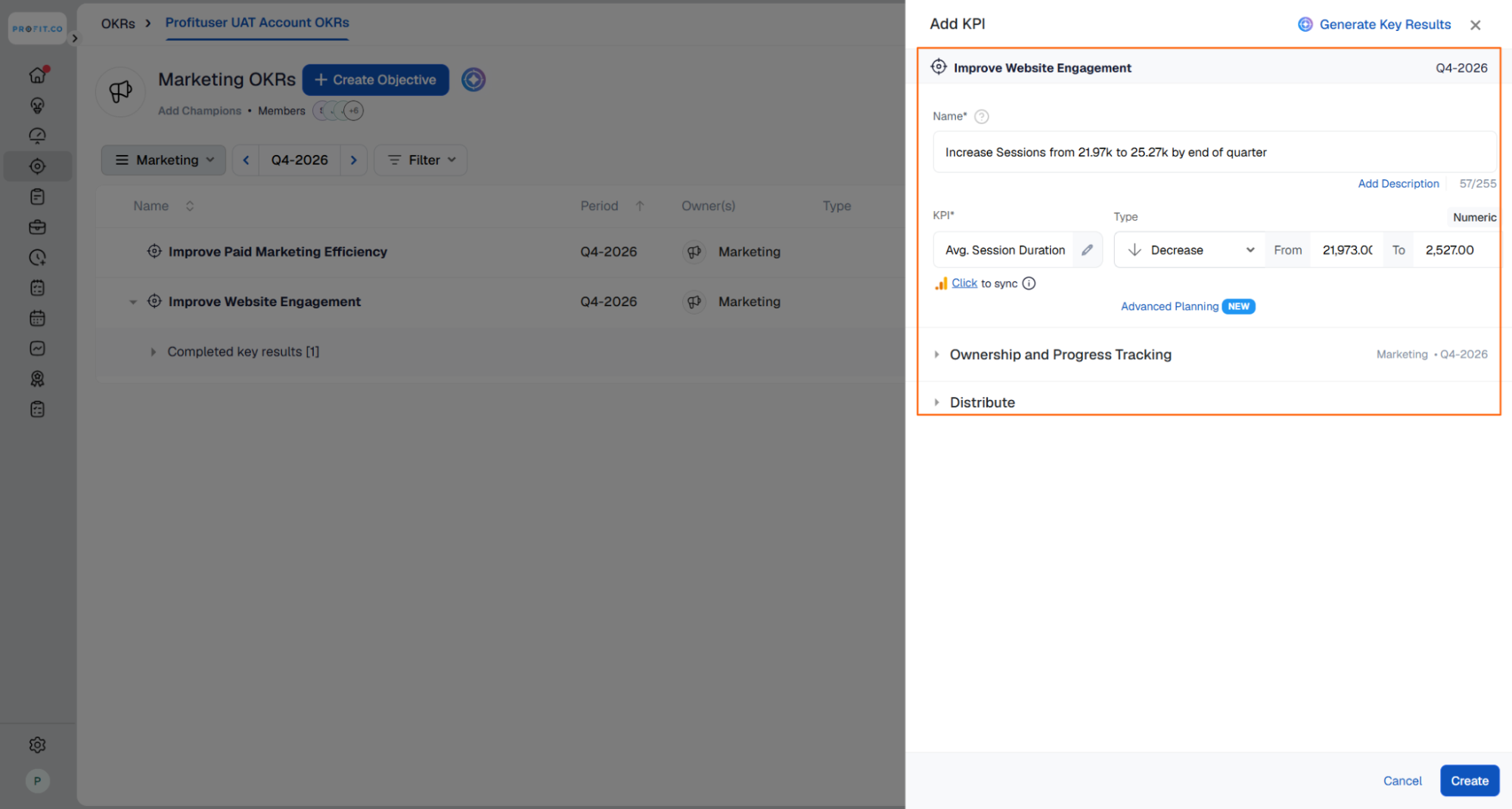
- Create a Key Result using the form method from any OKR page.
- Select the key result type of Increase KPI, Decrease KPI, or Control KPI.
- The KPIs linked to Google Analytics will be listed here.
- Enter the Key Result Name, choose the KPI, select the Key Result Type, and enter the value.
Step 6
Sync the KPI value and complete a check-in to update your Key Result.
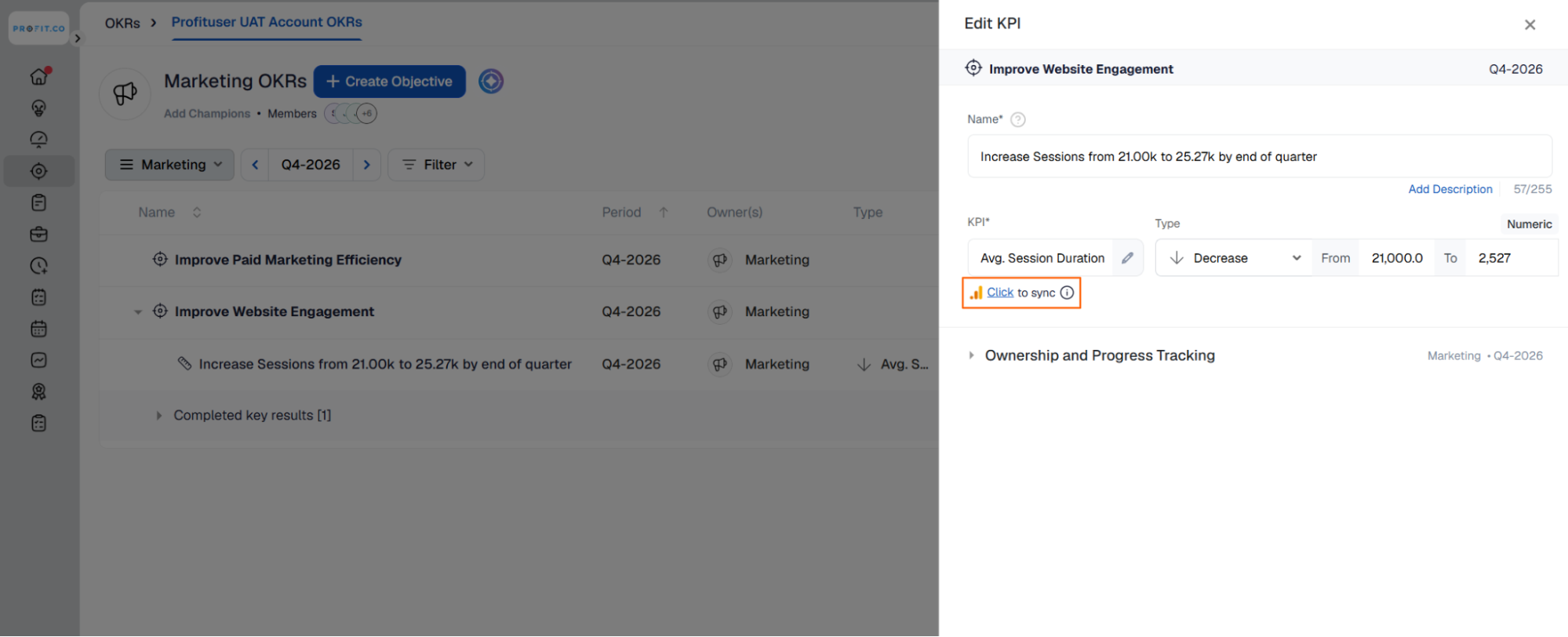
- Click Click to Sync, choose the connection, and review the current value, then click Add.
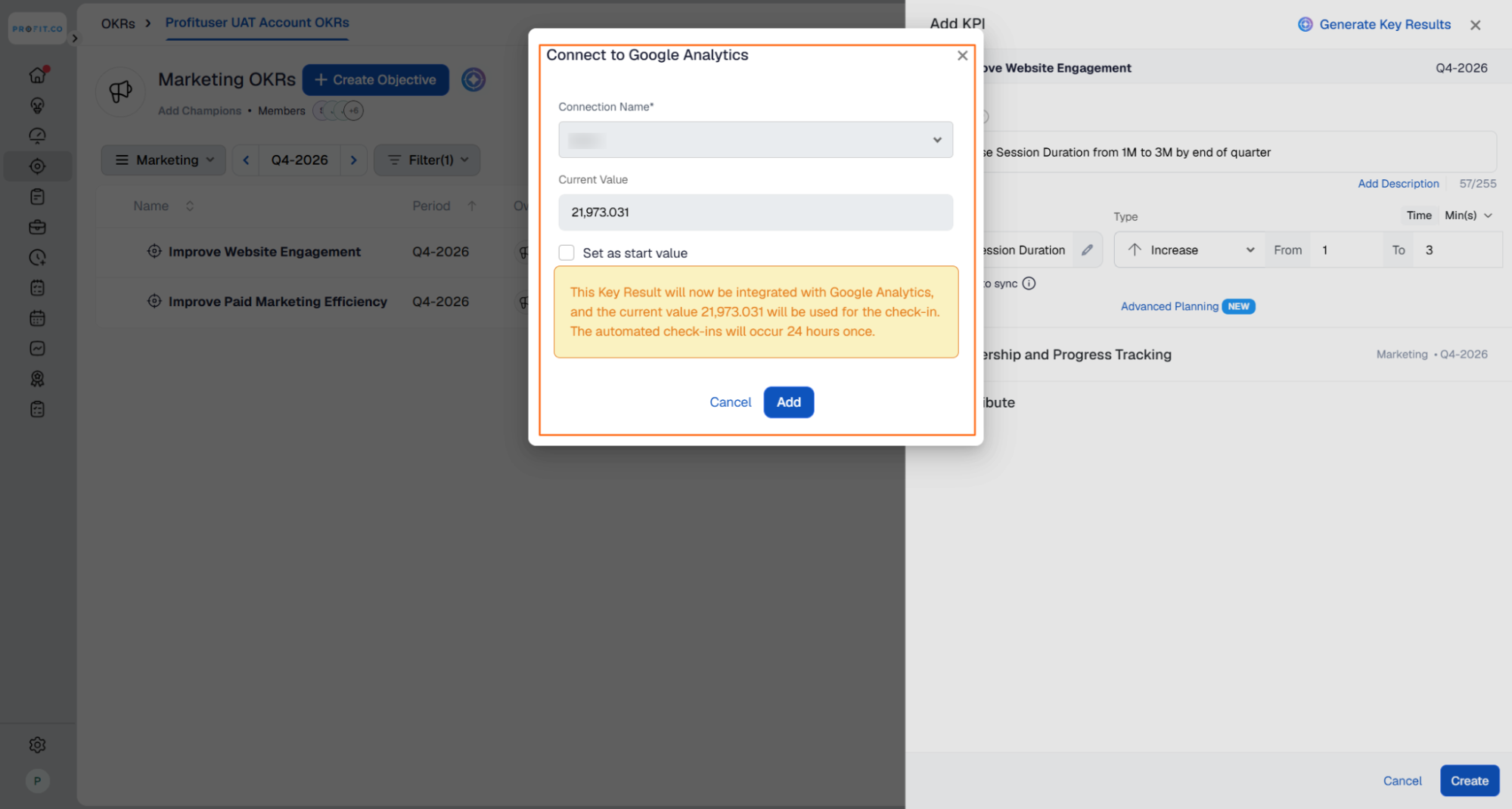
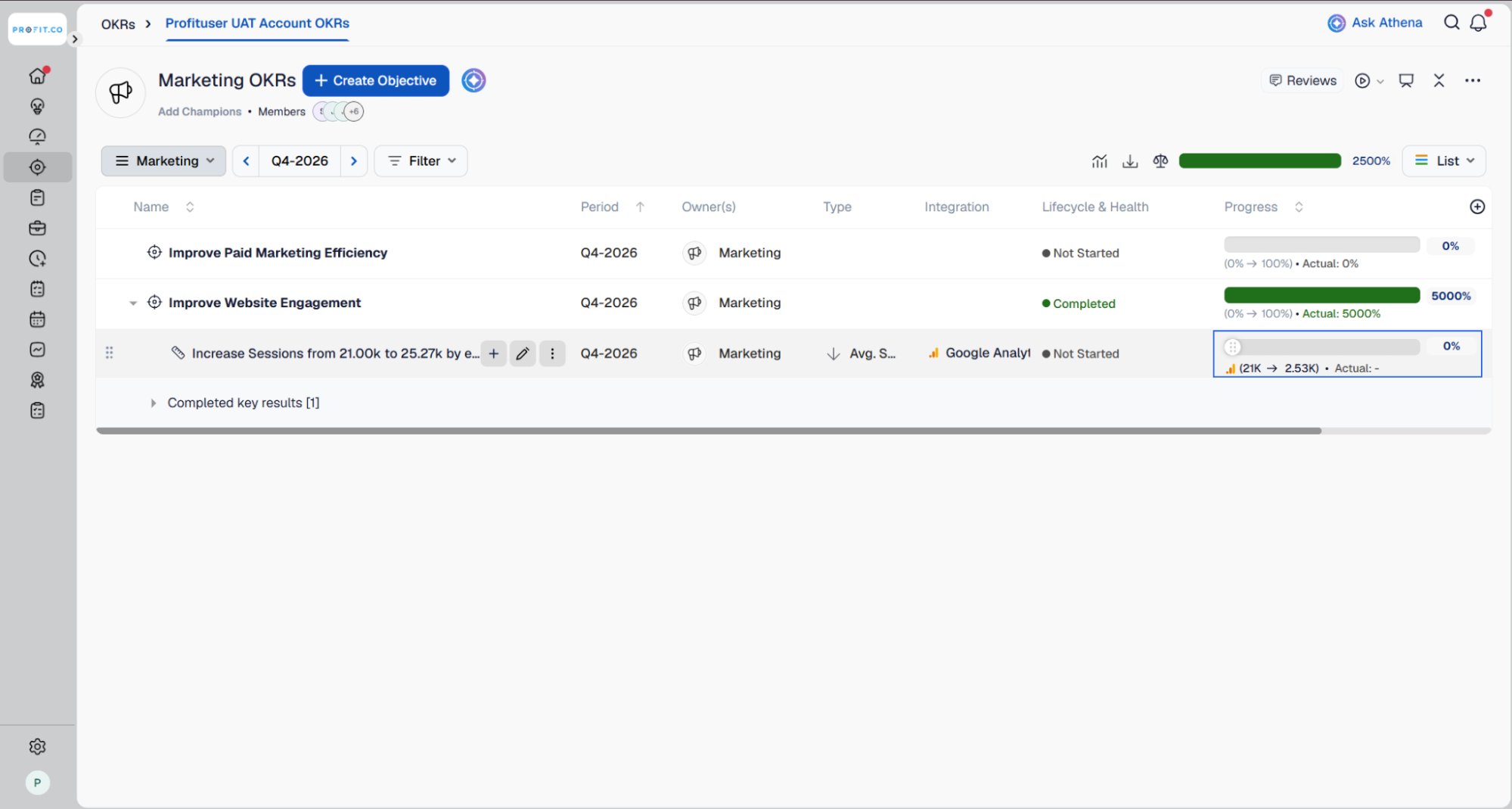
- Finally, click Create to create a new key result.
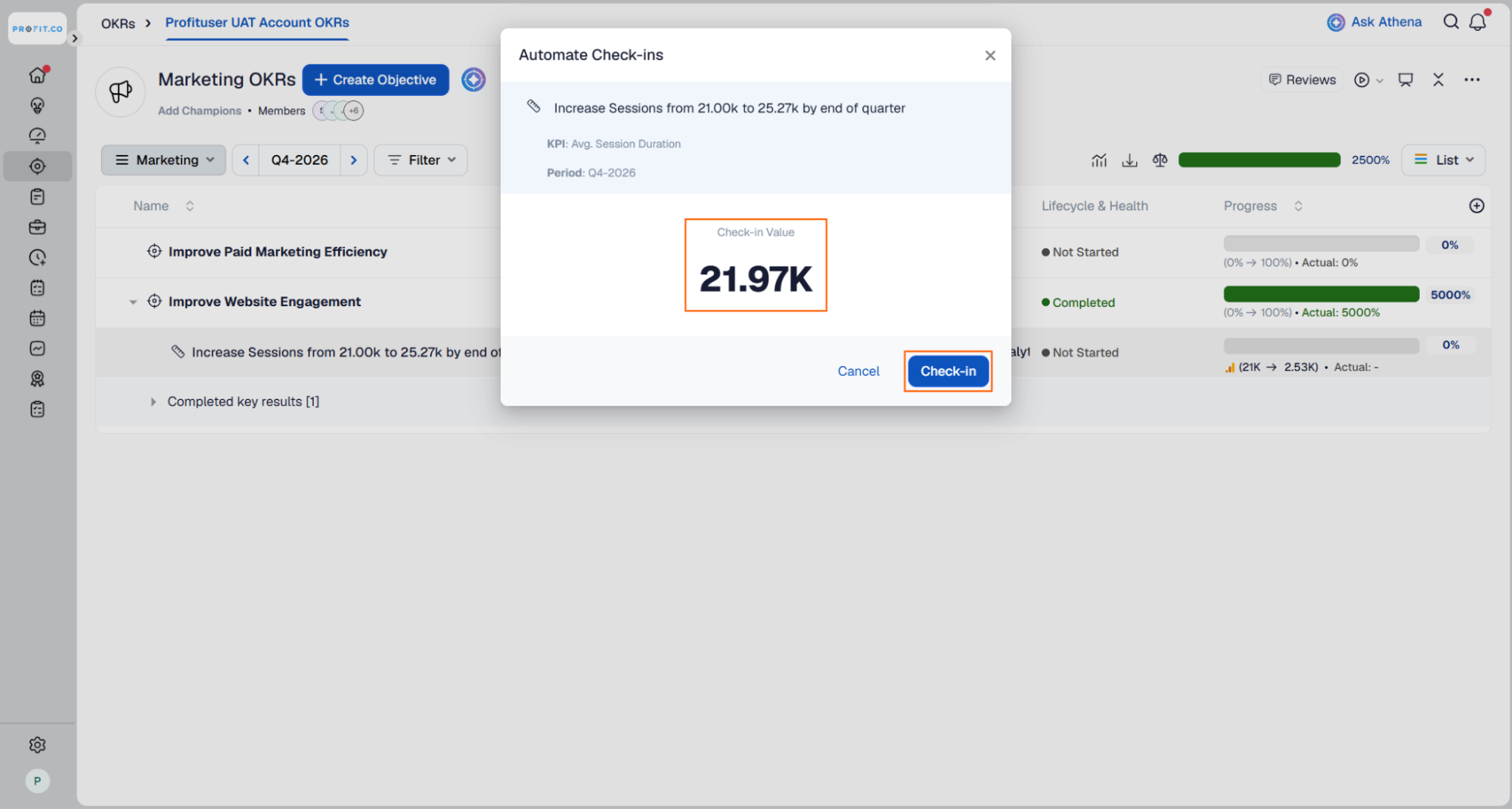
- To check in, click the slider next to the key result name. A pop-up confirms that the KPI value is being checked from Google Analytics.
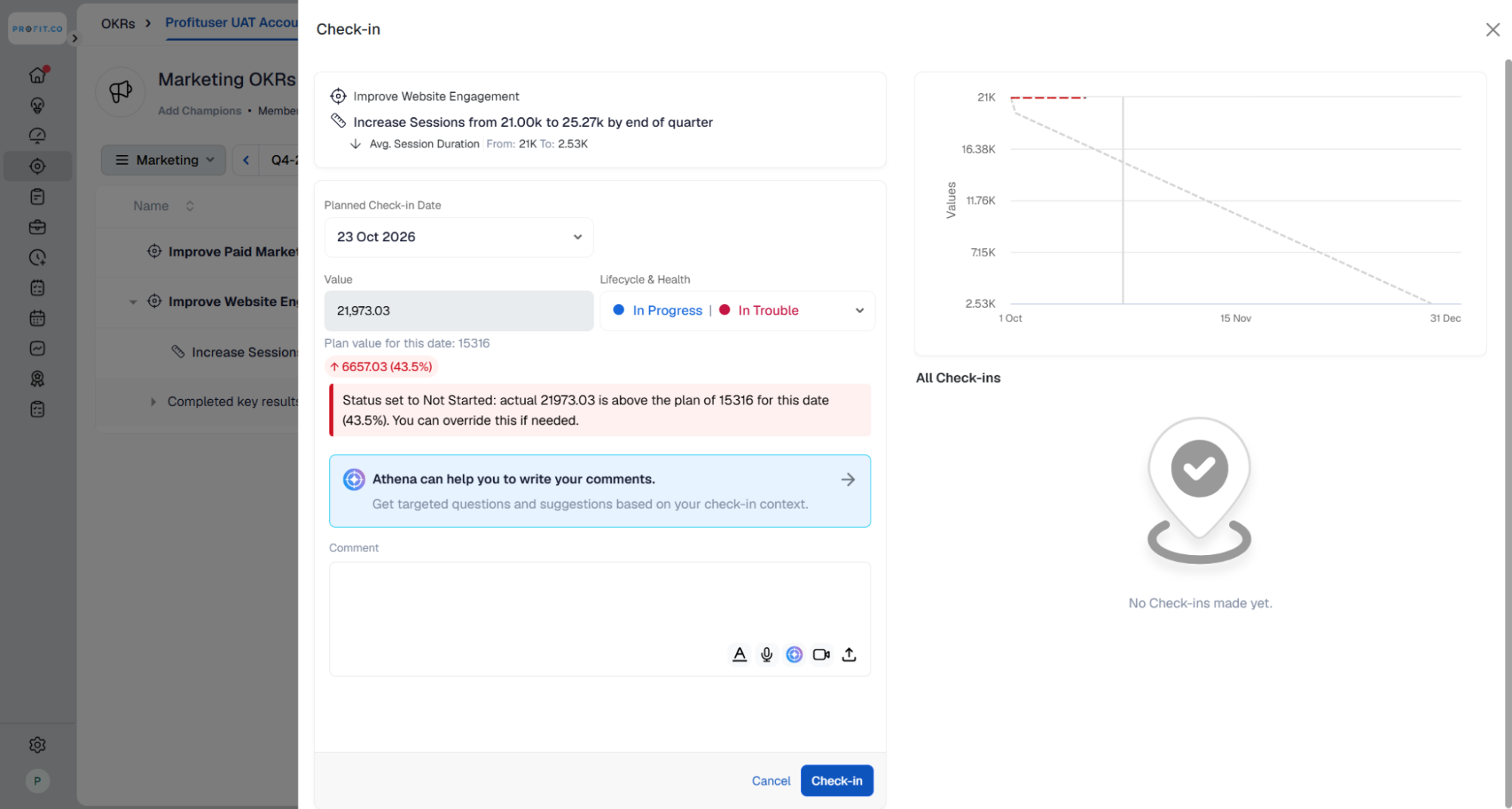
- Once the connection is successful, you will be directed to the Key Result check-in page with the value pre-entered.
- Click Checkin to save your changes. The Key Result will reflect the updated Google Analytics value.
Summary
By connecting Google Analytics to Profit.co, you can bring your web analytics data directly into your OKRs. After enabling the properties you need and creating KPIs from Google Analytics metrics, Key Results can be linked to those KPIs, synced on demand, and checked in with live Google Analytics values.