
MariaDB is an open-source relational database management system (DBMS). The MariaDB database is used for various purposes such as data warehousing, e-commerce, enterprise-level features, and logging applications.
What you can do with MariaDB and Profit.co Integration?
- Integrate MariaDB reports with Profit.co’s key result to automate your OKR check-ins.
Configure MariaDB in Profit.co
Note: Only Super Users can be able to configure the Profit.co <> MariaDB Integrations.
Step 1
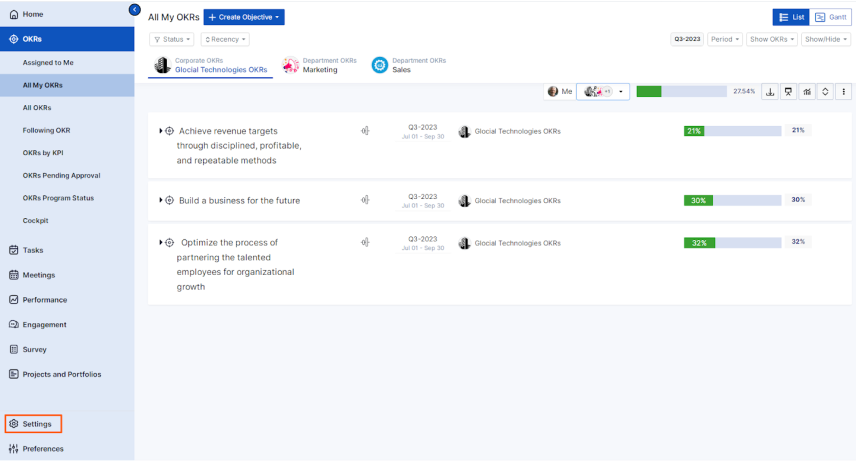
Navigate to Settings from the left navigation panel.
Click on Integrations, On the Connectors page, Select the Business Level tab and click on the Maria Manage button.
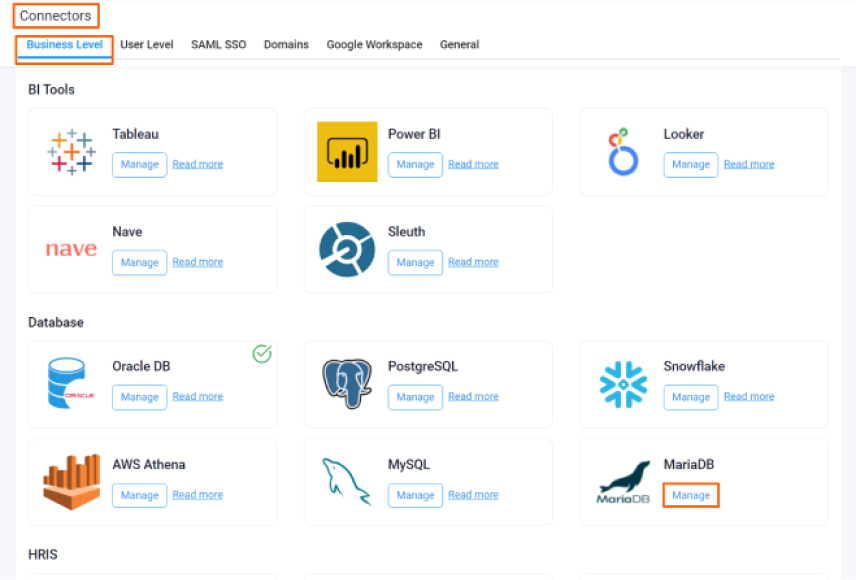
Then, click the Connect to MariaDB button.
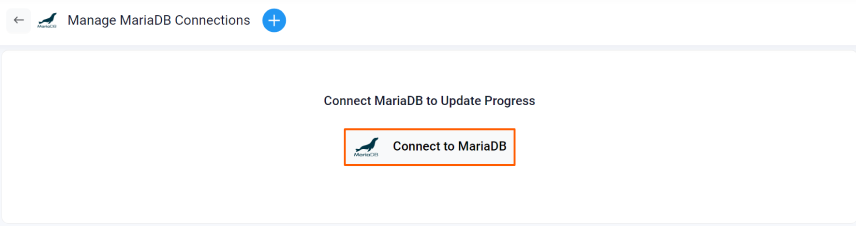
Step 2
On the Connect to MariaDB page, Enter the Connection Name and required details and click on Connect button to successfully configure the MariaDB Integration connection.
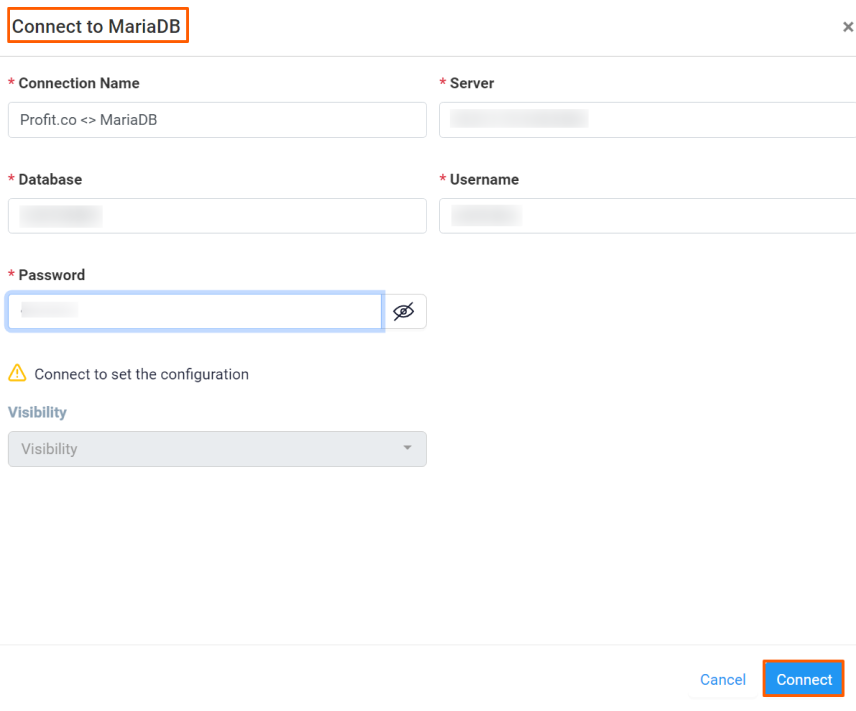
The Connection will be created.
Step 3
Now Create a key result Using the Form in Profit.co where you want to integrate the MariaDB in a key result.
Note: MariaDB supports Increase KPI, Decrease KPI, and Control KPI types.
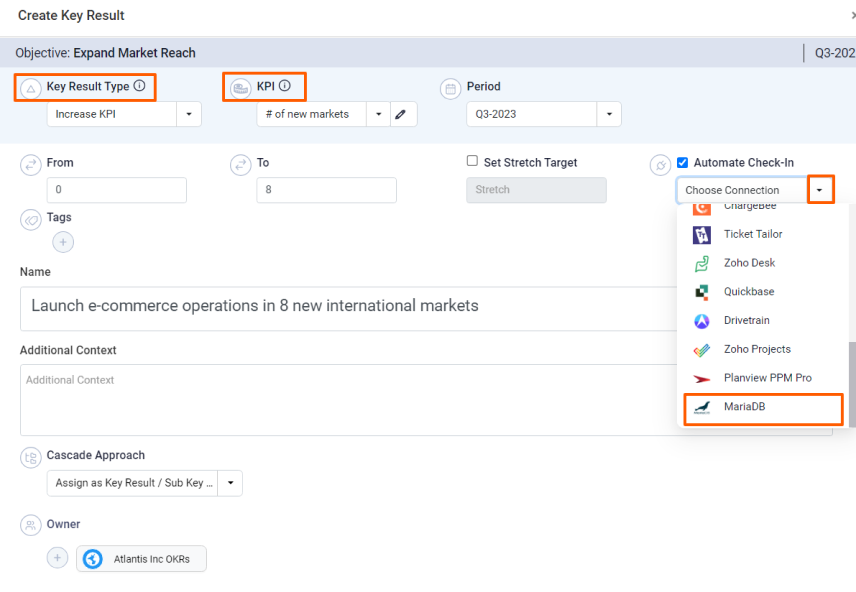
Choose the required Key Result type and KPI. Select Automate Check-in and choose MariaDB from the Connection dropdown.
On the Connect to MariaDB tab, Choose your Connection Name, enter the MariaDB Query, and Run the query.
After that, you will find the Current Value.
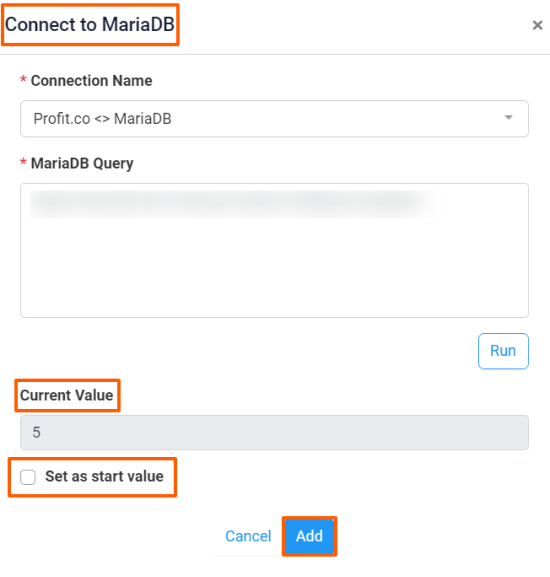
Note: You can also set the current value as the start value by clicking the Set as start value checkbox.
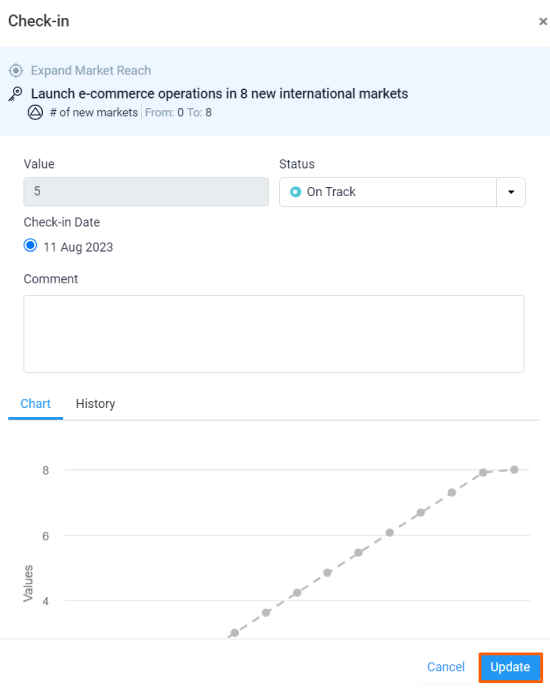
Once the Key Result is successfully created, click on the Check-in button and complete the Check-in to update the status value in the key result.
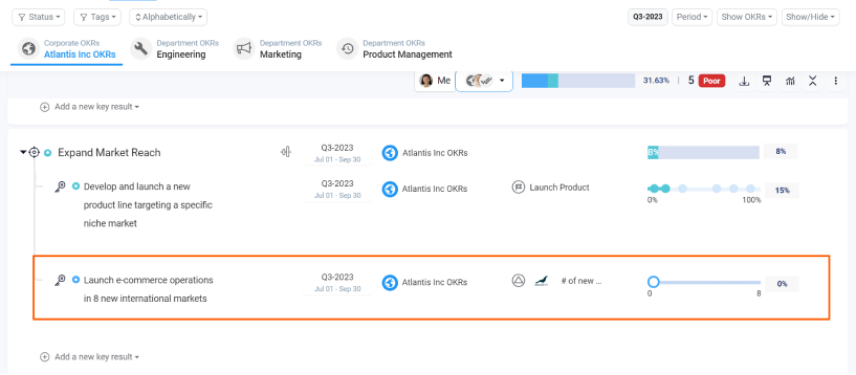
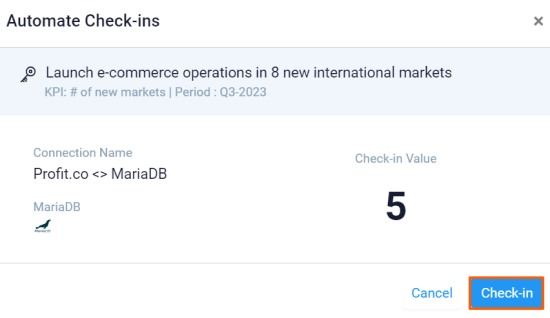
If you check-in you’ll be redirected to the review page. Finally, you can Update it to make progress to your key result.
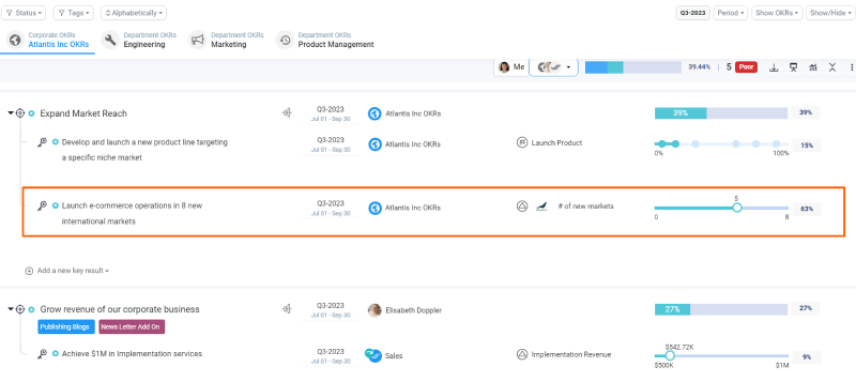
Note: The automatic check-in will happen every day at 09:00 AM based on the user region.