Zoho Sheet offers cloud-based, collaborative spreadsheet software, enhancing efficiency and teamwork. It provides real-time editing, data analysis, and accessibility, simplifying complex tasks while ensuring data security and easy sharing.
What you can do with Zoho Sheet and Profit.co Integration?
- Integrate Zoho Sheet with Profit.co’s key results to automate your OKR check-ins. You can pull the data(numeric) from the preferred cell and auto-update it in the key result.
Configure Zoho Sheet in Profit.co
Note: All the users can be able to configure the Profit.co <> Zoho Sheet Integrations.
Step 1
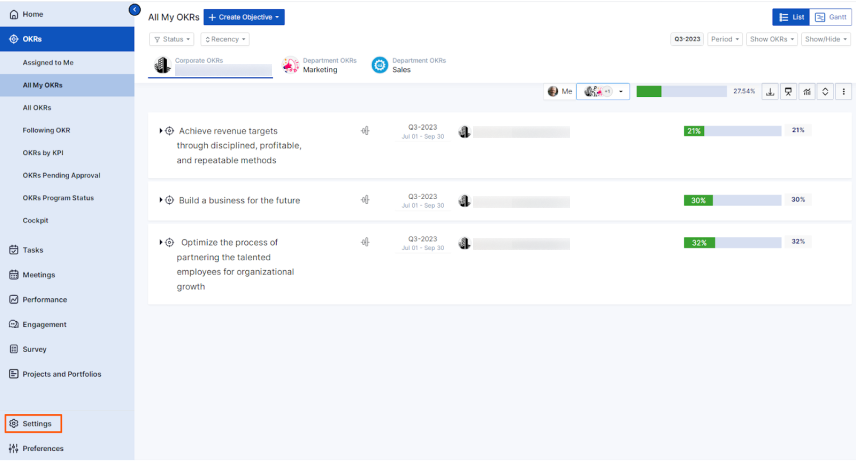
Navigate to Settings from the left navigation panel.
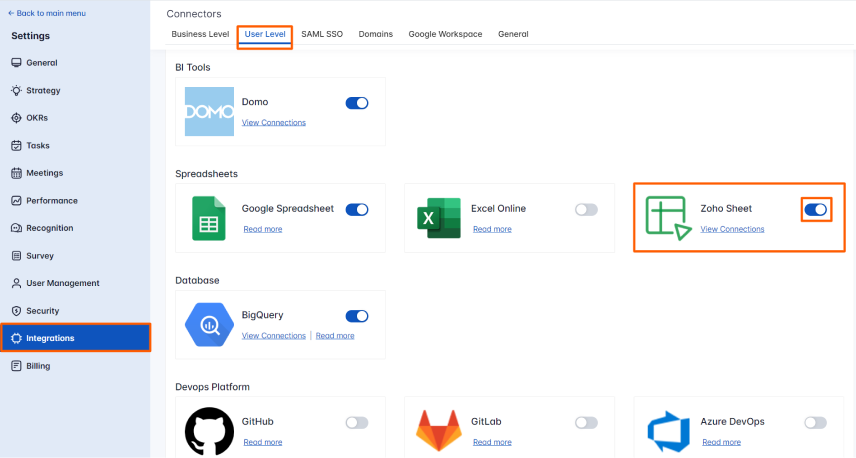
Click on Integrations, On the Connectors page, Select the User Level tab and enable the Zoho Sheet toggle.
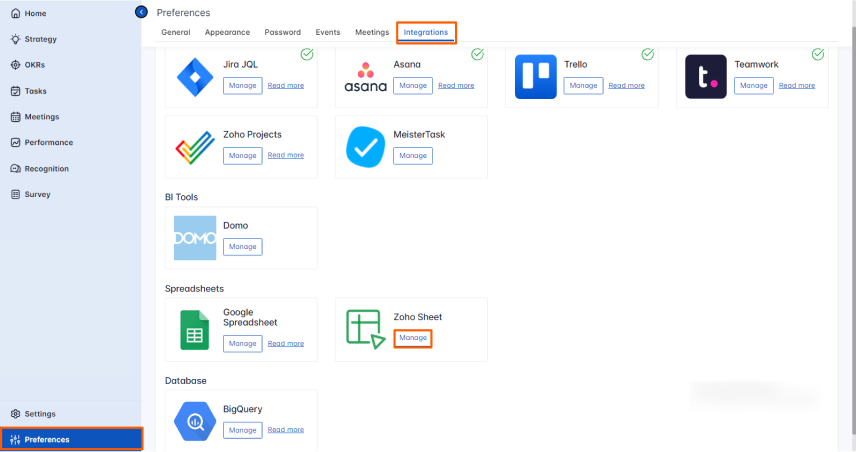
After enabling it, navigate to Preferences from the left navigation panel. Select the Integrations tab, and click on the Zoho Sheet Manage button.
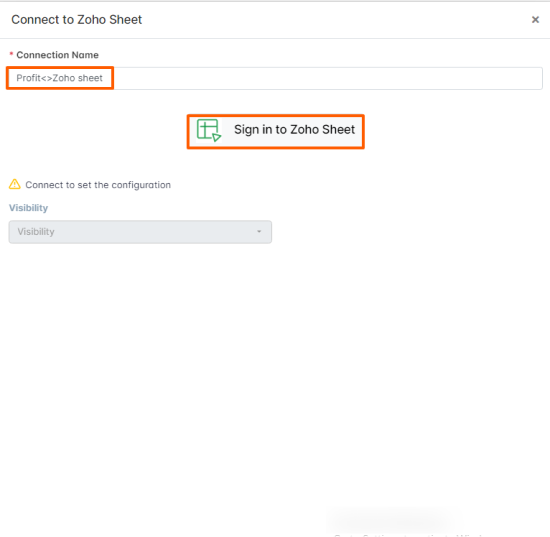
To establish a new connection click on Sign in to Zoho Sheet.

Step 2
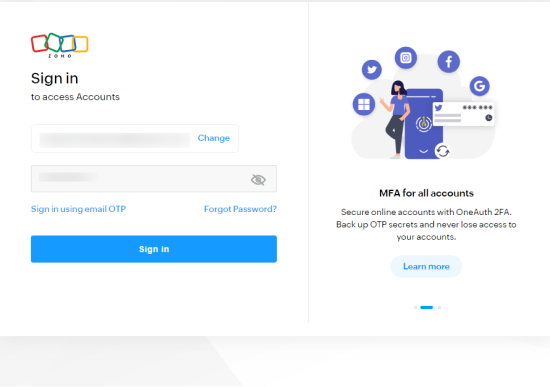
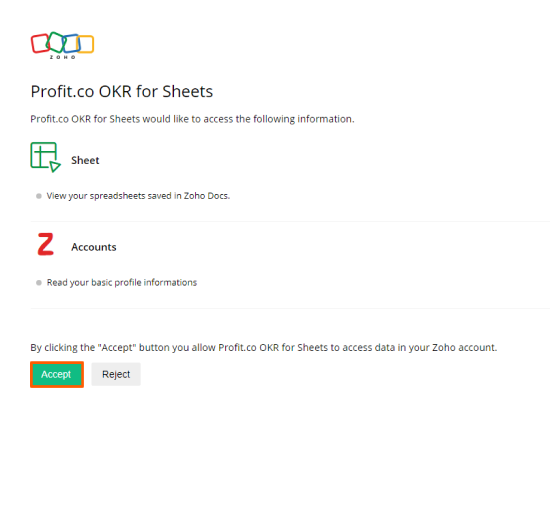
Enter the connection name click on the Sign in to Zoho Sheet button & log in using your Zoho Sheet credentials and grant Accept to establish the connection.
Step 3
Once the Integration is done, you can connect your key result progress.

Automating Key Results with Zoho Sheet
Now Create a key result Using the Form in Profit.co where you want to integrate the Zoho Sheet in a key result.
Note: Zoho Sheet supports Increase KPI, Decrease KPI, and Control KPI types.
Enter the Key Result name, and choose the required Key Result type and KPI.
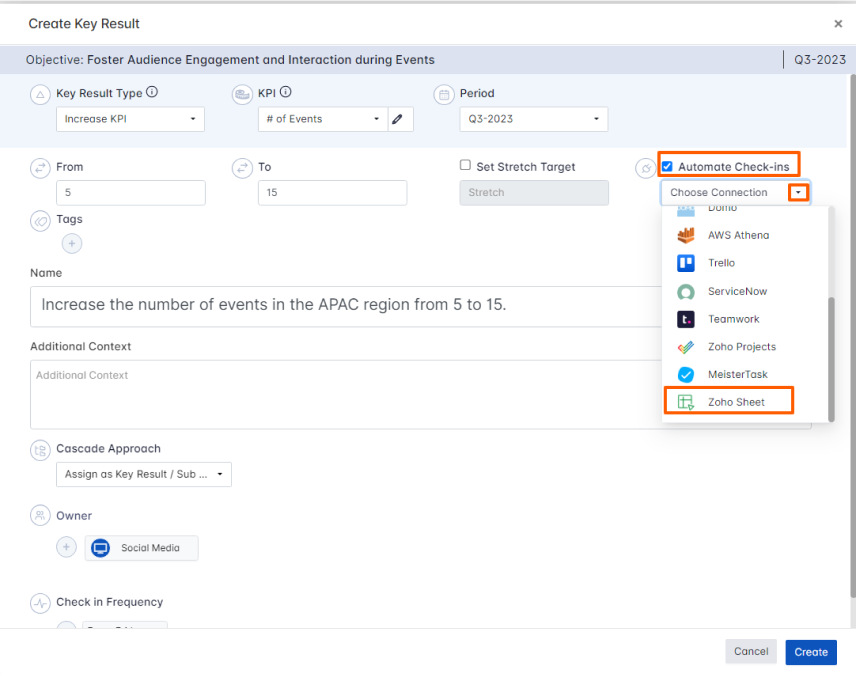
Select the Automate Check-in and choose Zoho Sheet from the Connection dropdown.
On the Connect to Zoho Sheet tab, Choose your Spreadsheet, Sheet, Column, and Row. After choosing you will find the Current Value.
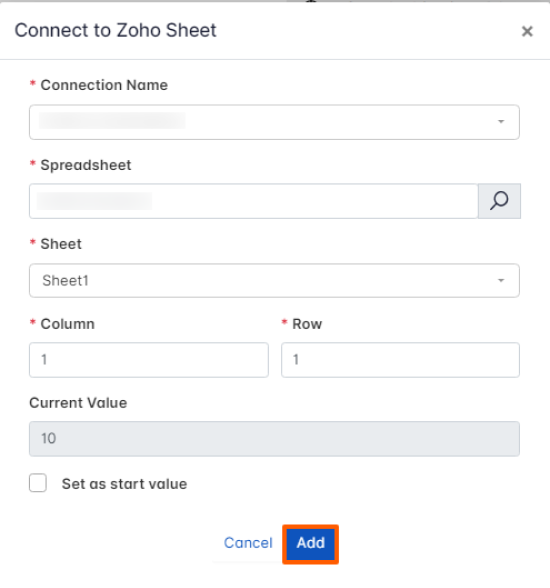
Note: You can also set the current value as the start value by clicking the Set as start value checkbox.
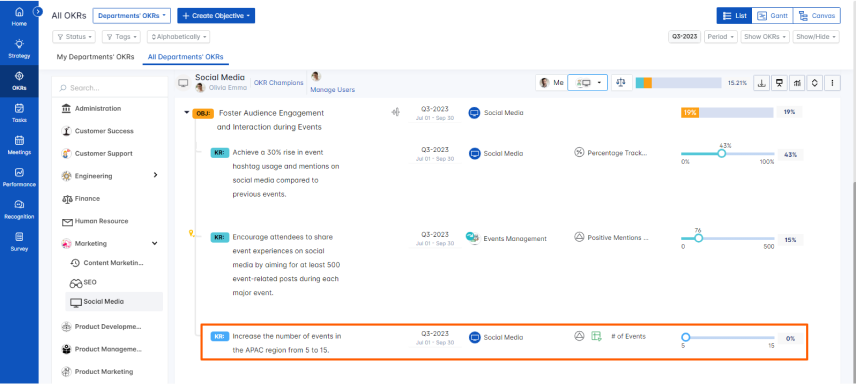
Once the Key Result is successfully created, click on the Check-in button and complete the Check-in to update the status value in the key result.
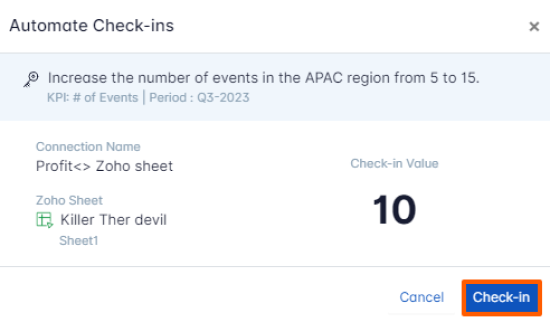
If you check in you’ll be redirected to the review page. Finally, you can Update it to make progress toward your key result.