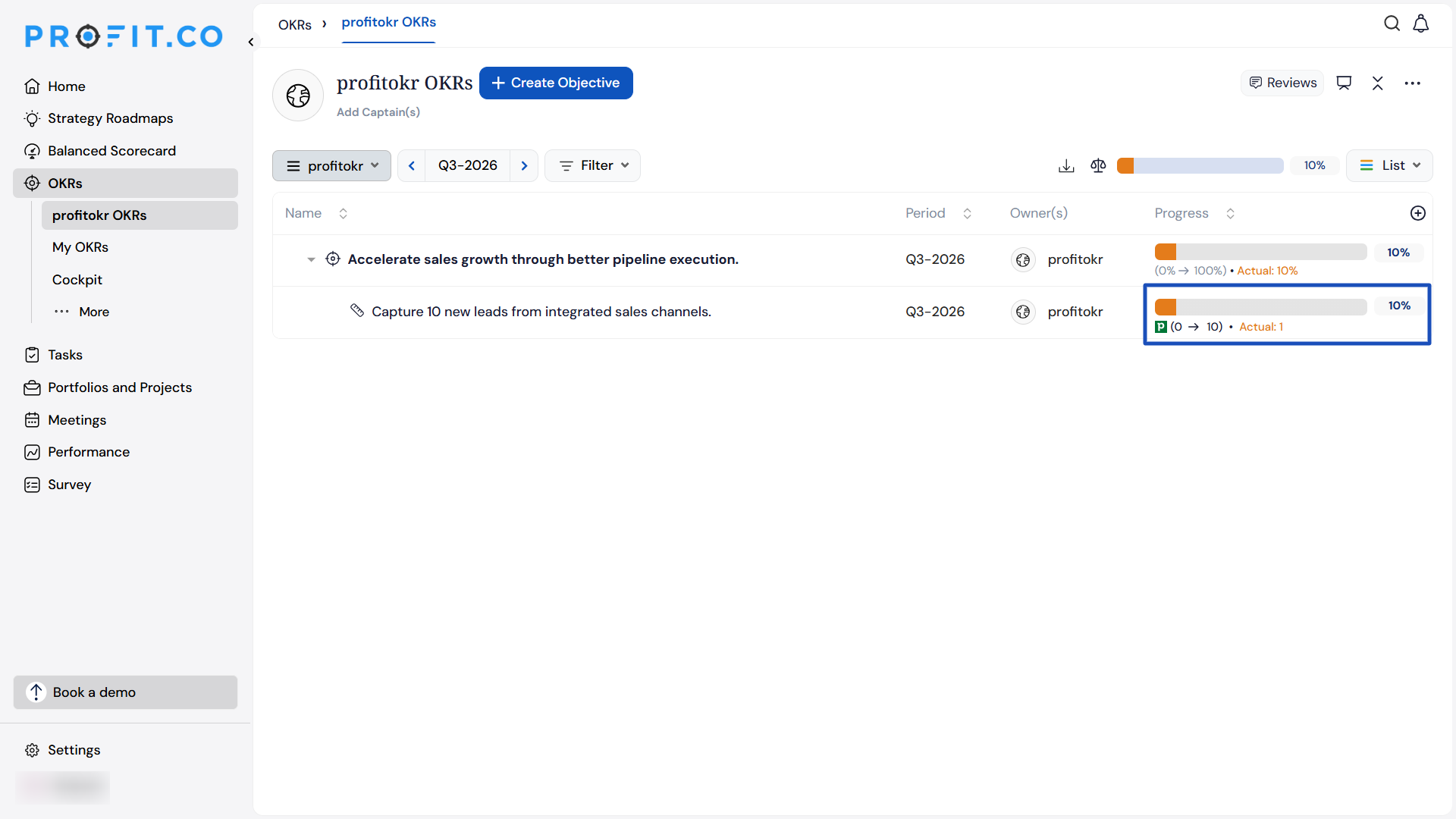
Pipedrive is a deal-driven CRM solution designed to help sales teams manage contacts, leads, and deals effectively. With its intuitive pipeline view, it gives sales teams complete visibility into their sales process.
With the Profit.co + Pipedrive integration, you can automatically track your sales metrics as Key Results in OKRs — no manual check-ins, no switching platforms.
- Track Leads Count and Leads Amount against your OKR targets
- Monitor Deals Count and Deals Amount in real time
- Measure Activities Count to keep your sales team accountable
- Apply Pipedrive filters to control exactly which data is pulled
What can you do with Profit.co and Pipedrive integrations?
You can update the Count/Amount of leads, deals, and activities from Pipedrive to Profit.co key result and track the progress.
Note: Currently Profit.co supports Leads, Deals and Activities modules.
Configure Pipedrive for Profit.co
Step 1
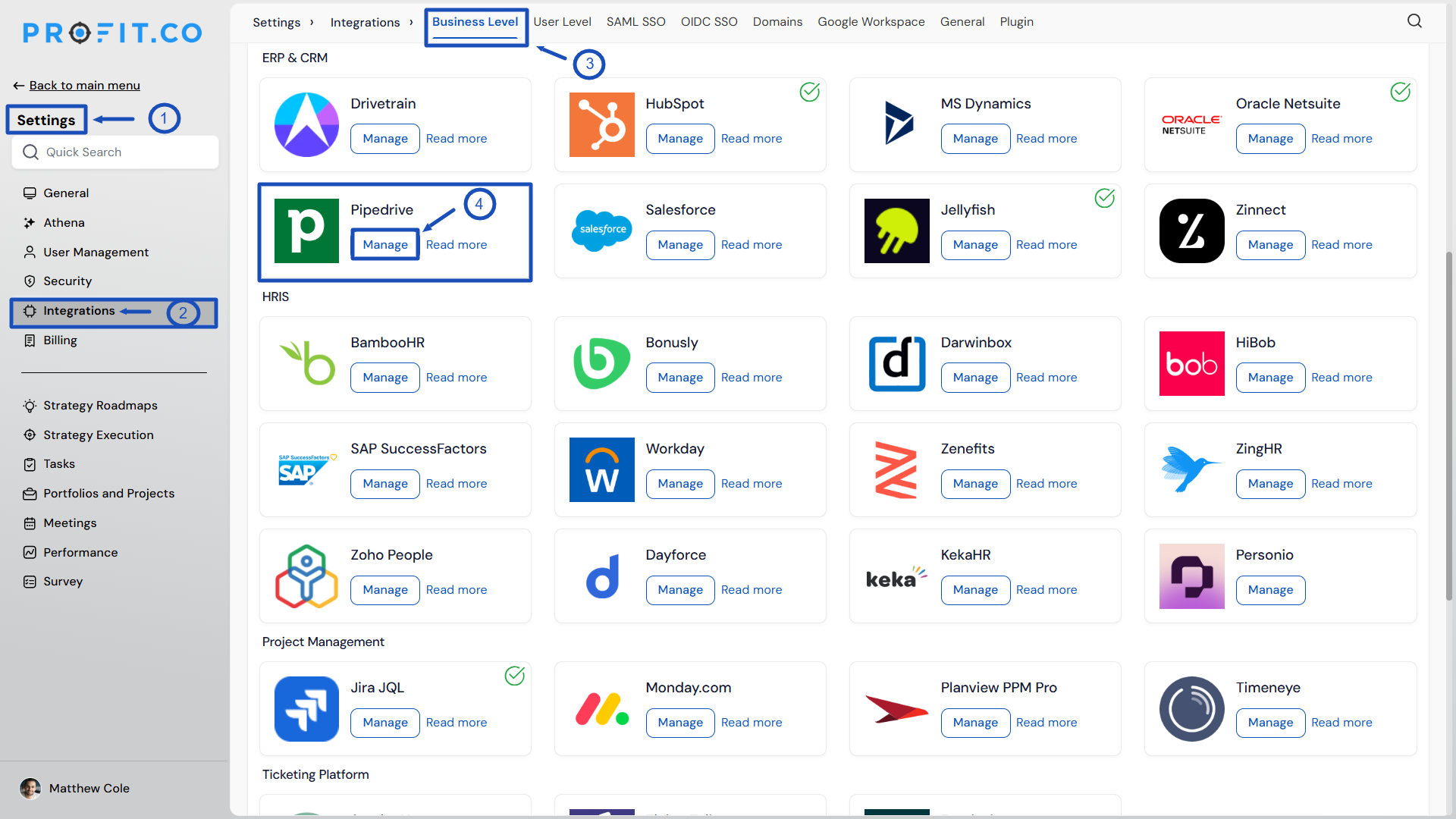
Navigate to Settings → Integrations from the left navigation panel.
On the Connectors page, select the Business Level tab and click on the Pipedrive Manage button.
Note: Only Super Users can be able to configure the Profit.co <> Pipedrive Integrations.
Step 2
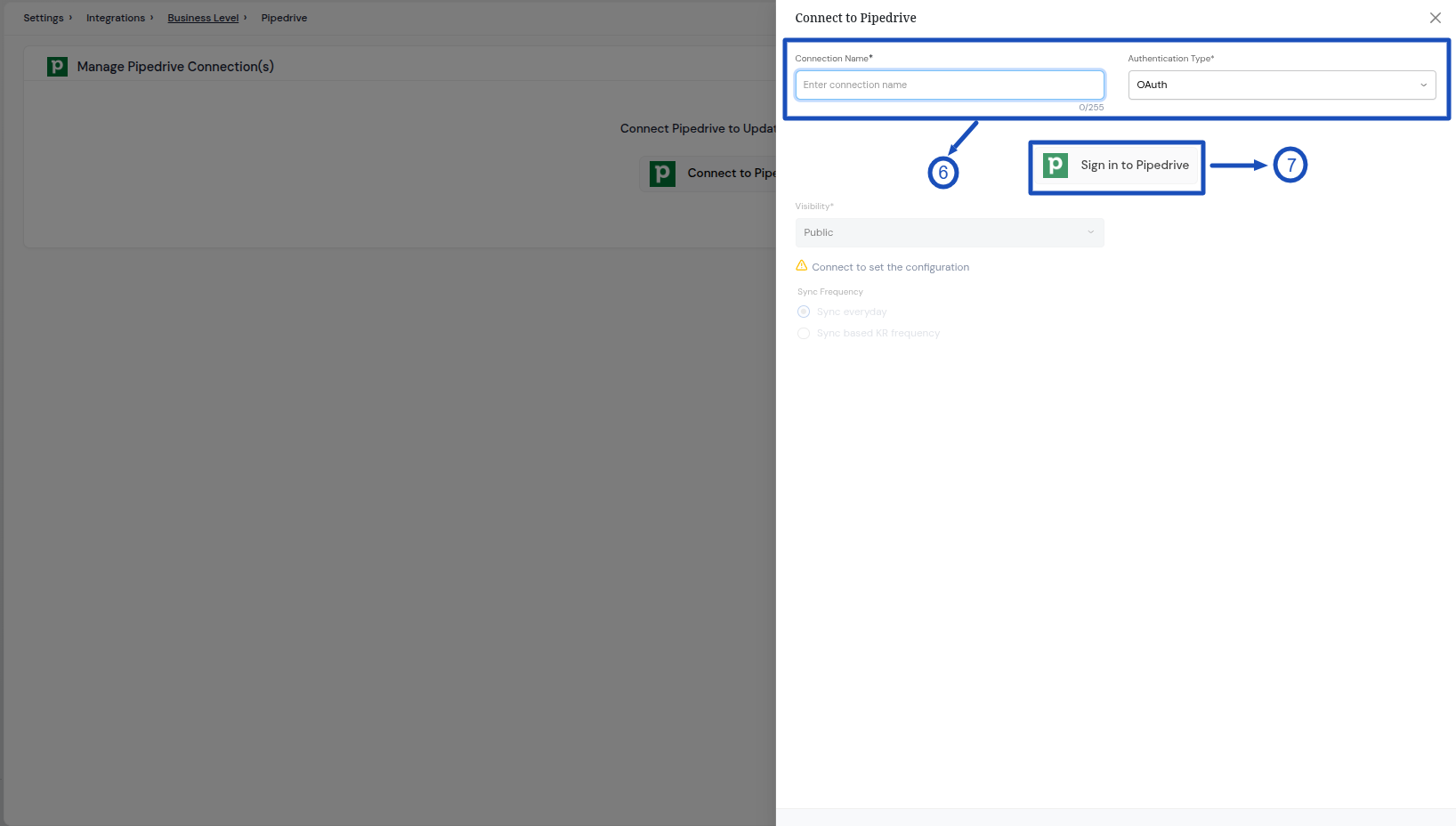
Click on the Connect to Pipedrive button. Enter the Connection Name, choose OAuth from the Authentication Type, and click on Sign in to Pipedrive button.

Click on the Continue to the App button, and your connection will be established.
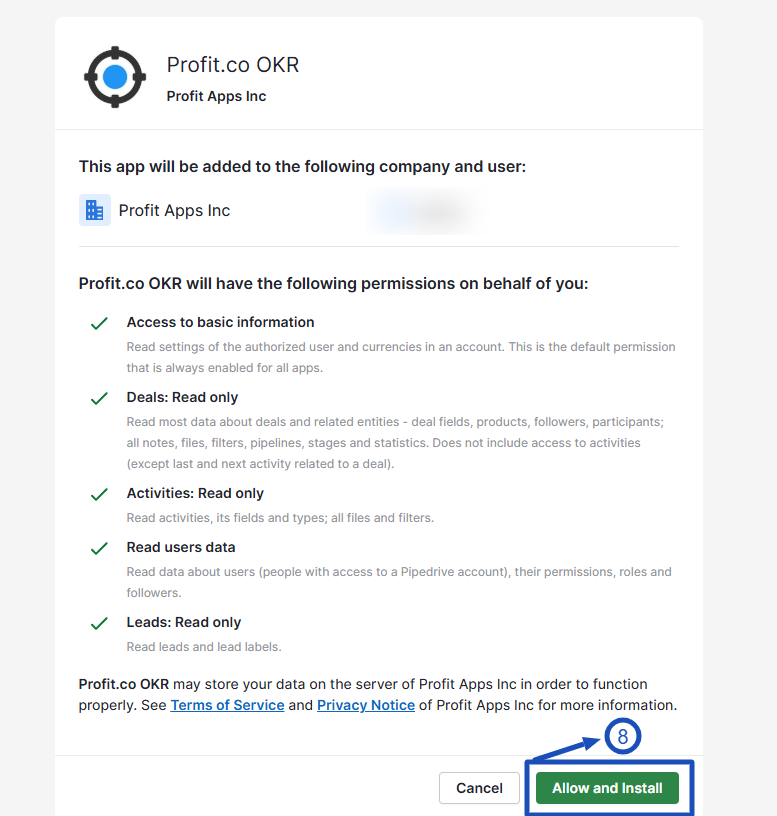
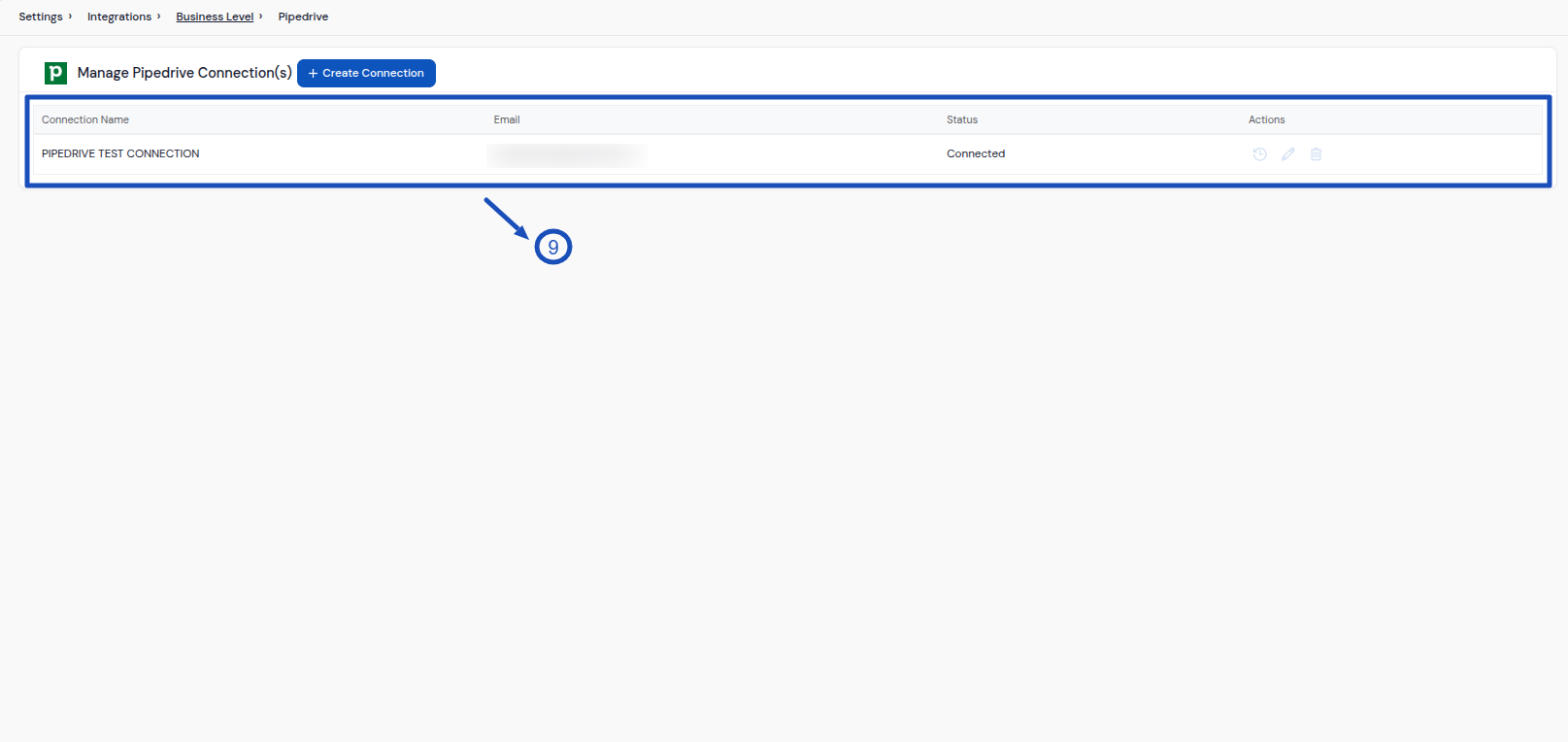
Alternatively, go to Pipedrive Marketplace, find Profit.co and install the app. You will be redirected to Profit.co and your Pipedrive account will be successfully connected.
Step 3
Once connected, create a new Key Result or open an existing one in Profit.co to make the Pipedrive connection.
Note: Profit.co supports Increase, Decrease and Control KPI for the Pipedrive Integration.
Enable the Automate Check-in option.
from the Connection dropdown, select Pipedrive.
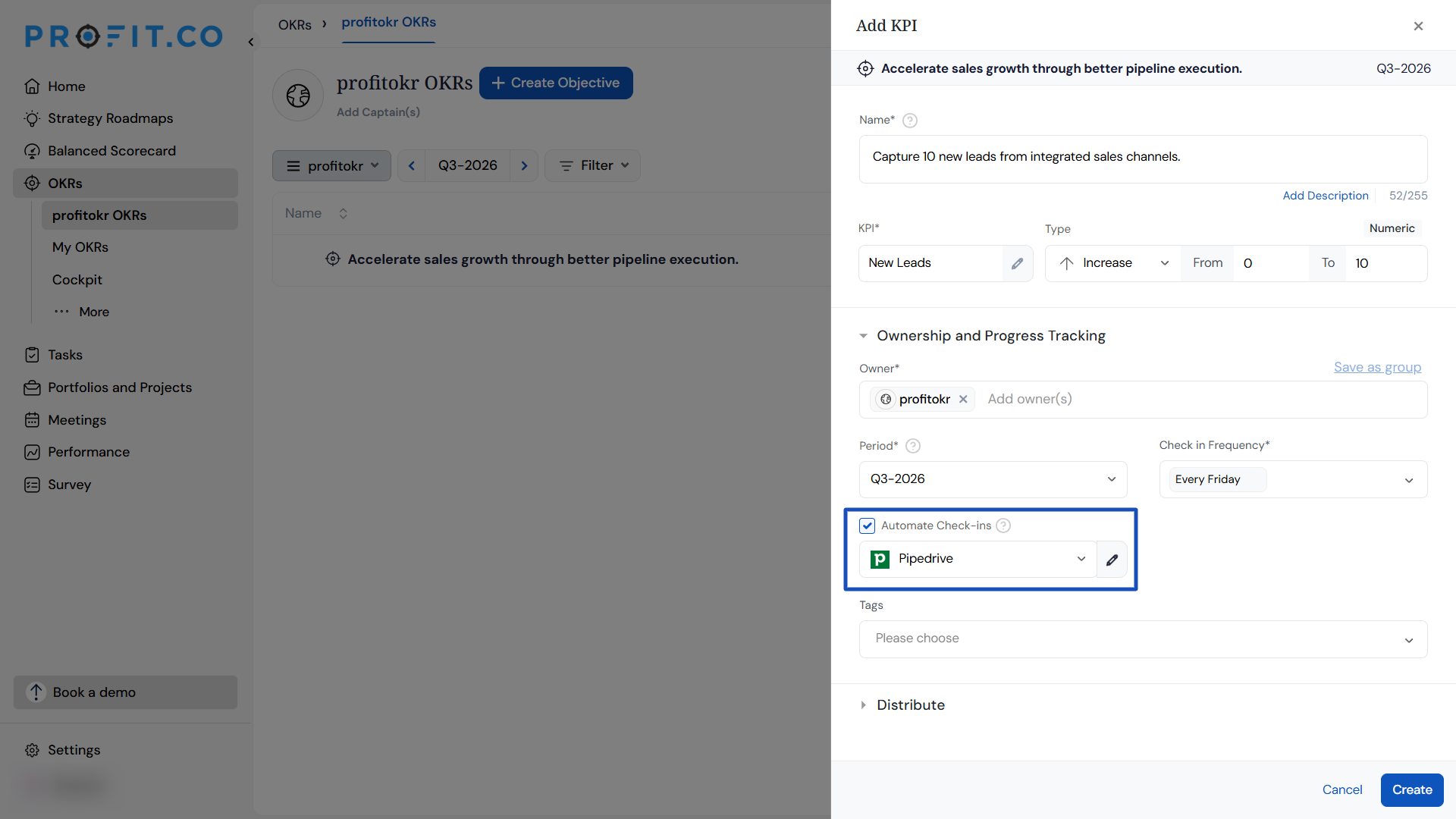
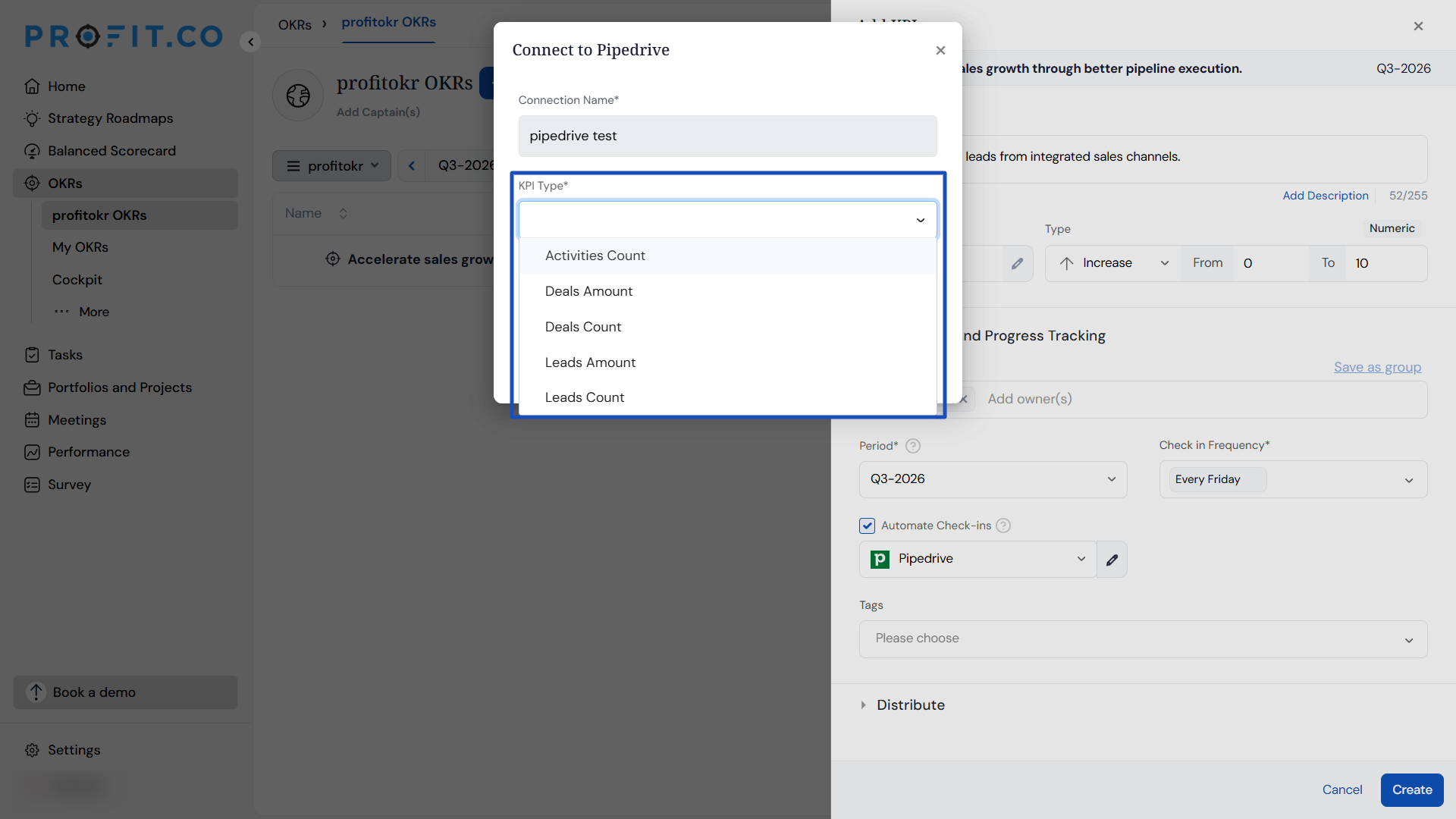
On the Connect to Pipedrive tab, configure the following:
- Connection Name
- KPI Type – Leads Count, Leads Amount, Deals Count, Deals Amount or Activities Count
- Filters – to control which Pipedrive data is pulled
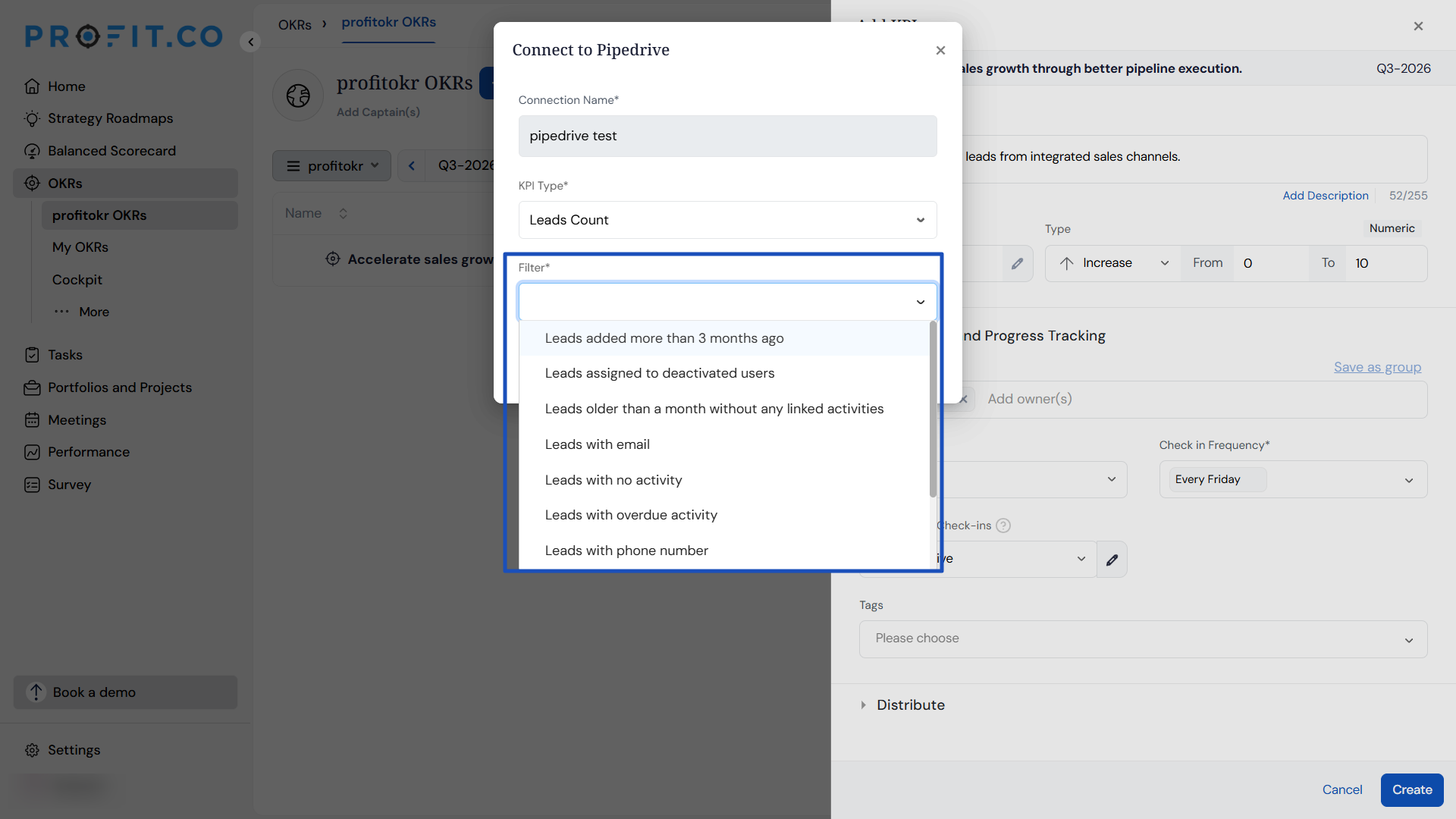
After choosing, the Current Value is displayed. Click Add.
After choosing you will find the Current Value, and click Add.
Note: You can also set the current value as the start value by clicking the Set as start value checkbox.
Once the Key Result is successfully created, click on the Check-in button and complete the check-in to update the status value in the key result.
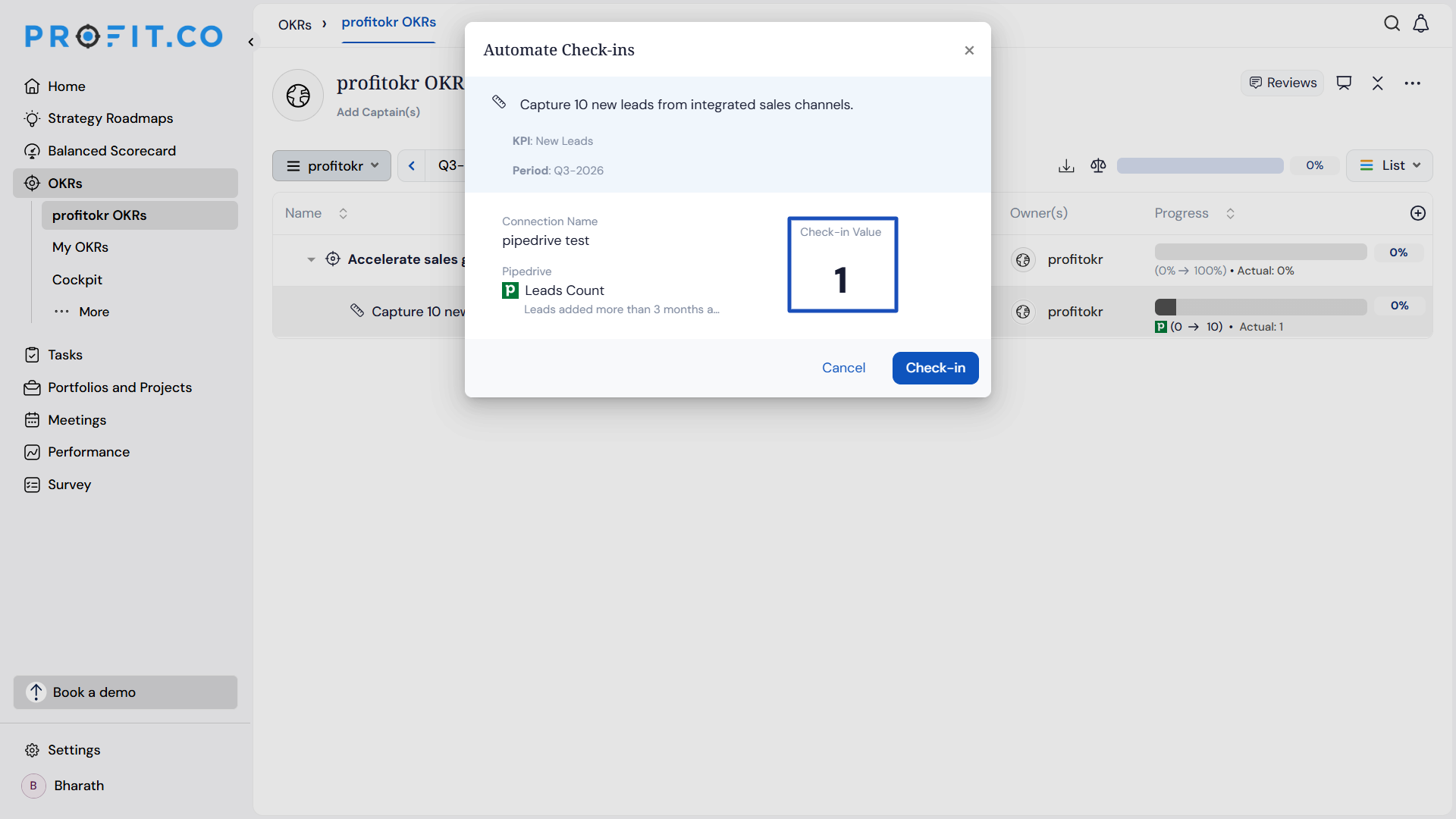
If you check-in you’ll be redirected to the review page. Finally, you can Update it to make progress to your key result.