
Dayforce is a cloud-based human capital management (HCM) platform that centralizes workforce data, including employee records, payroll, and organizational structures. It helps organizations manage the full employee lifecycle from hire to retire.
The Dayforce integration with Profit.co allows you to sync employee data directly from Dayforce and automatically create users in Profit.co. This eliminates manual user management and ensures your Profit.co user base stays aligned with your Dayforce HR records.
What This Integration Supports
With the Dayforce integration, you can import the following fields from Dayforce into Profit.co:
- Employee ID
- First Name and Last Name
- Email ID
- Manager
- Department
- Job Title
- Division and Organization Hierarchy
- Date of Joining
- Grade
Prerequisites
Before starting, ensure the following requirements are met:
- You have valid Dayforce administrator credentials
- You are logged in as a Super User in Profit.co
- You have the Connection Name, Username, Password, and Employee API details from your Dayforce account
Note: Only Super Users can configure the Profit.co and Dayforce integration.
Configure Dayforce in Profit.co
The following steps walk through connecting Dayforce to Profit.co and configuring user sync.
Step 1:
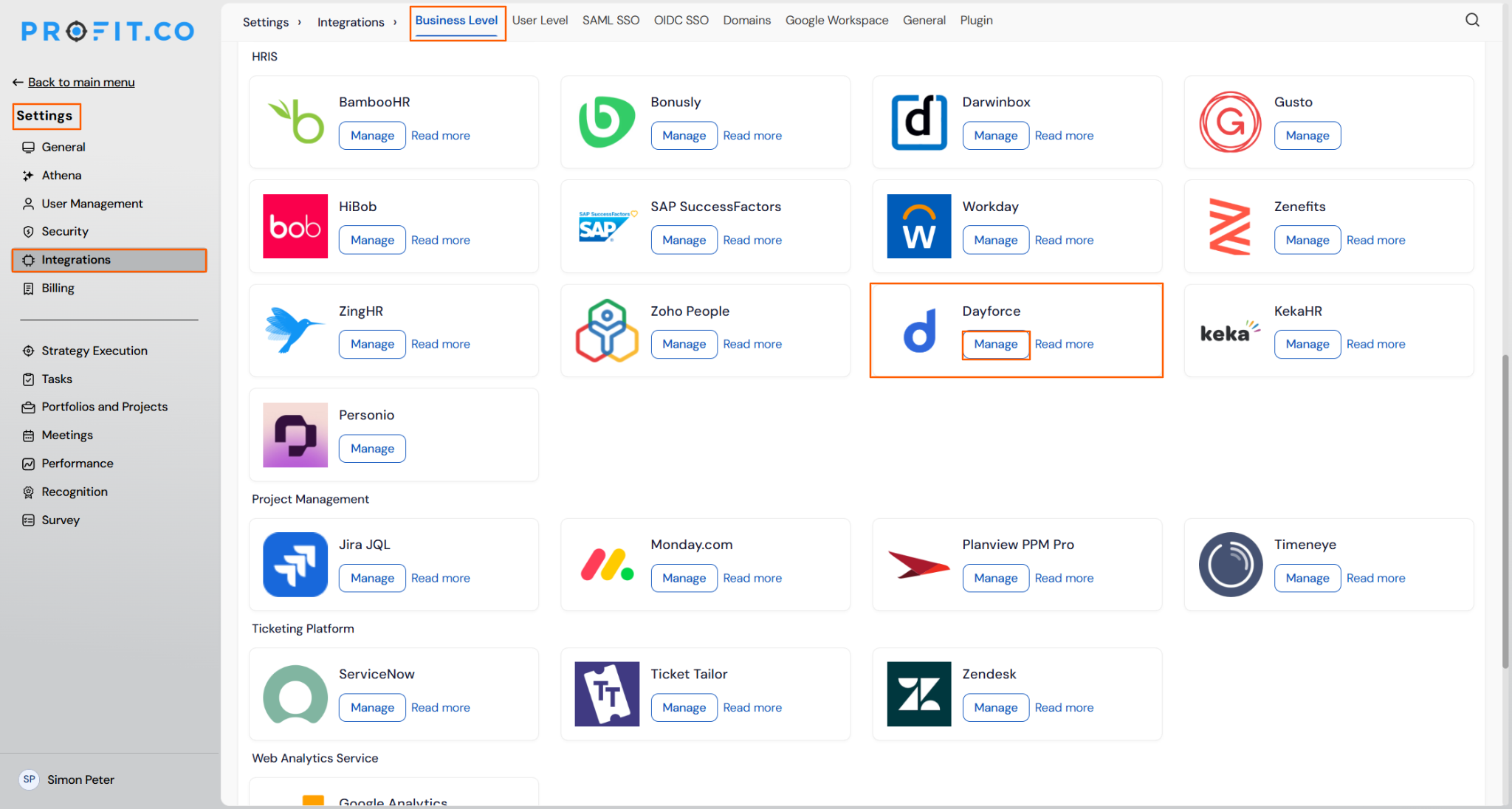
Navigate to the Dayforce connector in Profit.co to begin the setup.
- Navigate to Settings from the left navigation panel.
- Click Integrations and select the Business Level tab.
- Locate Dayforce and click the Manage button.
Step 2:
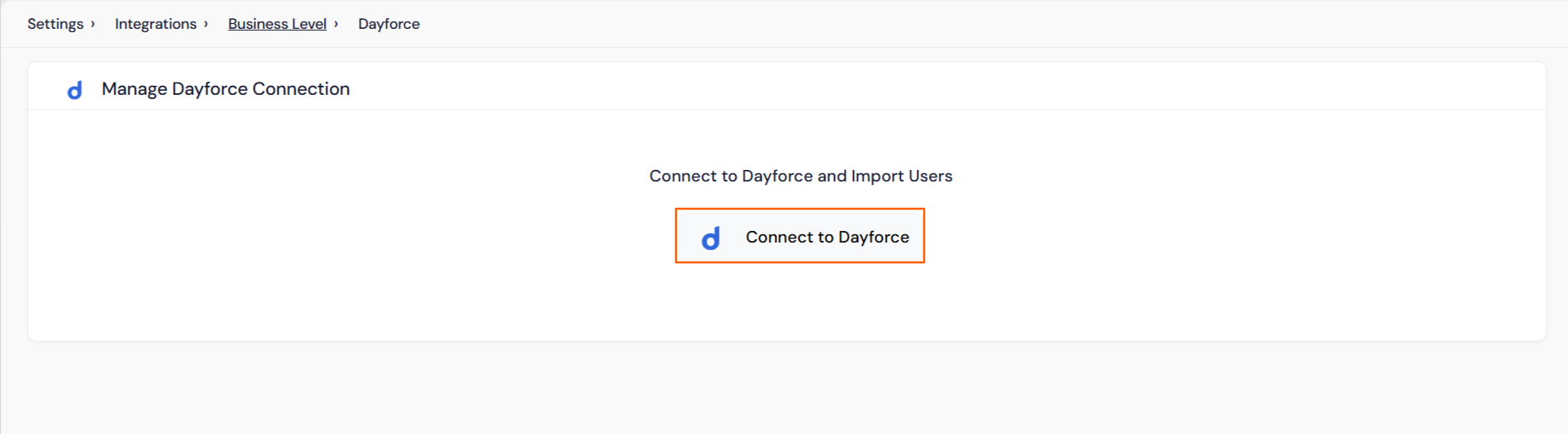
Connect Profit.co to your Dayforce account.
- On the Manage Dayforce page, click the Connect to Dayforce button.
- A connection popup will appear.
Step 3:
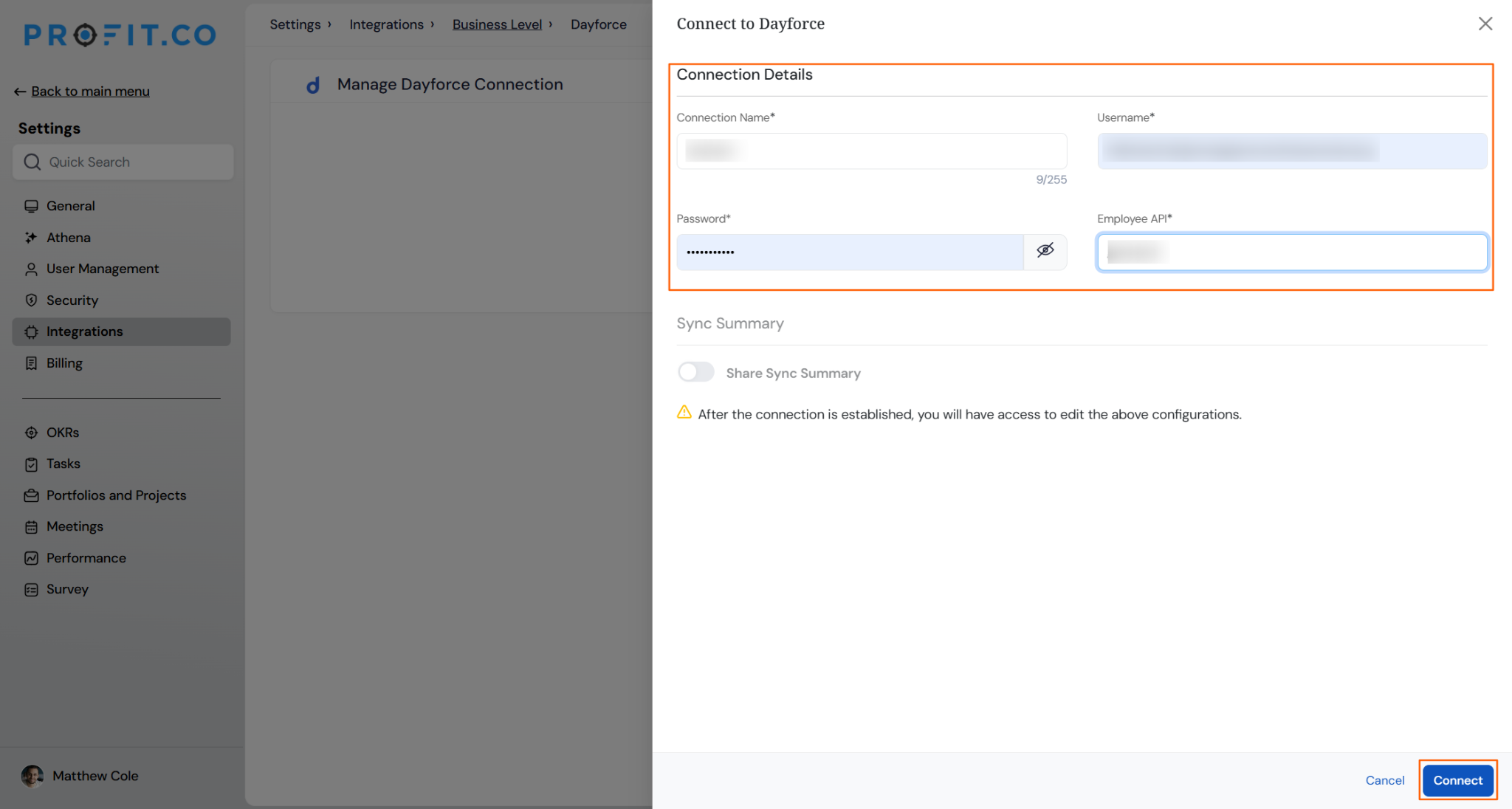
Fill in the required credentials from your Dayforce account to authenticate the connection.
- Enter the Connection Name.
- Enter your Dayforce Username.
- Enter your Dayforce Password.
- Enter the Employee API endpoint.
- Press Enter to establish the connection.
Step 4:
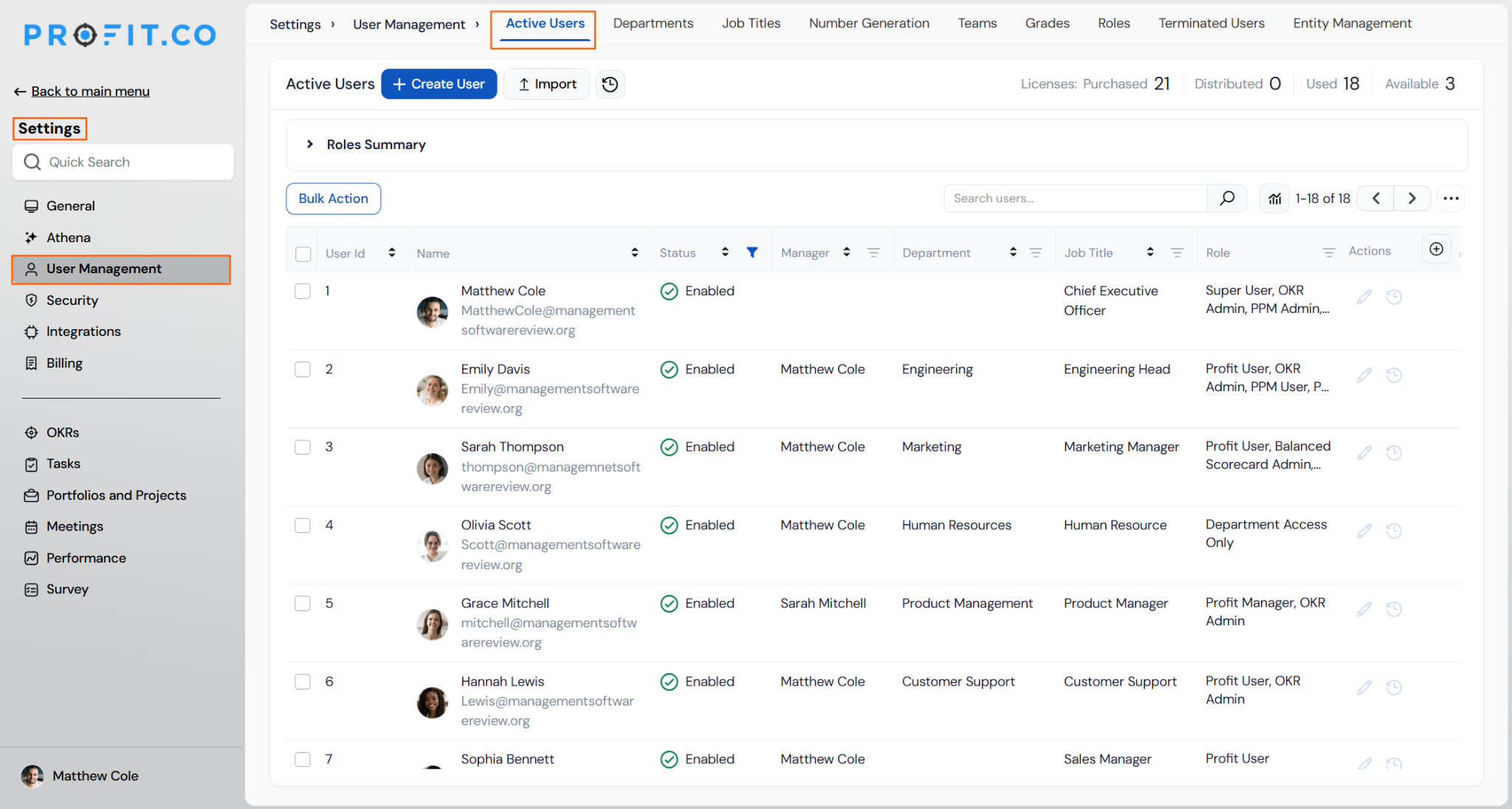
Once the connection is established, Profit.co will begin importing users from Dayforce.
- After the connection is confirmed, the first sync will begin automatically.
- The initial import takes up to 30 minutes to complete.
- Once sync is done, users from Dayforce will appear in Settings → User Management → Active Users in Profit.co.
Note: The first sync will happen only after 30 minutes once the connection is saved. Periodic syncs will run every day at 9 PM local time, or based on your configured scheduled time.
Step 5:
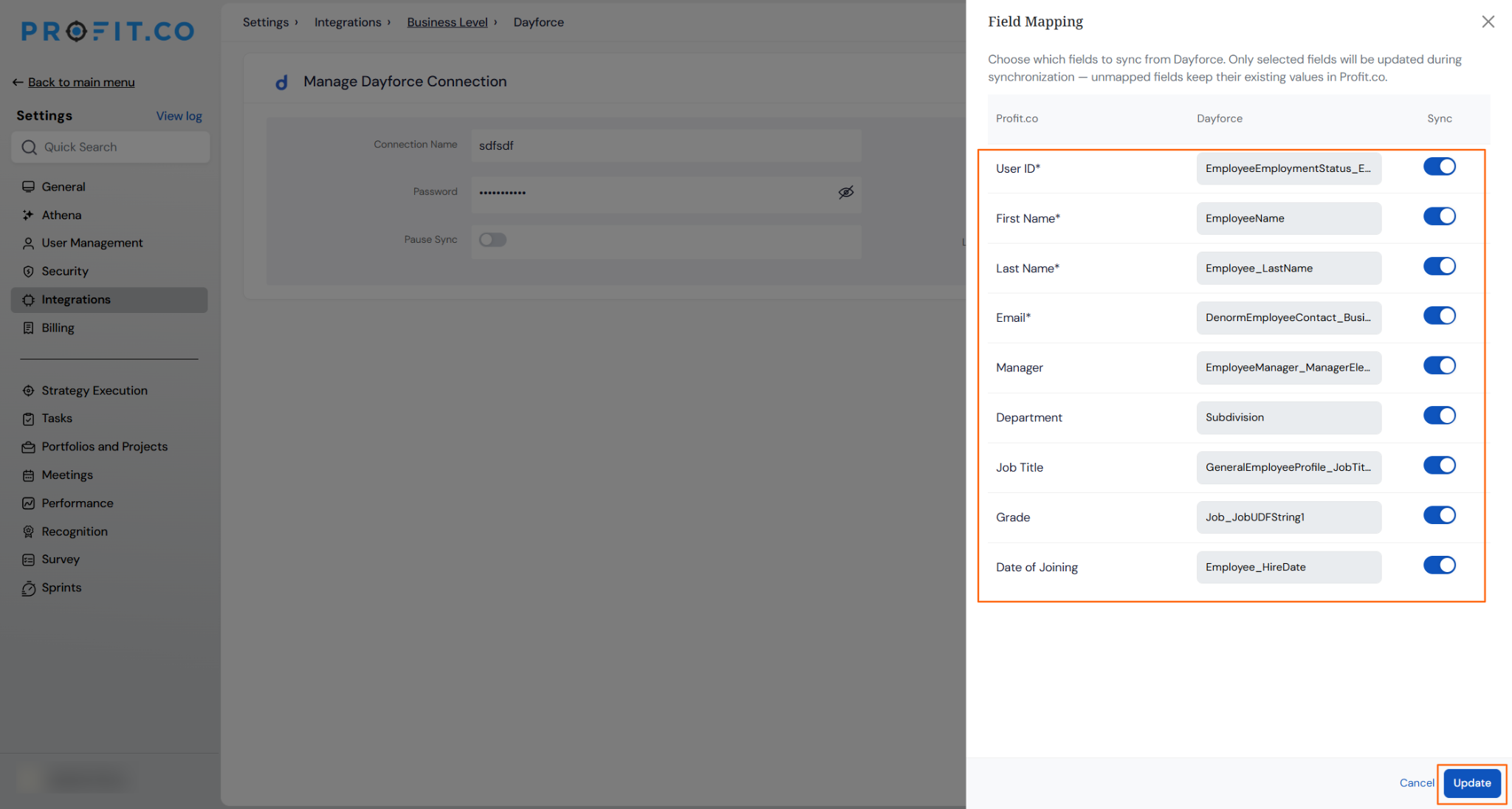
Field mapping controls which Dayforce fields are synced to Profit.co. Only fields with the toggle enabled will be updated during synchronization — unmapped fields keep their existing values in Profit.co.
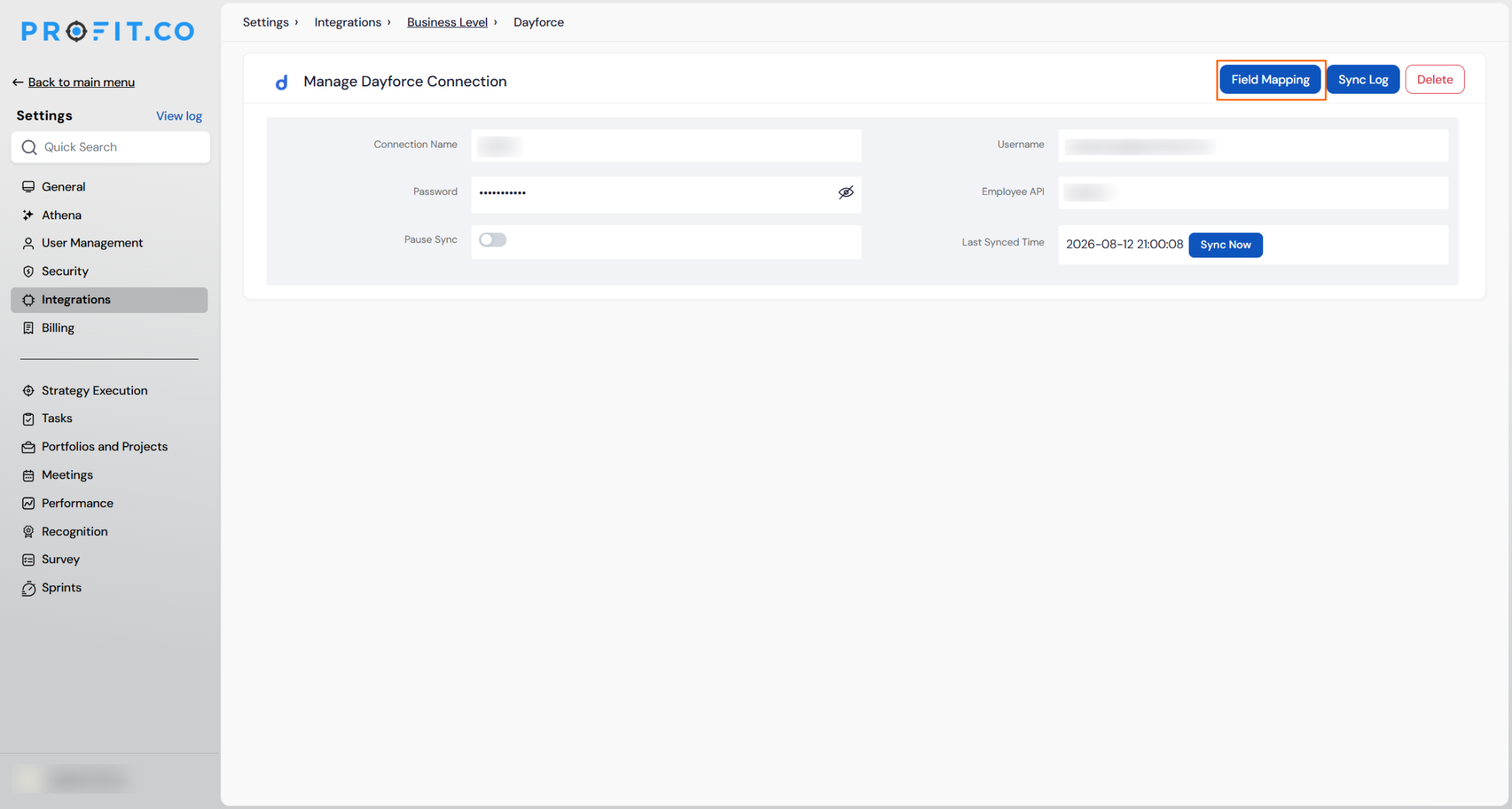
- On the Manage Dayforce page, click the Field Mapping option.
- The Field Mapping panel shows the Profit.co field on the left and the corresponding Dayforce field on the right.
- Enable the toggle next to each field you want to sync.
- Click Update to save the field mapping configuration.
Pause Connection
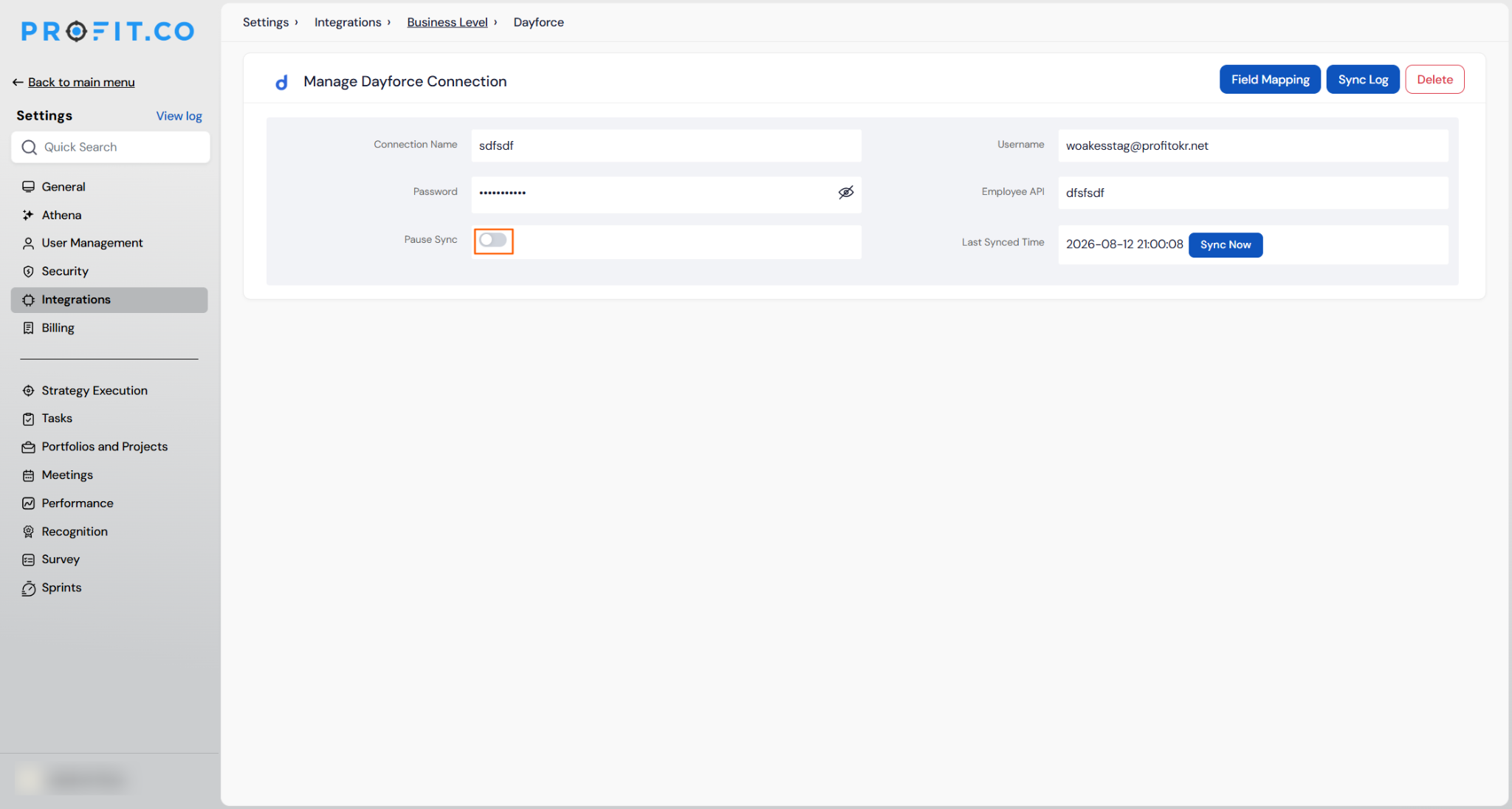
At any stage, if you do not want to synchronize the user details for a particular period of time, you can enable the Pause Connection toggle. Users will not be synchronized until you disable the toggle.
Note: Fields marked with * are required and should always remain enabled. Disabling required fields may cause sync errors.
Step 6:
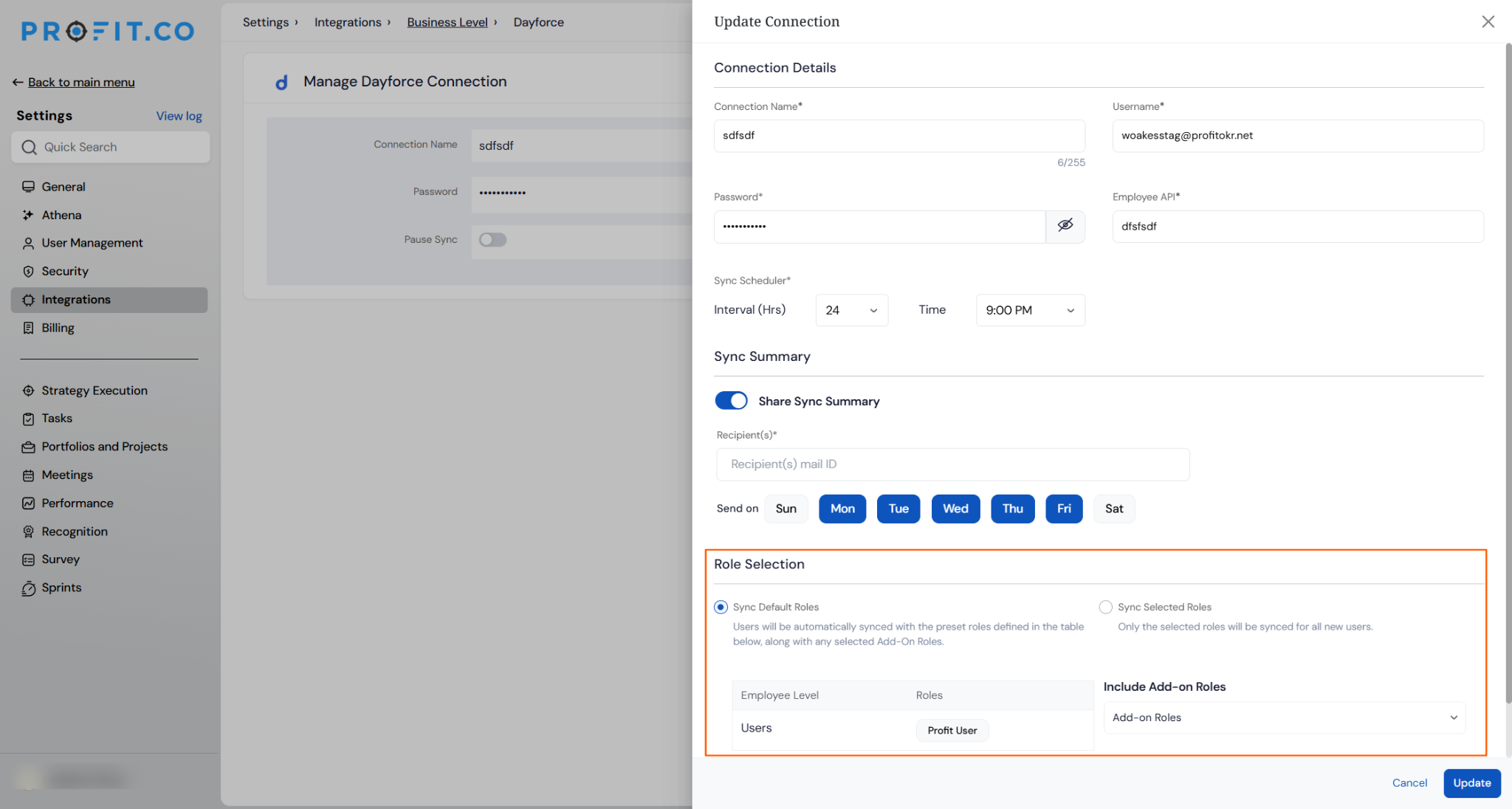
Profit.co provides additional options to control how the sync behaves and what notifications you receive.
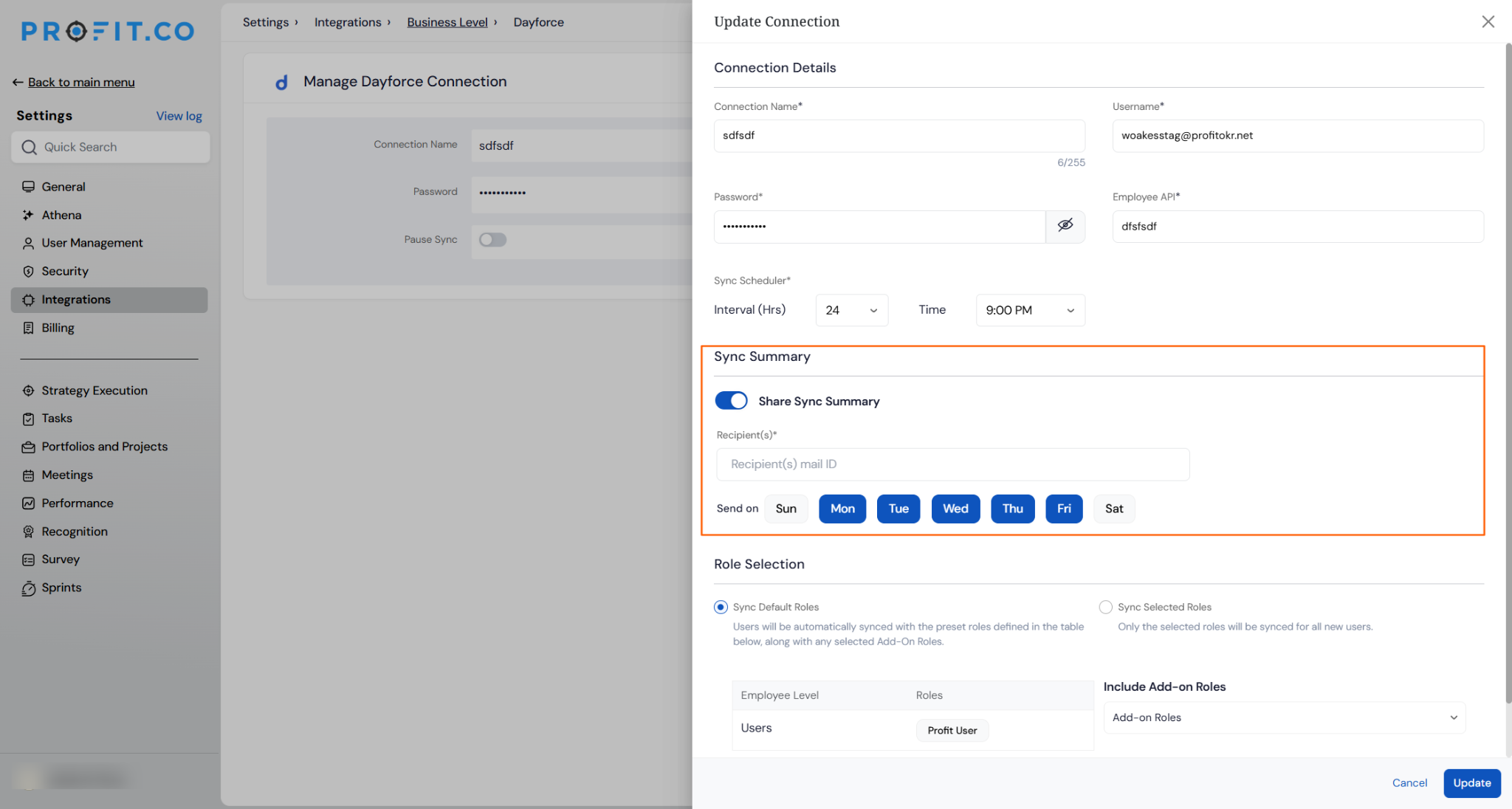
Share Sync Summary
Enable the Share Summary checkbox to receive an email notification after each sync with a summary of imported user data.
Role Assignment
Under the Roles section, choose how Profit.co roles are assigned to synced users:
- Sync Default Roles – All users synced from Dayforce are assigned the default Profit User role in Profit.co.
- Sync Selected Roles – Allows you to customize and assign specific roles to users in Profit.co during the sync.
Summary
By connecting Dayforce to Profit.co, your organization can automate user provisioning and keep employee data consistently aligned across both platforms. Field mapping gives you full control over which data is synced, while scheduling and role assignment options ensure the integration fits seamlessly into your existing HR workflows.
