Okta OIDC SSO (OpenID Connect Single Sign-On) is a secure authentication protocol that enables users to access multiple applications with a single set of credentials, enhancing user convenience and security.
What can you do with Profit.co – Okta OIDC Integration?
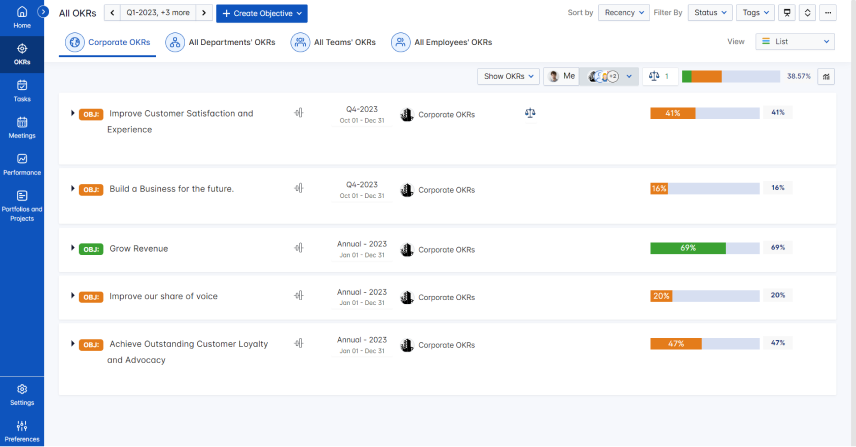
- With your Okta OIDC single sign-on, you can access Profit.co OKR software.
To create an Okta OIDC Single Sign-On application:
Step 1
Open your Okta admin account.
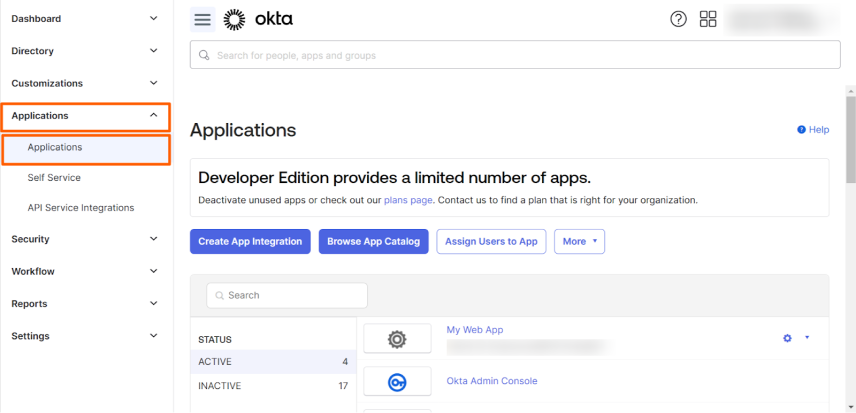
Navigate to Applications → Applications from the left navigation panel.
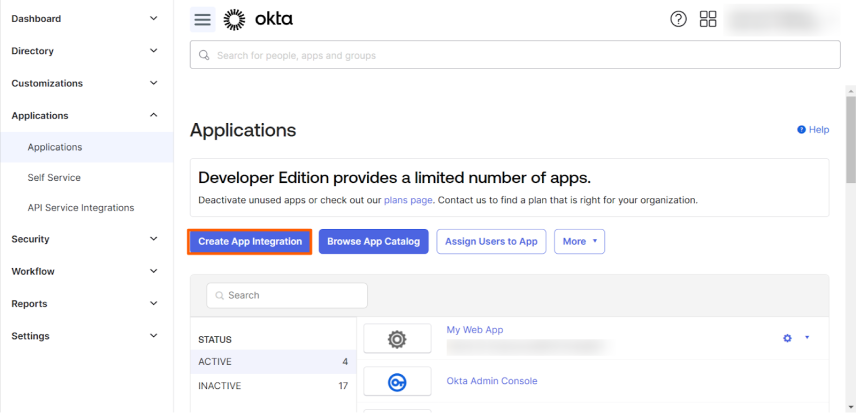
Click on the Create App Integration.
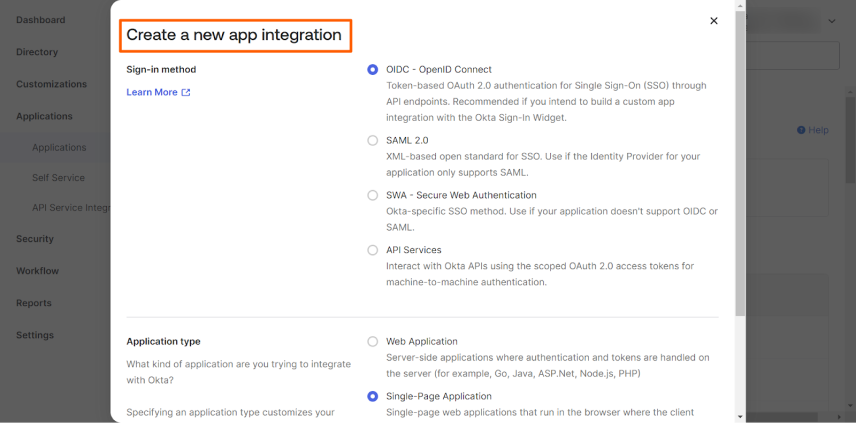
On the Create a new app integration page, choose the OIDC – OpenID Connect option, and in the Application type choose Single Page Application and click Next.
Step 3
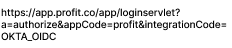
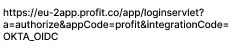
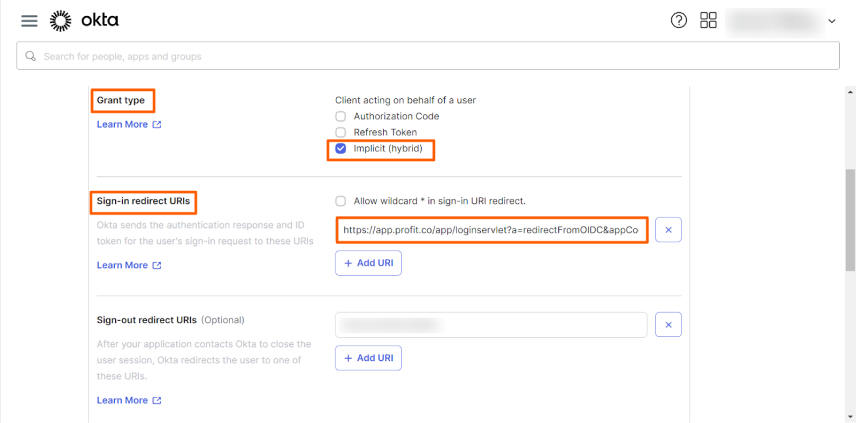
Fill in the details as given below:


Step 4
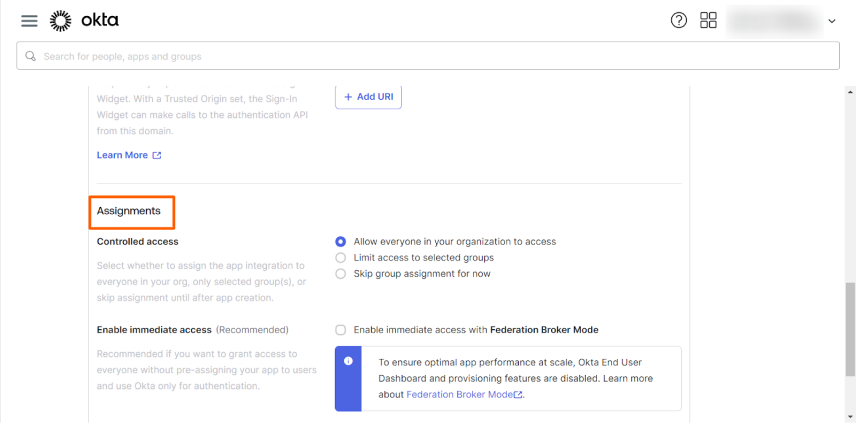
Choose the app Assignments permission and click on Save.
Step 5
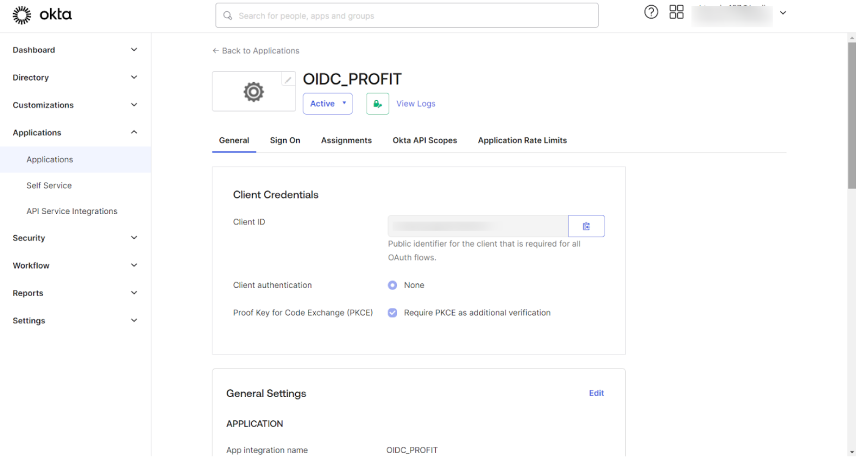
The Application will be created successfully.
Step 6
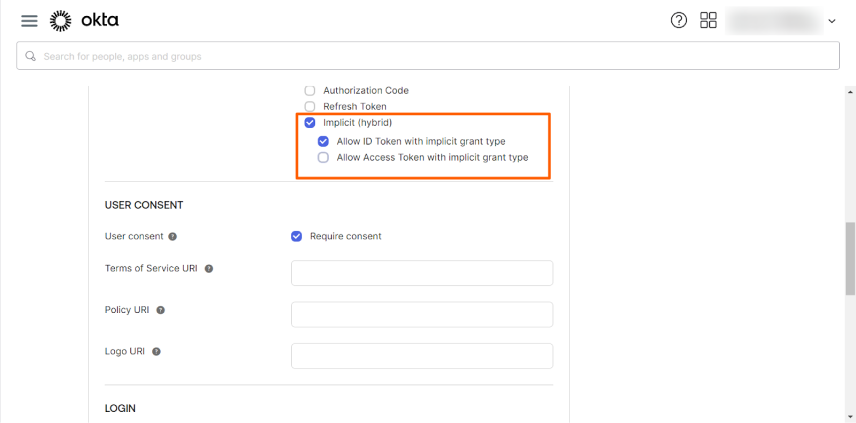
Click on edit and choose Allow ID Token with implicit grant type option.
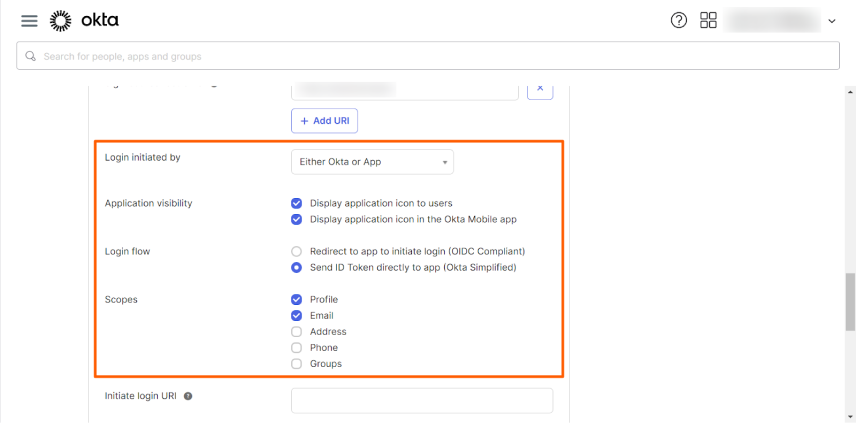
Choose the options shown below in the image and Save the configuration.
Step 7
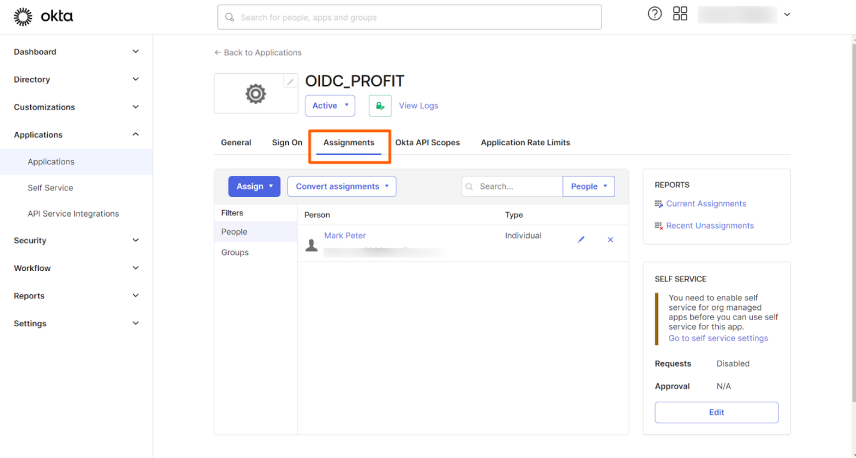
Assign the Application to the users under the Assignments tab.
Step 8
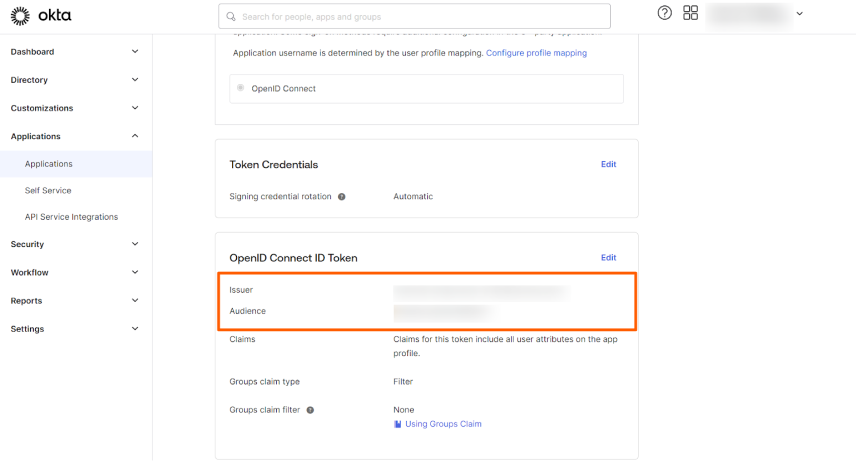
Note down the Issuer and Audience to configure with Profit.co
Step 9
Navigate to the Settings from the left navigation panel.
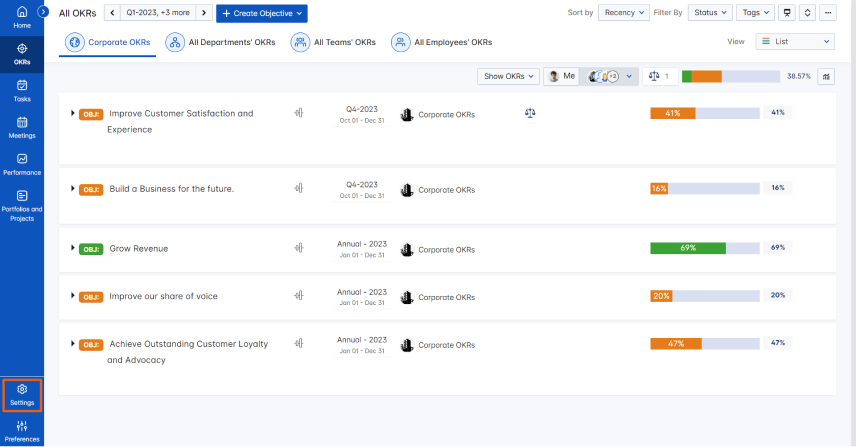
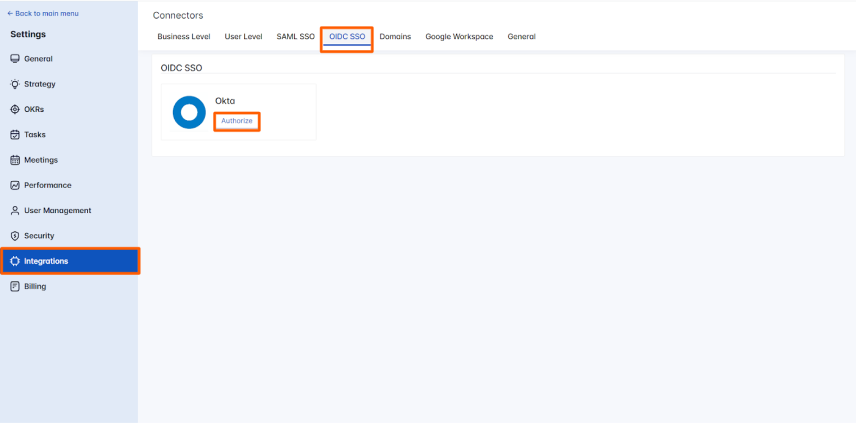
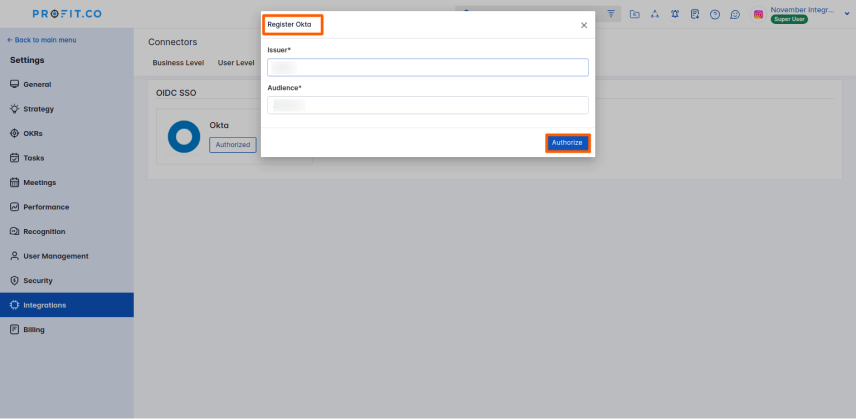
Click on the Integrations, choose the OIDC SSO tab, and click on the okta Authorize button.
On the Register Okta page, enter the Issuer and Audience ID and click on Authorize.
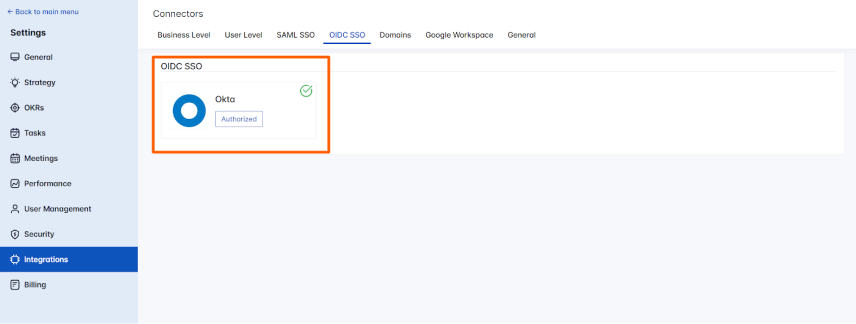
The connection will get Authorized.
Step 10
Open a new tab and navigate to Okta OIDC SSO user login.
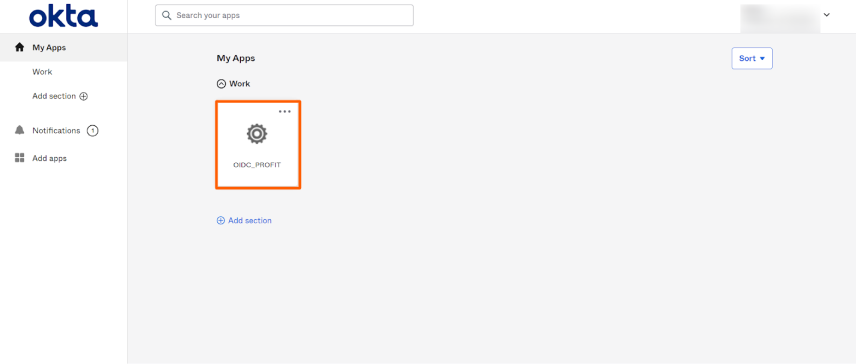
In the My Apps, you’ll be able to see the Profit.co application.
By clicking on the OIDC_ PROFIT App you’ll be redirected to the Profit.co application.