


Jellyfish is an engineering analytics platform that connects with tools like Jira and GitHub to track engineering productivity, delivery, and capacity. It helps leaders gain visibility into engineering performance and align development work with business goals.
What can you do with Jellyfish and Profit.co Integration?
Integrate engineering metrics from Jellyfish into Profit.co Key Results to automatically update progress. This enables continuous tracking of engineering delivery and productivity, helping teams align technical execution with business goals.
Configure Jellyfish in Profit.co
Note: Only Super Users can enable the Jellyfish integration in Profit.co.
Step 1
Navigate to Settings from the left navigation panel, click on Integrations, select the Business Level tab, and click the Jellyfish Manage button.

Then click the Connect to Jellyfish button.
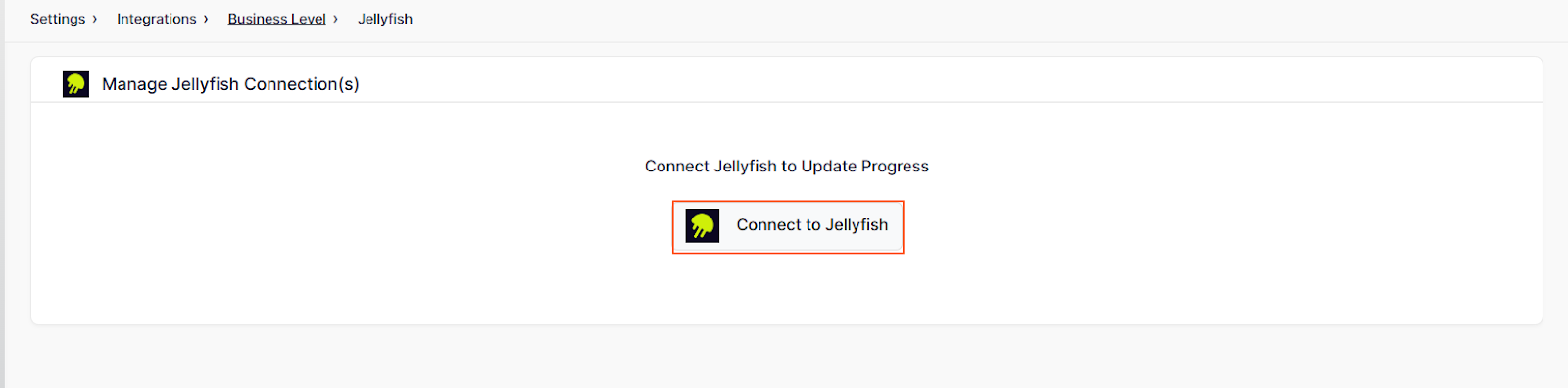
On the Connect to Jellyfish page, Enter the connection name and required details and click on the Connect button to successfully configure the Jellyfish Integration connection. You can set the visibility and sync frequency in the settings.
- When you set the Sync Frequency to Everyday, the system updates progress daily.
- When you select Sync based on KR Frequency, the system fetches data according to your check-in Frequency.
Example: If the check-in frequency is set to every Friday, the system will update progress every Friday.

The connection will be created.
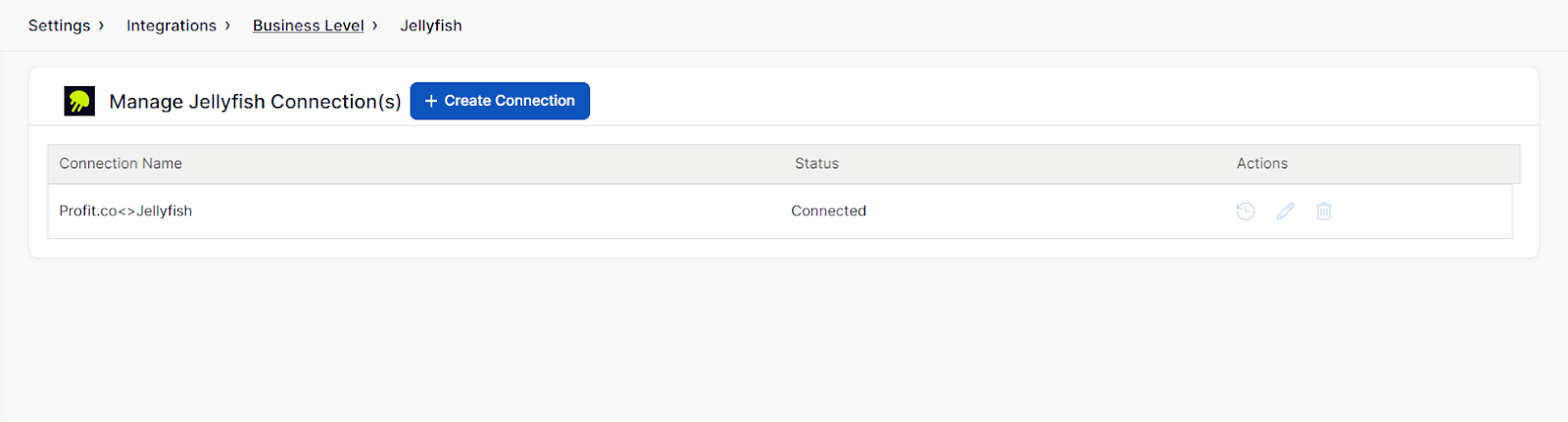
Step 2
- Enter the key result name.
- Choose the desired key result type and KPI.
- Select ‘Automate Check-ins’ and choose ‘Jellyfish’ from the connection dropdown.
Note: Jellyfish supports Increase KPI, Decrease KPI, or Control KPI type.

A pop-up page will appear. Fill in the following details: Choose Connection name, Category, Date Range, and Metrics name. By selecting the metric’s name, the current value will be fetched, and it’ll be generated.
Once you click Add.

Click Create and save your key result.

Step 3
Once the key result is created, click Check-in to update its status value.


You’ll be redirected to the review page. Update it to make progress toward your key result.

Click Create and save your key result.

Note: Automatic check-ins occur every day at 9:00 AM according to the user’s region.