Oracle Netsuite is an enterprise resource planning (ERP) platform that comes with a robust financial management solution. It helps companies manage key business processes with a single, fully integrated cloud-based system. Some of those processes include enterprise resource planning and financials, CRM, e-commerce, inventory, and more.
What you can do with Oracle Netsuite and Profit.co integration?
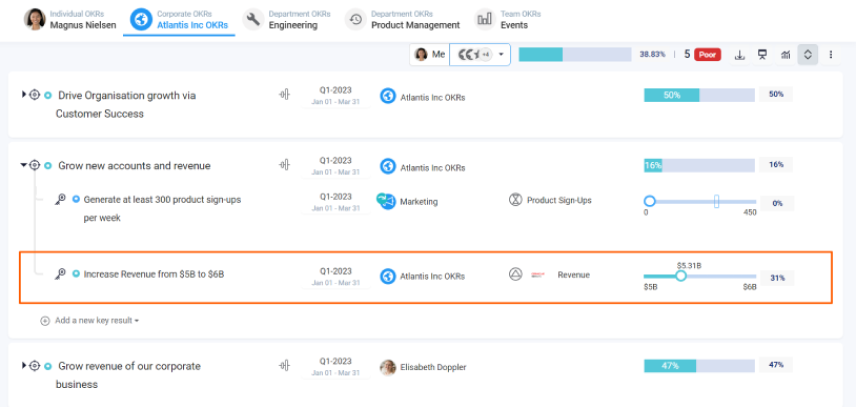
Integrate Oracle Netsuite fields using query in Profit.co key result and automate the progress.
Configure Oracle Netsuite in Profit.co
Note: Only Super Users can be able to configure the Profit.co <> Oracle Netsuite Integrations.Step 1
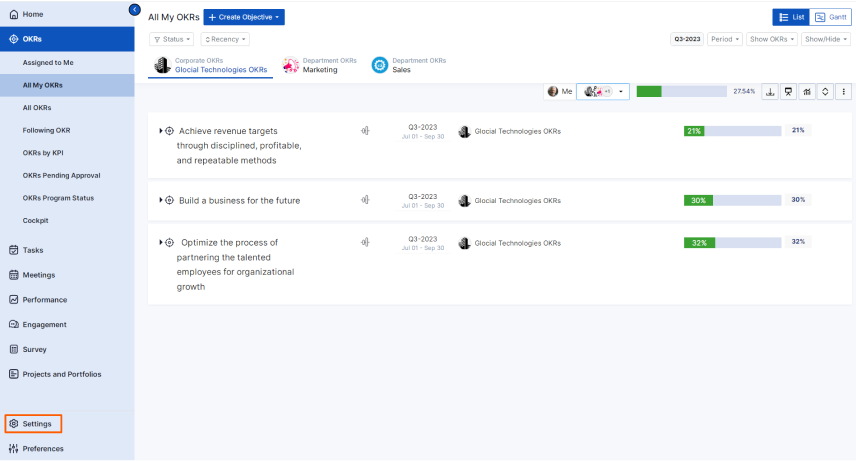
Navigate to Settings from the left navigation panel. Click on Integrations, On the Connectors page, Select the Business Level tab and click on the Oracle Netsuite Manage button.
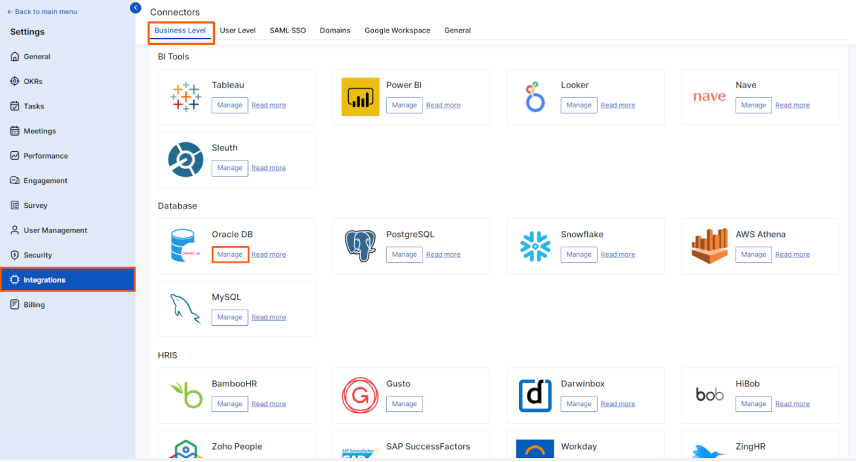
Then click the Connect to Oracle Netsuite button.

Step 2
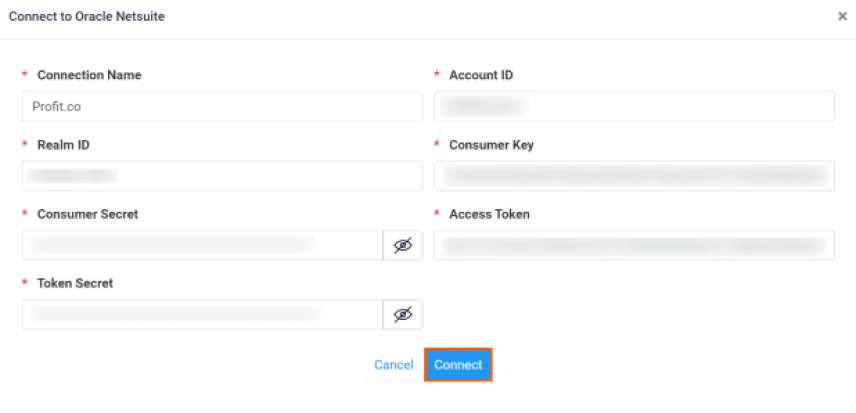
Enter the Connection Name and required details and click on the Connect button to successfully configure the Oracle Netsuite Integration connection.
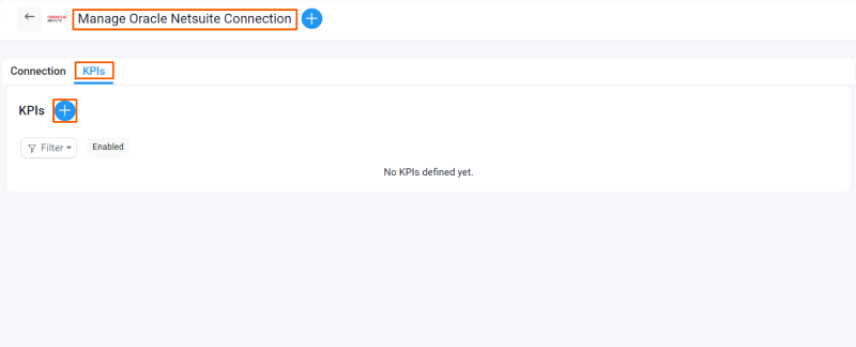
On the Manage Oracle Netsuite Connection page, create KPIs by clicking on the KPIs.
Click on the + icon.
Enter all the required details and click “Create”.

The KPI will be created.

Note: Run a query by clicking on the name of the KPI and selecting the option KPI Query.
Step 3
Now Create a key result Using the Form in Profit.co where you want to integrate the Oracle Netsuite in a key result.
Note: Oracle Netsuite KPI supports Increase KPI, Decrease KPI, and Control KPI type.Search & Select the KPI in By category and choose Oracle Netsuite, and select the required KPI.

Enter the From and To values and click Create.

Once the Key Result is successfully created, click on the Check-in button and complete the Check-in to update the status value in the key result.
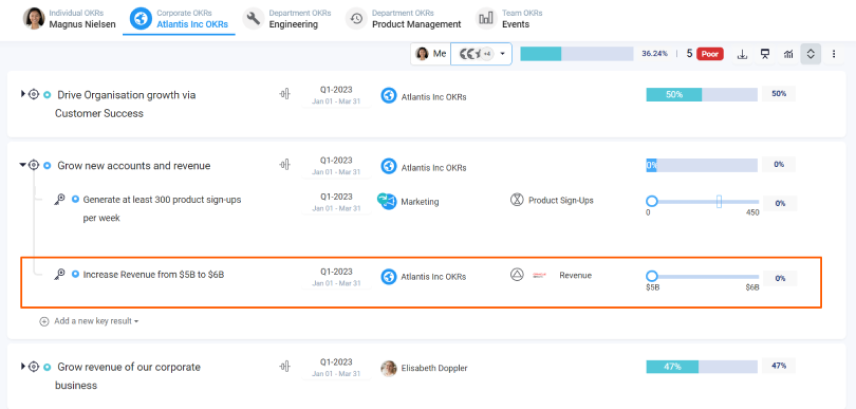
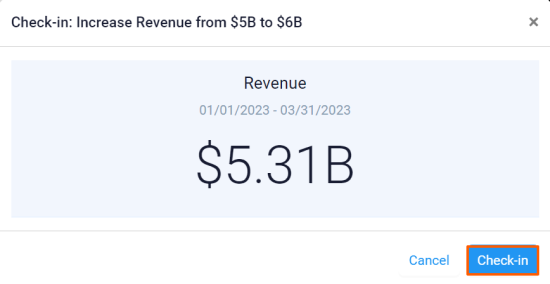
If you check-in you’ll be redirected to the review page. Finally, you can Update it to make progress to your key result.