
ChatGPT is an AI-powered conversational interface that allows you to interact with applications through natural language. With the Profit.co integration, you can execute OKR work directly within ChatGPT without switching tabs or opening multiple tools.
Why Use Profit.co in ChatGPT
The Problem
Your team already works in ChatGPT. But updating an OKR means opening a new tab, navigating to Profit.co, finding your objective, typing the update, and losing your focus. Three minutes lost. Flow broken.
The Solution
Profit.co in ChatGPT eliminates the context switch entirely. Create objectives, check in on key results, update tasks, and track progress without leaving your conversation. No tab switching. No navigation. No workflow interruption. Just type a command and continue working.
Who Should Use This
For Managers
Stop chasing status updates. Your team checks in when progress happens, not days later when they remember.
For Contributors
You’re already in ChatGPT. Now your OKR work happens there too — no switching, no forgetting, no friction.
For Distributed Teams
Teams across time zones check in when it’s convenient, using the tool they’re already working in.
How to Connect Profit.co to ChatGPT
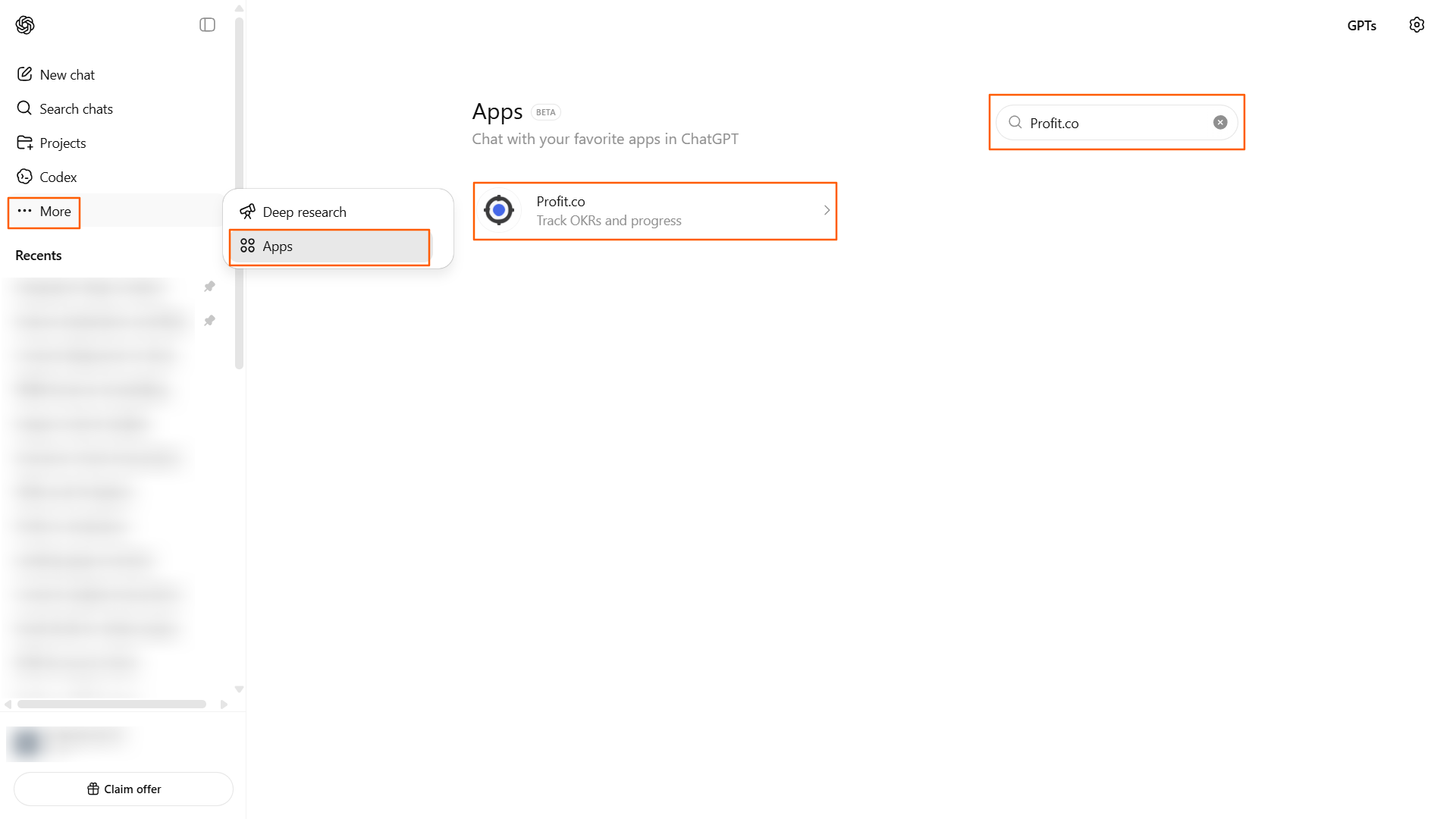
Step 1: Search for Profit.co in ChatGPT
- Open ChatGPT (you need ChatGPT Plus or Enterprise to use third-party apps).
- Click on the More option, and choose the Apps
- Search for “Profit.co” in the Apps directory or type @profit.co to find the integration.
- Click the Connect button to begin the authentication process.

Step 2: Authenticate Your Account
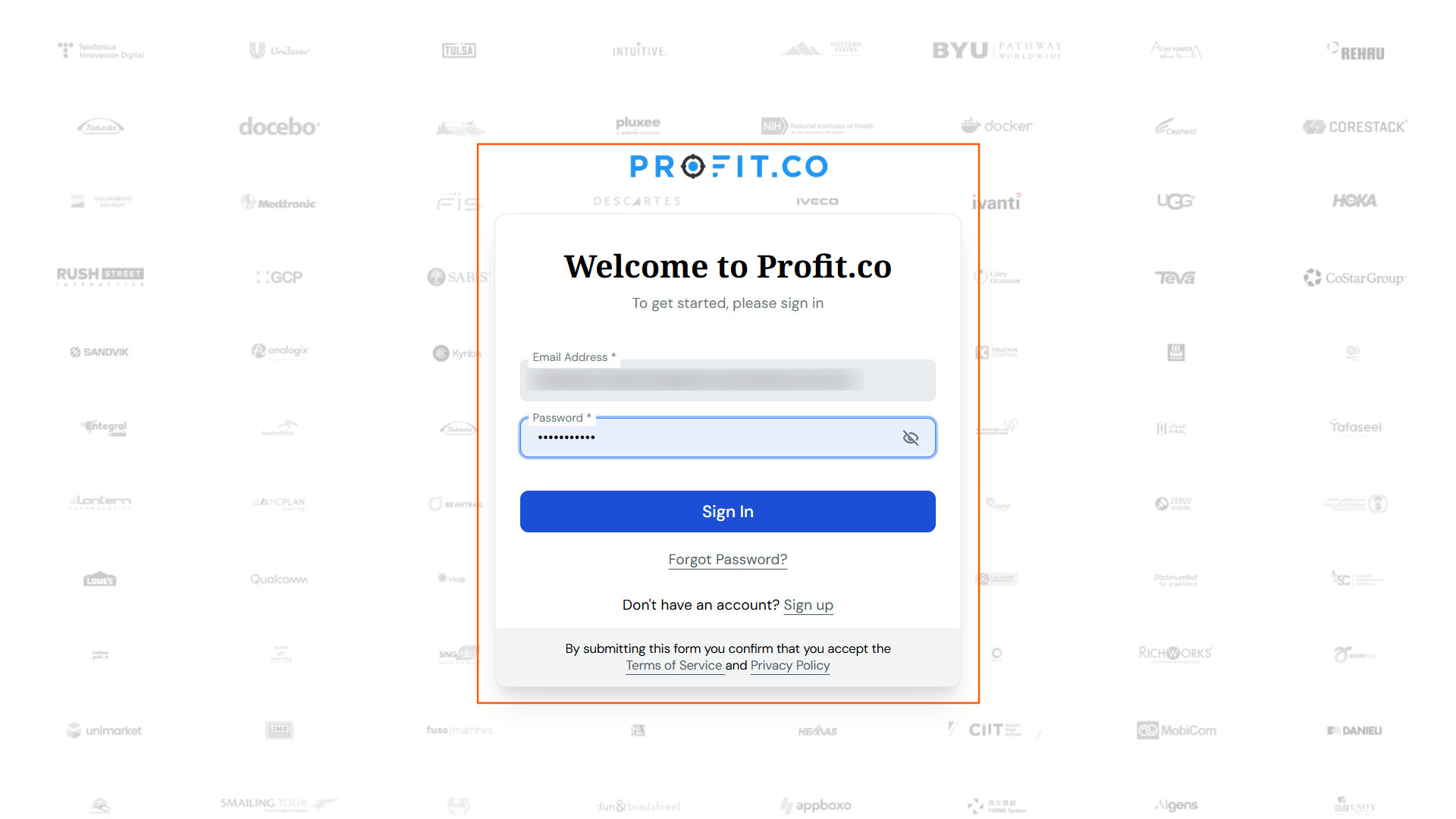
- When you click Connect, a pop-up will open, and click the Sign in with Profit.co button.
- ChatGPT will redirect you to the Profit.co login page.
- Enter your Profit.co credentials to authenticate.

Step 3: Start Using Profit.co in ChatGPT
Once connected, the Profit.co integration remains active until you explicitly disconnect it. To start a conversation with Profit.co, type @profit.co in ChatGPT. After that, all your commands in that chat will go directly to Profit.co – no need to type @profit.co again.

What You Can Do with Profit.co in ChatGPT
1. Create Objectives
Set up new objectives for your company, team, or yourself directly through conversational commands.
2. Create Key Results
Add measurable key results to any objective and define targets to track progress over time.
3. Perform Check-Ins
Submit progress updates for your key results in seconds without opening another tab.
4. Create Task
Break work into actionable tasks with task name, due date, status, and priority.
5. Update Task
Modify task name, due date, status, priority, description, and comments conversationally.
6. List My OKRs
View your individual objectives and key results with current progress and status.
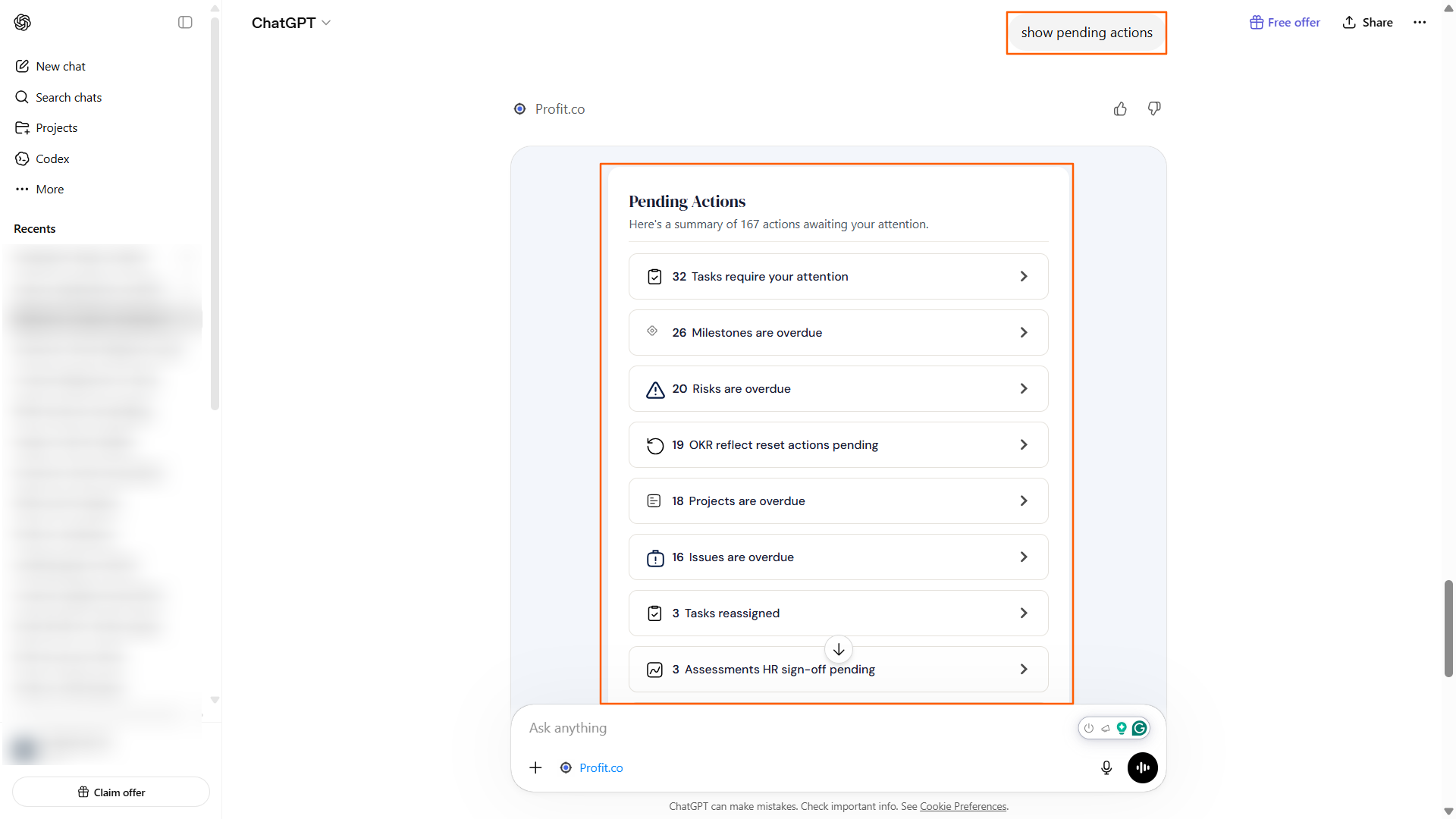
7. Pending Actions
Check what needs your attention — overdue tasks, blocked items, and urgent updates.
How to Use Profit.co in ChatGPT
All actions are secured and permission-based — you only see and update what you’re authorized to access in Profit.co. Here are the 7 things you can do:
1. Create Objectives
Set up a new objective for your company, team, department, or individual level.
Example Command:
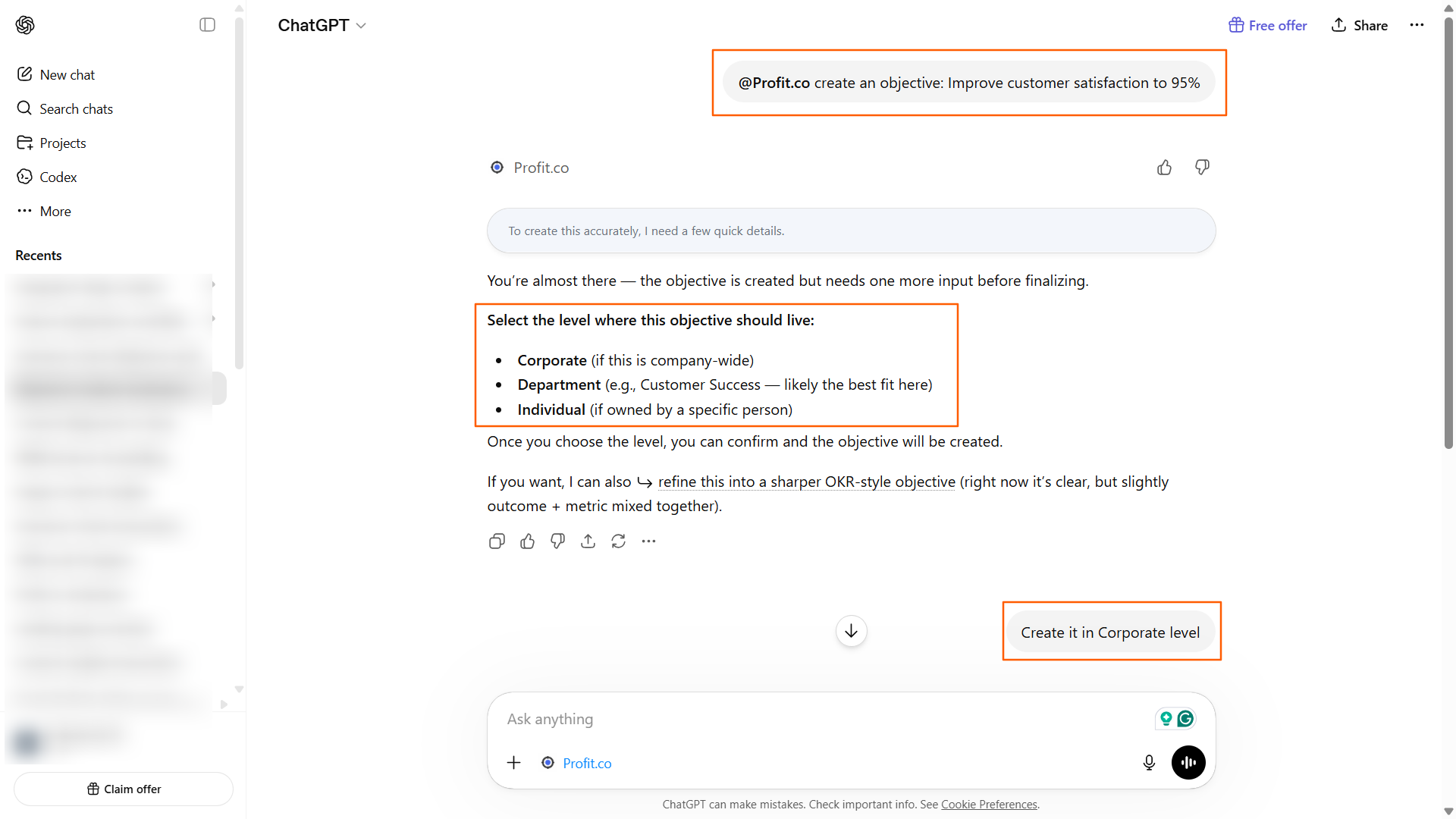
create an objective: Improve customer satisfaction to 95%
💡 How it works step-by-step:
Step 1: You send the command
Step 2: ChatGPT requests clarification
- At which level (Company-level, Department-level, or Individual-level) should your objective be created?
Once you choose the level, you can confirm and then click Create.

2. Create Key Result
Add a measurable key result to an existing objective.
Example Command:
add key result: Increase NPS score from 72 to 85
💡 How it works step-by-step:
Step 1: You specify the key result
Step 2: ChatGPT asks which objective
- If you have multiple objectives, ChatGPT will display them and ask which one this KR belongs to
Step 3: The key result is added
- Starting value: 72
- Target value: 85
- Unit of measurement: NPS score
- Linked to the selected objective
Once finalised, click Create.

3. Perform Check-In
Submit a progress update for your key results or objectives.
Example Command:
check-in for Q2 marketing OKR: 25% complete, on track, no blockers
Note: It is mandatory to add the progress value and the status to perform the check-in.
💡 How it works step-by-step:
Step 1: You submit the check-in
Step 2: ChatGPT processes the update
- Progress: 75%
- Status: On Track
- Blockers: None
- Timestamp: [current date/time]
The update will be recorded once you click Check-in.

4. Create Task
Break down objectives into actionable tasks with clear ownership and deadlines.
Example Command:
create task: Draft Q2 product roadmap, due March 15, high priority
💡 How it works step-by-step:
Step 1: You create the task with inline details
Step 2: ChatGPT extracts the task details
- Task name: “Draft Q2 product roadmap”
- Due date: March 15
- Priority: High
- Status: Not Started (default)
Once finalized, click the Create. button
Step 3: The task is created
- Task appears in Profit.co immediately
- Visible to all team members with access

5. Update Task
Modify any task attribute including name, due date, status, priority, description, or comments.
Example Command:
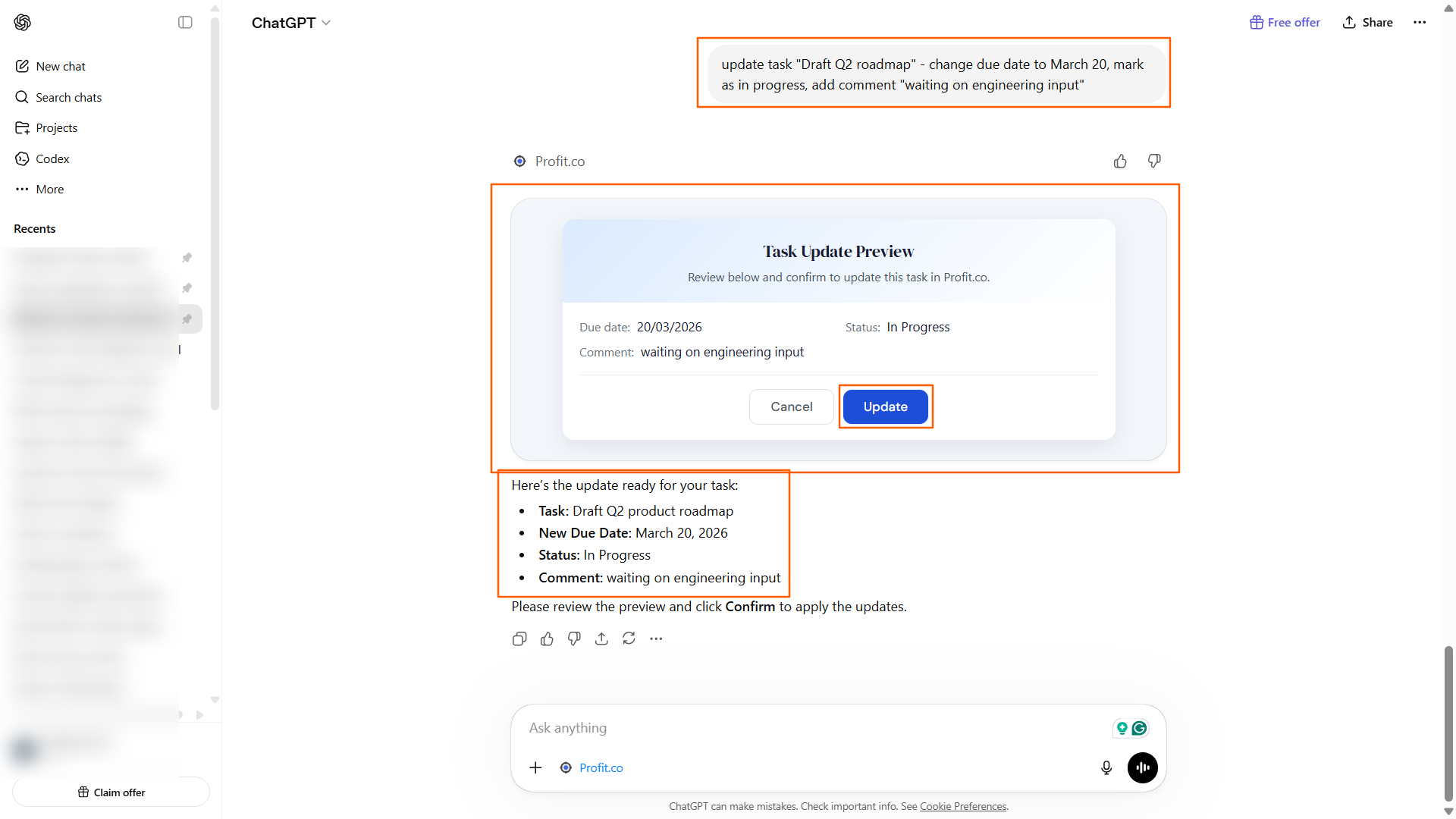
update task “Draft Q2 roadmap” – change due date to March 20, mark as in progress, add comment “waiting on engineering input”
💡 How it works step-by-step:
Step 1: You specify what to update
Step 2: ChatGPT applies all changes at once
- Due date: March 15 → March 20
- Status: Not Started → In Progress
- Comment added: “waiting on engineering input.”
Once done, click Update.
Step 3: The task is updated
- Changes sync to Profit.co instantly
- Team members see the updated task
6. List My OKRs
View all your assigned objectives and key results with current progress.
Example Command:
show me my OKRs
or
list my objectives
💡 How it works step-by-step:
Step 1: You ask to see your OKRs
Step 2: ChatGPT retrieves and displays your OKRs
- Fetches all your individual objectives.
- Includes current progress on each key result

7. Pending Actions
Check what needs your immediate attention — overdue tasks, blocked items, urgent updates.
Example Command:
what’s pending for me?
or
show pending actions
💡 How it works step-by-step:
Step 1: You ask for pending actions
Step 2: ChatGPT retrieves and displays your pending items.
Managing Your Connection
Staying Connected
Once you connect Profit.co to ChatGPT, the integration stays active across all sessions. You don’t need to reconnect every time.
Disconnecting Profit.co
If you want to disconnect Profit.co from ChatGPT:
- Go to ChatGPT Settings → Connected Apps
- Find Profit.co
- Click Disconnect
Note: Disconnecting removes the integration from ChatGPT. Your data in Profit.co remains unaffected.
Security & Privacy
How Authentication Works
When you connect Profit.co to ChatGPT, a secure OAuth 2.0 flow is initiated:
- ChatGPT generates a unique state identifier for your session
- You authenticate with Profit.co using your credentials
- Profit.co generates an authorization code linked to that state
- ChatGPT exchanges the code for access tokens
- Tokens are stored securely by both ChatGPT and Profit.co for ongoing authentication
Access Permissions
Same permissions as Profit.co: You only see data you’re authorized to access. If an OKR is private to you in Profit.co, it stays private in ChatGPT.
User identification: Since ChatGPT does not share user data with third parties, Profit.co identifies you using your authentication tokens, which map to your email or employee ID within your organization.
Data storage: ChatGPT processes your commands and sends them to Profit.co’s secure servers. ChatGPT does not store your OKR data. All data remains in Profit.co’s secure infrastructure.
Frequently Asked Questions
Is this available to all Profit.co users?
Yes. Any Profit.co user can connect their account to ChatGPT. However, you need a ChatGPT Plus or Enterprise account to use third-party apps within ChatGPT.
Do I need a special Profit.co plan?
No. This works with all Profit.co plans — Free, Pro, and Enterprise.
How does security work? Can my teammates see my private OKRs?
Profit.co enforces the same access privileges in ChatGPT as in the main platform. If an OKR is private to you in Profit.co, it stays private in ChatGPT. Your teammates cannot see your private data through the ChatGPT integration.
What if ChatGPT gets my request wrong?
The MCP server will ask for clarification if your prompt is ambiguous. ChatGPT is designed to handle natural language, but if something is unclear, it will prompt you for details before executing an action.
Does ChatGPT store my Profit.co data?
No. ChatGPT processes your commands and sends them to Profit.co’s MCP server, which executes the actions. ChatGPT does not store your OKR data. All data remains in Profit.co’s secure infrastructure.
Do I need to reconnect every time I use ChatGPT?
No. Once you connect Profit.co to ChatGPT, the connection persists across sessions until you explicitly disconnect. You only need to authenticate once.
Can I use this on mobile?
Yes. The ChatGPT mobile app supports third-party integrations. You can use Profit.co in ChatGPT on iOS and Android devices with the same functionality as the web version.
What happens if I disconnect Profit.co from ChatGPT?
Your data remains secure in Profit.co. Disconnecting only removes the integration from ChatGPT — it does not delete or affect any of your OKRs, tasks, or check-in history in Profit.co.
Who can see the updates I make through ChatGPT?
Updates made through ChatGPT follow the same access permissions as updates made directly in Profit.co. Only team members with appropriate access permissions can see your updates.

Welcome to Profit.co 👋
How can I help you today?