
Overview
Zoho Projects is a project management platform that helps teams plan, track, and manage work across projects. Its built-in issue tracker module helps teams resolve issues and bugs while keeping project deadlines on track.
The Zoho Projects integration with Profit.co automates OKR check-ins for key results. Progress updates are generated automatically from Zoho Projects tasks and bugs, removing the need for manual status updates and keeping key result tracking accurate.
What This Integration Supports
With the Zoho Projects integration, you can:
- Automate check-ins for key results using task and bug data from Zoho Projects
- Track key results of the Increase KPI, Decrease KPI, or Control KPI type
- Connect a key result to a specific Portal, Project, and KPI view in Zoho Projects
- Set the current value from Zoho Projects as the key result's start value
- Run automatic daily check-ins at 9:00 AM, based on the user's region
Prerequisites
- An active Zoho Projects account with access to the relevant Portal and Projects
- Permission to grant Profit.co access to your Zoho account
- Super User access in Profit.co
Note: Only Super Users can configure this integration in Profit.co.
Configure Zoho Projects in Profit.co
The following steps walk through connecting Zoho Projects to Profit.co and automating check-ins for a key result.
Step 1
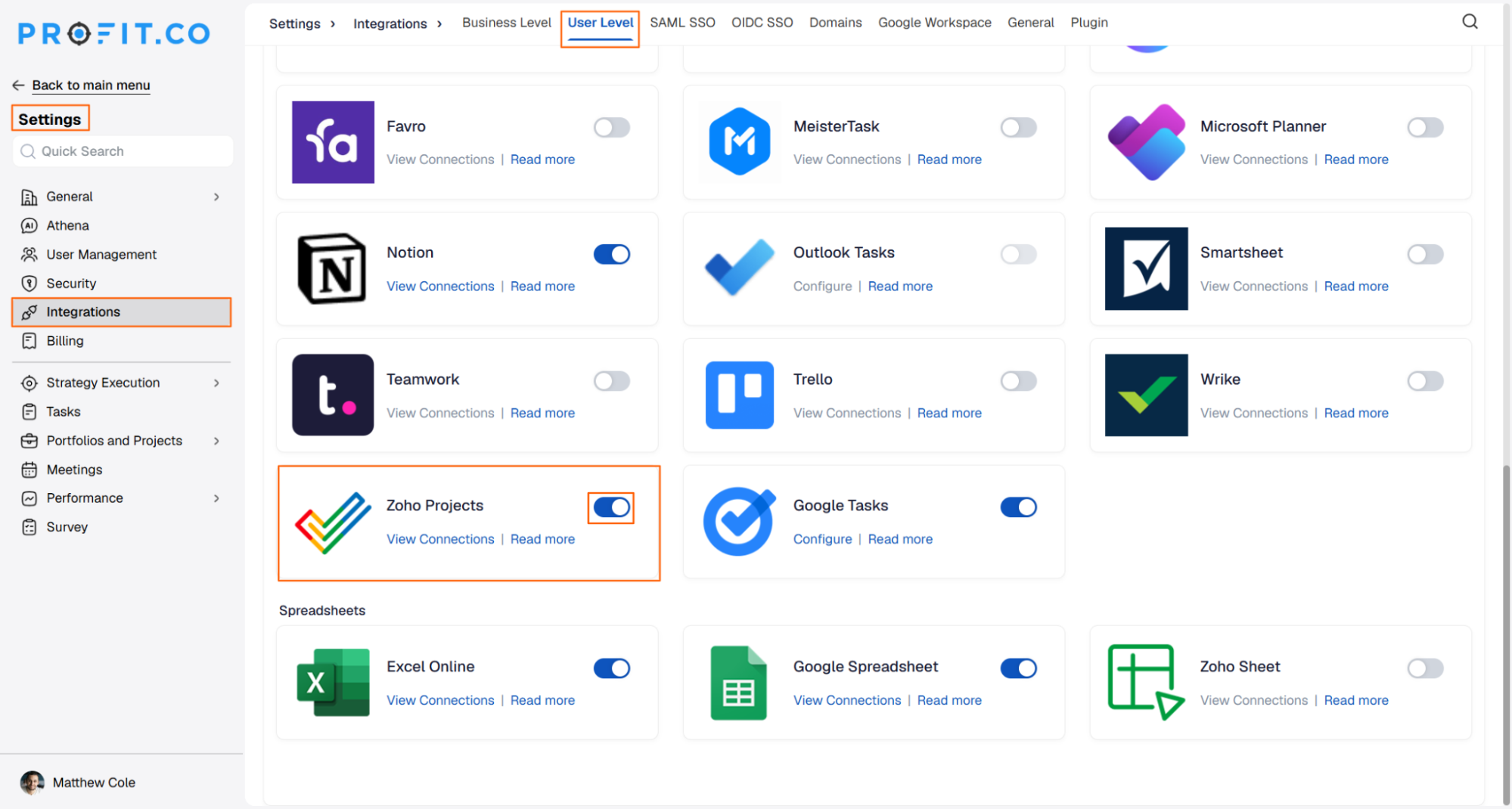
Start by enabling the Zoho Projects connector at the user level in Profit.co.
- Navigate to Settings from the left navigation panel.
- Click Integrations, then select the User Level tab on the Connectors page.
- Enable the Zoho Projects toggle.
Step 2
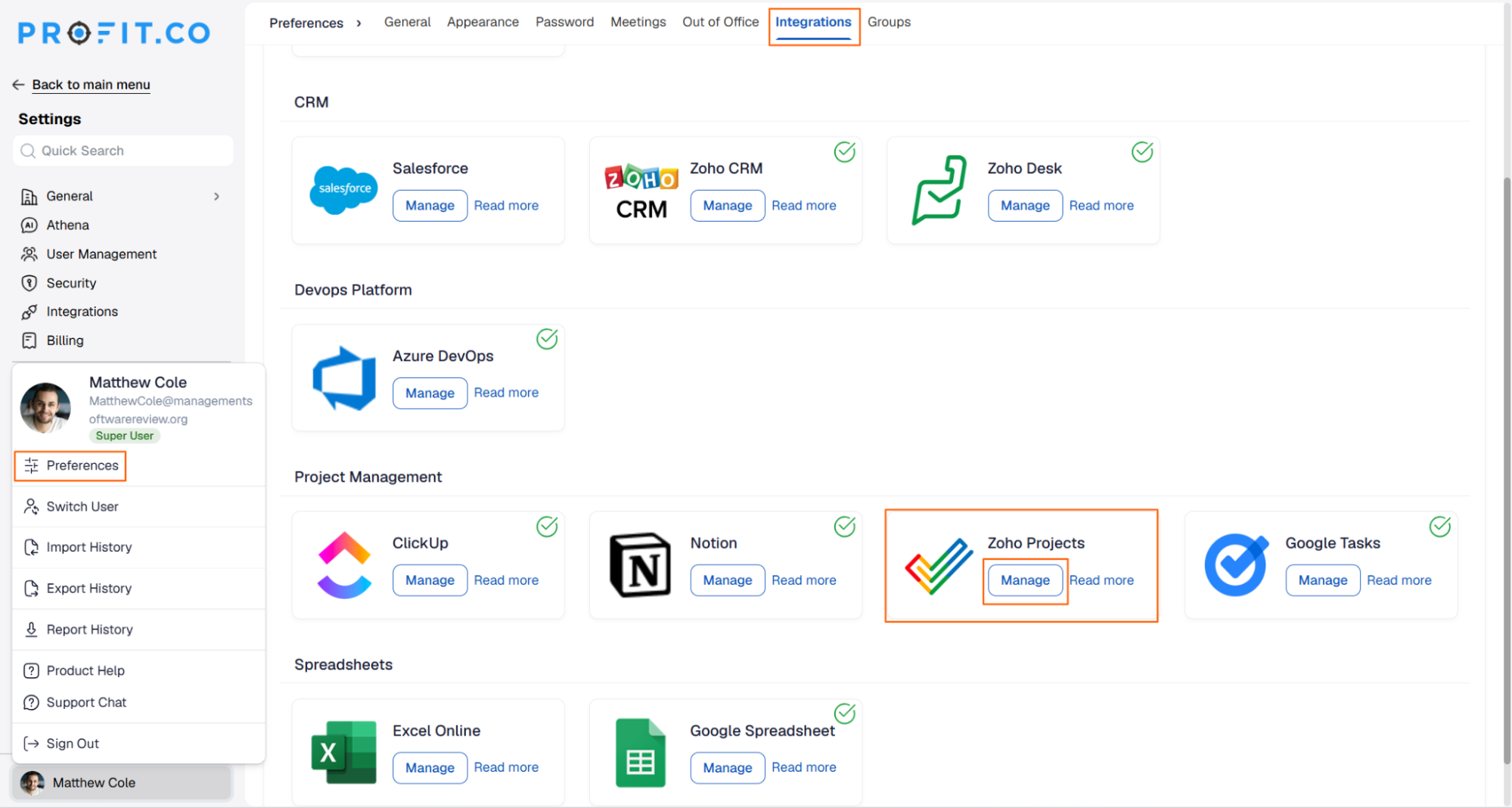
Next, establish a connection by signing in to your Zoho Projects account.
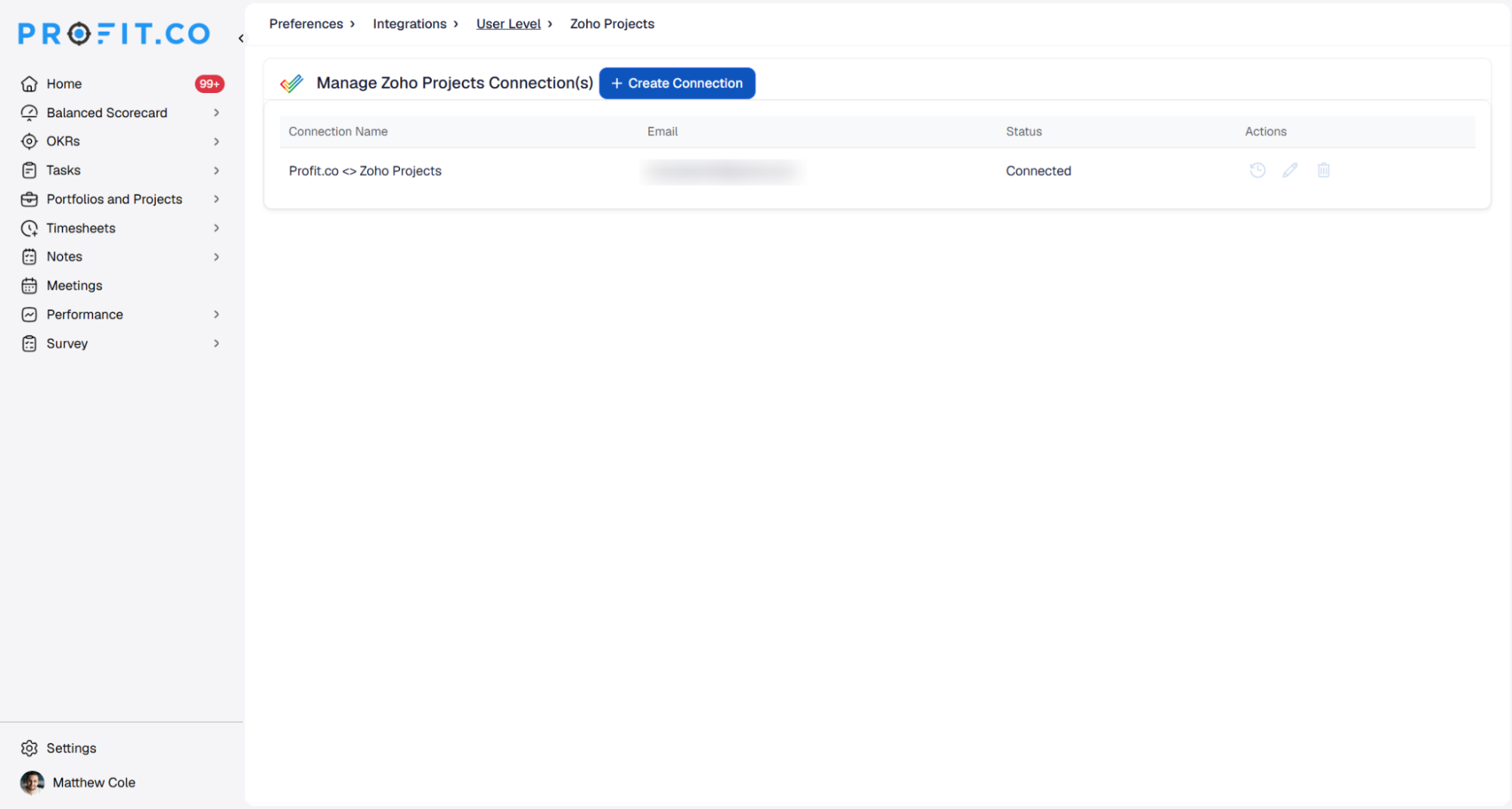
- Navigate to Preferences from the left navigation panel, select the Integrations tab, and click the Manage button next to Zoho Projects.
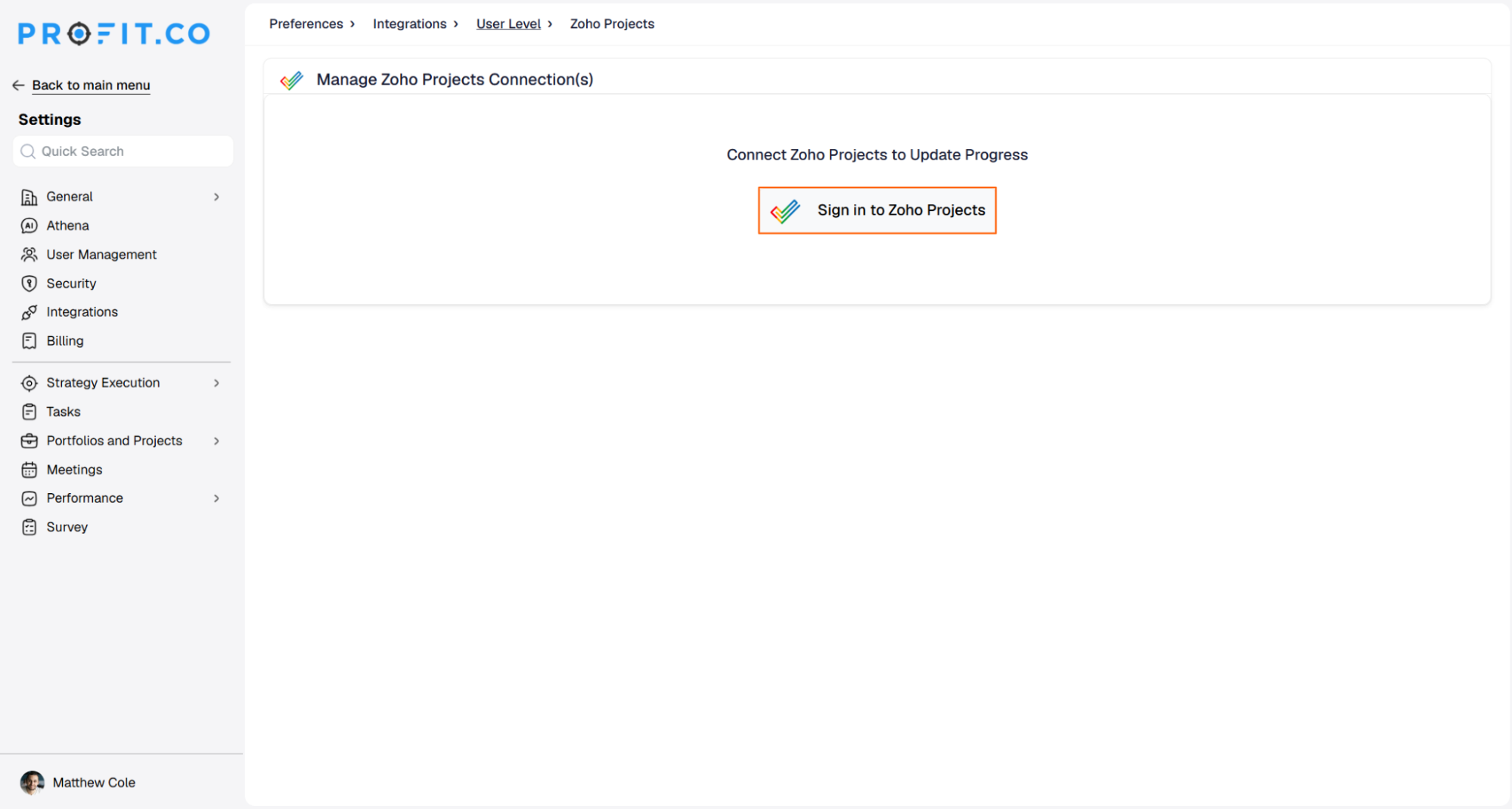
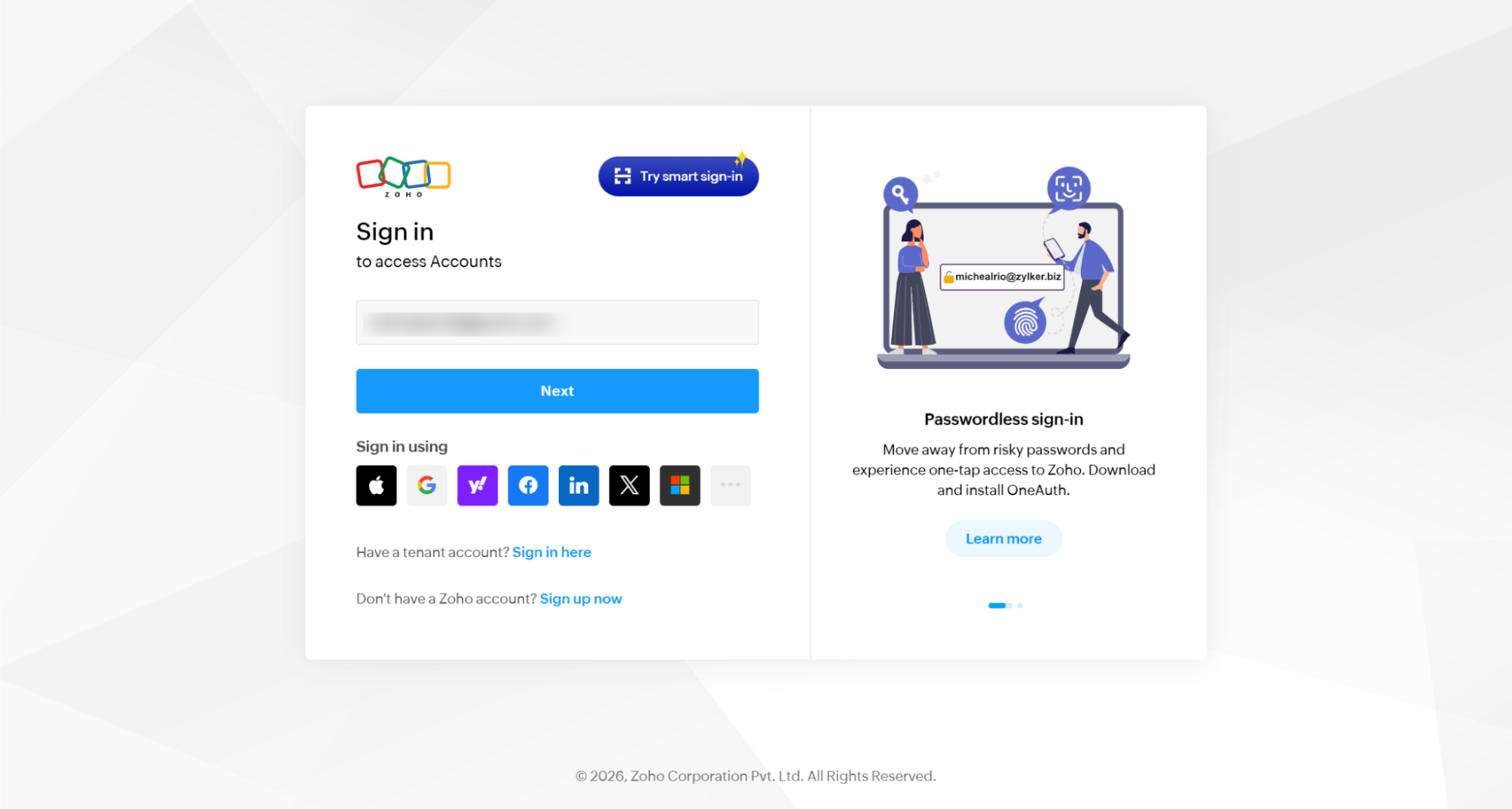
- Click Sign in to Zoho Projects, enter your Connection Name, then click Sign in to Zoho Projects again to be redirected to Zoho.
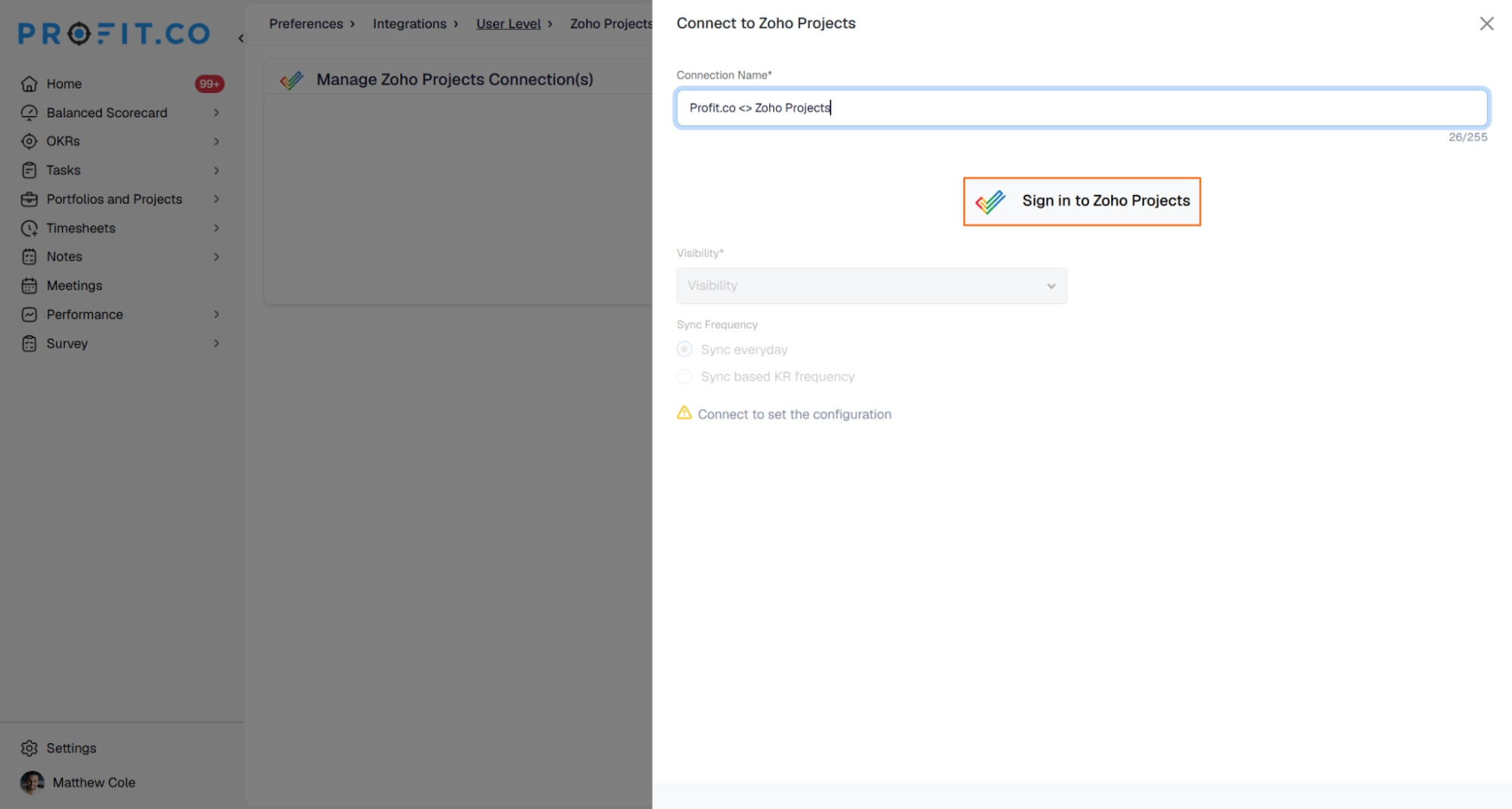
- Sign in to your Zoho account and grant access. The connection will be established automatically.
Step 3
Once connected, link a key result to Zoho Projects to automate its check-ins.
- Create a key result and choose the required Key Result Type and KPI.
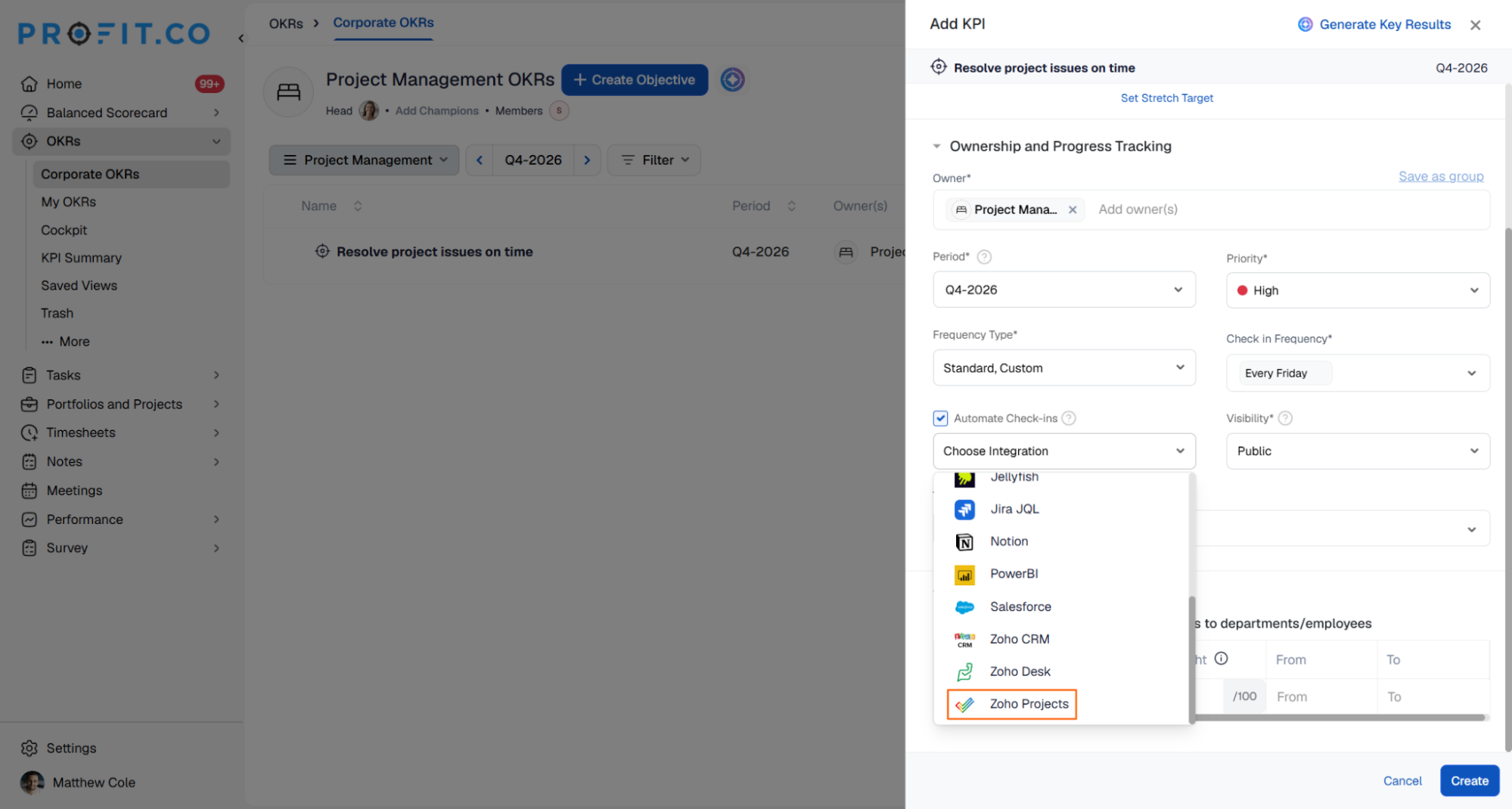
- Select Automate Check-in, then choose Zoho Projects from the Connection dropdown.
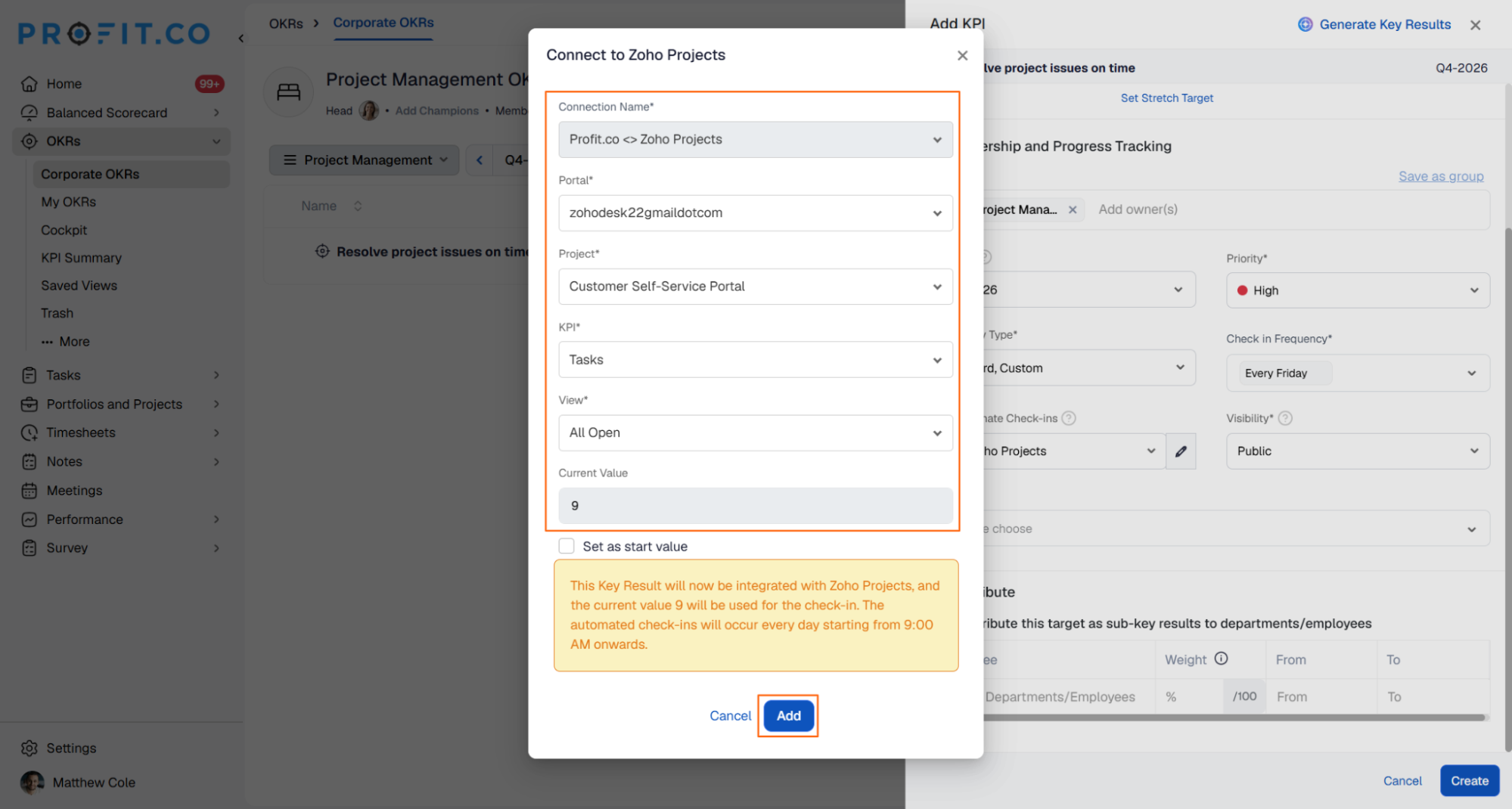
- On the Connect to Zoho Projects tab, choose your Connection Name, Portal, Project, KPI, and the required view.
- Review the Current Value, then click Add. You can optionally enable Set as start value to use the current value as the key result's starting point.
Note: Zoho Projects supports key results of the Increase KPI, Decrease KPI, or Control KPI type.
Step 4
After the key result is created, complete the first check-in to confirm the connection.
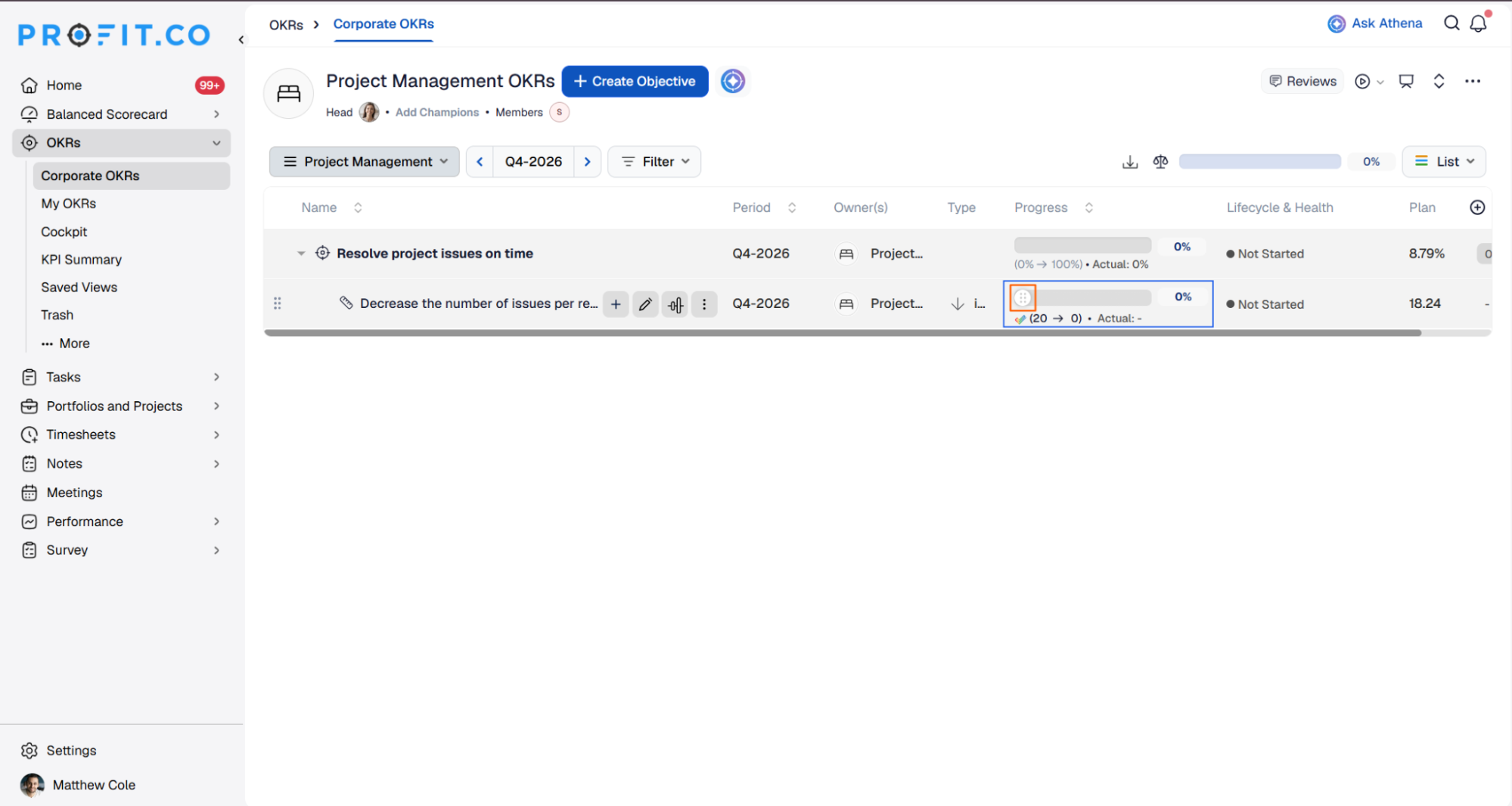
- Click Check-in and complete the check-in to update the status value.
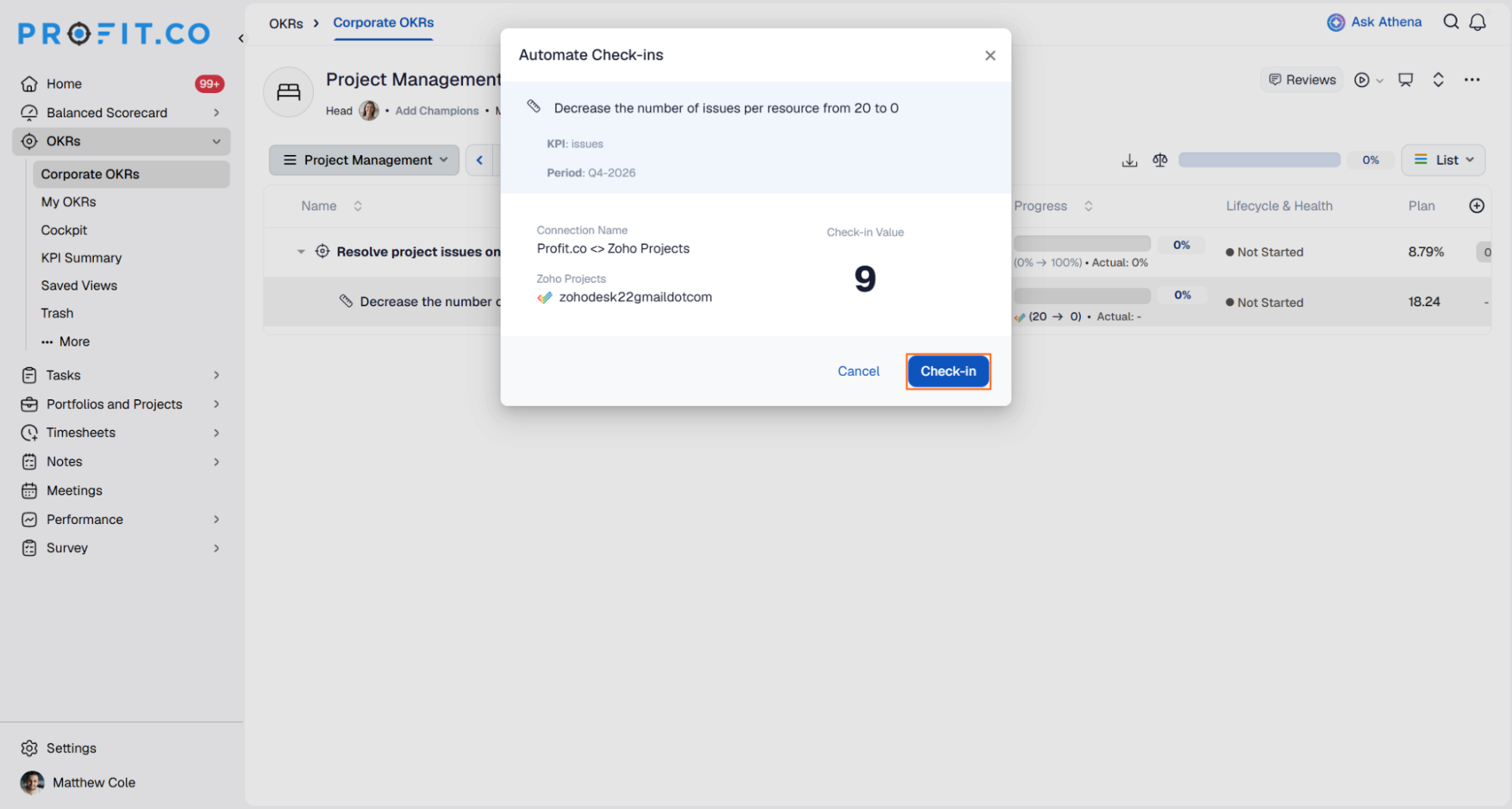
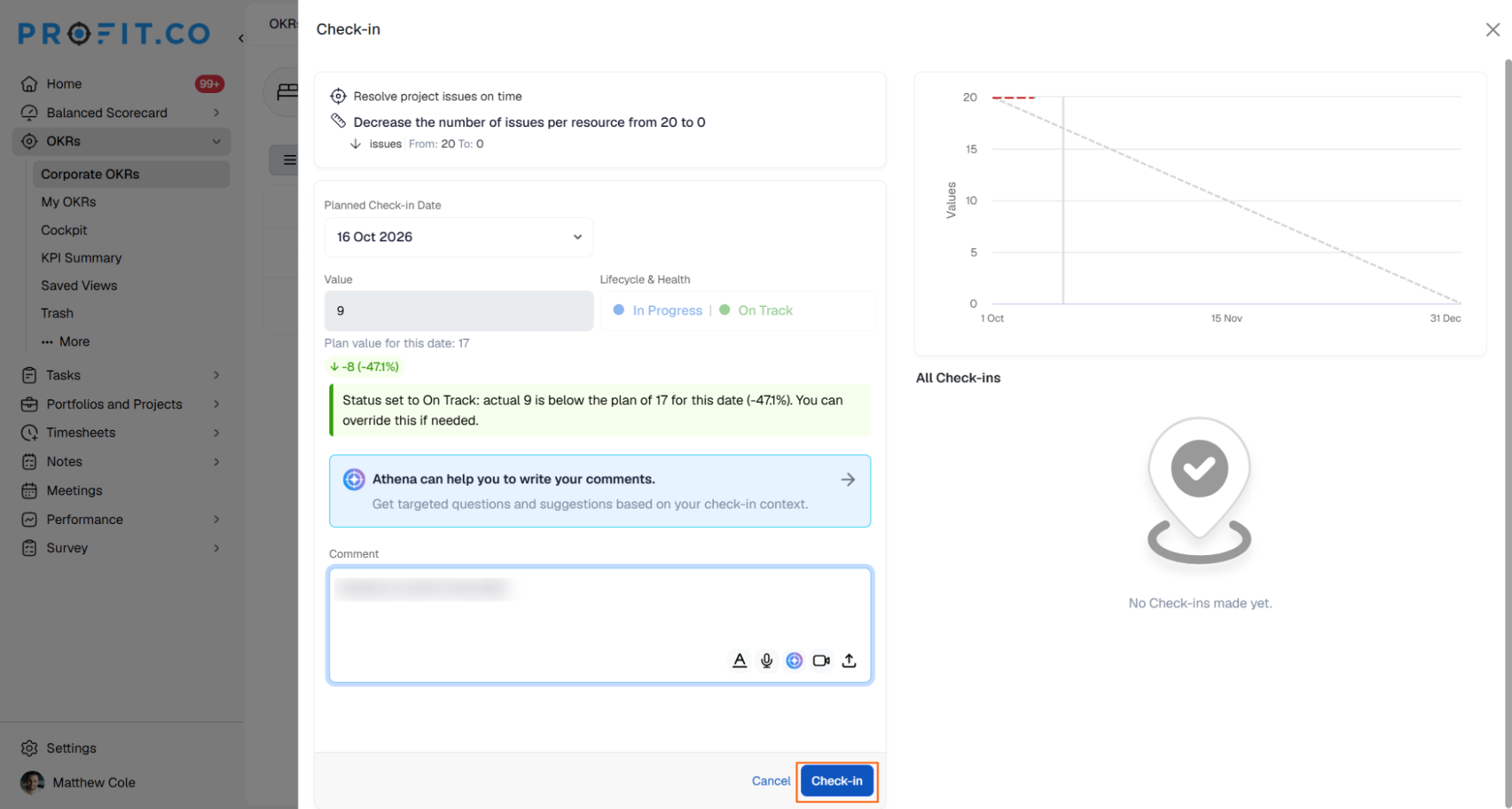
- You will be redirected to the review page. Click CheckIn to apply the progress to your key result.
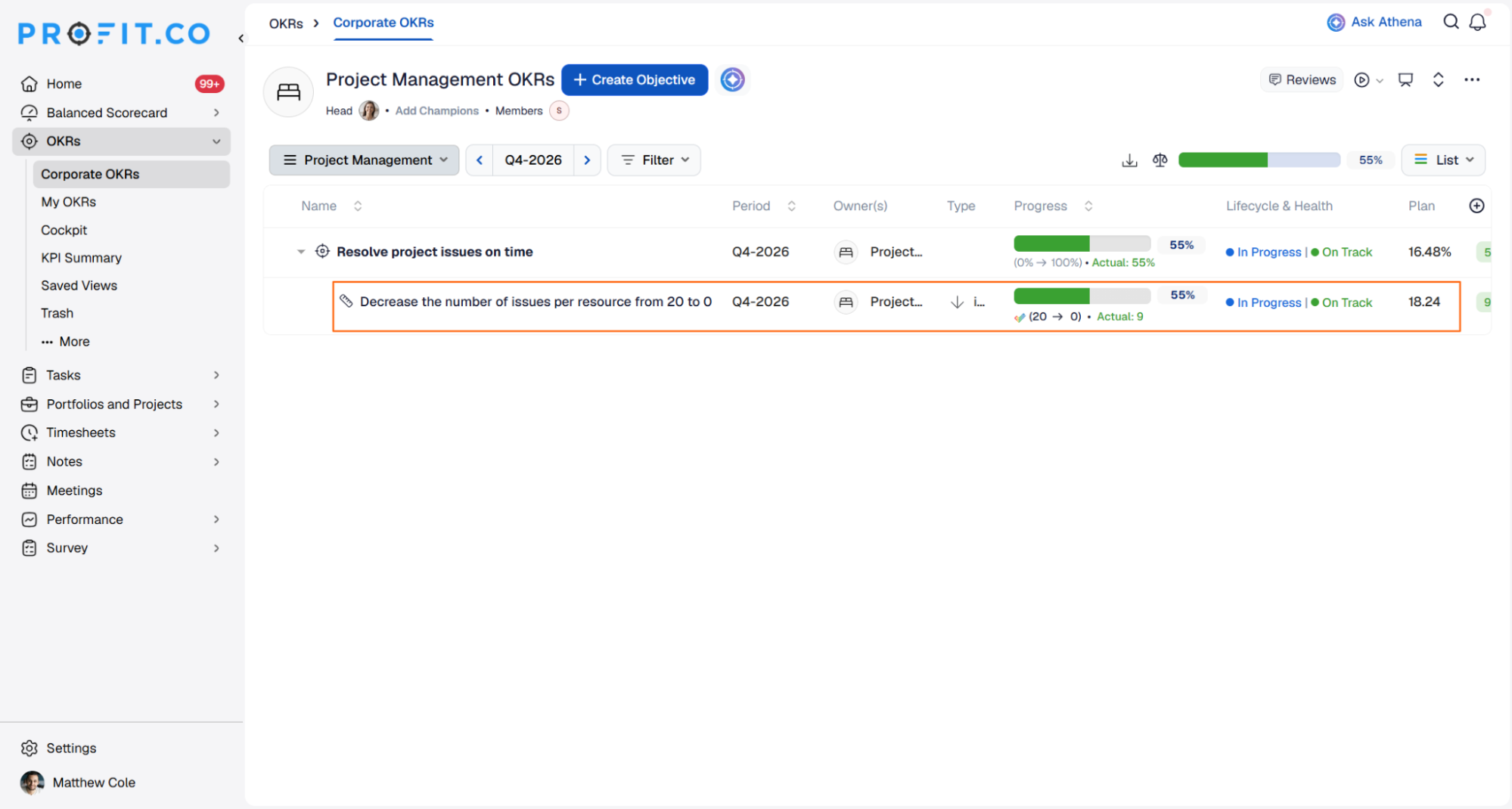
Note: Automatic check-ins run daily at 9:00 AM, based on the user's region.
Summary
By connecting Zoho Projects to Profit.co, you can automate check-in updates for key results tied to project tasks and bugs. After authenticating with Zoho Projects and linking a key result through Automate Check-in, daily automatic check-ins keep progress current without manual data entry.